> ## Documentation Index
> Fetch the complete documentation index at: https://moengage.com/docs/llms.txt
> Use this file to discover all available pages before exploring further.
# Configuring Huawei Push on MoEngage
> Set up Huawei Push Kit callback URLs and HTTPS certificates on the MoEngage Dashboard.
# Developer Guide
Please make sure that you have set up Push Kit on your application. To configure, use the following:
* [Introduction to HMS Push Kit](https://developer.huawei.com/consumer/en/doc/development/HMS-Guides/push-introduction).
* [Push Receipt](https://developer.huawei.com/consumer/en/doc/development/HMS-Guides/push-receipt#receiptright).
# MoEngage Callback URL
| New DataCenter | New Callback URL | Old Callback URL |
| -------------- | ---------------------------------------------------------------------------------- | ---------------------------------------------------------------------------------- |
| Data Center 1 | [https://api-01.moengage.com/hmspush/dlr](https://api-01.moengage.com/hmspush/dlr) | [https://smsapi.moengage.com/hmspush/dlr](https://smsapi.moengage.com/hmspush/dlr) |
| Data Center 2 | [https://api-02.moengage.com/hmspush/dlr](https://api-02.moengage.com/hmspush/dlr) | [https://smsapi.moengage.com/hmspush/dlr](https://smsapi.moengage.com/hmspush/dlr) |
| Data Center 3 | [https://api-03.moengage.com/hmspush/dlr](https://api-03.moengage.com/hmspush/dlr) | [https://smsapi.moengage.com/hmspush/dlr](https://smsapi.moengage.com/hmspush/dlr) |
| Data Center 4 | [https://api-04.moengage.com/hmspush/dlr](https://api-04.moengage.com/hmspush/dlr) | NA |
Update the URL in the callback address while enabling the recipient.
## HTTPS Certificate for MoEngage callback URL
* Select data storage other than the China region when enabling callback receipt.
* Use the following script to generate the HTTPS certificate while enabling the recipient. For more information, refer to [Push Receipt](https://developer.huawei.com/consumer/en/doc/development/HMS-Guides/push-receipt#receiptright).
```python HTTPS certificate generation using Python wrap theme={null}
import ssl
print(ssl.get_server_certificate(('dashboard-01.moengage.com', 443)))
```
# Configuring Huawei Push
To configure Huawei on the MoEngage dashboard:
1. Navigate to **Settings > Channels > Push > App Push > Huawei (Push Amp+)**.
2. Select Huawei (Push Amp+) in the Platforms available on the menu at the top.
.png?fit=max&auto=format&n=Jtvf10ggM77HdKvB&q=85&s=befaae5b1fc90a83f420b4c7060cff50) ## App ID
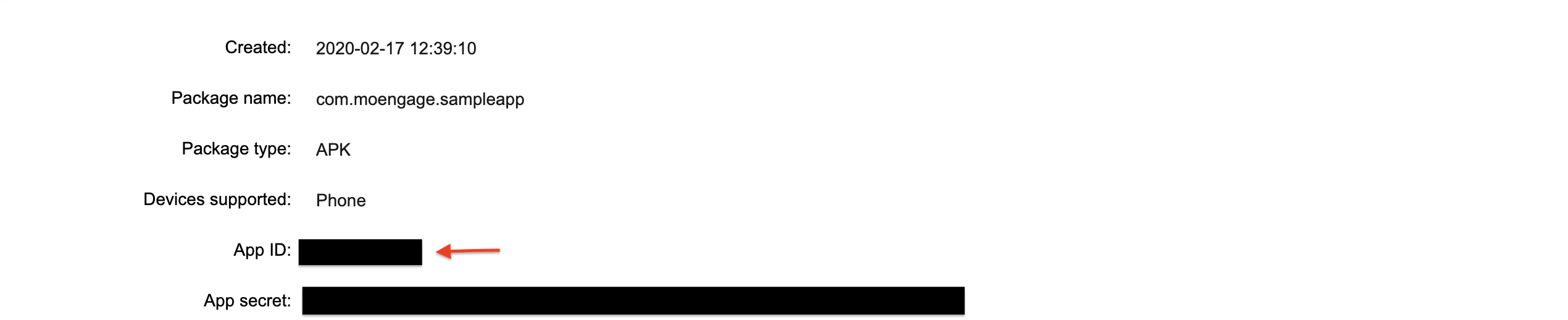
Get the App ID from the [Huawei Developer Console](https://developer.huawei.com/) by navigating to\
**Login > AppGallery Connect > My Apps > Select Your App > Distribute > App Information**
## App ID
Get the App ID from the [Huawei Developer Console](https://developer.huawei.com/) by navigating to\
**Login > AppGallery Connect > My Apps > Select Your App > Distribute > App Information**
 ## App Secret
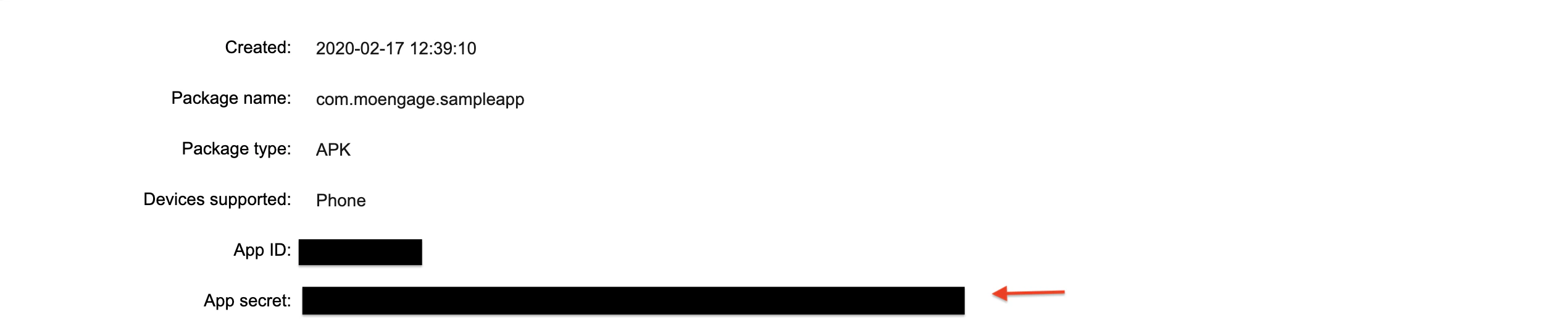
Get the App ID from the [Huawei Developer Console](https://developer.huawei.com/) by navigating to\
**Login > AppGallery Connect > My Apps > Select Your App > Distribute > App Information**
## App Secret
Get the App ID from the [Huawei Developer Console](https://developer.huawei.com/) by navigating to\
**Login > AppGallery Connect > My Apps > Select Your App > Distribute > App Information**
 ## Package Name
The package name for an application is the unique identifier through which the play store recognizes the application. You can find the package of your application in the **build.gradle** file of your application module.
## Package Name
The package name for an application is the unique identifier through which the play store recognizes the application. You can find the package of your application in the **build.gradle** file of your application module.
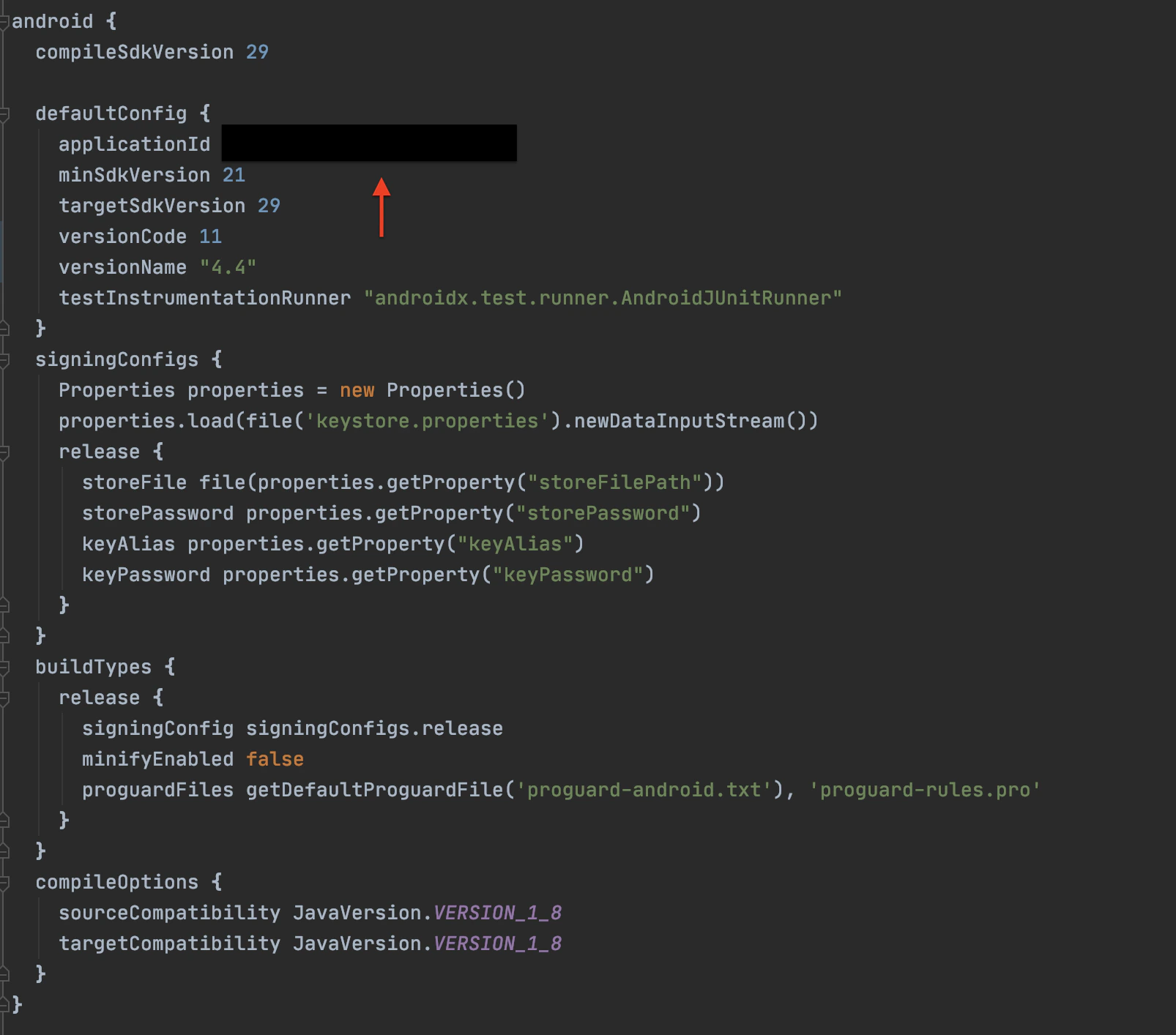 If you have different package names for debug build and signed build configure the package names accordingly in the Test/Live Environment.
## Small Icon Path
As an important part of a notification message, a notification icon is used to identify the content and type of the message. To ensure a consistent user experience, *HUAWEI Push Kit notification icons* inherit the styles of native Android notification icons.
In other words, a notification icon on the notification bar is displayed in a solid color and the notification icon on the status bar is displayed in black or white. The status bar and notification bar share the same resources. For more information, refer to the [guideline document](https://developer.huawei.com/consumer/en/doc/development/HMS-Guides/push-icon-spec).
If you have different package names for debug build and signed build configure the package names accordingly in the Test/Live Environment.
## Small Icon Path
As an important part of a notification message, a notification icon is used to identify the content and type of the message. To ensure a consistent user experience, *HUAWEI Push Kit notification icons* inherit the styles of native Android notification icons.
In other words, a notification icon on the notification bar is displayed in a solid color and the notification icon on the status bar is displayed in black or white. The status bar and notification bar share the same resources. For more information, refer to the [guideline document](https://developer.huawei.com/consumer/en/doc/development/HMS-Guides/push-icon-spec).
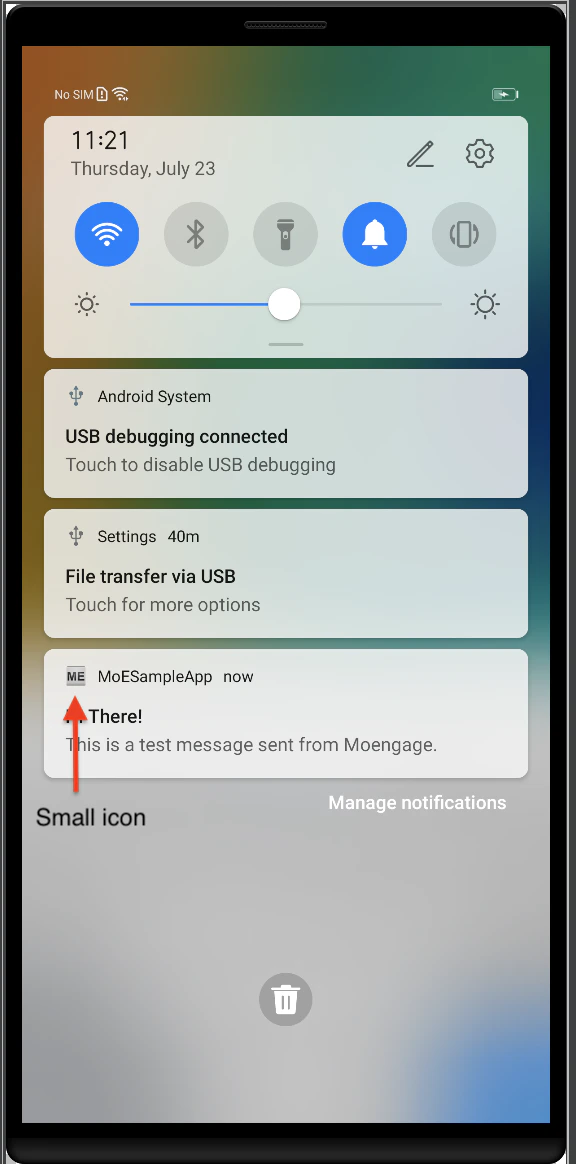 The icon file must be stored in the /res/raw directory of an app. For example, the value **/raw/ic\_launcher** indicates the local icon file **ic\_launcher.xxx** stored in **/res/raw**. Currently, supported file formats include PNG and JPG.