> ## Documentation Index
> Fetch the complete documentation index at: https://moengage.com/docs/llms.txt
> Use this file to discover all available pages before exploring further.
# How to share Android MoEngage SDK logs
> Enable and share verbose MoEngage Android SDK logs with the support team to resolve issues faster.
Sometimes, our support team will ask for logs as the first step to resolve the issue faster. Logs can help us and in some cases you quickly identify the issue and share the exact solution to a problem.
In this document, we list a few steps that you can execute to share the MoEngage SDK logs with the MoEngage support team.
## Enable debug logs
MoEngage SDK logs are best read in verbose format, which prints almost all the steps the SDK takes at any given time. You must first enable verbose-level logging by following this documentation and changing the initialization code a bit.
```Kotlin Kotlin wrap theme={null}
val moEngage = MoEngage.Builder(
application = this,
appId = "YOUR_Workspace_ID",
dataCenter = DataCenter.DATA_CENTER_X
)
.configureLogs(LogConfig(logLevel = LogLevel.VERBOSE, isEnabledForReleaseBuilds = true))
.build()
```
```Java Java theme={null}
MoEngage moEngage = new MoEngage.Builder(this, "YOUR_Workspace_ID", DataCenter.DATA_CENTER_X)
.configureLogs(new LogConfig(LogLevel.VERBOSE, true))
.build();
```
```ReactNative ReactNative theme={null}
MoEngage moEngage = new MoEngage.Builder(this, "YOUR_Workspace_ID", DataCenter.DATA_CENTER_X)
.configureLogs(new LogConfig(LogLevel.VERBOSE, true))
```
```Flutter Flutter theme={null}
MoEngage moEngage = new MoEngage.Builder(this, "YOUR_Workspace_ID", DataCenter.DATA_CENTER_X)
.configureLogs(new LogConfig(LogLevel.VERBOSE, true))
```
Ensure to remove the above lines before the application is pushed to production.
## Android Studio
We will list the steps for sharing logs in Android Studio here, but similar steps apply to other IDEs.
1. First, connect your device to your laptop/PC.
2. Open Android Studio and click on Logcat.
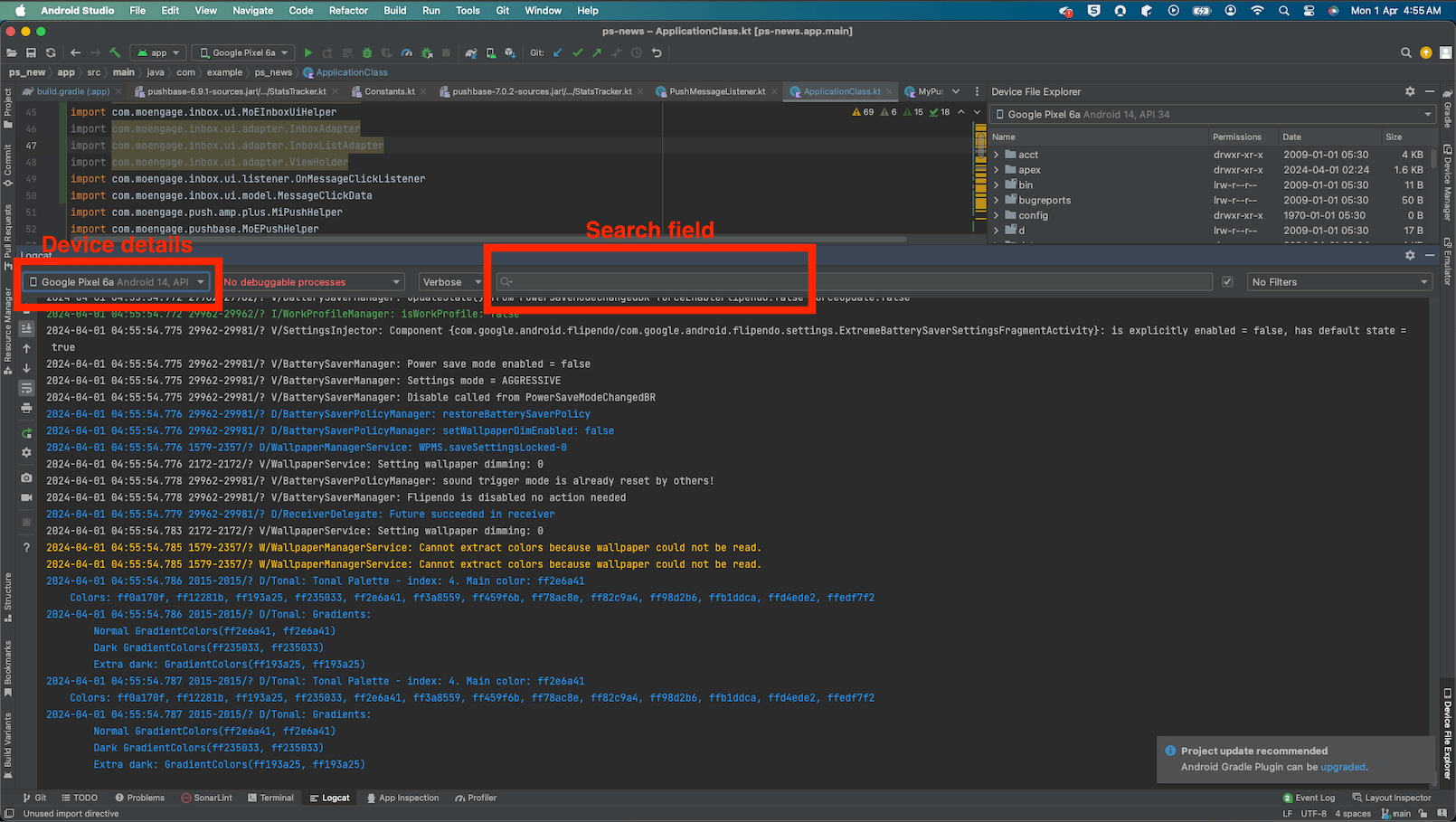
3. Type MoE in the search field to filter only MoEngage logs(Please make sure the device is showing in device details and the correct device is shown).
4. MoEnage SDK-related logs should look like something shown in the picture below.
5. Copy the required lines or all lines in the Logcat, paste them on a text file, and share the file with MoEngage support team.
## Essential Logs
When browsing the logs, you can search for a few keywords to understand what is happening with the various services that MoEngage offers. Please note that verbose logs for MoEngage SDK has to be enabled for keywords to show up.
### Data tracking
**Search string** - sdk/report
**Occurrence** - You can see this string multiple times, and this log gets printed when the app is gone to the background and killed state. There are other cases when this log can be printed, but we will stick to these two conditions for now as we can easily perform background or kill actions. This line is seen 3 seconds after the app goes into the background or killed state.
**Description**
This log line indicates that the API call has been made to MoEngage servers and has succeeded. This API call is dependent on the proper integration of the lifecycle process. You might not see this line when the app goes into the background or killed state if the lifecycle observer isn't properly registered. Troubleshooting article - [How to debug lifecycle issues](/developer-guide/android-sdk/troubleshooting-and-faqs/troubleshooting-and-faqs#Why-is-lifecycle-process-library-important?).
### Push Token
**Search string** - push\_id
**Occurrence** - This string **push\_id** can be seen in sdk/report API call as part of the params. There are other cases when push\_id is sent to MoEngage servers, but since we can easily take the app to background state, we are mentioning only this case here.
**Description**
If this parameter is present and not empty, it indicates that the push token was properly acquired by MoEngage SDK and synced with MoEngage backend servers. You might not see push\_id or empty value if there are problems with your FCM project setup. Please go through the [push integration](/developer-guide/android-sdk/push/basic/push-configuration) steps properly.
### InApps - Sync
**Search string** - inapp/live and find get the line that has getResponse()
**Occurrence** - When the app is opened from the killed state. There are other cases when this API call is made, but we can easily kill the app and open it to see this call, so we are mentioning only this case here.
**Description**
This log line indicates that MoEngage SDK has made an API call to its backend servers to fetch the valid InApps or Nudges for the user. This API call is essential for InApps or Nudges to work as expected and depends on properly registering the lifecycle process. If you don't see this call once you open the app from killed state, go through the troubleshooting article here - [How to debug lifecycle issues.](/developer-guide/android-sdk/troubleshooting-and-faqs/troubleshooting-and-faqs#Why-is-lifecycle-process-library-important?)
### InApps - display not shown
**Search string** - Cannot show
**Occurrence** - This string can be seen when the MoEngage SDK can't show the InApp.
**Description**
This log line indicates that Inpps aren't shown to the user, and the reason for not showing the InApp is also mentioned at the end of the log line.
### Exceptions
While browsing through MoEngage SDK logs, you might encounter error/exception logs, as shown in the above image. It's important to ensure no such logs for smoother integration of MoEngage SDK. Kindly contact our team via support tickets to identify the fix for these issues. We are also listing some common exceptions and their fixes [here](/developer-guide/android-sdk/troubleshooting-and-faqs/troubleshooting-exceptions).
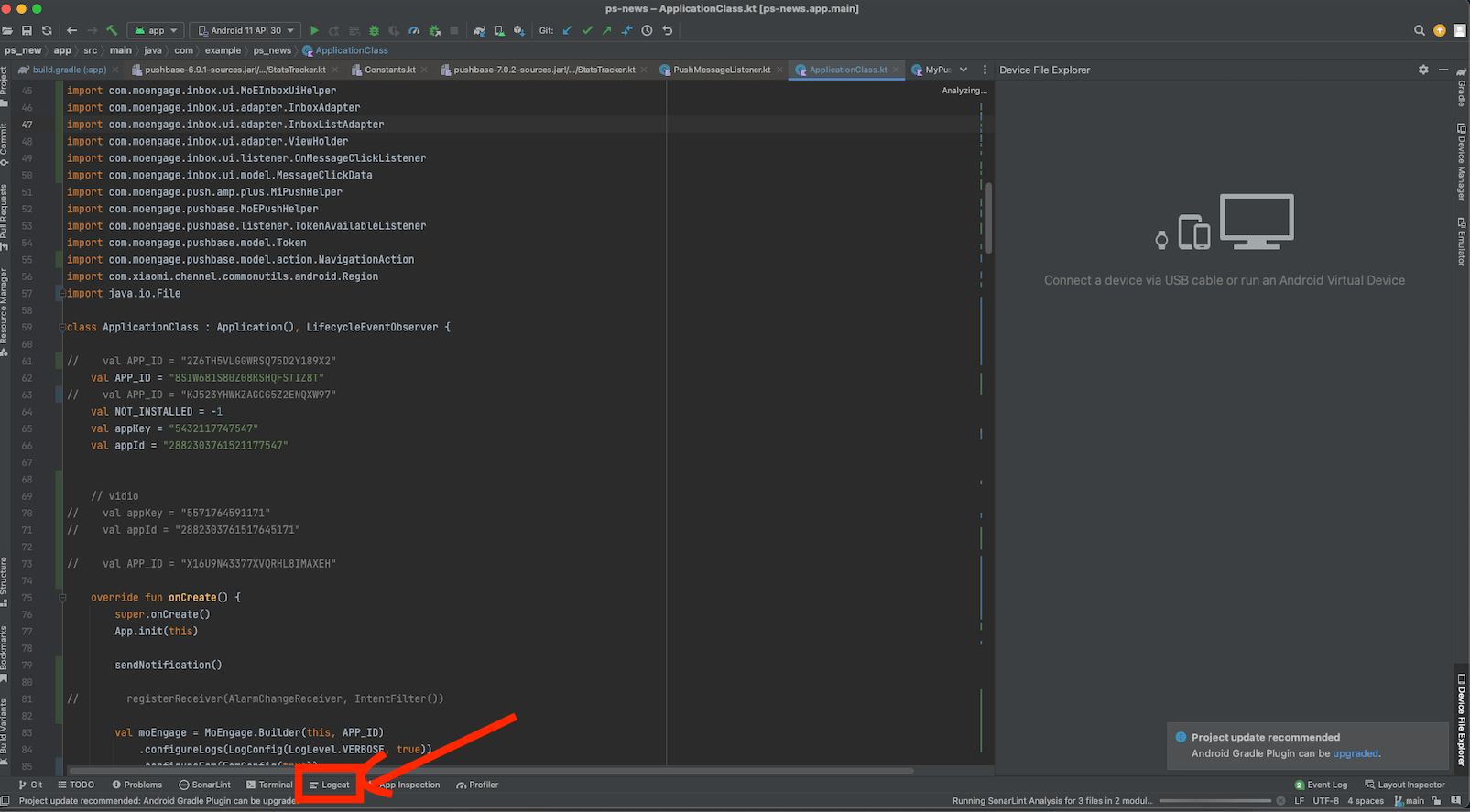 3. Type MoE in the search field to filter only MoEngage logs(Please make sure the device is showing in device details and the correct device is shown).
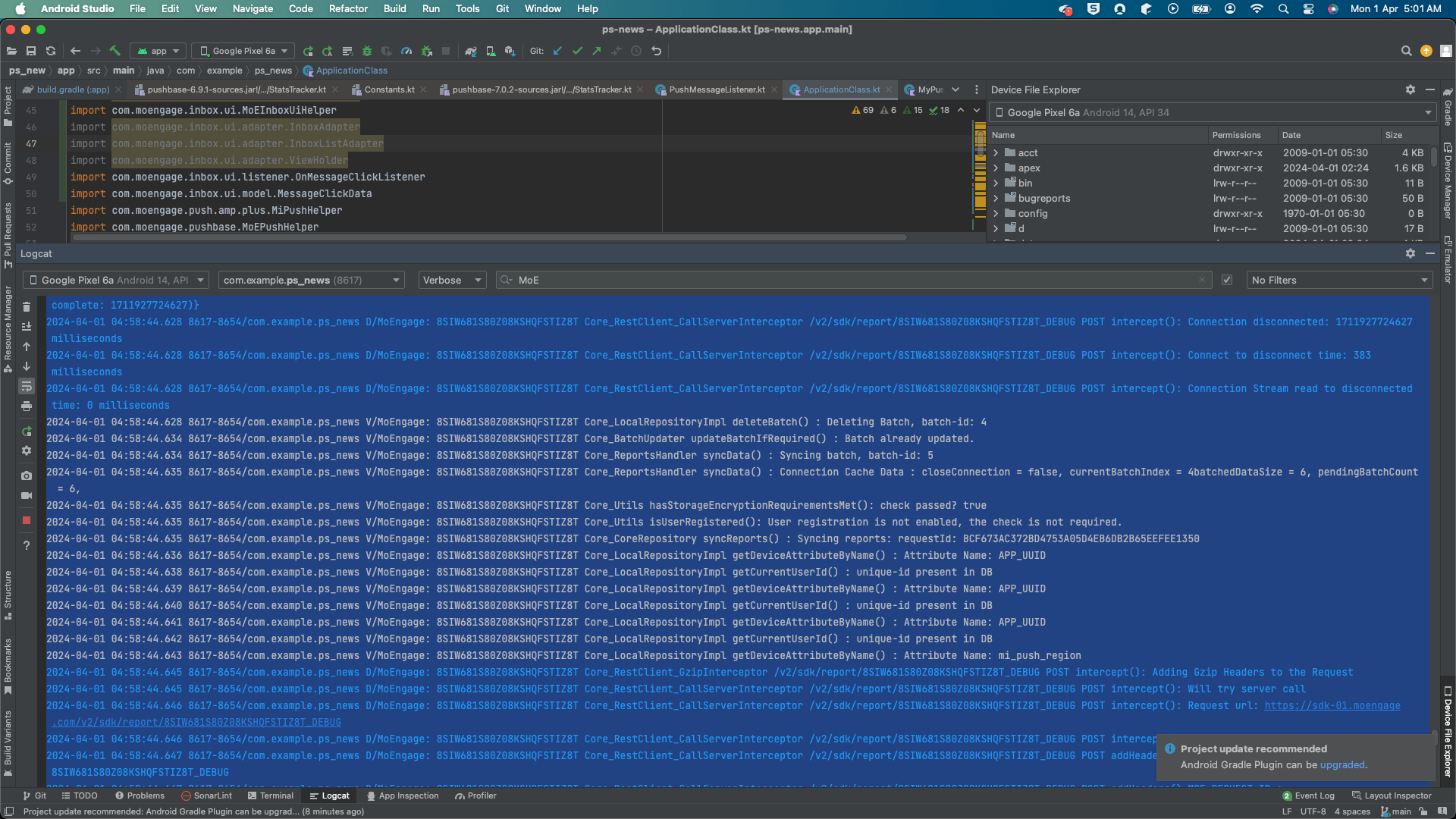 4. MoEnage SDK-related logs should look like something shown in the picture below.
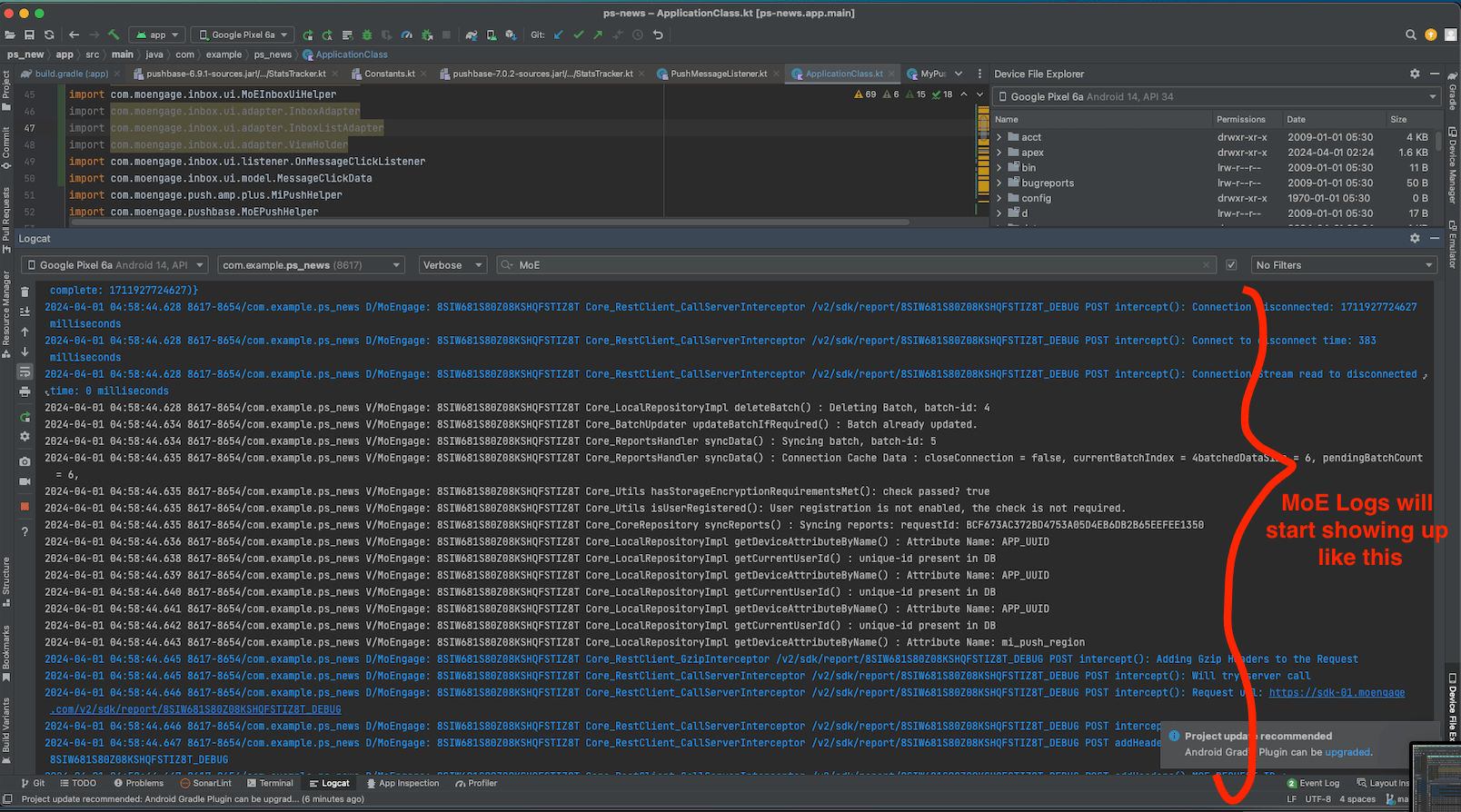 5. Copy the required lines or all lines in the Logcat, paste them on a text file, and share the file with MoEngage support team.
## Essential Logs
When browsing the logs, you can search for a few keywords to understand what is happening with the various services that MoEngage offers. Please note that verbose logs for MoEngage SDK has to be enabled for keywords to show up.
### Data tracking
5. Copy the required lines or all lines in the Logcat, paste them on a text file, and share the file with MoEngage support team.
## Essential Logs
When browsing the logs, you can search for a few keywords to understand what is happening with the various services that MoEngage offers. Please note that verbose logs for MoEngage SDK has to be enabled for keywords to show up.
### Data tracking
 **Search string** - sdk/report
**Occurrence** - You can see this string multiple times, and this log gets printed when the app is gone to the background and killed state. There are other cases when this log can be printed, but we will stick to these two conditions for now as we can easily perform background or kill actions. This line is seen 3 seconds after the app goes into the background or killed state.
**Description**
This log line indicates that the API call has been made to MoEngage servers and has succeeded. This API call is dependent on the proper integration of the lifecycle process. You might not see this line when the app goes into the background or killed state if the lifecycle observer isn't properly registered. Troubleshooting article - [How to debug lifecycle issues](/developer-guide/android-sdk/troubleshooting-and-faqs/troubleshooting-and-faqs#Why-is-lifecycle-process-library-important?).
### Push Token
**Search string** - sdk/report
**Occurrence** - You can see this string multiple times, and this log gets printed when the app is gone to the background and killed state. There are other cases when this log can be printed, but we will stick to these two conditions for now as we can easily perform background or kill actions. This line is seen 3 seconds after the app goes into the background or killed state.
**Description**
This log line indicates that the API call has been made to MoEngage servers and has succeeded. This API call is dependent on the proper integration of the lifecycle process. You might not see this line when the app goes into the background or killed state if the lifecycle observer isn't properly registered. Troubleshooting article - [How to debug lifecycle issues](/developer-guide/android-sdk/troubleshooting-and-faqs/troubleshooting-and-faqs#Why-is-lifecycle-process-library-important?).
### Push Token
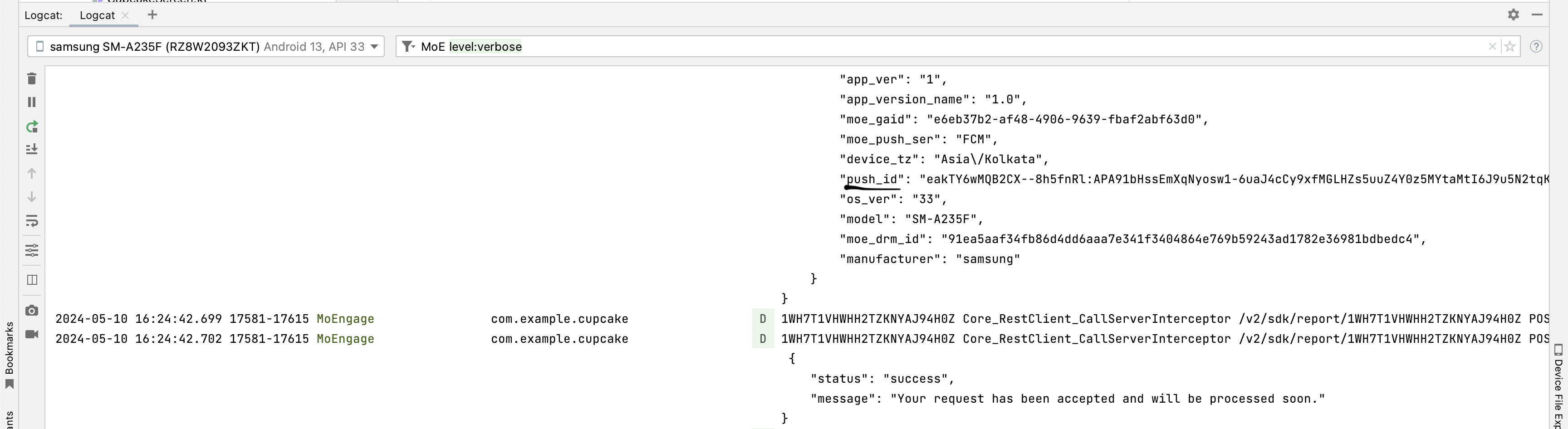 **Search string** - push\_id
**Occurrence** - This string **push\_id** can be seen in sdk/report API call as part of the params. There are other cases when push\_id is sent to MoEngage servers, but since we can easily take the app to background state, we are mentioning only this case here.
**Description**
If this parameter is present and not empty, it indicates that the push token was properly acquired by MoEngage SDK and synced with MoEngage backend servers. You might not see push\_id or empty value if there are problems with your FCM project setup. Please go through the [push integration](/developer-guide/android-sdk/push/basic/push-configuration) steps properly.
### InApps - Sync
**Search string** - push\_id
**Occurrence** - This string **push\_id** can be seen in sdk/report API call as part of the params. There are other cases when push\_id is sent to MoEngage servers, but since we can easily take the app to background state, we are mentioning only this case here.
**Description**
If this parameter is present and not empty, it indicates that the push token was properly acquired by MoEngage SDK and synced with MoEngage backend servers. You might not see push\_id or empty value if there are problems with your FCM project setup. Please go through the [push integration](/developer-guide/android-sdk/push/basic/push-configuration) steps properly.
### InApps - Sync
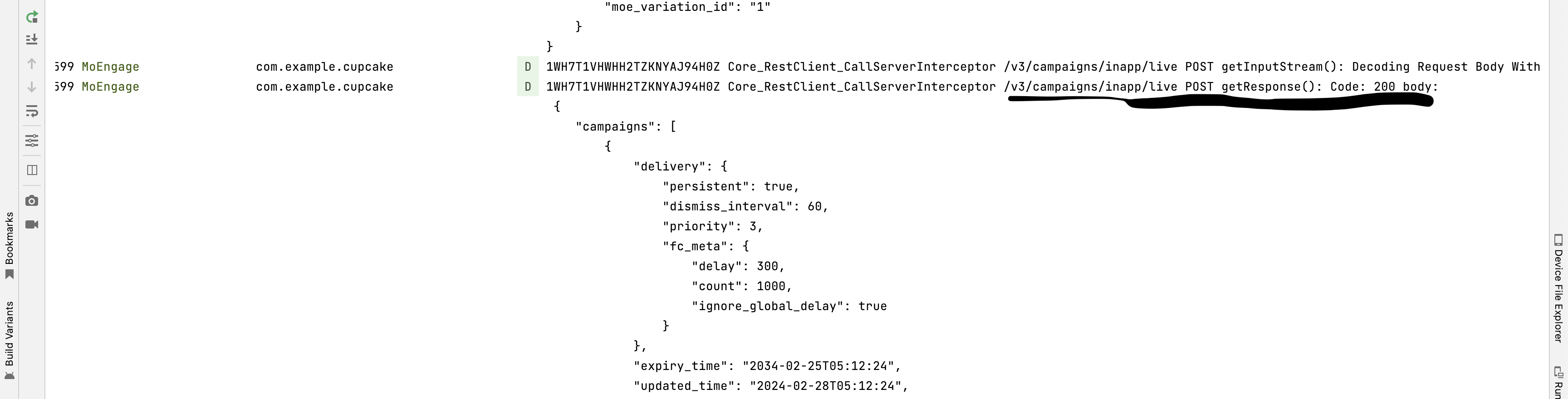 **Search string** - inapp/live and find get the line that has getResponse()
**Occurrence** - When the app is opened from the killed state. There are other cases when this API call is made, but we can easily kill the app and open it to see this call, so we are mentioning only this case here.
**Description**
This log line indicates that MoEngage SDK has made an API call to its backend servers to fetch the valid InApps or Nudges for the user. This API call is essential for InApps or Nudges to work as expected and depends on properly registering the lifecycle process. If you don't see this call once you open the app from killed state, go through the troubleshooting article here - [How to debug lifecycle issues.](/developer-guide/android-sdk/troubleshooting-and-faqs/troubleshooting-and-faqs#Why-is-lifecycle-process-library-important?)
### InApps - display not shown
**Search string** - inapp/live and find get the line that has getResponse()
**Occurrence** - When the app is opened from the killed state. There are other cases when this API call is made, but we can easily kill the app and open it to see this call, so we are mentioning only this case here.
**Description**
This log line indicates that MoEngage SDK has made an API call to its backend servers to fetch the valid InApps or Nudges for the user. This API call is essential for InApps or Nudges to work as expected and depends on properly registering the lifecycle process. If you don't see this call once you open the app from killed state, go through the troubleshooting article here - [How to debug lifecycle issues.](/developer-guide/android-sdk/troubleshooting-and-faqs/troubleshooting-and-faqs#Why-is-lifecycle-process-library-important?)
### InApps - display not shown
 **Search string** - Cannot show
**Occurrence** - This string can be seen when the MoEngage SDK can't show the InApp.
**Description**
This log line indicates that Inpps aren't shown to the user, and the reason for not showing the InApp is also mentioned at the end of the log line.
### Exceptions
**Search string** - Cannot show
**Occurrence** - This string can be seen when the MoEngage SDK can't show the InApp.
**Description**
This log line indicates that Inpps aren't shown to the user, and the reason for not showing the InApp is also mentioned at the end of the log line.
### Exceptions
 While browsing through MoEngage SDK logs, you might encounter error/exception logs, as shown in the above image. It's important to ensure no such logs for smoother integration of MoEngage SDK. Kindly contact our team via support tickets to identify the fix for these issues. We are also listing some common exceptions and their fixes [here](/developer-guide/android-sdk/troubleshooting-and-faqs/troubleshooting-exceptions).