> ## Documentation Index
> Fetch the complete documentation index at: https://moengage.com/docs/llms.txt
> Use this file to discover all available pages before exploring further.
# Sync Your Product Catalog
> Sync your Shopify product catalog to MoEngage to generate personalized recommendations for customers.
When you enable catalog sync, MoEngage fetches your Shopify product data and makes it available for campaigns, flows, and personalization. This article describes the catalog sync operation, lists the data included in the sync, and provides guidance to maintain the catalog.
**Prerequisites**
Basic Recommendations must be enabled for your account before you use catalog sync for personalization. Accounts on the Enterprise plan have Basic Recommendations enabled by default. If you use a different plan, you can contact your Customer Success Manager or the MoEngage Support team to enable this feature.
## Catalog Sync Operation
MoEngage syncs your Shopify product catalog by fetching data from your store on a scheduled basis. Once synced, your catalog serves as a data source for product recommendation blocks, dynamic content in messages, and segmentation filters.
Catalog sync is not enabled by default. To activate it, navigate to your Shopify integration settings in MoEngage and turn the **Catalog Sync** toggle on. Note that the toggle requires a one-time setup step on the MoEngage side before it takes effect.
**One time activation required**
Before catalog sync functions, the MoEngage team must activate them for your workspace. If products do not appear after you enable the toggle, you can contact your Customer Success Manager or raise a support ticket.
## Configure Catalog Sync
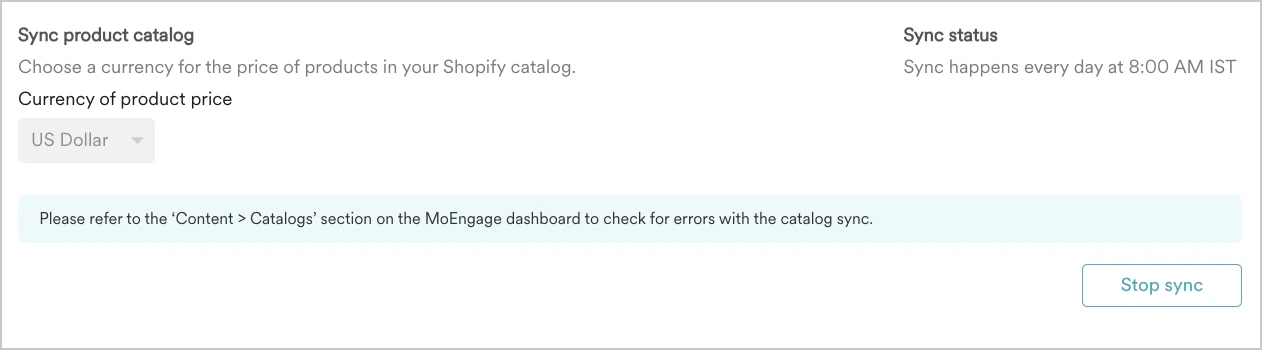
To enable the catalog sync, perform the following steps:
1. In your MoEngage UI, navigate to your **Shopify Integration Settings**.
2. Turn the **Catalog Sync** setting toggle on.
3. Observe the sync status update once the process completes.
 ## Sync Frequency
The catalog refreshes automatically once daily between 8–10 AM IST. To ensure message accuracy, schedule campaigns that rely on catalog attributes such as product price, image, or availability after this window completes. If your store has frequent price changes or flash sales, plan your messaging cadence around this daily sync so that the values in your messages reflect the most recent data.
## Synced Attributes
The following product attributes sync from Shopify to your MoEngage catalog by default:
| Attribute | Description | Shopify Source Field |
| ---------------------------- | ------------------------------------------------------------------------------------------------------------------------------------------------------------------------------------------------------------------------------------------------------------------------------------------------------------------------------ | --------------------- |
| **Variation ID** | The unique identifier for each product variant (size, color, and so on). This serves as the primary key for each item in your catalog. | Variant ID |
| **Product ID** | The unique identifier for the parent product. Multiple variation IDs can have the same product IDs. | Product ID |
| **Link** | The URL to access the item on your storefront. | Product URL handle |
| **Image Link** | The URL of the primary product image associated with the variation ID. | Primary image URL |
| **Vendor Name** | The name of the product vendor, brand, or supplier. | Vendor / Brand |
| **SKU (Stock Keeping Unit)** | This is your internal product code for this variant. | SKU |
| **Variation Title** | The name of the specific variant (for example: Blue / XL). | Variant name |
| **Currency** | The currency in which you list the product price. This matches the selection you make while you enable the sync. | Store currency |
| **Price** | The listed price for this variant. | Variant price |
| **Quantity** | The available inventory for this variant present in your store. | Inventory quantity |
| **Status** | The current product state:
## Sync Frequency
The catalog refreshes automatically once daily between 8–10 AM IST. To ensure message accuracy, schedule campaigns that rely on catalog attributes such as product price, image, or availability after this window completes. If your store has frequent price changes or flash sales, plan your messaging cadence around this daily sync so that the values in your messages reflect the most recent data.
## Synced Attributes
The following product attributes sync from Shopify to your MoEngage catalog by default:
| Attribute | Description | Shopify Source Field |
| ---------------------------- | ------------------------------------------------------------------------------------------------------------------------------------------------------------------------------------------------------------------------------------------------------------------------------------------------------------------------------ | --------------------- |
| **Variation ID** | The unique identifier for each product variant (size, color, and so on). This serves as the primary key for each item in your catalog. | Variant ID |
| **Product ID** | The unique identifier for the parent product. Multiple variation IDs can have the same product IDs. | Product ID |
| **Link** | The URL to access the item on your storefront. | Product URL handle |
| **Image Link** | The URL of the primary product image associated with the variation ID. | Primary image URL |
| **Vendor Name** | The name of the product vendor, brand, or supplier. | Vendor / Brand |
| **SKU (Stock Keeping Unit)** | This is your internal product code for this variant. | SKU |
| **Variation Title** | The name of the specific variant (for example: Blue / XL). | Variant name |
| **Currency** | The currency in which you list the product price. This matches the selection you make while you enable the sync. | Store currency |
| **Price** | The listed price for this variant. | Variant price |
| **Quantity** | The available inventory for this variant present in your store. | Inventory quantity |
| **Status** | The current product state: - **Active**: The product is ready to sell and is available to customers.
- **Archived**: The product is no longer sold and is unavailable to customers.
- **Draft**: The product is not ready to sell. Duplicated and unarchived products are set to draft by default.
| Product status |
| **Description** | The product description text (with HTML stripped). | Product body HTML |
| **Created At** | The date you created the product in Shopify (ISO 8601 format). | Product creation date |
| **Updated At** | The date you last modified the product in Shopify (ISO 8601 format). | Last modified date |
## Excluded Data
The following data does not sync in the default catalog sync:
* **Shopify product metafields**: Custom fields (for example, material type, loyalty attributes) do not sync by default. If your logic depends on metafield values, contact your Customer Success Manager to discuss options.
* **SKU as the primary identifier**: The catalog identifies items by **Variation ID**. While **SKU** is available as an attribute, you cannot set it as the primary ID for catalog items.
* **Third-party app fields**: Only native Shopify product fields are available for sync.
## Essential Considerations for Sync and Personalization
To use your catalog data effectively, review the following information:
Webhook events, such as **Shopify - Order Placed** and **Shopify - Add to Cart**, do not include product or image URLs in their payloads. To use these attributes in campaign personalization, use catalog enrichment at send time. MoEngage looks up the relevant product in your synced catalog and attaches the attributes to the message. For more information, refer [here](/user-guide/content/recommendations/getting-started/overview).
Field values must be consistent in type across your catalog for products to import correctly. For example, if the **Variation Title** field contains text strings for most products but numeric values for others, MoEngage skips the products with numeric values. You can review your Shopify data for inconsistent formats in the **SKU**, **Price**, and **Variation Title** fields before you sync.
## Verify the Catalog Sync
To confirm the sync completes correctly, perform the following steps:
1. In your MoEngage account, navigate to the **Catalog** section and check the total product count.
2. Compare this count to your active product count in Shopify (Shopify admin > **Products**, filtering for active, non-draft items).
3. If the count is lower than expected, check your Shopify product data for fields with inconsistent values, particularly **Variation Title**.
4. If products are still missing despite consistent data, contact support with your workspace ID and the approximate number of missing products.
## Troubleshoot
To troubleshoot catalog issues, review the following table:
| Symptom | What to check |
| --------------------------------------------------------- | ------------------------------------------------------------------------------------------------------------------------------------------------------------------- |
| Products do not appear after you enable catalog sync. | Catalog sync requires a one time activation. Confirm with your Customer Success Manager or raise a support ticket to verify activation for your workspace. |
| MoEngage excludes some products after the sync completes. | Check for fields with inconsistent data types (for example, text vs. numeric) in your Shopify product feed. Products with non-conforming field types do not import. |
| Messages display outdated product prices or images. | The catalog refreshes once daily, between 8–10 AM IST. Campaigns sent before the next sync use the values from the previous sync. |
| The catalog does not include metafield values. | The default sync does not include metafields. Contact your Customer Success Manager to discuss options for including metafield data. |
| The SKU does not serve as the primary product identifier. | The catalog uses **Variation ID** as its unique identifier. **SKU** is available as an attribute but you cannot set it as the primary ID for catalog items. |
**Information**
If you have questions about your Shopify integration, read our [FAQs](/developer-guide/ecommerce-platforms/shopify/faqs).