> ## Documentation Index
> Fetch the complete documentation index at: https://moengage.com/docs/llms.txt
> Use this file to discover all available pages before exploring further.
# JWT Authentication
> Secure your MoEngage data collection by implementing JWT authentication in your Flutter application.
## Overview
JWT (JSON Web Token) authentication is a standard method for securely verifying user identity. By implementing JWT authentication, you add a critical layer of security to your data collection process with MoEngage.
The feature ensures that the data sent on behalf of your identified users is authentic and has not been tampered with. This security is achieved by requiring a token that is cryptographically signed by your own server, which prevents unauthorized users from impersonating your legitimate users.
**Prerequisites**
Before you begin the implementation, ensure you meet the following requirements:
* Your application must use the MoEngage Flutter Core plugin version ***11.0.0*** or higher to access the JWT authentication feature.
* You must have access to your MoEngage dashboard to manage public keys and configure the feature's enforcement settings. For detailed information on enforcement settings, [refer here](/docs/user-guide/settings/account/security/sdk-authentication#step-2-select-an-enforcement-mode).
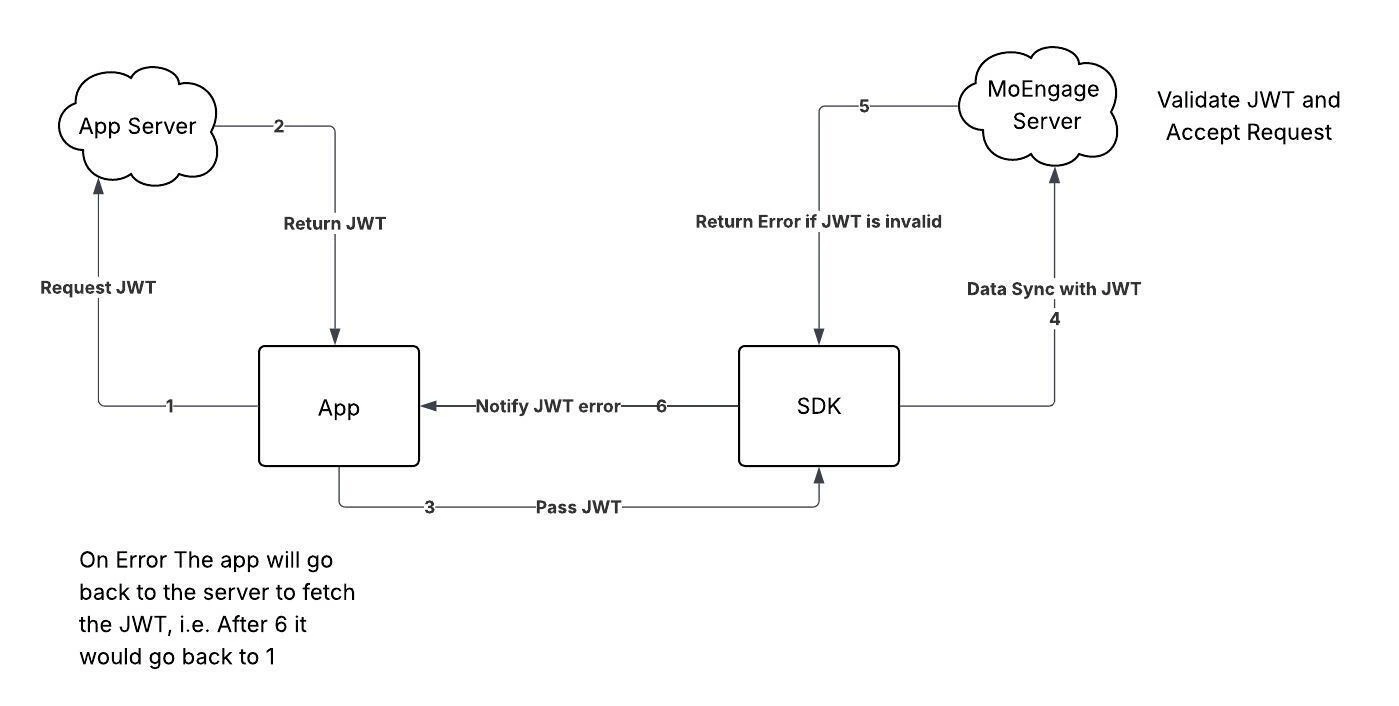
The following diagram illustrates the interaction between your application, your server, the MoEngage SDK, and the MoEngage server:
 ## Integration
Perform the following to integrate JWT authentication into your Flutter application.
### Step 1: Enable JWT Authentication
Enable JWT authentication during native SDK initialization on each platform. Follow the instructions that match the initialization method your application uses. Steps 2 and 3 are the same for both methods.
If you use the [config generator](https://app-cdn.moengage.com/sdk/integration/config/index.html) to produce your configuration files, set **Enable JWT Authorisation** to **Yes**. The generated files then contain the keys described below.
#### Android
**Manual Initialization**
Configure the ***NetworkAuthorizationConfig*** property on the ***MoEngage.Builder*** object. For more information, refer to [Android SDK Initialization](/docs/developer-guide/flutter-sdk/sdk-integration/sdk-initialization/manual-initialization/android-sdk-initialization).
```kotlin Kotlin wrap theme={null}
import com.moengage.core.DataCenter
import com.moengage.core.MoEngage
import com.moengage.core.config.NetworkAuthorizationConfig
import com.moengage.core.config.NetworkRequestConfig
import com.moengage.flutter.MoEInitializer
val moEngage = MoEngage.Builder(this, "YOUR_WORKSPACE_ID", DataCenter.DATA_CENTER_X)
.configureNetworkRequest(NetworkRequestConfig(NetworkAuthorizationConfig(isJwtEnabled = true)))
MoEInitializer.initialiseDefaultInstance(context = this, builder = moEngage)
```
```java Java wrap theme={null}
import com.moengage.core.DataCenter;
import com.moengage.core.MoEngage;
import com.moengage.core.config.NetworkAuthorizationConfig;
import com.moengage.core.config.NetworkRequestConfig;
import com.moengage.flutter.MoEInitializer;
MoEngage.Builder builder = MoEngage.builder(this, "YOUR_WORKSPACE_ID", DataCenter.getDataCenterX())
.configureNetworkRequest(new NetworkRequestConfig(new NetworkAuthorizationConfig(true)));
MoEInitializer.initialiseDefaultInstance(this, builder);
```
**File-Based Initialization**
Add the following key to your `moengage.xml` configuration file. For more information, refer to [File Based Initialization](/docs/developer-guide/flutter-sdk/sdk-integration/sdk-initialization/file-based-initialization/file-based-initialization#android-configuration-reference).
```xml moengage.xml theme={null}
true
```
#### iOS
**Manual Initialization**
Configure the ***networkConfig*** property on the ***MoEngageSDKConfig*** object. For more information, refer to [iOS SDK Initialization](/docs/developer-guide/flutter-sdk/sdk-integration/sdk-initialization/manual-initialization/ios-sdk-initialization).
```swift Swift wrap theme={null}
let sdkConfig = MoEngageSDKConfig(appId: "YOUR_WORKSPACE_ID", dataCenter: .YOUR_DATA_CENTER)
sdkConfig.networkConfig = MoEngageNetworkRequestConfig(authorizationConfig: MoEngageNetworkAuthorizationConfig(isJwtEnabled: true))
MoEngageInitializer.sharedInstance.initializeDefaultInstance(sdkConfig, launchOptions: launchOptions)
```
```objectivec Objective-C wrap theme={null}
MoEngageSDKConfig* sdkConfig = [[MoEngageSDKConfig alloc] initWithAppId:@"YOUR_WORKSPACE_ID" dataCenter:YOUR_DATA_CENTER];
sdkConfig.networkConfig = [[MoEngageNetworkRequestConfig alloc] initWithAuthorizationConfig:[[MoEngageNetworkAuthorizationConfig alloc] initWithIsJwtEnabled:YES]];
[[MoEngageInitializer sharedInstance] initializeDefaultInstance:sdkConfig launchOptions:launchOptions];
```
**File-Based Initialization**
Add the following key to the `MoEngage` dictionary in your `Info.plist`. For more information, refer to [File Based Initialization](/docs/developer-guide/flutter-sdk/sdk-integration/sdk-initialization/file-based-initialization/file-based-initialization#ios-configuration-reference).
```xml Info.plist theme={null}
IsJwtEnabled
```
### Step 2: Pass the JWT to the SDK
Your application is responsible for managing the JWT lifecycle. The recommended flow is to fetch a token when the user logs in and pass the token to the SDK. You should also check whether the token has expired on subsequent app launches and fetch a new one if necessary.
Use the ***passAuthenticationDetails()*** method on the ***MoEngageFlutter*** object to provide the token to the SDK.
```dart Dart wrap theme={null}
import 'package:moengage_flutter/moengage_flutter.dart';
final MoEngageFlutter _moengagePlugin = MoEngageFlutter(YOUR_WORKSPACE_ID);
_moengagePlugin.passAuthenticationDetails(
AuthenticationDetailsRequest(
authenticationType: AuthenticationType.jwt,
data: JwtAuthenticationData(
token: 'YOUR_JWT_TOKEN',
userIdentifier: 'USER_IDENTIFIER',
),
),
);
```
For detailed information, refer to [Classes and Enums](#classes-and-enums).
### Step 3: Register the Callback Handler and Handle Authentication Errors
The SDK delivers token validation errors returned by the MoEngage server through a callback. Register a handler using ***setAuthenticationErrorCallbackHandler()*** so your application can fetch and provide a new token when authentication fails. This method takes a function whose `typedef` is `AuthenticationErrorCallbackHandler(AuthenticationErrorData data)`.
Register the handler in a global scope, such as the `initState()` of your root widget, so your application always receives callbacks.
```dart Dart wrap theme={null}
import 'package:moengage_flutter/moengage_flutter.dart';
final MoEngageFlutter _moengagePlugin = MoEngageFlutter(YOUR_WORKSPACE_ID);
_moengagePlugin.setAuthenticationErrorCallbackHandler(_onAuthenticationError);
void _onAuthenticationError(AuthenticationErrorData data) {
if (data.authenticationType == AuthenticationType.jwt) {
final JwtAuthenticationErrorData errorData =
data.data as JwtAuthenticationErrorData;
final JwtErrorCode jwtError = errorData.code;
final String message = errorData.message;
// Take appropriate action based on jwtError.
// For example, fetch a new token and call passAuthenticationDetails() again.
}
}
```
To stop receiving the callback, pass `null` to the same method.
```dart Dart wrap theme={null}
_moengagePlugin.setAuthenticationErrorCallbackHandler(null);
```
For detailed information, refer to [Classes and Enums](#classes-and-enums).
## Classes and Enums
The following classes and enums define the data structures used by the JWT authentication methods described in this guide. Use them when constructing your token payload and handling errors.
```dart Dart wrap theme={null}
// Payload accepted by passAuthenticationDetails().
class AuthenticationDetailsRequest {
AuthenticationDetailsRequest({
required this.authenticationType,
required this.data,
});
AuthenticationType authenticationType;
AuthenticationDetails data; // For JWT, use JwtAuthenticationData.
}
// Authentication scheme used to authenticate the SDK's network requests.
enum AuthenticationType { jwt }
// JWT specific authentication payload.
final class JwtAuthenticationData extends AuthenticationDetails {
JwtAuthenticationData({
required this.token,
required this.userIdentifier,
});
String token;
String userIdentifier;
}
// Payload delivered to AuthenticationErrorCallbackHandler.
class AuthenticationErrorData {
AuthenticationErrorData({
required this.platform,
required this.accountMeta,
required this.authenticationType,
required this.data,
});
Platforms platform;
AccountMeta accountMeta;
AuthenticationType authenticationType;
AuthenticationErrorDetails data; // For JWT, use JwtAuthenticationErrorData.
}
// JWT specific error details.
final class JwtAuthenticationErrorData extends AuthenticationErrorDetails {
JwtAuthenticationErrorData({
required this.code,
required this.token,
required this.userIdentifier,
required this.message,
});
JwtErrorCode code;
String token;
String userIdentifier;
String message;
}
// Reason the JWT authentication failed.
enum JwtErrorCode {
timeConstraintFailure,
decryptionFailed,
headerTypeIncompatible,
payloadContentMissing,
invalidSignature,
identifierMismatch,
unknown,
tokenNotAvailable,
}
```
**Information**
* If an API request fails due to an authentication error, the SDK will not retry the request until your application provides a new token.
* After 10 consecutive authentication failures in a single session, the SDK will stop attempting to sync data until the next session begins. This counter resets after any successful sync.
* Upon user logout, if a data sync fails due to a JWT error, the pending data will be deleted, and no retry will be attempted.
## Integration
Perform the following to integrate JWT authentication into your Flutter application.
### Step 1: Enable JWT Authentication
Enable JWT authentication during native SDK initialization on each platform. Follow the instructions that match the initialization method your application uses. Steps 2 and 3 are the same for both methods.
If you use the [config generator](https://app-cdn.moengage.com/sdk/integration/config/index.html) to produce your configuration files, set **Enable JWT Authorisation** to **Yes**. The generated files then contain the keys described below.
#### Android
**Manual Initialization**
Configure the ***NetworkAuthorizationConfig*** property on the ***MoEngage.Builder*** object. For more information, refer to [Android SDK Initialization](/docs/developer-guide/flutter-sdk/sdk-integration/sdk-initialization/manual-initialization/android-sdk-initialization).
```kotlin Kotlin wrap theme={null}
import com.moengage.core.DataCenter
import com.moengage.core.MoEngage
import com.moengage.core.config.NetworkAuthorizationConfig
import com.moengage.core.config.NetworkRequestConfig
import com.moengage.flutter.MoEInitializer
val moEngage = MoEngage.Builder(this, "YOUR_WORKSPACE_ID", DataCenter.DATA_CENTER_X)
.configureNetworkRequest(NetworkRequestConfig(NetworkAuthorizationConfig(isJwtEnabled = true)))
MoEInitializer.initialiseDefaultInstance(context = this, builder = moEngage)
```
```java Java wrap theme={null}
import com.moengage.core.DataCenter;
import com.moengage.core.MoEngage;
import com.moengage.core.config.NetworkAuthorizationConfig;
import com.moengage.core.config.NetworkRequestConfig;
import com.moengage.flutter.MoEInitializer;
MoEngage.Builder builder = MoEngage.builder(this, "YOUR_WORKSPACE_ID", DataCenter.getDataCenterX())
.configureNetworkRequest(new NetworkRequestConfig(new NetworkAuthorizationConfig(true)));
MoEInitializer.initialiseDefaultInstance(this, builder);
```
**File-Based Initialization**
Add the following key to your `moengage.xml` configuration file. For more information, refer to [File Based Initialization](/docs/developer-guide/flutter-sdk/sdk-integration/sdk-initialization/file-based-initialization/file-based-initialization#android-configuration-reference).
```xml moengage.xml theme={null}
true
```
#### iOS
**Manual Initialization**
Configure the ***networkConfig*** property on the ***MoEngageSDKConfig*** object. For more information, refer to [iOS SDK Initialization](/docs/developer-guide/flutter-sdk/sdk-integration/sdk-initialization/manual-initialization/ios-sdk-initialization).
```swift Swift wrap theme={null}
let sdkConfig = MoEngageSDKConfig(appId: "YOUR_WORKSPACE_ID", dataCenter: .YOUR_DATA_CENTER)
sdkConfig.networkConfig = MoEngageNetworkRequestConfig(authorizationConfig: MoEngageNetworkAuthorizationConfig(isJwtEnabled: true))
MoEngageInitializer.sharedInstance.initializeDefaultInstance(sdkConfig, launchOptions: launchOptions)
```
```objectivec Objective-C wrap theme={null}
MoEngageSDKConfig* sdkConfig = [[MoEngageSDKConfig alloc] initWithAppId:@"YOUR_WORKSPACE_ID" dataCenter:YOUR_DATA_CENTER];
sdkConfig.networkConfig = [[MoEngageNetworkRequestConfig alloc] initWithAuthorizationConfig:[[MoEngageNetworkAuthorizationConfig alloc] initWithIsJwtEnabled:YES]];
[[MoEngageInitializer sharedInstance] initializeDefaultInstance:sdkConfig launchOptions:launchOptions];
```
**File-Based Initialization**
Add the following key to the `MoEngage` dictionary in your `Info.plist`. For more information, refer to [File Based Initialization](/docs/developer-guide/flutter-sdk/sdk-integration/sdk-initialization/file-based-initialization/file-based-initialization#ios-configuration-reference).
```xml Info.plist theme={null}
IsJwtEnabled
```
### Step 2: Pass the JWT to the SDK
Your application is responsible for managing the JWT lifecycle. The recommended flow is to fetch a token when the user logs in and pass the token to the SDK. You should also check whether the token has expired on subsequent app launches and fetch a new one if necessary.
Use the ***passAuthenticationDetails()*** method on the ***MoEngageFlutter*** object to provide the token to the SDK.
```dart Dart wrap theme={null}
import 'package:moengage_flutter/moengage_flutter.dart';
final MoEngageFlutter _moengagePlugin = MoEngageFlutter(YOUR_WORKSPACE_ID);
_moengagePlugin.passAuthenticationDetails(
AuthenticationDetailsRequest(
authenticationType: AuthenticationType.jwt,
data: JwtAuthenticationData(
token: 'YOUR_JWT_TOKEN',
userIdentifier: 'USER_IDENTIFIER',
),
),
);
```
For detailed information, refer to [Classes and Enums](#classes-and-enums).
### Step 3: Register the Callback Handler and Handle Authentication Errors
The SDK delivers token validation errors returned by the MoEngage server through a callback. Register a handler using ***setAuthenticationErrorCallbackHandler()*** so your application can fetch and provide a new token when authentication fails. This method takes a function whose `typedef` is `AuthenticationErrorCallbackHandler(AuthenticationErrorData data)`.
Register the handler in a global scope, such as the `initState()` of your root widget, so your application always receives callbacks.
```dart Dart wrap theme={null}
import 'package:moengage_flutter/moengage_flutter.dart';
final MoEngageFlutter _moengagePlugin = MoEngageFlutter(YOUR_WORKSPACE_ID);
_moengagePlugin.setAuthenticationErrorCallbackHandler(_onAuthenticationError);
void _onAuthenticationError(AuthenticationErrorData data) {
if (data.authenticationType == AuthenticationType.jwt) {
final JwtAuthenticationErrorData errorData =
data.data as JwtAuthenticationErrorData;
final JwtErrorCode jwtError = errorData.code;
final String message = errorData.message;
// Take appropriate action based on jwtError.
// For example, fetch a new token and call passAuthenticationDetails() again.
}
}
```
To stop receiving the callback, pass `null` to the same method.
```dart Dart wrap theme={null}
_moengagePlugin.setAuthenticationErrorCallbackHandler(null);
```
For detailed information, refer to [Classes and Enums](#classes-and-enums).
## Classes and Enums
The following classes and enums define the data structures used by the JWT authentication methods described in this guide. Use them when constructing your token payload and handling errors.
```dart Dart wrap theme={null}
// Payload accepted by passAuthenticationDetails().
class AuthenticationDetailsRequest {
AuthenticationDetailsRequest({
required this.authenticationType,
required this.data,
});
AuthenticationType authenticationType;
AuthenticationDetails data; // For JWT, use JwtAuthenticationData.
}
// Authentication scheme used to authenticate the SDK's network requests.
enum AuthenticationType { jwt }
// JWT specific authentication payload.
final class JwtAuthenticationData extends AuthenticationDetails {
JwtAuthenticationData({
required this.token,
required this.userIdentifier,
});
String token;
String userIdentifier;
}
// Payload delivered to AuthenticationErrorCallbackHandler.
class AuthenticationErrorData {
AuthenticationErrorData({
required this.platform,
required this.accountMeta,
required this.authenticationType,
required this.data,
});
Platforms platform;
AccountMeta accountMeta;
AuthenticationType authenticationType;
AuthenticationErrorDetails data; // For JWT, use JwtAuthenticationErrorData.
}
// JWT specific error details.
final class JwtAuthenticationErrorData extends AuthenticationErrorDetails {
JwtAuthenticationErrorData({
required this.code,
required this.token,
required this.userIdentifier,
required this.message,
});
JwtErrorCode code;
String token;
String userIdentifier;
String message;
}
// Reason the JWT authentication failed.
enum JwtErrorCode {
timeConstraintFailure,
decryptionFailed,
headerTypeIncompatible,
payloadContentMissing,
invalidSignature,
identifierMismatch,
unknown,
tokenNotAvailable,
}
```
**Information**
* If an API request fails due to an authentication error, the SDK will not retry the request until your application provides a new token.
* After 10 consecutive authentication failures in a single session, the SDK will stop attempting to sync data until the next session begins. This counter resets after any successful sync.
* Upon user logout, if a data sync fails due to a JWT error, the pending data will be deleted, and no retry will be attempted.