> ## Documentation Index
> Fetch the complete documentation index at: https://moengage.com/docs/llms.txt
> Use this file to discover all available pages before exploring further.
# SDK Initialization
> Initialize the MoEngage iOS SDK in your AppDelegate using your Workspace ID and data center.
# Initializing MoEngage SDK
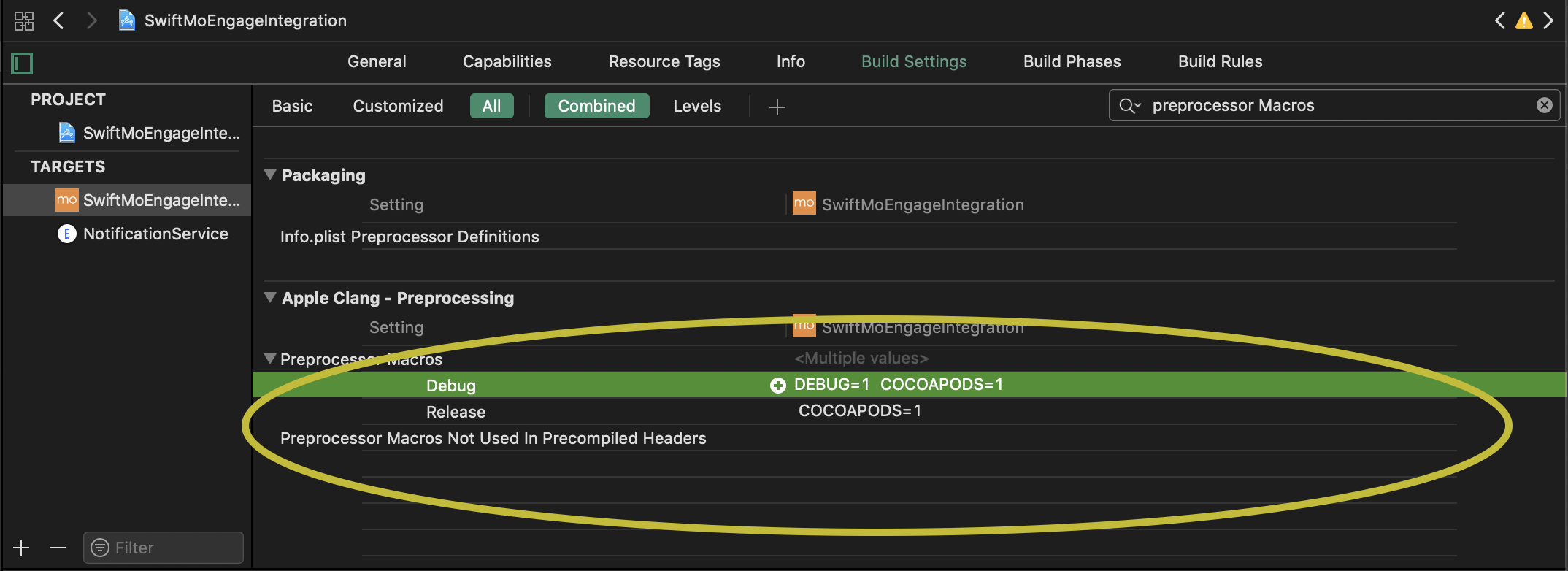
First, go to `Build Settings` of your `App Target` and ensure that **DEBUG** Preprocessor Macro is defined in `Debug` section as shown in the below image, if not present then add the same by entering `DEBUG=1` in `Debug` section:
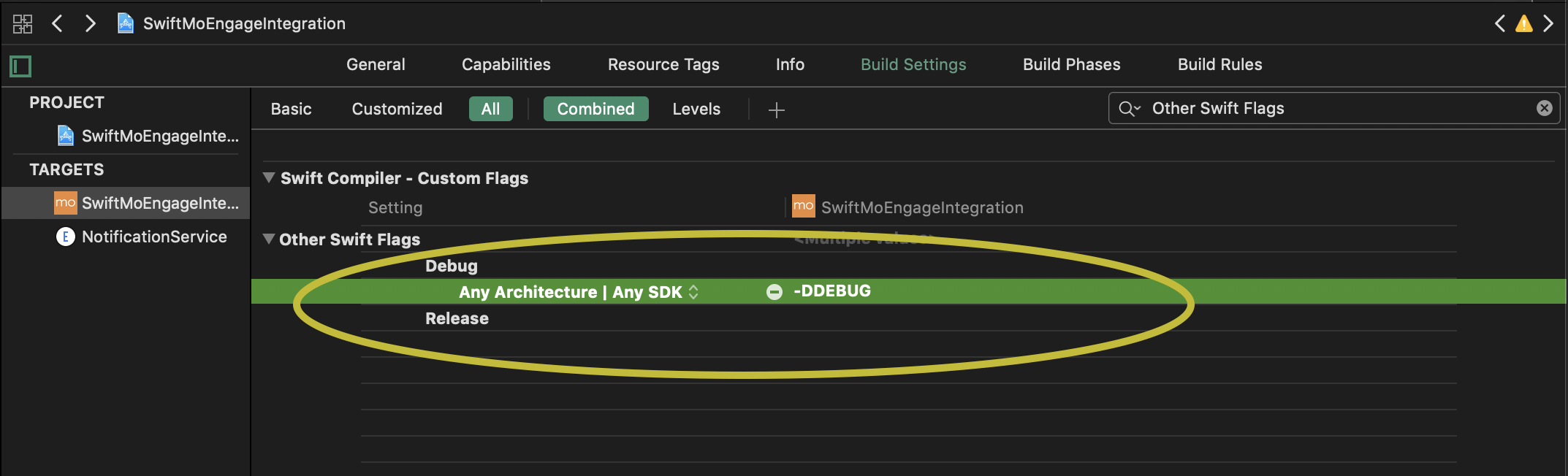
 **For Swift Project**, In `App Target` `Build Settings` make sure **-DDEBUG** is added to `Debug` section in the `Other Swift Flags` as described in the image:
 * in to your MoEngage account, go to **Settings** in the left panel of the dashboard. Under General Settings, you will find your **Workspace ID**. Provide this Workspace ID along with the Datacenter while initializing the SDK with MoEngageSDKConfig instance . Use[***initializeDefaultTestInstance(\_:)***](https://moengage.github.io/ios-api-reference/Classes/MoEngage.html#/c:@M@MoEngageSDK@objc\(cs\)MoEngage\(im\)initializeDefaultTestInstance:) and [***initializeDefaultLiveInstance(\_:)***](https://moengage.github.io/ios-api-reference/Classes/MoEngage.html#/c:@M@MoEngageSDK@objc\(cs\)MoEngage\(im\)initializeDefaultLiveInstance:) methods as shown below.
```swift Swift wrap theme={null}
import MoEngageSDK
func application(_ application: UIApplication, didFinishLaunchingWithOptions launchOptions: [UIApplicationLaunchOptionsKey: Any]?) -> Bool {
//Add your MoEngage Workspace ID and Data center.
let sdkConfig = MoEngageSDKConfig(appId: "YOUR WorkspaceID", dataCenter: DATA_CENTER)
// MoEngage SDK Initialization
// Separate initialization methods for Dev and Prod initializations
#if DEBUG
MoEngage.sharedInstance.initializeDefaultTestInstance(sdkConfig)
#else
MoEngage.sharedInstance.initializeDefaultLiveInstance(sdkConfig)
#endif
//Rest of the implementation of method
//-------
return true
}
```
```objective-c Objective C wrap theme={null}
@import MoEngageSDK;
- (BOOL)application:(UIApplication *)application didFinishLaunchingWithOptions:(NSDictionary *)launchOptions {
//TODO: Add your MoEngage Workspace ID and Data center.
MoEngageSDKConfig* sdkConfig = [[MoEngageSDKConfig alloc] initWithAppId:@"YOUR Workspace ID" dataCenter: DATA_CENTER];
// MoEngage SDK Initialization
// Separate initialization methods for Dev and Prod initializations
#ifdef DEBUG
[[MoEngage sharedInstance] initializeDefaultTestInstance:sdkConfig];
#else
[[MoEngage sharedInstance] initializeDefaultLiveInstance:sdkConfig];
#endif
//Rest of the implementation of method
//-------
}
```
* In your MoEngage account, if your [portfolio](https://help.moengage.com/hc/en-us/articles/40394603054100-Portfolio) is configured with multiple projects, Provide the respective Project ID along with the Datacenter while initializing the SDK with MoEngageSDKConfig instance . Use [initializeDefaultTestInstance(\_:)](https://moengage.github.io/ios-api-reference/Classes/MoEngage.html#/c:@M@MoEngageSDK@objc\(cs\)MoEngage\(im\)initializeDefaultTestInstance:) and[ initializeDefaultLiveInstance(\_:)](https://moengage.github.io/ios-api-reference/Classes/MoEngage.html#/c:@M@MoEngageSDK@objc\(cs\)MoEngage\(im\)initializeDefaultLiveInstance:) methods as shown below:
- **Portfolio attributes without `projectConfig`.** If you set any portfolio attribute without passing a non-empty `projectID` during SDK initialization, the SDK throws an exception, resulting in an application crash in `DEBUG` mode. If you are using portfolio attributes, you must provide the `projectConfig`.
```swift Swift wrap theme={null}
let sdkConfig = MoEngageSDKConfig(appId: "YOUR WorkspaceID", dataCenter: DATA_CENTER)
sdkConfig.projectConfig = MoEngageProjectConfig(projectID: "YOUR ProjectID")
#if DEBUG
MoEngage.sharedInstance.initializeDefaultTestInstance(sdkConfig)
#else
MoEngage.sharedInstance.initializeDefaultLiveInstance(sdkConfig)
#endif
```
```objective-c Objective C wrap theme={null}
MoEngageSDKConfig* sdkConfig = [[MoEngageSDKConfig alloc] initWithAppId:@"YOUR Workspace ID" dataCenter: DATA_CENTER];
sdkConfig.projectConfig = [[MoEngageProjectConfig alloc] initWithProjectID:@"YOUR Project ID"];
#ifdef DEBUG
[[MoEngage sharedInstance] initializeDefaultTestInstance:sdkConfig];
#else
[[MoEngage sharedInstance] initializeDefaultLiveInstance:sdkConfig];
#endif
```
**Validations during initialization**
The MoEngage iOS SDK enforces the following checks while initializing. In `DEBUG` builds (SDK initialized with `initializeDefaultTestInstance(_:)` and the app running under Xcode), each of these throws a fatal exception and crashes the app. In Release and TestFlight builds, the invalid configuration or attribute is dropped silently and logged.
* **Empty Workspace ID.** Initializing `MoEngageSDKConfig` with an empty `appId` is invalid.
* **SDK version downgrade.** Downgrading the MoEngage iOS SDK to a lower version than what the app was previously shipped with is not supported. The SDK detects the downgrade during initialization and crashes in `DEBUG` builds.
* **API calls before initialization.** Calling MoEngage tracking APIs — for example, email click tracking, Live Activity, or analytics methods — before the SDK is initialized throws a fatal exception in `DEBUG` builds. In Release and TestFlight builds, these calls are dropped silently. Initialize the SDK in `application(_:didFinishLaunchingWithOptions:)` before invoking any other MoEngage API.
Following details of the different data centers you need to set based on the dashboard hosts
| Data Center | Dashboard host |
| :------------------------- | :------------------------ |
| DataCenter.DATA\_CENTER\_1 | dashboard-01.moengage.com |
| DataCenter.DATA\_CENTER\_2 | dashboard-02.moengage.com |
| DataCenter.DATA\_CENTER\_3 | dashboard-03.moengage.com |
| DataCenter.DATA\_CENTER\_4 | dashboard-04.moengage.com |
| DataCenter.DATA\_CENTER\_5 | dashboard-05.moengage.com |
| DataCenter.DATA\_CENTER\_6 | dashboard-06.moengage.com |
For more information about the detailed list of possible configurations, refer to the [API reference](https://moengage.github.io/ios-api-reference/Classes/MoEngageSDKConfig.html).
**Note**
***data\_center\_06*** is available from MoEngage-iOS-SDK version 9.17.3 onwards
**Important**
Make sure to call the initialization method in `applicationDidFinishLaunching(_:)` method. In case if you are initializing the SDK at a later stage and not at launch then you will have to call all the notification related methods instead of just relying on [AppDelegate Swizzling](https://www.moengage.com/docs/developer-guide/ios-sdk/push/basic/ios-push-integration-tutorial#app-delegate-method-swizzling).
# Test/Live Environment
As mentioned above while initializing the build, MoEngage SDK makes use of the `DEBUG` preprocessor macro to decide whether the build is meant for TEST/LIVE Environment. Therefore, you will have to take care of the same while generating the build and make sure that the **Build Configuration** of the App's target is set as mentioned below:
* For **Development** Build: Build Configuration should be set to **Debug** (Data will be tracked in **TEST** Environment)
* For **AdHoc Build/App Store** Build: Build Configuration should be set to **Release** (Data will be tracked in **LIVE** Environment)
**What if Build Configuration is not set correctly?**
If the build configuration is not set correctly following might happen:
* You will see the data from the development build in LIVE environment
* **OR** data from AdHoc/Production Build in TEST environment
* You will get **Bad Device Token** error while trying to send a push notification to the device
# How to set Build Configuration?
## Build Configuration on Running the app from Xcode:
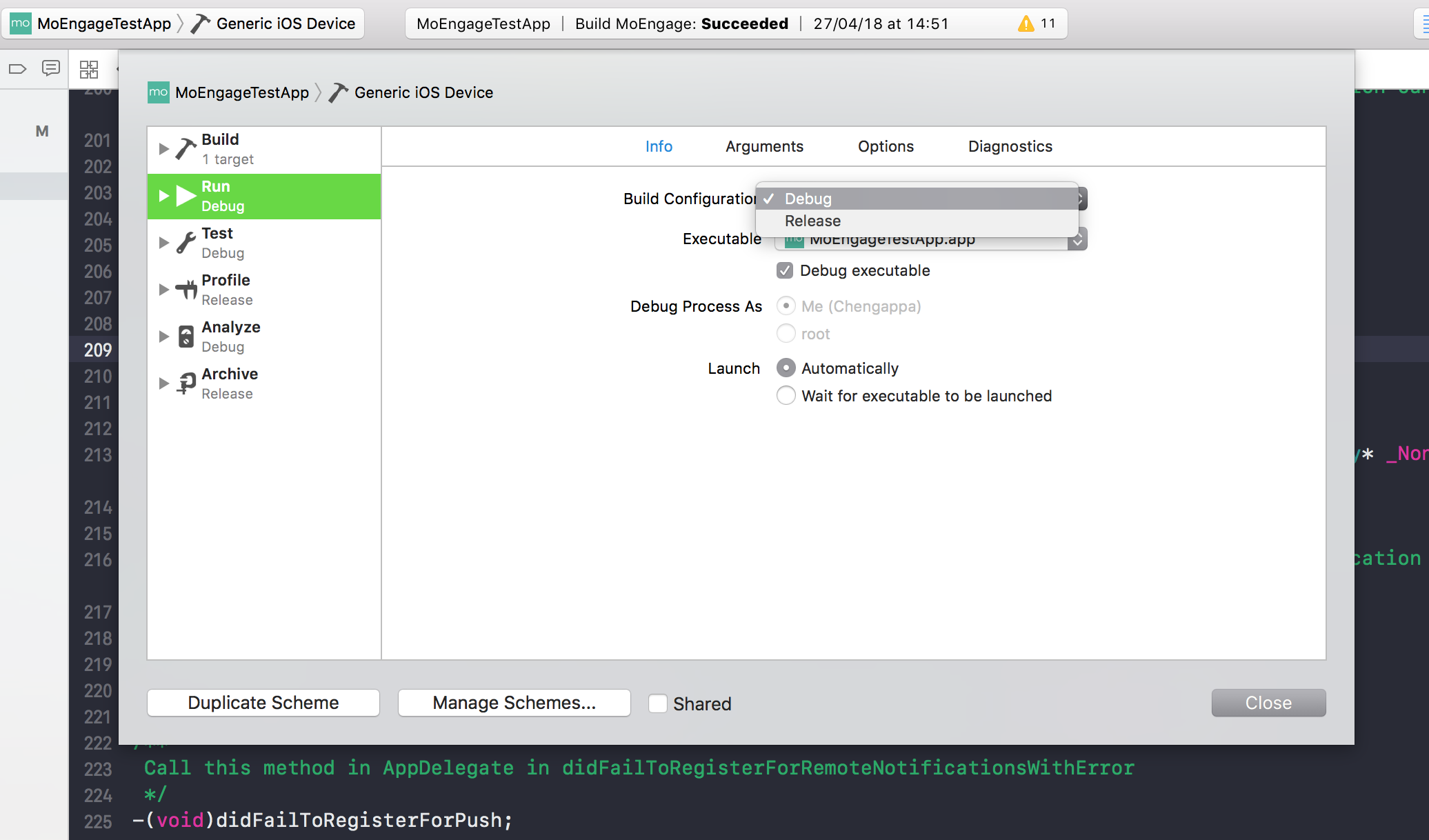
Whenever you run the app directly from Xcode without archiving, make sure the build configuration of **Run mode** of the App Target in Edit Scheme is set to **Debug**(set by default settings). Doing this will make sure data is tracked in TEST Environment.
* in to your MoEngage account, go to **Settings** in the left panel of the dashboard. Under General Settings, you will find your **Workspace ID**. Provide this Workspace ID along with the Datacenter while initializing the SDK with MoEngageSDKConfig instance . Use[***initializeDefaultTestInstance(\_:)***](https://moengage.github.io/ios-api-reference/Classes/MoEngage.html#/c:@M@MoEngageSDK@objc\(cs\)MoEngage\(im\)initializeDefaultTestInstance:) and [***initializeDefaultLiveInstance(\_:)***](https://moengage.github.io/ios-api-reference/Classes/MoEngage.html#/c:@M@MoEngageSDK@objc\(cs\)MoEngage\(im\)initializeDefaultLiveInstance:) methods as shown below.
```swift Swift wrap theme={null}
import MoEngageSDK
func application(_ application: UIApplication, didFinishLaunchingWithOptions launchOptions: [UIApplicationLaunchOptionsKey: Any]?) -> Bool {
//Add your MoEngage Workspace ID and Data center.
let sdkConfig = MoEngageSDKConfig(appId: "YOUR WorkspaceID", dataCenter: DATA_CENTER)
// MoEngage SDK Initialization
// Separate initialization methods for Dev and Prod initializations
#if DEBUG
MoEngage.sharedInstance.initializeDefaultTestInstance(sdkConfig)
#else
MoEngage.sharedInstance.initializeDefaultLiveInstance(sdkConfig)
#endif
//Rest of the implementation of method
//-------
return true
}
```
```objective-c Objective C wrap theme={null}
@import MoEngageSDK;
- (BOOL)application:(UIApplication *)application didFinishLaunchingWithOptions:(NSDictionary *)launchOptions {
//TODO: Add your MoEngage Workspace ID and Data center.
MoEngageSDKConfig* sdkConfig = [[MoEngageSDKConfig alloc] initWithAppId:@"YOUR Workspace ID" dataCenter: DATA_CENTER];
// MoEngage SDK Initialization
// Separate initialization methods for Dev and Prod initializations
#ifdef DEBUG
[[MoEngage sharedInstance] initializeDefaultTestInstance:sdkConfig];
#else
[[MoEngage sharedInstance] initializeDefaultLiveInstance:sdkConfig];
#endif
//Rest of the implementation of method
//-------
}
```
* In your MoEngage account, if your [portfolio](https://help.moengage.com/hc/en-us/articles/40394603054100-Portfolio) is configured with multiple projects, Provide the respective Project ID along with the Datacenter while initializing the SDK with MoEngageSDKConfig instance . Use [initializeDefaultTestInstance(\_:)](https://moengage.github.io/ios-api-reference/Classes/MoEngage.html#/c:@M@MoEngageSDK@objc\(cs\)MoEngage\(im\)initializeDefaultTestInstance:) and[ initializeDefaultLiveInstance(\_:)](https://moengage.github.io/ios-api-reference/Classes/MoEngage.html#/c:@M@MoEngageSDK@objc\(cs\)MoEngage\(im\)initializeDefaultLiveInstance:) methods as shown below:
- **Portfolio attributes without `projectConfig`.** If you set any portfolio attribute without passing a non-empty `projectID` during SDK initialization, the SDK throws an exception, resulting in an application crash in `DEBUG` mode. If you are using portfolio attributes, you must provide the `projectConfig`.
```swift Swift wrap theme={null}
let sdkConfig = MoEngageSDKConfig(appId: "YOUR WorkspaceID", dataCenter: DATA_CENTER)
sdkConfig.projectConfig = MoEngageProjectConfig(projectID: "YOUR ProjectID")
#if DEBUG
MoEngage.sharedInstance.initializeDefaultTestInstance(sdkConfig)
#else
MoEngage.sharedInstance.initializeDefaultLiveInstance(sdkConfig)
#endif
```
```objective-c Objective C wrap theme={null}
MoEngageSDKConfig* sdkConfig = [[MoEngageSDKConfig alloc] initWithAppId:@"YOUR Workspace ID" dataCenter: DATA_CENTER];
sdkConfig.projectConfig = [[MoEngageProjectConfig alloc] initWithProjectID:@"YOUR Project ID"];
#ifdef DEBUG
[[MoEngage sharedInstance] initializeDefaultTestInstance:sdkConfig];
#else
[[MoEngage sharedInstance] initializeDefaultLiveInstance:sdkConfig];
#endif
```
**Validations during initialization**
The MoEngage iOS SDK enforces the following checks while initializing. In `DEBUG` builds (SDK initialized with `initializeDefaultTestInstance(_:)` and the app running under Xcode), each of these throws a fatal exception and crashes the app. In Release and TestFlight builds, the invalid configuration or attribute is dropped silently and logged.
* **Empty Workspace ID.** Initializing `MoEngageSDKConfig` with an empty `appId` is invalid.
* **SDK version downgrade.** Downgrading the MoEngage iOS SDK to a lower version than what the app was previously shipped with is not supported. The SDK detects the downgrade during initialization and crashes in `DEBUG` builds.
* **API calls before initialization.** Calling MoEngage tracking APIs — for example, email click tracking, Live Activity, or analytics methods — before the SDK is initialized throws a fatal exception in `DEBUG` builds. In Release and TestFlight builds, these calls are dropped silently. Initialize the SDK in `application(_:didFinishLaunchingWithOptions:)` before invoking any other MoEngage API.
Following details of the different data centers you need to set based on the dashboard hosts
| Data Center | Dashboard host |
| :------------------------- | :------------------------ |
| DataCenter.DATA\_CENTER\_1 | dashboard-01.moengage.com |
| DataCenter.DATA\_CENTER\_2 | dashboard-02.moengage.com |
| DataCenter.DATA\_CENTER\_3 | dashboard-03.moengage.com |
| DataCenter.DATA\_CENTER\_4 | dashboard-04.moengage.com |
| DataCenter.DATA\_CENTER\_5 | dashboard-05.moengage.com |
| DataCenter.DATA\_CENTER\_6 | dashboard-06.moengage.com |
For more information about the detailed list of possible configurations, refer to the [API reference](https://moengage.github.io/ios-api-reference/Classes/MoEngageSDKConfig.html).
**Note**
***data\_center\_06*** is available from MoEngage-iOS-SDK version 9.17.3 onwards
**Important**
Make sure to call the initialization method in `applicationDidFinishLaunching(_:)` method. In case if you are initializing the SDK at a later stage and not at launch then you will have to call all the notification related methods instead of just relying on [AppDelegate Swizzling](https://www.moengage.com/docs/developer-guide/ios-sdk/push/basic/ios-push-integration-tutorial#app-delegate-method-swizzling).
# Test/Live Environment
As mentioned above while initializing the build, MoEngage SDK makes use of the `DEBUG` preprocessor macro to decide whether the build is meant for TEST/LIVE Environment. Therefore, you will have to take care of the same while generating the build and make sure that the **Build Configuration** of the App's target is set as mentioned below:
* For **Development** Build: Build Configuration should be set to **Debug** (Data will be tracked in **TEST** Environment)
* For **AdHoc Build/App Store** Build: Build Configuration should be set to **Release** (Data will be tracked in **LIVE** Environment)
**What if Build Configuration is not set correctly?**
If the build configuration is not set correctly following might happen:
* You will see the data from the development build in LIVE environment
* **OR** data from AdHoc/Production Build in TEST environment
* You will get **Bad Device Token** error while trying to send a push notification to the device
# How to set Build Configuration?
## Build Configuration on Running the app from Xcode:
Whenever you run the app directly from Xcode without archiving, make sure the build configuration of **Run mode** of the App Target in Edit Scheme is set to **Debug**(set by default settings). Doing this will make sure data is tracked in TEST Environment.
 ## Build Configuration on Exporting the build:
While exporting the build make sure you set the correct `Build Configuration`. By default for Archive section in `Edit Scheme` the `Build Configuration` will be set to `Release`, but for a development build make sure its changed to `Debug` before exporting the build. To set the **Build Configuration** of the build in your Xcode project go to **App Target > Edit Scheme > Archive > Build Configuration** and set the configuration to **Debug/Release**(depending on the type of build). Refer to the image as described:
## Build Configuration on Exporting the build:
While exporting the build make sure you set the correct `Build Configuration`. By default for Archive section in `Edit Scheme` the `Build Configuration` will be set to `Release`, but for a development build make sure its changed to `Debug` before exporting the build. To set the **Build Configuration** of the build in your Xcode project go to **App Target > Edit Scheme > Archive > Build Configuration** and set the configuration to **Debug/Release**(depending on the type of build). Refer to the image as described:
 # Switching Environment in Dashboard
In the MoEngage dashboard you can switch between [test and live environment](https://www.moengage.com/docs/user-guide/getting-started/initial-setup/live-and-test-environments) for your app.
**TEST** Environment is used for all the development and testing-related uses and **LIVE** environment is used for running all the campaigns for AppStore Builds for your app's user base.
# Switching Environment in Dashboard
In the MoEngage dashboard you can switch between [test and live environment](https://www.moengage.com/docs/user-guide/getting-started/initial-setup/live-and-test-environments) for your app.
**TEST** Environment is used for all the development and testing-related uses and **LIVE** environment is used for running all the campaigns for AppStore Builds for your app's user base.