> ## Documentation Index
> Fetch the complete documentation index at: https://moengage.com/docs/llms.txt
> Use this file to discover all available pages before exploring further.
# InApp NATIV
> Configure and display in-app messages in your React Native app using the MoEngage SDK.
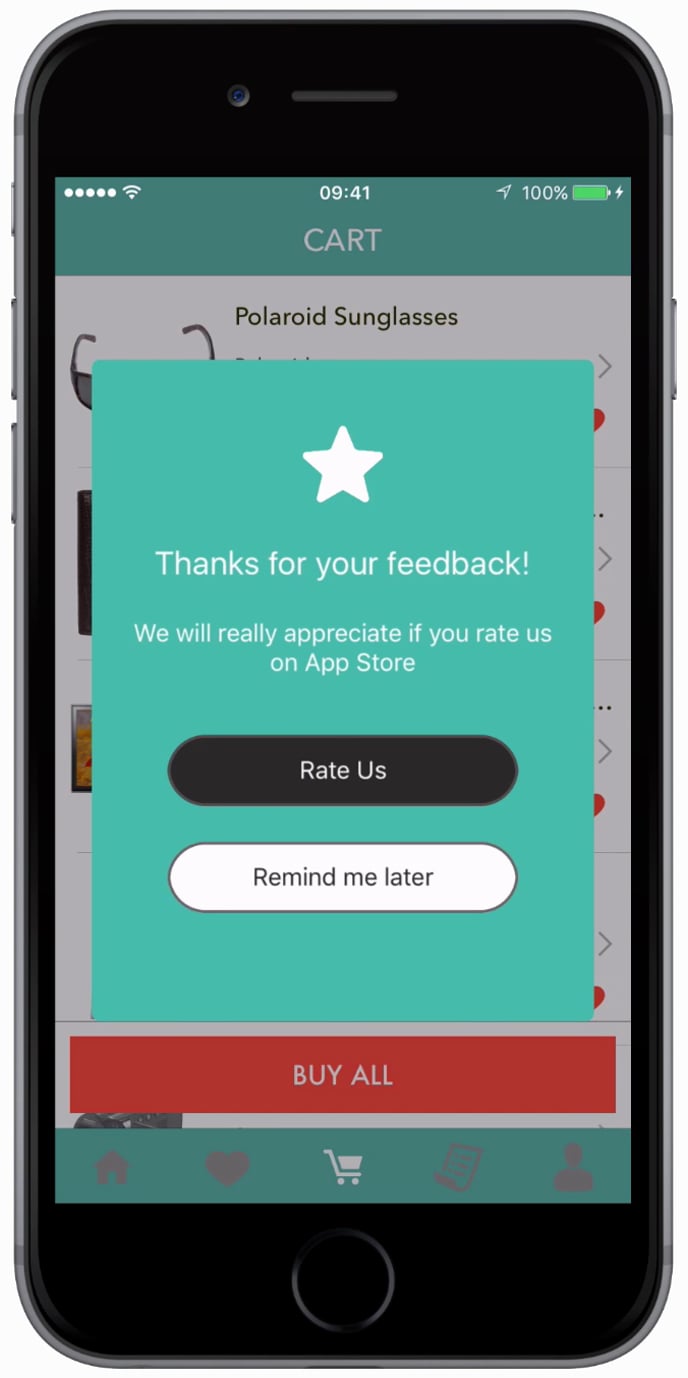
In-App Messaging is custom views that you can send to a segment of users to show custom messages or give new offers or take to some specific pages. They can be created from your MoEngage account.
 ## Installing Android Dependency
### Requirements for displaying images and GIFs in InApp
Starting InApp version **7.0.0,** SDK requires [Glide](https://bumptech.github.io/glide/) to show images and GIFs in the in-apps. You need to add the below dependency in ***android/app/build.gradle*** file.
```gradle Groovy theme={null}
dependencies {
...
implementation("com.github.bumptech.glide:glide:4.9.0")
}
```
# Display In-App
Call the `showInApp()` wherever InApp has to be shown in the app as shown below :
```javascript JavaScript theme={null}
import ReactMoE from 'react-native-moengage'
ReactMoE.showInApp()
```
# Display Nudges
Starting with ***react-native-moengage*** version **9**\*\*.0.0,\*\*MoEngage InApp SDK supports displaying Non-Intrusive nudges.
To show a Nudge InApp Campaign call `showNudge()`
```javascript JavaScript theme={null}
import { ReactMoE, MoEngageNudgePosition } from "react-native-moengage";
ReactMoE.showNudge() // Display Nudge on any available position
ReactMoE.showNudge(MoEngageNudgePosition._NUDGE_POSITION) // Display Nudge on the specific position
```
# InApp/Nudge Redirection default behavior
On clicking an Inapp or Nudge, MoEngage SDKs will handle **only rich landing navigation** redirection.
For the screen name and deep link redirection, your app code should redirect the user to the right screen or deep link. To handle the screen name and deep link redirection, you must implement inapp click callback methods. MoEngage SDK will just pass the inapp payload to this call back code. Implementation steps are mentioned in the InApp callback section of the Integration.
# Self-Handled InApps
Self-handled In Apps are messages that the SDK delivers, but displaying them has to be handled by the app.
## Single Self-Handled InApps
To get self-handled In-App call the below method.
```javascript JavaScript theme={null}
import ReactMoE from 'react-native-moengage'
ReactMoE.getSelfHandledInApp();
```
The payload for self-handled in-app is returned via a callback. Register a callback as shown below.
```javascript JavaScript theme={null}
import ReactMoE from 'react-native-moengage'/// selfHandledCampaignData is of type MoESelfHandledCampaignData
ReactMoE.setEventListener("inAppCampaignSelfHandled", (selfHandledPayload) => {
if (selfHandledCampaignData && Object.keys(selfHandledPayload).length != 0) {
console.log("inAppCampaignSelfHandled", selfHandledCampaignData);
}
});
```
## Multiple Self-Handled InApps
* This feature is supported from version ***11.1.0*** of the plugin.
Fetch Multiple Self Handled Campaigns using *getSelfHandledInApps()*.
```javascript JavaScript theme={null}
import ReactMoE from 'react-native-moengage'
/// selfHandledCampaignsData is of type MoESelfHandledCampaignsData, which contains
/// a list of MoESelfHandledCampaignData data objects
var selfHandledCampaignsData = await ReactMoE.getSelfHandledInApps();
```
### Tracking Statistics for Multiple Self-Handled In-Apps
The *getSelfHandledInApps()* method returns [*MoESelfHandledCampaignsData*](/developer-guide/react-native-sdk/in-app-messages/inapp-nativ)\*\*,\*\*which contains a list of [*MoESelfHandledCampaignData*](/developer-guide/react-native-sdk/in-app-messages/inapp-nativ) objects. The statistics for each [*MoESelfHandledCampaignData*](/developer-guide/react-native-sdk/in-app-messages/inapp-nativ) object must be tracked individually below APIs.
### Fetching Contextual Multiple Self-Handled InApps
To fetch contextual multiple self-handled inapps, set the inapp contexts using *setCurrentContext(*)before calling \*getSelfHandledInApps().\*This will return a list of contextual and non-contextual inapps(in the order of campaign priority set at the time of campaign creation).
# Tracking Statistics
Since display, click, and dismiss for Self-Handled InApp are controlled by the application we need you to notify the SDK whenever the In-App is *Shown*, *Clicked*, or *Dismissed*. Below are the methods you need to call to notify the SDK. The campaign object which is an instance of the *MoESelfHandledCampaignData* object provided to the application in the callback for self-handled in-app should be passed in as a parameter to the below APIs.
```javascript JavaScript theme={null}
import ReactMoE from 'react-native-moengage'
ReactMoE.selfHandledShown(selfHandledCampaignData);
ReactMoE.selfHandledClicked(selfHandledCampaignData);
ReactMoE.selfHandledDismissed(selfHandledCampaignData);
```
# InApp Callbacks
The callbacks must be registered before inapps are displayed either via show methods or triggered events. And make sure you are calling `initialize()` the method of the plugin after you set up these callbacks. Refer [doc](/developer-guide/react-native-sdk/sdk-integration/react-native/sdk-initialization/manual-initialization/framework-initialization) for more info.
We provide callbacks whenever an InApp campaign is shown, dismissed, or clicked you can register for the same as shown below.
```javascript JavaScript theme={null}
import ReactMoE from 'react-native-moengage'
///inAppInfo is of type MoEInAppData
ReactMoE.setEventListener("inAppCampaignShown", (inAppInfo) =>
console.log("inAppCampaignShown", inAppInfo)
);
///inAppInfo is of type MoEClickData
ReactMoE.setEventListener("inAppCampaignClicked", (inAppInfo) =>
console.log("inAppCampaignClicked", inAppInfo)
);
///inAppInfo is of type MoEInAppData
ReactMoE.setEventListener("inAppCampaignDismissed", (inAppInfo) =>
console.log("inAppCampaignDismissed", inAppInfo)
);
///inAppInfo is of type MoEClickData
ReactMoE.setEventListener("inAppCampaignCustomAction", (inAppInfo) =>
console.log("inAppCampaignCustomAction", inAppInfo)
);
```
| Event Type | Event Name |
| -------------------------------- | ------------------------- |
| InApp Shown | inAppCampaignShown |
| InApp Clicked | inAppCampaignClicked |
| InApp Dismissed | inAppCampaignDismissed |
| InApp Clicked with Custom Action | inAppCampaignCustomAction |
# Contextual InApp
You can restrict the in-apps based on the user's context in the application apart from restricting InApp campaigns on a specific screen/activity. To set the user's context in the application use *setCurrentContext()* API as shown below.
## Set Context
Call the below method to set the context, before calling *showInApp().*
```javascript JavaScript theme={null}
import ReactMoE from 'react-native-moengage'// replace array elements with actual values.
ReactMoE.setCurrentContext(['c1', 'c2', 'ce'])
```
## Reset Context
Once the user is moving out of the context use the *resetCurrentContext()* API to reset/clear the existing context.
```javascript JavaScript theme={null}
import ReactMoE from 'react-native-moengage'
ReactMoE.resetCurrentContext();
```
For more information on Contextual InApp, refer to the video tutorial available in [Troubleshooting and FAQs](/developer-guide/android-sdk/troubleshooting-and-faqs/troubleshooting-and-faqs#how-to-use-contextual-inapps-in-react-nativ).
# Payload Structure
```typescript TypeScript theme={null}
class MoEInAppData {
/// account information
accountMeta: MoEAccountMeta;
/// Platform on which callback is received
platform: MoEPlatform;
///InApp data
campaignData: MoECampaignData;
}
class MoECampaignData {
/// Unique Campaign Identifier
campaignId: string;
/// Campaign Name
campaignName: string;
/// additional information associated with Campaign
context: MoECampaignContext;
}
class MoESelfHandledCampaignData {
///InApp data
campaignData:MoECampaignData;
/// account information
accountMeta: MoEAccountMeta;
///Platform on which callback is received
platform: MoEPlatform;
///SelfHandled data
campaign: MoESelfHandledCampaign
}
class MoESelfHandledCampaign {
///Campaign Content provided while creating campaign
payload: string;
///auto dismiss interval in seconds
dismissInterval: Number;
/// DisplayRules for Campaign
displayRules: MoEInAppRules;
}
class MoEInAppRules {
/// Screenname for which InApp was configured to be shown.
/// @deprecated Use the 'screenNames' property instead.
screenName: string | null;
/// contexts for which InApp was configured to be shown.
contexts: Array;
/// Screennames for which InApp was configured to be shown.
/// @since 12.0.0
screenNames: Array;
}
class MoEClickData {
///account information
accountMeta: MoEAccountMeta;
///Platform on which callback is received
platform: MoEPlatform;
///InApp Data
campaignData: MoECampaignData;
///InApp Click action
action: MoEAction;
}
class MoEInAppCustomAction extends MoEAction{
/// Key-Value pairs configured with action
keyValuePair: Map;
///Click action type
actionType: MoEActionType;
}
class MoEInAppNavigation extends MoEAction {
///navigation action type screen/deeplink
navigationType: MoENavigationType;
// ScreenName OR deeplink URL based on navigation type
navigationUrl: String;
// Key-Value pairs configured with action
keyValuePair?: Map;
///Click action type
actionType :MoEActionType;
// Model for Multiple SelfHandled Data
class MoESelfHandledCampaignsData {
///account information
accountMeta: MoEAccountMeta;
///List of SelfHandled data
campaigns: Array
}
```
# Handling Orientation Change
This is only for the Android platform
Starting SDK version `7.3.0`, in-apps are supported in both portrait and landscape modes.\
SDK has to be notified when the device orientation changes for SDK to handle in-app display.
## Add the API call in the Android native part of your app
Notify the SDK when `onConfigurationChanged()` API callback is received in your App's Activity class.
```java Java theme={null}
import android.content.res.Configuration;
import androidx.annotation.NonNull;
import com.facebook.react.ReactActivity;
import com.moengage.react.MoEReactHelper;
public class MainActivity extends ReactActivity {
/**
* Returns the name of the main component registered from JavaScript. This is used to schedule
* rendering of the component.
*/
@Override
protected String getMainComponentName() {
return "SampleApp";
}
@Override public void onConfigurationChanged(@NonNull Configuration newConfig) {
super.onConfigurationChanged(newConfig);
MoEReactHelper.getInstance().onConfigurationChanged();
}
}
```
# Display status bar
To display the status bar, use the following code snippet during Android SDK initialization:
```java Java wrap theme={null}
.configureInApps(new InAppConfig(false))
```
## Installing Android Dependency
### Requirements for displaying images and GIFs in InApp
Starting InApp version **7.0.0,** SDK requires [Glide](https://bumptech.github.io/glide/) to show images and GIFs in the in-apps. You need to add the below dependency in ***android/app/build.gradle*** file.
```gradle Groovy theme={null}
dependencies {
...
implementation("com.github.bumptech.glide:glide:4.9.0")
}
```
# Display In-App
Call the `showInApp()` wherever InApp has to be shown in the app as shown below :
```javascript JavaScript theme={null}
import ReactMoE from 'react-native-moengage'
ReactMoE.showInApp()
```
# Display Nudges
Starting with ***react-native-moengage*** version **9**\*\*.0.0,\*\*MoEngage InApp SDK supports displaying Non-Intrusive nudges.
To show a Nudge InApp Campaign call `showNudge()`
```javascript JavaScript theme={null}
import { ReactMoE, MoEngageNudgePosition } from "react-native-moengage";
ReactMoE.showNudge() // Display Nudge on any available position
ReactMoE.showNudge(MoEngageNudgePosition._NUDGE_POSITION) // Display Nudge on the specific position
```
# InApp/Nudge Redirection default behavior
On clicking an Inapp or Nudge, MoEngage SDKs will handle **only rich landing navigation** redirection.
For the screen name and deep link redirection, your app code should redirect the user to the right screen or deep link. To handle the screen name and deep link redirection, you must implement inapp click callback methods. MoEngage SDK will just pass the inapp payload to this call back code. Implementation steps are mentioned in the InApp callback section of the Integration.
# Self-Handled InApps
Self-handled In Apps are messages that the SDK delivers, but displaying them has to be handled by the app.
## Single Self-Handled InApps
To get self-handled In-App call the below method.
```javascript JavaScript theme={null}
import ReactMoE from 'react-native-moengage'
ReactMoE.getSelfHandledInApp();
```
The payload for self-handled in-app is returned via a callback. Register a callback as shown below.
```javascript JavaScript theme={null}
import ReactMoE from 'react-native-moengage'/// selfHandledCampaignData is of type MoESelfHandledCampaignData
ReactMoE.setEventListener("inAppCampaignSelfHandled", (selfHandledPayload) => {
if (selfHandledCampaignData && Object.keys(selfHandledPayload).length != 0) {
console.log("inAppCampaignSelfHandled", selfHandledCampaignData);
}
});
```
## Multiple Self-Handled InApps
* This feature is supported from version ***11.1.0*** of the plugin.
Fetch Multiple Self Handled Campaigns using *getSelfHandledInApps()*.
```javascript JavaScript theme={null}
import ReactMoE from 'react-native-moengage'
/// selfHandledCampaignsData is of type MoESelfHandledCampaignsData, which contains
/// a list of MoESelfHandledCampaignData data objects
var selfHandledCampaignsData = await ReactMoE.getSelfHandledInApps();
```
### Tracking Statistics for Multiple Self-Handled In-Apps
The *getSelfHandledInApps()* method returns [*MoESelfHandledCampaignsData*](/developer-guide/react-native-sdk/in-app-messages/inapp-nativ)\*\*,\*\*which contains a list of [*MoESelfHandledCampaignData*](/developer-guide/react-native-sdk/in-app-messages/inapp-nativ) objects. The statistics for each [*MoESelfHandledCampaignData*](/developer-guide/react-native-sdk/in-app-messages/inapp-nativ) object must be tracked individually below APIs.
### Fetching Contextual Multiple Self-Handled InApps
To fetch contextual multiple self-handled inapps, set the inapp contexts using *setCurrentContext(*)before calling \*getSelfHandledInApps().\*This will return a list of contextual and non-contextual inapps(in the order of campaign priority set at the time of campaign creation).
# Tracking Statistics
Since display, click, and dismiss for Self-Handled InApp are controlled by the application we need you to notify the SDK whenever the In-App is *Shown*, *Clicked*, or *Dismissed*. Below are the methods you need to call to notify the SDK. The campaign object which is an instance of the *MoESelfHandledCampaignData* object provided to the application in the callback for self-handled in-app should be passed in as a parameter to the below APIs.
```javascript JavaScript theme={null}
import ReactMoE from 'react-native-moengage'
ReactMoE.selfHandledShown(selfHandledCampaignData);
ReactMoE.selfHandledClicked(selfHandledCampaignData);
ReactMoE.selfHandledDismissed(selfHandledCampaignData);
```
# InApp Callbacks
The callbacks must be registered before inapps are displayed either via show methods or triggered events. And make sure you are calling `initialize()` the method of the plugin after you set up these callbacks. Refer [doc](/developer-guide/react-native-sdk/sdk-integration/react-native/sdk-initialization/manual-initialization/framework-initialization) for more info.
We provide callbacks whenever an InApp campaign is shown, dismissed, or clicked you can register for the same as shown below.
```javascript JavaScript theme={null}
import ReactMoE from 'react-native-moengage'
///inAppInfo is of type MoEInAppData
ReactMoE.setEventListener("inAppCampaignShown", (inAppInfo) =>
console.log("inAppCampaignShown", inAppInfo)
);
///inAppInfo is of type MoEClickData
ReactMoE.setEventListener("inAppCampaignClicked", (inAppInfo) =>
console.log("inAppCampaignClicked", inAppInfo)
);
///inAppInfo is of type MoEInAppData
ReactMoE.setEventListener("inAppCampaignDismissed", (inAppInfo) =>
console.log("inAppCampaignDismissed", inAppInfo)
);
///inAppInfo is of type MoEClickData
ReactMoE.setEventListener("inAppCampaignCustomAction", (inAppInfo) =>
console.log("inAppCampaignCustomAction", inAppInfo)
);
```
| Event Type | Event Name |
| -------------------------------- | ------------------------- |
| InApp Shown | inAppCampaignShown |
| InApp Clicked | inAppCampaignClicked |
| InApp Dismissed | inAppCampaignDismissed |
| InApp Clicked with Custom Action | inAppCampaignCustomAction |
# Contextual InApp
You can restrict the in-apps based on the user's context in the application apart from restricting InApp campaigns on a specific screen/activity. To set the user's context in the application use *setCurrentContext()* API as shown below.
## Set Context
Call the below method to set the context, before calling *showInApp().*
```javascript JavaScript theme={null}
import ReactMoE from 'react-native-moengage'// replace array elements with actual values.
ReactMoE.setCurrentContext(['c1', 'c2', 'ce'])
```
## Reset Context
Once the user is moving out of the context use the *resetCurrentContext()* API to reset/clear the existing context.
```javascript JavaScript theme={null}
import ReactMoE from 'react-native-moengage'
ReactMoE.resetCurrentContext();
```
For more information on Contextual InApp, refer to the video tutorial available in [Troubleshooting and FAQs](/developer-guide/android-sdk/troubleshooting-and-faqs/troubleshooting-and-faqs#how-to-use-contextual-inapps-in-react-nativ).
# Payload Structure
```typescript TypeScript theme={null}
class MoEInAppData {
/// account information
accountMeta: MoEAccountMeta;
/// Platform on which callback is received
platform: MoEPlatform;
///InApp data
campaignData: MoECampaignData;
}
class MoECampaignData {
/// Unique Campaign Identifier
campaignId: string;
/// Campaign Name
campaignName: string;
/// additional information associated with Campaign
context: MoECampaignContext;
}
class MoESelfHandledCampaignData {
///InApp data
campaignData:MoECampaignData;
/// account information
accountMeta: MoEAccountMeta;
///Platform on which callback is received
platform: MoEPlatform;
///SelfHandled data
campaign: MoESelfHandledCampaign
}
class MoESelfHandledCampaign {
///Campaign Content provided while creating campaign
payload: string;
///auto dismiss interval in seconds
dismissInterval: Number;
/// DisplayRules for Campaign
displayRules: MoEInAppRules;
}
class MoEInAppRules {
/// Screenname for which InApp was configured to be shown.
/// @deprecated Use the 'screenNames' property instead.
screenName: string | null;
/// contexts for which InApp was configured to be shown.
contexts: Array;
/// Screennames for which InApp was configured to be shown.
/// @since 12.0.0
screenNames: Array;
}
class MoEClickData {
///account information
accountMeta: MoEAccountMeta;
///Platform on which callback is received
platform: MoEPlatform;
///InApp Data
campaignData: MoECampaignData;
///InApp Click action
action: MoEAction;
}
class MoEInAppCustomAction extends MoEAction{
/// Key-Value pairs configured with action
keyValuePair: Map;
///Click action type
actionType: MoEActionType;
}
class MoEInAppNavigation extends MoEAction {
///navigation action type screen/deeplink
navigationType: MoENavigationType;
// ScreenName OR deeplink URL based on navigation type
navigationUrl: String;
// Key-Value pairs configured with action
keyValuePair?: Map;
///Click action type
actionType :MoEActionType;
// Model for Multiple SelfHandled Data
class MoESelfHandledCampaignsData {
///account information
accountMeta: MoEAccountMeta;
///List of SelfHandled data
campaigns: Array
}
```
# Handling Orientation Change
This is only for the Android platform
Starting SDK version `7.3.0`, in-apps are supported in both portrait and landscape modes.\
SDK has to be notified when the device orientation changes for SDK to handle in-app display.
## Add the API call in the Android native part of your app
Notify the SDK when `onConfigurationChanged()` API callback is received in your App's Activity class.
```java Java theme={null}
import android.content.res.Configuration;
import androidx.annotation.NonNull;
import com.facebook.react.ReactActivity;
import com.moengage.react.MoEReactHelper;
public class MainActivity extends ReactActivity {
/**
* Returns the name of the main component registered from JavaScript. This is used to schedule
* rendering of the component.
*/
@Override
protected String getMainComponentName() {
return "SampleApp";
}
@Override public void onConfigurationChanged(@NonNull Configuration newConfig) {
super.onConfigurationChanged(newConfig);
MoEReactHelper.getInstance().onConfigurationChanged();
}
}
```
# Display status bar
To display the status bar, use the following code snippet during Android SDK initialization:
```java Java wrap theme={null}
.configureInApps(new InAppConfig(false))
```