> ## Documentation Index
> Fetch the complete documentation index at: https://moengage.com/docs/llms.txt
> Use this file to discover all available pages before exploring further.
# Tracking User Attributes
> Track user attributes and manage login and logout states using the MoEngage Unity SDK.
User Attributes are pieces of information you know about a user which could be demographics like age or gender, account-specific like plan, or even things like whether a user has seen a particular A/B test variation. It's up to you! It is basically a customer identity that you can reference across the customer’s whole lifetime.
# Implementing Login/Logout
* It's important to set the User Attribute Unique ID when a user logs into your app.
* This is to merge the new user with the existing user, if any exists, and will help prevent creation of unnecessary/stale users.
* Setting the Unique ID is a critical piece to tie a user across devices and installs/uninstalls as well across all platforms (i.e. iOS, Android, Windows, The Web). Set the **USER\_ATTRIBUTE\_UNIQUE\_ID** attribute as soon as the user is **logged in**. Unique ID can be something like an email ID, a username (unique), or a database ID or any Backend generated ID.
* Do not set this for the user who not logged in.
## Login
```c# c# theme={null}
using MoEngage;
MoEngageClient.IdentifyUser("UNIQUE ID");
```
**Note:** The following values are not allowed in the UniqueID field: "unknown", "guest", "null", "0", "1", "true", "false", "user\_attribute\_unique\_id", "(empty)", "na", "n/a", "", "dummy\_seller\_code", "user\_id", "id", "customer\_id", "uid", "userid", "none", "-2", "-1", "2"
### Set a Single Identity
Use `MoEngageClient.IdentifyUser()` to set a single user identifier:
```c# c# theme={null}
using MoEngage;
MoEngageClient.IdentifyUser("UNIQUE_ID"); // Pass any unique value for your user
```
### Set Multiple User Identities
Use `MoEngageClient.IdentifyUser()` with a dictionary to set multiple user identities at once:
```c# c# theme={null}
using MoEngage;
var identities = new Dictionary {
{ "uniqueId", "UNIQUE_ID" },
{ "email", "user@example.com" },
{ "mobile", "+911234567890" }
};
MoEngageClient.IdentifyUser(identities);
```
## Logout
The application needs to notify the MoEngage SDK whenever the user is logged out of the application. To notify the SDK, call the API whenever the user is logged out of the application.
```c# c# theme={null}
using MoEngage;
MoEngageClient.Logout();
```
In case the application is registering for push token it should pass the new push token to MoEngage SDK after user logout. For more information about passing push tokens, refer to [Push Configuration for Android SDK](/developer-guide/android-sdk/push/basic/push-configuration).
### Logout Complete Callback
To receive a callback when logout completes, register a listener using `MoECoreHelper.addLogoutCompleteListener()`:
```c# c# theme={null}
using MoEngage;
MoEGameObject.LogoutCompleteCallback += LogoutCompleteCallback;
public void LogoutCompleteCallback(object sender, LogoutCompleteData data) {
Debug.Log("LogoutCompleteCallback() : platform=" + data.platform + " appId=" + data.accountMeta.appId);
}
```
**Updates to SDK functions for User Identification and Session Management**
* **Forced Logout:** The MoEngage SDK no longer automatically logs out the previous user when a new user is detected on the device. Logout should now be explicitly called for workspaces enabled with Identity resolution to avoid data corruption.
* **SetUniqueID:** `identifyUser` function supports multiple identifiers, which replaces the need of using `SetUniqueID` function for user identification. Note that `SetUniqueID` is marked for removal in the future releases of SDK versions - it is important to use `identifyUser` instead especially if you are using Identity resolution in your workspace.
* **SetAlias:** For workspaces with the Identity resolution feature enabled, MoEngage SDK stores the previous identifier values. When `identifyUser` function is used to track the new identifier values, MoEngage SDK detects the change in identifier value and reports accordingly.
If you call the `identifyUser` function without logging out, then the existing logged-in user's ID is updated.
If you call `identifyUser()` multiple times with different identifier names, the SDK will append this identifier to the already set identifiers.
## Updating User Attribute Unique Id
Use the method *setAlias()* to update the user attribute unique id instead of *IdentifyUser()* with a different value. Using the method *IdentifyUser()* with a new value creates unintended users in MoEngage.
```c# c# theme={null}
using MoEngage;
MoEngageClient.SetAlias("Updated Unique Id");
```
Please make sure that you use **SetAlias()** for updating the Unique Identifier and not **IdentifyUser()** as calling **IdentifyUser()** with a new value will reset the current user and lead to the creation of unintended users in our system.
# Tracking User Attributes
The SDK provides APIs to track commonly tracked user attributes like First Name, Last Name, Email-Id, etc. Please use the provided methods for tracking these attributes.
```c# c# theme={null}
using MoEngage;
MoEngageClient.SetFirstName("First Name");
MoEngageClient.SetLastName("Last Name");
MoEngageClient.SetEmail("Email");
MoEngageClient.SetPhoneNumber("Phone number");
MoEngageClient.SetGender(MoEUserGender.MALE); // MoEUserGender.FEMALE
MoEngageClient.SetUserLocation(new GeoLocation(23, 44));
MoEngageClient.SetBirthdate("2020-01-02T08:26:21.170Z"); // ISO Format : yyyy-MM-dd'T'HH:mm:ss.fff'Z'
```
For setting other User Attributes you can use the generic method **SetUserAttribute(key, value)**
```c# c# theme={null}
using MoEngage;
MoEngageClient.SetUserAttribute(key, value);
```
## Tracking Date as user attributes
**ISO date**
Use `SetUserAttributeISODate()` to track a date attribute using an ISO 8601 string.\
Date format: `yyyy-MM-dd'T'HH:mm:ss.fff'Z'`
```c# c# theme={null}
using MoEngage;
MoEngageClient.SetUserAttributeISODate("userAttrDate", "2019-01-02T08:26:21.170Z");
```
**Epoch time**
Use `SetUserAttributeEpochTime()` to track a date attribute using a Unix epoch timestamp (milliseconds).
```c# c# theme={null}
using MoEngage;
MoEngageClient.SetUserAttributeEpochTime("userAttrDate", 1546417581170L);
```
## Tracking Location as user attributes
To track any location as user attributes use the ***SetUserAttributeLocation()***. This API takes the attribute name and an instance of ***GeoLocation*** for coordinates as input.\
Example:
```c# c# theme={null}
using MoEngage;
MoEngageClient.SetUserAttributeLocation("bangalore", new GeoLocation(23, 44));
```
## Custom Boolean User Attribute
### iOS(optional)
Starting from version 4.x.x of MoEngage.unityPackage, the default tracking for the custom boolean attribute will be changed to ***bool(true/false***) from ***double(0/1)***. To configure this, enable ***should Track Boolean As Number*** variable of MoGameObject script as shown below to track the boolean as double . By default it is ***disabled*** to track boolean as true/false.
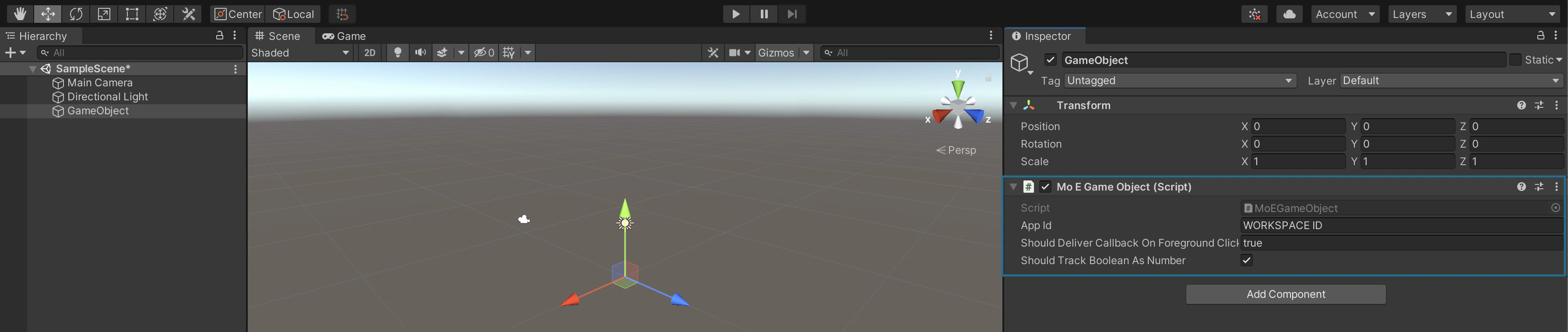 Refer to the example code below for tracking the boolean user attribute.
```c# c# theme={null}
using MoEngage;
// If `should Track Boolean As Number` is passed as true then `boolean attribute True` will tracked with value 1 else true
MoEngageClient.SetUserAttribute("boolean attribute true",true);
// If `should Track Boolean As Number` is passed as true then `boolean attribute false` will tracked with value 0 else false
MoEngageClient.SetUserAttribute("boolean attribute false",false);
```
## Reserved keywords for User Attributes
Below is the list of keys that should not be used when tracking user attributes.
* USER\_ATTRIBUTE\_UNIQUE\_ID
* USER\_ATTRIBUTE\_USER\_EMAIL
* USER\_ATTRIBUTE\_USER\_MOBILE
* USER\_ATTRIBUTE\_USER\_NAME
* USER\_ATTRIBUTE\_USER\_GENDER
* USER\_ATTRIBUTE\_USER\_FIRST\_NAME
* USER\_ATTRIBUTE\_USER\_LAST\_NAME
* USER\_ATTRIBUTE\_USER\_BDAY
* USER\_ATTRIBUTE\_NOTIFICATION\_PREF
* USER\_ATTRIBUTE\_OLD\_ID
* MOE\_TIME\_FORMAT
* MOE\_TIME\_TIMEZONE
* USER\_ATTRIBUTE\_DND\_START\_TIME
* USER\_ATTRIBUTE\_DND\_END\_TIME
* MOE\_GAID
* INSTALL
* UPDATE
* MOE\_ISLAT
* status
* user\_id
* source
Refer to the example code below for tracking the boolean user attribute.
```c# c# theme={null}
using MoEngage;
// If `should Track Boolean As Number` is passed as true then `boolean attribute True` will tracked with value 1 else true
MoEngageClient.SetUserAttribute("boolean attribute true",true);
// If `should Track Boolean As Number` is passed as true then `boolean attribute false` will tracked with value 0 else false
MoEngageClient.SetUserAttribute("boolean attribute false",false);
```
## Reserved keywords for User Attributes
Below is the list of keys that should not be used when tracking user attributes.
* USER\_ATTRIBUTE\_UNIQUE\_ID
* USER\_ATTRIBUTE\_USER\_EMAIL
* USER\_ATTRIBUTE\_USER\_MOBILE
* USER\_ATTRIBUTE\_USER\_NAME
* USER\_ATTRIBUTE\_USER\_GENDER
* USER\_ATTRIBUTE\_USER\_FIRST\_NAME
* USER\_ATTRIBUTE\_USER\_LAST\_NAME
* USER\_ATTRIBUTE\_USER\_BDAY
* USER\_ATTRIBUTE\_NOTIFICATION\_PREF
* USER\_ATTRIBUTE\_OLD\_ID
* MOE\_TIME\_FORMAT
* MOE\_TIME\_TIMEZONE
* USER\_ATTRIBUTE\_DND\_START\_TIME
* USER\_ATTRIBUTE\_DND\_END\_TIME
* MOE\_GAID
* INSTALL
* UPDATE
* MOE\_ISLAT
* status
* user\_id
* source