> ## Documentation Index
> Fetch the complete documentation index at: https://moengage.com/docs/llms.txt
> Use this file to discover all available pages before exploring further.
# InApp NATIV
> Display contextual in-app NATIV campaigns in your Unity app using the MoEngage SDK.
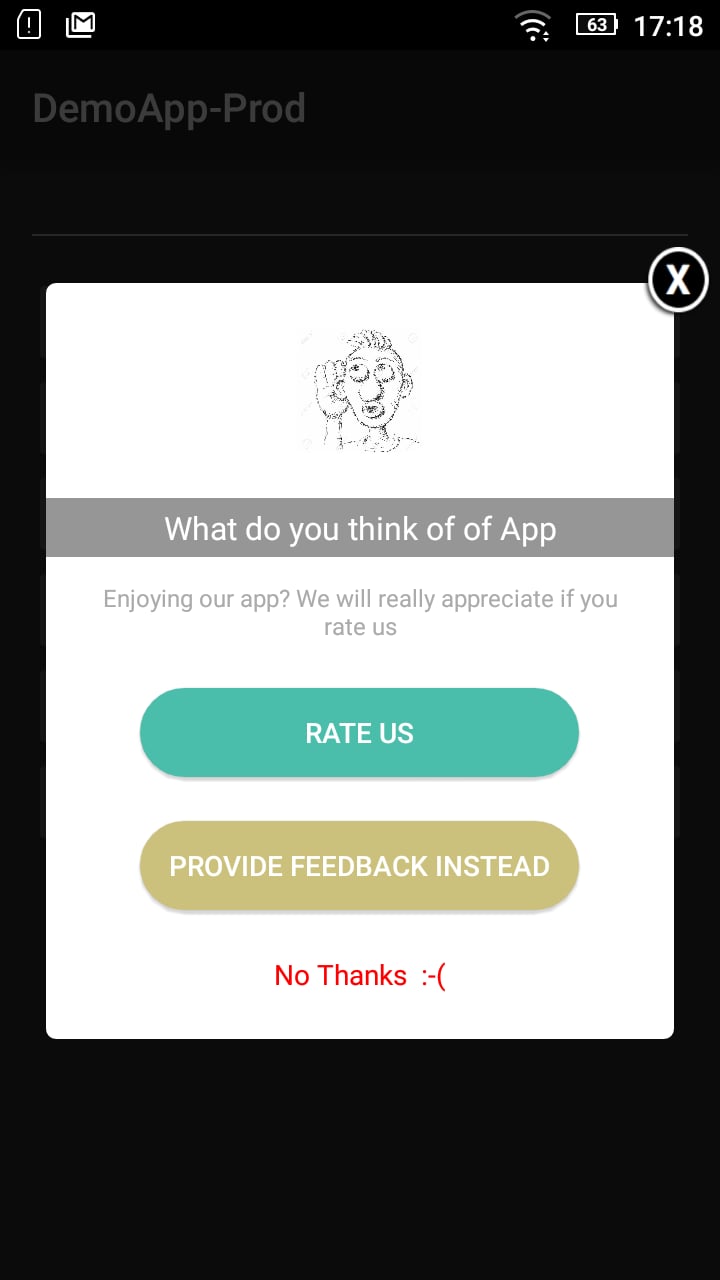
In-App NATIV Campaigns target your users by showing a message while the user is using your app. They are very effective in providing contextual information and help to cross-sell/up-sell on desired screens of your app or/and on desired actions performed by the user in your app.
 ## Installing Android Dependency
 Add the following dependency to the **mainTemplate.gradle** file.
```gradle Groovy theme={null}
dependencies {
...
implementation("com.moengage:inapp:$sdkVersion")}
```
replace **\$sdkVersion** with the appropriate SDK version
### **Requirements for displaying images and GIFs in InApp**
Starting InApp version **7.0.0,** SDK requires [Glide](https://bumptech.github.io/glide/) to show images and GIFs in the in-apps. You need to add the below dependency in your **mainTemplate.gradle** file.
```gradle Groovy theme={null}
dependencies {
...
implementation("com.github.bumptech.glide:glide:4.9.0")
annotationProcessor("com.github.bumptech.glide:compiler:4.9.0")
}
```
# Display In-App
Call the below API to show an in-app message on a screen.
```c# c# theme={null}
using MoEngage;
MoEngageClient.ShowInApp();
```
# Show Nudge
Use `MoEInAppHelper.ShowNudge()` to display a nudge-type in-app message at a specified position on screen.
```c# c# theme={null}
using MoEngage;
MoEInAppHelper.ShowNudge(NudgePosition.Top);
```
The `NudgePosition` enum defines where the nudge appears:
| Value | Description |
| ------------- | ----------------------------------------------- |
| `Top` | Displays the nudge at the top of the screen. |
| `Bottom` | Displays the nudge at the bottom of the screen. |
| `BottomLeft` | Displays the nudge at the bottom-left corner. |
| `BottomRight` | Displays the nudge at the bottom-right corner. |
# Self-Handled InApps
Self-handled In-Apps are messages that the SDK delivers to the application, and the application builds the UI using the SDK's delivered payload.
## Single Self-Handled InApps
Call the below API to request a single self-handled in-app message.
```c# c# theme={null}
using MoEngage;
MoEngageClient.GetSelfHandledInApp();
```
The payload is returned via a callback. Register a callback as shown below.
```c# c# theme={null}
using MoEngage;
// register a callback
MoEGameObject.InAppSelfHandled += InAppSelfHandledCallback;
public void InAppSelfHandledCallback(object sender, InAppSelfHandledCampaignData inAppData) {
// process the self-handled payload here
string selfHandledPayload = inAppData.selfHandled.payload;
}
```
## Multiple Self-Handled InApps
Event-triggered multiple self-handled in-apps are not supported.
Use `MoEngageClient.GetSelfHandledInApps()` to fetch multiple self-handled campaigns. The SDK returns up to 5 campaigns in the order of campaign priority set at the time of campaign creation.
```c# c# theme={null}
using MoEngage;
MoEngageClient.GetSelfHandledInApps();
```
The list of campaigns is returned via a callback. Register a callback as shown below.
```c# c# theme={null}
using MoEngage;
// register a callback
MoEGameObject. += ;
public void (object sender, campaignsData) {
// iterate over the list of self-handled campaigns
foreach (var campaign in campaignsData.campaigns) {
string payload = campaign.selfHandled.payload;
}
}
```
### Tracking Statistics
The statistics for each campaign in the list must be tracked individually. Pass the individual `InAppSelfHandledCampaignData` object as a parameter to the APIs below.
```c# c# theme={null}
// call whenever in-app is shown
MoEngageClient.SelfHandledShown(campaign);
// call whenever in-app is clicked
MoEngageClient.SelfHandledClicked(campaign);
// call whenever in-app is dismissed
MoEngageClient.SelfHandledDismissed(campaign);
```
# InApp Callbacks
SDK provides callbacks to the client application whenever is shown, dismissed or clicked(only if there is a navigation action or custom action associated with the widget).\
Use the below callbacks to get notified for the above cases
## InApp Shown
```c# c# theme={null}
using MoEngage;
// register a callback
MoEGameObject.InAppShown += InAppShownCallback;
public void InAppShownCallback(object sender, InAppData inappData){
Debug.Log(TAG + " InAppShownCallback() : ");
}
```
## InApp Clicked
```c# c# theme={null}
using MoEngage;
// register a callback
MoEGameObject.InAppClicked += InAppClickedCallback;
public void InAppClickedCallback(object sender, InAppClickData inAppData)
{ Debug.Log(TAG + " InAppClickedCallback() : ");
}
```
## InApp Custom Action
```c# c# theme={null}
using MoEngage;
// register a callback
MoEGameObject.InAppCustomAction += InAppCustomActionCallback;
public void InAppCustomActionCallback(object sender, InAppClickData inAppData)
{
// key value pairs for custom aciton.
IDictionary keyValuePairs = ((CustomAction) inAppData.action).keyValuePairs; Debug.Log(TAG + " InAppCustomActionCallback() : keyValuePairs: " + keyValuePairs.ToString());
}
```
## InApp Dismissed
```c# c# theme={null}
using MoEngage;
// register a callback
MoEGameObject.InAppDismissed += InAppDismissedCallback;
public void InAppDismissedCallback(object sender, InAppData inAppData)
{ Debug.Log(TAG + " InAppDismissedCallback() : ");
}
```
## InApp Payload
```c# c# theme={null}
/// InApp Campaign model
public class InAppData {
/// Account info
public AccountMeta accountMeta;
/// InApp campaign info
public InAppCampaign campaignData;
/// Native platform from which the callback was triggered.
public Platform platform;
}
/// Meta-data related to your MoEngage account.
public class AccountMeta {
/// Account Identifier
public string appId;
}
/// InApp Campaign Details
public class InAppCampaign {
/// Unique identifier for each campaign.
public string campaignId;
/// Campaign Name
public string campaignName;
/// Additional meta data of campaign
public InAppCampaignContext campaignContext;
}
/// Additonal meta of InAppCampaign
public class InAppCampaignContext {
/// Formatted campaign id
public string formattedCampaignId;
}
/// InApp model when click action is performed.
public class InAppClickData {
/// Account info
public AccountMeta accountMeta;
/// InApp campaign info
public InAppCampaign campaignData;
/// Native platform from which the callback was triggered.
public Platform platform;
/// Action info
public InAppClickAction action;
}
/// InApp Navigation action model.Available only in InAppClickedCallback()
public class NavigationAction: InAppClickAction {
/// Navigation action type
public ActionType actionType;
/// Type of Navigation action.Possible value deep_linking or screen
public NavigationType navigationType;
/// Deeplink Url or the Screen Name used for the action.
public string url;
/// Additional Key-Value pairs entered on the MoEngage Platform for navigation action of the campaign
public IDictionary < string, object > keyValuePairs;
}
/// Custom action performed on inapp.Available only in InAppCustomActionCallback()
public class CustomAction: InAppClickAction {
/// Custom Action type
public ActionType actionType;
/// Key-Value Pair entered on the MoEngage Platform during campaign creation.
public IDictionary < string, object > keyValuePairs;
} /// InApp SelfHandled model. Available on InAppSelfHandledCallback() callback
public class InAppSelfHandledCampaignData {
/// Account info
public AccountMeta accountMeta;
/// InApp campaign info
public InAppCampaign campaignData;
/// Native platform from which the callback was triggered.
public Platform platform;
/// SelfHandled payload info
public SelfHandled selfHandled;
}
/// SelfHandled Payload information
public class SelfHandled {
/// Self handled campaign payload.
public string payload;
/// Interval after which in-app should be dismissed, unit - Seconds
public long dismissInterval;
/// Should the campaign be dismissed by pressing the back button or using the back gesture. if the value is true campaign should be dismissed on back press.
public bool isCancellable;
}
```
# Handling Orientation Change
This is only for the Android platform
Starting Unity Plugin version 2.2.0 in-apps are supported in both portrait and landscape modes.\
SDK has to be notified when the device orientation changes for SDK to handle in-app displays.
There are two ways to do it:
1. Add the API call in the Android native part of your app
2. Call MoEngage plugin's **onOrientationChanged()**
3. Add the API call in the Android native part of your app
Notify the SDK when **onConfigurationChanged()** API callback is received in your UnityPlayerActivity class.
```java Java theme={null}
public class SampleUnityPlayerActivity extends UnityPlayerActivity {
...
@Override
public void onConfigurationChanged(@NonNull Configuration newConfig) {
super.onConfigurationChanged(newConfig);
//API to notify MoEngage SDK
MoEUnityHelper.getInstance().onConfigurationChanged();
...
}
...
}
```
If you don't want to create a custom **UnityPlayerActivity**, MoEngage SDK on Android comes bundled with **MoEUnityPlayerActivity** which internally handles the device configuration changes.\
This activity needs to be added as an entry point to your app, to do so replace your current entry point with the below code in your **AndroidManifest.xml**.
```xml XML theme={null}
...
...
```
## Call the MoEngage plugin's orientation change API
Call the below API to notify SDK of the orientation change.
```objectivec c# theme={null}
MoEngageClient.OnOrientationChanged();
```
Add the following dependency to the **mainTemplate.gradle** file.
```gradle Groovy theme={null}
dependencies {
...
implementation("com.moengage:inapp:$sdkVersion")}
```
replace **\$sdkVersion** with the appropriate SDK version
### **Requirements for displaying images and GIFs in InApp**
Starting InApp version **7.0.0,** SDK requires [Glide](https://bumptech.github.io/glide/) to show images and GIFs in the in-apps. You need to add the below dependency in your **mainTemplate.gradle** file.
```gradle Groovy theme={null}
dependencies {
...
implementation("com.github.bumptech.glide:glide:4.9.0")
annotationProcessor("com.github.bumptech.glide:compiler:4.9.0")
}
```
# Display In-App
Call the below API to show an in-app message on a screen.
```c# c# theme={null}
using MoEngage;
MoEngageClient.ShowInApp();
```
# Show Nudge
Use `MoEInAppHelper.ShowNudge()` to display a nudge-type in-app message at a specified position on screen.
```c# c# theme={null}
using MoEngage;
MoEInAppHelper.ShowNudge(NudgePosition.Top);
```
The `NudgePosition` enum defines where the nudge appears:
| Value | Description |
| ------------- | ----------------------------------------------- |
| `Top` | Displays the nudge at the top of the screen. |
| `Bottom` | Displays the nudge at the bottom of the screen. |
| `BottomLeft` | Displays the nudge at the bottom-left corner. |
| `BottomRight` | Displays the nudge at the bottom-right corner. |
# Self-Handled InApps
Self-handled In-Apps are messages that the SDK delivers to the application, and the application builds the UI using the SDK's delivered payload.
## Single Self-Handled InApps
Call the below API to request a single self-handled in-app message.
```c# c# theme={null}
using MoEngage;
MoEngageClient.GetSelfHandledInApp();
```
The payload is returned via a callback. Register a callback as shown below.
```c# c# theme={null}
using MoEngage;
// register a callback
MoEGameObject.InAppSelfHandled += InAppSelfHandledCallback;
public void InAppSelfHandledCallback(object sender, InAppSelfHandledCampaignData inAppData) {
// process the self-handled payload here
string selfHandledPayload = inAppData.selfHandled.payload;
}
```
## Multiple Self-Handled InApps
Event-triggered multiple self-handled in-apps are not supported.
Use `MoEngageClient.GetSelfHandledInApps()` to fetch multiple self-handled campaigns. The SDK returns up to 5 campaigns in the order of campaign priority set at the time of campaign creation.
```c# c# theme={null}
using MoEngage;
MoEngageClient.GetSelfHandledInApps();
```
The list of campaigns is returned via a callback. Register a callback as shown below.
```c# c# theme={null}
using MoEngage;
// register a callback
MoEGameObject. += ;
public void (object sender, campaignsData) {
// iterate over the list of self-handled campaigns
foreach (var campaign in campaignsData.campaigns) {
string payload = campaign.selfHandled.payload;
}
}
```
### Tracking Statistics
The statistics for each campaign in the list must be tracked individually. Pass the individual `InAppSelfHandledCampaignData` object as a parameter to the APIs below.
```c# c# theme={null}
// call whenever in-app is shown
MoEngageClient.SelfHandledShown(campaign);
// call whenever in-app is clicked
MoEngageClient.SelfHandledClicked(campaign);
// call whenever in-app is dismissed
MoEngageClient.SelfHandledDismissed(campaign);
```
# InApp Callbacks
SDK provides callbacks to the client application whenever is shown, dismissed or clicked(only if there is a navigation action or custom action associated with the widget).\
Use the below callbacks to get notified for the above cases
## InApp Shown
```c# c# theme={null}
using MoEngage;
// register a callback
MoEGameObject.InAppShown += InAppShownCallback;
public void InAppShownCallback(object sender, InAppData inappData){
Debug.Log(TAG + " InAppShownCallback() : ");
}
```
## InApp Clicked
```c# c# theme={null}
using MoEngage;
// register a callback
MoEGameObject.InAppClicked += InAppClickedCallback;
public void InAppClickedCallback(object sender, InAppClickData inAppData)
{ Debug.Log(TAG + " InAppClickedCallback() : ");
}
```
## InApp Custom Action
```c# c# theme={null}
using MoEngage;
// register a callback
MoEGameObject.InAppCustomAction += InAppCustomActionCallback;
public void InAppCustomActionCallback(object sender, InAppClickData inAppData)
{
// key value pairs for custom aciton.
IDictionary keyValuePairs = ((CustomAction) inAppData.action).keyValuePairs; Debug.Log(TAG + " InAppCustomActionCallback() : keyValuePairs: " + keyValuePairs.ToString());
}
```
## InApp Dismissed
```c# c# theme={null}
using MoEngage;
// register a callback
MoEGameObject.InAppDismissed += InAppDismissedCallback;
public void InAppDismissedCallback(object sender, InAppData inAppData)
{ Debug.Log(TAG + " InAppDismissedCallback() : ");
}
```
## InApp Payload
```c# c# theme={null}
/// InApp Campaign model
public class InAppData {
/// Account info
public AccountMeta accountMeta;
/// InApp campaign info
public InAppCampaign campaignData;
/// Native platform from which the callback was triggered.
public Platform platform;
}
/// Meta-data related to your MoEngage account.
public class AccountMeta {
/// Account Identifier
public string appId;
}
/// InApp Campaign Details
public class InAppCampaign {
/// Unique identifier for each campaign.
public string campaignId;
/// Campaign Name
public string campaignName;
/// Additional meta data of campaign
public InAppCampaignContext campaignContext;
}
/// Additonal meta of InAppCampaign
public class InAppCampaignContext {
/// Formatted campaign id
public string formattedCampaignId;
}
/// InApp model when click action is performed.
public class InAppClickData {
/// Account info
public AccountMeta accountMeta;
/// InApp campaign info
public InAppCampaign campaignData;
/// Native platform from which the callback was triggered.
public Platform platform;
/// Action info
public InAppClickAction action;
}
/// InApp Navigation action model.Available only in InAppClickedCallback()
public class NavigationAction: InAppClickAction {
/// Navigation action type
public ActionType actionType;
/// Type of Navigation action.Possible value deep_linking or screen
public NavigationType navigationType;
/// Deeplink Url or the Screen Name used for the action.
public string url;
/// Additional Key-Value pairs entered on the MoEngage Platform for navigation action of the campaign
public IDictionary < string, object > keyValuePairs;
}
/// Custom action performed on inapp.Available only in InAppCustomActionCallback()
public class CustomAction: InAppClickAction {
/// Custom Action type
public ActionType actionType;
/// Key-Value Pair entered on the MoEngage Platform during campaign creation.
public IDictionary < string, object > keyValuePairs;
} /// InApp SelfHandled model. Available on InAppSelfHandledCallback() callback
public class InAppSelfHandledCampaignData {
/// Account info
public AccountMeta accountMeta;
/// InApp campaign info
public InAppCampaign campaignData;
/// Native platform from which the callback was triggered.
public Platform platform;
/// SelfHandled payload info
public SelfHandled selfHandled;
}
/// SelfHandled Payload information
public class SelfHandled {
/// Self handled campaign payload.
public string payload;
/// Interval after which in-app should be dismissed, unit - Seconds
public long dismissInterval;
/// Should the campaign be dismissed by pressing the back button or using the back gesture. if the value is true campaign should be dismissed on back press.
public bool isCancellable;
}
```
# Handling Orientation Change
This is only for the Android platform
Starting Unity Plugin version 2.2.0 in-apps are supported in both portrait and landscape modes.\
SDK has to be notified when the device orientation changes for SDK to handle in-app displays.
There are two ways to do it:
1. Add the API call in the Android native part of your app
2. Call MoEngage plugin's **onOrientationChanged()**
3. Add the API call in the Android native part of your app
Notify the SDK when **onConfigurationChanged()** API callback is received in your UnityPlayerActivity class.
```java Java theme={null}
public class SampleUnityPlayerActivity extends UnityPlayerActivity {
...
@Override
public void onConfigurationChanged(@NonNull Configuration newConfig) {
super.onConfigurationChanged(newConfig);
//API to notify MoEngage SDK
MoEUnityHelper.getInstance().onConfigurationChanged();
...
}
...
}
```
If you don't want to create a custom **UnityPlayerActivity**, MoEngage SDK on Android comes bundled with **MoEUnityPlayerActivity** which internally handles the device configuration changes.\
This activity needs to be added as an entry point to your app, to do so replace your current entry point with the below code in your **AndroidManifest.xml**.
```xml XML theme={null}
...
...
```
## Call the MoEngage plugin's orientation change API
Call the below API to notify SDK of the orientation change.
```objectivec c# theme={null}
MoEngageClient.OnOrientationChanged();
```