> ## Documentation Index
> Fetch the complete documentation index at: https://moengage.com/docs/llms.txt
> Use this file to discover all available pages before exploring further.
# SDK Initialization
> Attach the MoEGameObject script to your Unity scene and configure your MoEngage App ID.
# Unity Initialization
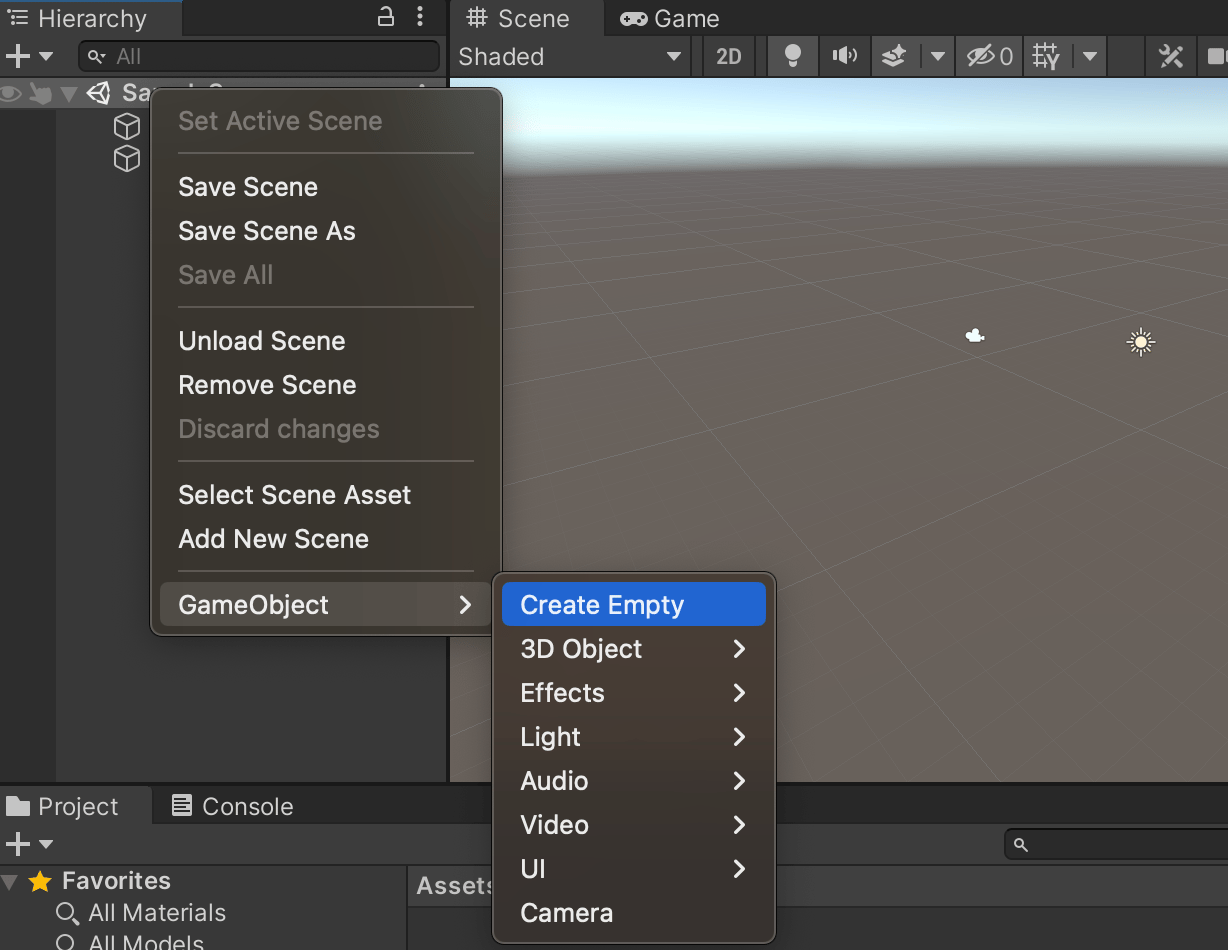
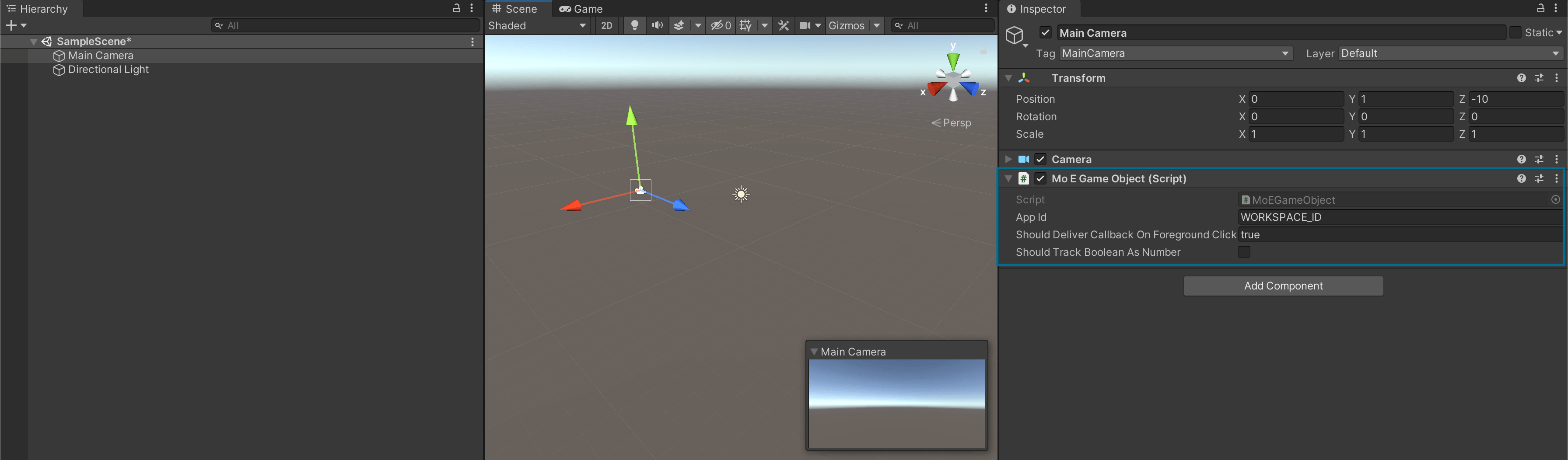
In your Unity project, add an empty game object to the first scene, attach the ***MoEGameObject.cs*** script, and set the ***App ID*** as shown below
 \
Now head over to platform-specific docs to set up the project with MoEngage SDK:
* [Android Initialization](https://www.moengage.com/docs/developer-guide/unity-sdk/sdk-integration/sdk-initialization/android-sdk-initialization)
* [iOS Initialization](https://www.moengage.com/docs/developer-guide/unity-sdk/sdk-integration/sdk-initialization/ios-sdk-initialization)
\
Now head over to platform-specific docs to set up the project with MoEngage SDK:
* [Android Initialization](https://www.moengage.com/docs/developer-guide/unity-sdk/sdk-integration/sdk-initialization/android-sdk-initialization)
* [iOS Initialization](https://www.moengage.com/docs/developer-guide/unity-sdk/sdk-integration/sdk-initialization/ios-sdk-initialization)