> ## Documentation Index
> Fetch the complete documentation index at: https://moengage.com/docs/llms.txt
> Use this file to discover all available pages before exploring further.
# 位置情報トリガー
> MoEngage SDK を使用して、iOS アプリでジオフェンスベースの位置情報トリガー型プッシュ通知を設定します。
**重要**
* **iOS 14.0** 以降、Apple はアプリで共有する位置情報の精度レベルをユーザーが選択できるようにしました。そのため、**ユーザーが正確な位置情報を無効にしている場合、リージョンモニタリング(ジオフェンス機能)は動作しません**。詳細については、[リンク](https://developer.apple.com/videos/play/wwdc2020/10660/)を参照してください。
* リージョンモニタリングは **Always authorization(常に許可)** の場合にのみサポートされます。When-in-use authorization(使用中のみ許可)ではこの機能はサポートされません。詳細については、[リンク](https://developer.apple.com/documentation/corelocation/choosing_the_authorization_level_for_location_services)を参照してください。
* **Dwell** トリガーは **iOS ではサポートされていない**ため、SDK は Enter トリガーと Exit トリガーのみをサポートします。
# 位置情報トリガーを有効にする方法
## 必要な権限:
**リージョンモニタリング(ジオフェンス)が動作するには、Always Authorization と正確な位置情報の精度が有効になっている必要があります**。そのため、アプリがこれらの権限を取得するように構成されていることを確認してください。また、これらの権限が必要となる状況をユーザーに伝えることは良い習慣であり、ユーザーが権限を許可するきっかけにもなります。
# SDK のインストール
## Swift Package Manager を使用したインストール
MoEngageGeofence は SDK バージョン 4.2.0 から SPM でサポートされています。統合するには、SDK バージョン 9.23.0 以上の場合は GitHub URL [https://github.com/moengage/apple-sdk.git](https://github.com/moengage/apple-sdk.git) を、それ以外の SDK バージョンの場合は [https://github.com/moengage/MoEngage-iOS-SDK.git](https://github.com/moengage/MoEngage-iOS-SDK.git) を使用し、ブランチを master または必要なバージョンに設定します。
## CocoaPod を使用したインストール
**情報**
CocoaPods は非推奨になりつつあります。MoEngage では、すべての新規統合に Swift Package Manager を使用することを推奨しています。CocoaPods の詳細については、[CocoaPods 統合ガイド](https://www.moengage.com/docs/developer-guide/ios-sdk/sdk-integration/basic/integration-through-cocoa-pods)を参照してください。
以下のように podfile に依存関係を追加して、MoEngageGeofence フレームワークを統合します。
```ruby Ruby wrap theme={null}
pod 'MoEngage-iOS-SDK/GeoFence',
```
次に `pod install `を実行してフレームワークをインストールします。
## 手動統合
`MoEngageGeofence` SDK をプロジェクトに手動で統合するには、こちらの[ドキュメント](/docs/ja/developer-guide/ios-sdk/manual-integration/manual-integration)に従ってください。
**注意**
バージョン 4.2.0 から MOGeofence は MoEngageGeofence に名前が変更されました。podfile と import 文を適宜更新してください。
## ジオフェンスモニタリングの開始:
MoEngageGeofence モジュールを統合した後、[*startGeofenceMonitoring()*](https://moengage.github.io/ios-api-reference/Classes/MoEngageSDKGeofence.html#/c:@M@MoEngageGeofence@objc\(cs\)MoEngageSDKGeofence\(im\)startGeofenceMonitoring) メソッドを呼び出してジオフェンスモジュールを開始します。これにより、ユーザーの現在地周辺のジオフェンスが取得されます。
```swift Swift wrap theme={null}
MoEngageSDKGeofence.sharedInstance.startGeofenceMonitoring()
```
```objective-c Objective C wrap theme={null}
[[MoEngageSDKGeofence sharedInstance] startGeofenceMonitoring];
```
Geofence Handler には `didEnterRegion` と `didExitRegion` のコールバックもあります。これらは `MoEngageSDKGeofence.sharedInstance.setGeofenceDelegate(self)` のように準拠することで取得できます。
```swift Swift wrap theme={null}
extension GeofenceViewController: MoEngageGeofenceDelegate {
func geofenceEnterTriggered(withLocationManager locationManager: CLLocationManager?, andRegion region: CLRegion?, forAccountMeta accountMeta: MoEngageAccountMeta) {
print("Geofence Entered")
}
func geofenceExitTriggered(withLocationManager locationManager: CLLocationManager?, andRegion region: CLRegion?, forAccountMeta accountMeta: MoEngageAccountMeta) {
print("Geofence Exited")
}
}
```
```objective-c Objective C wrap theme={null}
@interface MyViewController ()
---
- (void)geofenceEnterTriggeredWithLocationManager:(CLLocationManager *)locationManager andRegion:(CLRegion *)region forAccountMeta:(MoEngageAccountMeta *)accountMeta {
NSLog(@"Geofence Entered");
}
- (void)geofenceExitTriggeredWithLocationManager:(CLLocationManager *)locationManager andRegion:(CLRegion *)region forAccountMeta:(MoEngageAccountMeta *)accountMeta {
NSLog(@"Geofence Exited");
}
```
# ジオフェンスモニタリングの停止:
バージョン `9.3.0` 以降、ジオフェンスのモニタリングを停止する機能をサポートしています。ジオフェンスモニタリングを停止するには、[*stopGeofenceMonitoring()*](https://moengage.github.io/ios-api-reference/Classes/MoEngageSDKGeofence.html#/c:@M@MoEngageGeofence@objc\(cs\)MoEngageSDKGeofence\(im\)stopGeofenceMonitoring) メソッドを呼び出します。
```swift Swift wrap theme={null}
MoEngageSDKGeofence.sharedInstance.stopGeofenceMonitoring()
```
```objective-c Objective C wrap theme={null}
[[MoEngageSDKGeofence sharedInstance] stopGeofenceMonitoring];
```
# ジオフェンスのテスト
まず、MoEngage ダッシュボードでジオフェンスキャンペーンを作成します。ジオフェンスは以下の方法でテストできます。
1. シミュレーターの場合:
* 以下のように位置情報をシミュレートできます。
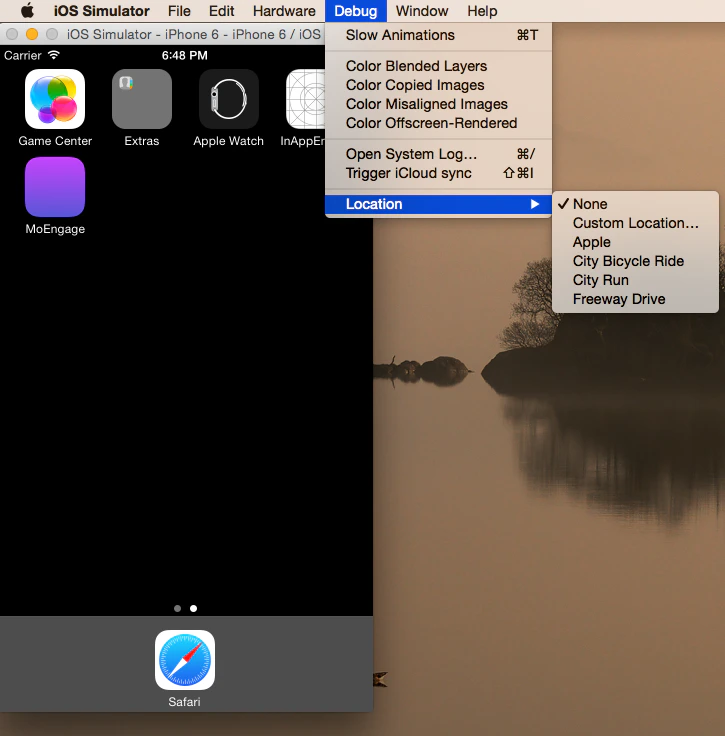 * ダッシュボードでキャンペーンを作成した位置をシミュレートします。対応するコールバック(MoEngageGeofenceHandler のデリゲートメソッド)を受け取れば問題ありません。シミュレーターではプッシュ通知は受信されません。
2. デバイスの場合:
* 以下のように、コンソール上部のバーから実機の位置情報をシミュレートできます。
* ダッシュボードでキャンペーンを作成した位置をシミュレートします。対応するコールバック(MoEngageGeofenceHandler のデリゲートメソッド)を受け取れば問題ありません。シミュレーターではプッシュ通知は受信されません。
2. デバイスの場合:
* 以下のように、コンソール上部のバーから実機の位置情報をシミュレートできます。
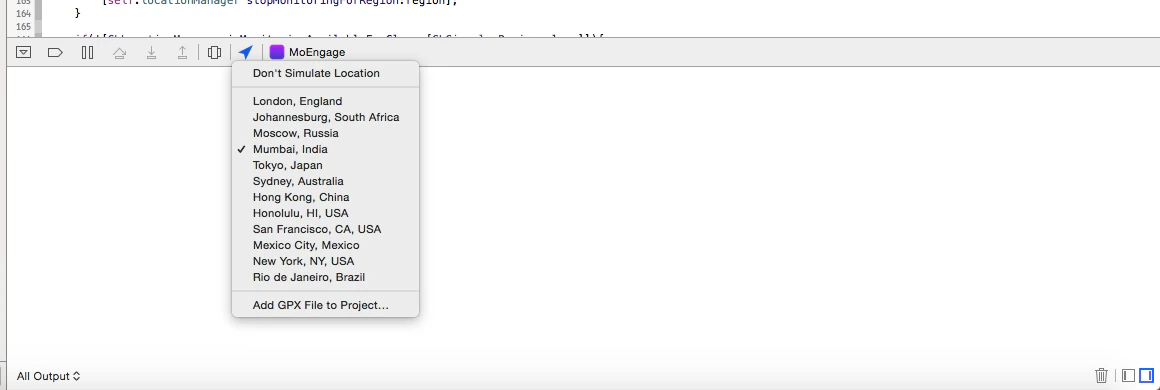 * 位置情報を設定した gpx ファイルを追加できます。サンプルの gpx ファイルは以下のとおりです。
```xml XML wrap theme={null}
CustomName
```
デバイスでは、リージョンへの進入または退出のデリゲートコールバックを受け取ると、デバイスに通知が送信されます。これは即座に行われますが、通知の到着には最大 10 分かかる場合があります。
# ジオ通知
通知を受信した後、ジオ通知を識別するには、以下のように app\_extra パラメーター内にカスタムパラメーター "cType" = "geo" があります。
```json JSON wrap theme={null}
{
"app_extra" = {
cType = geo;
screenData = {
"" = "";
};
screenName = "";
};
aps = {
alert = "exit london- single fence";
badge = 1;
};
moengage = {
cid = "55a628bcf4c4073bb66a368b_GEO:55a628bcf4c4073bb66a368c_ABab1:2015-07-15_14:11:33.704706";
};
}
```
* 位置情報を設定した gpx ファイルを追加できます。サンプルの gpx ファイルは以下のとおりです。
```xml XML wrap theme={null}
CustomName
```
デバイスでは、リージョンへの進入または退出のデリゲートコールバックを受け取ると、デバイスに通知が送信されます。これは即座に行われますが、通知の到着には最大 10 分かかる場合があります。
# ジオ通知
通知を受信した後、ジオ通知を識別するには、以下のように app\_extra パラメーター内にカスタムパラメーター "cType" = "geo" があります。
```json JSON wrap theme={null}
{
"app_extra" = {
cType = geo;
screenData = {
"" = "";
};
screenName = "";
};
aps = {
alert = "exit london- single fence";
badge = 1;
};
moengage = {
cid = "55a628bcf4c4073bb66a368b_GEO:55a628bcf4c4073bb66a368c_ABab1:2015-07-15_14:11:33.704706";
};
}
```