> ## Documentation Index
> Fetch the complete documentation index at: https://moengage.com/docs/llms.txt
> Use this file to discover all available pages before exploring further.
# Stripo
> Stripo を MoEngage と統合し、カスタマイズしたドラッグ&ドロップのメールテンプレートを MoEngage に直接エクスポートしてメールキャンペーンに活用する方法を説明します。
# はじめに
[Stripo](https://stripo.email/) は、インタラクティブな要素を含むレスポンシブなメールの作成とデザインを支援する、ドラッグ&ドロップ式のメールテンプレートビルダーです。Stripo のユーザーは、Stripo エディターで HTML を編集したり、さまざまなデバイスでどの要素を表示または非表示にするかを決定したりすることもできます。
# MoEngage × Stripo
MoEngage と Stripo の統合により、カスタマイズした *Stripo メール* をエクスポートし、メールテンプレートとして MoEngage に送信できます。
# 統合
**前提条件**
Stripo アカウントを持っていることを確認してください。
## ステップ 1: Stripo メールを作成する
Stripo ダッシュボードで任意のメールテンプレートを作成します。次に、上部の *Export* をクリックします。
 ## ステップ 2: テンプレートを MoEngage にエクスポートする
1. ポップアップで、*Export to ESV* セクションに移動します。
2. *MoEngage* を検索します。
## ステップ 2: テンプレートを MoEngage にエクスポートする
1. ポップアップで、*Export to ESV* セクションに移動します。
2. *MoEngage* を検索します。
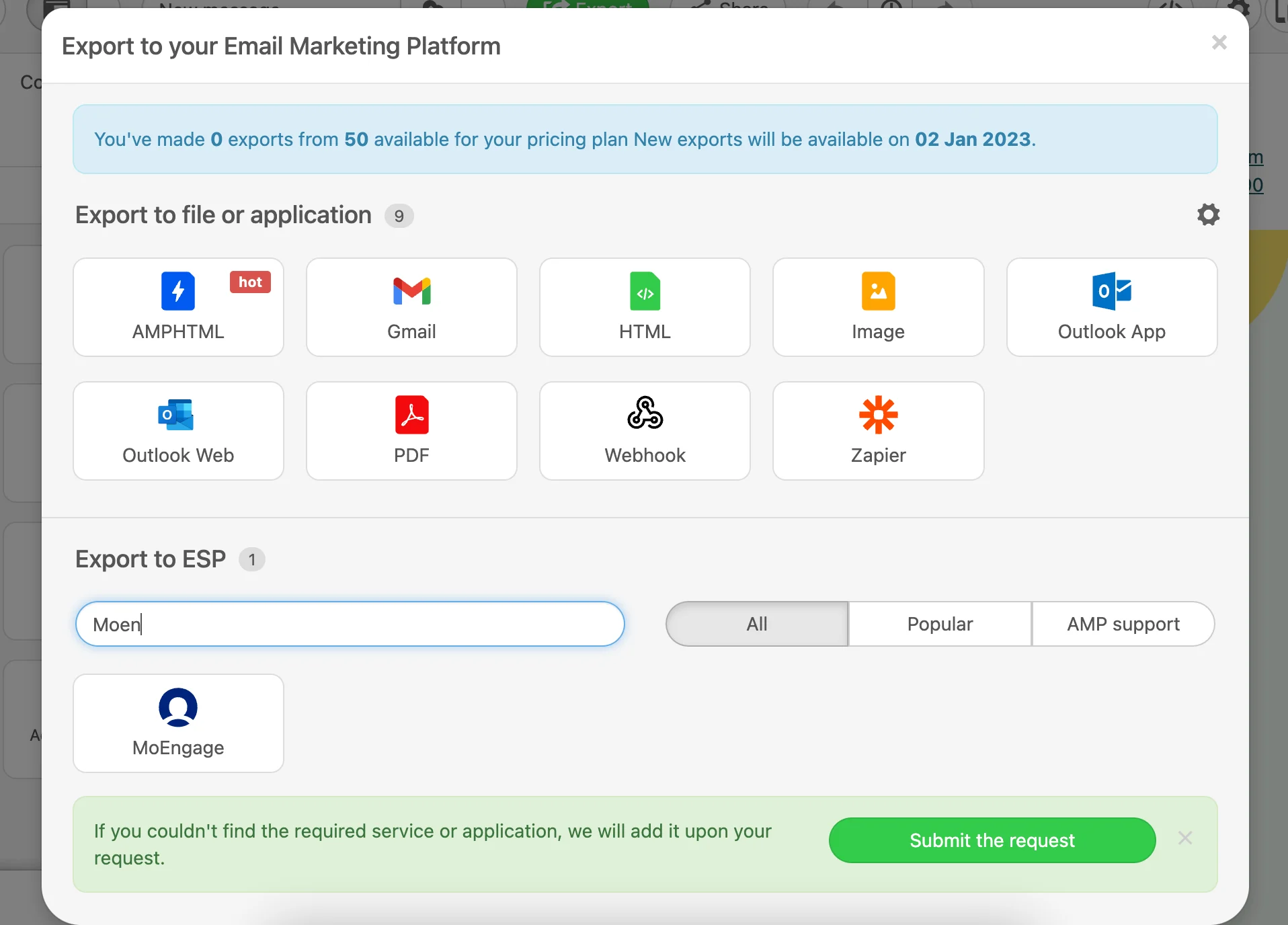 3. *MoEngage* カードをクリックします。ポップアップが表示されます。
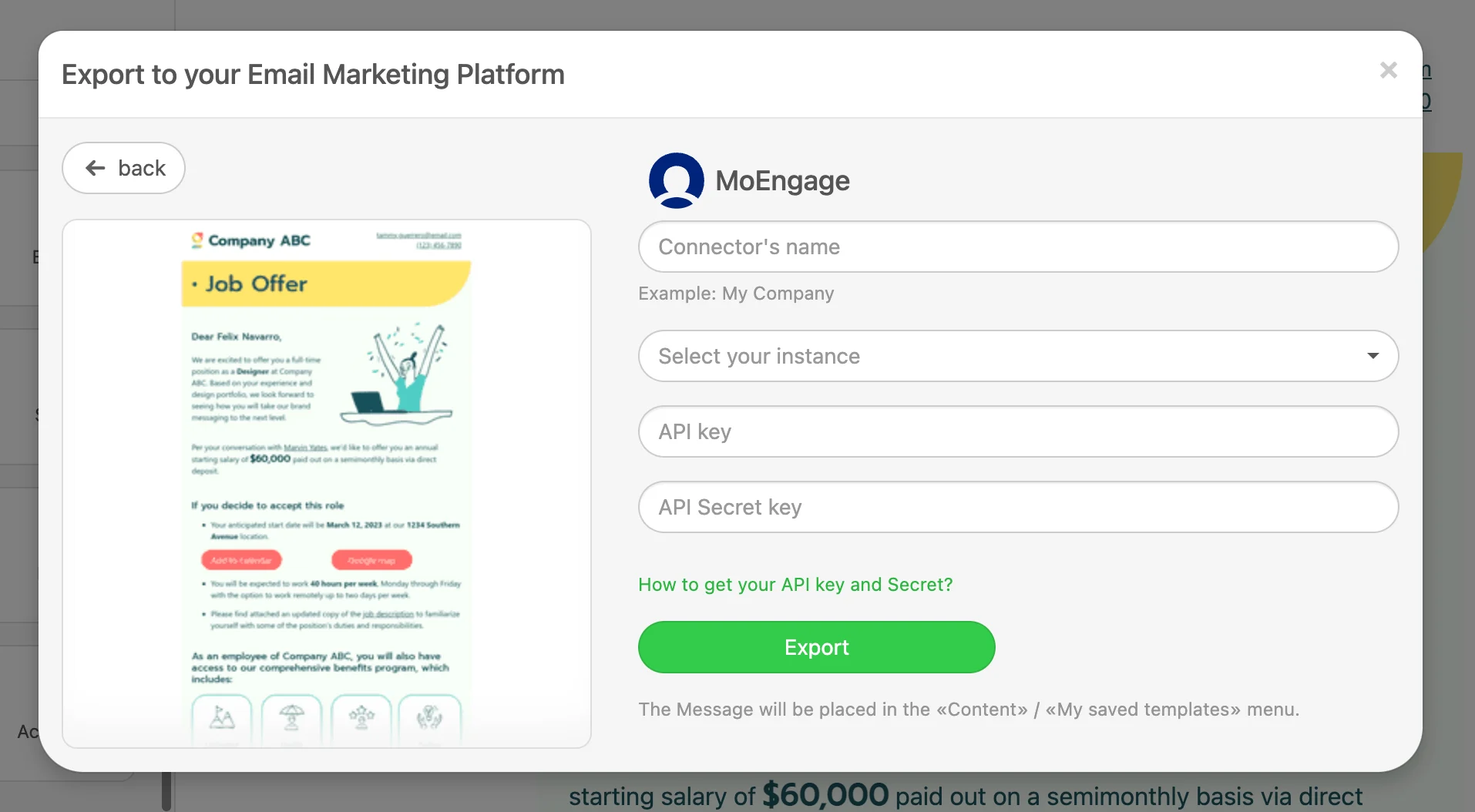 4. MoEngage アカウントの詳細を追加し、*Export* をクリックします。
| **フィールド** | **説明** |
| - | - |
| Connector name | コネクターの名前です。識別しやすいように MoEngage アプリの名前を入力できます。 |
| Select your instance | MoEngage データクラスターのリージョンです。詳細はこちら |
| API key | API key は Workspace ID です。MoEngage アカウントの Workspace ID は、**Settings -> Account -> APIs -> Workspace ID** で確認できます。MoEngage アカウントの Data API ID と Workspace ID は同じです。 |
| API Secret key | API Secret key は Data API Key です。MoEngage アカウントの Data API key は、**Settings -> Account -> APIs -> API keys -> Data** API settings で確認できます。 |
注: これは 1 回限りのセットアップです。今後のエクスポートでは、同じ認証情報が自動的に使用されます。
4. MoEngage アカウントの詳細を追加し、*Export* をクリックします。
| **フィールド** | **説明** |
| - | - |
| Connector name | コネクターの名前です。識別しやすいように MoEngage アプリの名前を入力できます。 |
| Select your instance | MoEngage データクラスターのリージョンです。詳細はこちら |
| API key | API key は Workspace ID です。MoEngage アカウントの Workspace ID は、**Settings -> Account -> APIs -> Workspace ID** で確認できます。MoEngage アカウントの Data API ID と Workspace ID は同じです。 |
| API Secret key | API Secret key は Data API Key です。MoEngage アカウントの Data API key は、**Settings -> Account -> APIs -> API keys -> Data** API settings で確認できます。 |
注: これは 1 回限りのセットアップです。今後のエクスポートでは、同じ認証情報が自動的に使用されます。  ## ステップ 3 - MoEngage キャンペーンでの利用
### メールテンプレート-
テンプレートが作成されると、メールキャンペーンのステップ 2 でアクセスできるようになります。新しく作成されたテンプレートは *My saved templates* セクションに表示されます。

メールキャンペーンでのテンプレートの使用について詳しくは、[こちらをクリックしてください](https://www.moengage.com/docs/user-guide/campaigns-and-channels/email/create/create-an-email-campaign)。
## ステップ 3 - MoEngage キャンペーンでの利用
### メールテンプレート-
テンプレートが作成されると、メールキャンペーンのステップ 2 でアクセスできるようになります。新しく作成されたテンプレートは *My saved templates* セクションに表示されます。

メールキャンペーンでのテンプレートの使用について詳しくは、[こちらをクリックしてください](https://www.moengage.com/docs/user-guide/campaigns-and-channels/email/create/create-an-email-campaign)。