> ## Documentation Index
> Fetch the complete documentation index at: https://moengage.com/docs/llms.txt
> Use this file to discover all available pages before exploring further.
# Swipe Pages
> Swipe Pages のランディングページのフォーム送信を取得し、MoEngage でユーザーとイベントを作成または更新して、パーソナライズされたターゲットキャンペーンをトリガーします。
## はじめに
[Swipe Pages](https://swipepages.com/) は、高速でモバイルに最適化されたランディングページを作成できるランディングページビルダーです。25 以上の要素と 80 以上の構築済みブロックを備えた強力なドラッグアンドドロップビルダーで、ページ作成プロセスを支援します。
## MoEngage と Swipe Pages
MoEngage と Swipe Pages の連携により、ランディングページの入力内容を取得し、MoEngage を通じてパーソナライズされたターゲットキャンペーンを送信してコンバージョンを促進できます。この連携により、以下のことができます。
* フォームが送信されたときに MoEngage でユーザーを作成または更新する。
* フォームから送信された詳細を使用してイベントを作成する。
## 連携
**前提条件**
* Swipe Pages の Webhook にアクセスできることを確認してください。
### ステップ 1: MoEngage エンドポイントを取得する
連携用の専用エンドポイントを取得するには、MoEngage サポートチームに連絡してください。リクエストでは、MoEngage とパートナープラットフォーム間でユーザープロファイルをリンクするために使用する共通の識別子を指定してください。
### ステップ 2: Swipe Pages で Webhook を設定する
[Swipe Pages のガイド](https://docs.swipepages.com/en/articles/6865541-how-to-setup-global-webhooks)に従って Webhook を作成します。Swipe Pages ダッシュボードで以下を行います。
1. **Add Global Webhooks** をクリックします。
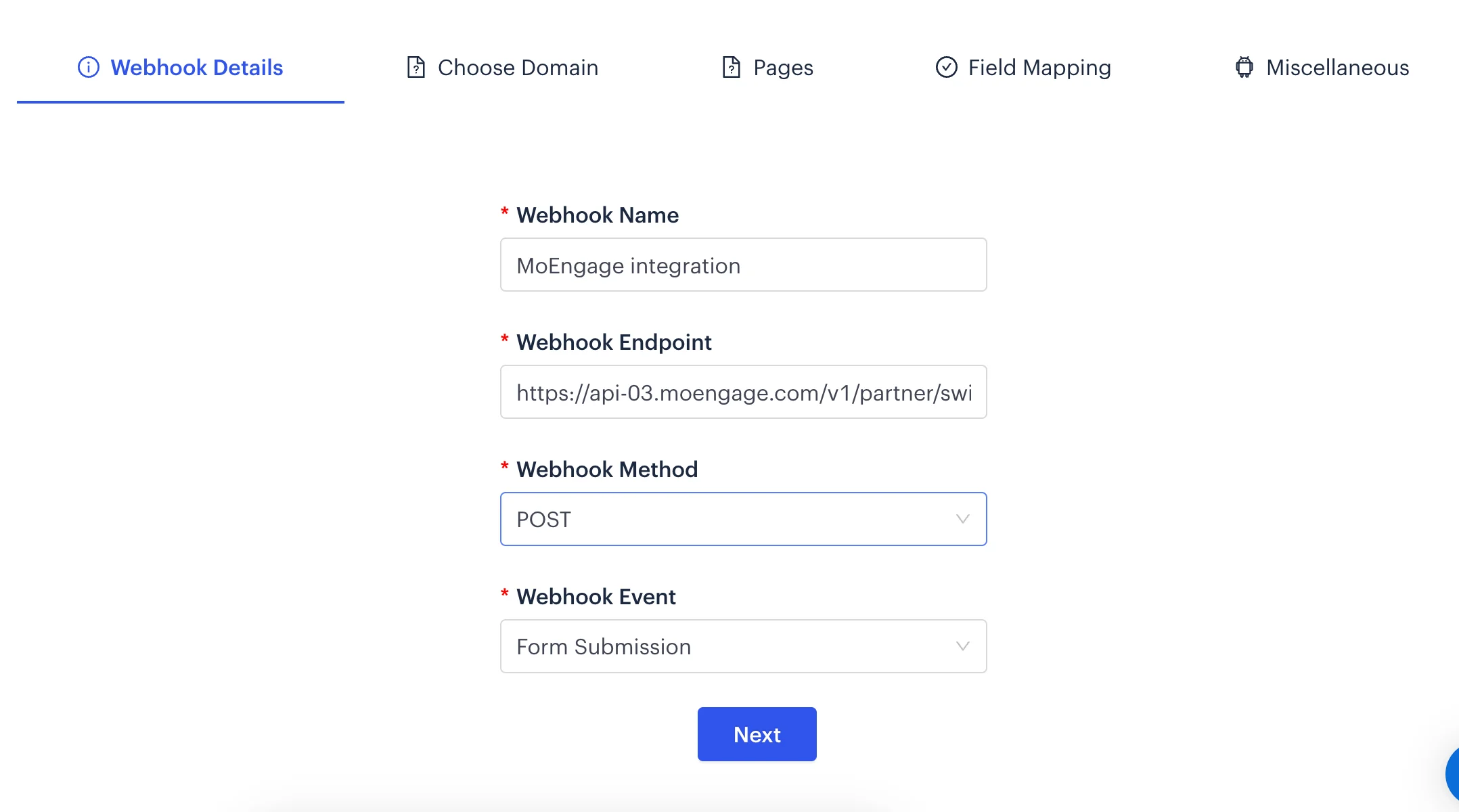
 2. Webhook の詳細を入力します。
* **Name**: `MoEngage integration` または任意の名前を入力します。
* **Webhook endpoint URL**: [ステップ 1](#step-1-get-your-moengage-endpoint) で受け取った MoEngage の専用エンドポイント。
* **Webhook Method**: `POST`。
* **Webhook Event**: `Form Submitted`。
2. Webhook の詳細を入力します。
* **Name**: `MoEngage integration` または任意の名前を入力します。
* **Webhook endpoint URL**: [ステップ 1](#step-1-get-your-moengage-endpoint) で受け取った MoEngage の専用エンドポイント。
* **Webhook Method**: `POST`。
* **Webhook Event**: `Form Submitted`。
 3. **Next** をクリックします。
4. 選択したドメインに関連付けられたページを選択します。
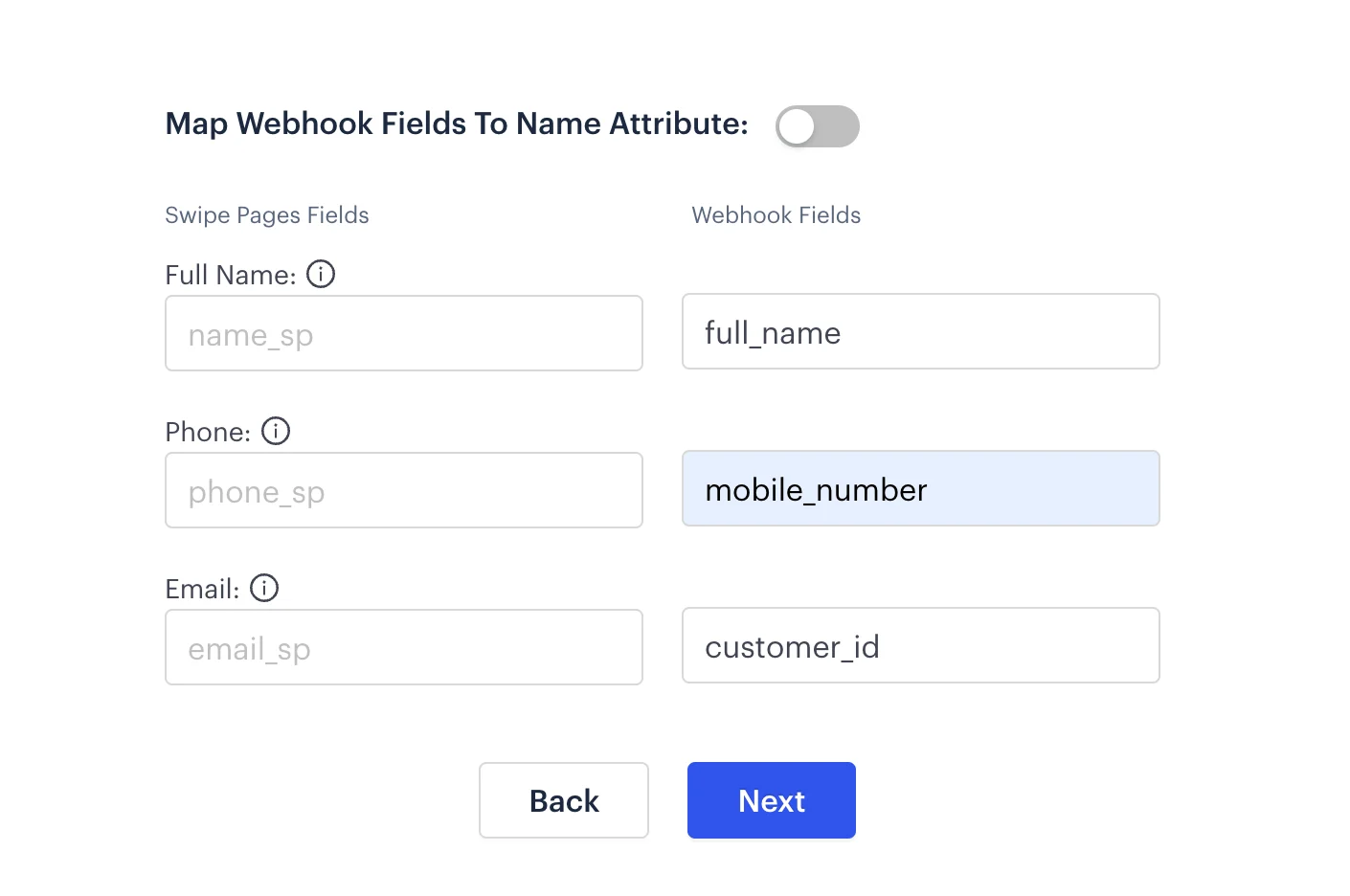
5. Swipe Pages のフォームフィールドを適切な Webhook フィールドにマッピングします。MoEngage に送信するフィールドを選択します。
**必須フィールド:**
* `customer_id`: MoEngage と Swipe Pages 間の一意の識別子。メールアドレス、携帯電話番号、またはフォームで取得したその他のフィールドを使用できます。
* **MoEngage の標準フィールド**: MoEngage には一部の標準フィールドに固定のキーがあり、ユーザープロファイルを正しく更新するにはそのままマッピングする必要があります。これらのフィールドは `first_name`、`last_name`、`email`、`mobile_number` です。
* **その他のフォームフィールド**: フォームで取得したその他のデータ。任意のキーにマッピングでき、MoEngage ではイベント属性として表示されます。
3. **Next** をクリックします。
4. 選択したドメインに関連付けられたページを選択します。
5. Swipe Pages のフォームフィールドを適切な Webhook フィールドにマッピングします。MoEngage に送信するフィールドを選択します。
**必須フィールド:**
* `customer_id`: MoEngage と Swipe Pages 間の一意の識別子。メールアドレス、携帯電話番号、またはフォームで取得したその他のフィールドを使用できます。
* **MoEngage の標準フィールド**: MoEngage には一部の標準フィールドに固定のキーがあり、ユーザープロファイルを正しく更新するにはそのままマッピングする必要があります。これらのフィールドは `first_name`、`last_name`、`email`、`mobile_number` です。
* **その他のフォームフィールド**: フォームで取得したその他のデータ。任意のキーにマッピングでき、MoEngage ではイベント属性として表示されます。
 6. その他のオプションを設定します。
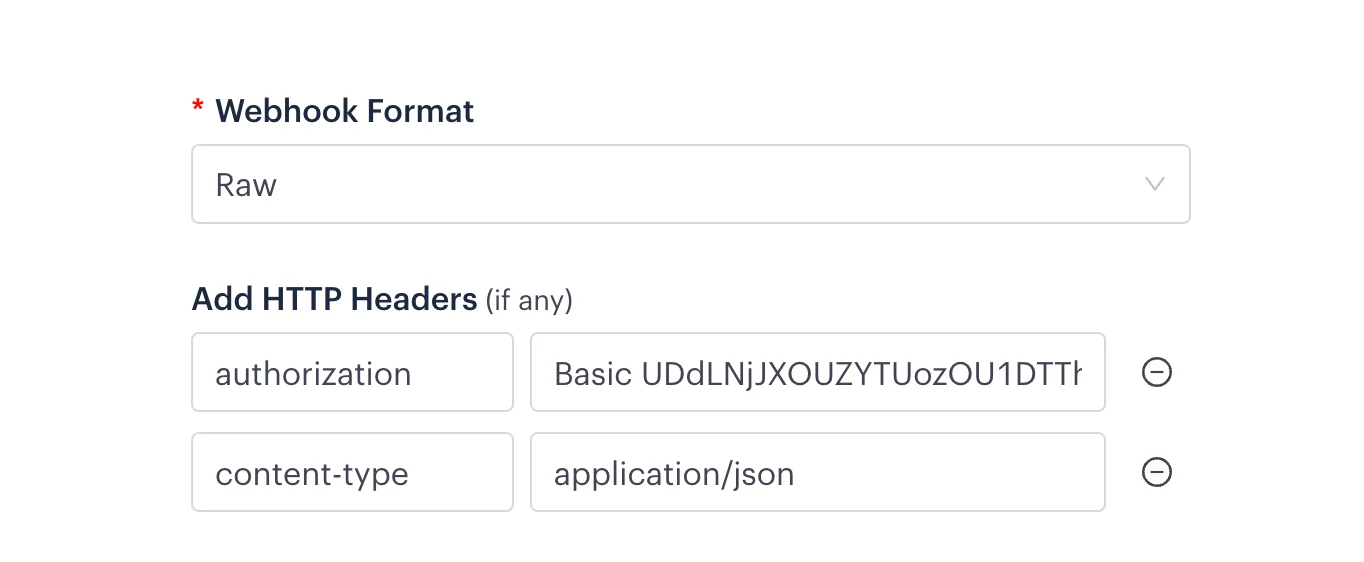
* **Webhook Format**: `Raw`。
* **HTTP headers**:
| ヘッダー | 値 |
| - | - |
| `Content-Type` | `application/json` |
| `Authorization` | `Basic ` |
**Authorization** トークンを生成するには、以下を行います。
1. [Basic Auth Header Generator ツール](https://www.debugbear.com/basic-auth-header-generator)を使用します。
2. ユーザー名に **Workspace ID**、パスワードに **Data API Key** を入力します。
認証情報を確認するには、MoEngage ダッシュボードで **Settings** > **Account** > **APIs** に移動します。
6. その他のオプションを設定します。
* **Webhook Format**: `Raw`。
* **HTTP headers**:
| ヘッダー | 値 |
| - | - |
| `Content-Type` | `application/json` |
| `Authorization` | `Basic ` |
**Authorization** トークンを生成するには、以下を行います。
1. [Basic Auth Header Generator ツール](https://www.debugbear.com/basic-auth-header-generator)を使用します。
2. ユーザー名に **Workspace ID**、パスワードに **Data API Key** を入力します。
認証情報を確認するには、MoEngage ダッシュボードで **Settings** > **Account** > **APIs** に移動します。
 トークンが余分なスペースなしで完全にコピーされていることを確認してください。
7. **Create Webhook** をクリックします。
### ステップ 3: Webhook をテストする
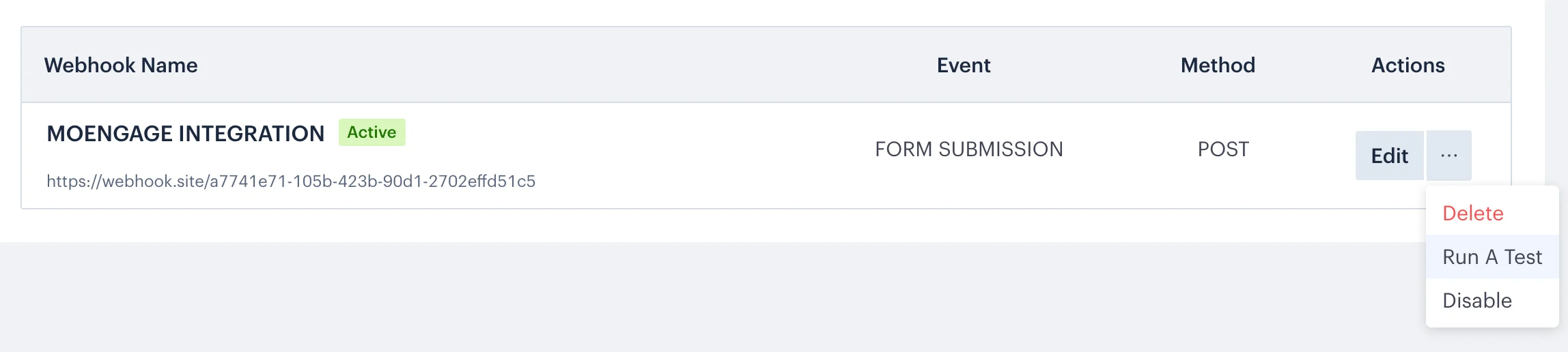
ランディングページにリードを追加してから、**Run a test** をクリックします。
トークンが余分なスペースなしで完全にコピーされていることを確認してください。
7. **Create Webhook** をクリックします。
### ステップ 3: Webhook をテストする
ランディングページにリードを追加してから、**Run a test** をクリックします。
 ### ステップ 4: MoEngage で詳細を表示する
ユーザーとイベントが MoEngage に表示され始めます。ユーザープロファイルから確認できます。イベント名は `SwipePages Form filled` と表示されます。これで、ユーザーに対してイベントトリガー型キャンペーンを実行できます。
テストリードが、`SwipePages Form filled` イベントが追跡された状態で MoEngage にユーザーとして表示されます。
This documentation is built and hosted on [Mintlify](https://mintlify.com), a developer documentation platform.
### ステップ 4: MoEngage で詳細を表示する
ユーザーとイベントが MoEngage に表示され始めます。ユーザープロファイルから確認できます。イベント名は `SwipePages Form filled` と表示されます。これで、ユーザーに対してイベントトリガー型キャンペーンを実行できます。
テストリードが、`SwipePages Form filled` イベントが追跡された状態で MoEngage にユーザーとして表示されます。
This documentation is built and hosted on [Mintlify](https://mintlify.com), a developer documentation platform.