> ## Documentation Index
> Fetch the complete documentation index at: https://moengage.com/docs/llms.txt
> Use this file to discover all available pages before exploring further.
# MoEngageでPGP暗号化を使用する
> MoEngageでPGP暗号化を使用してファイルインポートを保護します。公開鍵と秘密鍵のペアを設定し、S3およびSFTPでのデータ転送を安全に暗号化します。
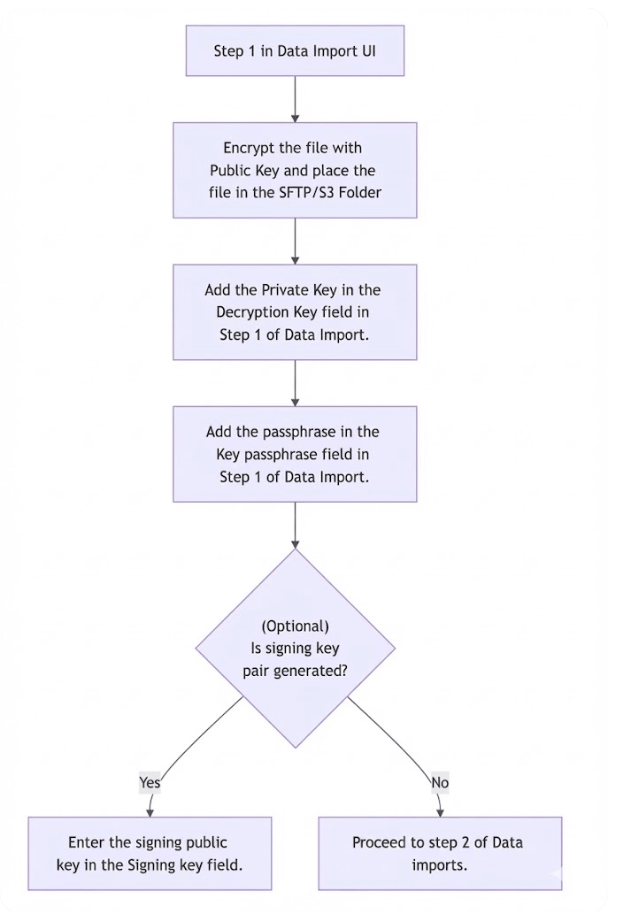
# 概要 - PGP暗号化のプロセス
PGP (Pretty Good Privacy) は、機密ファイルを暗号化できるセキュリティプログラムです。MoEngageは、ファイルインポート (S3 Import、SFTP Import) でPGP暗号化をサポートしています。この記事では、機密ファイルにPGP暗号化を使用する方法について説明します。
### 前提条件
* **PGPキーペア:** PGPキーペアは公開鍵と秘密鍵で構成されます。公開鍵はファイルの暗号化に、秘密鍵はファイルの復号に使用します。秘密鍵はファイル内の機密情報を復号するため、誰とも共有しないでください。この秘密鍵は、MoEngageとのSFTP (SSH File Transfer Protocol) 連携プロセスで必要です。
* **署名キーペア**: 署名キーペアは公開鍵と秘密鍵で構成されます。公開鍵はファイルの署名に使用し、MoEngageのSFTP連携で必要です。内部的には、秘密鍵が署名を検証します。
 # PGPキーペアを使用する
以下の手順では、PGP標準の無料実装である [GnuPG](https://www.gnupg.org/index.html) を使用してPGP暗号化を利用する方法を説明します。
## ステップ1: 標準キーペア (公開鍵と秘密鍵) を生成する
GnuPGなどのPGPツールを使用してPGPキーペアを生成します。次の例を参照してください。
例
```
(env) ubuntu@ip-10-66-67-30:~$ gpg --full-generate-key
gpg (GnuPG) 2.2.19; Copyright (C) 2019 Free Software Foundation, Inc.
This is free software: you are free to change and redistribute it.
There is NO WARRANTY, to the extent permitted by law.
Please select what kind of key you want:
(1) RSA and RSA (default)
(2) DSA and Elgamal
(3) DSA (sign only)
(4) RSA (sign only)
(14) Existing key from card
Your selection? 1
What keysize do you want? (1024)
Requested keysize is 1024 bits
Please specify how long the key should be valid.
0 = key does not expire
= key expires in n days
w = key expires in n weeks
m = key expires in n months
y = key expires in n years
Key is valid for? (0) 0
Key does not expire at all
Is this correct? (y/N) y
GnuPG needs to construct a user ID to identify your key.
Real name: Moengage
Email address: demo@example.com
Comment:
You selected this USER-ID:
"Moengage "
Change (N)ame, (C)omment, (E)mail or (O)kay/(Q)uit? O
We need to generate a lot of random bytes. It is a good idea to perform
some other action (type on the keyboard, move the mouse, utilize the
disks) during the prime generation; this gives the random number
generator a better chance to gain enough entropy.
We need to generate a lot of random bytes. It is a good idea to perform
some other action (type on the keyboard, move the mouse, utilize the
disks) during the prime generation; this gives the random number
generator a better chance to gain enough entropy.
gpg: key 625A24E04B26F243 marked as ultimately trusted
gpg: revocation certificate stored as '/home/ubuntu/.gnupg/openpgp-revocs.d/F4CDDF1A7B223A63BF90787E625A24E04B26F243.rev'
public and secret key created and signed.
pub rsa1024 2023-01-18 [SC]
F4CDDF1A7B223A63BF90787E625A24E04B26F243
uid Moengage
sub rsa1024 2023-01-18 [E]
```
MoEngageは、最大1024ビット長のRSA鍵を使用したファイル暗号化をサポートしています。4096ビットなどのより大きなRSA鍵はサポートされておらず、復号時に失敗します。キーペアは1024ビットのRSA鍵サイズで生成してください。
## ステップ2: 公開鍵を生成してファイルを暗号化する
生成した公開鍵を使用してファイルを暗号化し、暗号化したファイルをS3またはSFTPフォルダーにアップロードします。
公開鍵での暗号化
```
gpg --import
gpg --encrypt --sign --armor -r demo@example.com
```
`--sign` オプションは、ファイルに署名して暗号化するために使用します。
## ステップ3: MoEngage UIで鍵を追加する
MoEngage UIの **Decryption Key** セクションに秘密鍵を入力し、**Key Passphrase** セクションにパスフレーズを入力します。詳細については、[S3認証情報の追加 (S3 Imports)](/docs/ja/user-guide/data/imports/setting-up-a-file-import) および [S3認証情報の追加 (SFTP Imports)](/docs/ja/user-guide/data/imports/setting-up-a-file-import) セクションを参照してください。
## ステップ4: ファイルを復号する
暗号化されたファイルを復号するには、秘密鍵と、キーペア作成時に設定した対応するパスフレーズの2つが必要です。PGPソフトウェアで暗号化されたファイルに移動して選択し、パスフレーズを入力します。ソフトウェアがファイルを復号し、元のドキュメントの暗号化されていないバージョンを生成します。
Pythonユーザーの場合は、gpgコマンドのPythonラッパーであるpython-gnupgパッケージの利用を検討してください。
例
```
import gnupg
import os
# intialising
gpg = gnupg.GPG(gnupghome=os.path.expanduser( '~' ))
gpg.encoding = 'utf-8'
# importing the private key to the server where we are going to decrypt the file
key_data = ""
import_result = gpg.import_keys(key_data)
gpg.trust_keys(import_result.fingerprints, "TRUST_ULTIMATE")
#
encrypted_file_path = "/path/to/encrypted/file"
with open(encrypted_file_path, 'rb') as file:
status=gpg.decrypt_file(file, passphrase="", output="/path/where we want to store the decrypted file")
print(status.ok)
print(status.stderr)
```
## ステップ5: ファイルの署名を検証する \[任意のステップ]
ファイルの署名に署名鍵を使用した場合は、公開鍵と署名キーペアをMoEngageダッシュボードの該当するセクションにコピーします。次の例に示すように、MoEngageはS3またはSFTPフォルダー内のファイルの署名が一致するかを検証します。
例
```
if status.signature_id: # if signature verified then it has value else None
print("signature verified")
else:
print("Not")
```
# 次のステップ
1. [S3 Imports](/docs/ja/user-guide/data/imports/setting-up-a-file-import)
2. [SFTP Imports](/docs/ja/user-guide/data/imports/setting-up-a-file-import)
This documentation is built and hosted on [Mintlify](https://mintlify.com), a developer documentation platform.
# PGPキーペアを使用する
以下の手順では、PGP標準の無料実装である [GnuPG](https://www.gnupg.org/index.html) を使用してPGP暗号化を利用する方法を説明します。
## ステップ1: 標準キーペア (公開鍵と秘密鍵) を生成する
GnuPGなどのPGPツールを使用してPGPキーペアを生成します。次の例を参照してください。
例
```
(env) ubuntu@ip-10-66-67-30:~$ gpg --full-generate-key
gpg (GnuPG) 2.2.19; Copyright (C) 2019 Free Software Foundation, Inc.
This is free software: you are free to change and redistribute it.
There is NO WARRANTY, to the extent permitted by law.
Please select what kind of key you want:
(1) RSA and RSA (default)
(2) DSA and Elgamal
(3) DSA (sign only)
(4) RSA (sign only)
(14) Existing key from card
Your selection? 1
What keysize do you want? (1024)
Requested keysize is 1024 bits
Please specify how long the key should be valid.
0 = key does not expire
= key expires in n days
w = key expires in n weeks
m = key expires in n months
y = key expires in n years
Key is valid for? (0) 0
Key does not expire at all
Is this correct? (y/N) y
GnuPG needs to construct a user ID to identify your key.
Real name: Moengage
Email address: demo@example.com
Comment:
You selected this USER-ID:
"Moengage "
Change (N)ame, (C)omment, (E)mail or (O)kay/(Q)uit? O
We need to generate a lot of random bytes. It is a good idea to perform
some other action (type on the keyboard, move the mouse, utilize the
disks) during the prime generation; this gives the random number
generator a better chance to gain enough entropy.
We need to generate a lot of random bytes. It is a good idea to perform
some other action (type on the keyboard, move the mouse, utilize the
disks) during the prime generation; this gives the random number
generator a better chance to gain enough entropy.
gpg: key 625A24E04B26F243 marked as ultimately trusted
gpg: revocation certificate stored as '/home/ubuntu/.gnupg/openpgp-revocs.d/F4CDDF1A7B223A63BF90787E625A24E04B26F243.rev'
public and secret key created and signed.
pub rsa1024 2023-01-18 [SC]
F4CDDF1A7B223A63BF90787E625A24E04B26F243
uid Moengage
sub rsa1024 2023-01-18 [E]
```
MoEngageは、最大1024ビット長のRSA鍵を使用したファイル暗号化をサポートしています。4096ビットなどのより大きなRSA鍵はサポートされておらず、復号時に失敗します。キーペアは1024ビットのRSA鍵サイズで生成してください。
## ステップ2: 公開鍵を生成してファイルを暗号化する
生成した公開鍵を使用してファイルを暗号化し、暗号化したファイルをS3またはSFTPフォルダーにアップロードします。
公開鍵での暗号化
```
gpg --import
gpg --encrypt --sign --armor -r demo@example.com
```
`--sign` オプションは、ファイルに署名して暗号化するために使用します。
## ステップ3: MoEngage UIで鍵を追加する
MoEngage UIの **Decryption Key** セクションに秘密鍵を入力し、**Key Passphrase** セクションにパスフレーズを入力します。詳細については、[S3認証情報の追加 (S3 Imports)](/docs/ja/user-guide/data/imports/setting-up-a-file-import) および [S3認証情報の追加 (SFTP Imports)](/docs/ja/user-guide/data/imports/setting-up-a-file-import) セクションを参照してください。
## ステップ4: ファイルを復号する
暗号化されたファイルを復号するには、秘密鍵と、キーペア作成時に設定した対応するパスフレーズの2つが必要です。PGPソフトウェアで暗号化されたファイルに移動して選択し、パスフレーズを入力します。ソフトウェアがファイルを復号し、元のドキュメントの暗号化されていないバージョンを生成します。
Pythonユーザーの場合は、gpgコマンドのPythonラッパーであるpython-gnupgパッケージの利用を検討してください。
例
```
import gnupg
import os
# intialising
gpg = gnupg.GPG(gnupghome=os.path.expanduser( '~' ))
gpg.encoding = 'utf-8'
# importing the private key to the server where we are going to decrypt the file
key_data = ""
import_result = gpg.import_keys(key_data)
gpg.trust_keys(import_result.fingerprints, "TRUST_ULTIMATE")
#
encrypted_file_path = "/path/to/encrypted/file"
with open(encrypted_file_path, 'rb') as file:
status=gpg.decrypt_file(file, passphrase="", output="/path/where we want to store the decrypted file")
print(status.ok)
print(status.stderr)
```
## ステップ5: ファイルの署名を検証する \[任意のステップ]
ファイルの署名に署名鍵を使用した場合は、公開鍵と署名キーペアをMoEngageダッシュボードの該当するセクションにコピーします。次の例に示すように、MoEngageはS3またはSFTPフォルダー内のファイルの署名が一致するかを検証します。
例
```
if status.signature_id: # if signature verified then it has value else None
print("signature verified")
else:
print("Not")
```
# 次のステップ
1. [S3 Imports](/docs/ja/user-guide/data/imports/setting-up-a-file-import)
2. [SFTP Imports](/docs/ja/user-guide/data/imports/setting-up-a-file-import)
This documentation is built and hosted on [Mintlify](https://mintlify.com), a developer documentation platform.