

Introduction
Skycore helps issue personalized Mobile Wallet Passes to your customers through SMS, MMS, Web, QR code, or email. You can send multiple types of passes including coupons, gift cards, loyalty cards, event tickets, and boarding passes.MoEngage × Skycore
The MoEngage and Skycore integration can help take your loyalty or coupon program to the next level by sending passes generated by Skycore to your audience through MoEngage campaigns. With this integration, you can -- Create passes using Pass Issuance Links
- Update passes on the fly based on user actions (events)
Integration
- Ensure you have access to your Skycore account.
- Ensure you have your Skycore API Key. You can access this by navigating to Settings >> API Settings on your Skycore dashboard.
- Ensure you have a Pass Template ready.
Create passes using Pass Issuance Links
Within MoEngage campaigns, you can set up a Pass Issuance link to generate a unique URL for your customers to install their pass on either Android or iOS wallets. These can be sent via email or embedded into a website.Step 1: Create a new Pass Issuance Link on Skycore
- Please follow the steps here to Create a New Pass Issuance Link.
- Once created, the link shows up on the Pass Issuance Links tab. Note: MoEngage only supports SHA256 (with and without salt) encryptions.
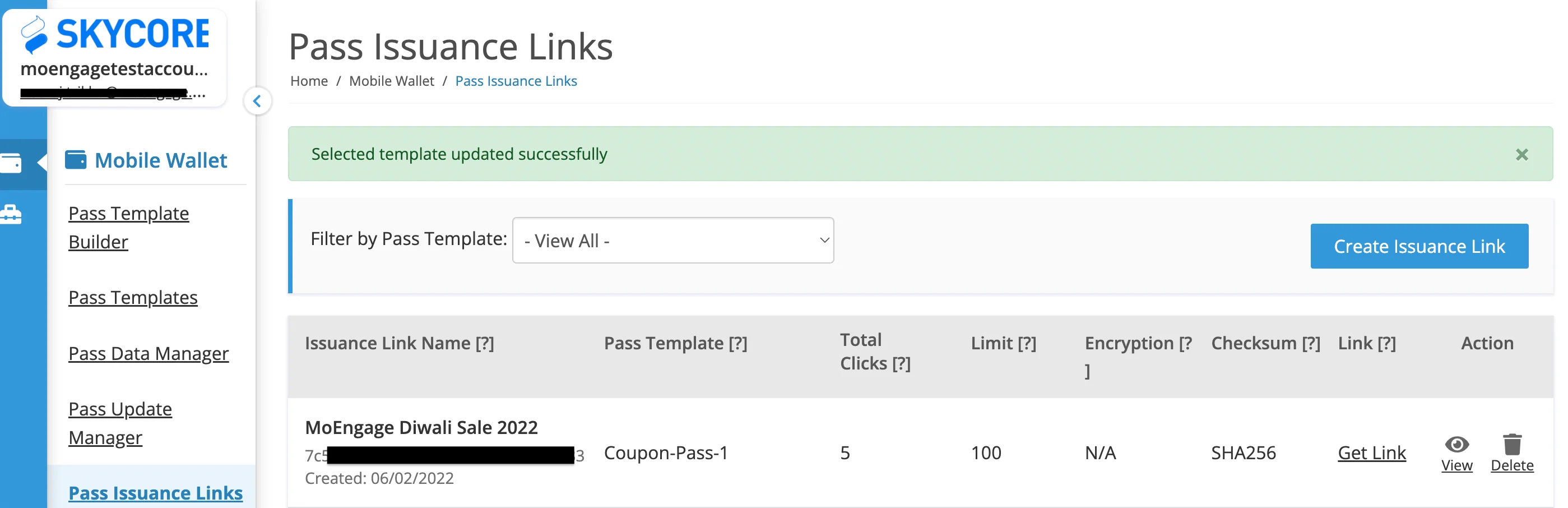
- Click Get Link. Your link will look like this:
Step 2: Create and encode payload variable
- Go to step 2 of your campaign creation.
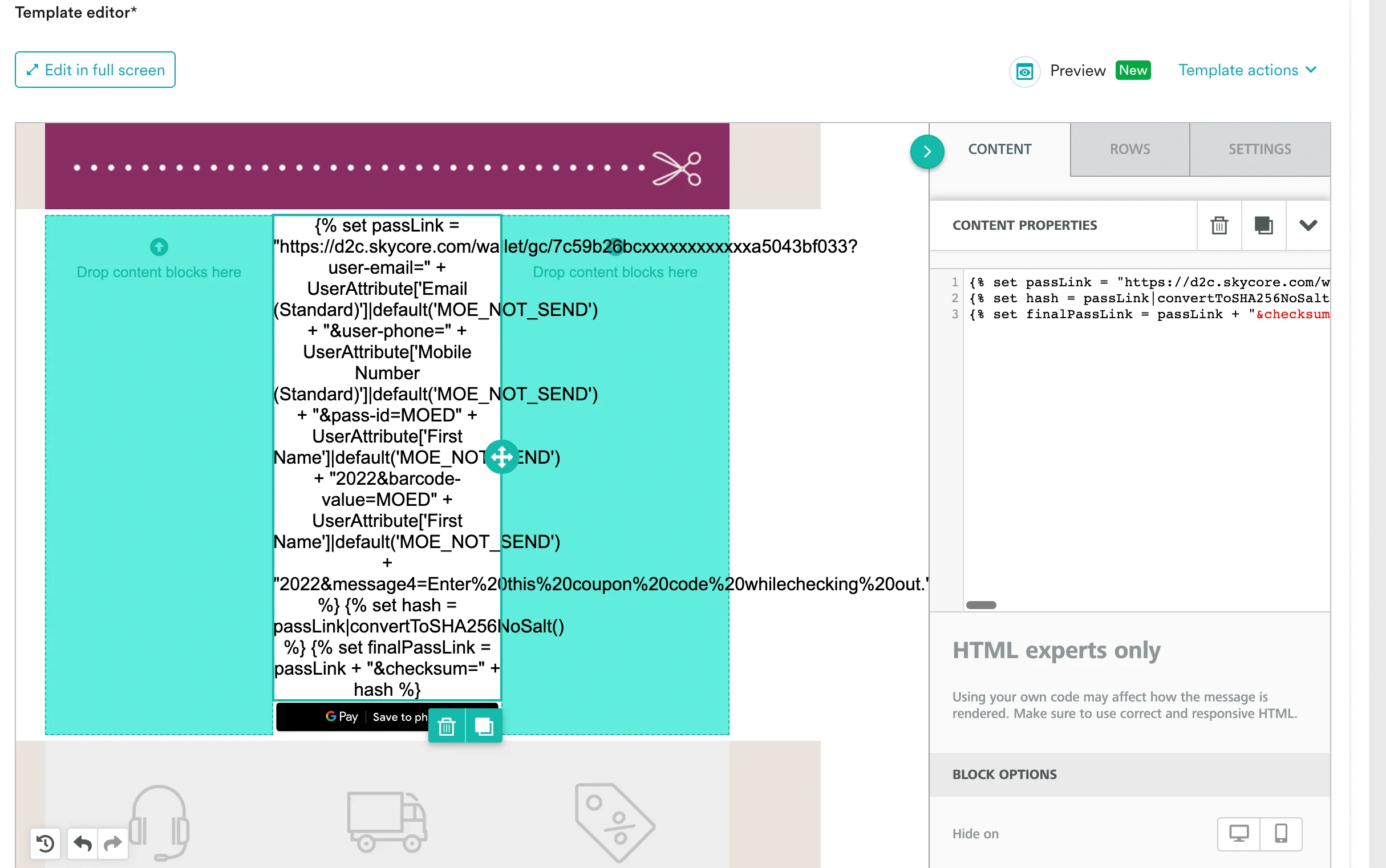
- Inside your template, create a passlink (using the link copied in Step 1) within an HTML Block:
Step 3: Preview your URL
You can print the variables in the template or use the Personalized Previews to preview and validate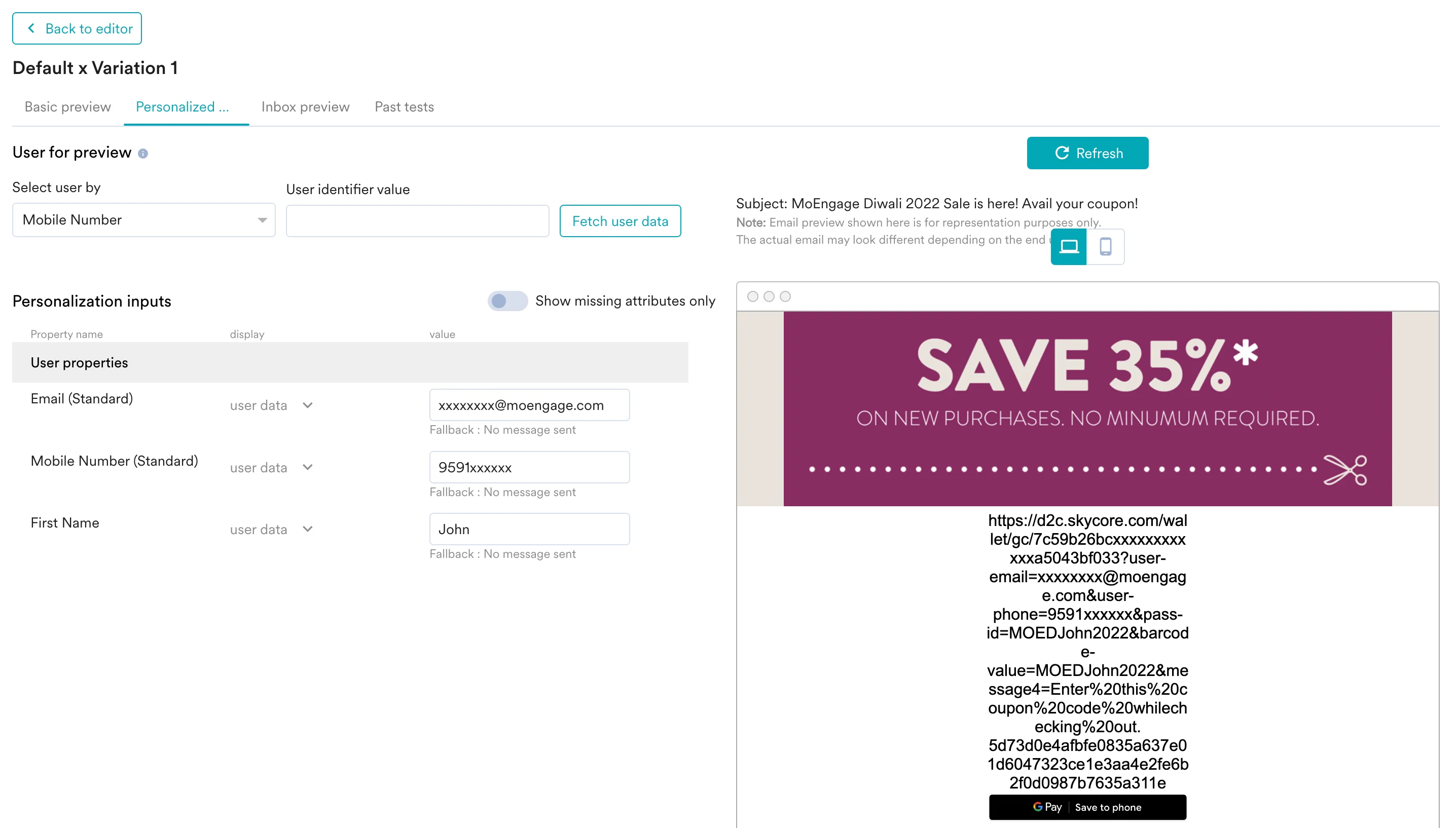
Step 4: Add Save Pass option in your MoEngage campaigns
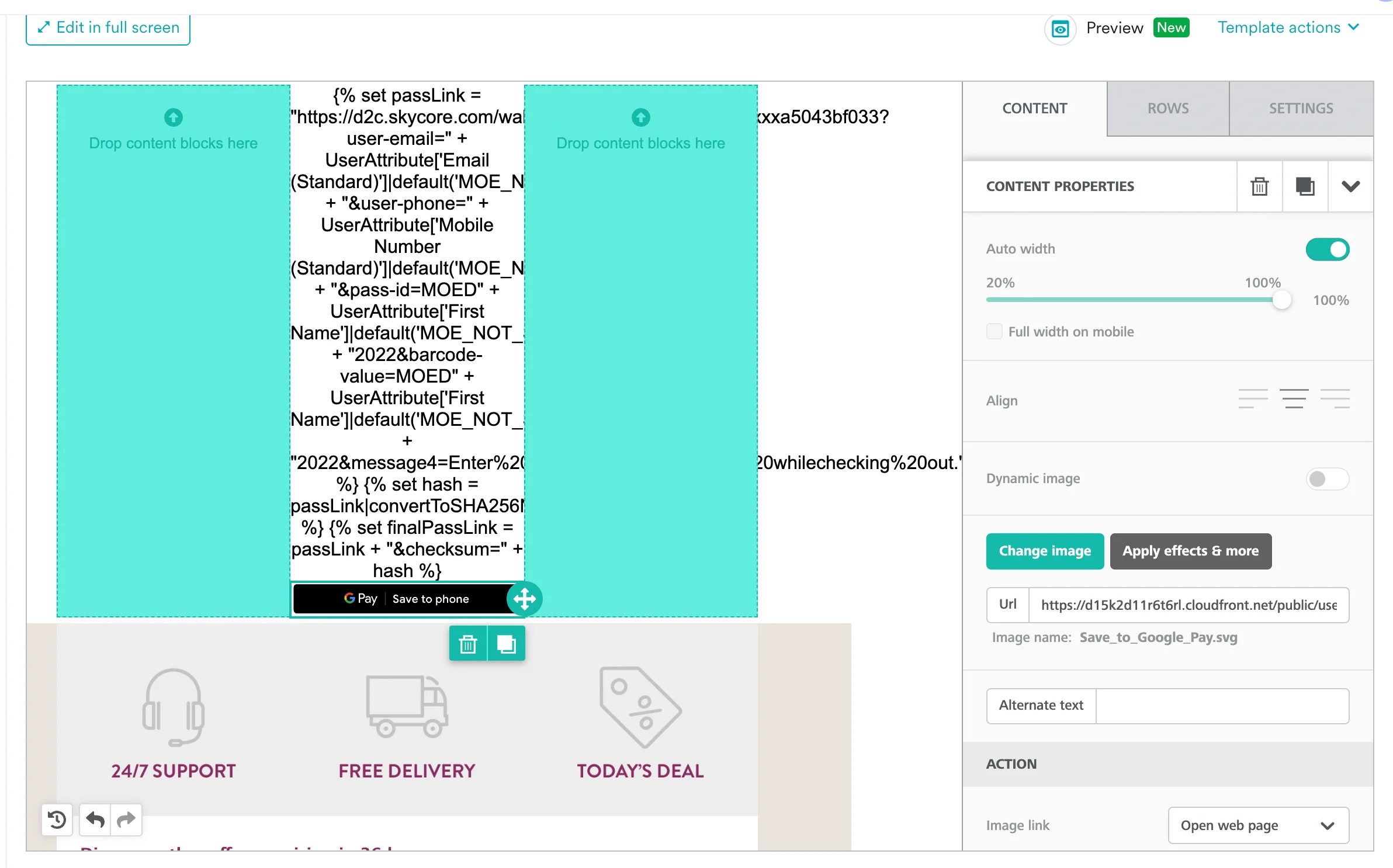
Add a Save Pass Button according to your design specifications from Google (Android) and Apple (iOS) respectively.- Insert a new image inside your template.
- In your File Manager, click Import and then select URL.
 For your reference, here are the URLs. For Android:
For Apple:
For your reference, here are the URLs. For Android:
For Apple: - Select the appropriate image to show.
- In the URL section, type:
Update passes dynamically based on user actions (events)
Within MoEngage, you can set up an Event Triggered Connector Campaign to update an existing pass based on your user’s behavior. Check out the following links for information on useful Skycore endpoints-Step 1: Define the right payload
Your payload varies depending on the type of pass and template that you want to update. Use the links shared above to get the relevant payload. Let’s consider the following use-case: A marketer wants to mark the pass as void, if the user uninstalls the app. So, we will be working with Coupon APIs. And will need to update the pass that was generated by the campaign earlier.API endpoint
Payload
Step 2: Create a connector campaign on MoEngage
To create a connector campaign on MoEngage:- Navigate to Create Campaign > Connectors > Custom > Event triggered.
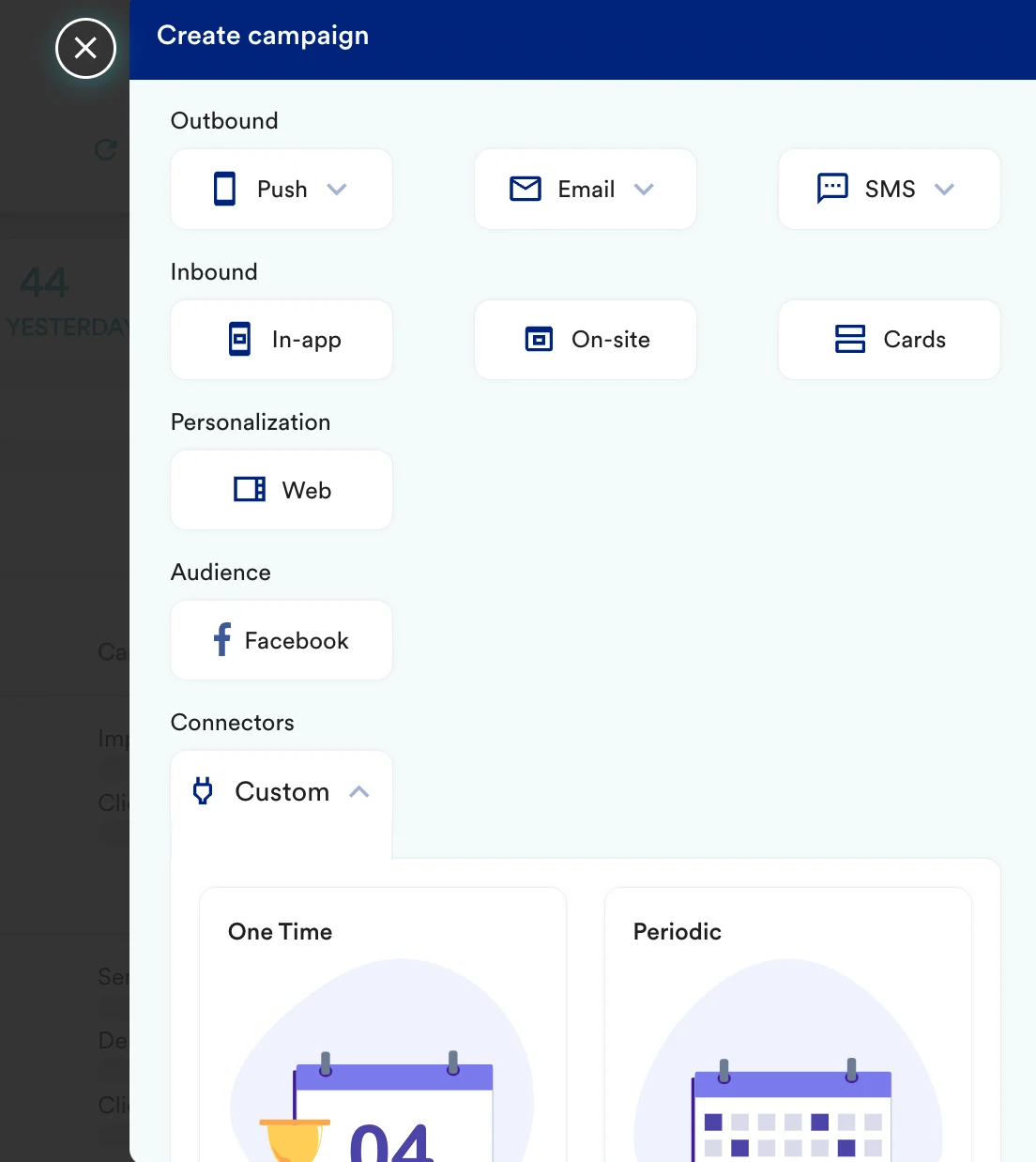
- On step 2 of the campaign:
- Select the method as POST.
- Add the Webhook URL as:
https://api.skycore.com/API/http/v3/ - In Headers, add:
X-Api-Keyas the API key you copied from the Skycore Settings page.Content-Typeasapplication/json.
- In Body, choose Raw and type your customised payload. You can type ”@” to add personalised content. For the example above, the payload looks like this:
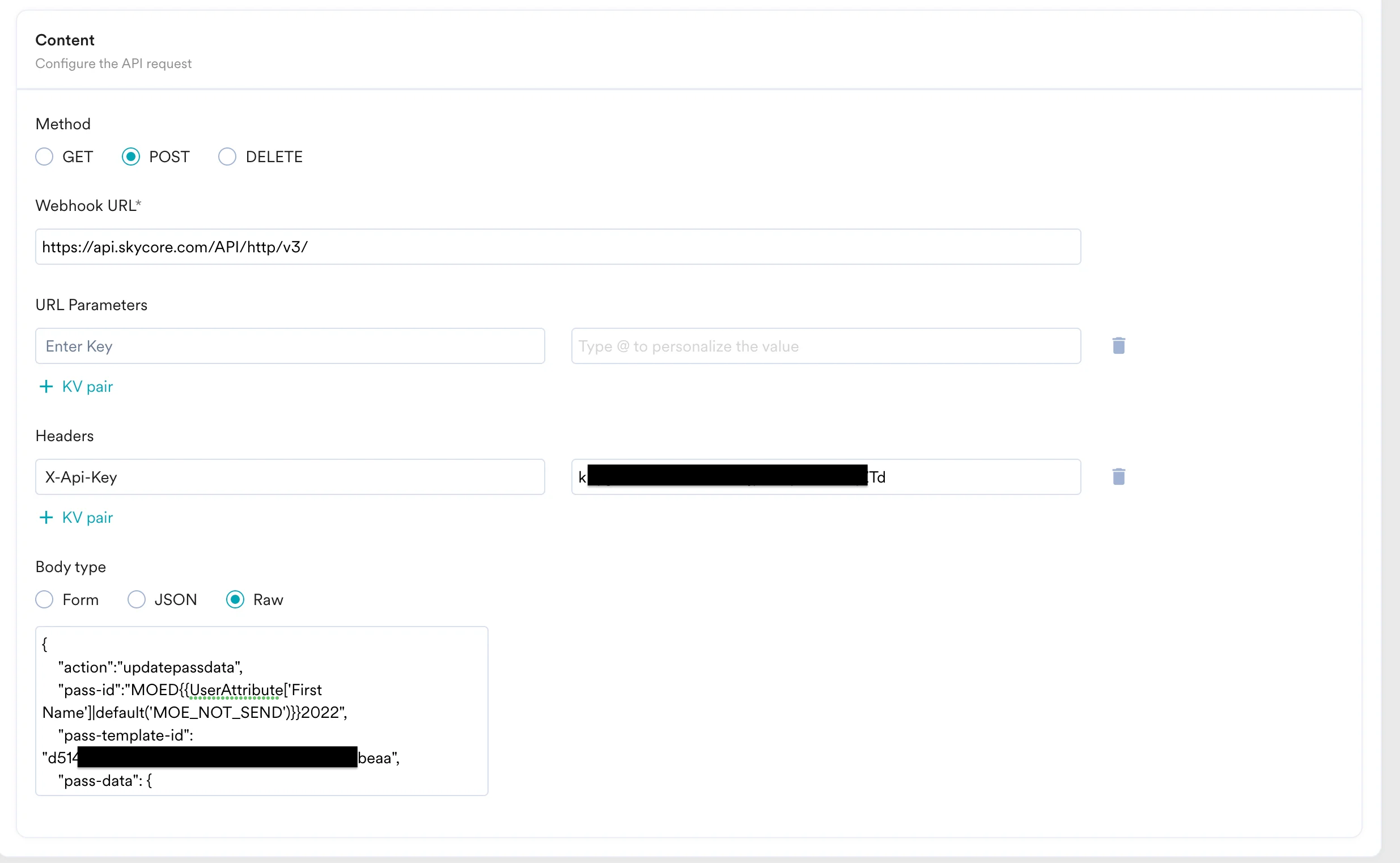
- At this point, your campaign should be ready to test and send. You can also test your connector configuration using the Test functionality available on step 2 of Create Connector Campaign.

Step 3: Preview your pass on Skycore
Click on the button in the test email and your new pass should be generated. You can choose to install it as well. To check whether Skycore is successfully capturing this,- Go to your Skycore’s dashboard >> Mobile Wallet >> Pass Data Manager.
- Click on the pass you want to view.