> ## Documentation Index
> Fetch the complete documentation index at: https://moengage.com/docs/llms.txt
> Use this file to discover all available pages before exploring further.
# Exotel
# Introduction
[Exotel](https://exotel.com/) is a full-stack customer engagement platform comprised of communication APIs, an omnichannel contact center & conversational AI platform in the cloud.
# MoEngage × Exotel
Use MoEngage Connector Campaigns to send out timely Voice Campaigns to your users.
* Ensure you have access to your Exotel account.
* Ensure you have access to Exotel APIs.
# Integration
Use MoEngage Connector Campaign to trigger Exotel APIs. Below is a tutorial on how to call the Call Campaign API on Exotel:
## Step 1: Get API Endpoints and specifications
Read the Exotel documentation to understand the endpoints for your use case.
## Step 2: Setup Connector Campaign on MoEngage
To create a connector campaign on MoEngage,
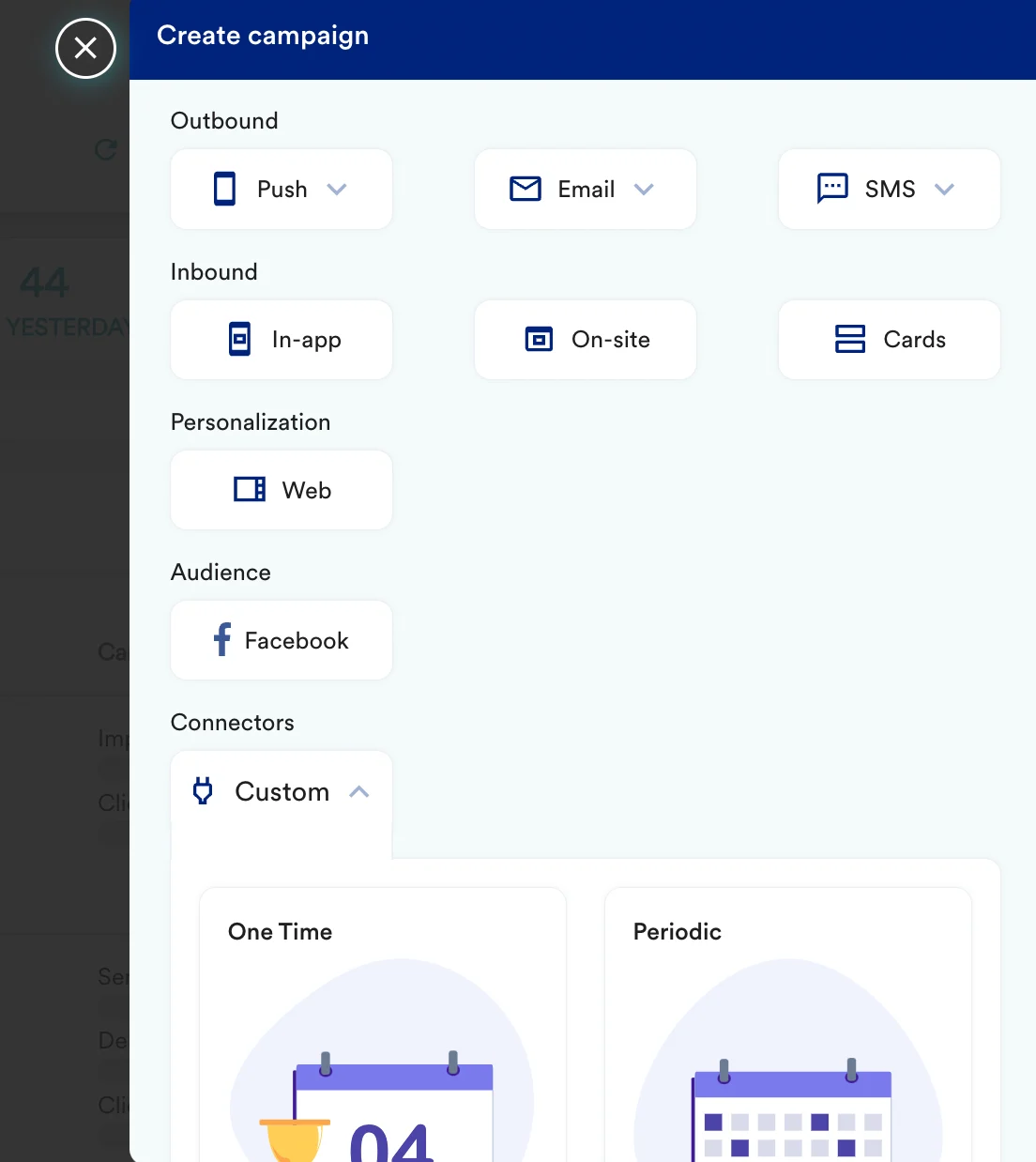
1. Navigate to Create Campaign >> Connectors >> Custom and choose the delivery type most suitable to your needs
 2. On step 2 of the campaign
### Call the Exotel API
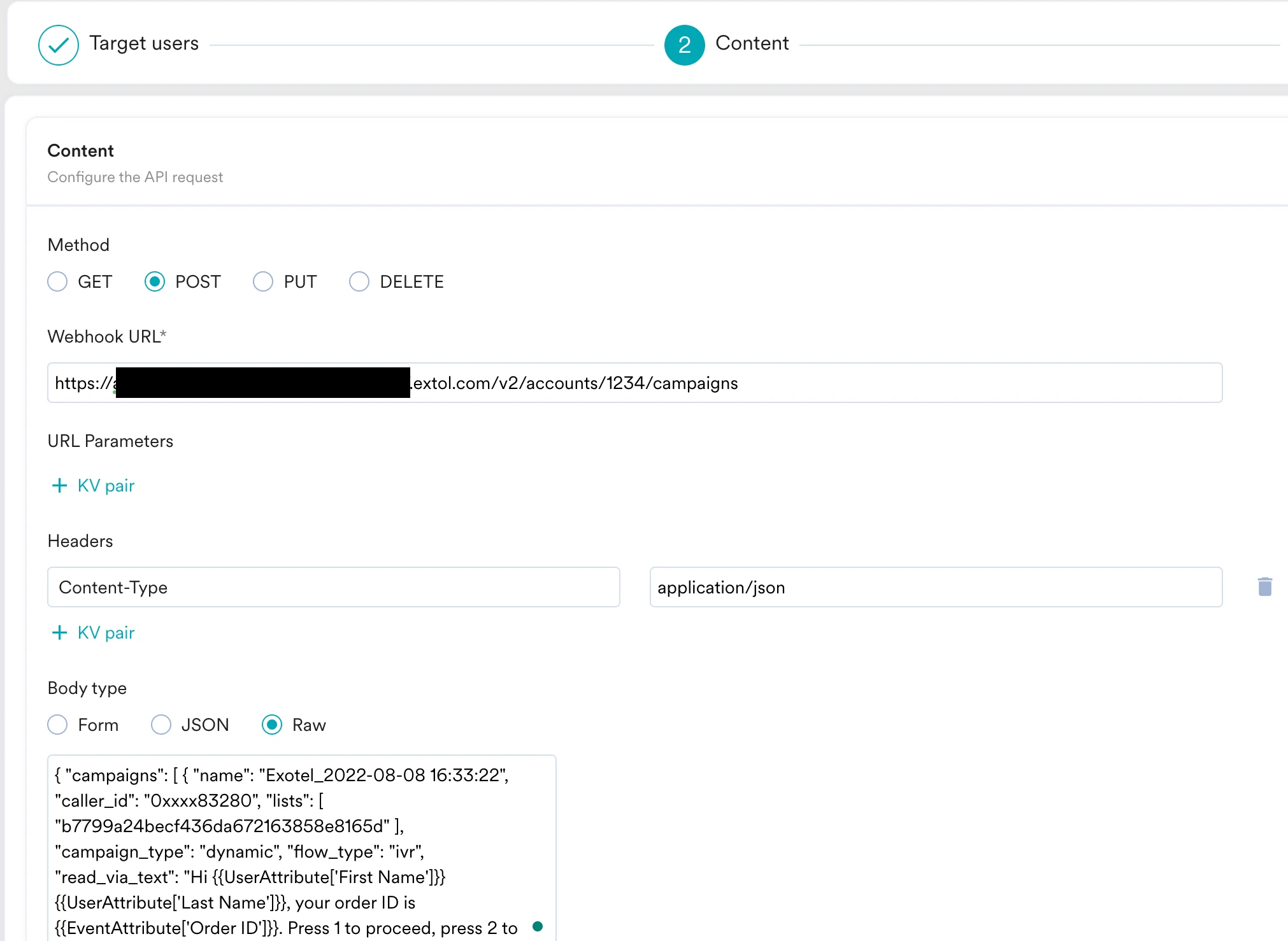
To create a new Call Campaign on Exotel, use the `POST` method and configure the payload.
* Select the method as POST
* Headers:
* For Basic Authentication, use your Exotel API key as the username and your API token as the password.
* Add the endpoint as Webhook URL: `https://:/v2/accounts//campaigns`
* Body:
```json JSON wrap theme={null}
{
"campaigns": [
{
"name": "Exotel_2022-08-08 16:33:22",
"caller_id": "0xxxx83280",
"lists": [
"b7799a24becf436da672163858e8165d"
],
"campaign_type": "dynamic",
"flow_type": "ivr",
"read_via_text": "Hi {{UserAttribute['First Name']}} {{UserAttribute['Last Name']}}, your order ID is {{EventAttribute['Order ID']}}. Press 1 to proceed, press 2 to abort"
}
]
}
```
2. On step 2 of the campaign
### Call the Exotel API
To create a new Call Campaign on Exotel, use the `POST` method and configure the payload.
* Select the method as POST
* Headers:
* For Basic Authentication, use your Exotel API key as the username and your API token as the password.
* Add the endpoint as Webhook URL: `https://:/v2/accounts//campaigns`
* Body:
```json JSON wrap theme={null}
{
"campaigns": [
{
"name": "Exotel_2022-08-08 16:33:22",
"caller_id": "0xxxx83280",
"lists": [
"b7799a24becf436da672163858e8165d"
],
"campaign_type": "dynamic",
"flow_type": "ivr",
"read_via_text": "Hi {{UserAttribute['First Name']}} {{UserAttribute['Last Name']}}, your order ID is {{EventAttribute['Order ID']}}. Press 1 to proceed, press 2 to abort"
}
]
}
```
 * Refer to the [Exotel documentation](https://developer.exotel.com/api/ccm-calls) for more information.
## Preview your request
At this point, your campaign should be ready to test and send. You can also test your connector configuration using the Test functionality available in Step 2 of Create Connector Campaign.
* Refer to the [Exotel documentation](https://developer.exotel.com/api/ccm-calls) for more information.
## Preview your request
At this point, your campaign should be ready to test and send. You can also test your connector configuration using the Test functionality available in Step 2 of Create Connector Campaign. You can go ahead and Publish the campaign.