> ## Documentation Index
> Fetch the complete documentation index at: https://moengage.com/docs/llms.txt
> Use this file to discover all available pages before exploring further.
# Fynd
# Introduction
[Fynd Commerce Platform](https://www.fynd.com) is a robust e-commerce solution designed to help businesses effortlessly manage and grow their online stores. Fynd enables brands to create, customize, and optimize their online presence across various channels.
# MoEngage × Fynd
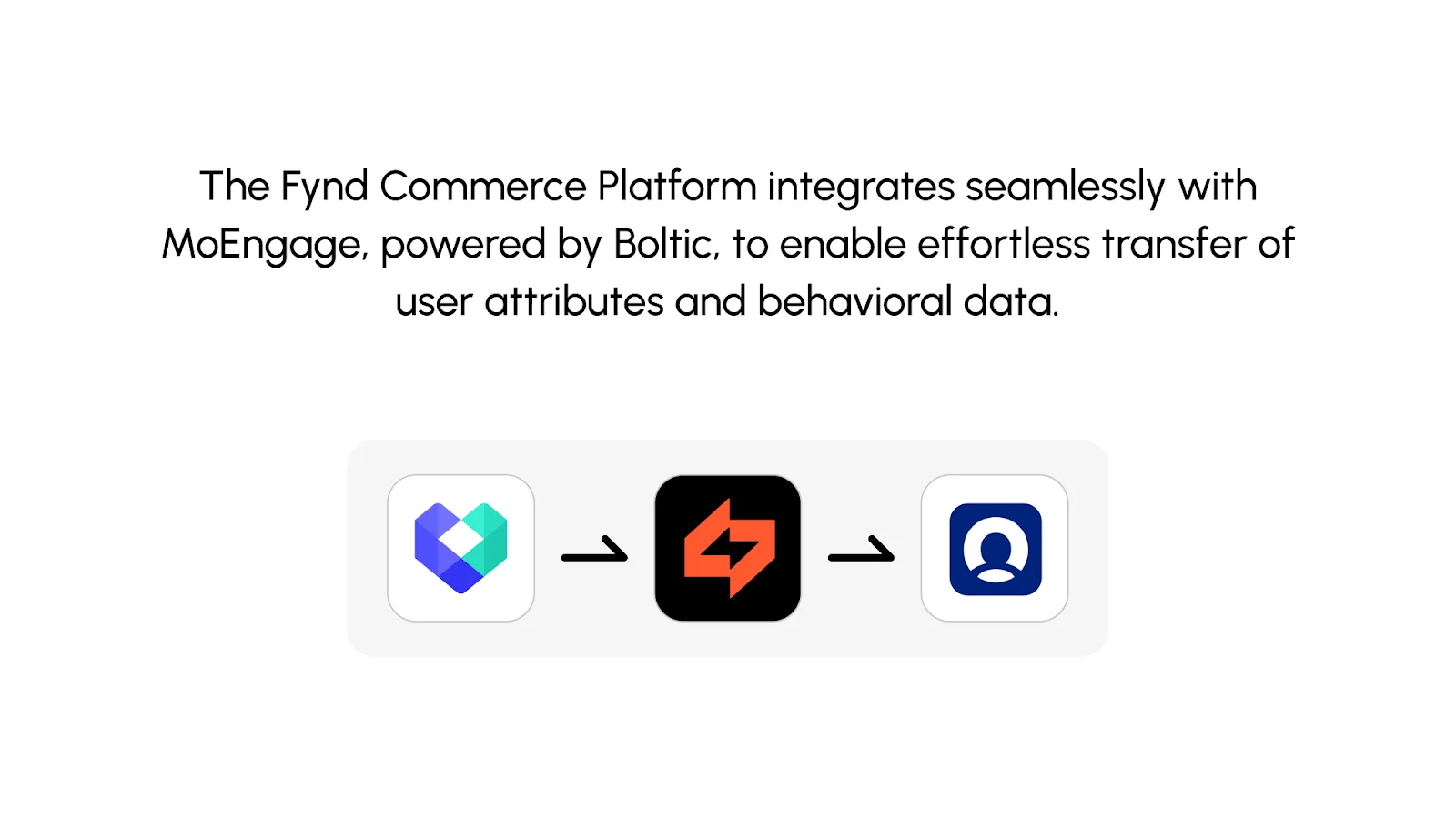
The Fynd Commerce Platform seamlessly integrates with MoEngage, allowing your brand to connect MoEngage with your Fynd store effortlessly. This integration, powered by Boltic, enables the real-time transfer of user attributes and behavioral data to MoEngage. With this setup, you can leverage a variety of channels—including Web Push, Onsite Messaging, SMS, Email, and Web Personalization—to drive higher conversions and enhance customer engagement.
 # Use cases
The scope for brands using the Fynd Commerce Platform, in conjunction with Boltic Streams and MoEngage, is vast and impactful. Here’s how brands can leverage this integration:
1. Send custom event data from any brands website collected in Boltic to Moengage using Boltic Streams
2. Export and synchronize critical customer data from website to MoEngage, allowing you to craft highly personalized campaigns based on real-time insights.
3. Easily pause or resume data streams or individual destinations within Boltic, giving you full control over when and how your data reaches MoEngage.
4. Leverage Boltic’s extensive list of pre-built connectors for a quick and seamless setup of your Fynd commerce platform brand stores with MoEngage, enabling you to start optimizing your campaigns without delay.
5. With schema validation protocols ensure that only valid and correctly formatted events are sent from brands websites to MoEngage, maintaining data integrity across your campaigns.
# Integration
**Prerequisites**
* The Workspace ID of your MoEngage account is available *Settings - > Account -> APIs -> Workspace ID*.
* MoEngage Data API Key. The Data API key of your MoEngage account is available in *Settings - > App Settings -> APIs -> API Keys -> Data*
* MoEngage data center, Read more [here](/user-guide/data/key-concepts/data-centers-in-moengage)
# Steps
#### **Step 1: Add brand’s website as source**
1. Enter a Source Name by which you want to refer to this Brands Integration
# Use cases
The scope for brands using the Fynd Commerce Platform, in conjunction with Boltic Streams and MoEngage, is vast and impactful. Here’s how brands can leverage this integration:
1. Send custom event data from any brands website collected in Boltic to Moengage using Boltic Streams
2. Export and synchronize critical customer data from website to MoEngage, allowing you to craft highly personalized campaigns based on real-time insights.
3. Easily pause or resume data streams or individual destinations within Boltic, giving you full control over when and how your data reaches MoEngage.
4. Leverage Boltic’s extensive list of pre-built connectors for a quick and seamless setup of your Fynd commerce platform brand stores with MoEngage, enabling you to start optimizing your campaigns without delay.
5. With schema validation protocols ensure that only valid and correctly formatted events are sent from brands websites to MoEngage, maintaining data integrity across your campaigns.
# Integration
**Prerequisites**
* The Workspace ID of your MoEngage account is available *Settings - > Account -> APIs -> Workspace ID*.
* MoEngage Data API Key. The Data API key of your MoEngage account is available in *Settings - > App Settings -> APIs -> API Keys -> Data*
* MoEngage data center, Read more [here](/user-guide/data/key-concepts/data-centers-in-moengage)
# Steps
#### **Step 1: Add brand’s website as source**
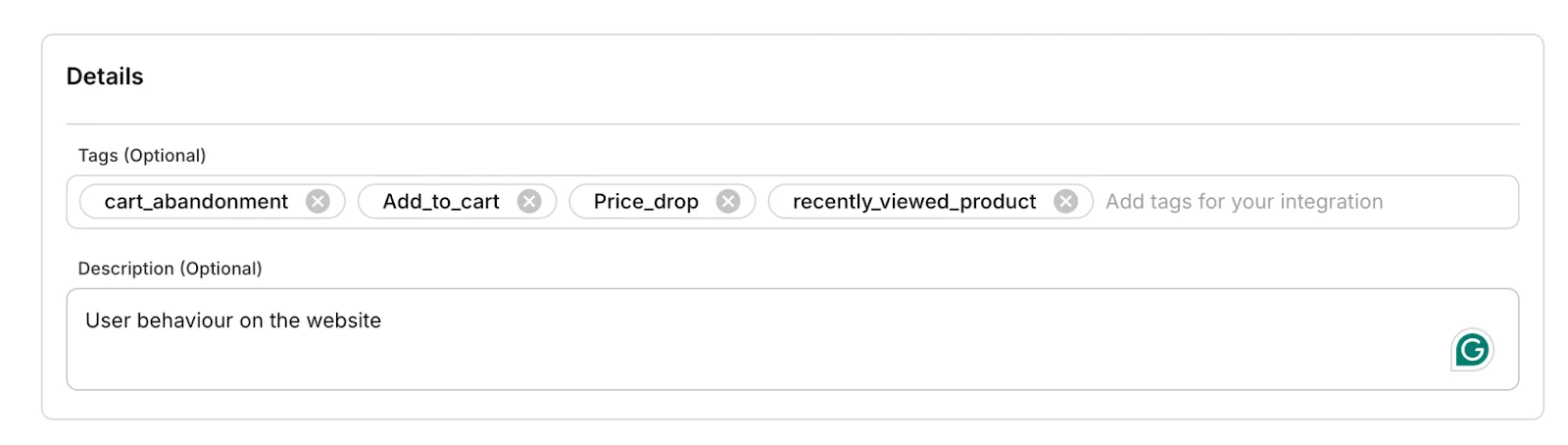
1. Enter a Source Name by which you want to refer to this Brands Integration  2. \[Optional] Add additional details like tags and description to the source
  3. Click on *Test and Save*
4. Install the *stream snippet* on your website - Copy the stream snippet and paste it high in the `` of your website
3. Click on *Test and Save*
4. Install the *stream snippet* on your website - Copy the stream snippet and paste it high in the `` of your website 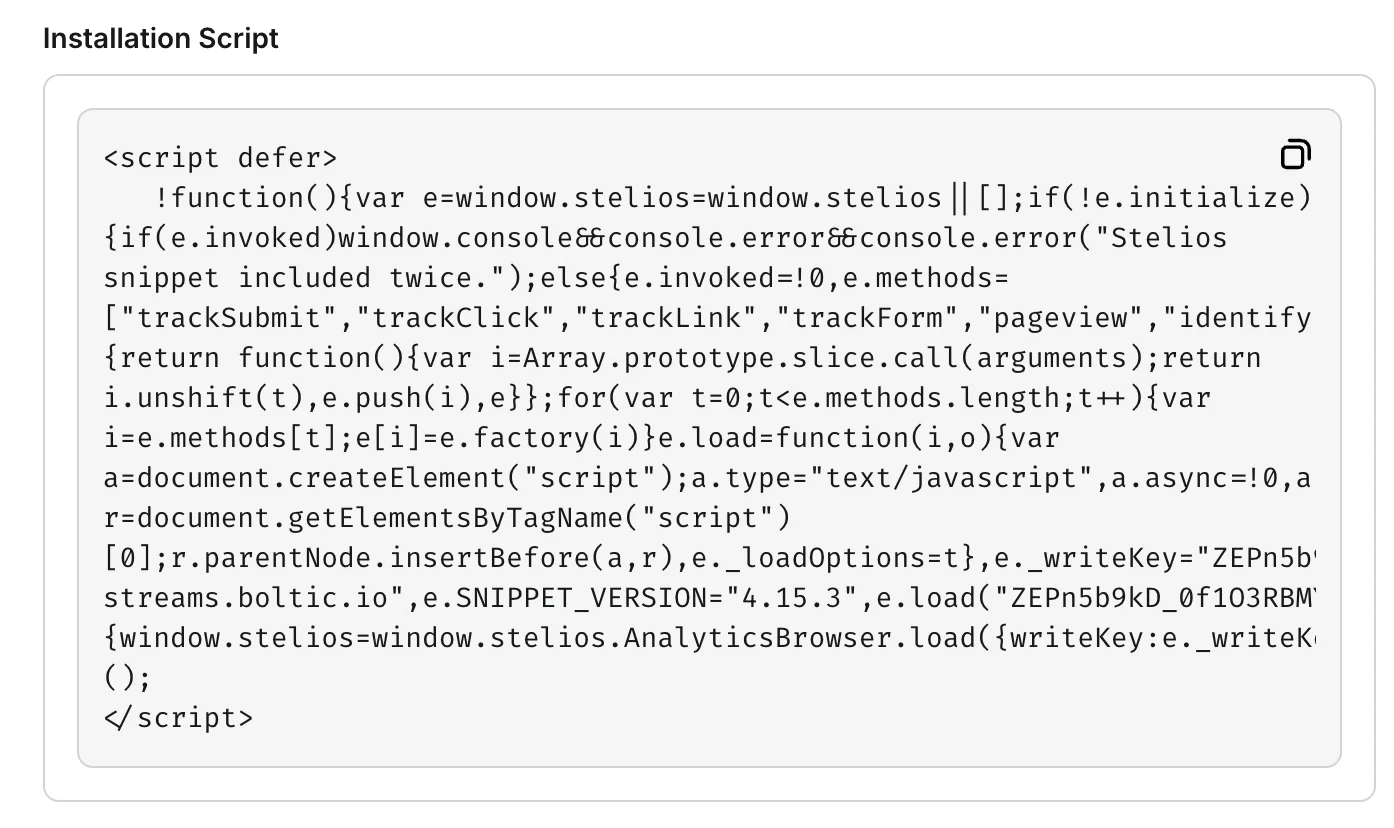 ## Step 2: Add MoEngage as a destination to Boltic:
1. Enter a Destination Name
## Step 2: Add MoEngage as a destination to Boltic:
1. Enter a Destination Name  2. Enter your Dashboard endpoint URL
  3. Enter your Data API Key
  4. Enter your Workspace ID (earlier called Data API ID)
  5. Test and Save your destination. Your defined events will start flowing to your account.
You have now successfully added MoEngage as destination to Boltic! Your defined events will start flowing to your account.
5. Test and Save your destination. Your defined events will start flowing to your account.
You have now successfully added MoEngage as destination to Boltic! Your defined events will start flowing to your account.