> ## Documentation Index
> Fetch the complete documentation index at: https://moengage.com/docs/llms.txt
> Use this file to discover all available pages before exploring further.
# Flyy
# Introduction
[Flyy ](https://www.theflyy.com/)is gamification as a platform. It provide growth tools for Apps to increase new users, retain and engage existing and get more transactions done in the app or website.
# MoEngage × Flyy
The MoEngage and Flyy integration allows you to sync segment between MoEngage and Flyy, helping you fuel Gamification initiatives with laser-focused retargeting. We will use MoEngage [Connecter Campaigns](/user-guide/campaigns-and-channels/connectors/create/create-a-connector-campaign) to build this integration with [Flyy APIs](https://api-docs.theflyy.com/#d75f96e1-7b1e-4ec2-9bab-2ada7a116eda).
* Ensure you have admin access to your Flyy account.
* A common identifier between MoEngage and Flyy. This is recommended to map your users across two platforms.
To create a connector campaign on MoEngage,
1. Navigate to Create Campaign >> Connectors >> Custom and choose the delivery type most suitable to your needs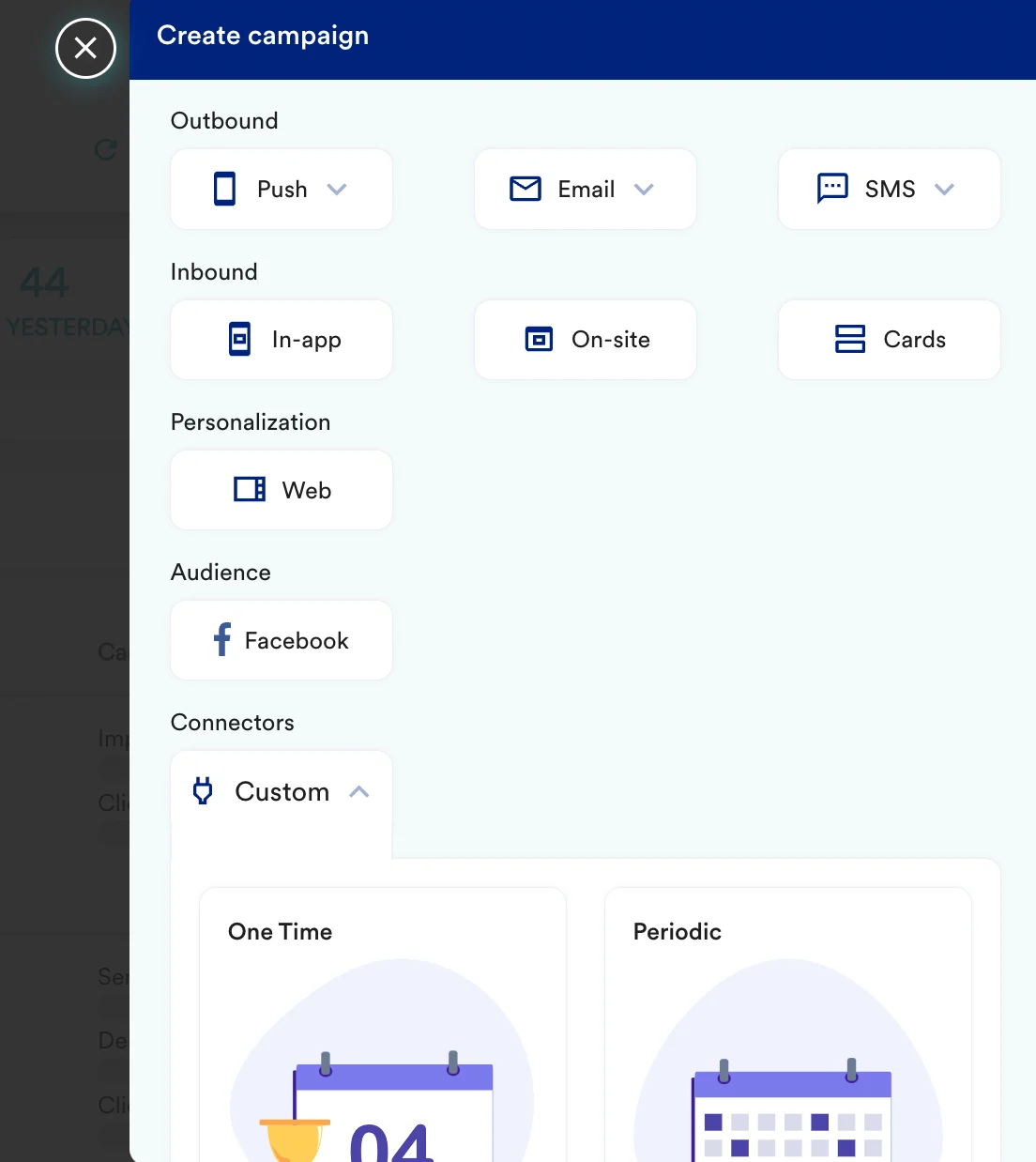 2. On step 2 of the campaign
### Add user to the segment
* Select the method as POST
* Add Webhook URL as: `https://partner-api.theflyy.com/v1/partner-id/user/{{UserAttribute['id']}}/add_segment`
* In Headers, add
* partner-key `{{partner-key}}`
* Content-Type: application/json
2. On step 2 of the campaign
### Add user to the segment
* Select the method as POST
* Add Webhook URL as: `https://partner-api.theflyy.com/v1/partner-id/user/{{UserAttribute['id']}}/add_segment`
* In Headers, add
* partner-key `{{partner-key}}`
* Content-Type: application/json
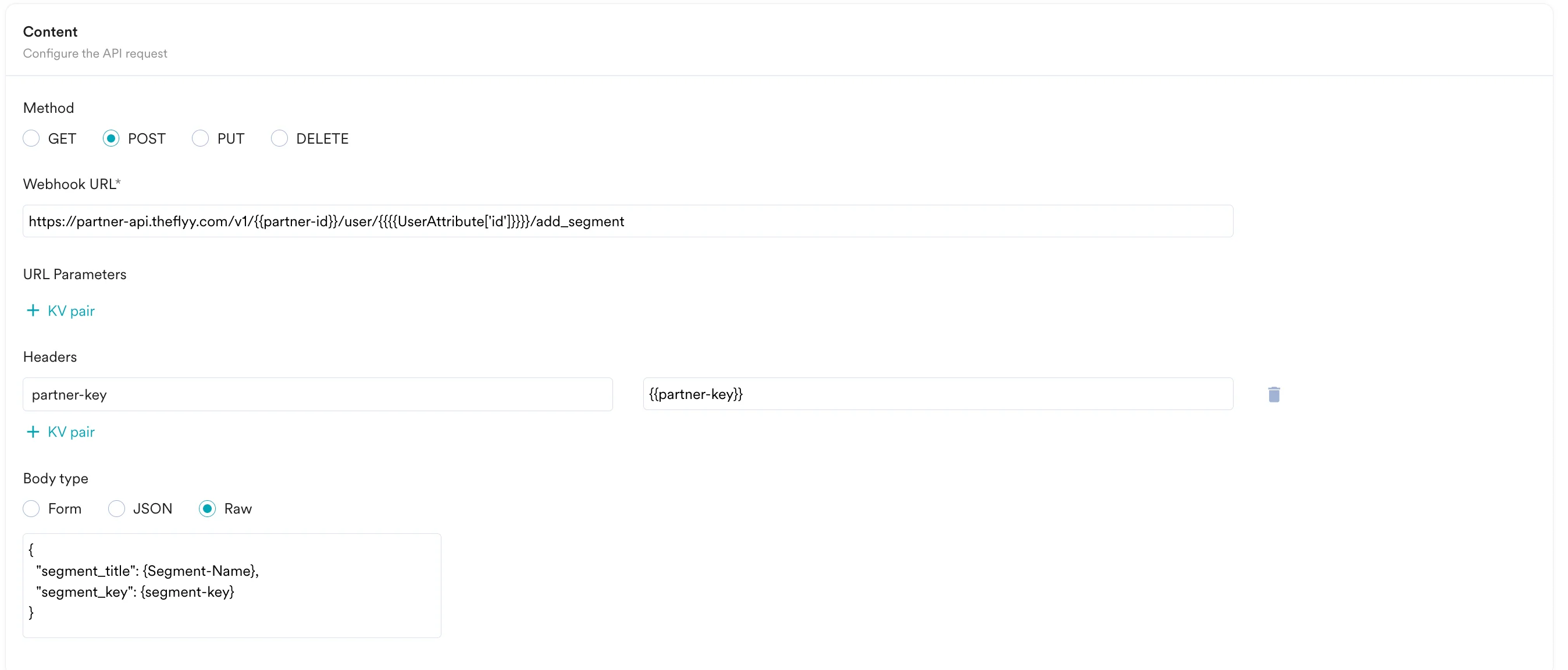 * In the Body, you need to define the segment details. Use the following example to help structure your payload and enter your desired fields.
```json JSON wrap theme={null}
{ "segment_title": {Segment-Name}, "segment_key": {segment-key} }
```
### Remove user from the segment
* Select the method as POST
* Add Webhook URL as: `https://partner-api.theflyy.com/v1/partner-id/user/{{UserAttribute['id']}}/remove_segment`
* In Headers, add
* partner-key `{{partner-key}}`
* Content-Type: application/json
* In the Body, you need to define the segment details. Use the following example to help structure your payload and enter your desired fields.
```json JSON wrap theme={null}
{ "segment_title": {Segment-Name}, "segment_key": {segment-key} }
```
### Remove user from the segment
* Select the method as POST
* Add Webhook URL as: `https://partner-api.theflyy.com/v1/partner-id/user/{{UserAttribute['id']}}/remove_segment`
* In Headers, add
* partner-key `{{partner-key}}`
* Content-Type: application/json
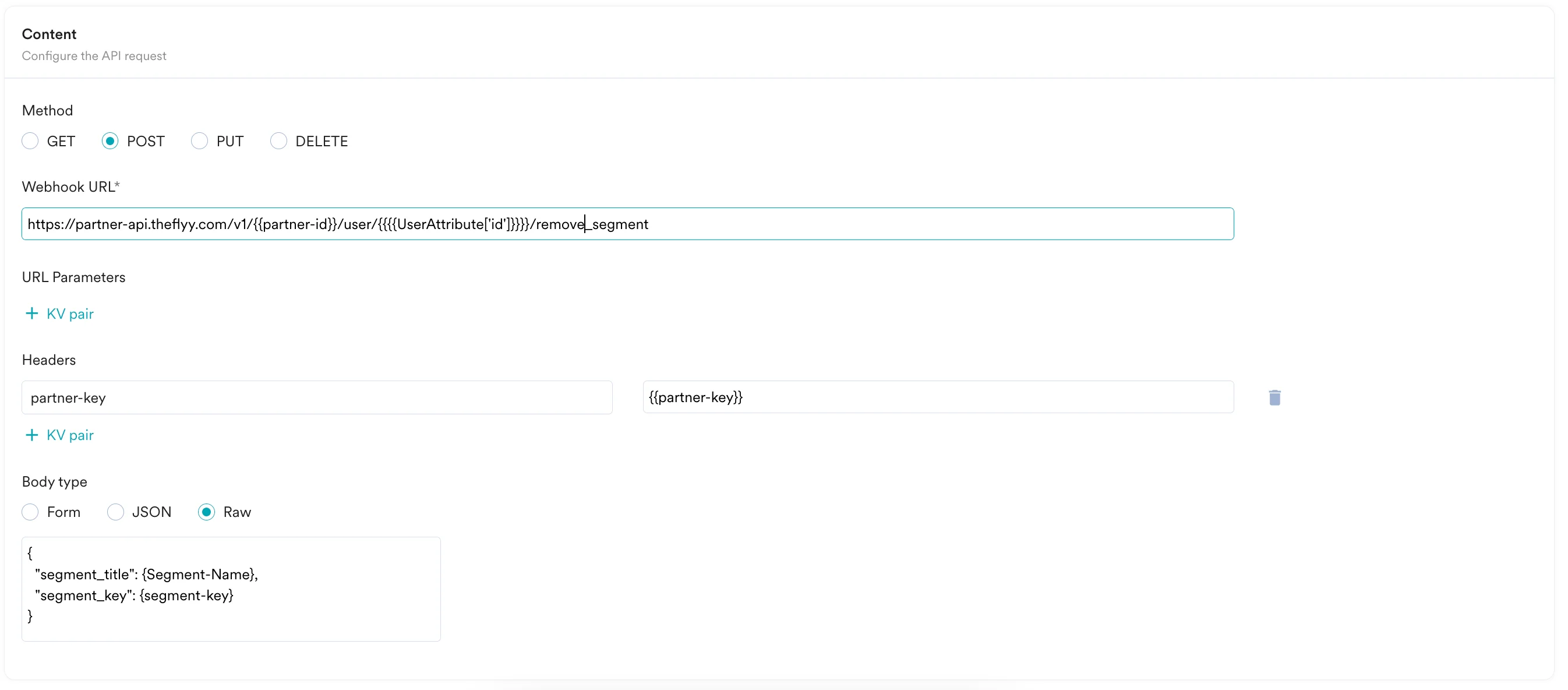 * In the Body, you need to define the segment details. Use the following example to help structure your payload and enter your desired fields.
```json JSON theme={null}
{ "segment_title": {Segment-Name}, "segment_key": {segment-key} }
```
## Step 3: Preview your request
3. At this point, your campaign should be ready to test and send. You can also test your connector configuration using the Test functionality available in Step 2 of Create Connector Campaign.
* In the Body, you need to define the segment details. Use the following example to help structure your payload and enter your desired fields.
```json JSON theme={null}
{ "segment_title": {Segment-Name}, "segment_key": {segment-key} }
```
## Step 3: Preview your request
3. At this point, your campaign should be ready to test and send. You can also test your connector configuration using the Test functionality available in Step 2 of Create Connector Campaign. You can go ahead and Publish the campaign.
## Common identifier
If you have a common identifier between MoEngage and Flyy, it is recommended to utilize this as the `user_id`, this will help unify the two sets of users.
Alternatively, if this is not the case, we recommend passing a set of identifying attributes such as name, email address, phone number, or others.
You can go ahead and Publish the campaign.
## Common identifier
If you have a common identifier between MoEngage and Flyy, it is recommended to utilize this as the `user_id`, this will help unify the two sets of users.
Alternatively, if this is not the case, we recommend passing a set of identifying attributes such as name, email address, phone number, or others.