> ## Documentation Index
> Fetch the complete documentation index at: https://moengage.com/docs/llms.txt
> Use this file to discover all available pages before exploring further.
# Hightouch
> Activate customer data from your warehouse with Hightouch by syncing users and events directly to MoEngage without IT or engineering effort.
## Introduction
[Hightouch](https://hightouch.io/) is a modern data integration platform that enables you to sync customer, product, or proprietary data from your warehouse or data lake to any app of your choice, all without assistance from your IT or engineering teams.
## MoEngage × Hightouch
The MoEngage and Hightouch integration allows you to build better campaigns on MoEngage with up-to-date customer data from your data warehouse. By automatically syncing users and events into MoEngage, you no longer need to worry about data consistency and can focus on building customer experiences.
### Use cases
* Sync data about users into MoEngage to build personalized campaigns.
* Sync Customer Events from Hightouch into MoEngage to keep the events consistent.
* Deliver better experiences by bringing data from other customer touchpoints into MoEngage.
* Sync Audiences from Hightouch to MoEngage for targeting.
## Integration Prerequisites
* Ensure you have access to your Hightouch account.
* The Data API ID and Data API Key are available at **Settings** > **Account** > **APIs**. The Data API ID is the same as the **Workspace ID**. The Data API Key is available in the same screen in the **API Keys** > **Data** section.
### Step 1: Create MoEngage destination on Hightouch
1. On the Hightouch platform, in the **Destinations** section, click **Add destination**.
2. Select **MoEngage** from the list of available destinations.
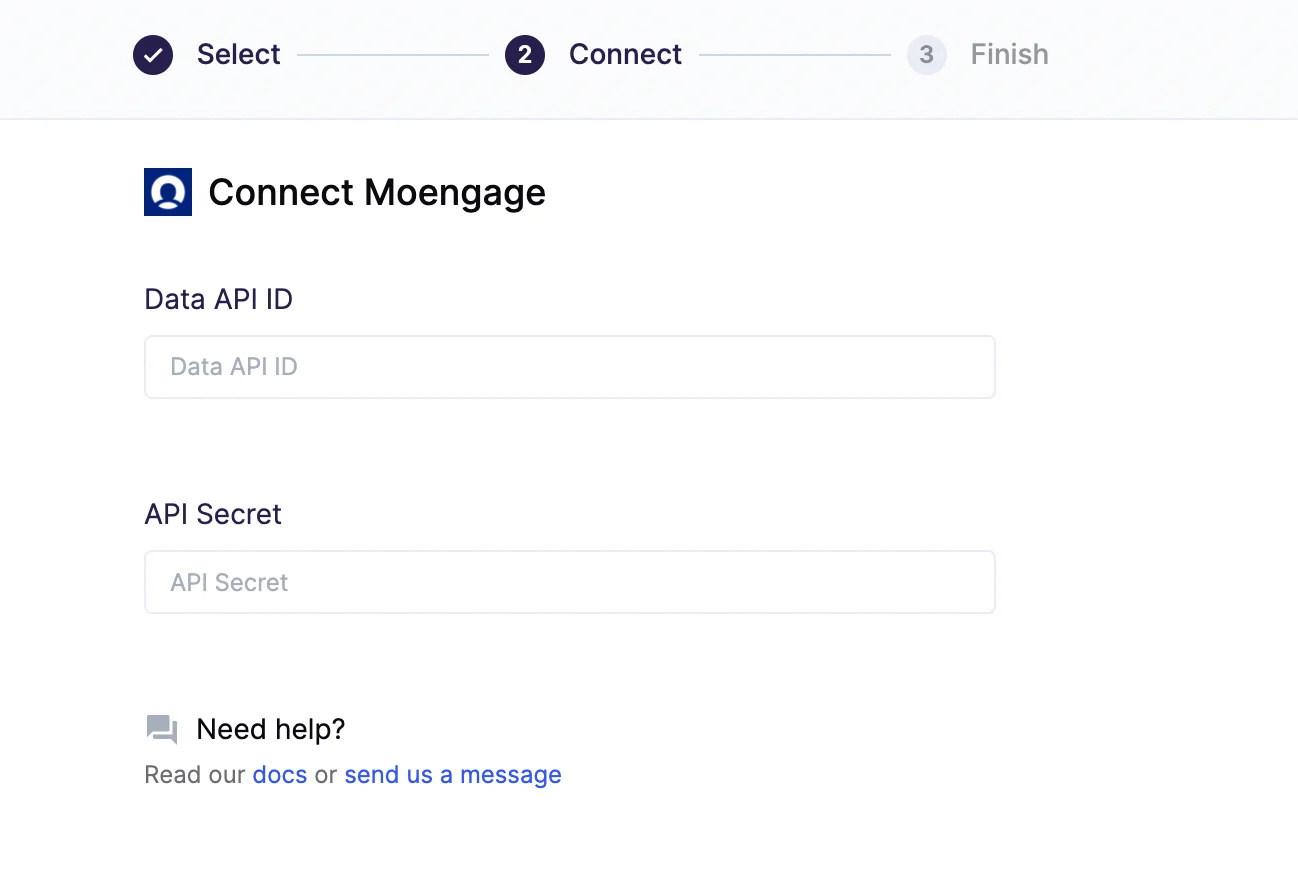
3. Provide your MoEngage API ID and API Secret.
| Field | Description |
| --------------- | ----------------------------------------------------------------------------------------------------------------------------------------------------------------------------------------------- |
| **Data API ID** | The Data API ID and the Workspace ID of your MoEngage account are the same. The Workspace ID of your MoEngage account is available at **Settings** > **Account** > **APIs** > **Workspace ID**. |
| **API Secret** | API Secret is the Data API Key. The Data API key of your MoEngage account is available at **Settings** > **Account** > **APIs** > **API keys** > **Data** API settings. |
 ### Step 2: Sync users
You can sync Hightouch objects (users) to the MoEngage users. You can also perform record matching to help unify data across the two platforms.
The integration supports upserting users. In this mode, new users will be inserted into MoEngage and all user attributes will be kept up-to-date within MoEngage. Upsert has three configuration parameters:
| NAME | DETAILS |
| ------------------------------------------------ | ---------------------------------------------------------------------------------------------------------------- |
| **Hightouch Column Containing MoEngage User ID** | The name of the Hightouch column (id, created\_at, first\_name) that acts as unique user identifier in MoEngage. |
| **Hightouch to MoEngage Default Field Mappings** | A list of common user attributes that will be pushed to new users in MoEngage. |
| **Hightouch to MoEngage Custom Field Mappings** | A list of custom user attributes that will be pushed to new users in MoEngage. |
Read more on [MoEngage-Hightouch user upsert here.](https://hightouch.io/docs/destinations/moengage/#upsert)
### Step 3: Sync events
You can now also sync Customer's Events to MoEngage events.
#### Setting an Event Name
When creating a sync for events, you can specify the name of the event being tracked. You can either input a static name or use a column from your model.
#### Setting an Event Timestamp
Select a column that is used as the timestamp of when the event happened. If this field is empty, Hightouch will use the time of when the event arrives at the server.
#### Record Matching
Records can be matched from your source to your MoEngage workspace by `Moengage Id`.
#### Field Mapping
Hightouch allows you to sync columns from your source to the supported MoEngage resources.
#### Custom Field Mapping
Any mappings from this section will be synced as attributes in the event. MoEngage expects custom properties to follow a `snake_case` format.
### \[Optional] Sync audiences
Hightouch can send an Hightouch Audience to MoEngage as user attributes. The user attribute can then be used to create a segment on MoEngage.
While setting up a sync on Hightouch, in step 2:
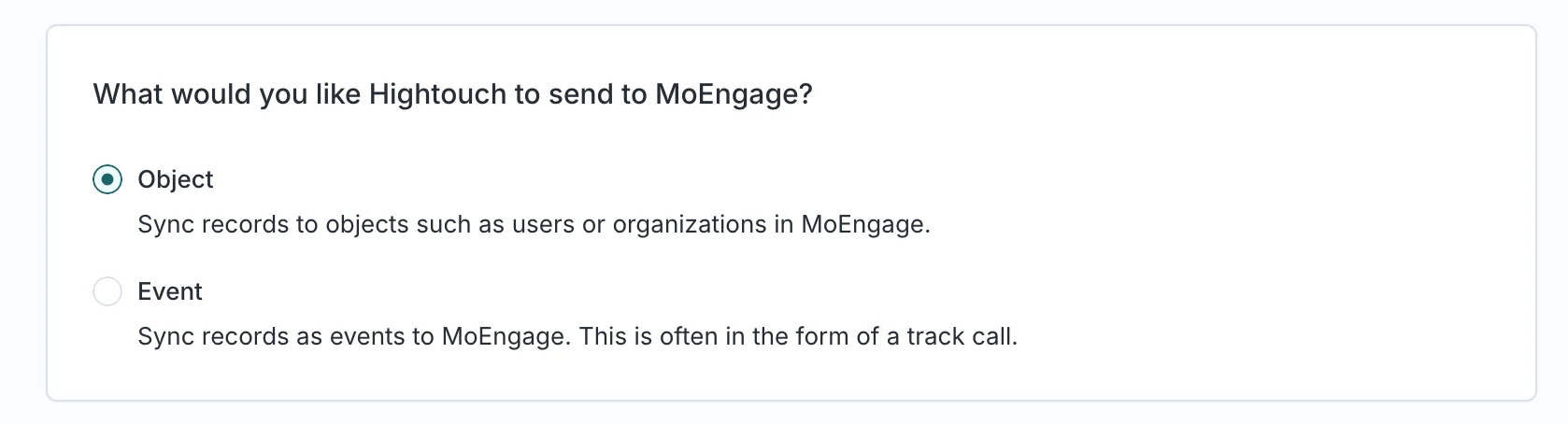
1. Select **Object** as record type
### Step 2: Sync users
You can sync Hightouch objects (users) to the MoEngage users. You can also perform record matching to help unify data across the two platforms.
The integration supports upserting users. In this mode, new users will be inserted into MoEngage and all user attributes will be kept up-to-date within MoEngage. Upsert has three configuration parameters:
| NAME | DETAILS |
| ------------------------------------------------ | ---------------------------------------------------------------------------------------------------------------- |
| **Hightouch Column Containing MoEngage User ID** | The name of the Hightouch column (id, created\_at, first\_name) that acts as unique user identifier in MoEngage. |
| **Hightouch to MoEngage Default Field Mappings** | A list of common user attributes that will be pushed to new users in MoEngage. |
| **Hightouch to MoEngage Custom Field Mappings** | A list of custom user attributes that will be pushed to new users in MoEngage. |
Read more on [MoEngage-Hightouch user upsert here.](https://hightouch.io/docs/destinations/moengage/#upsert)
### Step 3: Sync events
You can now also sync Customer's Events to MoEngage events.
#### Setting an Event Name
When creating a sync for events, you can specify the name of the event being tracked. You can either input a static name or use a column from your model.
#### Setting an Event Timestamp
Select a column that is used as the timestamp of when the event happened. If this field is empty, Hightouch will use the time of when the event arrives at the server.
#### Record Matching
Records can be matched from your source to your MoEngage workspace by `Moengage Id`.
#### Field Mapping
Hightouch allows you to sync columns from your source to the supported MoEngage resources.
#### Custom Field Mapping
Any mappings from this section will be synced as attributes in the event. MoEngage expects custom properties to follow a `snake_case` format.
### \[Optional] Sync audiences
Hightouch can send an Hightouch Audience to MoEngage as user attributes. The user attribute can then be used to create a segment on MoEngage.
While setting up a sync on Hightouch, in step 2:
1. Select **Object** as record type
 2. Select destination as **Customers**
 3. In the custom field section, add a new line.
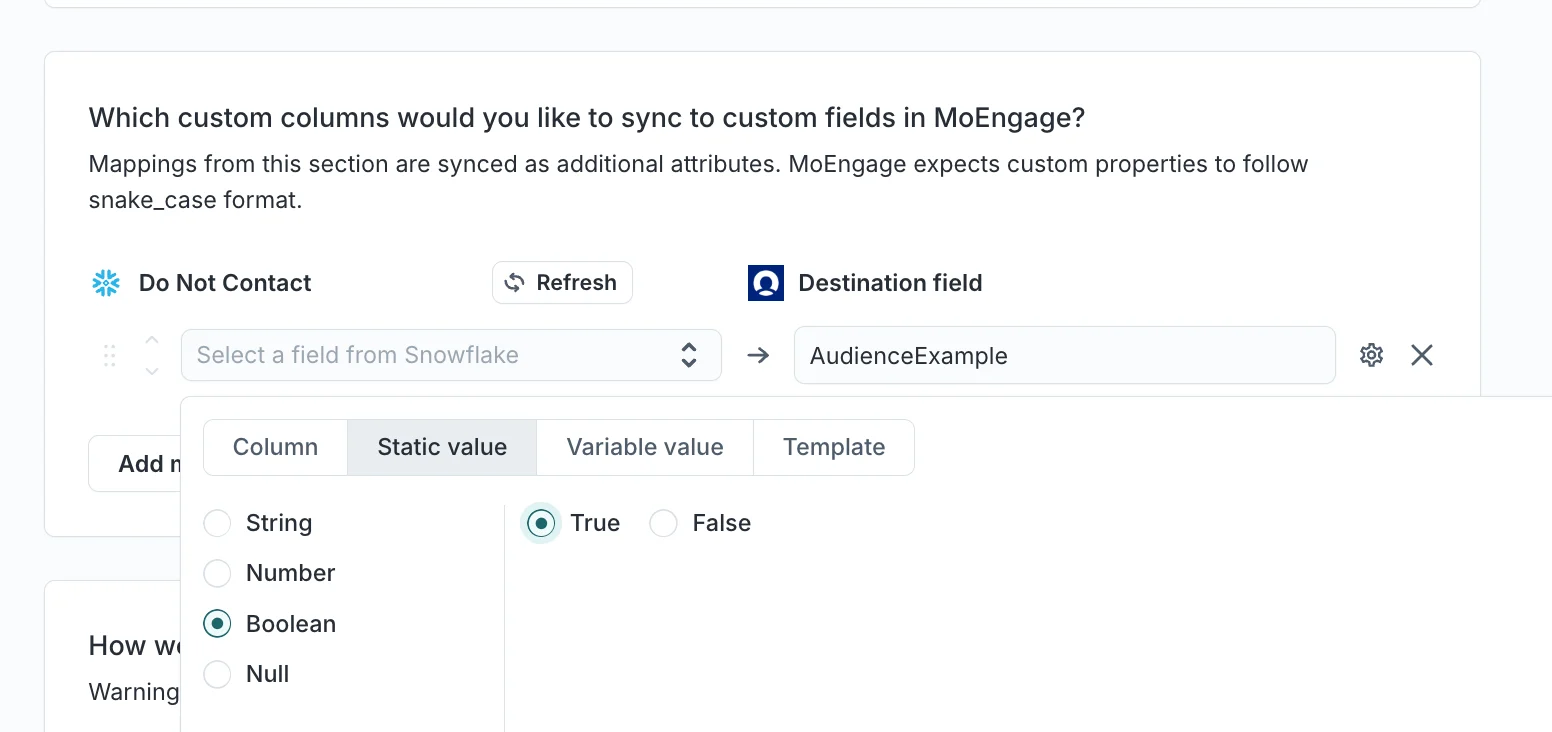 It will create a user attribute called AudienceExample with value as TRUE (if the user is part of the audience) and False (if the user is not a part of it)
For more information, please read the [Hightouch docs](https://hightouch.com/docs/destinations/moengage/#syncing-customer-events).
It will create a user attribute called AudienceExample with value as TRUE (if the user is part of the audience) and False (if the user is not a part of it)
For more information, please read the [Hightouch docs](https://hightouch.com/docs/destinations/moengage/#syncing-customer-events).