> ## Documentation Index
> Fetch the complete documentation index at: https://moengage.com/docs/llms.txt
> Use this file to discover all available pages before exploring further.
# Amazon S3
> Set up the MoEngage and Amazon S3 integration through the App Marketplace to transfer files for automated data imports and exports.
[Amazon Simple Storage Service (Amazon S3)](https://aws.amazon.com/s3/) is an object storage service on the Amazon Web Services (AWS) platform. Use Amazon S3 to store, organize, and retrieve structured or unstructured data from any location on the web.
# MoEngage × Amazon S3
Integrate MoEngage with Amazon S3 by using the App Marketplace to establish a direct connection between your S3 bucket and your MoEngage workspace. After you establish this connection, MoEngage uses this centralized connection to transfer files for automated data imports and exports.
## Use Cases
Amazon S3 integration with MoEngage helps you with the following use cases:
* Synchronize real-time behavioral segments.
* Import users and events.
* Export campaign interaction events.
## Advantages
The integration with MoEngage helps you with the following advantages:
### Reduce Integration Time
* Eliminates the need for external Extract, Transform, and Load (ETL) tools.
* Replaces complex data pipelines with a one-time configuration process.
* Minimizes reliance on development and technology teams.
### Faster Data Processing
* Processes and queries high-volume data in near real time.
* Propagates schema updates automatically without manual reconfigurations in MoEngage.
* Lowers data-transfer costs compared to traditional external cloud pipelines.
# Integration
**Prerequisites**
Ensure you have an AWS account with administrative Identity and Access Management (IAM) privileges. You must be able to create roles, manage bucket access policies, and generate programmatic access credentials for your target Amazon S3 bucket.
MoEngage connects to Amazon S3 using multiple methods.
## Step 1: Set Up Authentication
Select the authentication method that matches how you plan to use the connection. MoEngage recommends the cross account role method because it supports both imports and exports and avoids storing long-term credentials.
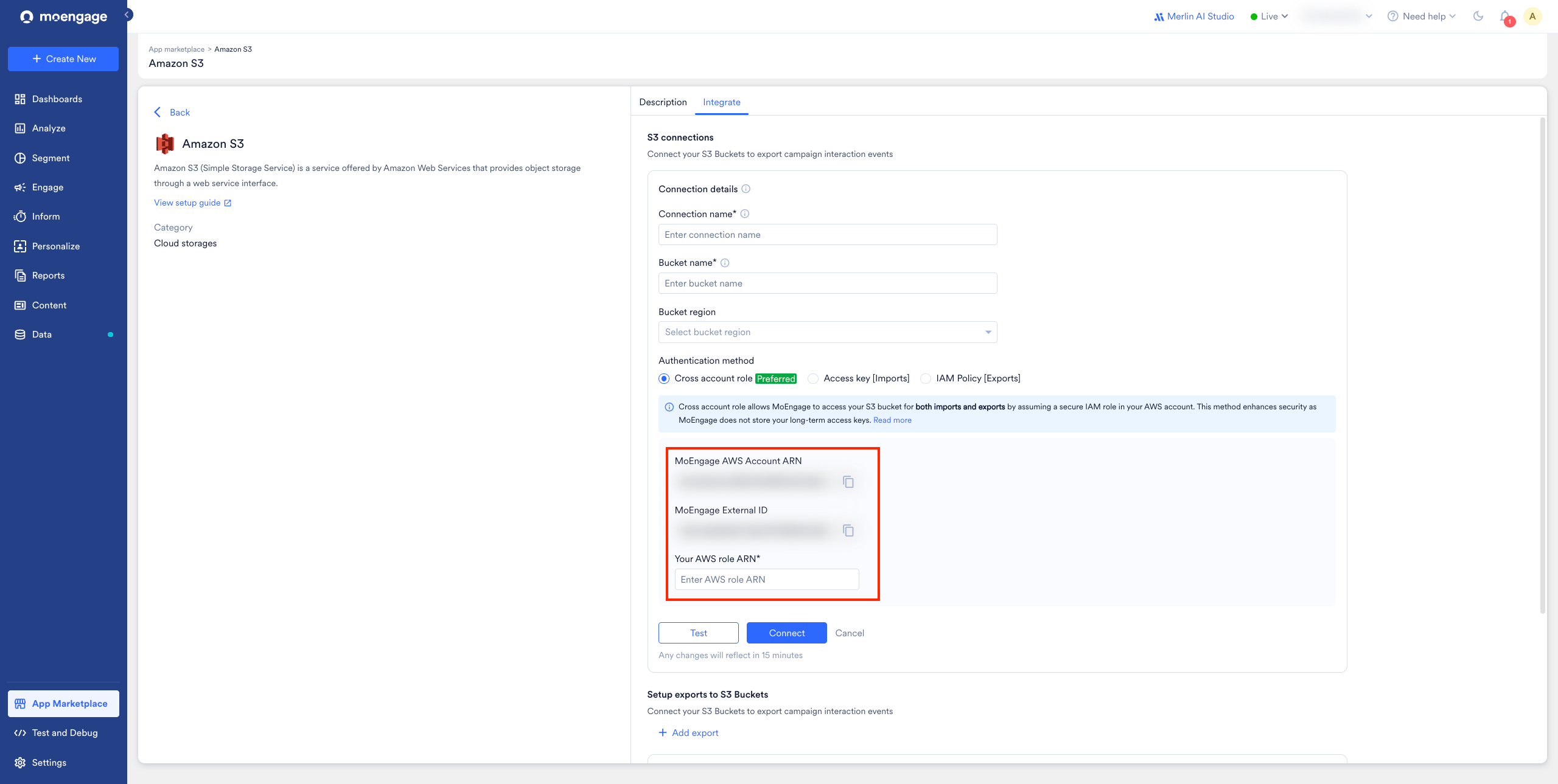
In this method, you create one IAM role in your AWS account and allow a single MoEngage role to assume it. You need two values from MoEngage:
* **MoEngage AWS Account ARN**: The only MoEngage identity your role will trust.
* **MoEngage External ID**: A value unique to your workspace, in the format `moe-external-xxxxxxxxxx`.
**Where to find these values**
In MoEngage, go to **Amazon S3** > **Integrations** > **Add Connection**. The **MoEngage AWS Account ARN** and your workspace's **MoEngage External ID** appear on the **Add Connection** form (see [Step 3: Connect Amazon S3 on the App Marketplace](#step-3-connect-amazon-s3-on-the-app-marketplace)). Copy them before you configure AWS.
 **Create the cross account role**
1. Sign in to the **AWS Management Console** and open the **IAM** service.
2. In the left navigation, choose **Roles**, and then click **Create role**.
3. For **Trusted entity type**, select **Custom trust policy**.
4. In the **Custom trust policy** editor, paste the following trust policy, replace the placeholders with the values from the App marketplace, and then click **Next**. The trust policy defines who may assume your role.
```json theme={null}
{
"Version": "2012-10-17",
"Statement": [
{
"Sid": "AllowMoEngageToAssume",
"Effect": "Allow",
"Principal": {
"AWS": "<>"
},
"Action": "sts:AssumeRole",
"Condition": {
"StringEquals": {
"sts:ExternalId": "<>"
}
}
}
]
}
```
The `sts:ExternalId` condition scopes this role to your workspace only. Do not change or remove it.
5. On the **Add permissions** screen, click **Next**. You attach the bucket permissions later, in [Step 2: Grant Permissions](#step-2-grant-permissions).
6. On the **Name, review, and create** screen, enter a **Role name** that begins with the required prefix `moe-export-` (for example, `moe-export-moengage-s3`). A role whose name does not start with `moe-export-` fails to connect, because MoEngage can only assume roles with this prefix.
7. Click **Create role**.
8. Open the role you created and copy its **Role ARN** (for example, `arn:aws:iam::111122223333:role/moe-export-moengage-s3`). You paste this into the **Add Connection** page in [Step 3](#step-3-connect-amazon-s3-on-the-app-marketplace).
After you create the role, attach the bucket permissions described in [Step 2: Grant Permissions](#step-2-grant-permissions) (Imports tab, Exports tab, or both).
Instead of a role, you provide an AWS access key pair that has read access to your bucket.
**Create the cross account role**
1. Sign in to the **AWS Management Console** and open the **IAM** service.
2. In the left navigation, choose **Roles**, and then click **Create role**.
3. For **Trusted entity type**, select **Custom trust policy**.
4. In the **Custom trust policy** editor, paste the following trust policy, replace the placeholders with the values from the App marketplace, and then click **Next**. The trust policy defines who may assume your role.
```json theme={null}
{
"Version": "2012-10-17",
"Statement": [
{
"Sid": "AllowMoEngageToAssume",
"Effect": "Allow",
"Principal": {
"AWS": "<>"
},
"Action": "sts:AssumeRole",
"Condition": {
"StringEquals": {
"sts:ExternalId": "<>"
}
}
}
]
}
```
The `sts:ExternalId` condition scopes this role to your workspace only. Do not change or remove it.
5. On the **Add permissions** screen, click **Next**. You attach the bucket permissions later, in [Step 2: Grant Permissions](#step-2-grant-permissions).
6. On the **Name, review, and create** screen, enter a **Role name** that begins with the required prefix `moe-export-` (for example, `moe-export-moengage-s3`). A role whose name does not start with `moe-export-` fails to connect, because MoEngage can only assume roles with this prefix.
7. Click **Create role**.
8. Open the role you created and copy its **Role ARN** (for example, `arn:aws:iam::111122223333:role/moe-export-moengage-s3`). You paste this into the **Add Connection** page in [Step 3](#step-3-connect-amazon-s3-on-the-app-marketplace).
After you create the role, attach the bucket permissions described in [Step 2: Grant Permissions](#step-2-grant-permissions) (Imports tab, Exports tab, or both).
Instead of a role, you provide an AWS access key pair that has read access to your bucket.
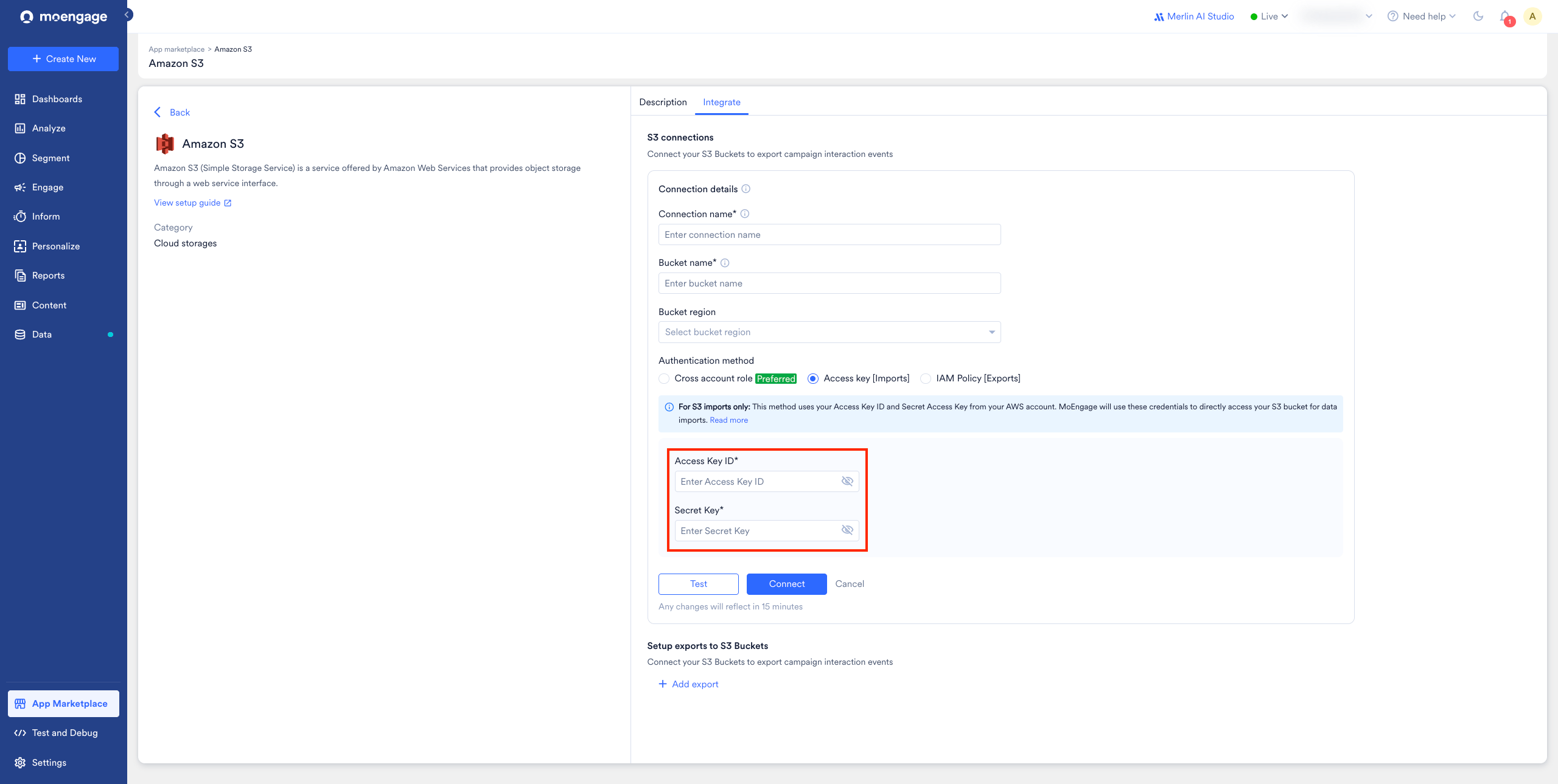 1. In your AWS account, create an **IAM user** (or use an existing programmatic user) and generate an **Access Key ID** and **Secret Access Key**.
2. Attach a permission policy granting read access to your bucket (see [Step 2: Grant Permissions](#step-2-grant-permissions) → **Imports** tab).
3. Enter the **Access Key ID** and **Secret Access Key** on the **Add Connection** page (see [Step 3: Connect Amazon S3 on the App Marketplace](#step-3-connect-amazon-s3-on-the-app-marketplace)).
Access-key credentials are stored once as a reusable S3 connection in MoEngage, rather than being entered inside each import. Create the connection once (Step 3), and then select it when you configure any S3 import.
In this method, you grant MoEngage's export role access directly through your S3 bucket policy (there is no role for MoEngage to assume). MoEngage uses a single export role for this method across all data centers, so no per-data-center ARN table is needed:
```text wrap theme={null}
arn:aws:iam::612427630422:role/service-role/core_s3_export-role-e1qw8ulf
```
1. Open the **AWS Management Console** > **S3**, select your bucket, and go to **Permissions** > **Bucket policy** > **Edit**.
2. Add the following statement. Replace `` and `` with values of your choice (any unique identifiers), and `your-bucket-name` with your bucket name. Keep the MoEngage **Principal** ARN exactly as shown.
```json wrap theme={null}
{
"Version": "2012-10-17",
"Id": "",
"Statement": [
{
"Sid": "",
"Effect": "Allow",
"Principal": {
"AWS": "arn:aws:iam::612427630422:role/service-role/core_s3_export-role-e1qw8ulf"
},
"Action": "s3:PutObject",
"Resource": "arn:aws:s3::/*"
}
]
}
```
## Step 2: Grant Permissions
Attach the permission policy that matches your direction of data flow. For the cross account role and access key methods, attach it as an inline policy: open your role (or IAM user) > **Permissions** tab > **Add permissions** > **Create inline policy** > **JSON** editor > paste the policy > **Next** > name it (for example, `moe-s3-access`) > **Create policy**.
In each example, the bucket is named `your-bucket-name` and files live under the `moengage/` folder. Replace these with your own bucket name and folder path.
**Bucket ARN vs. object ARN**
Bucket-level actions like `ListBucket` use the bucket ARN (`arn:aws:s3:::your-bucket-name`). Object-level actions like `GetObject` and `PutObject` use the object ARN (`arn:aws:s3:::your-bucket-name/moengage/*`).
MoEngage needs read access to list and fetch your files.
```json theme={null}
{
"Version": "2012-10-17",
"Statement": [
{
"Sid": "MoEngageImportReadObjects",
"Effect": "Allow",
"Action": ["s3:GetObject"],
"Resource": "arn:aws:s3:::/*"
},
{
"Sid": "MoEngageImportListBucket",
"Effect": "Allow",
"Action": ["s3:ListBucket", "s3:GetBucketLocation"],
"Resource": "arn:aws:s3:::/*"
}
]
}
```
The `s3:prefix` condition is optional. It restricts `ListBucket` to the `moengage/` folder. Remove it to allow listing the whole bucket.
MoEngage needs write access to deliver files.
```json theme={null}
{
"Version": "2012-10-17",
"Statement": [
{
"Sid": "MoEngageExportWriteObjects",
"Effect": "Allow",
"Action": ["s3:PutObject", "s3:AbortMultipartUpload"],
"Resource": "arn:aws:s3:::your-bucket-name/moengage/*"
},
{
"Sid": "MoEngageExportListBucket",
"Effect": "Allow",
"Action": ["s3:ListBucket", "s3:GetBucketLocation"],
"Resource": "arn:aws:s3:::/*"
}
]
}
```
`s3:AbortMultipartUpload` is required for any upload larger than 5 MB (multipart). It lets MoEngage clean up incomplete uploads on your bucket when a large file transfer times out or errors.
If your bucket uses **SSE-KMS** encryption, you must also grant MoEngage's role `kms:Decrypt`, `kms:GenerateDataKey`, `kms:ReEncrypt*`, and `kms:DescribeKey` on your KMS key. See [Integrate AWS Key Management Service with Amazon S3](/user-guide/data/exports/events/data-warehouse/s3-exports#integrate-aws-key-management-service-with-amazon-s3).
## Step 3: Connect Amazon S3 on the App Marketplace
To connect your S3 bucket in the MoEngage dashboard:
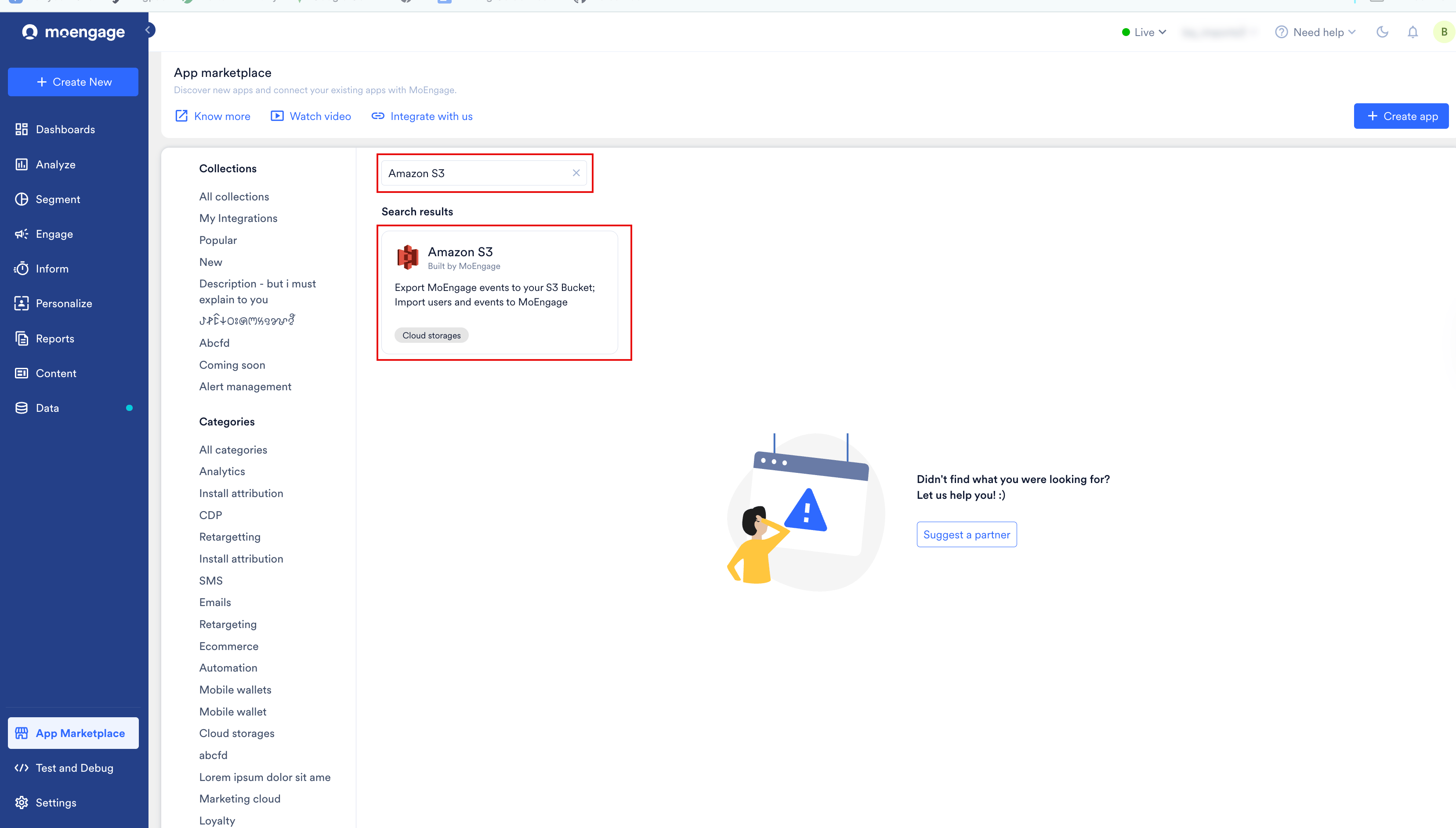
1. On the left navigation menu in the MoEngage dashboard, click **App marketplace**.
2. On the App Marketplace page, search for **Amazon S3**.
3. Click the **Amazon S3** tile.
1. In your AWS account, create an **IAM user** (or use an existing programmatic user) and generate an **Access Key ID** and **Secret Access Key**.
2. Attach a permission policy granting read access to your bucket (see [Step 2: Grant Permissions](#step-2-grant-permissions) → **Imports** tab).
3. Enter the **Access Key ID** and **Secret Access Key** on the **Add Connection** page (see [Step 3: Connect Amazon S3 on the App Marketplace](#step-3-connect-amazon-s3-on-the-app-marketplace)).
Access-key credentials are stored once as a reusable S3 connection in MoEngage, rather than being entered inside each import. Create the connection once (Step 3), and then select it when you configure any S3 import.
In this method, you grant MoEngage's export role access directly through your S3 bucket policy (there is no role for MoEngage to assume). MoEngage uses a single export role for this method across all data centers, so no per-data-center ARN table is needed:
```text wrap theme={null}
arn:aws:iam::612427630422:role/service-role/core_s3_export-role-e1qw8ulf
```
1. Open the **AWS Management Console** > **S3**, select your bucket, and go to **Permissions** > **Bucket policy** > **Edit**.
2. Add the following statement. Replace `` and `` with values of your choice (any unique identifiers), and `your-bucket-name` with your bucket name. Keep the MoEngage **Principal** ARN exactly as shown.
```json wrap theme={null}
{
"Version": "2012-10-17",
"Id": "",
"Statement": [
{
"Sid": "",
"Effect": "Allow",
"Principal": {
"AWS": "arn:aws:iam::612427630422:role/service-role/core_s3_export-role-e1qw8ulf"
},
"Action": "s3:PutObject",
"Resource": "arn:aws:s3::/*"
}
]
}
```
## Step 2: Grant Permissions
Attach the permission policy that matches your direction of data flow. For the cross account role and access key methods, attach it as an inline policy: open your role (or IAM user) > **Permissions** tab > **Add permissions** > **Create inline policy** > **JSON** editor > paste the policy > **Next** > name it (for example, `moe-s3-access`) > **Create policy**.
In each example, the bucket is named `your-bucket-name` and files live under the `moengage/` folder. Replace these with your own bucket name and folder path.
**Bucket ARN vs. object ARN**
Bucket-level actions like `ListBucket` use the bucket ARN (`arn:aws:s3:::your-bucket-name`). Object-level actions like `GetObject` and `PutObject` use the object ARN (`arn:aws:s3:::your-bucket-name/moengage/*`).
MoEngage needs read access to list and fetch your files.
```json theme={null}
{
"Version": "2012-10-17",
"Statement": [
{
"Sid": "MoEngageImportReadObjects",
"Effect": "Allow",
"Action": ["s3:GetObject"],
"Resource": "arn:aws:s3:::/*"
},
{
"Sid": "MoEngageImportListBucket",
"Effect": "Allow",
"Action": ["s3:ListBucket", "s3:GetBucketLocation"],
"Resource": "arn:aws:s3:::/*"
}
]
}
```
The `s3:prefix` condition is optional. It restricts `ListBucket` to the `moengage/` folder. Remove it to allow listing the whole bucket.
MoEngage needs write access to deliver files.
```json theme={null}
{
"Version": "2012-10-17",
"Statement": [
{
"Sid": "MoEngageExportWriteObjects",
"Effect": "Allow",
"Action": ["s3:PutObject", "s3:AbortMultipartUpload"],
"Resource": "arn:aws:s3:::your-bucket-name/moengage/*"
},
{
"Sid": "MoEngageExportListBucket",
"Effect": "Allow",
"Action": ["s3:ListBucket", "s3:GetBucketLocation"],
"Resource": "arn:aws:s3:::/*"
}
]
}
```
`s3:AbortMultipartUpload` is required for any upload larger than 5 MB (multipart). It lets MoEngage clean up incomplete uploads on your bucket when a large file transfer times out or errors.
If your bucket uses **SSE-KMS** encryption, you must also grant MoEngage's role `kms:Decrypt`, `kms:GenerateDataKey`, `kms:ReEncrypt*`, and `kms:DescribeKey` on your KMS key. See [Integrate AWS Key Management Service with Amazon S3](/user-guide/data/exports/events/data-warehouse/s3-exports#integrate-aws-key-management-service-with-amazon-s3).
## Step 3: Connect Amazon S3 on the App Marketplace
To connect your S3 bucket in the MoEngage dashboard:
1. On the left navigation menu in the MoEngage dashboard, click **App marketplace**.
2. On the App Marketplace page, search for **Amazon S3**.
3. Click the **Amazon S3** tile.
 4. On the **Amazon S3** page, go to the **Integrate** tab and click **+Add Connection**.
5. In the **S3 connections** section, enter the following settings:
| Applies to | Field | Required | Description |
| ------------------------- | ---------------------------- | ----------- | --------------------------------------------------------------------------------------------------------------------------------------------------------------------------------------------------------------------------------------------------------------------------------------------------------------------------------------------------------------------------------------------------------------------------------------------------------------------------------------------------------------------------------------------------- |
| | **Connection name** | Yes | Type a unique name to identify the Amazon S3 connection. |
| | **Bucket name** | Yes | Type the exact name of your Amazon S3 bucket. MoEngage uses this name to route imports and exports. |
| | **Bucket region** | Optional | Select the AWS region hosting your target S3 bucket from the drop-down list. |
| | **Authentication method** | Yes | Select an option to connect MoEngage with Amazon S3:
4. On the **Amazon S3** page, go to the **Integrate** tab and click **+Add Connection**.
5. In the **S3 connections** section, enter the following settings:
| Applies to | Field | Required | Description |
| ------------------------- | ---------------------------- | ----------- | --------------------------------------------------------------------------------------------------------------------------------------------------------------------------------------------------------------------------------------------------------------------------------------------------------------------------------------------------------------------------------------------------------------------------------------------------------------------------------------------------------------------------------------------------- |
| | **Connection name** | Yes | Type a unique name to identify the Amazon S3 connection. |
| | **Bucket name** | Yes | Type the exact name of your Amazon S3 bucket. MoEngage uses this name to route imports and exports. |
| | **Bucket region** | Optional | Select the AWS region hosting your target S3 bucket from the drop-down list. |
| | **Authentication method** | Yes | Select an option to connect MoEngage with Amazon S3: - **Cross account role**: Allows MoEngage to access your S3 bucket for imports and exports by assuming an IAM Role in your AWS account. This option increases security by eliminating long-term credential storage.
- **Access key \[Imports]**: Authenticates imports using static programmatic AWS credentials (Access Key ID and Secret Key).
- **IAM Policy \[Exports]**: Uses resource-level S3 bucket policies to authorize automated exports from MoEngage.
|
| **Cross account role** | **MoEngage AWS Account ARN** | Read-Only | Displays the MoEngage AWS account ARN (`arn:aws:iam::582272135730:root`). Copy this value to configure your AWS role's Trust Relationship policy. This field appears only when you click **Cross account role**. |
| | **MoEngage External ID** | Read-Only | Displays the MoEngage external security ID (`moe-external-f82a6992-9c75-5d4c-f985-a0c3b8f3bcf2`). Copy this value to configure your AWS role's Trust Relationship policy. This field appears only when you click **Cross account role**. |
| | **Your AWS role ARN** | Conditional | Type the Amazon Resource Name (ARN) of the AWS IAM role configured with a trust relationship to MoEngage. This field is required only when you click **Cross account role**, *enter AWS role ARN*. |
| **Access key \[Imports]** | **Access Key ID** | Conditional | Type the programmatic Access Key ID generated for your AWS user. This field is required only when you click **Access key \[Imports]**, *enter Access Key ID*. |
| | **Secret Key** | Conditional | Type the secret programmatic access key generated for your AWS user. This field is required only when you click **Access key \[Imports]**, *enter Secret Key*. |
| **IAM Policy \[Exports]** | No credentials required | — | This method is for S3 exports only. You do not enter any credentials here. Instead, configure an IAM policy in your AWS account, and MoEngage uses that permission to deliver files to your S3 bucket during exports. To set up the bucket policy, see the **IAM Policy \[Exports]** method in [Step 1: Set Up Authentication](#step-1-set-up-authentication). This field appears only when you click **IAM Policy \[Exports]**. |
6. Click **Test** to validate your credentials, and then click **Connect** to activate the Amazon S3 integration.
 Configuration changes can take up to 15 minutes to propagate to your active campaigns and connections.
After you connect, you can use the active integration to schedule automated imports and exports.
## Import Users and Events
To configure user and event data imports using this connection, see the [S3 Data Imports Guide](/user-guide/data/imports/file-based-imports/s3-imports).
## Export Events
To route campaign interaction logs to your Amazon S3 bucket, configure automated exports using the [S3 Data Exports Guide](/user-guide/data/exports/events/data-warehouse/s3-exports).
Configuration changes can take up to 15 minutes to propagate to your active campaigns and connections.
After you connect, you can use the active integration to schedule automated imports and exports.
## Import Users and Events
To configure user and event data imports using this connection, see the [S3 Data Imports Guide](/user-guide/data/imports/file-based-imports/s3-imports).
## Export Events
To route campaign interaction logs to your Amazon S3 bucket, configure automated exports using the [S3 Data Exports Guide](/user-guide/data/exports/events/data-warehouse/s3-exports).