> ## Documentation Index
> Fetch the complete documentation index at: https://moengage.com/docs/llms.txt
> Use this file to discover all available pages before exploring further.
# Appsflyer audience
> Pass AppsFlyer Audiences segments into MoEngage as custom segments to power personalized remarketing and engagement campaigns.
## Introduction
[Appsflyer](https://www.appsflyer.com/) is a mobile marketing analytics and attribution platform that helps you analyze and optimize your apps through marketing analytics, mobile attribution, and deep linking.
## MoEngage × Appsflyer audience
MoEngage and AppsFlyer audience integration allows you to drive user engagement and increase the efficiency of your remarketing programs by leveraging the power of the user segments built in AppsFlyer Audiences. You can pass your [AppsFlyer audiences](https://www.appsflyer.com/product/audiences/) directly to MoEngage to create powerful customer engagement campaigns.
## Integration
**Prerequisites**
* Ensure you have access to your Appsflyer account.
* You can access the Data API ID in **Settings** > **Account** > **APIs**. The Data API ID is the same as the **Workspace ID**. The Data API Key is available in the same screen in the **API Keys** > **Data** section.
* MoEngage data center - Select one of the following depending upon the MoEngage Data Center you have signed up with. You can refer to [this article](https://www.moengage.com/docs/user-guide/data/key-concepts/data-centers-in-moengage) for more details on identifying your MoEngage data center.
To integrate AppsFlyer audience with MoEngage, follow these steps:
### Step 1: Set up MoEngage as a destination on Appsflyer
1. Navigate to **Create an Outgoing connection** on your Appsflyer dashboard.
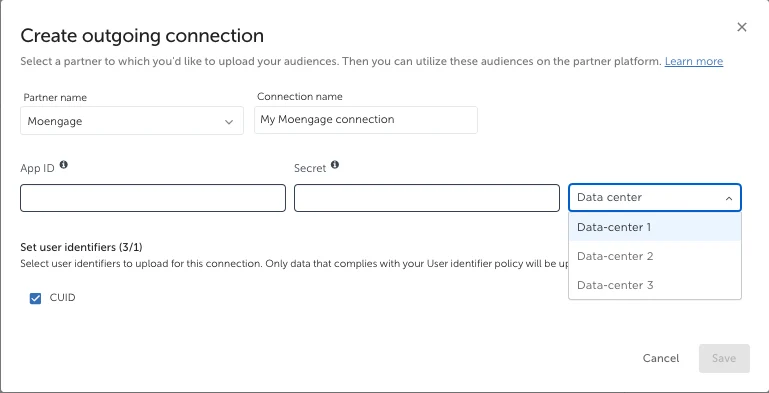 2. Fill in the details on Workspace ID, Secret Key, and data center.
| Field | Description |
| -------------------- | --------------------------------------------------------------------------------------------------------------------------------------------------------------------------------------------------------------------------------------------------------------------------------------------------------------------- |
| **Workspace ID** | The Workspace ID of your MoEngage account is available at **Settings** > **Account** > **APIs** > **Workspace ID**. |
| **Data API ID** | The Data API ID and the Workspace ID of your MoEngage account are the same. |
| **Data API Key** | The Data API key of your MoEngage account is available at **Settings** > **App Settings** > **APIs** > **API Keys** > **Data**. |
| **Data Center Name** | Check your MoEngage URL: `https://dashboard-OX.moengage.com`.
2. Fill in the details on Workspace ID, Secret Key, and data center.
| Field | Description |
| -------------------- | --------------------------------------------------------------------------------------------------------------------------------------------------------------------------------------------------------------------------------------------------------------------------------------------------------------------- |
| **Workspace ID** | The Workspace ID of your MoEngage account is available at **Settings** > **Account** > **APIs** > **Workspace ID**. |
| **Data API ID** | The Data API ID and the Workspace ID of your MoEngage account are the same. |
| **Data API Key** | The Data API key of your MoEngage account is available at **Settings** > **App Settings** > **APIs** > **API Keys** > **Data**. |
| **Data Center Name** | Check your MoEngage URL: `https://dashboard-OX.moengage.com`.
Based on the dashboard value (`DC-01`, `DC-02`, `DC-03`, or `DC-04`), set the correct input in the data center name on the Appsflyer dashboard. [Know more](https://www.moengage.com/docs/user-guide/data/key-concepts/data-centers-in-moengage). |
3. Click **Save**.
### Step 2: Use Appsflyer audience on MoEngage
After the integration, the cohorts created on Appsflyer are available as a [custom segment](https://www.moengage.com/docs/user-guide/segment/segment-operations/custom-segments) in MoEngage. The custom segment can be used in any MoEngage campaigns to send personalized messages to the users.
## Rate Limits
To maintain platform stability, MoEngage limits Appsflyer data ingestion to a maximum of 500 requests per second (RPS) per workspace. If your workspace exceeds this limit, MoEngage returns an HTTP `429 (Too Many Requests)` status code.
Refer to AppsFlyer's default retry policy to understand how rate limiting affects your data flow.
**Retry Exhaustion**: If Appsflyer exhausts all retry attempts for a batch of data, you must contact the Appsflyer Support Team to replay the failed requests.