> ## Documentation Index
> Fetch the complete documentation index at: https://moengage.com/docs/llms.txt
> Use this file to discover all available pages before exploring further.
# Boomi
> Connect MoEngage to Oracle, Salesforce, SAP, or any other system in your stack using Boomi integration flows.
[Boomi](https://boomi.com/) is an integration platform that connects applications and data sources through visual development tools and pre-built connectors, so you can build integration flows without writing custom code.
Sync customer data between MoEngage and any system connected to Boomi by importing them as users or events, and export campaign and engagement data through [Streams](/docs/api/data/moengage-streams).
## Use Cases
The following table describes what you can build with this integration:
| Use case | Description |
| --------------------------------------- | ----------------------------------------------------------------------------------------------------------------------------------------------------------------------- |
| Real-time CRM sync | Send campaign delivery and engagement events from MoEngage to Salesforce as they happen, to keep engagement scores and activity history current. |
| Data warehouse integration | Export behavioral events from MoEngage to your Snowflake warehouse for analytics and business intelligence reporting. |
| Enterprise resource planning (ERP) sync | Sync customer attributes, purchase events, and loyalty data between MoEngage and an ERP system such as SAP or Oracle, to maintain a single customer record. |
| Bi-directional loyalty program | Import loyalty points and tier information from your loyalty platform into MoEngage, and export campaign engagement metrics back to adjust rewards and offer targeting. |
## Prerequisites
* You need a Boomi Integration account with permission to create connections and deploy processes.
* To receive data from MoEngage, your Boomi account must include [Services Enablement](https://help.boomi.com/bundle/integration/page/c-atm-Services_Enablement.html), which is available on the Professional Plus, Enterprise, and Enterprise Plus editions.
## Push Data to MoEngage
Push users and events to MoEngage through a dedicated endpoint that you call from the [HTTP Client connector](https://help.boomi.com/docs/atomsphere/integration/connectors/r-atm-http_client_connector_d64af80e-febe-4cd2-89ad-e3d0fc53c502/). The endpoint is specific to your data: you define the payload you want to send, and MoEngage provisions an endpoint that matches it.
### Step 1: Request a Dedicated Endpoint
To request a dedicated endpoint, perform the following steps:
1. Contact your MoEngage Customer Success Manager (CSM) or [MoEngage Support](https://help.moengage.com/hc/en-us/requests/new).
2. Share the payload you want to send and the data you want to import as users or events. MoEngage uses these details to provision an endpoint that fits your payload.
3. MoEngage shares the dedicated endpoint URL and the authentication credentials for you to use in Boomi.
### Step 2: Build the Integration Flow
To send data from Boomi to the endpoint, perform the following steps:
1. Add an HTTP Client connector step, and create a connection that points to the MoEngage endpoint URL.
2. In the connector operation, set the method to **POST** and add the authentication credentials MoEngage shared with you.
3. Deploy the process, and then run it with a small batch of records.
For a visual overview, refer to the sample diagram below. Your process pulls records from your source system, maps them to the payload you agreed with MoEngage, and pushes them to the dedicated endpoint. The source (Pull) and mapping steps depend on your own systems and data.
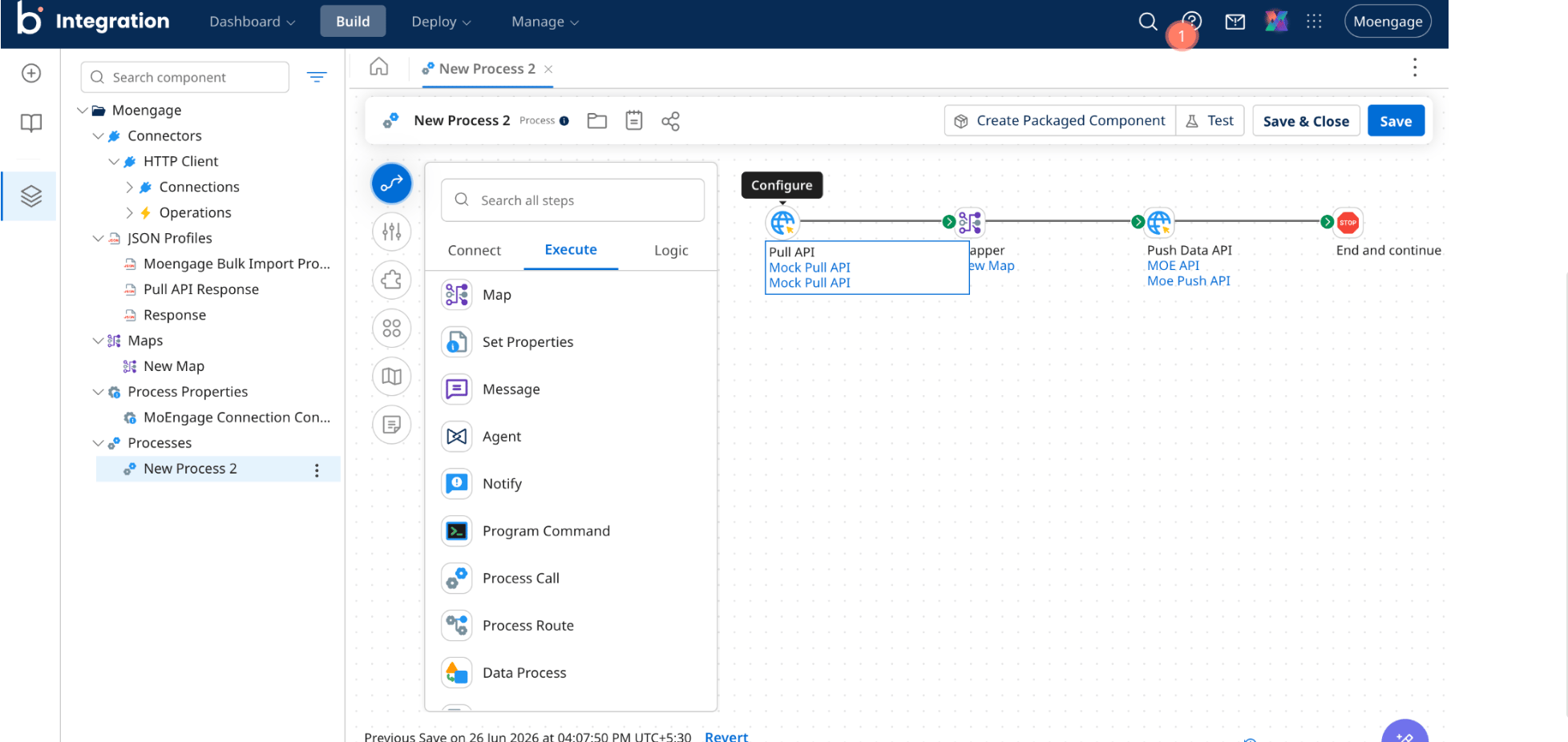 Confirm the run in MoEngage before you schedule the process. The users and events from your test batch appear in your workspace, and you can check them on the user profile of a record you sent.
## Export Data from MoEngage
Streams is a paid add-on. Contact your CSM to enable it for your workspace.
[Streams](/docs/api/data/moengage-streams) forwards campaign interaction events and user behavior data to an endpoint of your choice in near real time. Point a stream at a Boomi listener endpoint, and Boomi can route that data onward to any system it connects to.
### Step 1: Build the Listener Endpoint in Boomi
To create an endpoint that receives MoEngage data, perform the following steps:
1. Create a process that starts with the Web Services Server connector.
2. Configure a [Web Services Server operation](https://help.boomi.com/docs/Atomsphere/Integration/Connectors/r-atm-Web_Services_Server_operation_e74fceaf-877d-45fa-a7b0-7a5ac72719b4) that accepts a JSON request.
3. Deploy the process, and then copy the generated endpoint URL and the authentication credentials.
Define the request structure to match the payload that Streams sends. For the field-level specification, refer to [Streams](/docs/api/data/moengage-streams).
### Step 2: Request Streams for Your Workspace
Contact your CSM or MoEngage Support with the endpoint URL and authentication credentials from the previous step, and the events you want forwarded. MoEngage configures the stream and starts forwarding data to your Boomi endpoint.
Confirm the run in MoEngage before you schedule the process. The users and events from your test batch appear in your workspace, and you can check them on the user profile of a record you sent.
## Export Data from MoEngage
Streams is a paid add-on. Contact your CSM to enable it for your workspace.
[Streams](/docs/api/data/moengage-streams) forwards campaign interaction events and user behavior data to an endpoint of your choice in near real time. Point a stream at a Boomi listener endpoint, and Boomi can route that data onward to any system it connects to.
### Step 1: Build the Listener Endpoint in Boomi
To create an endpoint that receives MoEngage data, perform the following steps:
1. Create a process that starts with the Web Services Server connector.
2. Configure a [Web Services Server operation](https://help.boomi.com/docs/Atomsphere/Integration/Connectors/r-atm-Web_Services_Server_operation_e74fceaf-877d-45fa-a7b0-7a5ac72719b4) that accepts a JSON request.
3. Deploy the process, and then copy the generated endpoint URL and the authentication credentials.
Define the request structure to match the payload that Streams sends. For the field-level specification, refer to [Streams](/docs/api/data/moengage-streams).
### Step 2: Request Streams for Your Workspace
Contact your CSM or MoEngage Support with the endpoint URL and authentication credentials from the previous step, and the events you want forwarded. MoEngage configures the stream and starts forwarding data to your Boomi endpoint.