> ## Documentation Index
> Fetch the complete documentation index at: https://moengage.com/docs/llms.txt
> Use this file to discover all available pages before exploring further.
# Amplitude Event Streaming
## Introduction
[Amplitude's Event Streaming](https://www.docs.developers.amplitude.com/data/destination-event-streaming-overview/) lets you send the event data in Amplitude across your stack. With event streaming, you can use the rich behavioral data in Amplitude to enrich customer profiles and stream data to marketing, sales, and infrastructure tools.
* Amplitude Event Streaming is part of the Streams add-on. Contact your dedicated MoEngage CSM (customer success manager) to enable it for your account.
* The Amplitude Event Streaming does not currently support [Unified Identity](https://moengage-user-guide.mintlify.app/user-guide/data/user-data/unified-identity-identity-resolution) or [Portfolio](https://moengage-user-guide.mintlify.app/user-guide/settings/account/portfolio/portfolio).
## Use Cases
1. **Personalization:** By sending user properties from Amplitude to MoEngage, you can create more personalized experiences for your users. For example, you could send information about a user's location or language preference, and use that information to tailor your messaging or content to their specific needs.
2. **Segmentation:** By sending events and event properties from Amplitude to MoEngage, you can create segments of users based on their behavior. For example, you could create a segment of users who have completed a specific action in your app or website, and then target them with a specific campaign or message.
3. **Conversion tracking:** By sending events from Amplitude to MoEngage, you can track the effectiveness of your marketing campaigns and measure user behavior throughout the funnel. For example, you could track how many users who received a specific message from MoEngage went on to make a purchase or complete another desired action.
4. **A/B testing:** By sending events and event properties from Amplitude to MoEngage, you can create and run A/B tests to optimize your messaging and content. For example, you could create two different versions of a message and send each version to a different segment of users, then track which version leads to more engagement or conversions.
## Integration Prerequisites
* Ensure you have Amplitude Data account credentials.
* The Data API ID and Data API Key are available at **Settings** > **Account** > **APIs**. The Data API ID is the same as the **Workspace ID**. The Data API Key is available in the same screen in the **API Keys** > **Data** section.
* Ensure you have the MoEngage data center - Your data center aligns with your MoEngage dashboard instance. [Read more](https://www.moengage.com/docs/user-guide/data/key-concepts/data-centers-in-moengage)
## Steps
Follow these steps to set up Amplitude Event Streaming:
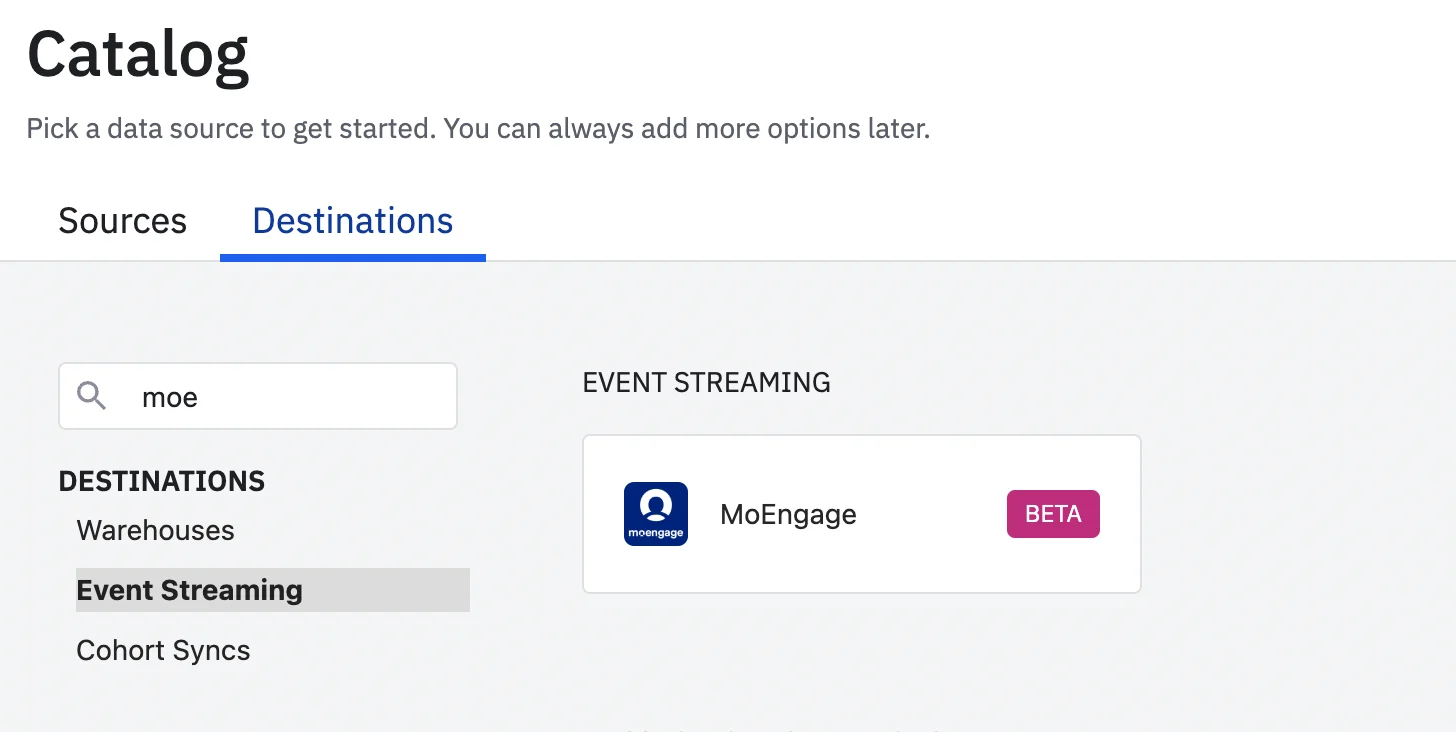
1. Navigate to **Amplitude Data** > **Catalog**.
2. Select **Destinations** tab.
3. In the **Event Streaming** section, click **MoEngage**.
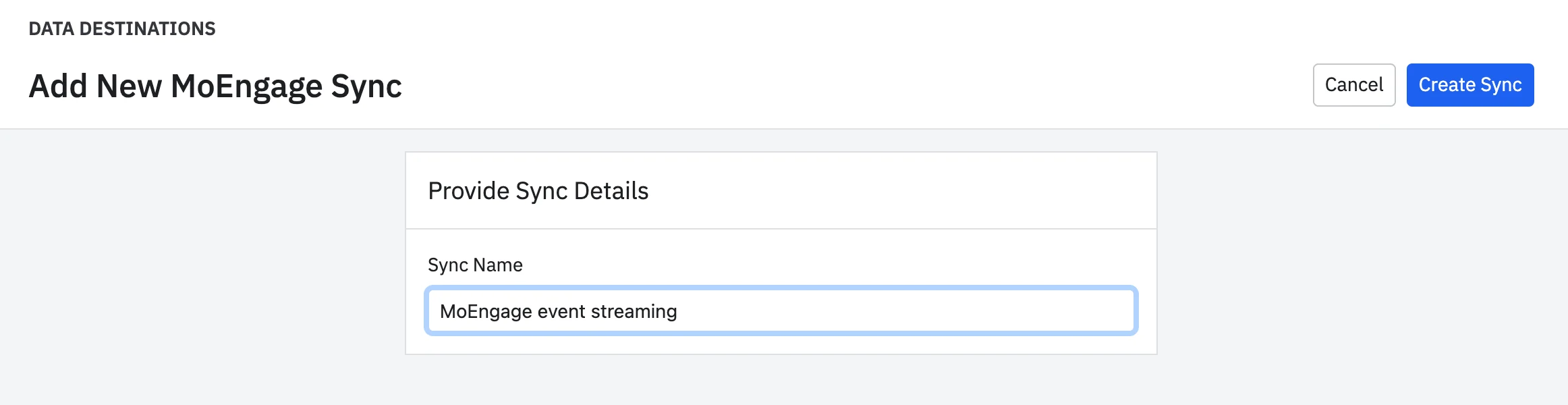
 4. Enter a sync name, then click **Create Sync**.
 5. Fill in the form:
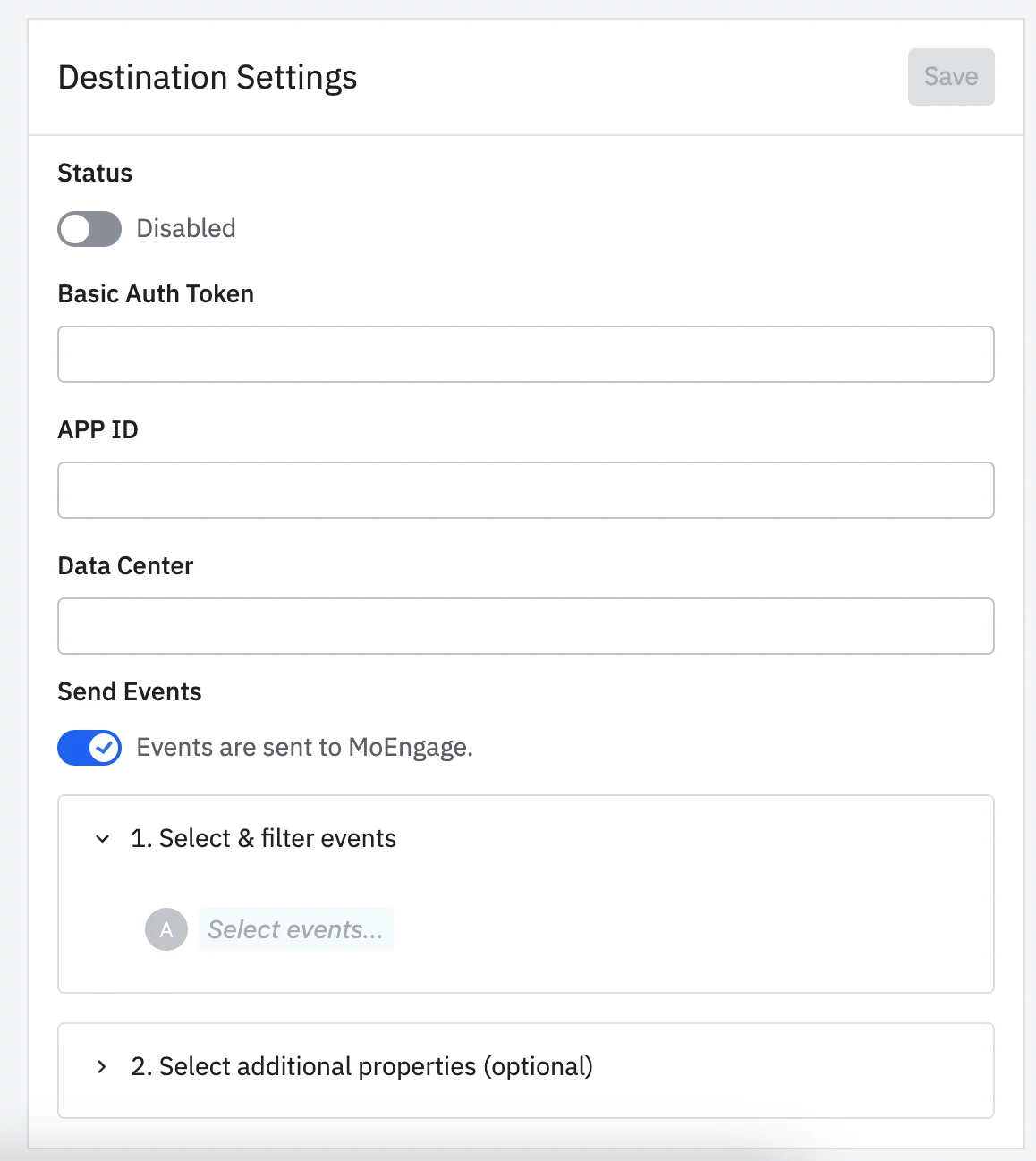 1. Set **toggle status** as **Enabled**.
2. **Basic Auth Token** - Generate your auth token (refer to Step 4):
* Go to [https://www.debugbear.com/basic-auth-header-generator](https://www.debugbear.com/basic-auth-header-generator).
1. Set **toggle status** as **Enabled**.
2. **Basic Auth Token** - Generate your auth token (refer to Step 4):
* Go to [https://www.debugbear.com/basic-auth-header-generator](https://www.debugbear.com/basic-auth-header-generator).
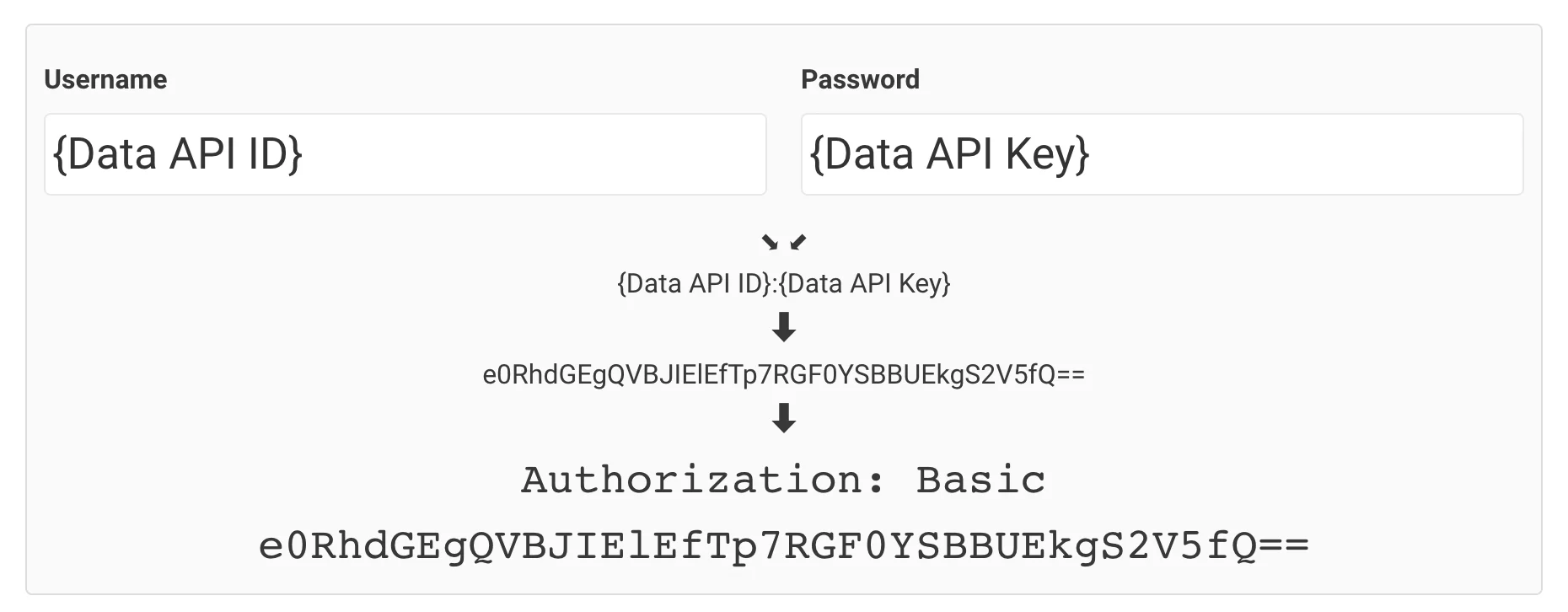 * Enter MoEngage's **Data API ID** as username and **DATA API KEY** as the password.
* Click the **Generate Token** button.
* Copy the generated token.
* Paste the token into the Basic Auth Token field in the integration setup form.
3. Enter **DATA APP ID**.
4. Enter **Data Center Values**: "01", "02", "03", "04". Refer to [the article here](https://www.moengage.com/docs/user-guide/data/key-concepts/data-centers-in-moengage) for more details.
\| Field | Description |
\| --- | --- |
\| **App ID** | The Workspace ID of your MoEngage account is available at **Settings** > **Account** > **APIs** > **Workspace ID**. |
\| **Data API ID** | The Data API ID and the Workspace ID of your MoEngage account are the same. |
\| **Data API Key** | The Data API key of your MoEngage account is available at **Settings** > **Account** > **APIs** > **API keys** > **Data** API settings. |
\| **Data Center Name** | Check your MoEngage URL: `https://dashboard-OX.moengage.com`. Based on the dashboard value, set the correct input in the data center name on the Amplitude dashboard. [Know more](https://www.moengage.com/docs/user-guide/data/key-concepts/data-centers-in-moengage). |
6. Toggle the **Send events** and filters to select the events to send.
* You can send all events, but Amplitude recommends choosing the most important ones.
* Use the **Event Properties** filter to select which Event Properties you would like to send.
7. When finished, click **Save**.
Amplitude will now begin streaming events to MoEngage.
**Considerations**
Keep these things in mind when enabling Event Streaming in Amplitude:
* You must enable this integration in each Amplitude project you want to use it in.
* Amplitude sends selected user, event, and group properties along with the event.
* MoEngage does not support Event Streaming for Anonymous Users.
* Enter MoEngage's **Data API ID** as username and **DATA API KEY** as the password.
* Click the **Generate Token** button.
* Copy the generated token.
* Paste the token into the Basic Auth Token field in the integration setup form.
3. Enter **DATA APP ID**.
4. Enter **Data Center Values**: "01", "02", "03", "04". Refer to [the article here](https://www.moengage.com/docs/user-guide/data/key-concepts/data-centers-in-moengage) for more details.
\| Field | Description |
\| --- | --- |
\| **App ID** | The Workspace ID of your MoEngage account is available at **Settings** > **Account** > **APIs** > **Workspace ID**. |
\| **Data API ID** | The Data API ID and the Workspace ID of your MoEngage account are the same. |
\| **Data API Key** | The Data API key of your MoEngage account is available at **Settings** > **Account** > **APIs** > **API keys** > **Data** API settings. |
\| **Data Center Name** | Check your MoEngage URL: `https://dashboard-OX.moengage.com`. Based on the dashboard value, set the correct input in the data center name on the Amplitude dashboard. [Know more](https://www.moengage.com/docs/user-guide/data/key-concepts/data-centers-in-moengage). |
6. Toggle the **Send events** and filters to select the events to send.
* You can send all events, but Amplitude recommends choosing the most important ones.
* Use the **Event Properties** filter to select which Event Properties you would like to send.
7. When finished, click **Save**.
Amplitude will now begin streaming events to MoEngage.
**Considerations**
Keep these things in mind when enabling Event Streaming in Amplitude:
* You must enable this integration in each Amplitude project you want to use it in.
* Amplitude sends selected user, event, and group properties along with the event.
* MoEngage does not support Event Streaming for Anonymous Users.