> ## Documentation Index
> Fetch the complete documentation index at: https://moengage.com/docs/llms.txt
> Use this file to discover all available pages before exploring further.
# iOS device mode 6.x.x
# Installing SDK
MoEngage can be integrated via Segment using Cocoapods.
* Initialize pod with pod init command, this will create a podfile for your project.
* Update your podfile by adding pod '**Segment-MoEngage** ' as shown below:
```ruby Ruby theme={null}
use_frameworks!
pod 'Segment-MoEngage', '~> 6.0'
```
* Update the pod. - pod update
# Setup Segment SDK
Now head to the App Delegate, and setup the Segment SDK :
```objectivec Objective-C wrap theme={null}
#import // This line is key for MoEngage integration
#import
- (BOOL)application:(UIApplication *)application didFinishLaunchingWithOptions:(NSDictionary *)launchOptions {
// Add your configuration key from Segment
SEGAnalyticsConfiguration *config = [SEGAnalyticsConfiguration configurationWithWriteKey:@"configuration key"];
// Add MoEngageIntegrationFactory. Without this data will not come to MoEngage.
[config use:[SEGMoEngageIntegrationFactory instance]];
[SEGAnalytics setupWithConfiguration:config];
}
```
```swift Swift wrap theme={null}
import Segment_MoEngage
...
func application(_ application: UIApplication, didFinishLaunchingWithOptions launchOptions: [UIApplicationLaunchOptionsKey: Any]?) -> Bool {
...
// Add your configuration key from Segment
let config = SEGAnalyticsConfiguration(writeKey:"configuration key")
// Add MoEngageIntegrationFactory. Without this data will not come to MoEngage.
config.use(SEGMoEngageIntegrationFactory.instance())
SEGAnalytics.setup(with: config)
...
}
```
Please make sure to set the Data Center/ Region for MoEngage SDK separately in your AppDelegate's `application:didFinishLaunchingWithOptions` method. Refer [doc](/developer-guide/ios-sdk/sdk-integration/basic/data-center) for more info.
Don't miss to add **\[config use:\[SEGMoEngageIntegrationFactory instance]]** while setting up Segment SDK. **Unless this is done data will not be sent to MoEngage**.
# Setup MoEngage
To setup MoEngage, do the following :
1. Navigate to MoEngage Dashboard > Settings > General.
2. Copy the Workspace ID (earlier App ID).
3. Go to **Segment dashboard** , go to **Integrations** and select **MoEngage**.
4. Enable MoEngage Integration.
5. Go to MoEngage Settings and enter the MoEngage Workspace ID (earlier App ID), obtained in **Step1**.
6. Save the changes.
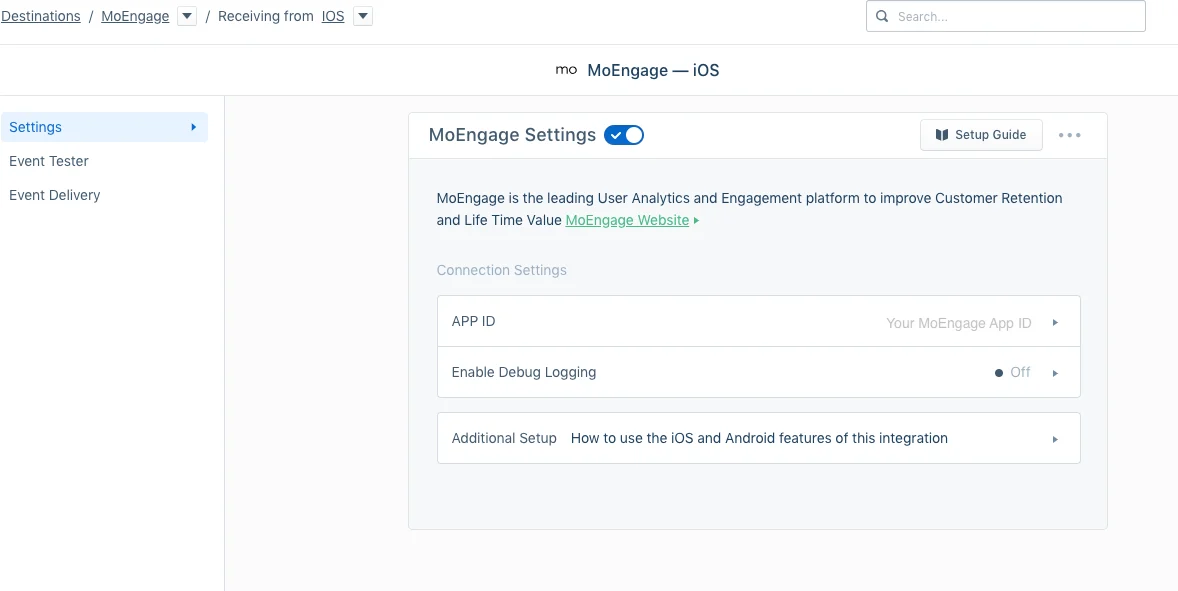 These new settings will take up to an hour to propagate to all of your existing users. For new users, it is instantaneous! Segment-MoEngage Integration is a bundled integration, requires client-side integration.
# Tracking User Attribute
User attributes are specific traits of a user, like email, username, mobile, gender etc. **identify** lets you tie a user to their actions and record traits about them. It includes a unique User ID and any optional traits you know about them.
```objectivec Objective-C wrap theme={null}
[[SEGAnalytics sharedAnalytics] identify:@"a user's id"
traits:@{ @"email": @"a user's email address" }];
```
```swift Swift wrap theme={null}
SEGAnalytics.shared().identify("a user's id", traits: ["email": "a user's email address"])
```
For more info refer to this [link](https://segment.com/docs/sources/mobile/ios/#identify).
# Tracking Events
Event tracking is used to track user behaviour in an app. **track** lets you record the actions your users perform. Every action triggers i.e,“event”, which can also have associated attributes.
```objectivec Objective-C wrap theme={null}
[[SEGAnalytics sharedAnalytics] track:@"Item Purchased"
properties:@{ @"item": @"Sword of Heracles"}];
```
```swift Swift wrap theme={null}
SEGAnalytics.shared().track("Item Purchased", properties: ["item": "Sword of Heracles"])
```
That's all you need for tracking data. For more info refer this [link](https://segment.com/docs/sources/mobile/ios/#track).
# Reset User
The *reset* method clears the SDK’s internal stores for the current user. This is useful for apps where users can log in and out with different identities over time.
```objectivec Objective-C theme={null}
[[SEGAnalytics sharedAnalytics] reset];
```
```swift Swift theme={null}
SEGAnalytics.shared().reset()
```
For more info refer to this [link](https://segment.com/docs/sources/mobile/ios/#reset).
# Push Notifications
Push Notifications are a great way to keep your users engaged and informed about your app. You have the following options while implementing push notifications in your app:
## MoEngage Push Implementation
This will be the more preferred way of implementing since Segment SDK currently doesn't support the [UserNotifications](https://developer.apple.com/documentation/usernotifications) framework which was introduced by Apple from iOS10. Follow this link to implement Push Notification in your mobile app using MoEngage SDK: [**Push Notifications**](/developer-guide/ios-sdk/push/basic/push-notifications)
Please note that [**AppDelegate Swizzling**](/developer-guide/ios-sdk/push/basic/ios-push-integration-tutorial#step-2-implement-push-handling-in-appdelegate) does not work reliably with Segment Integration because of delay in initializing the SDK by Segment, therefore make sure to call the MoEngage SDK methods for all Push related callbacks.
Segment Push Implementation
With this approach, we have found that MoEngage SDK will be unable to process Notification when App is launched with a notification click. This is because of Segment SDK not providing the payload to MoEngage SDK in this particular scenario. Hence we would highly recommend you to use the first approach, where you will have to directly call the MoEngage SDK methods in Push related callbacks.
1. Follow the directions to register for push using Segment SDK in this [link](https://segment.com/docs/libraries/ios/#how-do-i-use-push-notifications-).
2. In your application’s application:didReceiveRemoteNotification: method, add the following:
```objectivec Objective-C theme={null}
[[SEGAnalytics sharedAnalytics] receivedRemoteNotification:userInfo];
```
```swift Swift theme={null}
SEGAnalytics.sharedAnalytics().receivedRemoteNotification(userInfo)
```
3. If you integrated the application:didReceiveRemoteNotification:fetchCompletionHandler: in your app, add the following to that method:
```objectivec Objective-C theme={null}
[[SEGAnalytics sharedAnalytics] receivedRemoteNotification:userInfo];
```
```swift Swift theme={null}
SEGAnalytics.sharedAnalytics().receivedRemoteNotification(userInfo)
```
4. If you implemented handleActionWithIdentifier:forRemoteNotification:, add the following to that method:
```objective-c Objective-C wrap theme={null}
[[SEGAnalytics sharedAnalytics] handleActionWithIdentifier:identifier forRemoteNotification:userInfo];
```
# Install / Update Differentiation :
Since you might integrate us when your app is already on the App Store, we would need to know whether your app update would be an actual UPDATE or an INSTALL.\
To differentiate between those, use one of the methods below:
```objectivec Objective-C theme={null}
//For new Install call following
[[MoEngage sharedInstance]appStatus:INSTALL];
//For an app update call following
[[MoEngage sharedInstance]appStatus:UPDATE];
```
```swift Swift theme={null}
//For new Install call following
MoEngage.sharedInstance().appStatus(INSTALL)
//For an app update call following
MoEngage.sharedInstance().appStatus(UPDATE)
```
For more info on this refer the following [link](/developer-guide/ios-sdk/data-tracking/basic/install-update-differentiation).
# InApp Native
In-App Messaging is custom views that you can send to a segment of users to show custom messages or give new offers or take to some specific pages. Follow the link to know more about inApp Messaging and how to implement it in your application: [InApp NATIV](/developer-guide/ios-sdk/in-app-messages/in-app-nativ)
For more info on using **Segment for iOS** refer to [Developer Docs](https://segment.com/docs/sources/mobile/ios/) provided by Segment.
These new settings will take up to an hour to propagate to all of your existing users. For new users, it is instantaneous! Segment-MoEngage Integration is a bundled integration, requires client-side integration.
# Tracking User Attribute
User attributes are specific traits of a user, like email, username, mobile, gender etc. **identify** lets you tie a user to their actions and record traits about them. It includes a unique User ID and any optional traits you know about them.
```objectivec Objective-C wrap theme={null}
[[SEGAnalytics sharedAnalytics] identify:@"a user's id"
traits:@{ @"email": @"a user's email address" }];
```
```swift Swift wrap theme={null}
SEGAnalytics.shared().identify("a user's id", traits: ["email": "a user's email address"])
```
For more info refer to this [link](https://segment.com/docs/sources/mobile/ios/#identify).
# Tracking Events
Event tracking is used to track user behaviour in an app. **track** lets you record the actions your users perform. Every action triggers i.e,“event”, which can also have associated attributes.
```objectivec Objective-C wrap theme={null}
[[SEGAnalytics sharedAnalytics] track:@"Item Purchased"
properties:@{ @"item": @"Sword of Heracles"}];
```
```swift Swift wrap theme={null}
SEGAnalytics.shared().track("Item Purchased", properties: ["item": "Sword of Heracles"])
```
That's all you need for tracking data. For more info refer this [link](https://segment.com/docs/sources/mobile/ios/#track).
# Reset User
The *reset* method clears the SDK’s internal stores for the current user. This is useful for apps where users can log in and out with different identities over time.
```objectivec Objective-C theme={null}
[[SEGAnalytics sharedAnalytics] reset];
```
```swift Swift theme={null}
SEGAnalytics.shared().reset()
```
For more info refer to this [link](https://segment.com/docs/sources/mobile/ios/#reset).
# Push Notifications
Push Notifications are a great way to keep your users engaged and informed about your app. You have the following options while implementing push notifications in your app:
## MoEngage Push Implementation
This will be the more preferred way of implementing since Segment SDK currently doesn't support the [UserNotifications](https://developer.apple.com/documentation/usernotifications) framework which was introduced by Apple from iOS10. Follow this link to implement Push Notification in your mobile app using MoEngage SDK: [**Push Notifications**](/developer-guide/ios-sdk/push/basic/push-notifications)
Please note that [**AppDelegate Swizzling**](/developer-guide/ios-sdk/push/basic/ios-push-integration-tutorial#step-2-implement-push-handling-in-appdelegate) does not work reliably with Segment Integration because of delay in initializing the SDK by Segment, therefore make sure to call the MoEngage SDK methods for all Push related callbacks.
Segment Push Implementation
With this approach, we have found that MoEngage SDK will be unable to process Notification when App is launched with a notification click. This is because of Segment SDK not providing the payload to MoEngage SDK in this particular scenario. Hence we would highly recommend you to use the first approach, where you will have to directly call the MoEngage SDK methods in Push related callbacks.
1. Follow the directions to register for push using Segment SDK in this [link](https://segment.com/docs/libraries/ios/#how-do-i-use-push-notifications-).
2. In your application’s application:didReceiveRemoteNotification: method, add the following:
```objectivec Objective-C theme={null}
[[SEGAnalytics sharedAnalytics] receivedRemoteNotification:userInfo];
```
```swift Swift theme={null}
SEGAnalytics.sharedAnalytics().receivedRemoteNotification(userInfo)
```
3. If you integrated the application:didReceiveRemoteNotification:fetchCompletionHandler: in your app, add the following to that method:
```objectivec Objective-C theme={null}
[[SEGAnalytics sharedAnalytics] receivedRemoteNotification:userInfo];
```
```swift Swift theme={null}
SEGAnalytics.sharedAnalytics().receivedRemoteNotification(userInfo)
```
4. If you implemented handleActionWithIdentifier:forRemoteNotification:, add the following to that method:
```objective-c Objective-C wrap theme={null}
[[SEGAnalytics sharedAnalytics] handleActionWithIdentifier:identifier forRemoteNotification:userInfo];
```
# Install / Update Differentiation :
Since you might integrate us when your app is already on the App Store, we would need to know whether your app update would be an actual UPDATE or an INSTALL.\
To differentiate between those, use one of the methods below:
```objectivec Objective-C theme={null}
//For new Install call following
[[MoEngage sharedInstance]appStatus:INSTALL];
//For an app update call following
[[MoEngage sharedInstance]appStatus:UPDATE];
```
```swift Swift theme={null}
//For new Install call following
MoEngage.sharedInstance().appStatus(INSTALL)
//For an app update call following
MoEngage.sharedInstance().appStatus(UPDATE)
```
For more info on this refer the following [link](/developer-guide/ios-sdk/data-tracking/basic/install-update-differentiation).
# InApp Native
In-App Messaging is custom views that you can send to a segment of users to show custom messages or give new offers or take to some specific pages. Follow the link to know more about inApp Messaging and how to implement it in your application: [InApp NATIV](/developer-guide/ios-sdk/in-app-messages/in-app-nativ)
For more info on using **Segment for iOS** refer to [Developer Docs](https://segment.com/docs/sources/mobile/ios/) provided by Segment.