> ## Documentation Index
> Fetch the complete documentation index at: https://moengage.com/docs/llms.txt
> Use this file to discover all available pages before exploring further.
# Google Cloud Storage
## Introduction
[Google Cloud Storage](https://cloud.google.com/storage) is an enterprise public cloud storage platform that can house large unstructured data sets.
## MoEngage × GCS
The MoEngage and GCS integration exports campaign interaction events to your Google Cloud Storage buckets. You can then import these files into BigQuery for further processing and analysis.
## Integration
**Prerequisites**
* Ensure you have a Google Cloud Platform account with permission to create a new bucket and a service account.
* Exports to GCS are part of the Streams add-on. Contact your dedicated MoEngage CSM (customer success manager) to enable it for your account.
### Step 1: Create a dedicated service account for MoEngage
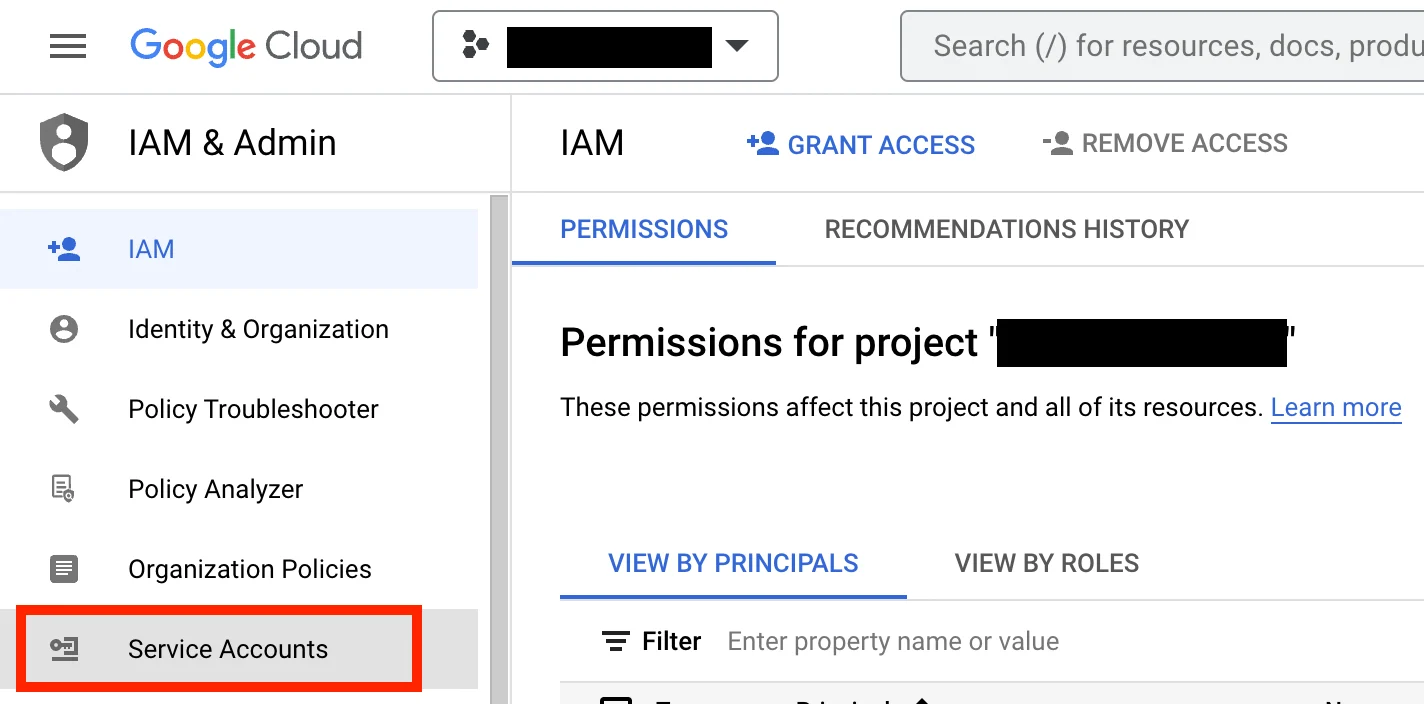
On your Google Cloud Platform console, go to the **IAM & Admin** console.
1. From the sidebar, open **Service Accounts**.
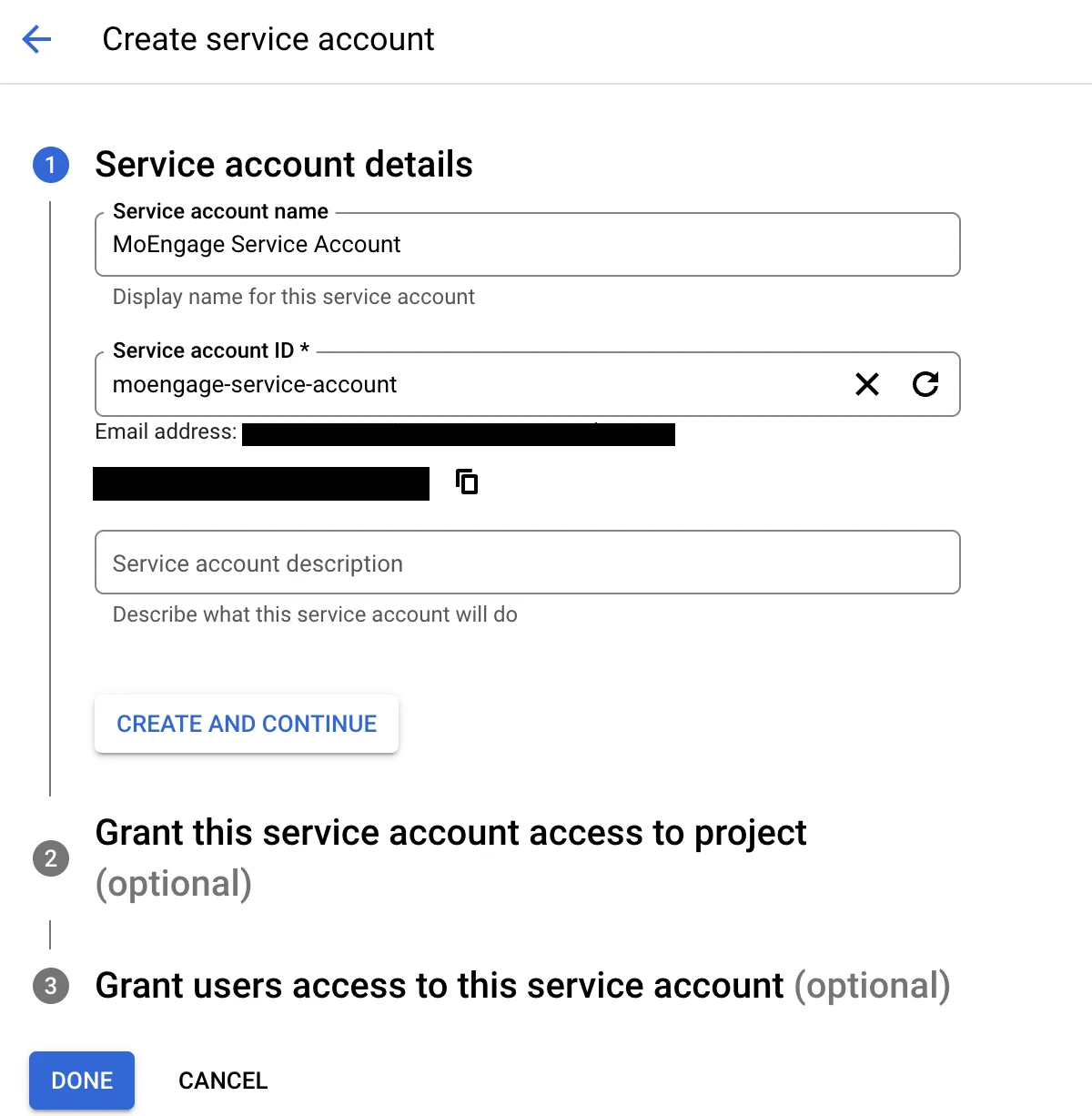
 2. Click the **+ Create Service Account** button.
3. Give this service account a name, and an optional description.
4. Click **Create and continue**.
2. Click the **+ Create Service Account** button.
3. Give this service account a name, and an optional description.
4. Click **Create and continue**.
 5. Add the role **Basic > Browser** to this service account.
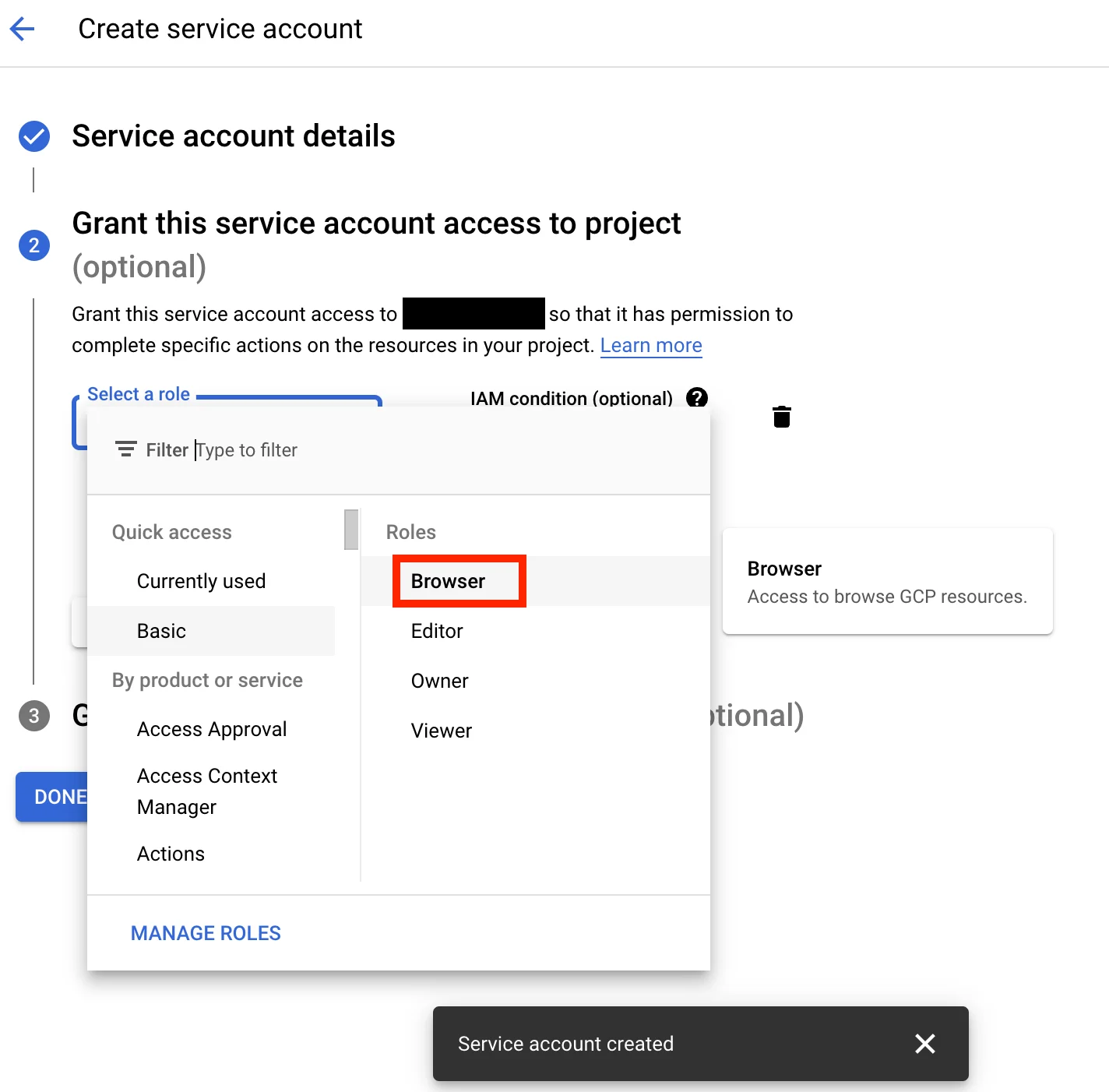 6. Click **Continue**. Optionally, grant users access to this service account.
7. Click **Done**.
8. Open the service account from the list of service accounts.
9. Go to the **Keys** tab, click **Add Key**, and then select **Create new key**.
6. Click **Continue**. Optionally, grant users access to this service account.
7. Click **Done**.
8. Open the service account from the list of service accounts.
9. Go to the **Keys** tab, click **Add Key**, and then select **Create new key**.
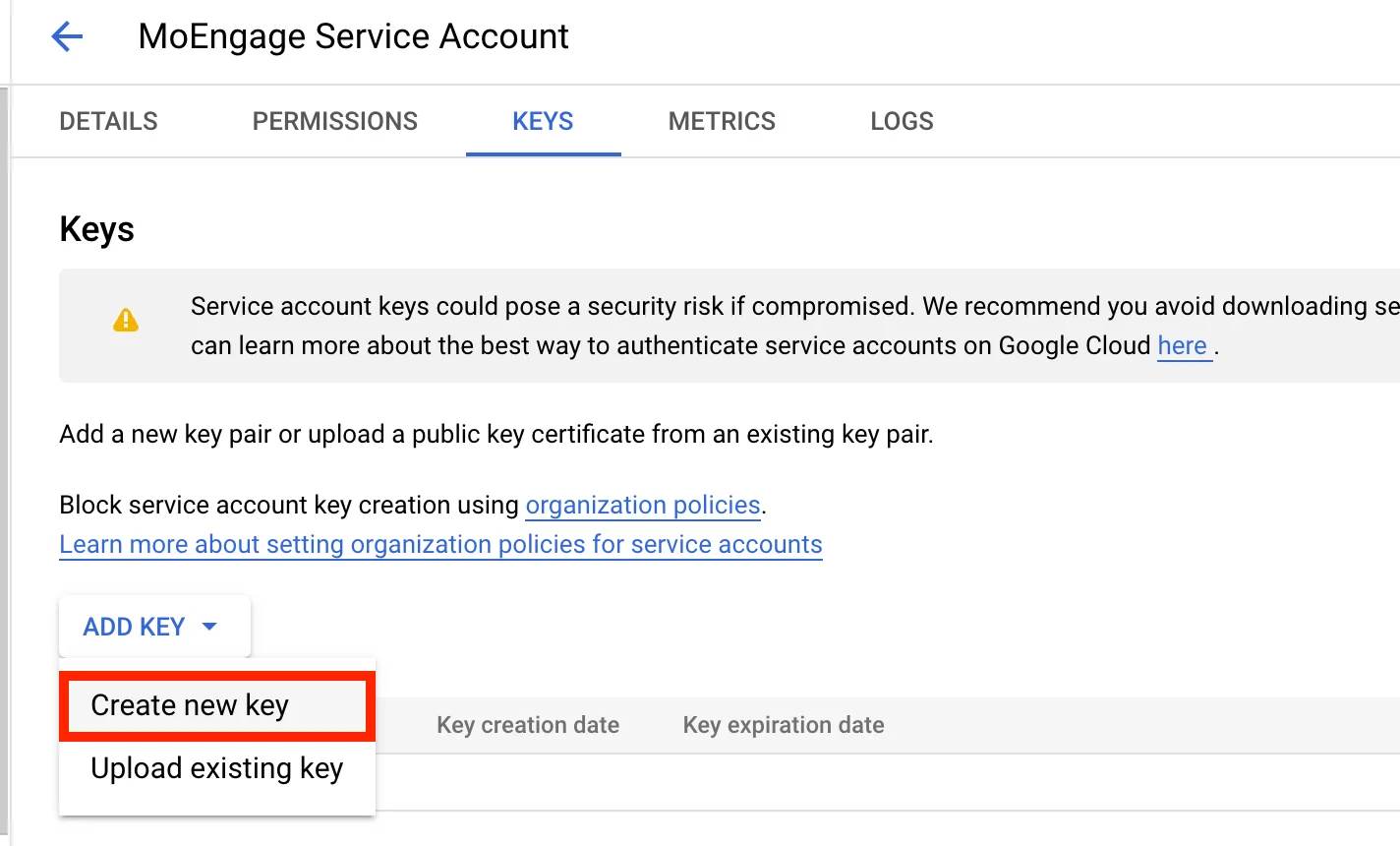 10. Select the **Key Type** as **JSON**, and then click **Create**.
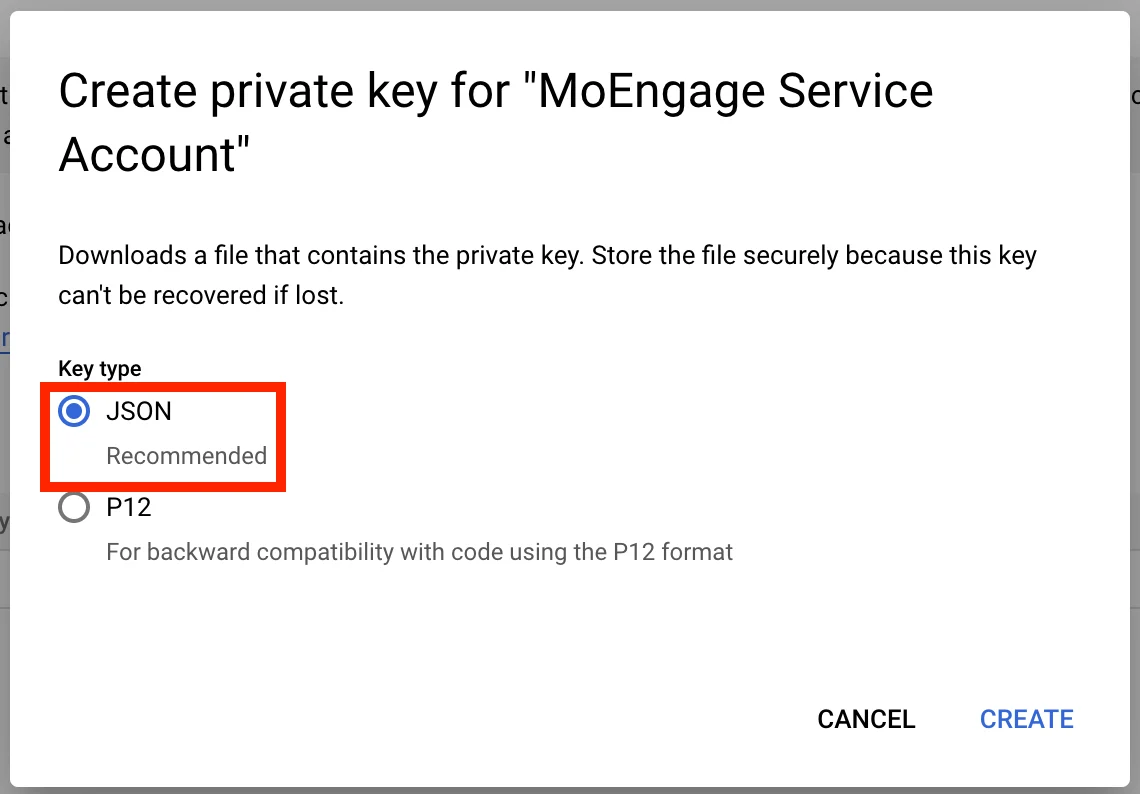 11. Your new key is automatically downloaded in JSON format. Store this file safely. You will need to upload it later on the MoEngage dashboard.
### Step 2: Grant this service account permissions to your bucket
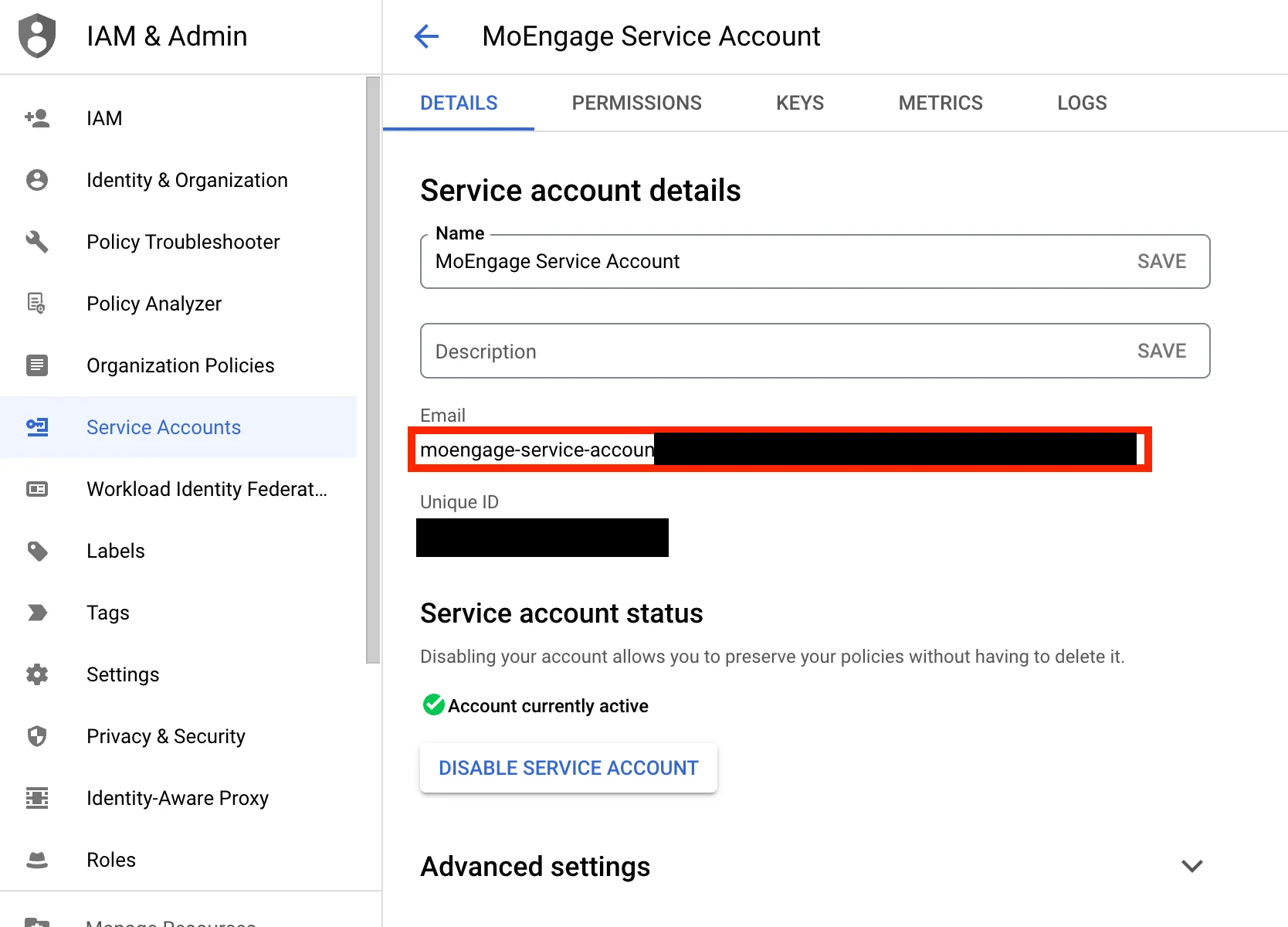
1. On your service account details page, copy the email of your service account.
11. Your new key is automatically downloaded in JSON format. Store this file safely. You will need to upload it later on the MoEngage dashboard.
### Step 2: Grant this service account permissions to your bucket
1. On your service account details page, copy the email of your service account.
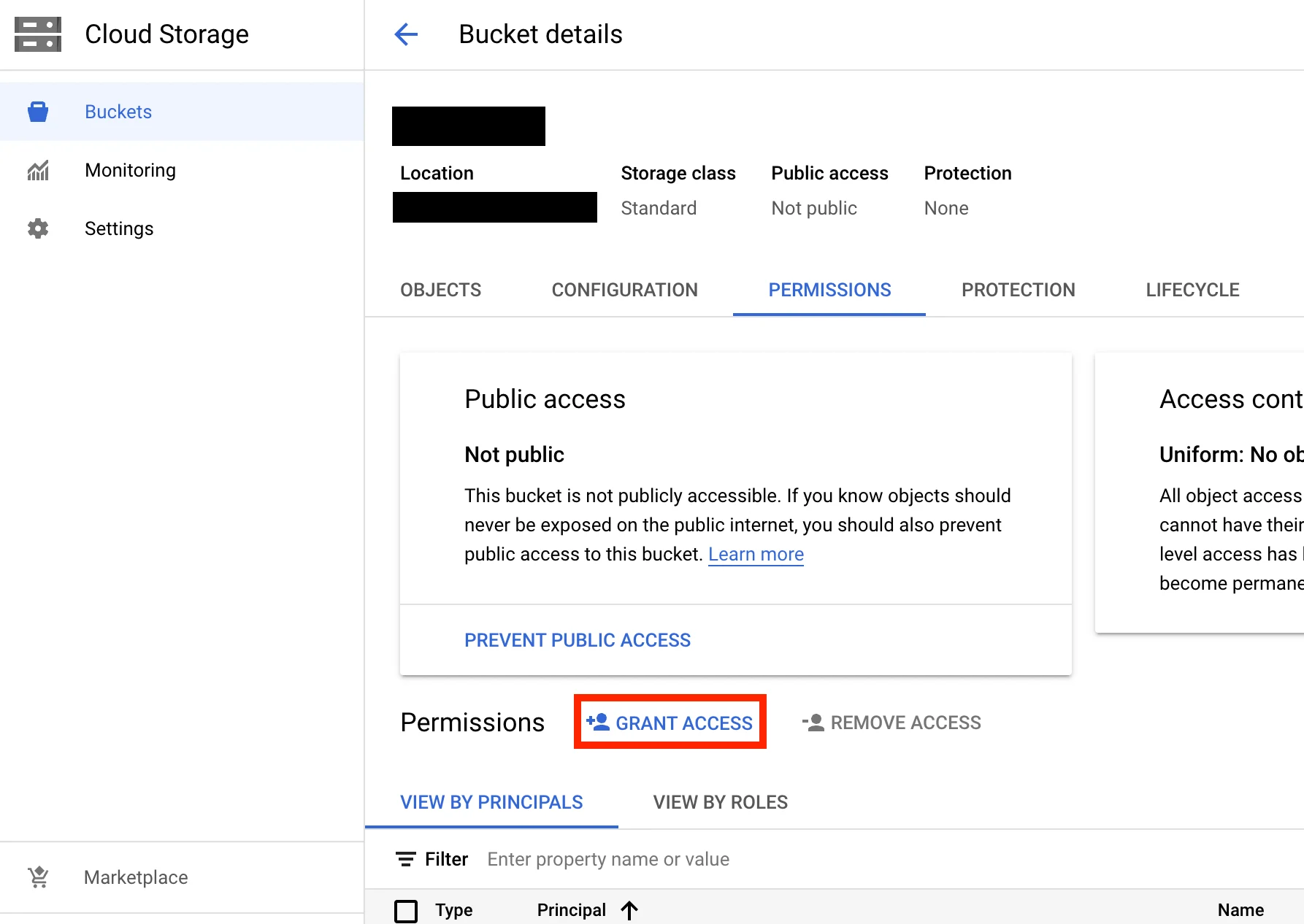
 2. Go to the **Cloud Storage** console, and open the bucket in which you want MoEngage to export the events.
3. Under the **Permissions** tab, click **Grant Access**.
2. Go to the **Cloud Storage** console, and open the bucket in which you want MoEngage to export the events.
3. Under the **Permissions** tab, click **Grant Access**.
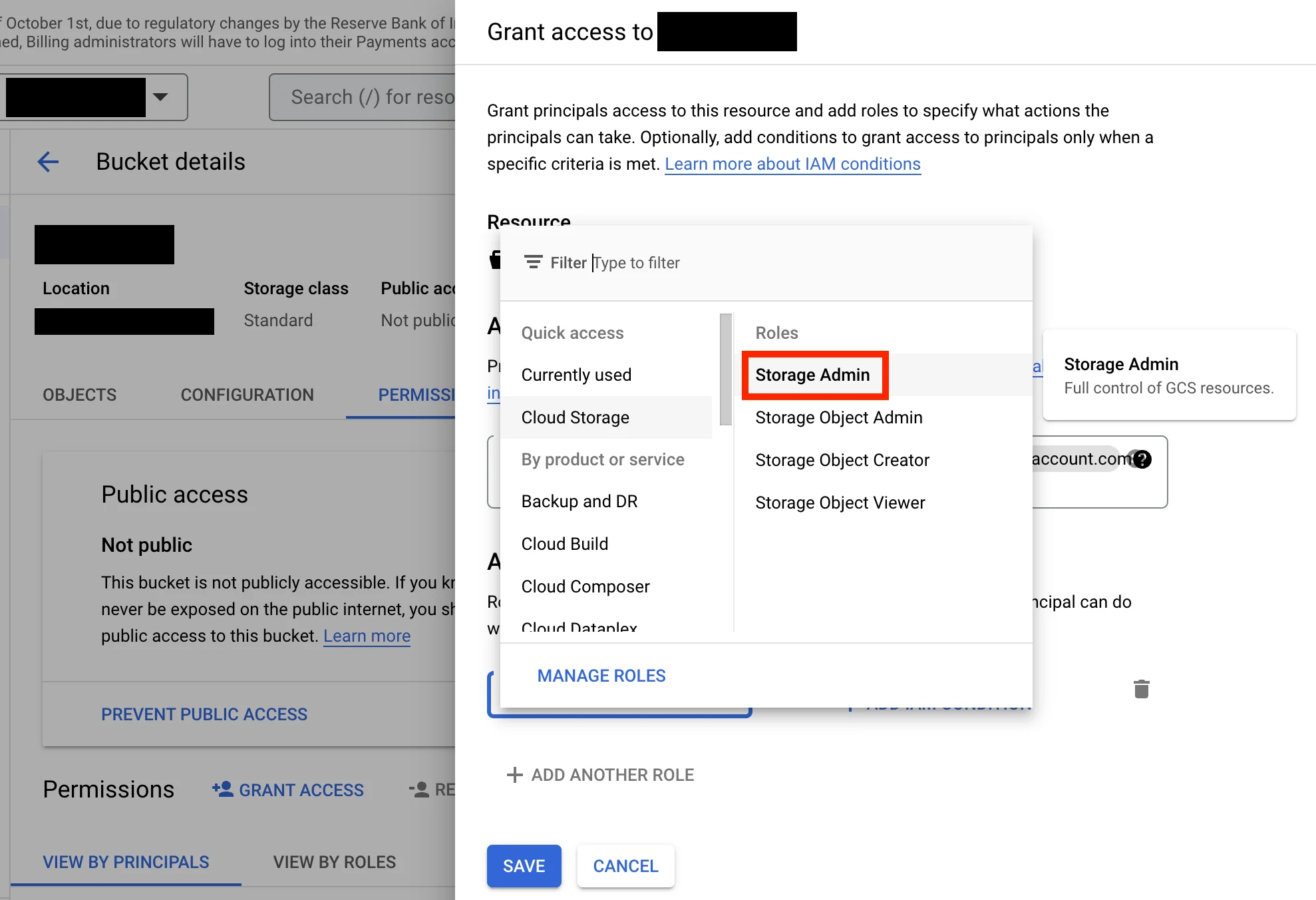
 4. Paste and select the service account email in the **New Principals** field.
5. Assign the role **Cloud Storage > Storage Admin**.
4. Paste and select the service account email in the **New Principals** field.
5. Assign the role **Cloud Storage > Storage Admin**.
 6. Click **Save**.
### Step 3: Enable APIs & Services in your GCP account
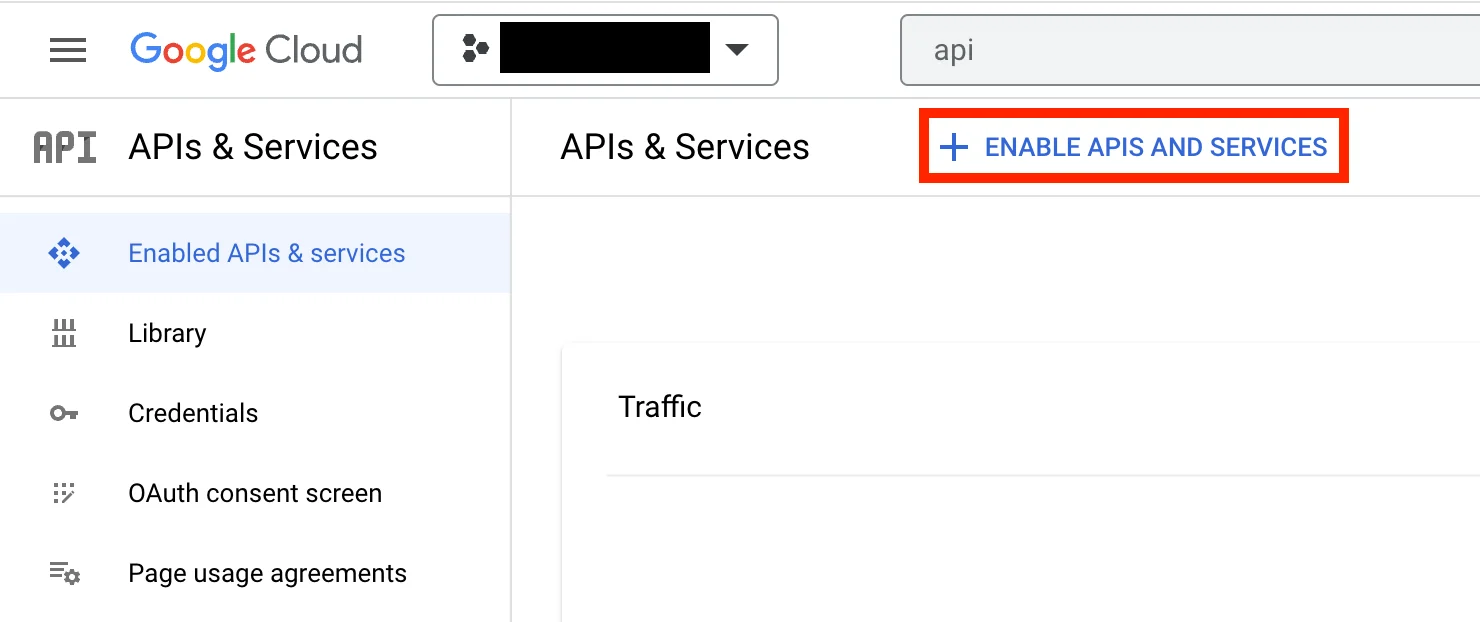
1. In your GCP console, go to **APIs & Services**, and then click **+ Enable APIs and Services**.
6. Click **Save**.
### Step 3: Enable APIs & Services in your GCP account
1. In your GCP console, go to **APIs & Services**, and then click **+ Enable APIs and Services**.
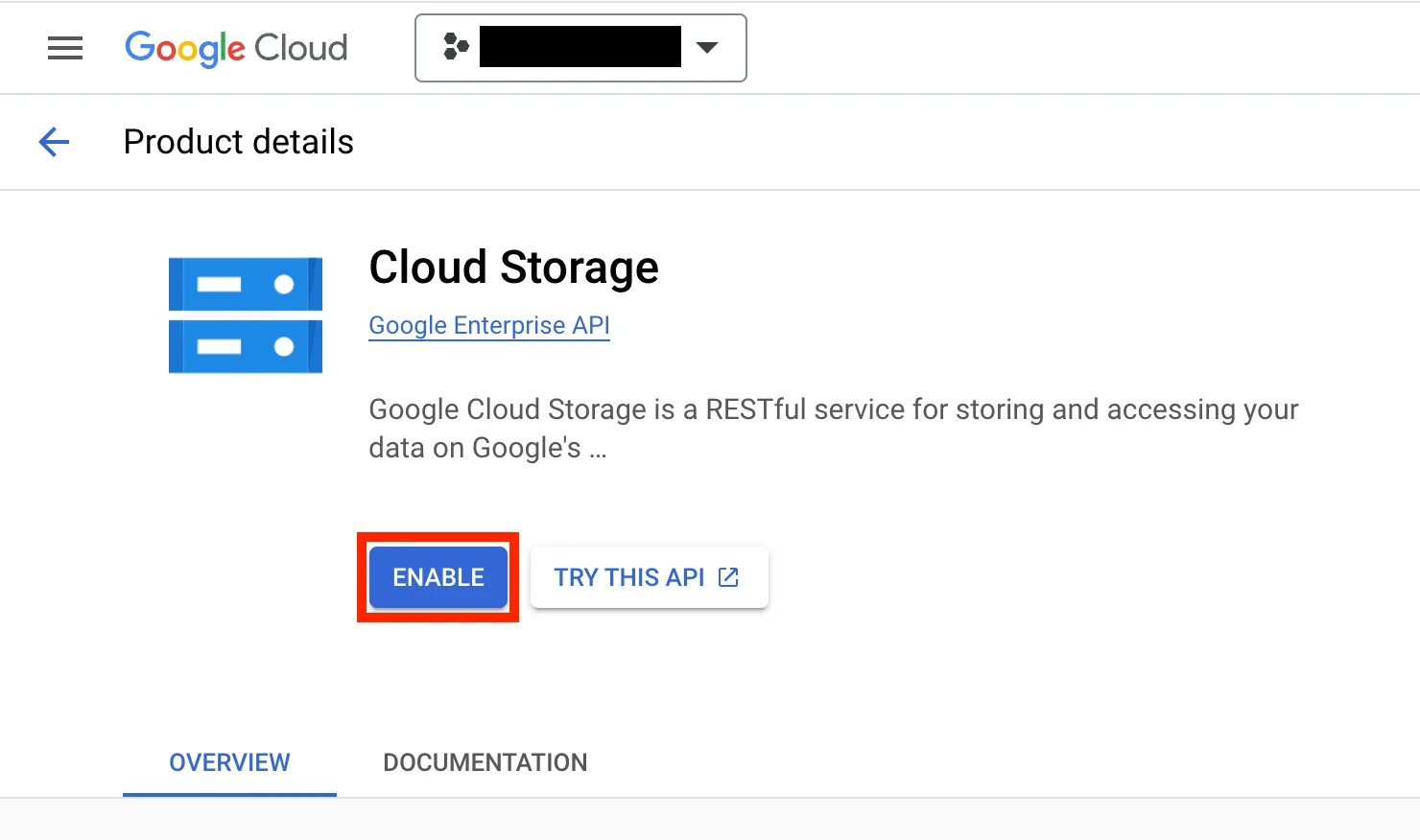
 2. Search for **Cloud Storage** and open the API details page.
3. Click **Enable** to enable it.
2. Search for **Cloud Storage** and open the API details page.
3. Click **Enable** to enable it.
 ### Step 4: Set up the GCS integration on the App Marketplace
1. On your MoEngage dashboard, go to the **App Marketplace**.
2. Search for **Google Cloud Storage**.
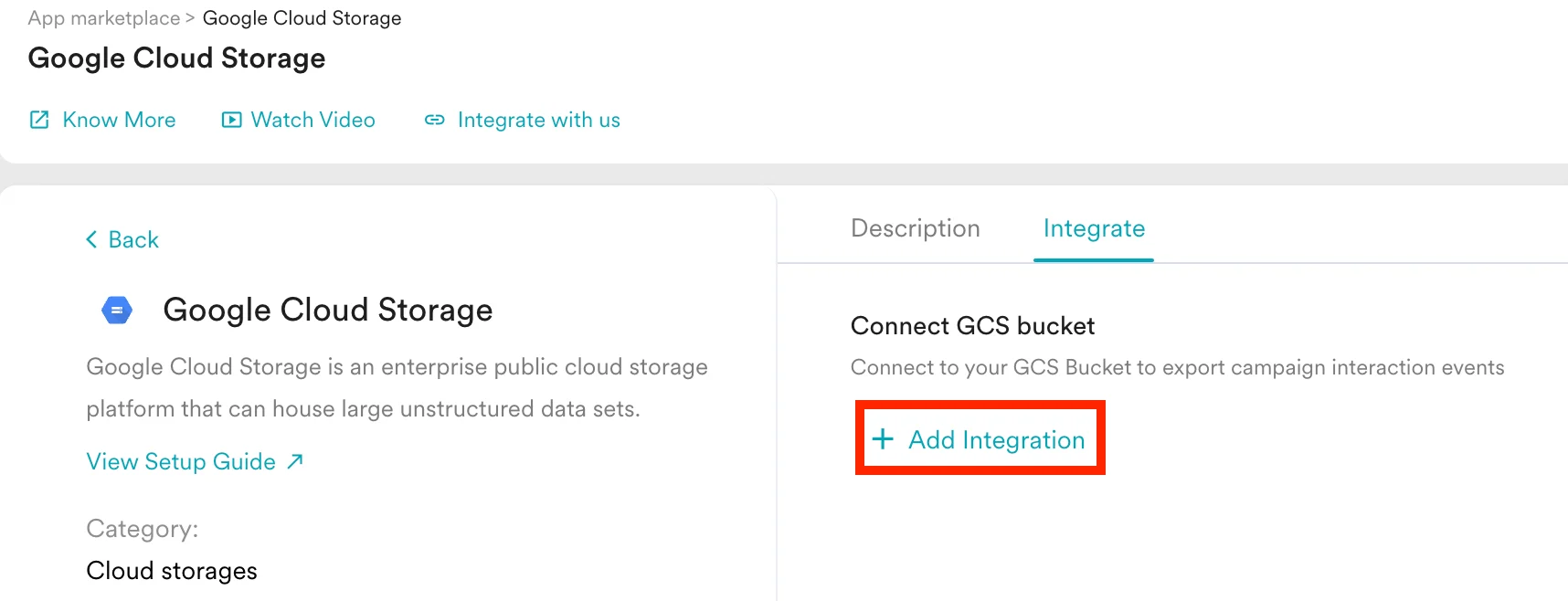
3. Go to the **Integrate** tab, and click **+ Add Integration**.
### Step 4: Set up the GCS integration on the App Marketplace
1. On your MoEngage dashboard, go to the **App Marketplace**.
2. Search for **Google Cloud Storage**.
3. Go to the **Integrate** tab, and click **+ Add Integration**.
 4. Give your connection an identifiable name.
5. Enter your bucket name.
6. Optionally, select your bucket region. You can find this on your Bucket Details page.
7. Upload the service account credential JSON file that you downloaded earlier. You can verify your Client ID and Client Email upon upload.
8. Select which events you want to export. By default, each event is exported with standard attributes.
4. Give your connection an identifiable name.
5. Enter your bucket name.
6. Optionally, select your bucket region. You can find this on your Bucket Details page.
7. Upload the service account credential JSON file that you downloaded earlier. You can verify your Client ID and Client Email upon upload.
8. Select which events you want to export. By default, each event is exported with standard attributes.
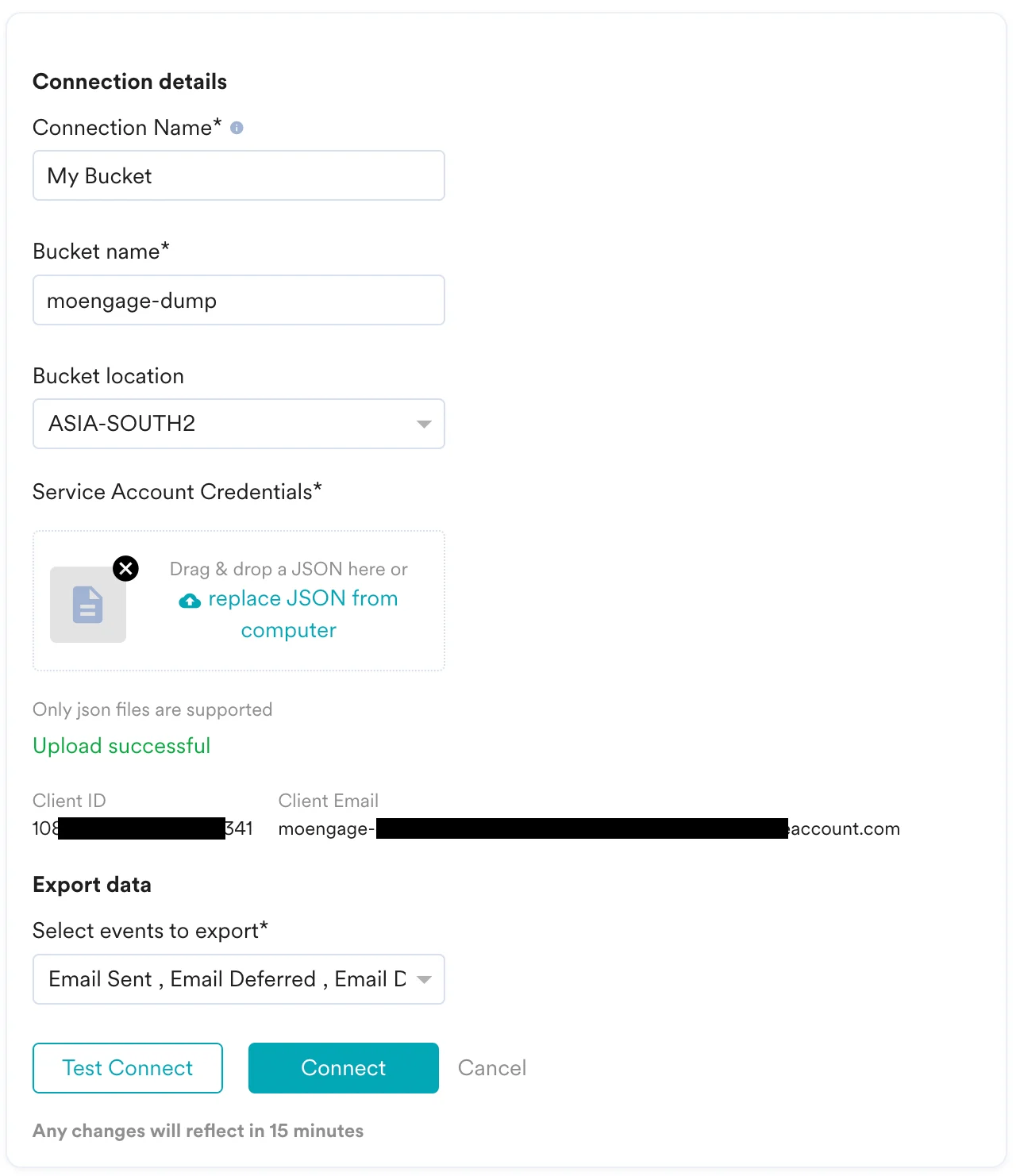 9. Optionally, you can test the connection. MoEngage attempts to verify whether the details you entered are correct. If there is an issue, an error is displayed that you can rectify.
### Note on required permissions
To perform end-to-end testing, MoEngage requires a few additional permissions to be configured. If your IT policy does not allow for these permissions, you can skip them. However, you will not be able to test the connection from the App Marketplace. Skipping these optional permissions does not impact the actual data export in any way.
| Permission | Required | Description |
| ------------------------------------------ | -------- | --------------------------------------------------------------------------------------------------------------------------------------------------------------------------------------------- |
| `resourcemanagement.projects.get` | No | Allows the user to view metadata for a project in Google Cloud Resource Manager. MoEngage uses this permission to access your service account during testing. |
| `resourcemanagement.projects.getIampolicy` | No | Allows the user to view the IAM policy for a project in Google Cloud Resource Manager. MoEngage uses this permission to check whether you have assigned the right policy to your bucket. |
| `storage.bucket.get` | No | Allows the user to view metadata for a Google Cloud Storage bucket. MoEngage uses this permission to check whether the bucket that you have provided during configuration actually exists. |
| `storage.object.create` | Yes | Allows the user to create objects (files) in a Google Cloud Storage bucket. MoEngage requires this permission to create files in your bucket. |
| `storage.object.get` | Yes | Allows the user to read the contents of objects (files) in a Google Cloud Storage bucket. MoEngage requires this permission to verify whether the files are correctly created in your bucket. |
| `storage.object.update` | Yes | Allows the user to modify the contents of objects (files) in a Google Cloud Storage bucket. MoEngage requires this permission to update files in case of any discrepancies. |
Feel free to create a custom role that incorporates the mandatory permissions required by MoEngage along with any optional permissions cleared by your IT policy for testing.
## Verify if you are receiving the data correctly
MoEngage uploads files using the following path structure:
```text wrap theme={null}
gs:///event-exports///export_day=YYYY-MM-DD/export_hour=HH/.json.gz
```
Go to your bucket and verify that the files are present:
9. Optionally, you can test the connection. MoEngage attempts to verify whether the details you entered are correct. If there is an issue, an error is displayed that you can rectify.
### Note on required permissions
To perform end-to-end testing, MoEngage requires a few additional permissions to be configured. If your IT policy does not allow for these permissions, you can skip them. However, you will not be able to test the connection from the App Marketplace. Skipping these optional permissions does not impact the actual data export in any way.
| Permission | Required | Description |
| ------------------------------------------ | -------- | --------------------------------------------------------------------------------------------------------------------------------------------------------------------------------------------- |
| `resourcemanagement.projects.get` | No | Allows the user to view metadata for a project in Google Cloud Resource Manager. MoEngage uses this permission to access your service account during testing. |
| `resourcemanagement.projects.getIampolicy` | No | Allows the user to view the IAM policy for a project in Google Cloud Resource Manager. MoEngage uses this permission to check whether you have assigned the right policy to your bucket. |
| `storage.bucket.get` | No | Allows the user to view metadata for a Google Cloud Storage bucket. MoEngage uses this permission to check whether the bucket that you have provided during configuration actually exists. |
| `storage.object.create` | Yes | Allows the user to create objects (files) in a Google Cloud Storage bucket. MoEngage requires this permission to create files in your bucket. |
| `storage.object.get` | Yes | Allows the user to read the contents of objects (files) in a Google Cloud Storage bucket. MoEngage requires this permission to verify whether the files are correctly created in your bucket. |
| `storage.object.update` | Yes | Allows the user to modify the contents of objects (files) in a Google Cloud Storage bucket. MoEngage requires this permission to update files in case of any discrepancies. |
Feel free to create a custom role that incorporates the mandatory permissions required by MoEngage along with any optional permissions cleared by your IT policy for testing.
## Verify if you are receiving the data correctly
MoEngage uploads files using the following path structure:
```text wrap theme={null}
gs:///event-exports///export_day=YYYY-MM-DD/export_hour=HH/.json.gz
```
Go to your bucket and verify that the files are present:
 ## Export Frequency
MoEngage dumps the data at hourly intervals.
## Sample File
The exported files are in the `.json.gz` format. [Download a sample file](https://app-cdn.moengage.com/partners-integration-ui/app-marketplace-public/helpdoc/event_exports_sample_files.json.gz) to inspect the structure. The exact contents will differ based on the events and attributes you opt to export.
```json JSON theme={null}
{
"app_name": "App Name",
"export_hour": "6",
"db_name": "MoEngage App Name",
"event": {
"uid": "user id",
"event_type": "CAMPAIGN_EVENT",
"event_code": "MOE_EMAIL_SENT",
"event_name": "Email Sent",
"user_attributes": {
"moengage_user_id": "userid1",
"user_attr1": "value1",
"user_attr2": "value2"
},
"event_source": "MOENGAGE",
"email_id": "test@xyz.com",
"event_attributes": {
"campaign_name": "Campaign name",
"moe_campaign_tags": [
"Tag1",
"Tag2"
],
"campaign_type": "GENERAL",
"moe_campaign_channel": "Email",
"moe_delivery_type": "One Time",
"campaign_id": "moengage campaign id",
"campaign_channel": "EMAIL"
},
"event_uuid": "3b918064-08dc-47ae-b674-c23797475a8d",
"event_time": 1653022310,
"device_attributes": {
"moengage_device_id": "device id if applicable"
}
},
"export_day": "2022-05-20"
}
```
For a list of supported events and attributes, refer to our [Data Export Glossary](https://www.moengage.com/docs/user-guide/data/exports/events/data-export-glossary).
## Frequently Asked Questions
It typically takes up to 30 minutes for the automated data exports to be set up for your account and for you to start seeing data.
Yes. If you need to export new events at a later time, you can edit your configuration on the App Marketplace and add the new events to your exports.
You cannot export historical data using Automated Data Exports. Once configured, you will start seeing data for each event from the time you enabled your exports.
If your billing plan does not cover this already and you need to enable it later, you will need to work with your Customer Success Manager to include it in your billing plan. Based on the volume of data MoEngage places in your data warehouse, partner, or API destination each month, this could lead to additional charges.
No, Data Exports is primarily built to export your Events in near real-time and user attributes in MoEngage are updated asynchronously so it is currently not possible to guarantee the latest values of user attributes in the exports.
## Export Frequency
MoEngage dumps the data at hourly intervals.
## Sample File
The exported files are in the `.json.gz` format. [Download a sample file](https://app-cdn.moengage.com/partners-integration-ui/app-marketplace-public/helpdoc/event_exports_sample_files.json.gz) to inspect the structure. The exact contents will differ based on the events and attributes you opt to export.
```json JSON theme={null}
{
"app_name": "App Name",
"export_hour": "6",
"db_name": "MoEngage App Name",
"event": {
"uid": "user id",
"event_type": "CAMPAIGN_EVENT",
"event_code": "MOE_EMAIL_SENT",
"event_name": "Email Sent",
"user_attributes": {
"moengage_user_id": "userid1",
"user_attr1": "value1",
"user_attr2": "value2"
},
"event_source": "MOENGAGE",
"email_id": "test@xyz.com",
"event_attributes": {
"campaign_name": "Campaign name",
"moe_campaign_tags": [
"Tag1",
"Tag2"
],
"campaign_type": "GENERAL",
"moe_campaign_channel": "Email",
"moe_delivery_type": "One Time",
"campaign_id": "moengage campaign id",
"campaign_channel": "EMAIL"
},
"event_uuid": "3b918064-08dc-47ae-b674-c23797475a8d",
"event_time": 1653022310,
"device_attributes": {
"moengage_device_id": "device id if applicable"
}
},
"export_day": "2022-05-20"
}
```
For a list of supported events and attributes, refer to our [Data Export Glossary](https://www.moengage.com/docs/user-guide/data/exports/events/data-export-glossary).
## Frequently Asked Questions
It typically takes up to 30 minutes for the automated data exports to be set up for your account and for you to start seeing data.
Yes. If you need to export new events at a later time, you can edit your configuration on the App Marketplace and add the new events to your exports.
You cannot export historical data using Automated Data Exports. Once configured, you will start seeing data for each event from the time you enabled your exports.
If your billing plan does not cover this already and you need to enable it later, you will need to work with your Customer Success Manager to include it in your billing plan. Based on the volume of data MoEngage places in your data warehouse, partner, or API destination each month, this could lead to additional charges.
No, Data Exports is primarily built to export your Events in near real-time and user attributes in MoEngage are updated asynchronously so it is currently not possible to guarantee the latest values of user attributes in the exports.