> ## Documentation Index
> Fetch the complete documentation index at: https://moengage.com/docs/llms.txt
> Use this file to discover all available pages before exploring further.
# Sheetdb
## Introduction
[Sheetdb](https://sheetsu.com/) turns a Google Spreadsheet into a JSON API. It allows you to connect your sheets to CRM, API, Website, any application or tool.
## MoEngage and Sheetdb
The MoEngage and Sheetdb integration allows you to read and write data to your Google spreadsheet.
## Use cases
1. You have a spreadsheet with different campaign messages for different users with slight tweaks. You can want to send the exact message (from this spreadsheet) to your users. Using the integration, you can reference the spreadsheet from the MoEngage campaigns to send right messages to your users.
2. You have some attributes that are very specific to a campaign that needs to be sent out. This is just a one-time campaign, so you don't want to store these details on MoEngage. You can simply add these attributes to a Google spreadsheet. Now reference the sheet using MoEngage Content APIs.
3. You want to keep updating (in near real time) a spreadsheet to keep track of users who perform a specific action on MoEngage. Using the integration, you can set up your Sheetdb spreadsheet endpoints in a MoEngage Connector Campaign.
## Integration
**Prerequisites**
* Ensure you have access to your Sheetdb account.
Using the integration, you can:
1. Fetch details from a spreadsheet at the run time and use them in your MoEngage campaigns using Content APIs.
2. Update a spreadsheet in near real-time with the details for a specific user segment or as soon as the user performs a specific event.
### A) Use data from a spreadsheet in MoEngage campaigns
Let's say your file has detail on the Message title, message and button name for your users.
 In this example, we are using ID to search users. You can use any other attribute such as email id or mobile number to identify a user.
#### Step 1: Upload a sheet on Sheetdb
On your Sheetdb dashboard homepage:
1. Click *Create new* on top right.
In this example, we are using ID to search users. You can use any other attribute such as email id or mobile number to identify a user.
#### Step 1: Upload a sheet on Sheetdb
On your Sheetdb dashboard homepage:
1. Click *Create new* on top right.
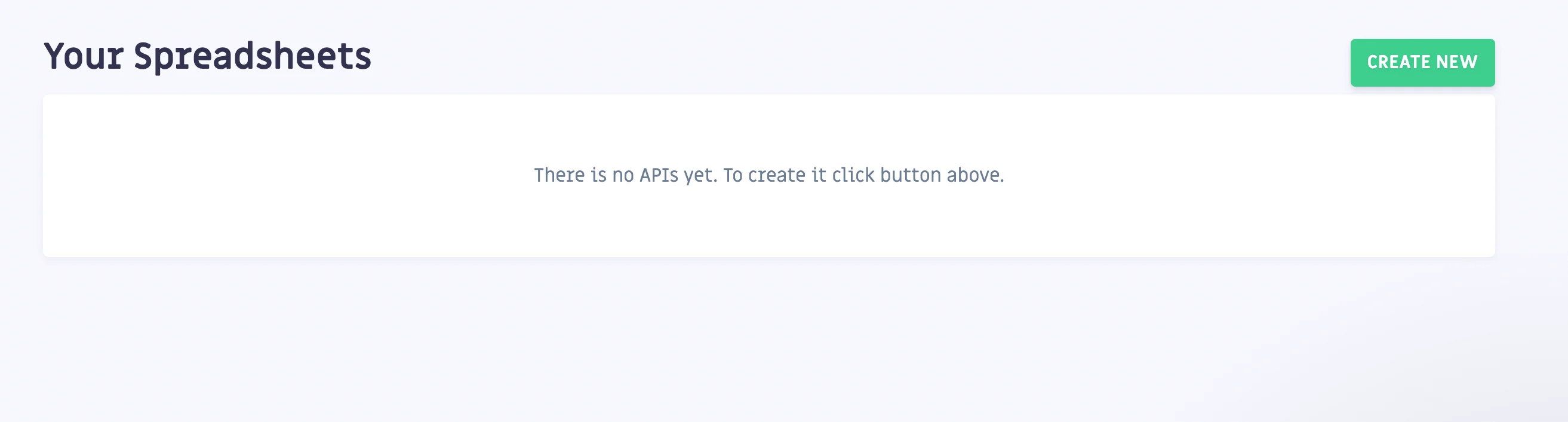 2. Add your spreadsheet URL.
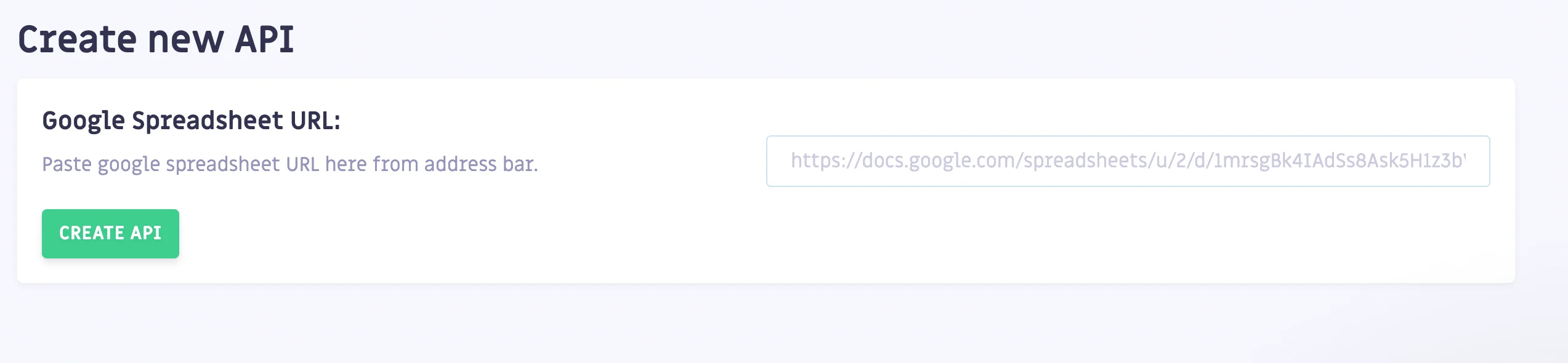 3. Click *Create API*.
4. You can now test if your API is working fine by clicking on *Go to API URL*.
3. Click *Create API*.
4. You can now test if your API is working fine by clicking on *Go to API URL*.
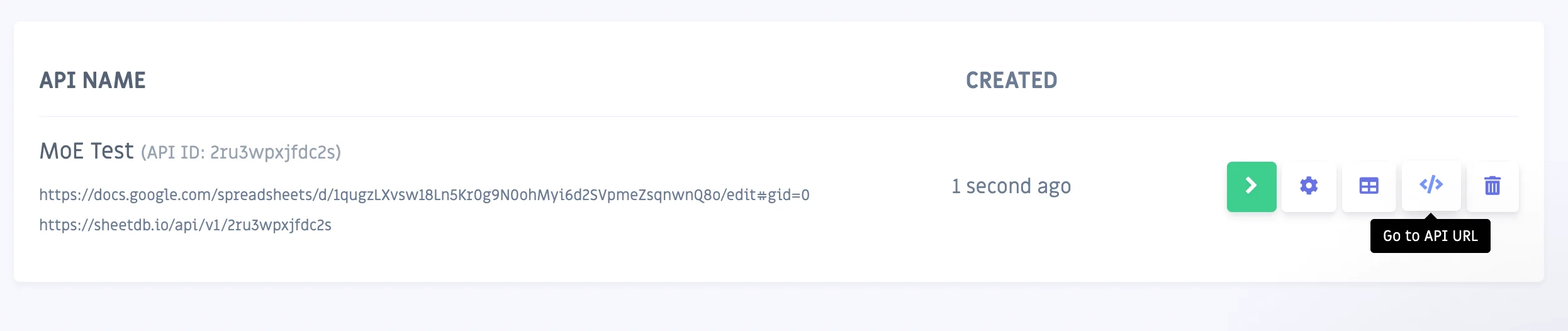 5. Copy your sheets API URL. It should look like this:
```text theme={null}
https://sheetdb.io/api/v1/2ru3wpxjfdc2s
```
#### Step 2: Add Sheetdb as Content API on MoEngage
Perform the following steps:
1. Navigate to **Settings** > **Advanced settings** > **Content API**. Click **+ Add content API** at the top right corner of the Content API screen.
5. Copy your sheets API URL. It should look like this:
```text theme={null}
https://sheetdb.io/api/v1/2ru3wpxjfdc2s
```
#### Step 2: Add Sheetdb as Content API on MoEngage
Perform the following steps:
1. Navigate to **Settings** > **Advanced settings** > **Content API**. Click **+ Add content API** at the top right corner of the Content API screen.
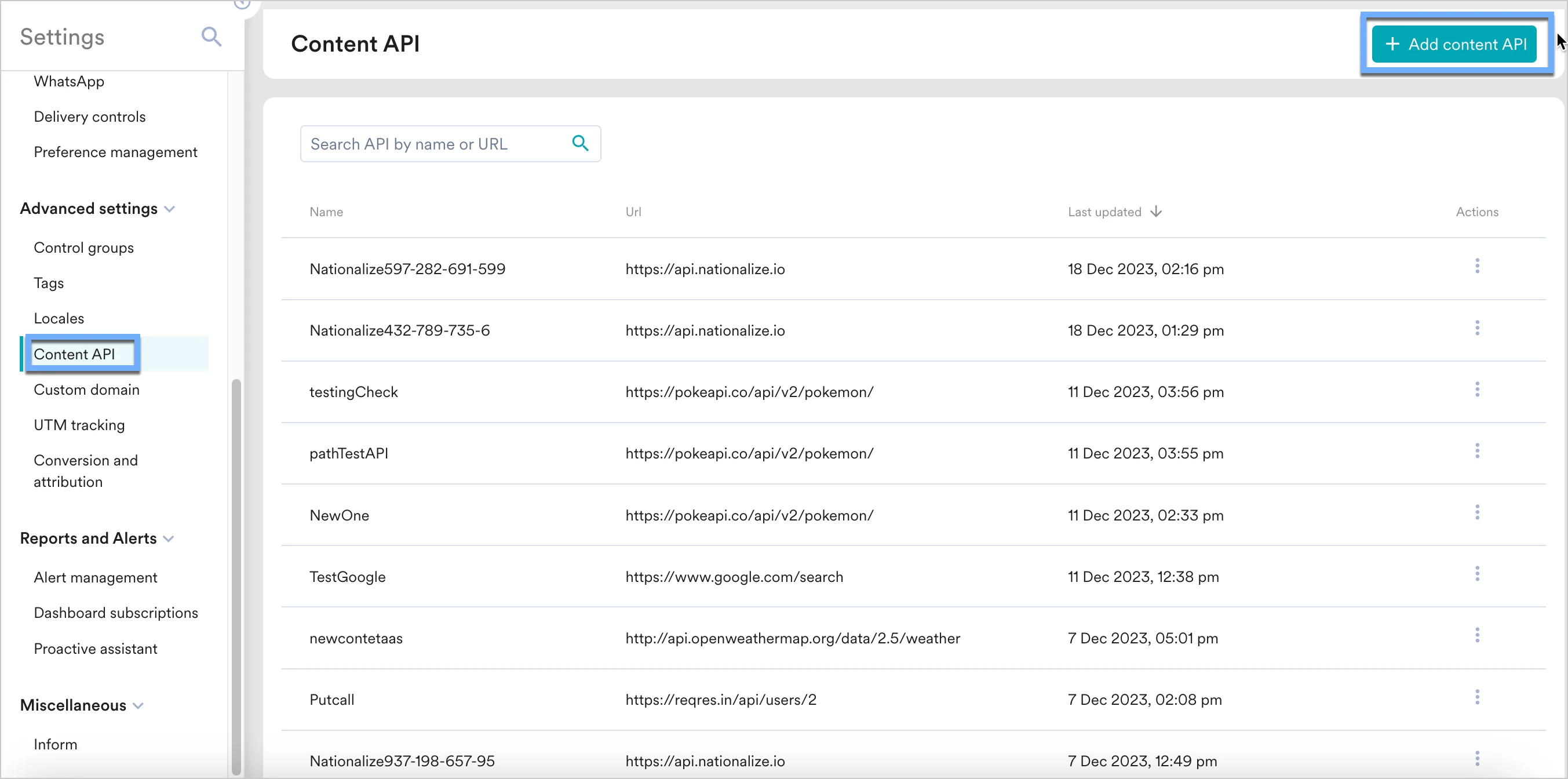 2. Add your Sheetdb name and API URL.
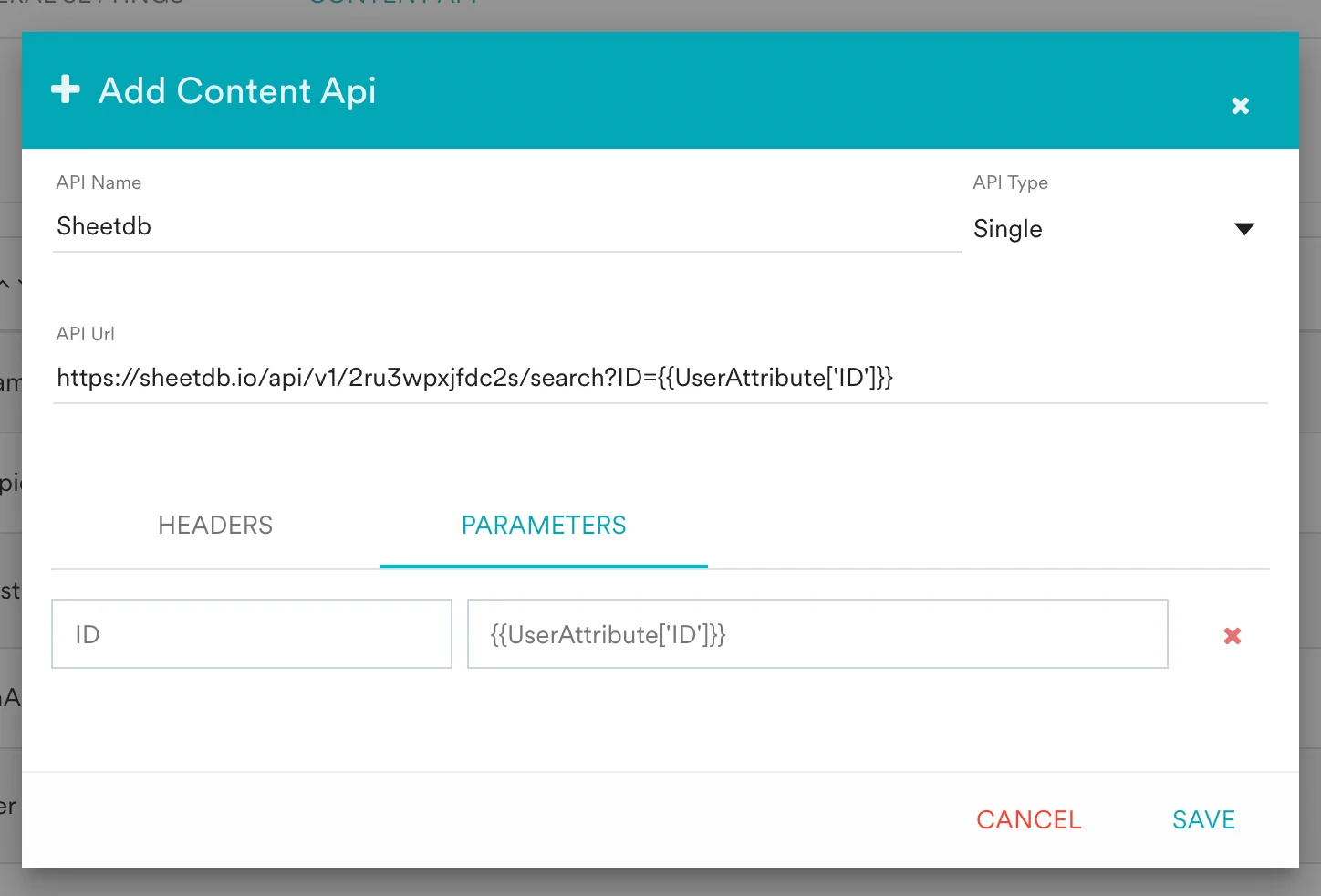 **API URL**
Enter the following URL. Please note that *your Sheetdb API URL* should be the same as copied from the previous step.
```text wrap theme={null}
https://sheetdb.io/apis/v1//search?ID={{UserAttribute['ID']}}
```
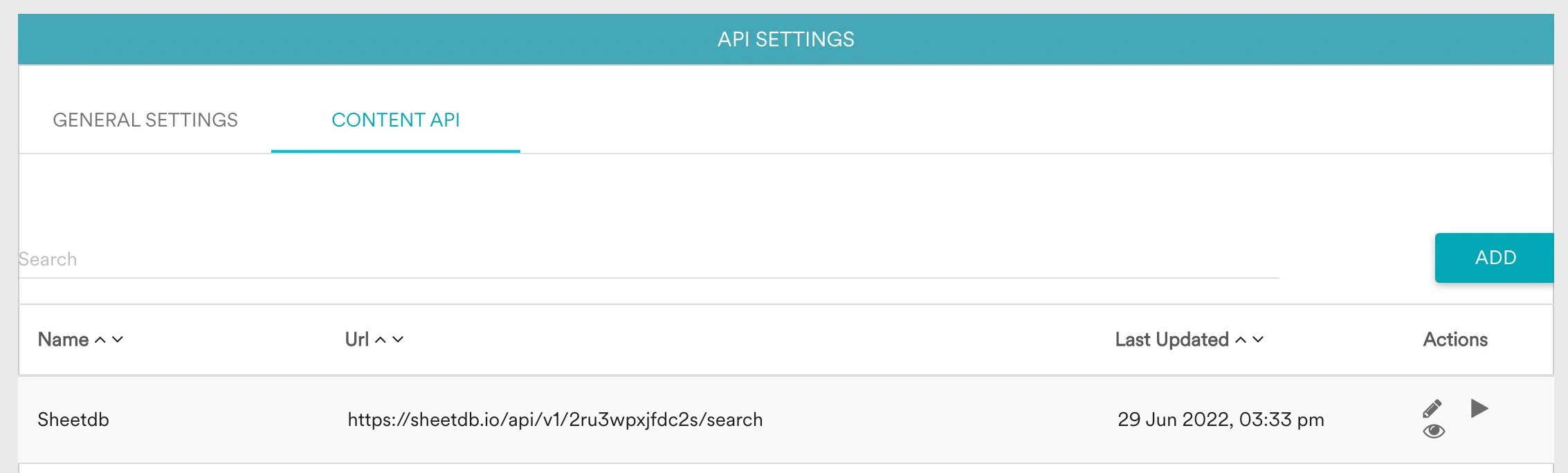
3. Click Save. You will see your Sheetdb API added in MoEngage.
**API URL**
Enter the following URL. Please note that *your Sheetdb API URL* should be the same as copied from the previous step.
```text wrap theme={null}
https://sheetdb.io/apis/v1//search?ID={{UserAttribute['ID']}}
```
3. Click Save. You will see your Sheetdb API added in MoEngage.
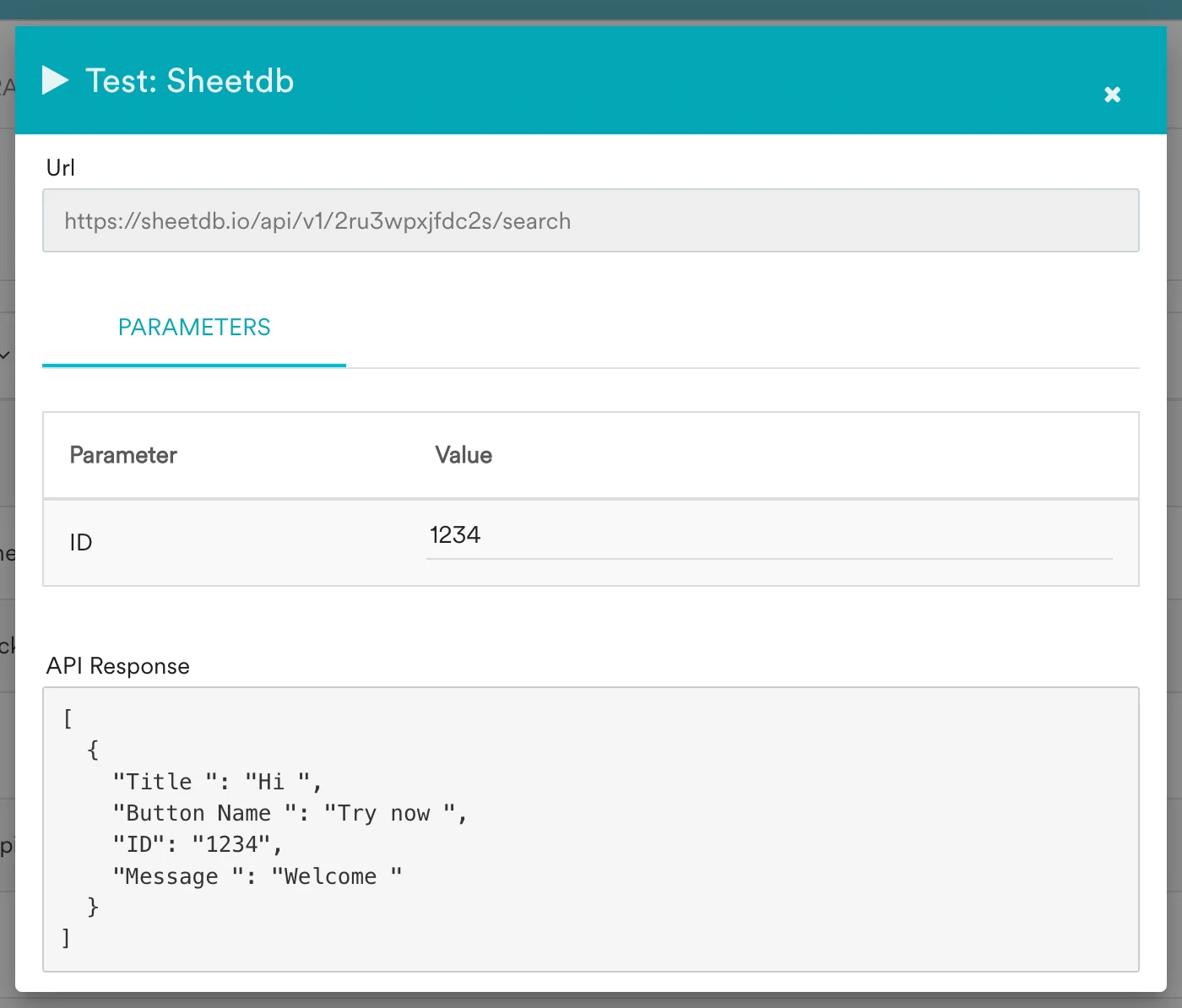
 You can also test your APIs. Provide a sample ID and click Test. You can view the API response and validate.
 #### Step 3: Use Content API's data in MoEngage campaigns
You can now use these content APIs in your campaigns. [Read here](https://www.moengage.com/docs/user-guide/campaigns-and-channels/getting-started/campaign-content/content-apis) to know more about Content APIs.
1. On step 2 on your campaign creation, enter @.
2. In the pop up, you can select the Sheetdb Content API configured in Step 2.
#### Step 3: Use Content API's data in MoEngage campaigns
You can now use these content APIs in your campaigns. [Read here](https://www.moengage.com/docs/user-guide/campaigns-and-channels/getting-started/campaign-content/content-apis) to know more about Content APIs.
1. On step 2 on your campaign creation, enter @.
2. In the pop up, you can select the Sheetdb Content API configured in Step 2.
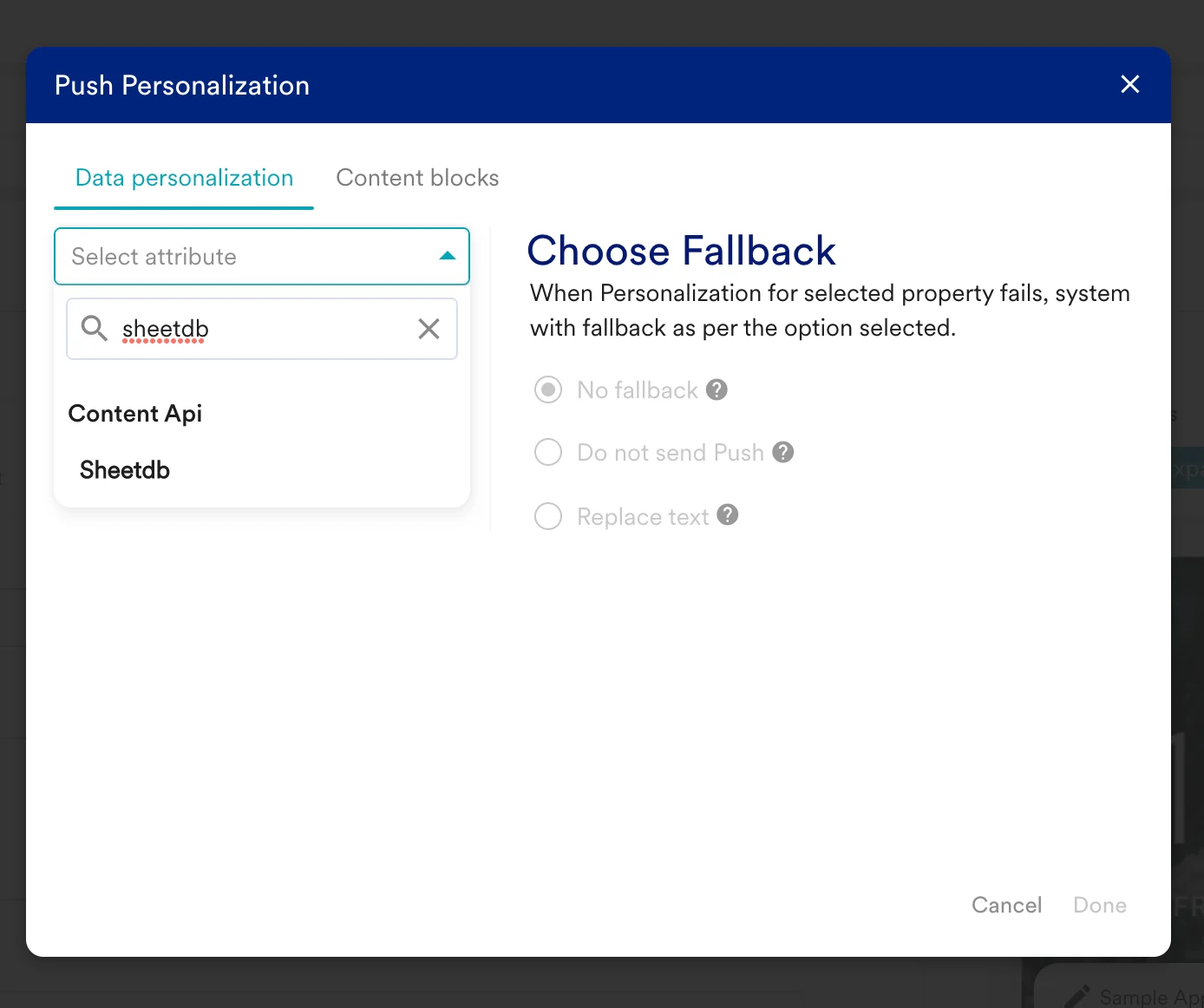 3. Click done to include the response in your campaigns.
4. You can use MoEngage templating language to parse through the API response and use the content in your campaigns.
### B) Write data to spreadsheet using MoEngage Connectors
#### Step 1: Upload a sheet on Sheetdb
Make your sheet available for Sheetdb APIs. You can follow the same steps as in A. Step 1 in the previous example.
#### Step 2: Add your Sheetdb endpoint in MoEngage Connector Campaigns
To create a connector campaign on MoEngage:
1. Navigate to Create Campaign > Connectors > Custom and choose delivery type most suitable to your needs.
3. Click done to include the response in your campaigns.
4. You can use MoEngage templating language to parse through the API response and use the content in your campaigns.
### B) Write data to spreadsheet using MoEngage Connectors
#### Step 1: Upload a sheet on Sheetdb
Make your sheet available for Sheetdb APIs. You can follow the same steps as in A. Step 1 in the previous example.
#### Step 2: Add your Sheetdb endpoint in MoEngage Connector Campaigns
To create a connector campaign on MoEngage:
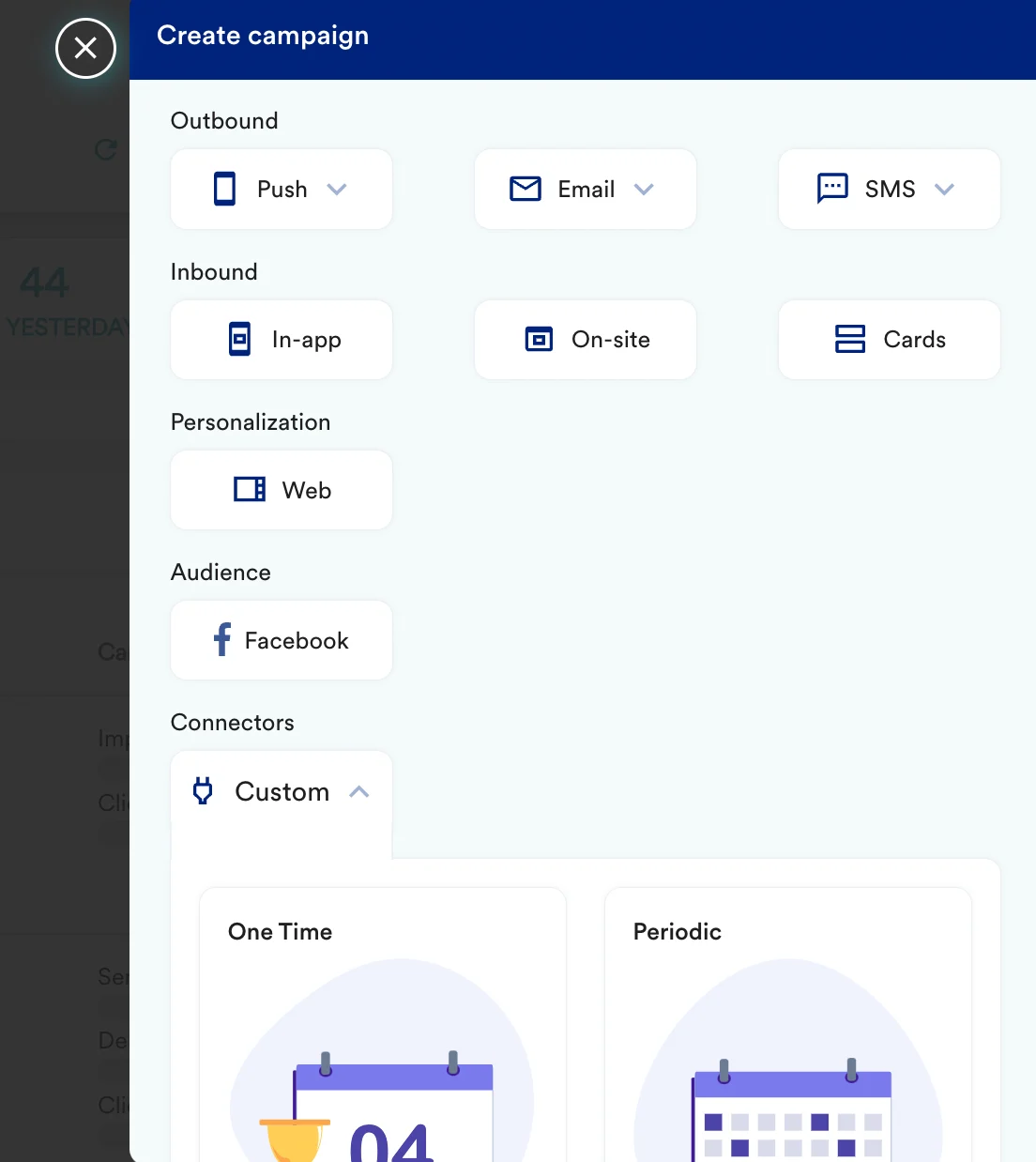
1. Navigate to Create Campaign > Connectors > Custom and choose delivery type most suitable to your needs.
 2. On step 2 of the campaign:
* Select method as `POST`.
* Add Webhook URL as:
```text theme={null}
https://sheetdb.io/apis/v1/
```
2. On step 2 of the campaign:
* Select method as `POST`.
* Add Webhook URL as:
```text theme={null}
https://sheetdb.io/apis/v1/
```
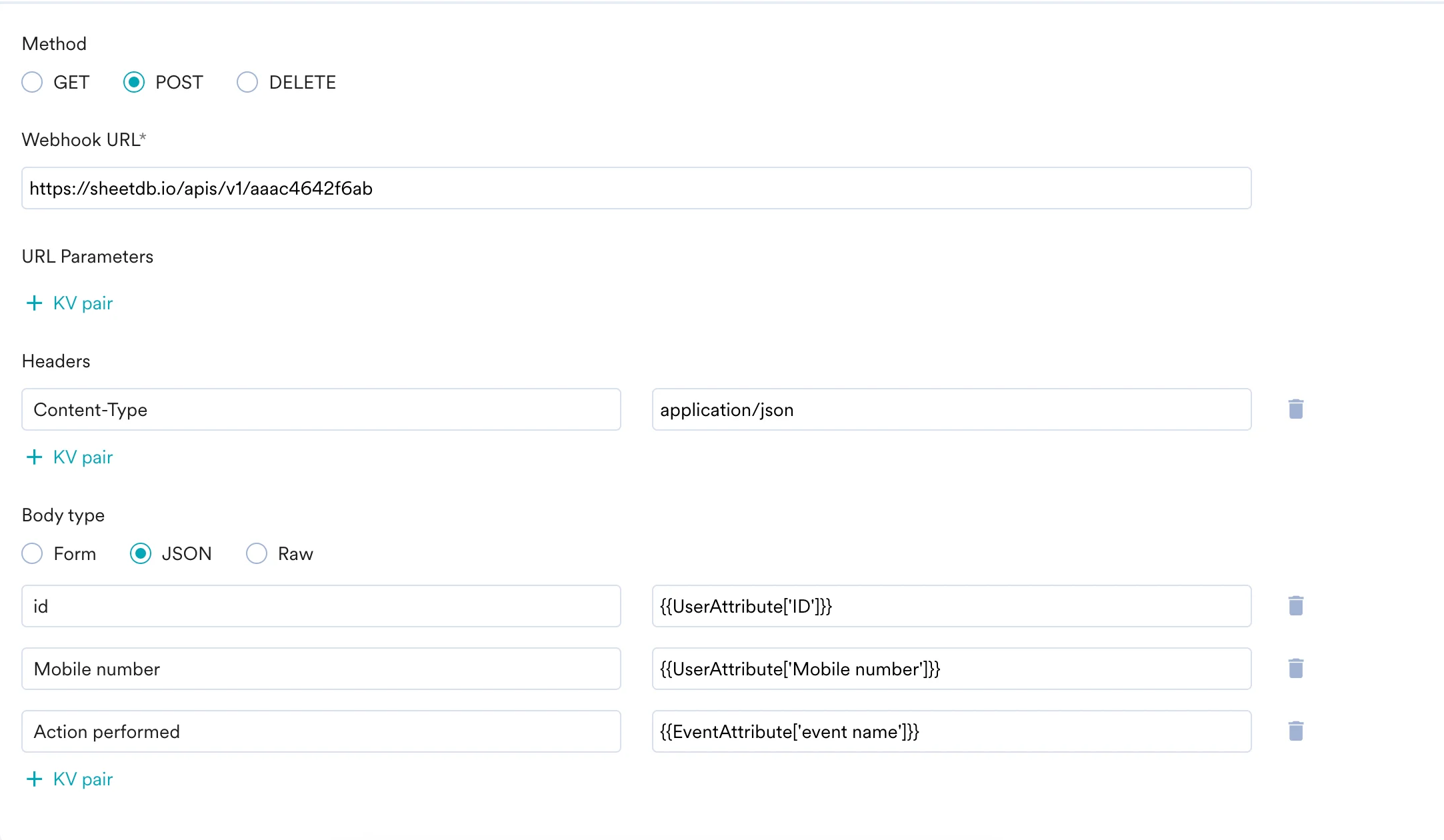 * In Body, define the keys in your spreadsheet and the values that you want to send out.
3. At this point, your campaign should be ready to test and send. You can also test your connector configuration using the Test functionality available on Step 2 of Create Connector Campaign.
* In Body, define the keys in your spreadsheet and the values that you want to send out.
3. At this point, your campaign should be ready to test and send. You can also test your connector configuration using the Test functionality available on Step 2 of Create Connector Campaign.
 If the data is updated successfully on your spreadsheet, your set-up is good to go. You can go ahead and Publish the campaign.