> ## Documentation Index
> Fetch the complete documentation index at: https://moengage.com/docs/llms.txt
> Use this file to discover all available pages before exploring further.
# Netcore
# Introduction
Netcore empowers you to deliver emails without the need to maintain email servers. Additionally, Netcore handles all technical aspects, including scaling the infrastructure, managing ISP relationships, monitoring reputation, and providing whitelist solutions and real-time insights. By utilizing these functionalities and integrating MoEngage with Netcore, you can create email campaigns on MoEngage and send them through your Netcore account.
# Integration
**Prerequisites**
Ensure you have access to your Netcore account.
## Configure Email Connector in MoEngage
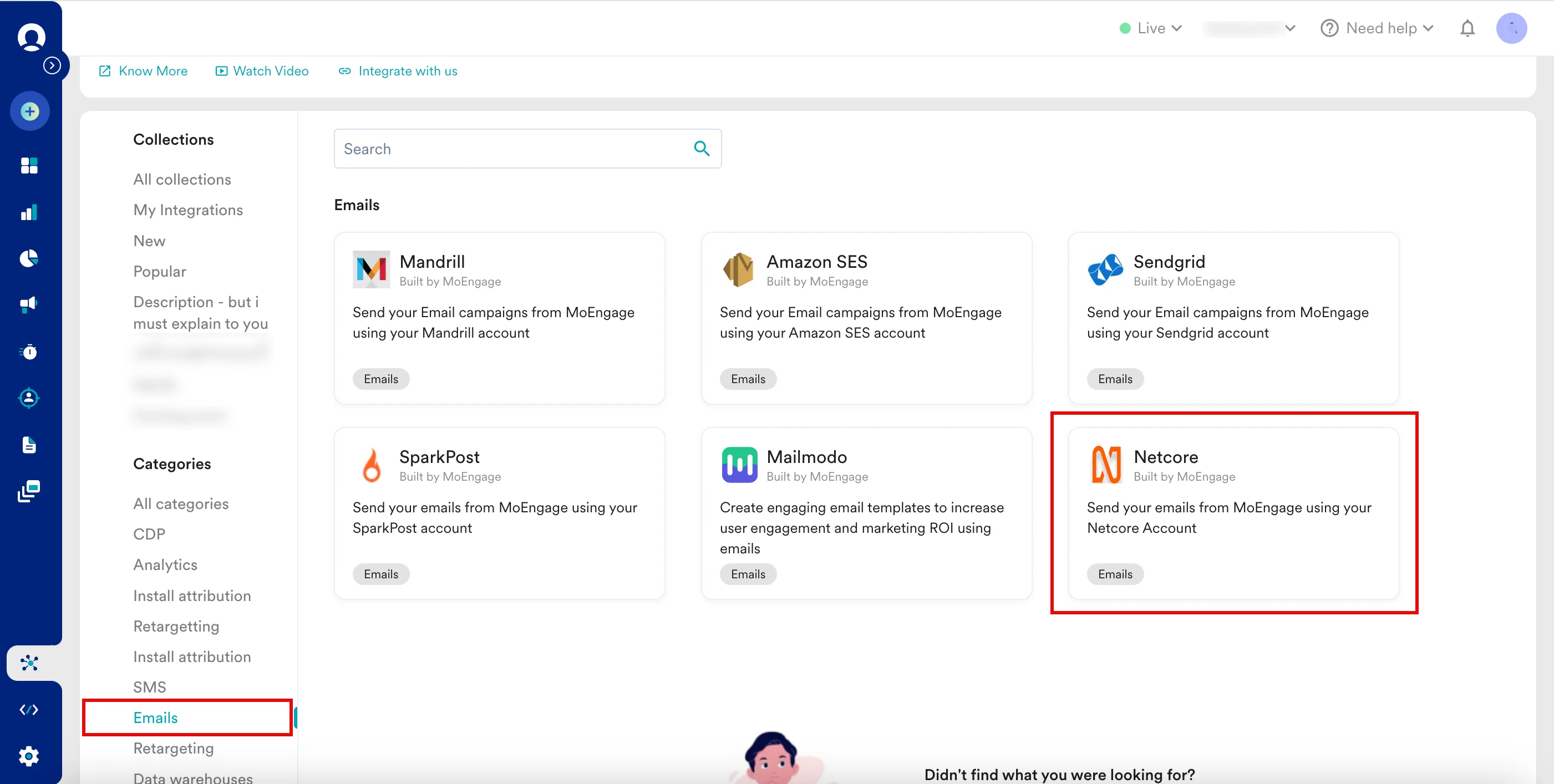
1. Login to the MoEngage dashboard and navigate to **App marketplace**.
2. In the following screen that appears, under **Categories** select **Emails >Netcore**.
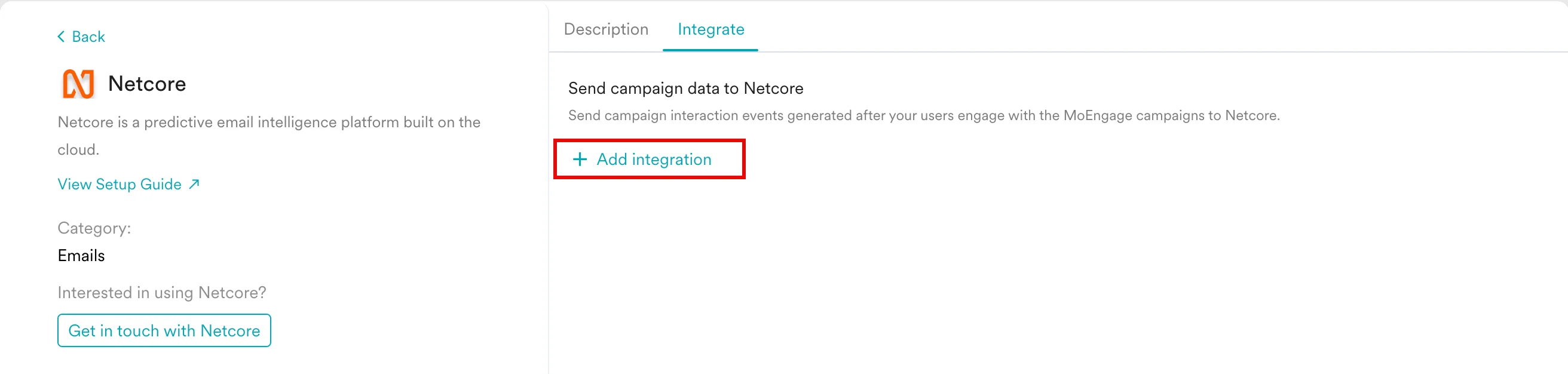
 3. In the **Netcore** page that appears, select the **Integrate** tab and click **Add integration**.
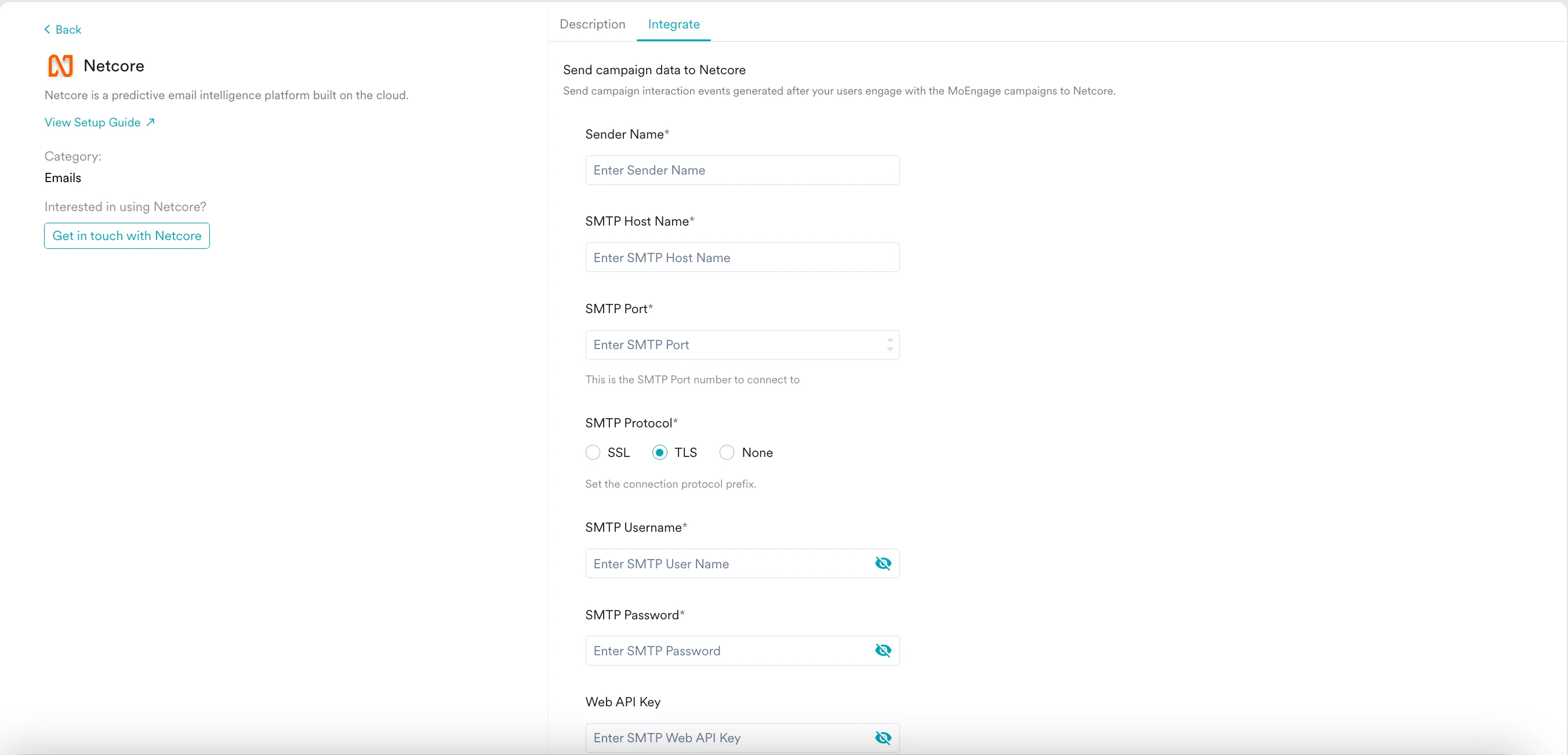
 ## Configure SMTP Settings
1. Provide a **Sender Name**.
2. Set the **SMTP Host Name** to **smtp.netcorecloud.net**.
3. Select **SMTP Port** as **25, 2525,** or **587.** To avoid the rate limits set by some hosting companies, port 587 is the recommended port.
4. Select **TLS** as the **SMTP Protocol**.
5. Your **SMTP Username** and **SMTP Password** are your Netcore Email API credentials. You can find them in the Netcore user interface at **Settings** > **Integrations**.
6. If you want your users to resubscribe by themselves, they can use the **Web API Key**.
## Configure SMTP Settings
1. Provide a **Sender Name**.
2. Set the **SMTP Host Name** to **smtp.netcorecloud.net**.
3. Select **SMTP Port** as **25, 2525,** or **587.** To avoid the rate limits set by some hosting companies, port 587 is the recommended port.
4. Select **TLS** as the **SMTP Protocol**.
5. Your **SMTP Username** and **SMTP Password** are your Netcore Email API credentials. You can find them in the Netcore user interface at **Settings** > **Integrations**.
6. If you want your users to resubscribe by themselves, they can use the **Web API Key**.
 ## Configure Unsubscribe Settings
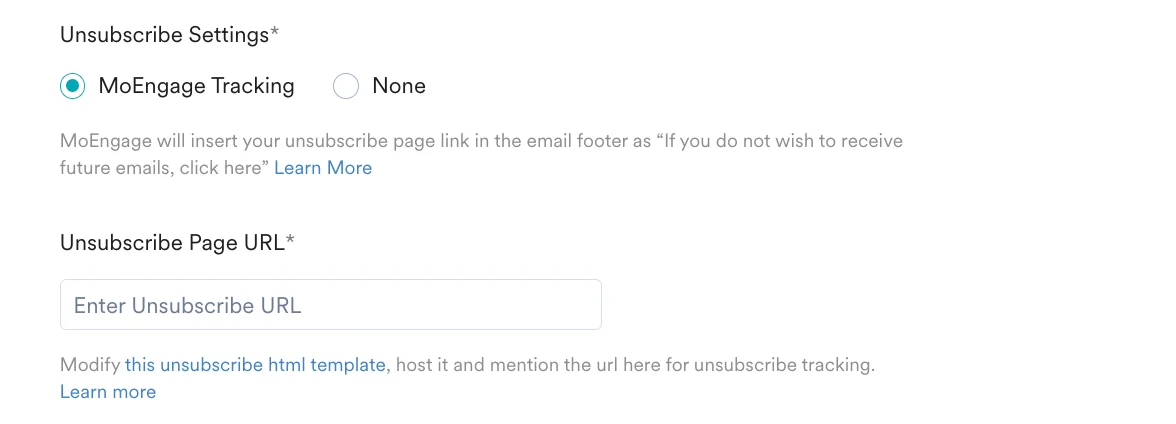
You can either select **MoEngage Tracking** or **None** to configure the unsubscribe mechanism. Selecting **None** for promotional email campaigns will increase the chances of being classified as spam. For more information, refer [here](/user-guide/campaigns-and-channels/email/create/track-email-unsubscribes).
## Configure Unsubscribe Settings
You can either select **MoEngage Tracking** or **None** to configure the unsubscribe mechanism. Selecting **None** for promotional email campaigns will increase the chances of being classified as spam. For more information, refer [here](/user-guide/campaigns-and-channels/email/create/track-email-unsubscribes).
 ## Configure List Unsubscribe Email
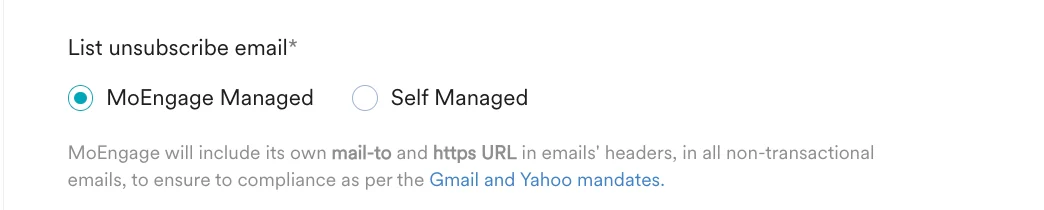
You can either use the **MoEngage managed** or **Self-managed** option to configure list-unsubscribe email. For more information, refer [here](/user-guide/campaigns-and-channels/email/getting-started-with-email/list-unsubscribe-email).
## Configure List Unsubscribe Email
You can either use the **MoEngage managed** or **Self-managed** option to configure list-unsubscribe email. For more information, refer [here](/user-guide/campaigns-and-channels/email/getting-started-with-email/list-unsubscribe-email).
 ## Configure Delivery Bounce and Complaints
This information is obtained by configuring your webhooks from your Netcore Email API panel by following the below steps:
1. Log in to your Netcore Email API account.
2. Go to **Settings** > **Webhooks.**
3. Select **Individual Events,** choose the events below, and paste the same callback URL provided in the integration form within the MoEngage Dashboard for each of them.
1. **Delivered**
2. **Bounces**
3. **Invalids**
4. **Drops**
5. **Opened,**
6. **UnSubscribes**
7. **Spam Reports**
4. Make sure to verify your webhook before saving.
## Configure Delivery Bounce and Complaints
This information is obtained by configuring your webhooks from your Netcore Email API panel by following the below steps:
1. Log in to your Netcore Email API account.
2. Go to **Settings** > **Webhooks.**
3. Select **Individual Events,** choose the events below, and paste the same callback URL provided in the integration form within the MoEngage Dashboard for each of them.
1. **Delivered**
2. **Bounces**
3. **Invalids**
4. **Drops**
5. **Opened,**
6. **UnSubscribes**
7. **Spam Reports**
4. Make sure to verify your webhook before saving.
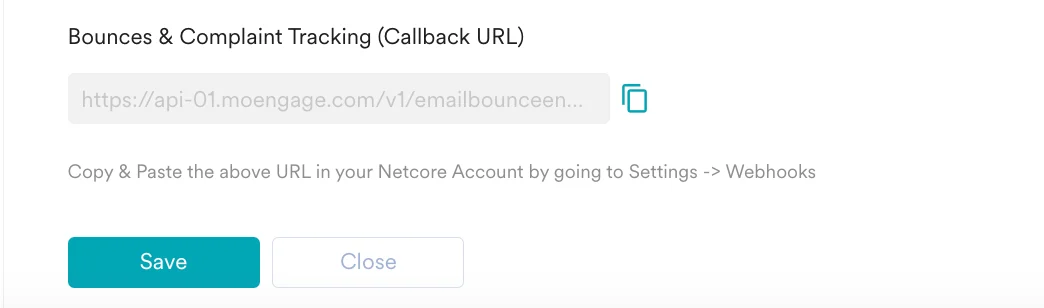 You are all set up with connector configurations. You can now click **Save,** which will test these settings (including credentials, etc.) and save them.