> ## Documentation Index
> Fetch the complete documentation index at: https://moengage.com/docs/llms.txt
> Use this file to discover all available pages before exploring further.
# Sendgrid
# Introduction
SendGrid is a cloud-based SMTP provider that allows you to send email without having to maintain email servers. SendGrid manages all of the technical details, from scaling the infrastructure to ISP outreach and reputation monitoring to whitelist services and real time analytics.
* Ensure you have access to your Sendgrid account.
* Ensure that your Sendgrid account is set up and configured.
# Configure Sendgrid account
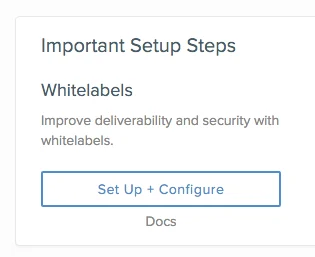
You can sign up for SendGrid at [https://sendgrid.com/pricing](https://sendgrid.com/pricing) and select your pricing plan. After account creation, you can optionally white-label your domain in your account by clicking on "Set Up + Configure" button.
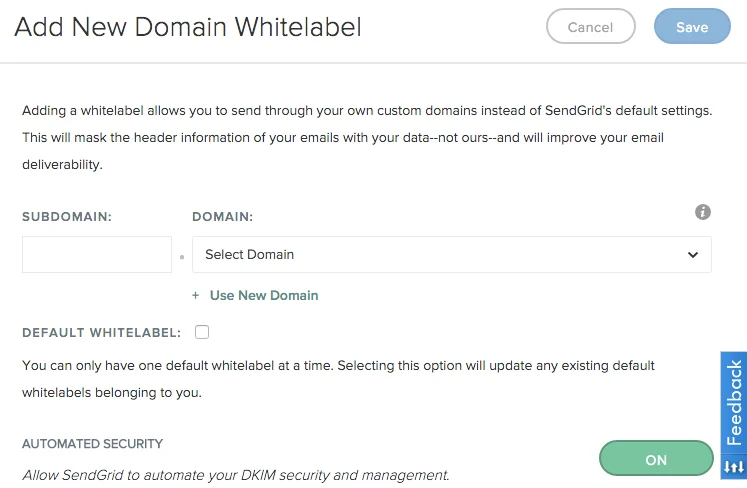
 Add a new domain and clicking on "Save". Then you can add the SendGrid specified TXT Records in your domain's DNS settings. This will remove "via sendgrid.net" seen by email recipients.
 # Configure Sendgrid on MoEngage
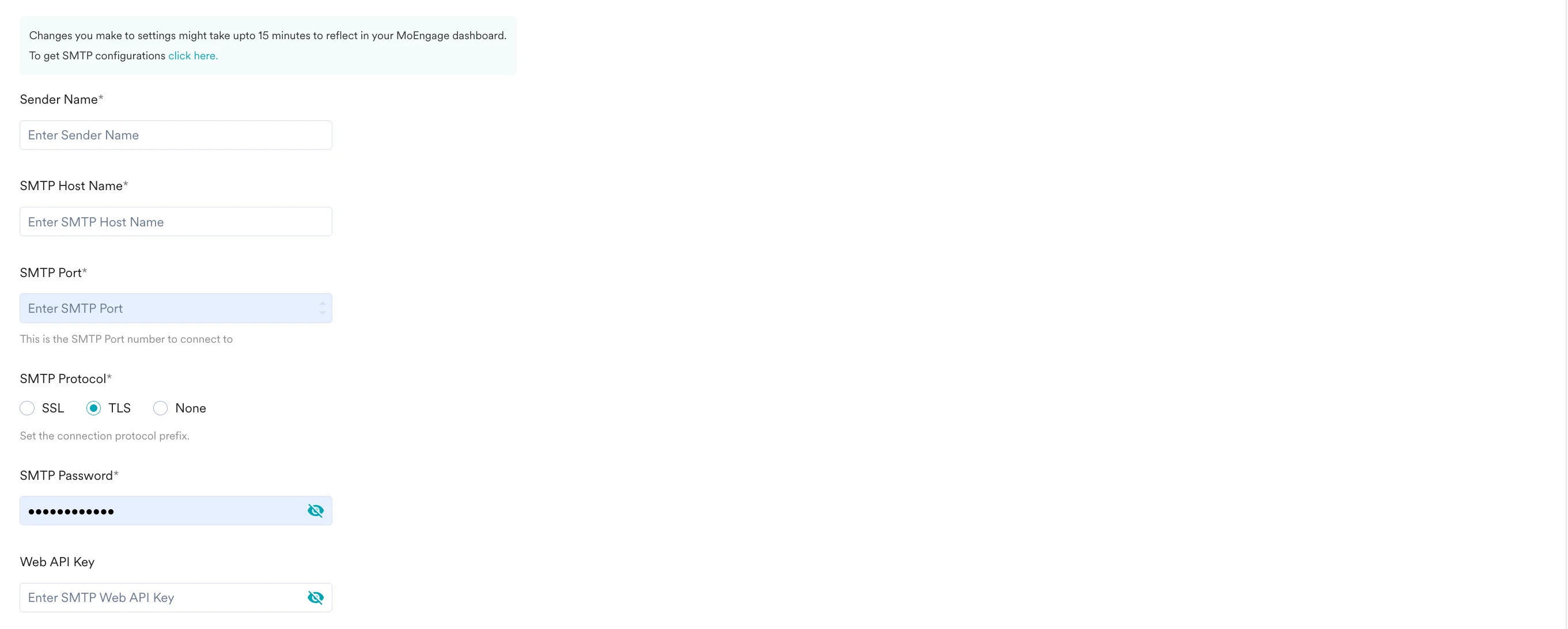
Configure the Sendgrid SMTP services by going into **Settings** > **Channel** > **Email** > **Sender Configuration** > **Add Sender** > **Sendgrid** in MoEngage Dashboard.
## Configure SMTP settings
You can find the [SendGrid's SMTP connector configurations here](https://sendgrid.com/docs/Integrate/index.html#-SMTP-Relay)
* Provide a **Sender Name.**
* **SMTP Host name, Port** and **Protocol** type can be filled in from the details in the link. To avoid rate limits set by some companies, port 587 is the suggested port.
* **SMTP Username and Password** are your SendGrid account credentials.
* **Web API Key** is the same as the SMTP password. This field is not mandatory.
# Configure Sendgrid on MoEngage
Configure the Sendgrid SMTP services by going into **Settings** > **Channel** > **Email** > **Sender Configuration** > **Add Sender** > **Sendgrid** in MoEngage Dashboard.
## Configure SMTP settings
You can find the [SendGrid's SMTP connector configurations here](https://sendgrid.com/docs/Integrate/index.html#-SMTP-Relay)
* Provide a **Sender Name.**
* **SMTP Host name, Port** and **Protocol** type can be filled in from the details in the link. To avoid rate limits set by some companies, port 587 is the suggested port.
* **SMTP Username and Password** are your SendGrid account credentials.
* **Web API Key** is the same as the SMTP password. This field is not mandatory.
 ## Configure Unsubscribe Settings and List Unsubscribe Email.
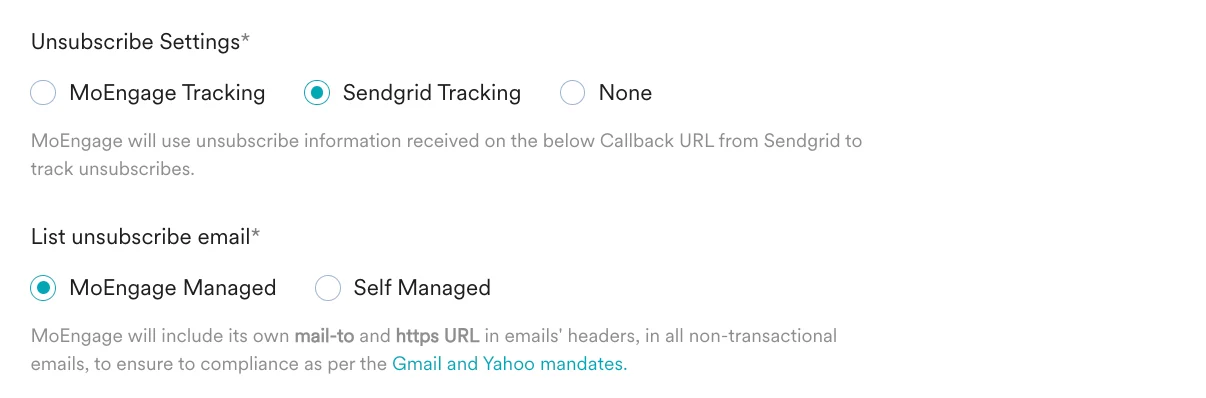
* Choose **Sendgrid Tracking** option under **Unsubscribe Settings.** MoEngage will use unsubscribe information received on the below Callback URL from Sendgrid to track unsubscribes.
* Under **List unsubscribe email**
* If you select **MoEngage Managed** option, MoEngage will include its own mail-to and https URL in email's headers, in all non-transactional emails.
* If you select **Self Managed** option, enter the **One-click unsubscribe URL** and **List unsubscribe email,** so that MoEngage will include this in your mail-to and https URL in emails' headers, in all non-transactional emails.
## Configure Unsubscribe Settings and List Unsubscribe Email.
* Choose **Sendgrid Tracking** option under **Unsubscribe Settings.** MoEngage will use unsubscribe information received on the below Callback URL from Sendgrid to track unsubscribes.
* Under **List unsubscribe email**
* If you select **MoEngage Managed** option, MoEngage will include its own mail-to and https URL in email's headers, in all non-transactional emails.
* If you select **Self Managed** option, enter the **One-click unsubscribe URL** and **List unsubscribe email,** so that MoEngage will include this in your mail-to and https URL in emails' headers, in all non-transactional emails.
 ## Configure SendGrid Bounce and Complaint Settings
This information is obtained by setting Event Notifications ON in your **SendGrid Account -> Mail Settings**
## Configure SendGrid Bounce and Complaint Settings
This information is obtained by setting Event Notifications ON in your **SendGrid Account -> Mail Settings**
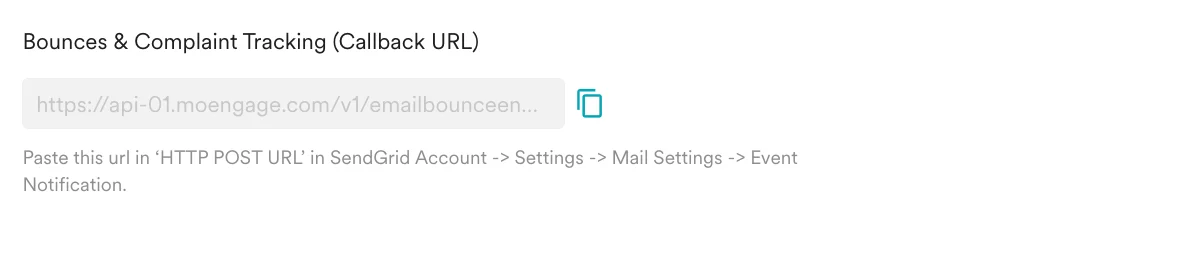
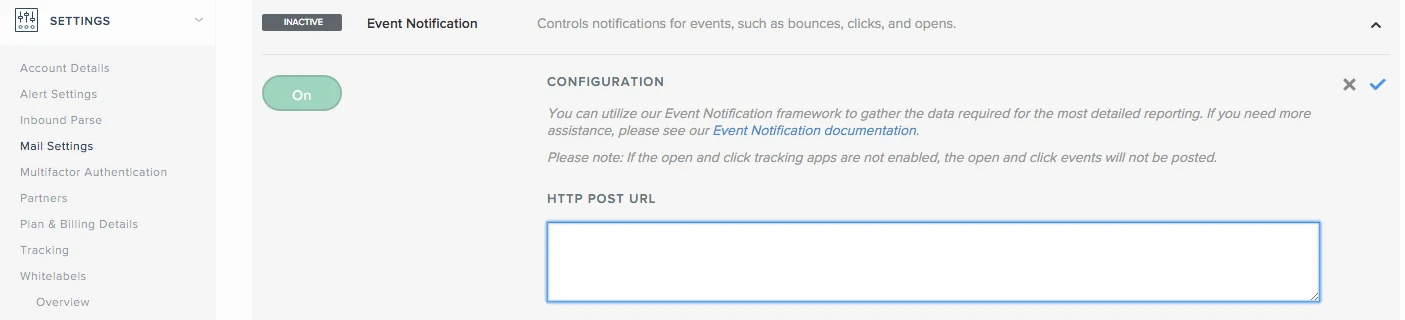 Now, copy the url from **MoEngage Dashboard** > **Settings** > **Email** > **Sender Configuration** > **SendGrid** > **Bounces & Complaint Tracking (Callback URL)** and paste it in HTTP POST URL text box shown above.
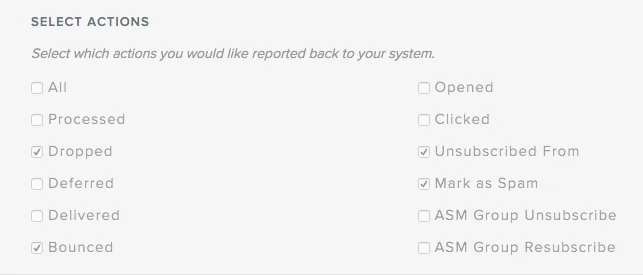
 Select the actions checked in the below snapshot to enable tracking of unsubscribes, bounces and complaints.
 You are all set up with connector configurations. You can now click on **Save** which will test these settings (including credentials etc.) and save them. You can then select SendGrid as the default connector in **General Settings**.