↑
Connected Channels
THIS GUIDE
MoEngage sends data **to** your platform. Ideal for messaging, ads, support tools.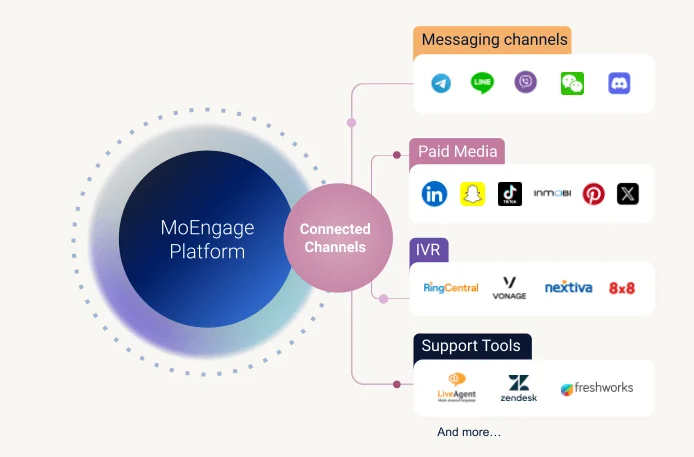
↓
Connected Sources
spacer
Your platform sends data **into** MoEngage. Ideal for CRMs, e-commerce, and form tools.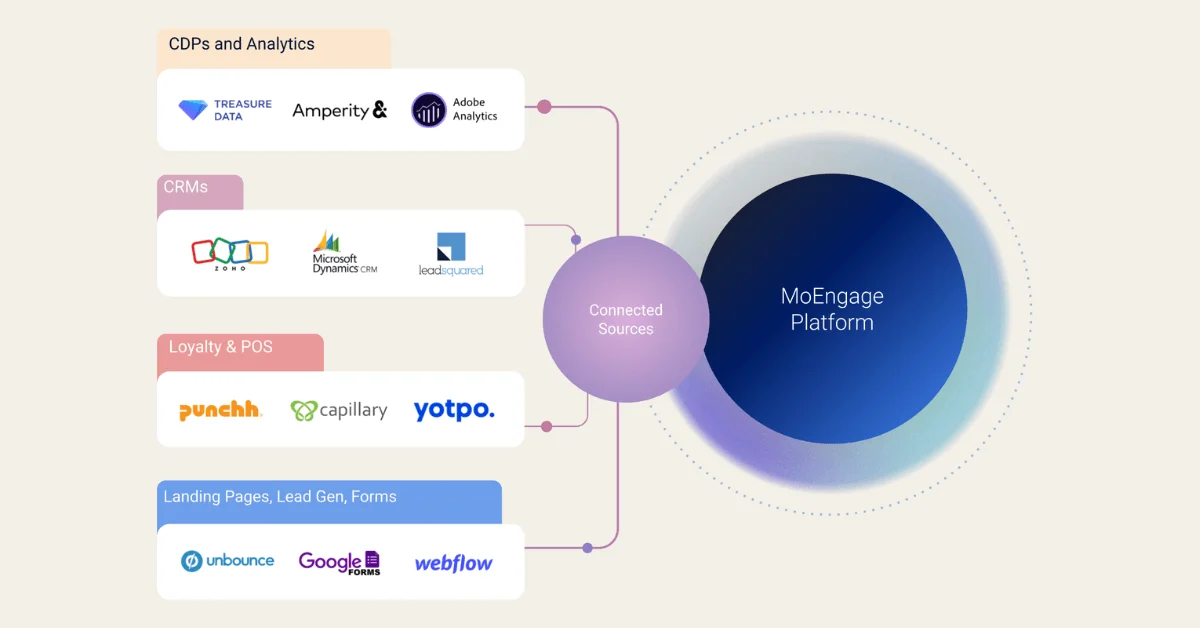
 ## Step 1: Before You Begin — Key Terminology
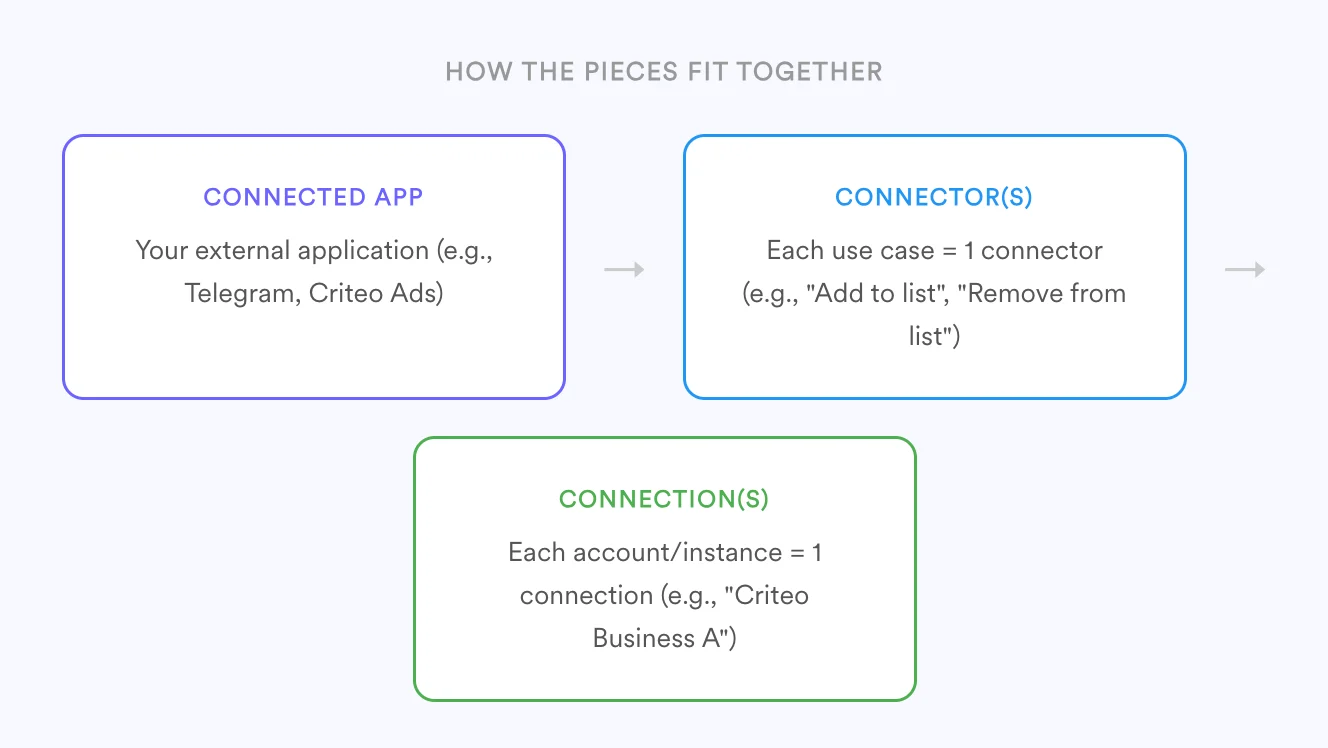
Before building, familiarize yourself with the core concepts. Here's how the pieces fit together:
## Step 1: Before You Begin — Key Terminology
Before building, familiarize yourself with the core concepts. Here's how the pieces fit together:
 | Term | Description | Example |
| :-------------------- | :--------------------------------------------------------------------------------------------------------------------------------------------------------------------------------------------------------------------- | :------------------------------------------------------------------------------------------------------------------------------------------------------------------------------------------------------------------------------------------------------------------------------------------------------------------------------------------------------------------------------------------------------------------------------------------------------------------------------------------------------------------------------------------------------------------------------------------- |
| **Connected App** | An external third-party application or tool to which you send data from MoEngage. This can be a messaging application, an advertising or retargeting platform, or an internal tool in your marketing technology stack. |
| Term | Description | Example |
| :-------------------- | :--------------------------------------------------------------------------------------------------------------------------------------------------------------------------------------------------------------------- | :------------------------------------------------------------------------------------------------------------------------------------------------------------------------------------------------------------------------------------------------------------------------------------------------------------------------------------------------------------------------------------------------------------------------------------------------------------------------------------------------------------------------------------------------------------------------------------------- |
| **Connected App** | An external third-party application or tool to which you send data from MoEngage. This can be a messaging application, an advertising or retargeting platform, or an internal tool in your marketing technology stack. | 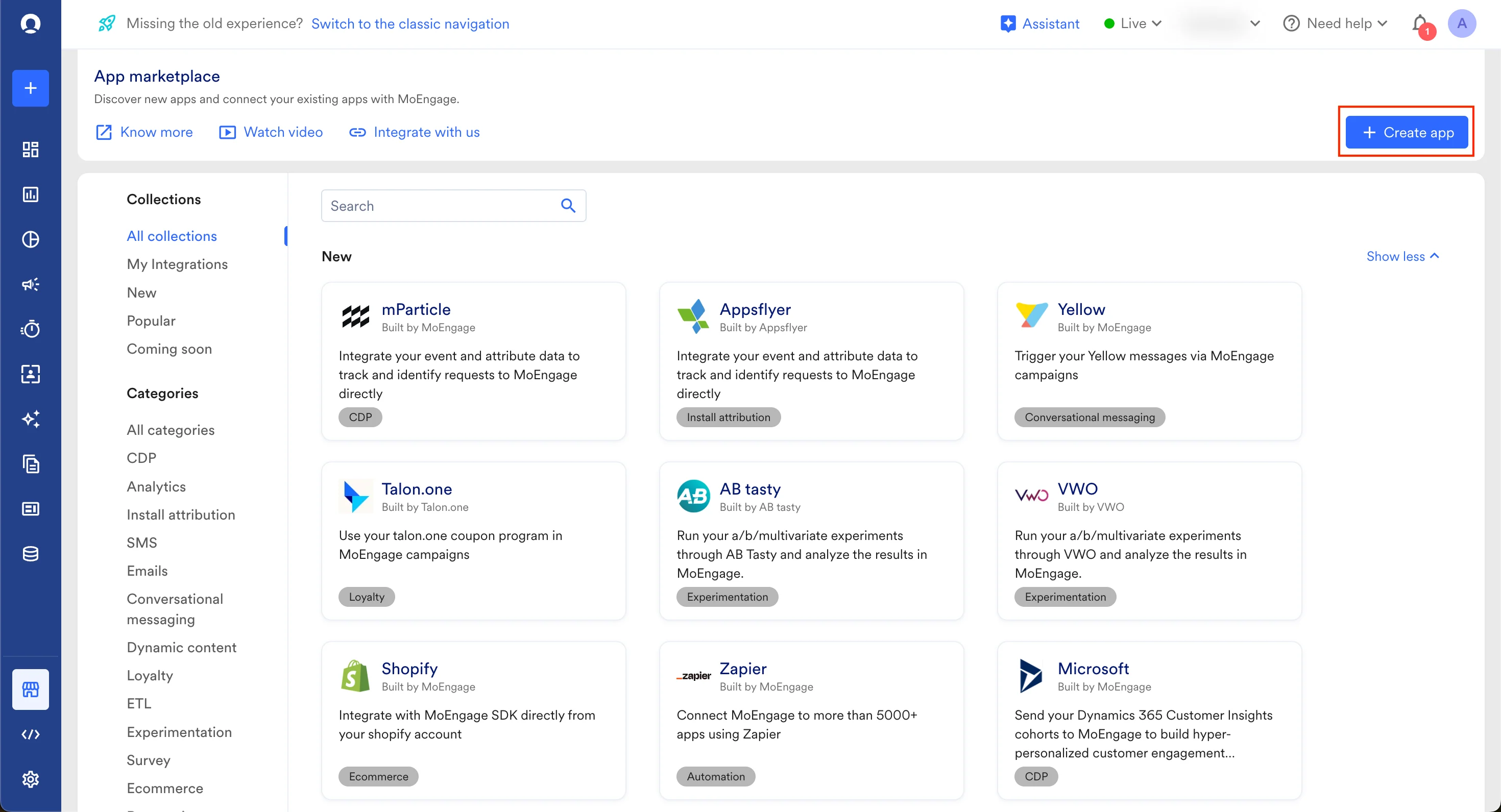 First, [create your App](/user-guide/campaigns-and-channels/connected-apps/getting-started-with-connected-apps/create-an-app) on the App Marketplace:
1. Navigate to the **App Marketplace** in your MoEngage dashboard.
2. Click on the **+ Create app** button in the top right corner.
3. In the dialog box:
* Enter a unique **App name**.
* Select **Channel** as the **App type**.
* Click **Create**.
Your app is now created. Next, define its use cases by adding connectors.
***
## Step 3: Create Your Connector
Each use case your integration supports is defined as a **Connector**. A single app can have multiple connectors. For example, a messaging app might have separate connectors for sending an SMS, sending an MMS, and sending a message to a group.
Each Connector requires its own **JSON configuration file** — a blueprint that tells MoEngage how to interact with your app for that specific use case.
***
## Step 4: Create and Upload Your Configuration File
The JSON configuration file is the heart of your connector. It tells MoEngage how to interact with your API, what inputs are needed from the user, and how to handle responses.
### 1. Create the File
Our comprehensive help documentation provides a detailed, step-by-step guide to creating this file, complete with examples and best practices.
📘 [**Read the full guide: Create a Channel Connector Config File**](/user-guide/campaigns-and-channels/connected-apps/getting-started-with-connected-apps/create-a-channel-connector-config-file)
### 2. Upload the File
Once your JSON config file is ready:
1. Go back to your app page in the MoEngage App Marketplace.
2. Click on the **Configure** tab.
3. Click **+ Add configuration**.
4. Upload your JSON file. If there are any validation errors, the system will notify you.
5. Once the upload is successful, click **Add**.
Your connector is now created! You can add more connectors (use cases) to your app by creating and uploading additional configuration files.
***
## Step 5: Test Your Integration
Thorough testing is essential for a smooth user experience. Follow these three sub-steps to validate your integration end-to-end.
### 5.1: Create a Connection
1. On your app page, navigate to the **Integrate** tab.
2. Click **+ Add integration**.
3. Give your connection a unique **Connection name** (e.g., "My Test Connection").
4. Fill in any input variables you defined with the App Marketplace scope.
5. Click **Connect**.
### 5.2: Run a Test Campaign
1. Create a new campaign in MoEngage (e.g., a one-time push campaign).
2. In the campaign creation process, select your new Connected Channel.
3. Choose the **Connection** you created in the previous step.
4. Fill in the campaign-specific input variables.
5. Launch the campaign to a test segment.
### 5.3: Verify Campaign Stats
1. Check the campaign performance page.
2. Ensure that the "Sent" and "Failed" numbers reflect the API responses you received during the campaign. For example, if your test sent 10 messages and all received a 200 OK response, you should see 10 "Sent" events.
***
# Submitting Your App for Publishing
Once your integration is working correctly, it's time to submit it for review.
First, [create your App](/user-guide/campaigns-and-channels/connected-apps/getting-started-with-connected-apps/create-an-app) on the App Marketplace:
1. Navigate to the **App Marketplace** in your MoEngage dashboard.
2. Click on the **+ Create app** button in the top right corner.
3. In the dialog box:
* Enter a unique **App name**.
* Select **Channel** as the **App type**.
* Click **Create**.
Your app is now created. Next, define its use cases by adding connectors.
***
## Step 3: Create Your Connector
Each use case your integration supports is defined as a **Connector**. A single app can have multiple connectors. For example, a messaging app might have separate connectors for sending an SMS, sending an MMS, and sending a message to a group.
Each Connector requires its own **JSON configuration file** — a blueprint that tells MoEngage how to interact with your app for that specific use case.
***
## Step 4: Create and Upload Your Configuration File
The JSON configuration file is the heart of your connector. It tells MoEngage how to interact with your API, what inputs are needed from the user, and how to handle responses.
### 1. Create the File
Our comprehensive help documentation provides a detailed, step-by-step guide to creating this file, complete with examples and best practices.
📘 [**Read the full guide: Create a Channel Connector Config File**](/user-guide/campaigns-and-channels/connected-apps/getting-started-with-connected-apps/create-a-channel-connector-config-file)
### 2. Upload the File
Once your JSON config file is ready:
1. Go back to your app page in the MoEngage App Marketplace.
2. Click on the **Configure** tab.
3. Click **+ Add configuration**.
4. Upload your JSON file. If there are any validation errors, the system will notify you.
5. Once the upload is successful, click **Add**.
Your connector is now created! You can add more connectors (use cases) to your app by creating and uploading additional configuration files.
***
## Step 5: Test Your Integration
Thorough testing is essential for a smooth user experience. Follow these three sub-steps to validate your integration end-to-end.
### 5.1: Create a Connection
1. On your app page, navigate to the **Integrate** tab.
2. Click **+ Add integration**.
3. Give your connection a unique **Connection name** (e.g., "My Test Connection").
4. Fill in any input variables you defined with the App Marketplace scope.
5. Click **Connect**.
### 5.2: Run a Test Campaign
1. Create a new campaign in MoEngage (e.g., a one-time push campaign).
2. In the campaign creation process, select your new Connected Channel.
3. Choose the **Connection** you created in the previous step.
4. Fill in the campaign-specific input variables.
5. Launch the campaign to a test segment.
### 5.3: Verify Campaign Stats
1. Check the campaign performance page.
2. Ensure that the "Sent" and "Failed" numbers reflect the API responses you received during the campaign. For example, if your test sent 10 messages and all received a 200 OK response, you should see 10 "Sent" events.
***
# Submitting Your App for Publishing
Once your integration is working correctly, it's time to submit it for review.
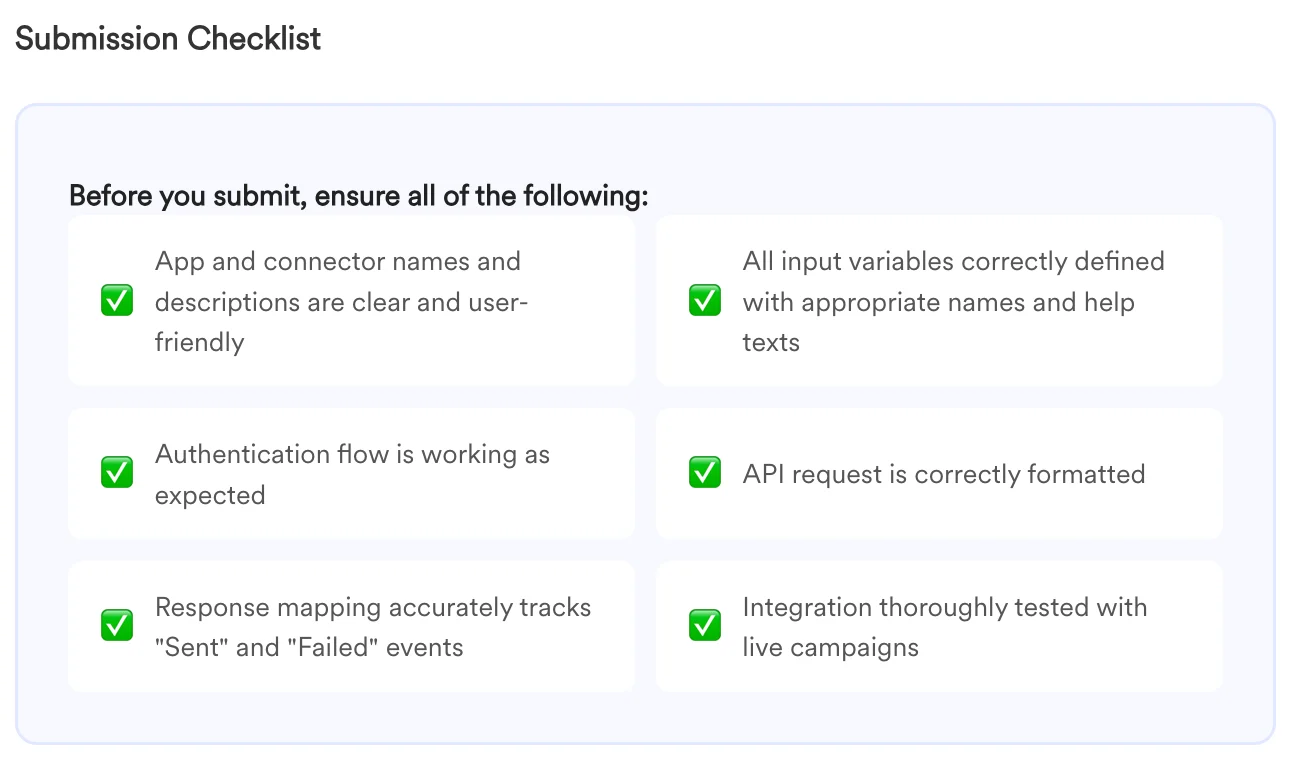 ### How to Submit
Reach out to your partner manager at MoEngage to let them know your app is ready for review. Our team will review your configuration and work with you to get it published.
### How to Submit
Reach out to your partner manager at MoEngage to let them know your app is ready for review. Our team will review your configuration and work with you to get it published.