> ## Documentation Index
> Fetch the complete documentation index at: https://moengage.com/docs/llms.txt
> Use this file to discover all available pages before exploring further.
# Yotpo
# Introduction
[Yotpo](https://www.yotpo.com/) is a cloud-based content marketing platform for e-commerce businesses that enables users to collect user-generated content and use the content to build a brand and manage the customer experience.
# MoEngage × Yotpo
With the MoEngage and Yotpo integration, you can display star ratings, top reviews, user-generated content (UGC), and customer loyalty data dynamically using Content APIs inside MoEngage campaigns across various channels like emails and push.
# Integration
* Ensure you have access to use Yotpo APIs.
* Ensure you have your Yotpo reviews API key. [Read more](https://support.yotpo.com/en/article/finding-your-yotpo-app-key-and-secret-key)
* Ensure you have your Yotpo loyalty API key. [Read more](https://support.yotpo.com/en/article/finding-your-loyalty-referrals-api-key-and-guid)
## Set up a MoEngage Content API
We will use Yotpo's REST API to insert personalized content into your campaigns. This can be done by adding Yotpo's Rest API endpoints in MoEngage Content APIs.
Perform the following steps:
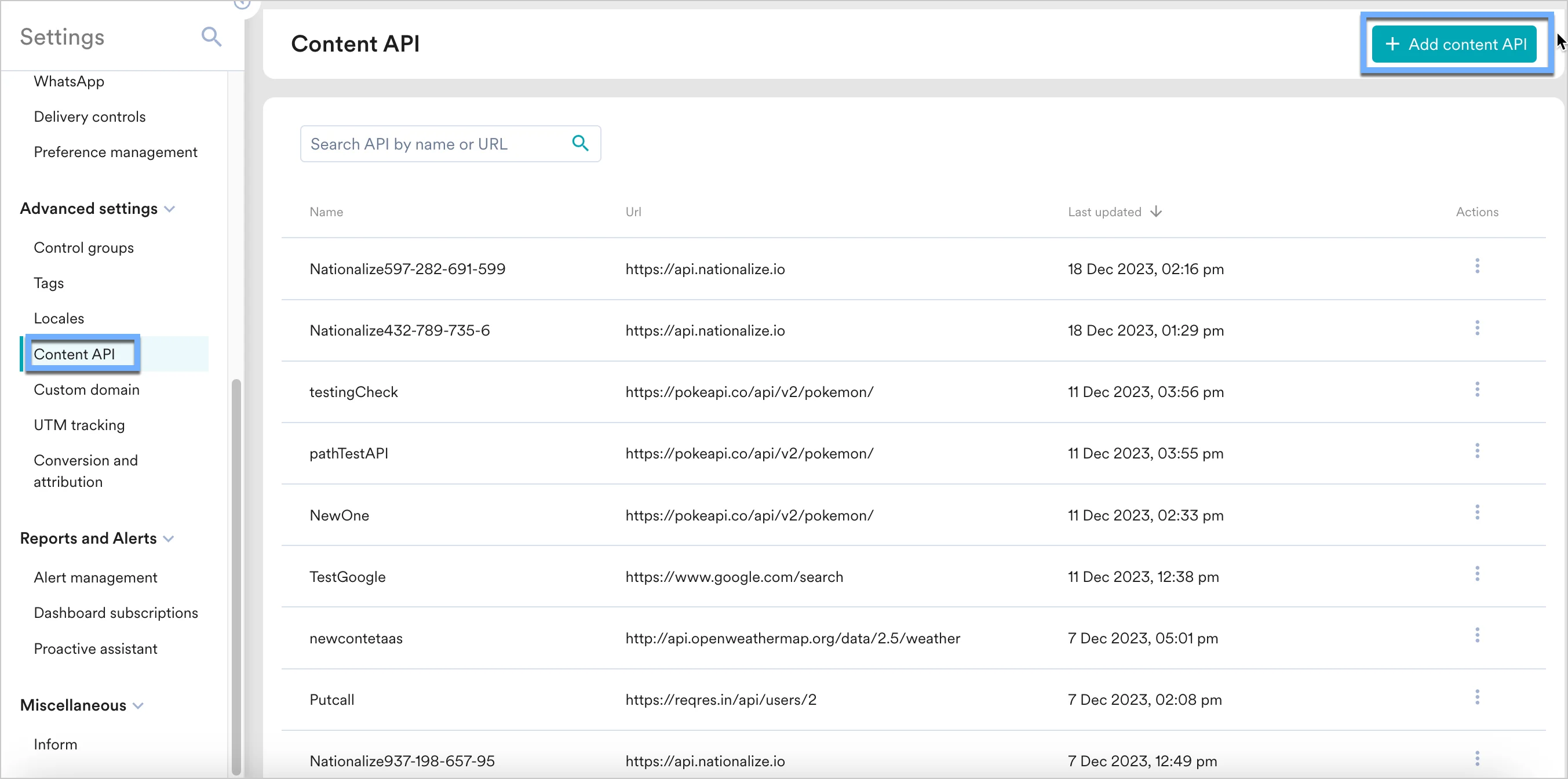
1. Navigate to **Settings** -> **Advanced settings** -> **Content API**. Click **+ Add content API** at the top right corner of the Content API screen.
 2. Add your Yotpo API to the endpoint URL. Depending on your use case, the endpoint will change.
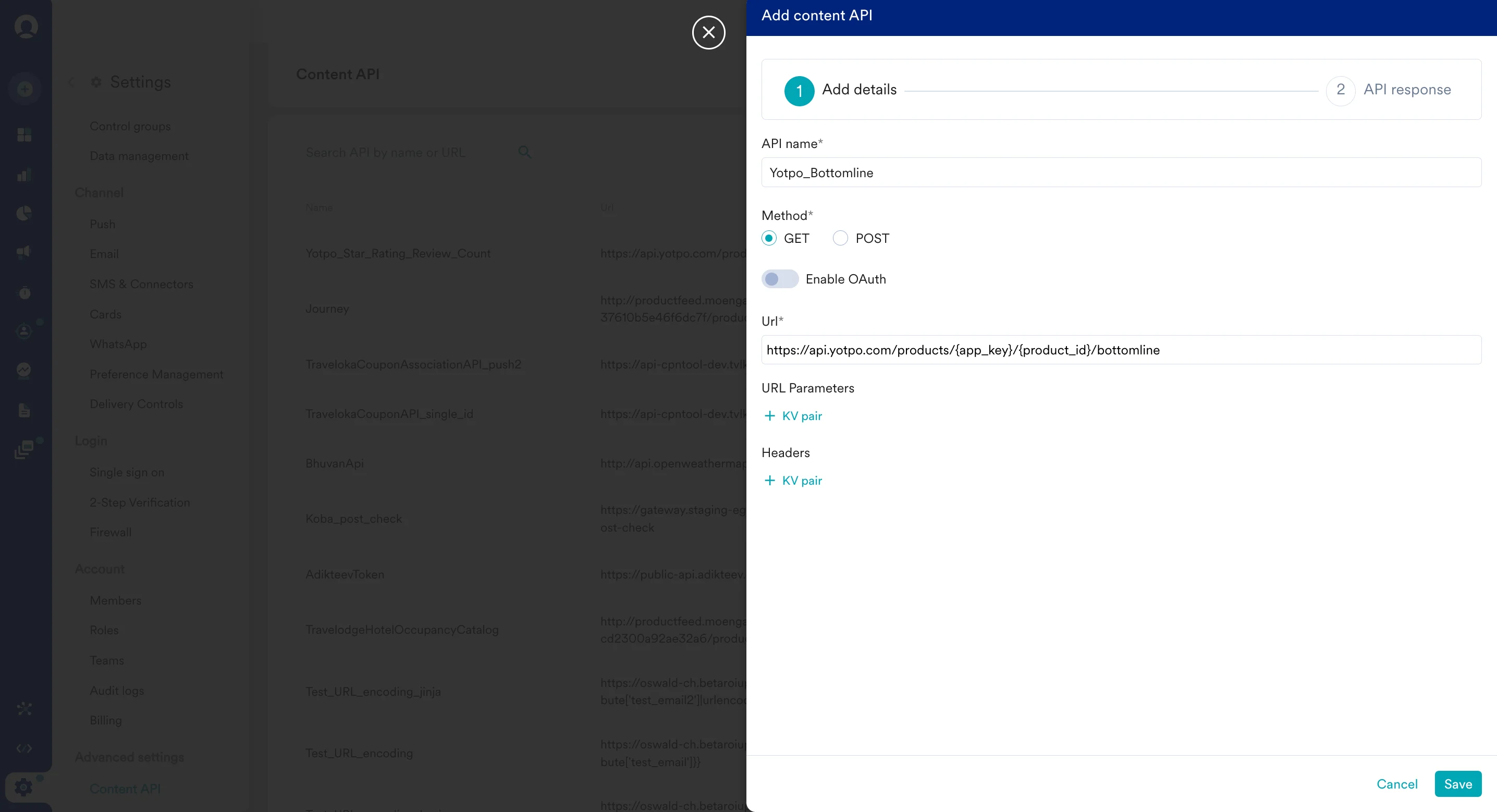 3. Click on "Save" and then "Done" once you see a successful response.
4. Note - You can also test your APIs. To test your APIs, from the Content API's action menu, click on "Test". You can your API response and validate it.
## Display your customers' loyalty points
3. Click on "Save" and then "Done" once you see a successful response.
4. Note - You can also test your APIs. To test your APIs, from the Content API's action menu, click on "Test". You can your API response and validate it.
## Display your customers' loyalty points
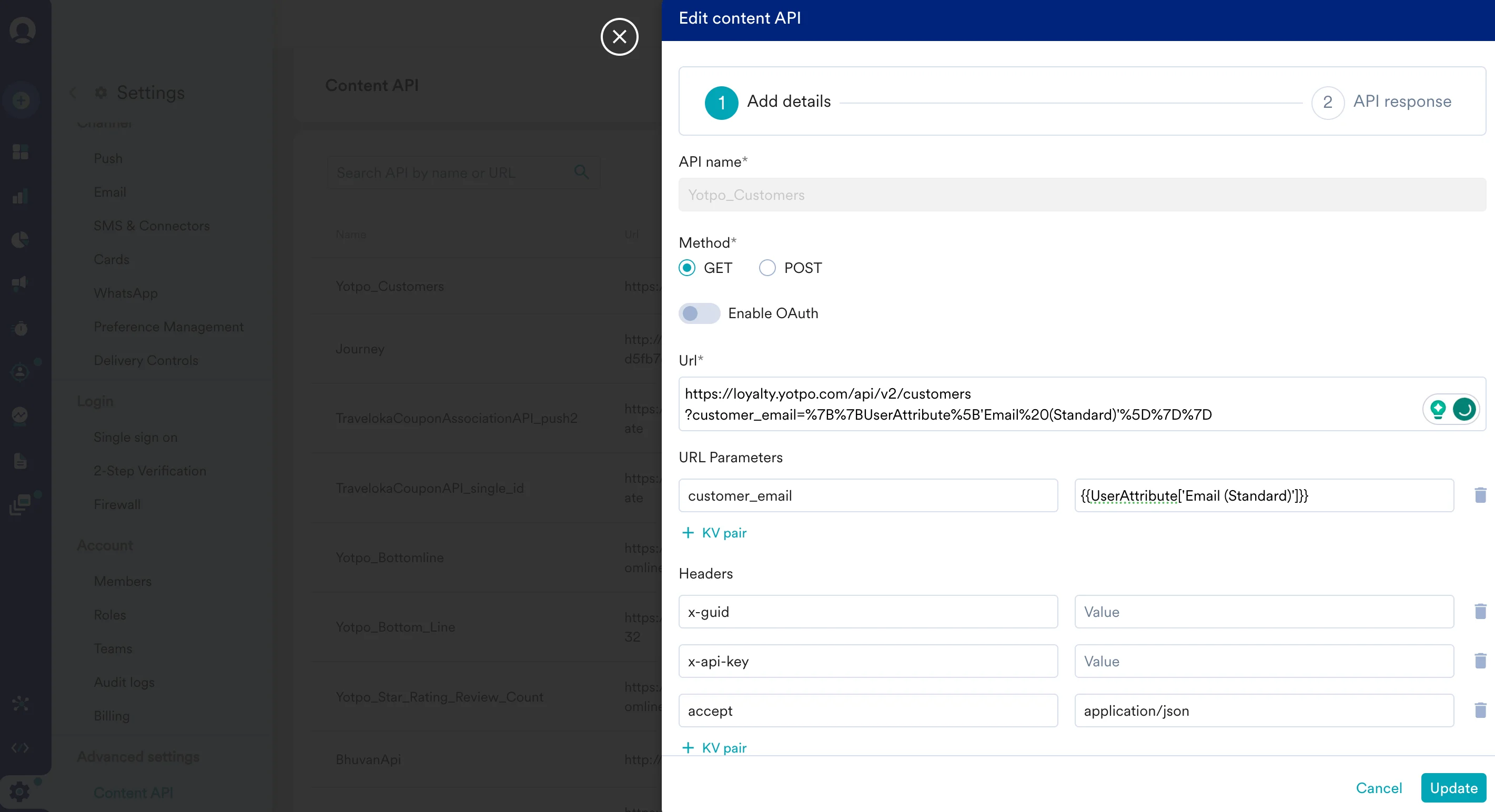 To display your customers' loyalty points, use Yotpo's [Fetch Customer Details API](https://loyaltyapi.yotpo.com/reference/fetch-customer-details).
While setting up your content API, insert the following URL:
`https://loyalty.yotpo.com/api/v2/customers`
Under URL Parameters, add the following:
1. `customer_email`: Type @ to personalize and select the relevant user attribute from MoEngage.
Under Headers, add the following:
1. `x-guid`: The Globally Unique Identifier found in the "Settings" section of your Yotpo loyalty admin. [Know more](https://loyaltyapi.yotpo.com/reference/authentication)
2. `x-api-key`: Your account API key can be found in the "Settings" section of your Yotpo loyalty admin. [Know more](https://loyaltyapi.yotpo.com/reference/authentication)
To use this API in your MoEngage campaigns,
1. On step 2 on your campaign creation, enter @.
2. In the pop up, you can select the Yotpo Bottom Line configured in Step 1.
3. You can use [MoEngage Templating Language](/user-guide/campaigns-and-channels/getting-started/message-personalization/jinja-templating-language) to parse through the API response and use the content in your campaigns.
To display your customers' loyalty points, use Yotpo's [Fetch Customer Details API](https://loyaltyapi.yotpo.com/reference/fetch-customer-details).
While setting up your content API, insert the following URL:
`https://loyalty.yotpo.com/api/v2/customers`
Under URL Parameters, add the following:
1. `customer_email`: Type @ to personalize and select the relevant user attribute from MoEngage.
Under Headers, add the following:
1. `x-guid`: The Globally Unique Identifier found in the "Settings" section of your Yotpo loyalty admin. [Know more](https://loyaltyapi.yotpo.com/reference/authentication)
2. `x-api-key`: Your account API key can be found in the "Settings" section of your Yotpo loyalty admin. [Know more](https://loyaltyapi.yotpo.com/reference/authentication)
To use this API in your MoEngage campaigns,
1. On step 2 on your campaign creation, enter @.
2. In the pop up, you can select the Yotpo Bottom Line configured in Step 1.
3. You can use [MoEngage Templating Language](/user-guide/campaigns-and-channels/getting-started/message-personalization/jinja-templating-language) to parse through the API response and use the content in your campaigns.
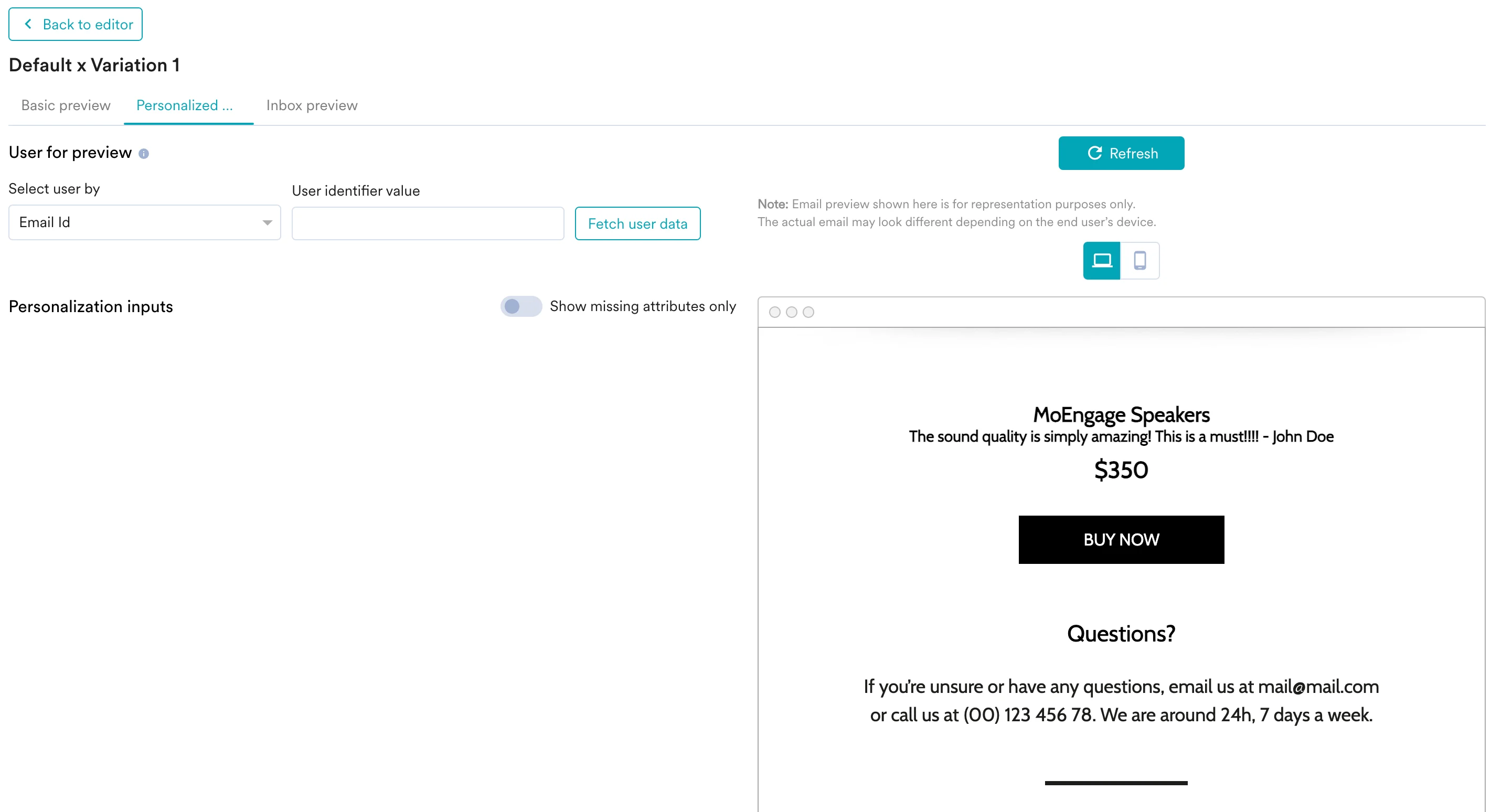
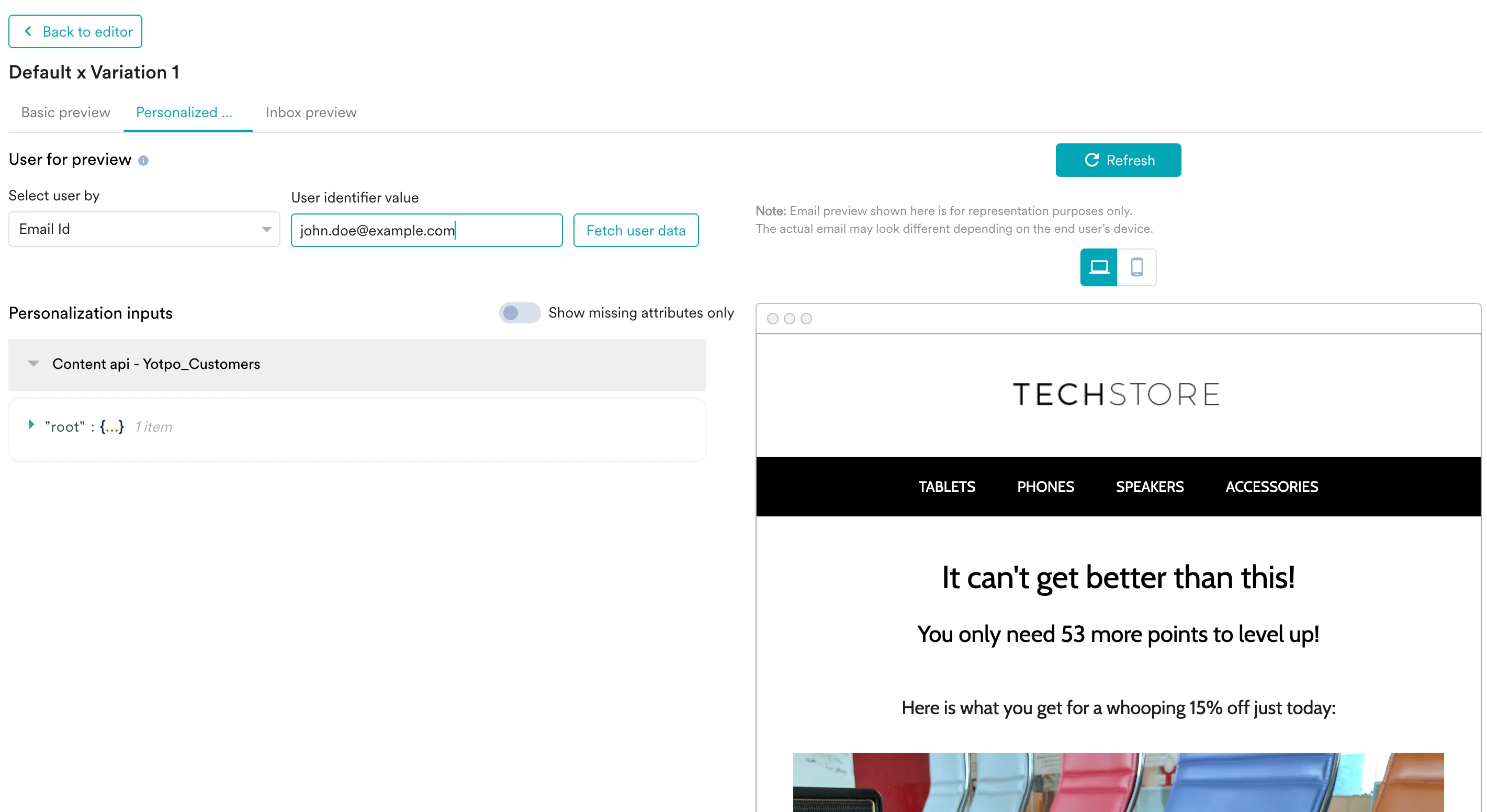
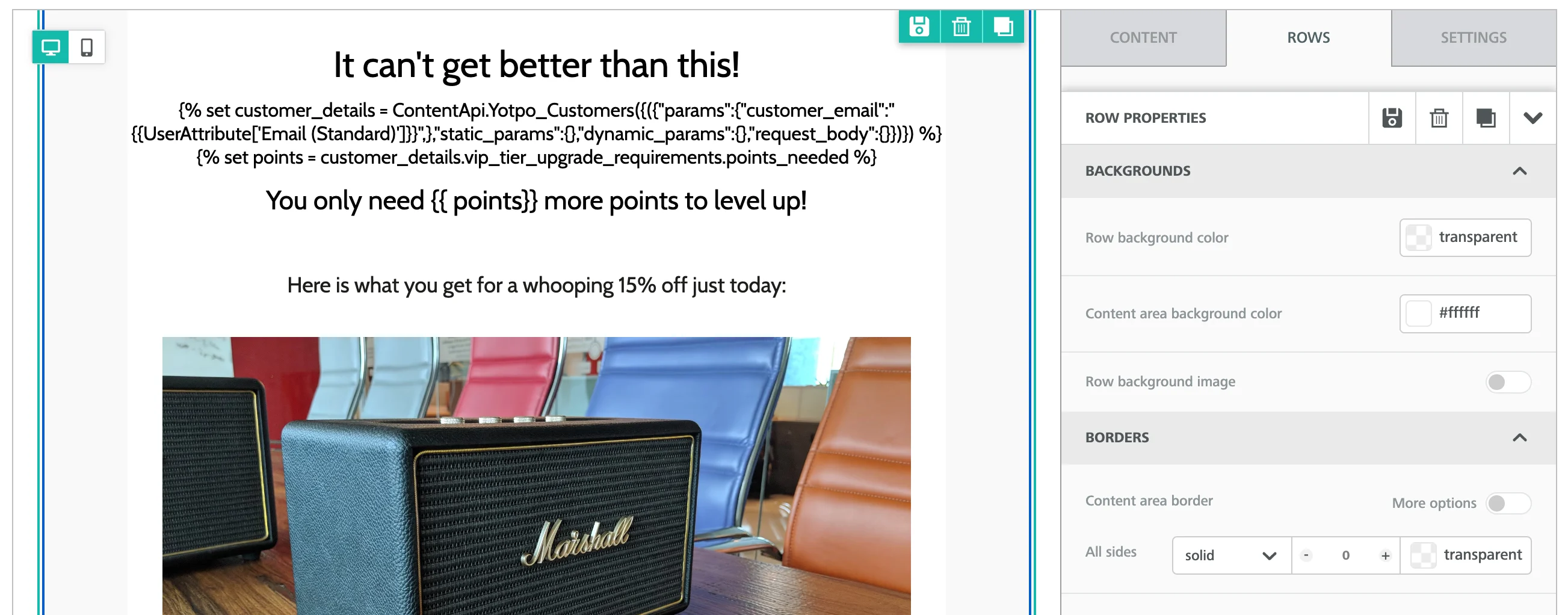 4. You can click on the Preview tab to view your campaign in real-time personalization:
 ## Display your product's User Generated Content (UGC)
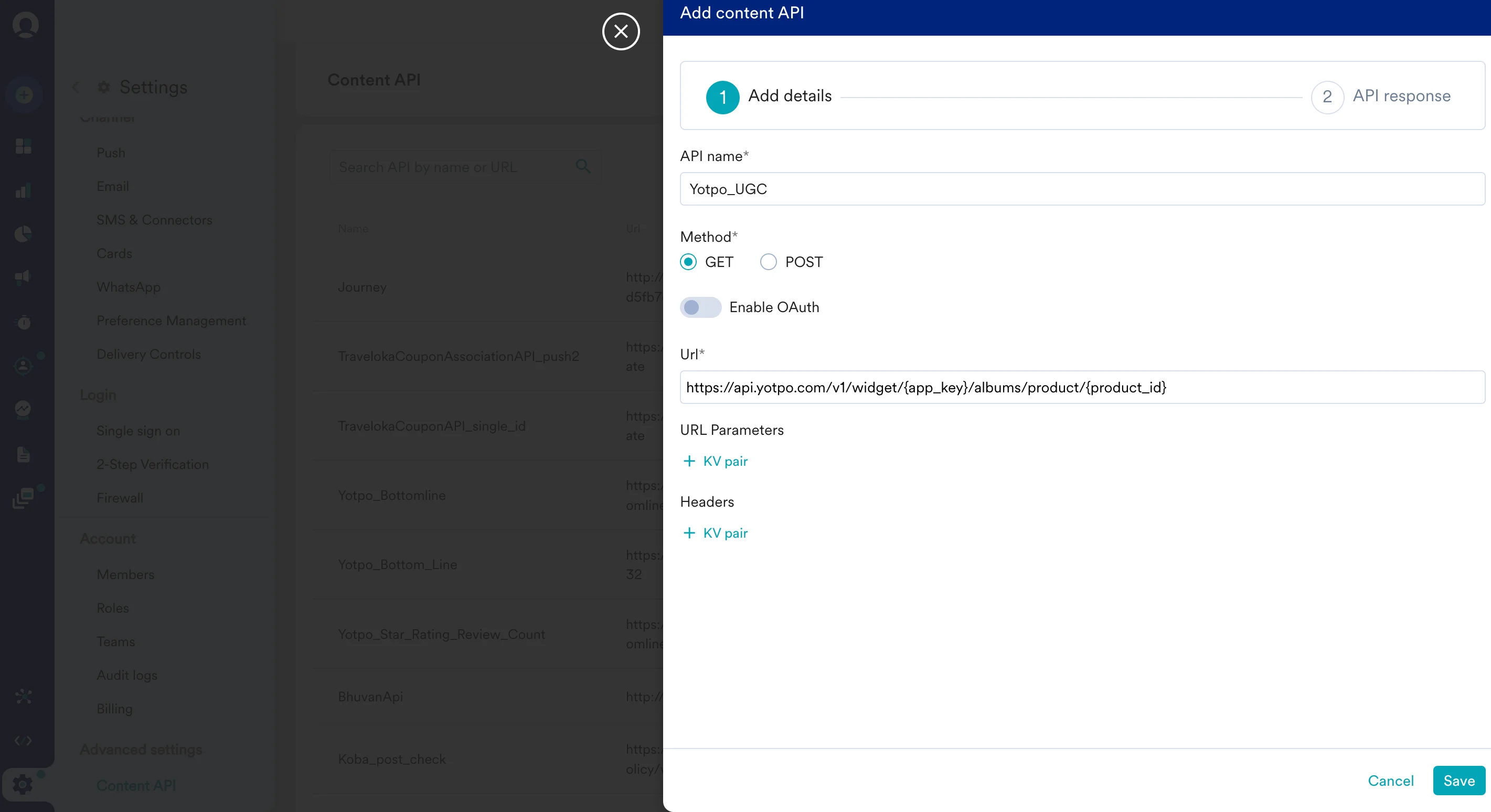 To display your product's most recent product image uploaded by your customers, use Yotpo's [Product Images API](https://apidocs.yotpo.com/reference/product-images).
While setting up your content API, insert the following URL:
`https://api.yotpo.com/v1/widget/{app_key}/albums/product/{product_id}`
Replace `{app_key}` with your Yotpo reviews API key. You can get your product ID from your Yotpo Dashboard.
To use this API in your MoEngage campaigns,
1. On step 2 on your campaign creation, enter @.
2. In the pop up, you can select the Yotpo Bottom Line configured in Step 1.
3. You can use [MoEngage Templating Language](/user-guide/campaigns-and-channels/getting-started/message-personalization/jinja-templating-language) to parse through the API response and use the content in your campaigns.
To display your product's most recent product image uploaded by your customers, use Yotpo's [Product Images API](https://apidocs.yotpo.com/reference/product-images).
While setting up your content API, insert the following URL:
`https://api.yotpo.com/v1/widget/{app_key}/albums/product/{product_id}`
Replace `{app_key}` with your Yotpo reviews API key. You can get your product ID from your Yotpo Dashboard.
To use this API in your MoEngage campaigns,
1. On step 2 on your campaign creation, enter @.
2. In the pop up, you can select the Yotpo Bottom Line configured in Step 1.
3. You can use [MoEngage Templating Language](/user-guide/campaigns-and-channels/getting-started/message-personalization/jinja-templating-language) to parse through the API response and use the content in your campaigns.
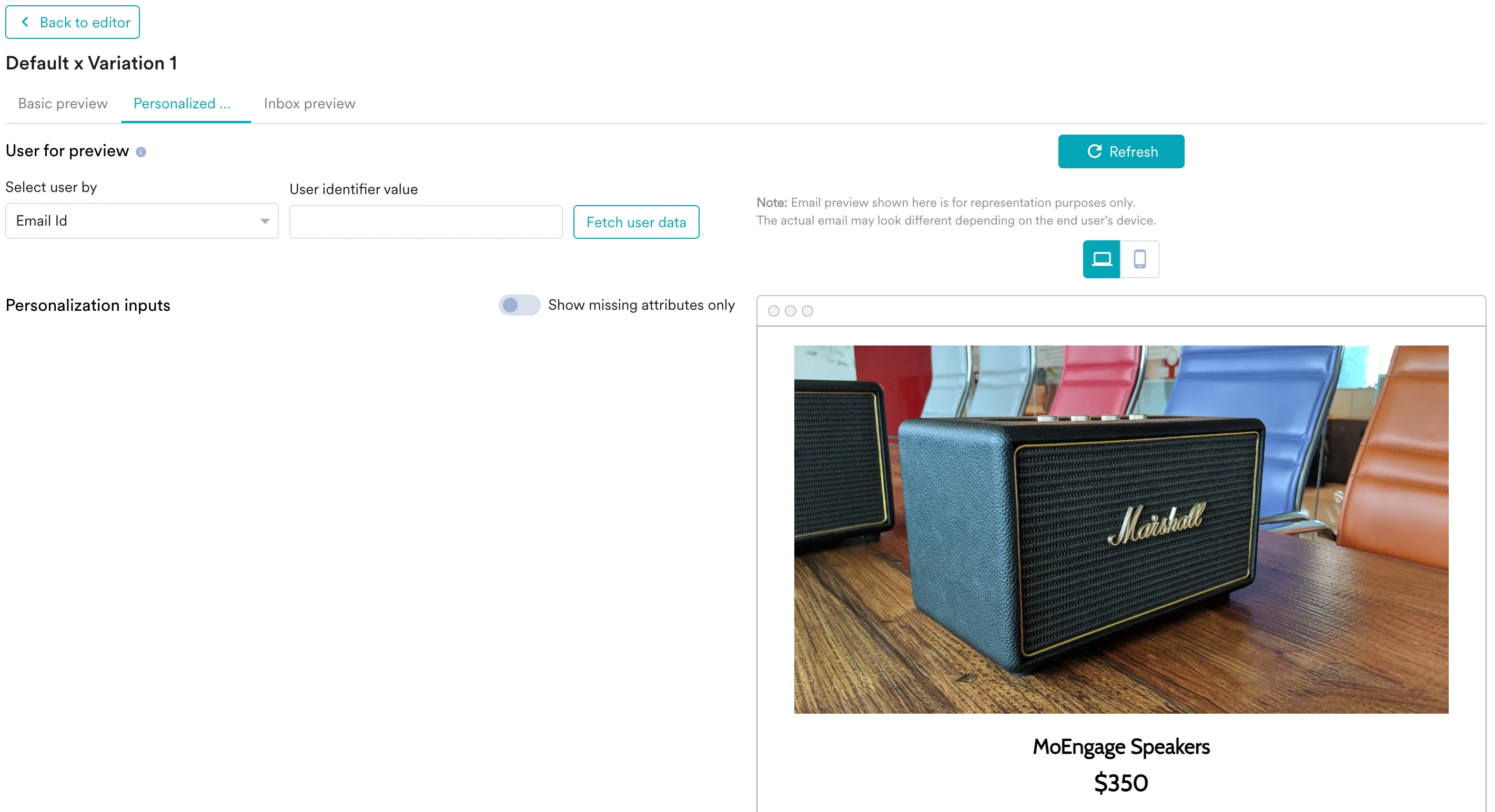
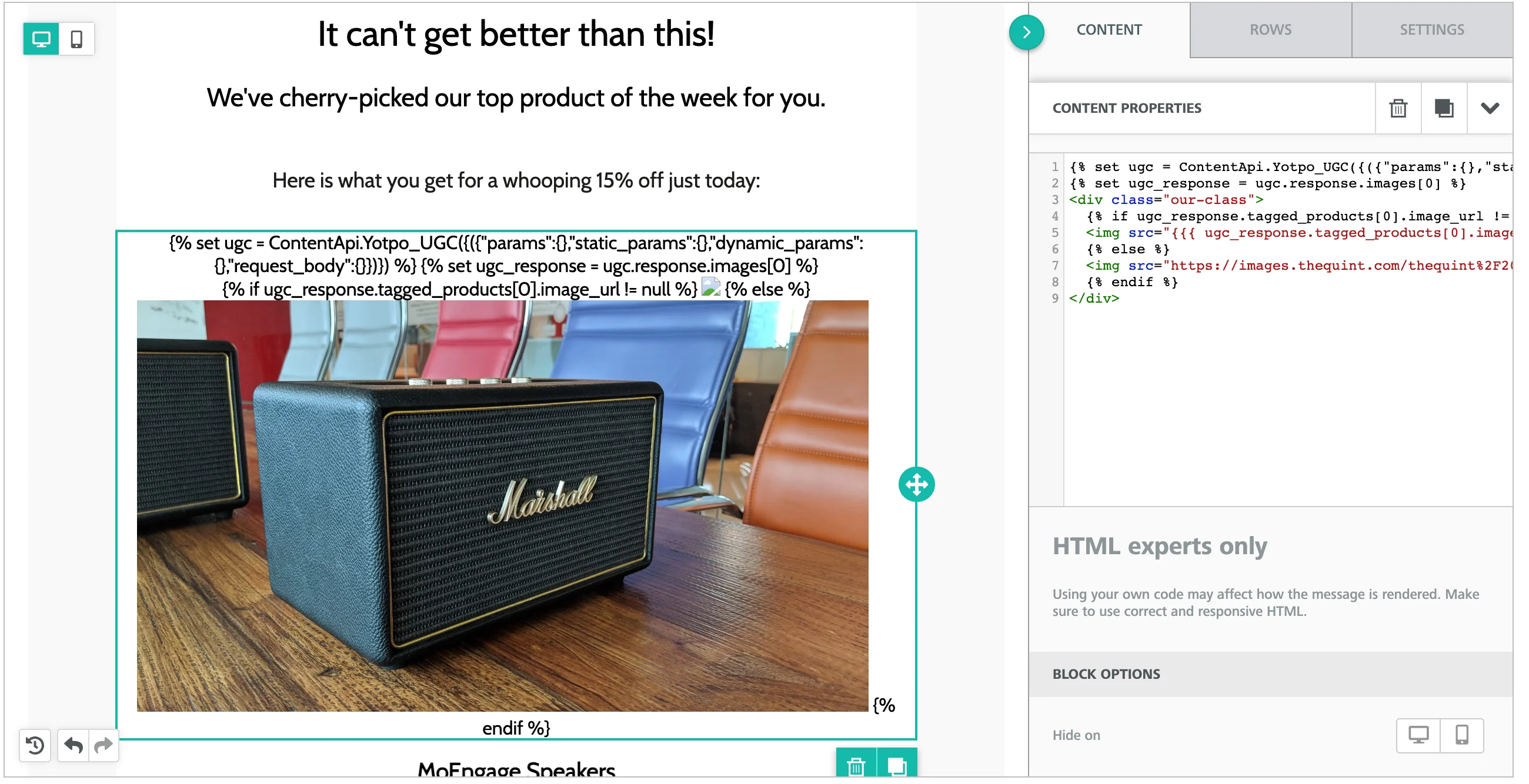 4. You can click on the Preview tab to view your campaign in real-time personalization:
 ## Display your product's star rating and review count
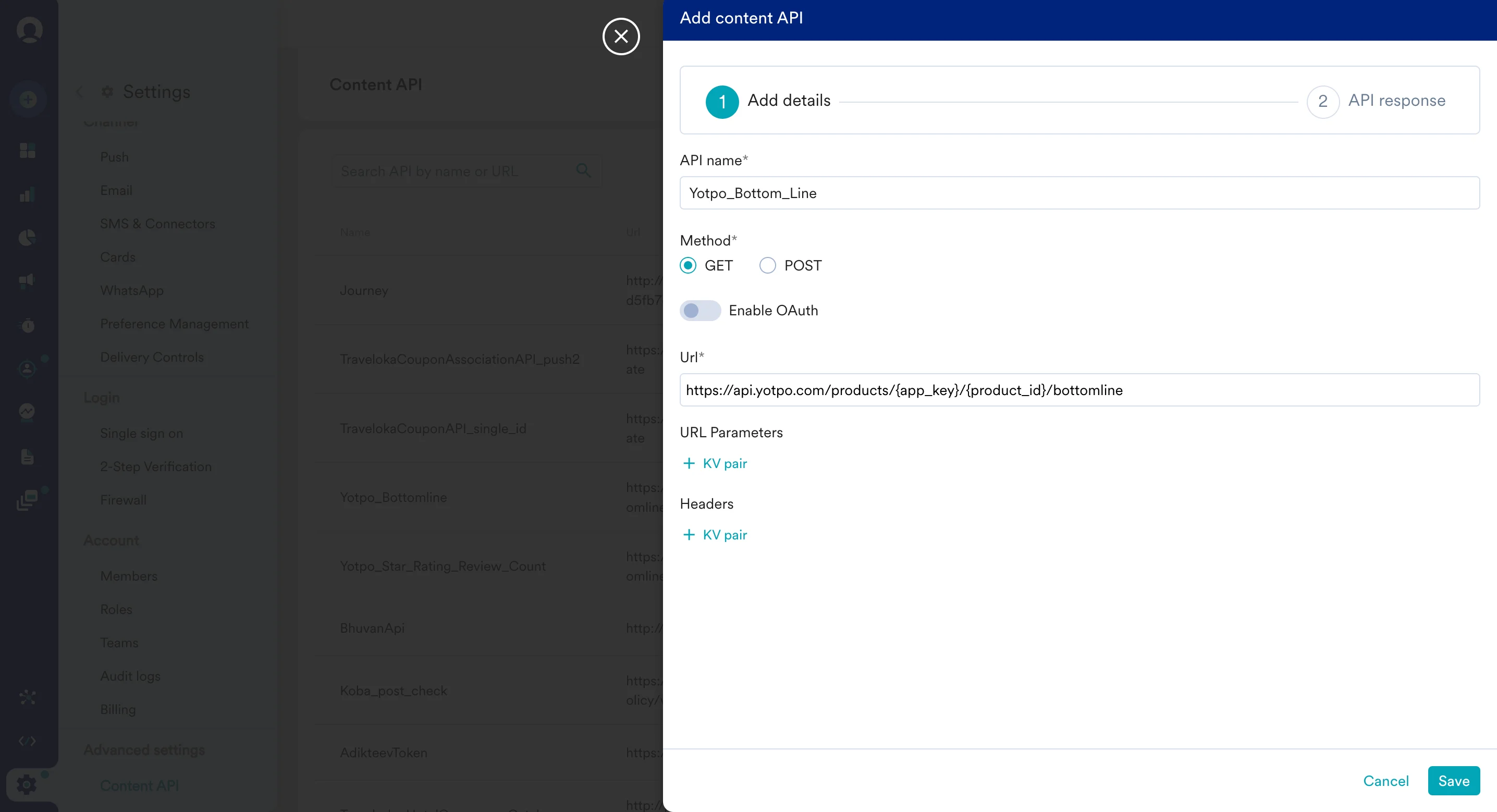 To display your product's star ratings or review count, use Yotpo's [Retrieve bottom line API](https://apidocs.yotpo.com/reference/get-bottom-line-total-reviews-and-average-score).
While setting up your content API, insert the following URL:
`https://api.yotpo.com/products/{app_key}/{product_id}/bottomline`
Replace `{app_key}` with your Yotpo reviews API key. You can get your product ID from your Yotpo Dashboard.
To use this API in your MoEngage campaigns,
1. On step 2 on your campaign creation, enter @.
2. In the pop up, you can select the Yotpo Bottom Line configured in Step 1.
3. You can use [MoEngage Templating Language](/user-guide/campaigns-and-channels/getting-started/message-personalization/jinja-templating-language) to parse through the API response and use the content in your campaigns.
To display your product's star ratings or review count, use Yotpo's [Retrieve bottom line API](https://apidocs.yotpo.com/reference/get-bottom-line-total-reviews-and-average-score).
While setting up your content API, insert the following URL:
`https://api.yotpo.com/products/{app_key}/{product_id}/bottomline`
Replace `{app_key}` with your Yotpo reviews API key. You can get your product ID from your Yotpo Dashboard.
To use this API in your MoEngage campaigns,
1. On step 2 on your campaign creation, enter @.
2. In the pop up, you can select the Yotpo Bottom Line configured in Step 1.
3. You can use [MoEngage Templating Language](/user-guide/campaigns-and-channels/getting-started/message-personalization/jinja-templating-language) to parse through the API response and use the content in your campaigns.
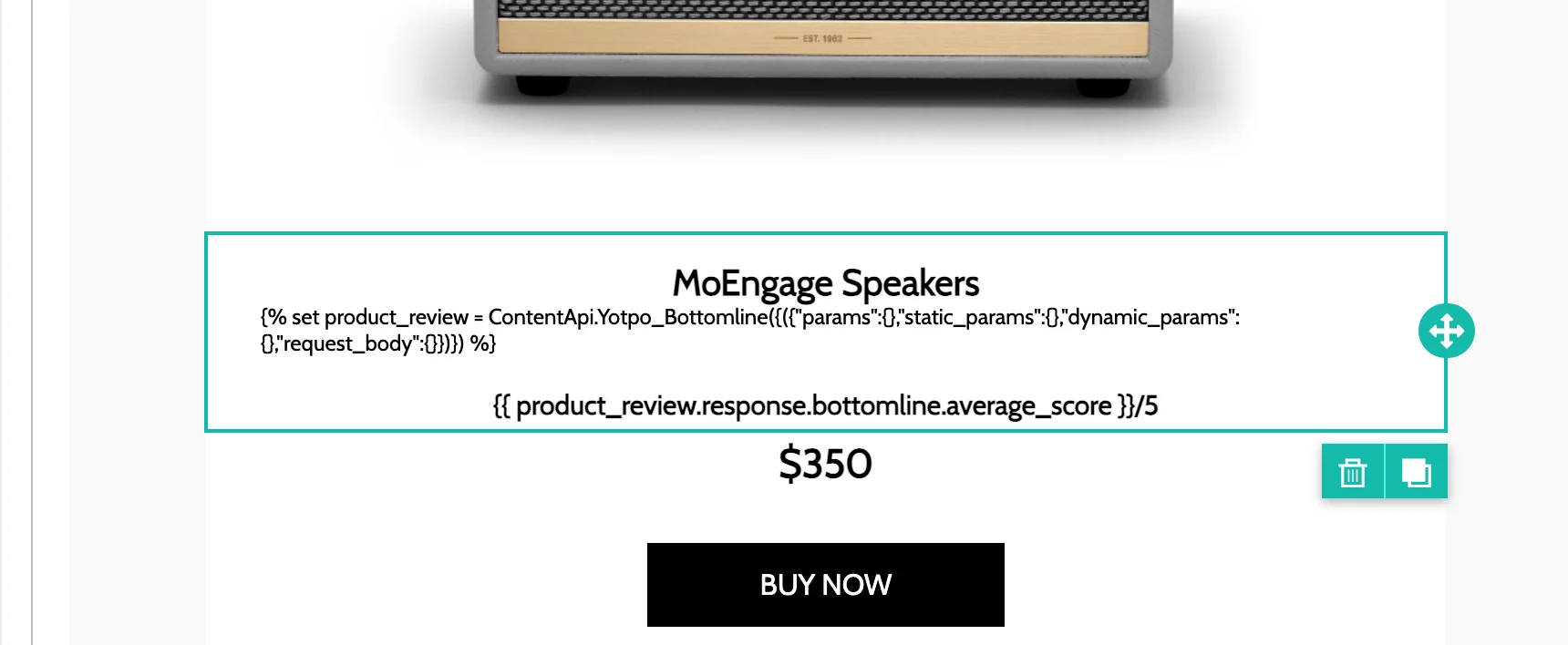 4. You can click on the Preview tab to view your campaign in real-time personalization:
 ## Display your product's most recent 5-star review
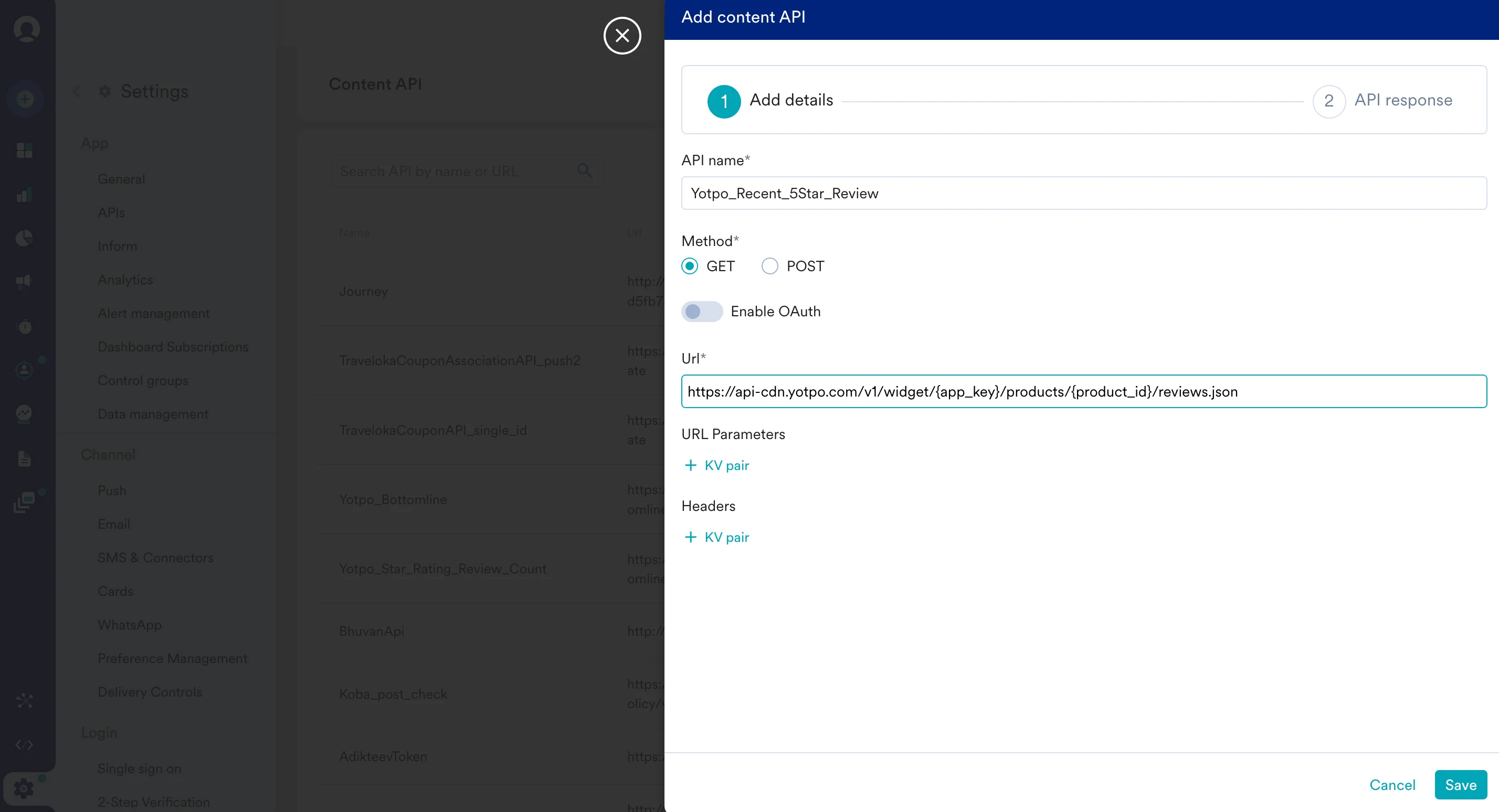 To display your product's most recent 5 star review, use Yotpo's [Retrieve reviews for a product API](https://apidocs.yotpo.com/reference/retrieve-reviews-for-a-product).
While setting up your content API, insert the following URL:
`https://api.yotpo.com/v1/widget/{app_key}/products/{product_id}/reviews.json?per_page=50&star=5&sort=votes_up`
Replace `{app_key}` with your Yotpo reviews API key. You can get your product ID from your Yotpo Dashboard.
To use this API in your MoEngage campaigns,
1. On step 2 on your campaign creation, enter @.
2. In the pop up, you can select the Yotpo Bottom Line configured in Step 1.
3. You can use [MoEngage Templating Language](/user-guide/campaigns-and-channels/getting-started/message-personalization/jinja-templating-language) to parse through the API response and use the content in your campaigns.
To display your product's most recent 5 star review, use Yotpo's [Retrieve reviews for a product API](https://apidocs.yotpo.com/reference/retrieve-reviews-for-a-product).
While setting up your content API, insert the following URL:
`https://api.yotpo.com/v1/widget/{app_key}/products/{product_id}/reviews.json?per_page=50&star=5&sort=votes_up`
Replace `{app_key}` with your Yotpo reviews API key. You can get your product ID from your Yotpo Dashboard.
To use this API in your MoEngage campaigns,
1. On step 2 on your campaign creation, enter @.
2. In the pop up, you can select the Yotpo Bottom Line configured in Step 1.
3. You can use [MoEngage Templating Language](/user-guide/campaigns-and-channels/getting-started/message-personalization/jinja-templating-language) to parse through the API response and use the content in your campaigns.
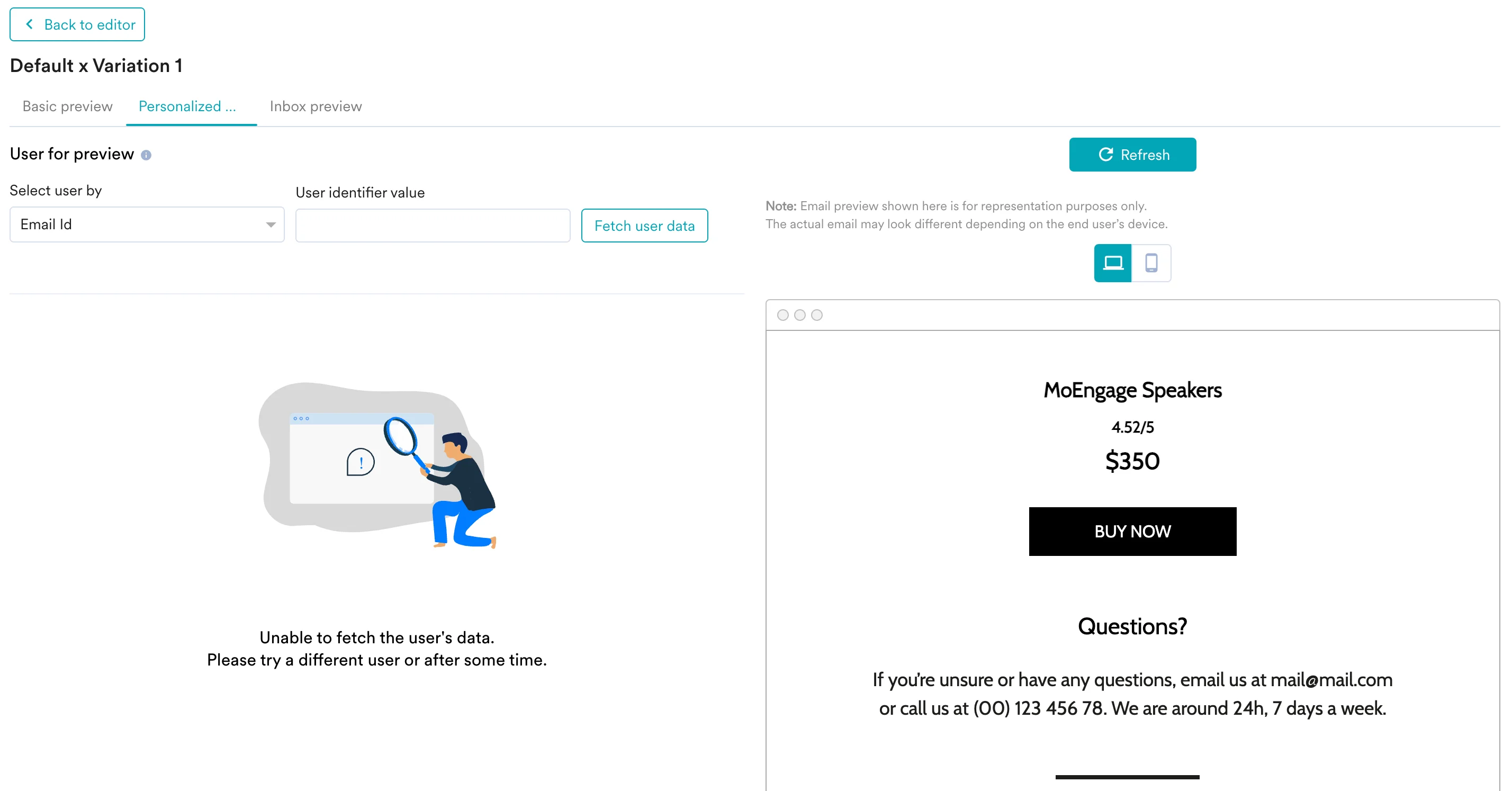
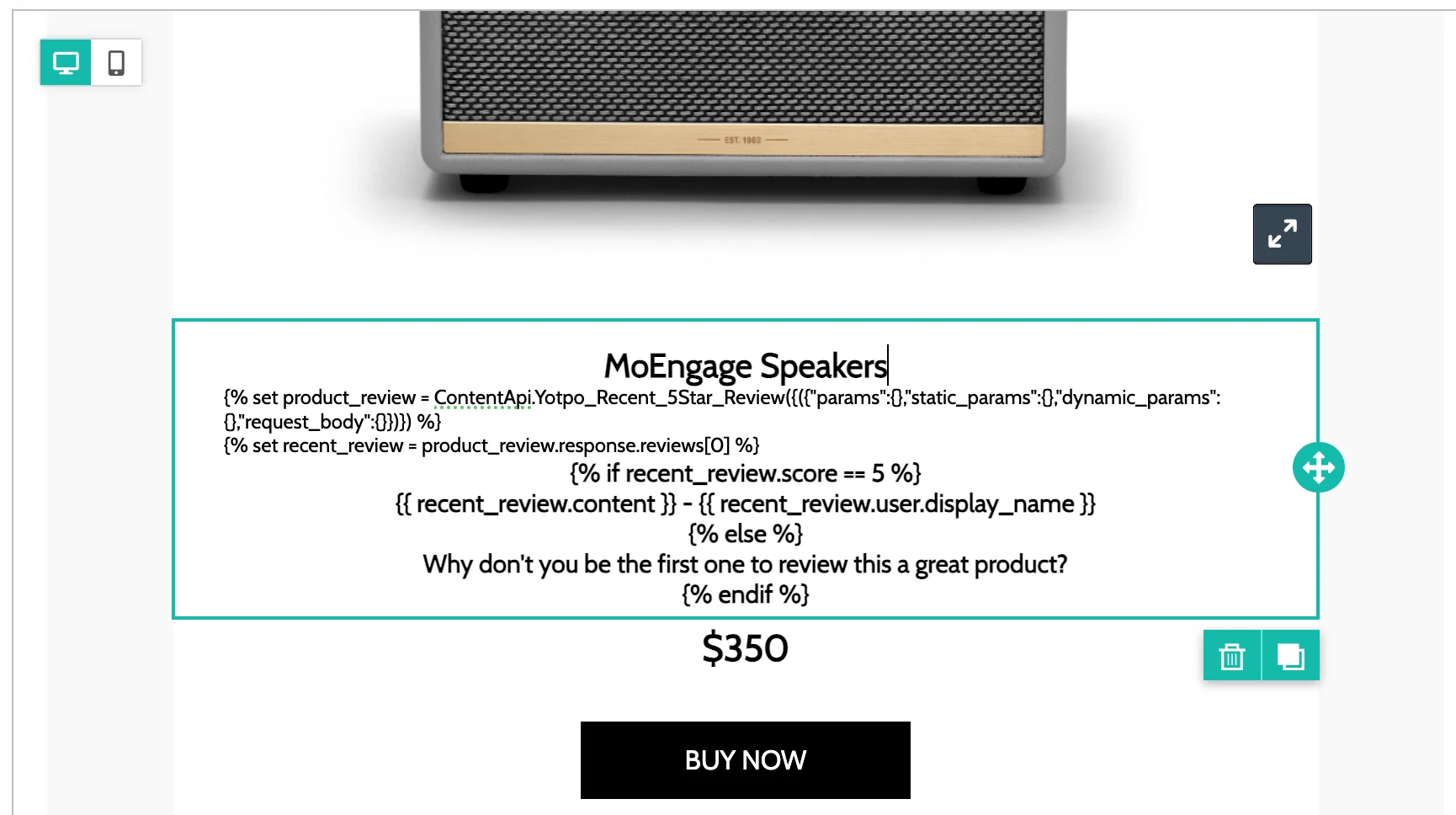 4. You can click on the Preview tab to view your campaign in real-time personalization: