

Introduction
eduMe is a mobile-based training tool that gives your workforce the knowledge they need to succeed, when they need it, wherever they are.MoEngage × eduMe
The MoEngage and eduMe integration allow you to give your users access to eduMe courses and lessons in your MoEngage campaigns. Individual and group progress can then be tracked through eduMe reporting functionality.Use Case
You can want send an onboarding email campaign to the users with the details on their specific onboarding course. For example-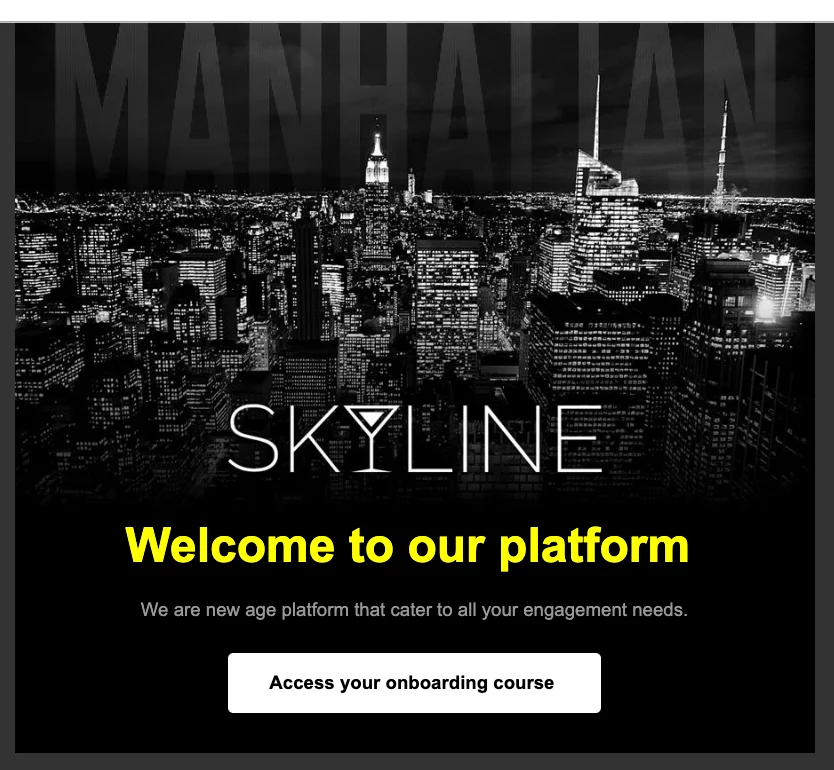
Integration
With the integration, you can give a user access to a course, lesson, or eNPS survey, and to track their progress against your internal user ID in eduMe. The following EduMe functionalities are supported:- Course
- Lesson
- NPS survey
- Ensure you have a eduMe account.
- Ensure that you have your eduMe API key. You must request an API key from your eduMe customer success contact.
- Ensure that you have your eduMe link signing secret. You must request your customer success contact at eduMe to set up a link signing secret for your organization. This secret is used to enable seamless links in Content APIs. You will not have to do anything with this secret.
- Ensure that you have your eduMe group and content IDs. These identifiers are needed to set up your Content APIs. Reach out to your eduMe customer service contact for help obtaining these identifiers.
Step 1: Define EduMe content API on MoEngage
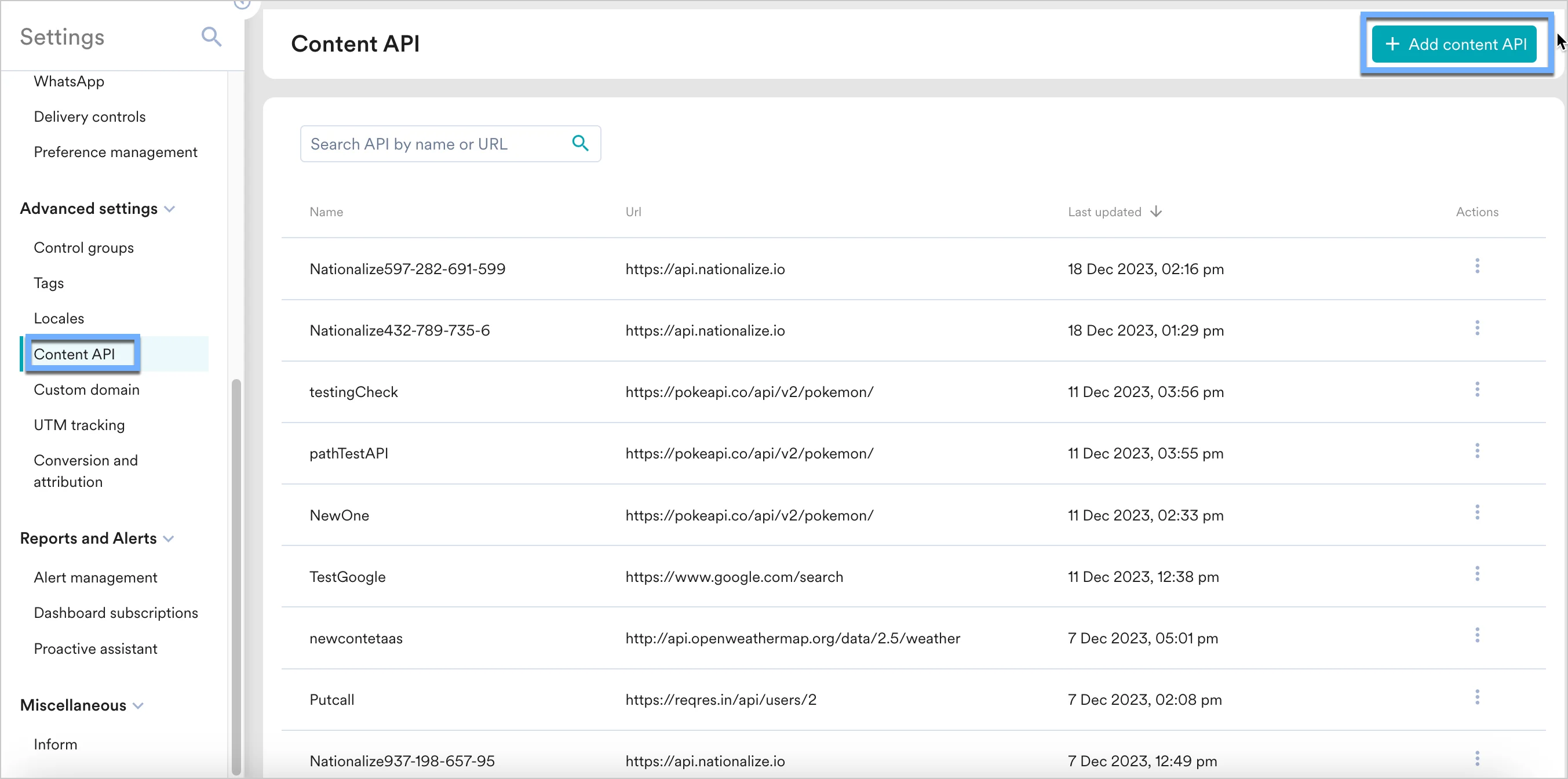
Use MoEngage content APIs to add EduMe as one of your endpoints.- On your MoEngage dashboard, Navigate to Settings > Advanced settings > Content API. Click + Add content API at the top right corner of the Content API screen.
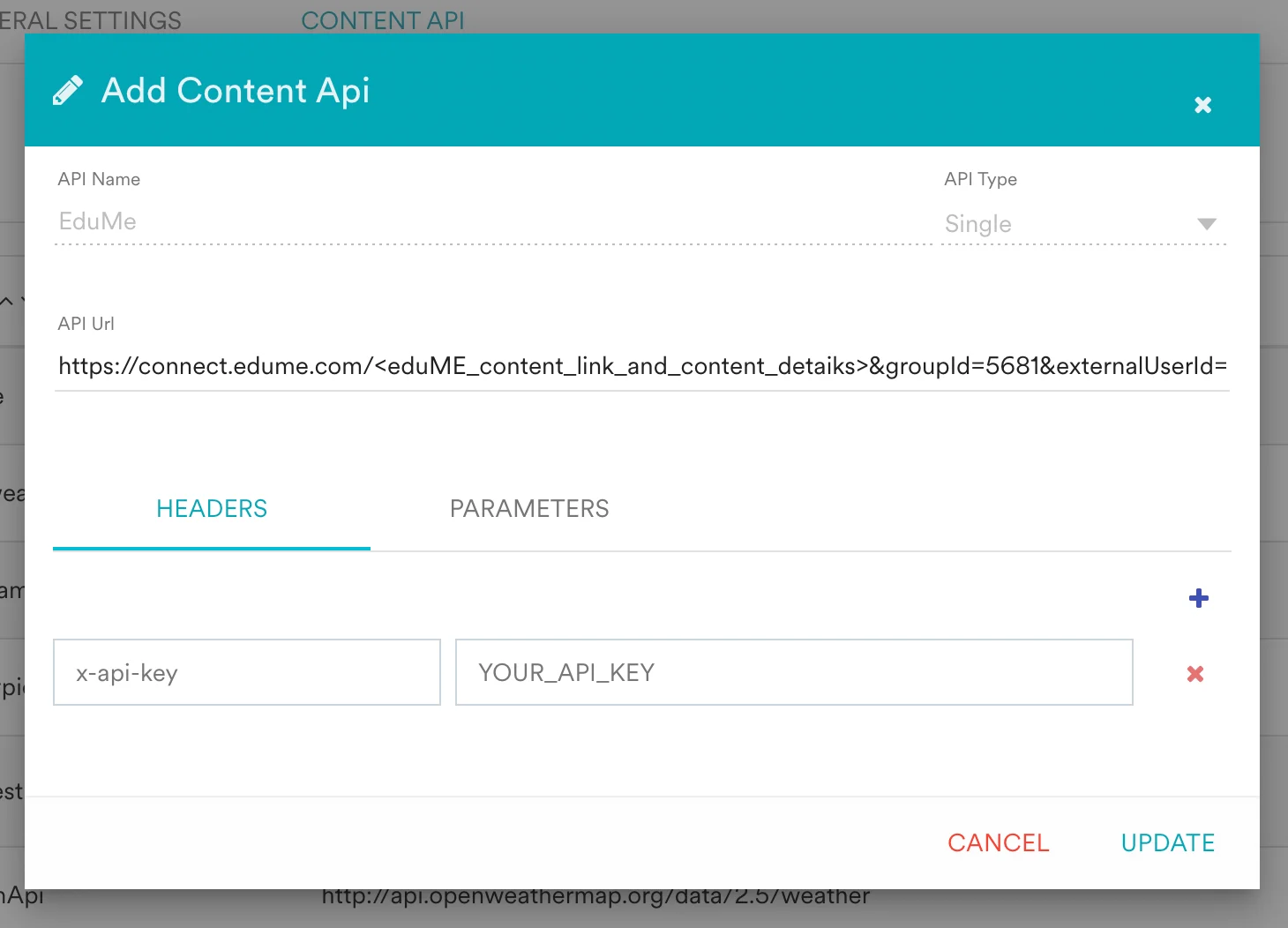
- Add
- API URL
https://connect.edume.com/<eduME_content_link_and_content_details>
- Headers
x-api-key : <Your API Key> - Parameters
groupId : <the group id>
externalUserId :{{UserAttribute['driverId']}}- The identifiers for courses/lessons/surveys/groups can be found in your eduMe account.
- Include an appropriate field to map the
externalUserIdfield to. The example in the screenshot above uses the driver_id, though your field will likely be different. This ID will be available in eduMe reports, allowing you to correlate them with your systems
Customize and test your message as needed. We recommend you send at least one test message, access the eduMe content, complete the lesson or course, and verify the eduMe analytics are being recorded.
Step 2: Using EduMe’s content in MoEngage campaigns
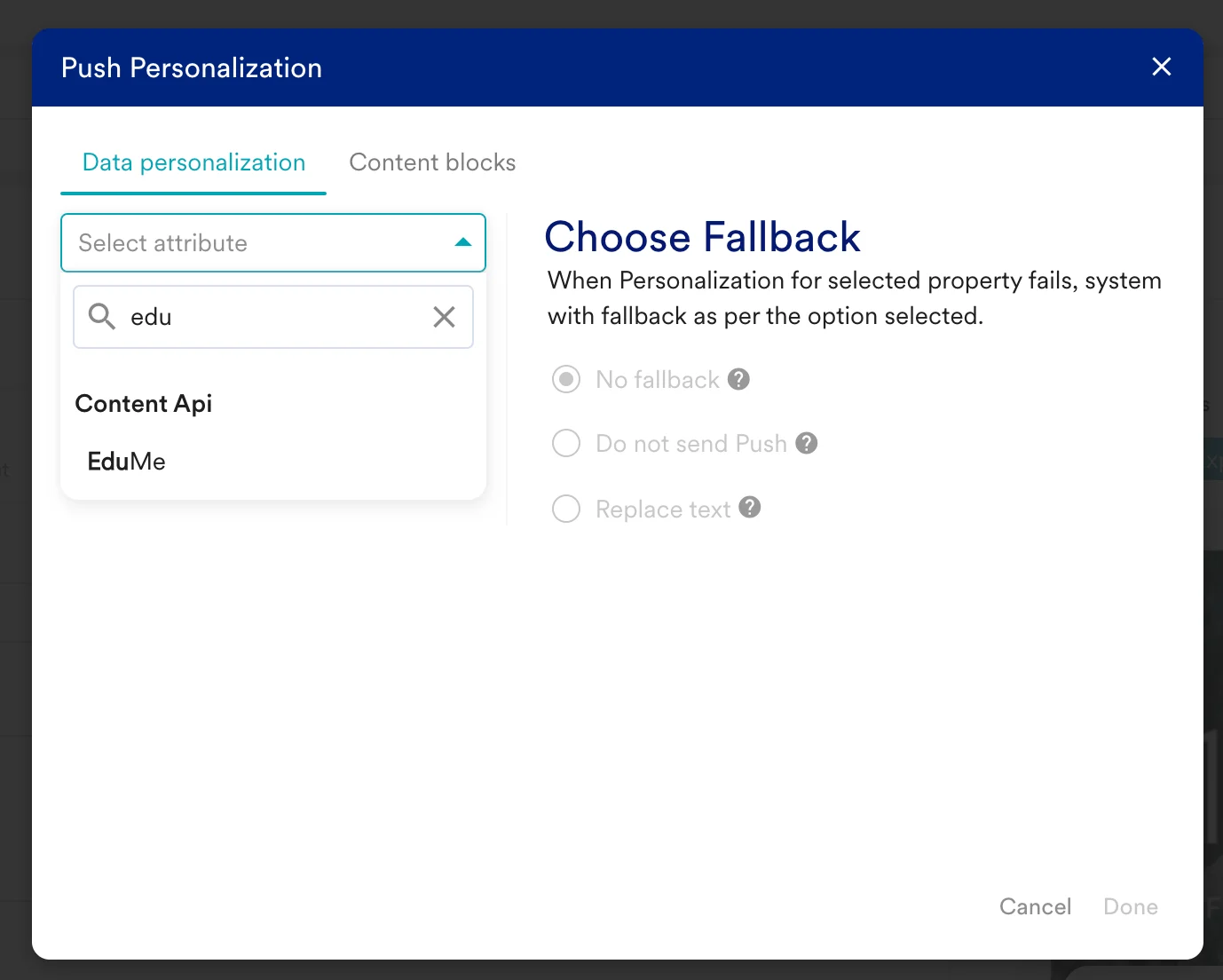
You can now use these content APIs in your campaigns. Read here to know more- On step 2 on your campaign creation, enter @.
- In the pop up, you can select the Content API configured in Step 2.
- You can use MoEngage templating language to parse through the API response and use the content in your campaigns. Read about the EduMe’s API responses here.