> ## Documentation Index
> Fetch the complete documentation index at: https://moengage.com/docs/llms.txt
> Use this file to discover all available pages before exploring further.
# Smile
# Introduction
[Smile.io](https://smile.io/) is a Loyalty Management Software *for* businesses that have an online presence. It allows business brands to initiate different referral programs from a single platform and offer various customizable and attractive rewards programs.
# MoEngage × Smile
With the MoEngage and Smile integration, you can capture your customer's activities on MoEngage and forward them to your Smile dashboard so that your users can be rewarded for these activities.
# Integration
* Ensure you have permission to Smile APIs.
* Ensure you have access to MoEngage Dashboard.
## Step 1: Gather your Smile API Key
In order to forward events from MoEngage to Smile, you will need your Smile API Key:
1. On your Smile dashboard, navigate to *Settings* >> *Platforms*.\\

2. At the top, select **Show more** which will reveal your public and private keys.\
 \\

3. Authentication to the API is performed via HTTP Bearer Auth. Use your secret key as the bearer value.
## Step 2: Create a connector campaign on MoEngage
To create a connector campaign on MoEngage,
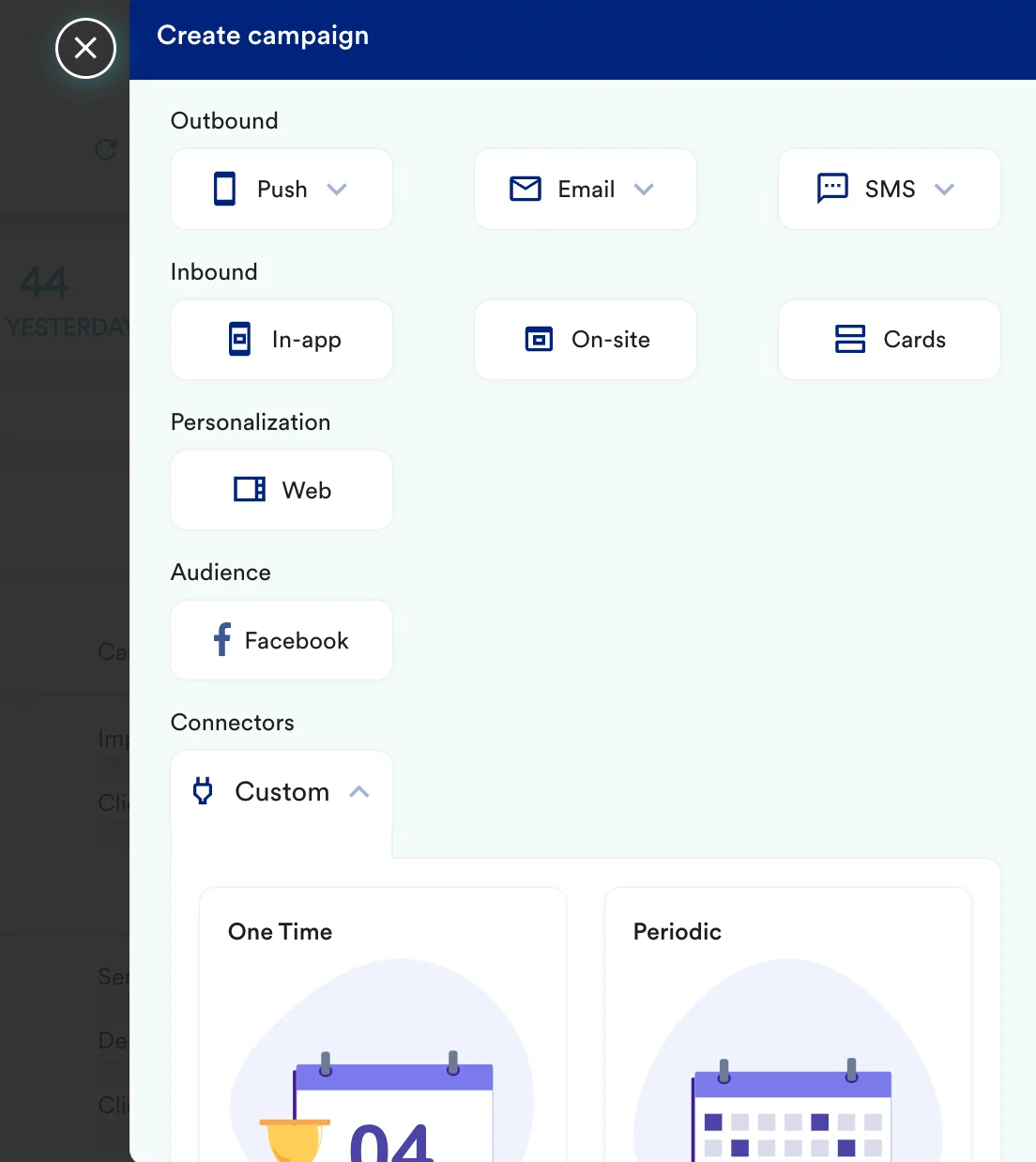
1. Navigate to Create Campaign >> Connectors >> Custom and choose the delivery type most suitable to your needs. In this case, select "Event triggered".
\\

3. Authentication to the API is performed via HTTP Bearer Auth. Use your secret key as the bearer value.
## Step 2: Create a connector campaign on MoEngage
To create a connector campaign on MoEngage,
1. Navigate to Create Campaign >> Connectors >> Custom and choose the delivery type most suitable to your needs. In this case, select "Event triggered".
 Select the Trigger Critera, and your target audience.
2. On step 2 of the campaign:
### Call the Smile API
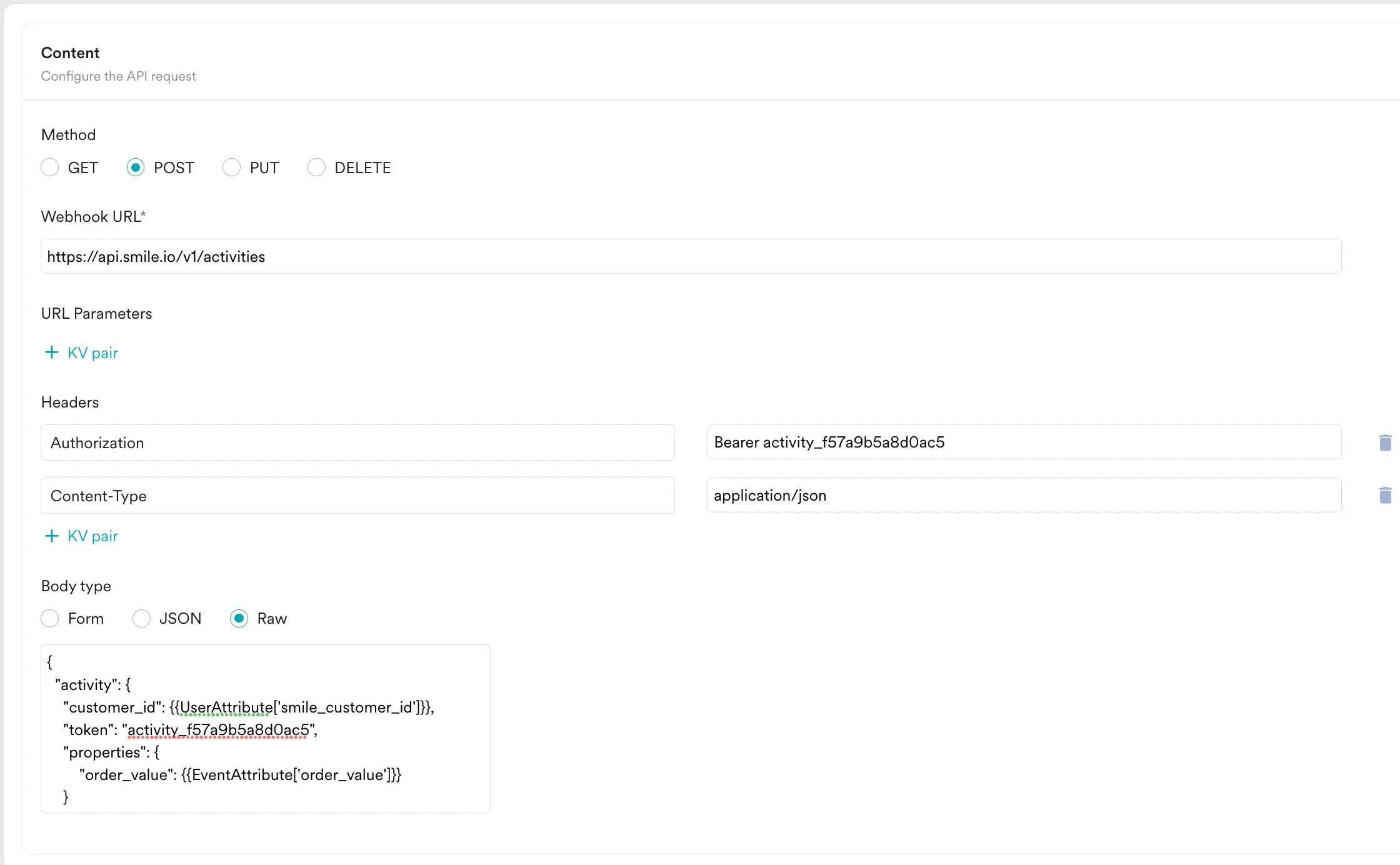
To forward MoEngage events as an Activity to Smile, use the `POST` method and configure the payload.
* Select the method as POST
* Headers:
* `Authorization`: `Bearer `
* `Content-Type`: `application/json`
* Add the endpoint as Webhook URL: `https://api.smile.io/v1/activities`
* Body:
```json JSON theme={null}
{
"activity": {
"customer_id": {{UserAttribute['smile_customer_id']}},
"token": "activity_f57a9b5a8d0ac5",
"properties": {
"order_value": {{EventAttribute['order_value']}}
}
}
}
```
Select the Trigger Critera, and your target audience.
2. On step 2 of the campaign:
### Call the Smile API
To forward MoEngage events as an Activity to Smile, use the `POST` method and configure the payload.
* Select the method as POST
* Headers:
* `Authorization`: `Bearer `
* `Content-Type`: `application/json`
* Add the endpoint as Webhook URL: `https://api.smile.io/v1/activities`
* Body:
```json JSON theme={null}
{
"activity": {
"customer_id": {{UserAttribute['smile_customer_id']}},
"token": "activity_f57a9b5a8d0ac5",
"properties": {
"order_value": {{EventAttribute['order_value']}}
}
}
}
```
 * Refer to the [Smile API documentation](https://api-reference.smile.io/#create-an-activity) for more information.
## Preview your request
At this point, your campaign should be ready to test and send. You can also test your connector configuration using the Test functionality available in Step 2 of Create Connector Campaign.
* Refer to the [Smile API documentation](https://api-reference.smile.io/#create-an-activity) for more information.
## Preview your request
At this point, your campaign should be ready to test and send. You can also test your connector configuration using the Test functionality available in Step 2 of Create Connector Campaign. You can go ahead and Publish the campaign.