> ## Documentation Index
> Fetch the complete documentation index at: https://moengage.com/docs/llms.txt
> Use this file to discover all available pages before exploring further.
# Xeno Loyalty
> Connect Xeno Loyalty to MoEngage to synchronize loyalty and order events in real time for targeted retention, reward, and engagement campaigns.
[Xeno](https://ai.xeno.in/search) is an autonomous, AI-powered retail CRM and loyalty management platform designed to help retail and D2C brands build personalized customer experiences. It provides tools for managing tiered loyalty programs, tracking points, and understanding customer transaction behavior.
# MoEngage X Xeno
This integration enables a real-time outbound data flow from Xeno Loyalty to MoEngage, allowing you to synchronize crucial loyalty and order events in real time. By connecting Xeno to MoEngage, you can use loyalty data triggers to orchestrate targeted retention, reward, and engagement campaigns.
The Xeno Loyalty integration is built and maintained by Xeno. For customization requests or issues specific to the Xeno connector's behavior, reach out directly to Xeno support.
## Use Cases
Integrating Xeno Loyalty with MoEngage helps you address the following use cases:
* **Loyalty tier upgrade celebrations:** Automatically trigger a congratulatory omnichannel campaign in MoEngage when a Tier Upgrade event occurs.
* **Points redemption reminders:** Use Earn Points and Redeem Points events to identify customers with high balances and remind them to redeem rewards before expiration.
* **Post-purchase engagement loop:** Transition customers into a post-purchase journey in MoEngage after a New Order event is received.
* **Win-back campaigns on returns:** Trigger specialized retention campaigns when a Return Order event flows from Xeno.
## Key Features
The Xeno Loyalty integration delivers the following core capabilities within MoEngage:
* **Order tracking:** Capture New Order and Return Order events to enroll customers in post-purchase journeys or launch win-back campaigns.
* **Points management:** Respond to Earn Points and Redeem Points events with real-time balance updates and motivational nudges.
* **Tier progression:** Celebrate Tier Upgrade events with automated campaigns or respond to Tier Downgrade events with re-engagement flows.
* **Precision segmentation:** Build dynamic cohorts such as "recent point earners" or "VIPs" using live Xeno event data.
* **Performance attribution:** Correlate MoEngage conversion analytics with Xeno events to measure direct revenue impact.
## Supported Synchronization Types and Events
The tables below outline the data models and real-time behavioral events synchronized from Xeno Loyalty:
| Synchronization Type | What Gets Synced |
| -------------------- | ---------------------------------------------------------------------------------------------------------------------------------------------------------------------------------- |
| **Event** | Behavioral loyalty and order events are recorded on a MoEngage user profile. Each event carries contextual attributes such as points earned, redeemed, order value, and tier name. |
Supported event mappings sent to MoEngage in real time:
| Event Name | Description | Recommended Use in MoEngage |
| ------------------ | ---------------------------------------------------------- | --------------------------------------------------------- |
| **New Order** | Triggered when a purchase order is completed in Xeno. | Trigger post-purchase journeys and points confirmations. |
| **Return Order** | Triggered when a customer initiates or completes a return. | Launch win-back campaigns and retention offers. |
| **Earn Points** | Triggered when a customer accrues loyalty points. | Send real-time balance updates and progress nudges. |
| **Redeem Points** | Triggered when a customer redeems loyalty points. | Confirm redemption and suggest next-purchase items. |
| **Tier Upgrade** | Triggered when a customer moves up a loyalty tier. | Celebrate with exclusive perks and omnichannel campaigns. |
| **Tier Downgrade** | Triggered when a customer drops to a lower tier. | Trigger re-engagement flows to recover tier status. |
# Integration
**Prerequisites**
An active Xeno Loyalty account with integration access enabled.
## Step 1: Obtain MoEngage Authentication Credentials and Endpoint
To retrieve the necessary credentials from your MoEngage workspace, perform the following steps:
1. Sign in to the **MoEngage** UI.
2. In the left navigation pane, go to **Settings** > **Account** > **APIs**.
3. Locate and copy the following credentials:
* **Workspace ID:** The unique identifier found under the **Workspace ID** section.
* **Data API Key:** The security token found in the **API Keys** block.
The following JSON snippet illustrates the standard payload structure sent by Xeno. While the mobile phone number serves as the default primary identifier, coordinate with the Xeno team for custom mapping requirements before requesting a modified endpoint from MoEngage Support.
```json JSON wrap theme={null}
{
"eventKey": "new_order",
"merchantId": 3032,
"eventData": {
"bill_no": "WLP-565239",
"order_amount": 0,
"number_of_visits": 3,
"order_net_amount": 0,
"order_gross_amount": 18745,
"items": [
{
"id": 65089216,
"external_product_id": "1",
"name": "Dummy Product Name",
"quantity": 1,
"price": null
}
],
"orderId": 863816446,
"locationId": 67089,
"billDate": 1773062308000,
"channel": "outlet",
"external_location_id": "wp17kmg",
"external_location_name": "William Penn - Koramangala",
"customerDetails": {
"name": "Rohit",
"phone": "091_9511280795",
"email": null,
"countryCode": "+91"
}
},
"customerId": 313626869,
"eventId": "WLP-565239_67089_Mon Mar 09 13:18:28 UTC 2026_checkin",
"eventType": "live"
}
```
## Step 2: Get Your Dedicated MoEngage Endpoint
To configure real-time data streaming, request your custom endpoint:
1. Contact the **MoEngage Support** team and request a dedicated webhook endpoint URL for the Xeno Loyalty integration.
2. Share your copied **Workspace ID** and active **data center** region (for example, DC-01, DC-02).
The endpoint URL is specific to your data center.
## Step 3: Configure the MoEngage Connection in Xeno
After you have your endpoint URL and credentials, configure the connection inside Xeno:
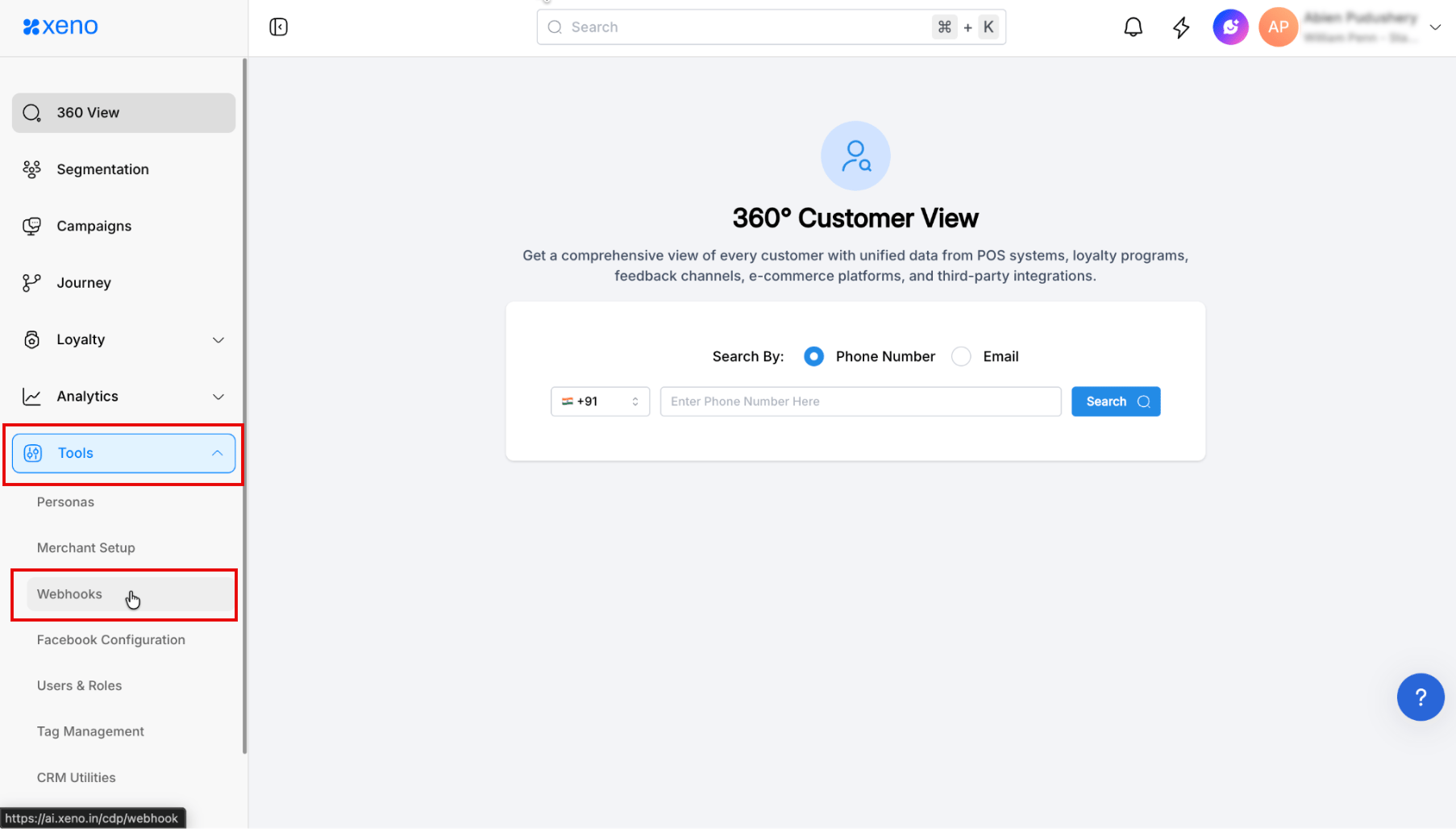
1. In your Xeno account, navigate to the **Tools** > **Webhooks** section on the left navigation pane.
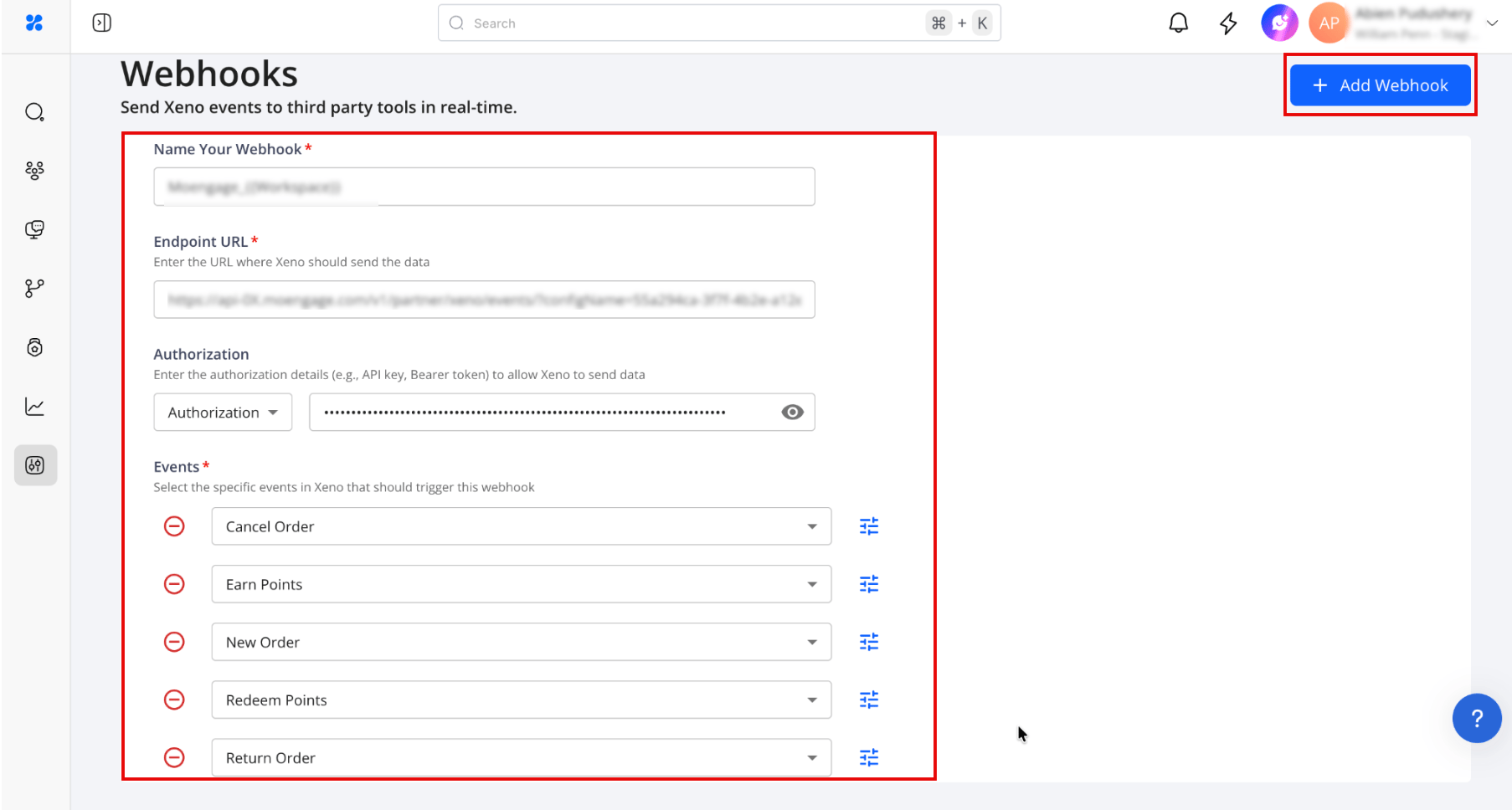
 2. Click **+ Add Webhook** to open the configuration panel.
3. Enter the following details in the webhook fields:
| Field | Value |
| --------------------- | ---------------------------------------------------------------------------------------------------------------------------------------------------------------------------------------------------------------------------- |
| **Name Your Webhook** | Enter a unique identifier name (for example, `Moengage_{{Workspace}}`). |
| **Endpoint URL** | Enter the dedicated URL provided by MoEngage Support. |
| **Authorization** | Select **Authorization** from the drop-down list. Generate your Basic Authentication token using an online Basic Auth Header Generator tool with your **Workspace ID** as the username and **Data API Key** as the password. |
4. Under the **Events** checklist, select the specific events that should be synchronized to your MoEngage workspace.
2. Click **+ Add Webhook** to open the configuration panel.
3. Enter the following details in the webhook fields:
| Field | Value |
| --------------------- | ---------------------------------------------------------------------------------------------------------------------------------------------------------------------------------------------------------------------------- |
| **Name Your Webhook** | Enter a unique identifier name (for example, `Moengage_{{Workspace}}`). |
| **Endpoint URL** | Enter the dedicated URL provided by MoEngage Support. |
| **Authorization** | Select **Authorization** from the drop-down list. Generate your Basic Authentication token using an online Basic Auth Header Generator tool with your **Workspace ID** as the username and **Data API Key** as the password. |
4. Under the **Events** checklist, select the specific events that should be synchronized to your MoEngage workspace.
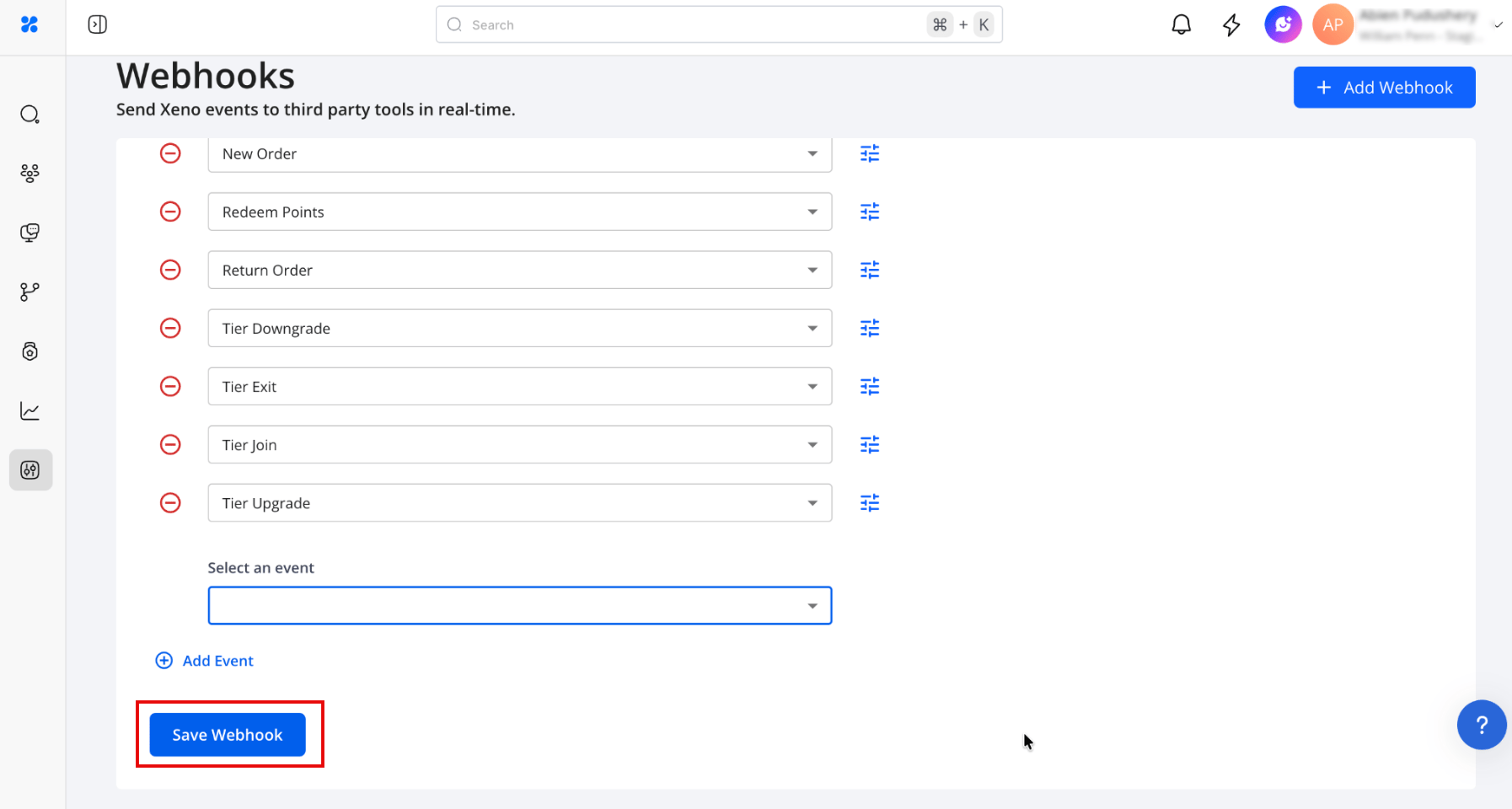
 5. Click **Save Webhook** to activate the integration.
 ## Step 4: Verify Events in MoEngage
To confirm that events are successfully arriving in your workspace:
1. In the MoEngage UI, go to **Segment** > **Search Users**.
2. Search for a test user by **phone number**.
3. Verify that user profile records appear with the expected attributes, such as loyalty points and tier name.
## Step 4: Verify Events in MoEngage
To confirm that events are successfully arriving in your workspace:
1. In the MoEngage UI, go to **Segment** > **Search Users**.
2. Search for a test user by **phone number**.
3. Verify that user profile records appear with the expected attributes, such as loyalty points and tier name.