> ## Documentation Index
> Fetch the complete documentation index at: https://moengage.com/docs/llms.txt
> Use this file to discover all available pages before exploring further.
# Create MoEngage Push campaign activity in SFMC
> Add and configure the MoEngage Push campaign custom activity in Salesforce Marketing Cloud to send API-triggered push campaigns to MoEngage users.
## Introduction
This guide provides detailed instructions for creating a MoEngage Push Campaign custom activity in SFMC.
**Prerequisites**
* Salesforce Marketing Cloud Access: Ensure you have access to SFMC.
## Steps
### Configure MoEngage Push
1. In your SFMC journey, drag and drop the "MoEngage Push" activity.
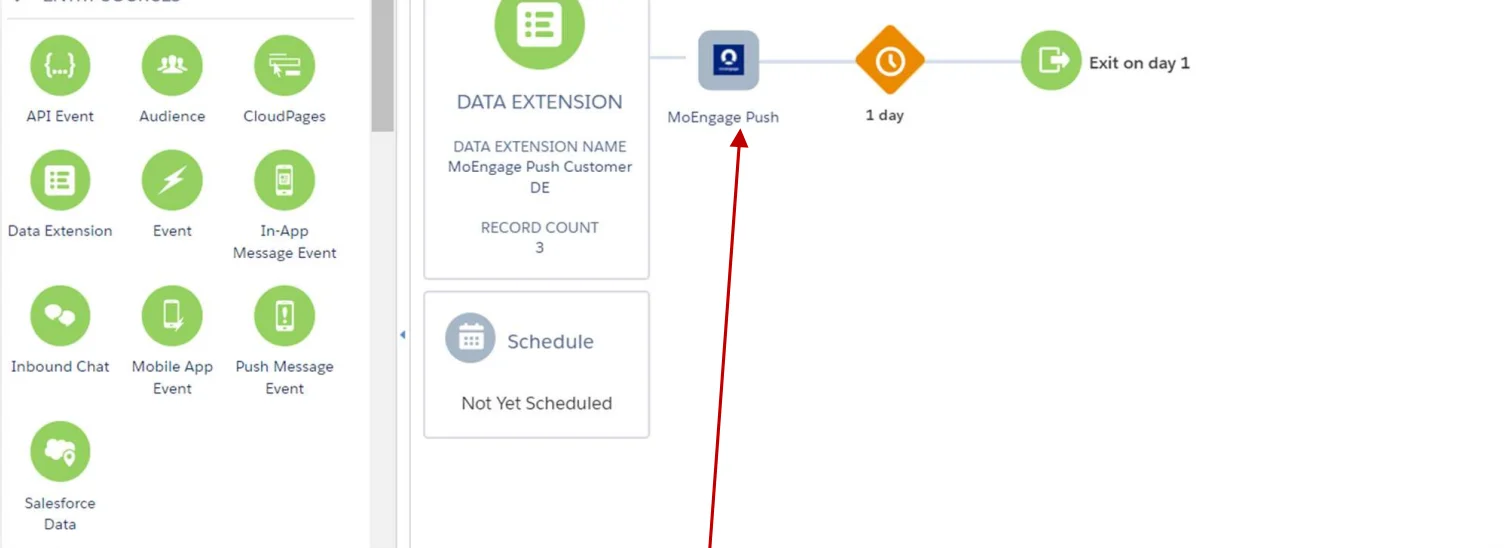 2. Click on "MoEngage Push".
3. Fill in the relevant details for your campaign in the three step process. You can refer to the [MoEngage Push API document](/docs/api/transactional/send-push-notification) for details on each of these fields.
**Important note**
| Context | Value |
| ---------------------------- | -------------------------------------------------------------------------------------------------------------------------------------------------------------------------------------------------------------------------------------------------------------------------------------------------------------------------------------------------------------------------------------------------------------------------------------------------------------------------------------------------------------------------------------------------------------------------------------------------------------------------------------------------------------------------------------------------------------------------------------------------------------------------------------------------------------------------------------------------------------------------------------------------------------------------------------------------------------------------------------------------------------------------------------------------------------------------------------------------------------------------------------------------------------------------------------------------------------------------------------------------------------------------------------------------------------------------------------------------------------------------------------------------------------------------------------------------------------------------------------------------------------------------------------------------------------------------------------------------------------------------------------------------------------------------------------------------------------------------------------------------------------------------------------------------------------------------------------------------- |
| Workspace Name | Enter your workspace name. It is present in the header on your MoEngage dashboard.
2. Click on "MoEngage Push".
3. Fill in the relevant details for your campaign in the three step process. You can refer to the [MoEngage Push API document](/docs/api/transactional/send-push-notification) for details on each of these fields.
**Important note**
| Context | Value |
| ---------------------------- | -------------------------------------------------------------------------------------------------------------------------------------------------------------------------------------------------------------------------------------------------------------------------------------------------------------------------------------------------------------------------------------------------------------------------------------------------------------------------------------------------------------------------------------------------------------------------------------------------------------------------------------------------------------------------------------------------------------------------------------------------------------------------------------------------------------------------------------------------------------------------------------------------------------------------------------------------------------------------------------------------------------------------------------------------------------------------------------------------------------------------------------------------------------------------------------------------------------------------------------------------------------------------------------------------------------------------------------------------------------------------------------------------------------------------------------------------------------------------------------------------------------------------------------------------------------------------------------------------------------------------------------------------------------------------------------------------------------------------------------------------------------------------------------------------------------------------------------------------- |
| Workspace Name | Enter your workspace name. It is present in the header on your MoEngage dashboard.

Note that the Workspace name must be the same as the one entered on the "MoEngage User Authentication Page" CloudPage. To verify the Workspace name, go to the Data Extension titled "MoEngage Credentials DE" and open "MoEngage Credentials". |
| Personalise campaign content | To personalize the message in the Message Field, you can use the Data Extension (DE) field name in mustache syntax, formatted as \{\{Field Name}}.
Ensure that the field name exactly matches the target DE. If the field name is correct, it will populate with the corresponding value from the target DE; otherwise, it will display the placeholder \{\{Field Name}} as is. |
Once the custom activity is set up, you can continue with your Journey.
### View campaign on MoEngage
You can navigate to the All Campaigns page and view all the created campaigns. These will be created as API triggered Push Campaigns on MoEngage.