> ## Documentation Index
> Fetch the complete documentation index at: https://moengage.com/docs/llms.txt
> Use this file to discover all available pages before exploring further.
# Stripo
> Learn how to integrate Stripo with MoEngage to seamlessly export your customized drag-and-drop email templates directly into MoEngage for your email campaigns.
# Introduction
[Stripo](https://stripo.email/) is a drag-and-drop email template builder that helps you create and design responsive emails with interactive elements. Stripo users can also edit in HTML and decide which elements to display or hide on various devices through the Stripo editor.
# MoEngage × Stripo
The MoEngage and Stripo integration allows you to export your customized *Stripo emails* and send them as email templates to MoEngage.
# Integration
**Prerequisites**
Ensure you have a Stripo account.
## Step 1: Create a Stripo email
On your Stripo dashboard, create any email template. And then click *Export* on the top.
 ## Step 2: Export templates to MoEngage
1. In the pop up, navigate to the section *Export to ESV*
2. Search for *MoEngage*
## Step 2: Export templates to MoEngage
1. In the pop up, navigate to the section *Export to ESV*
2. Search for *MoEngage*
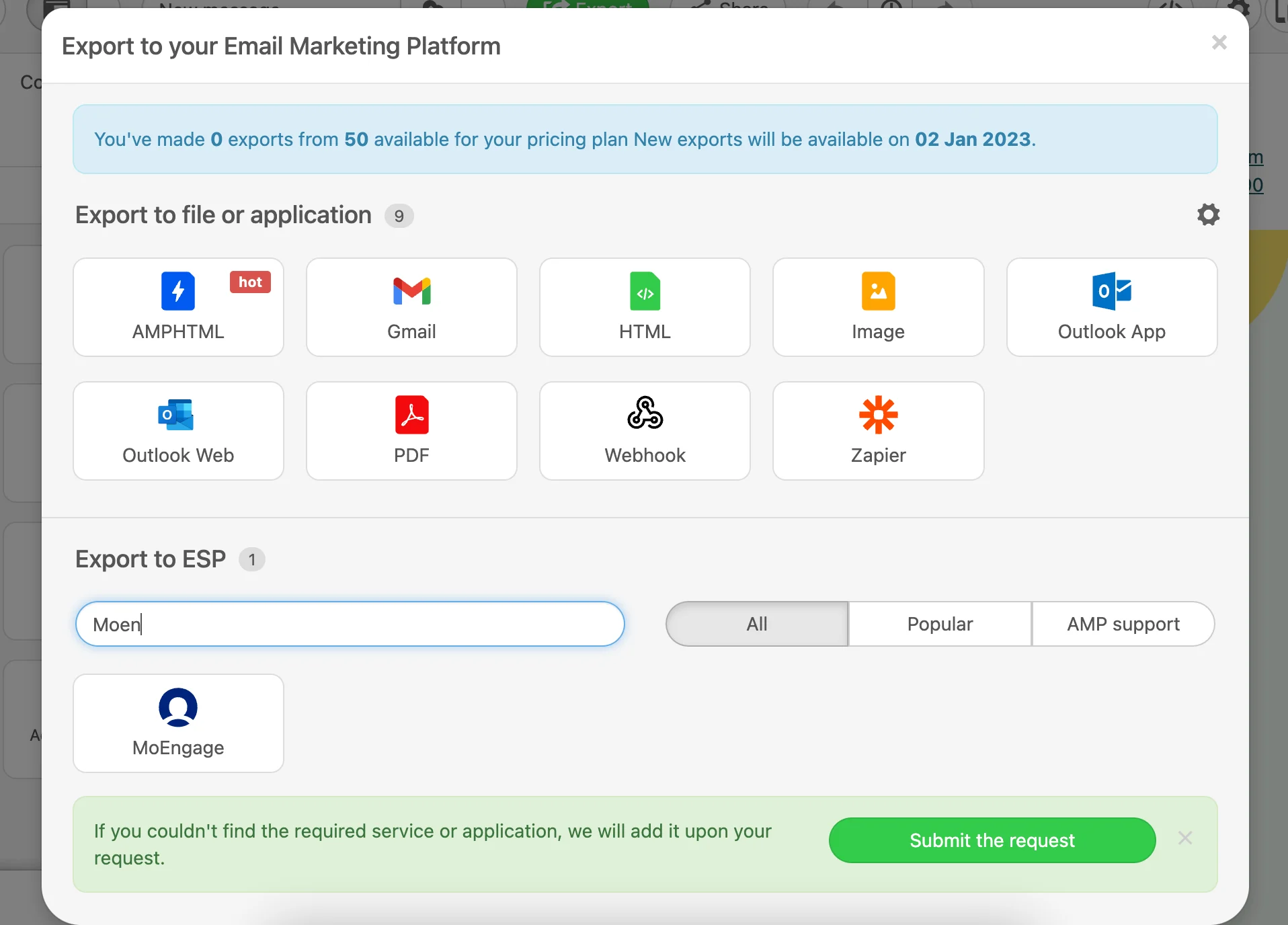 3. Click on the *MoEngage* card. A pop up will appear.
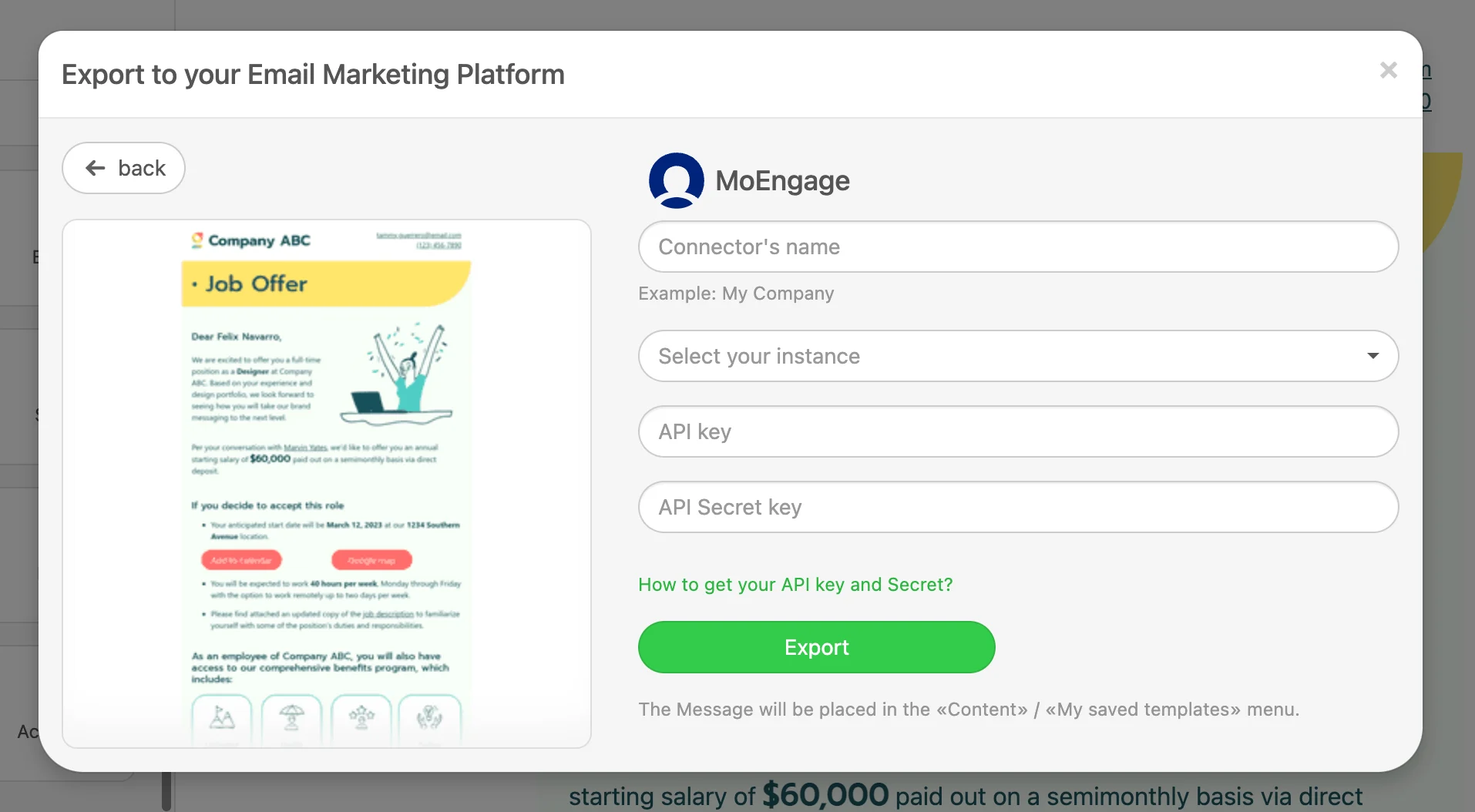 4. Add the details of your MoEngage account and click *Export.*
| **Field** | **Description** |
| -------------------- | ------------------------------------------------------------------------------------------------------------------------------------------------------------------------------------------------------------------- |
| Connector name | Name of the connector- You can enter the name of your MoEngage app for easy identification |
| Select your instance | Region of your MoEngage data cluster. Read more |
| API key | API key is the Workspace ID. The Workspace ID of your MoEngage account is available at **Settings -> Account -> APIs -> Workspace ID**. The Data API ID and the Workspace ID of your MoEngage account are the same. |
| API Secret key | API Secret key is the Data API Key. The Data API key of your MoEngage account is available at **Settings -> Account -> APIs -> API keys -> Data** API settings. |
Note: This is a one-time setup. Any exports in the future will automatically utilize the same credentials.
4. Add the details of your MoEngage account and click *Export.*
| **Field** | **Description** |
| -------------------- | ------------------------------------------------------------------------------------------------------------------------------------------------------------------------------------------------------------------- |
| Connector name | Name of the connector- You can enter the name of your MoEngage app for easy identification |
| Select your instance | Region of your MoEngage data cluster. Read more |
| API key | API key is the Workspace ID. The Workspace ID of your MoEngage account is available at **Settings -> Account -> APIs -> Workspace ID**. The Data API ID and the Workspace ID of your MoEngage account are the same. |
| API Secret key | API Secret key is the Data API Key. The Data API key of your MoEngage account is available at **Settings -> Account -> APIs -> API keys -> Data** API settings. |
Note: This is a one-time setup. Any exports in the future will automatically utilize the same credentials.  ## Step 3 - Using translation in MoEngage campaigns
### Email templates-
Once the templates are created, you will be able to access them in Step 2 of your Email Campaigns. You will see the newly created templates under the *My saved templates* section.

[Click here to know more](https://www.moengage.com/docs/user-guide/campaigns-and-channels/email/create/create-an-email-campaign) about using templates in Email Campaigns.
## Step 3 - Using translation in MoEngage campaigns
### Email templates-
Once the templates are created, you will be able to access them in Step 2 of your Email Campaigns. You will see the newly created templates under the *My saved templates* section.

[Click here to know more](https://www.moengage.com/docs/user-guide/campaigns-and-channels/email/create/create-an-email-campaign) about using templates in Email Campaigns.