> ## Documentation Index
> Fetch the complete documentation index at: https://moengage.com/docs/llms.txt
> Use this file to discover all available pages before exploring further.
# Mailercloud
[Mailercloud](https://www.mailercloud.com/?source=googleppckwmailercloud\&utm_source=google\&utm_source=adwords\&utm_medium=cpc\&utm_medium=ppc\&utm_campaign=email_marketing\&utm_campaign=Mailercloud%20Own%20Keyword\&utm_term=mailercloud\&utm_term=mailercloud\&hsa_acc=1543605947\&hsa_cam=16145076611\&hsa_grp=136928817270\&hsa_ad=606776381655\&hsa_src=g\&hsa_tgt=kwd-1415994907170\&hsa_kw=mailercloud\&hsa_mt=e\&hsa_net=adwords\&hsa_ver=3\&gad_source=1\&gad_campaignid=16145076611\&gbraid=0AAAAABvQWo0ocO0ePvhEWqlV_FQppBDhK\&gclid=CjwKCAiAz_DIBhBJEiwAVH2XwFMziuXbMWa4fmtAVbWLjtAQ6VjwQfEiKNYszknrkjXPX9uyQOZ5WBoCHREQAvD_BwE) is an email marketing platform that provides a robust Simple Mail Transfer Protocol (SMTP) infrastructure, designed to ensure high deliverability and optimal inbox placement.
## MoEngage × Mailercloud
The integration of MoEngage and Mailercloud empowers businesses to leverage Mailercloud's reliable email delivery engine while managing, analyzing, and optimizing campaigns directly within MoEngage. By connecting through SMTP, you ensure your campaigns reach customers effectively while maintaining end-to-end visibility of engagement metrics in MoEngage analytics. With this integration, you can:
* Deliver emails using Mailercloud’s optimized SMTP infrastructure.
* Receive real-time callbacks for delivery, bounces, spam complaints, and unsubscribes directly in MoEngage.
* Securely send emails using Transport Layer Security (TLS) encryption and authenticated SMTP.
## Use Cases
Integrating Mailercloud with MoEngage helps you with the following use cases:
* **Enhanced deliverability**: Improve inbox placement rates by utilizing Mailercloud's advanced delivery infrastructure for your MoEngage campaigns.
* **Centralized reporting**: View campaign performance, including opens and clicks, directly within the MoEngage dashboard without losing event data.
* **Simplified workflow**: Manage customer engagement strategies in MoEngage while offloading the technical complexities of email delivery to Mailercloud.
# Integration
**Prerequisites** \
Before you begin the configuration, ensure you have the following:
* A verified sender domain in Mailercloud \[with Sender Policy Framework (SPF)/ DomainKeys Identified Mail (DKIM) records configured].
* Your Mailercloud SMTP credentials (Host, Username, and Password).
* Access to your MoEngage workspace with permissions to configure Email and Webhooks/Callbacks.
## Step 1: Configure MoEngage to Use Custom SMTP
To configure MoEngage to use custom SMTP, perform the following steps:
1. On the left navigation menu in the MoEngage UI, click **Settings** > **Channel** > **Email**.
2. On the Email page, select the **Sender configuration** tab.
3. Click **Add Connector** and select **Custom/Generic SMTP**.
4. Enter the following details in the configuration form:
| Field | Value |
| -------------- | ------------------------------------------------------- |
| SMTP Host | Enter your Mailercloud host address. |
| Port | 587 |
| Security | TLS |
| Authentication | ON |
| Username | Enter your Mailercloud username. |
| Password | Enter your Mailercloud password. |
| From Email | Enter a verified sender email address from Mailercloud. |
5. Click **Save**.
6. (Optional) If a test option is available, send a test email to verify that the credentials are correct.
## Step 2: Retrieve the MoEngage Callback URL
To ensure that MoEngage tracks delivery statuses (such as bounces or unsubscribes), you must configure a webhook. To configure the webhook, perform the following steps:
1. On the left navigation menu in the MoEngage UI, click **Settings** > **Channel** > **Email**.
2. On the Email page, select the **Sender configuration** tab.
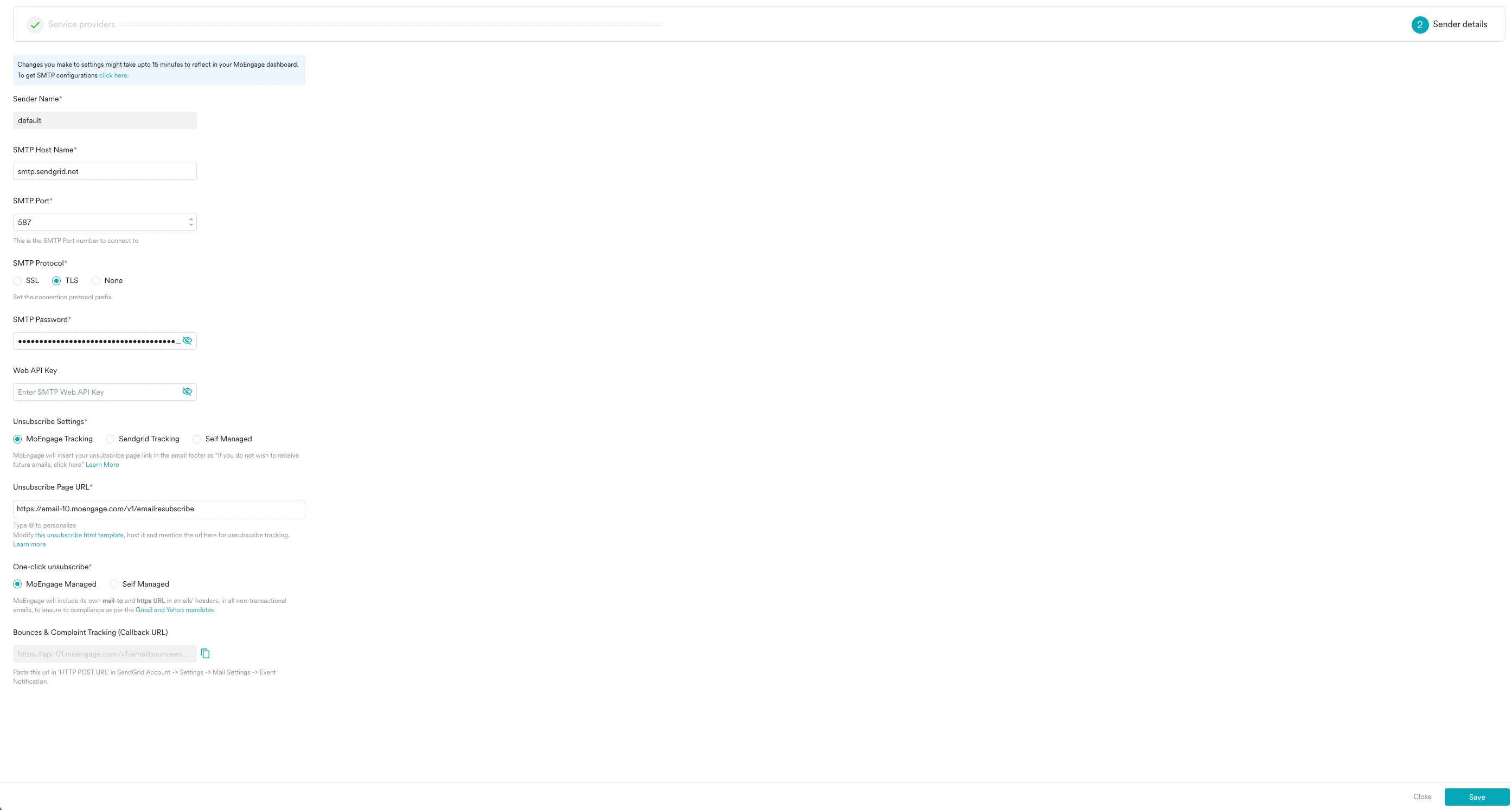
3. Click **Add Sender** in the top-right corner.
4. Click **Continue** in the warning pop-up, then select **Custom Connector** from the list of sender options.
5. Fill in the required **SMTP Settings** (Sender Name, Host Name, Port, Protocol, and Authentication).
6. Scroll to the **Unsubscribe Settings** section and copy the Callback URL provided. Keep this URL accessible for the next step.
 ## Step 3: Configure Webhooks in Mailercloud
To send event data back to MoEngage, add the Callback URL to your Mailercloud account. To configure webhooks in Mailercloud, perform the following steps:
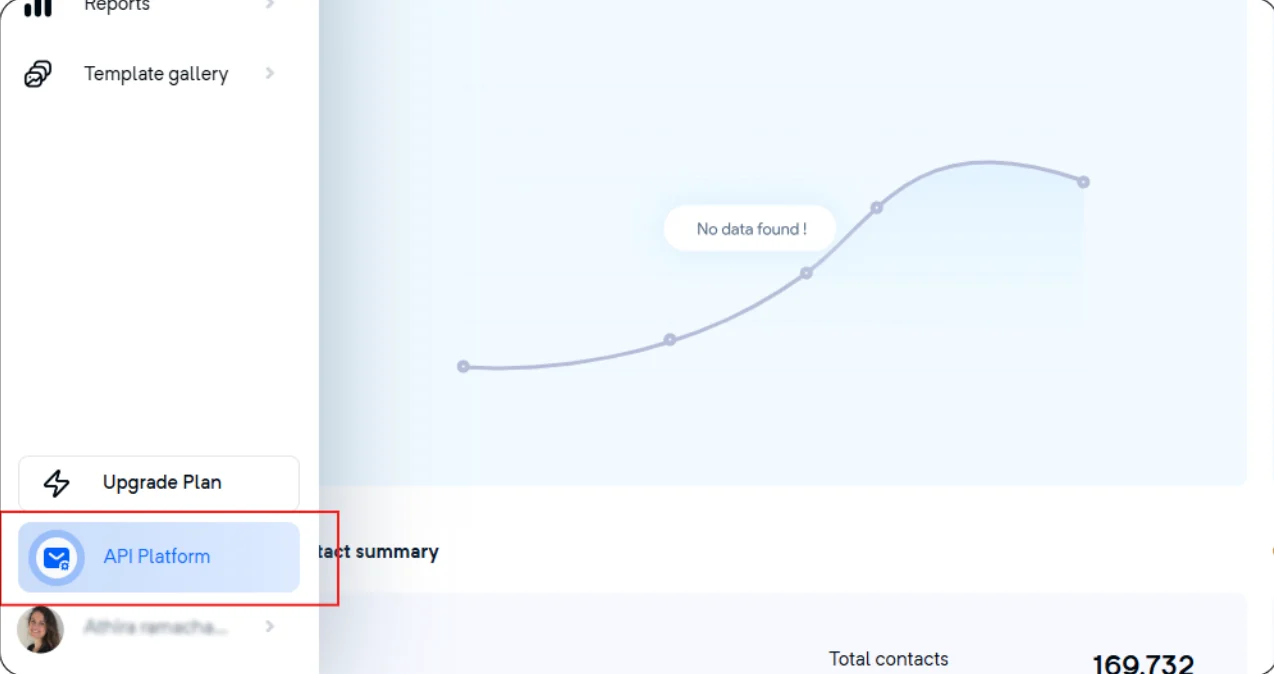
1. Log in to your Mailercloud account.
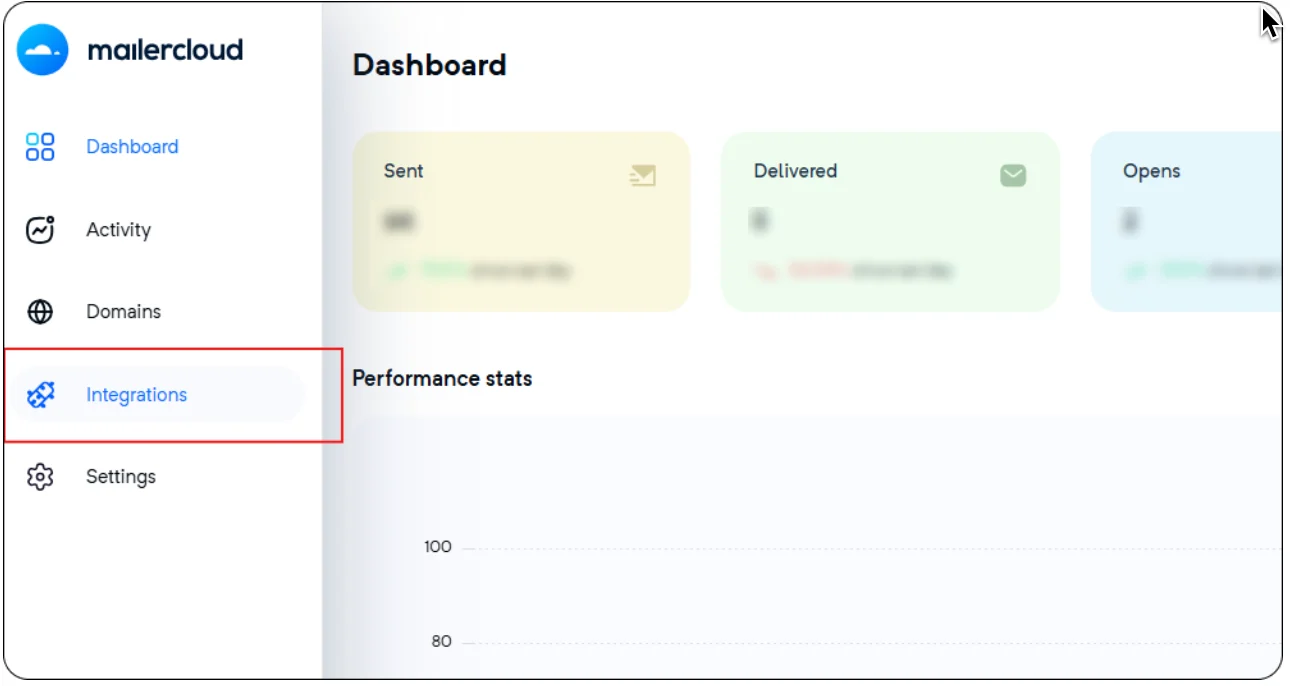
2. Navigate to **API Platform** > **Integrations**.
## Step 3: Configure Webhooks in Mailercloud
To send event data back to MoEngage, add the Callback URL to your Mailercloud account. To configure webhooks in Mailercloud, perform the following steps:
1. Log in to your Mailercloud account.
2. Navigate to **API Platform** > **Integrations**.
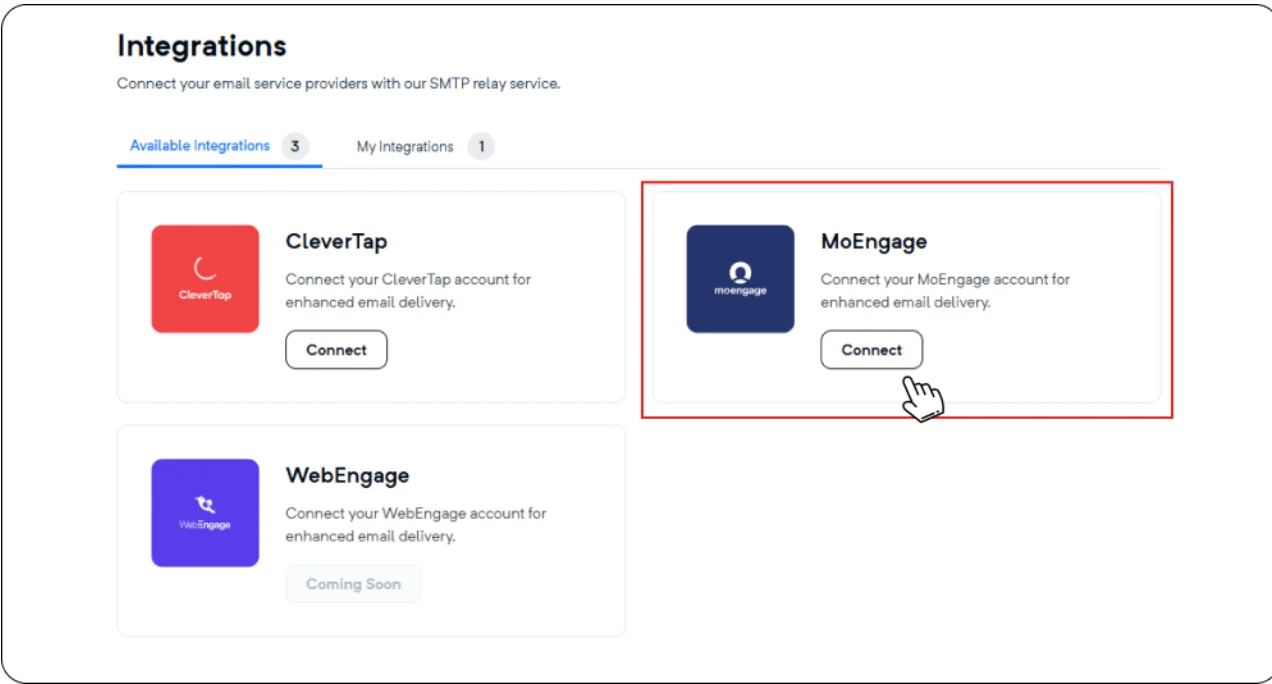
 3. On the **Available Integrations** tab, locate the **MoEngage** card and click **Connect**.
 4. In the **Integration Name** box, enter a name for your integration.
5. In the **Callback URL** box, paste the Callback URL you copied from MoEngage.
6. Click **Complete Integration**.
4. In the **Integration Name** box, enter a name for your integration.
5. In the **Callback URL** box, paste the Callback URL you copied from MoEngage.
6. Click **Complete Integration**.
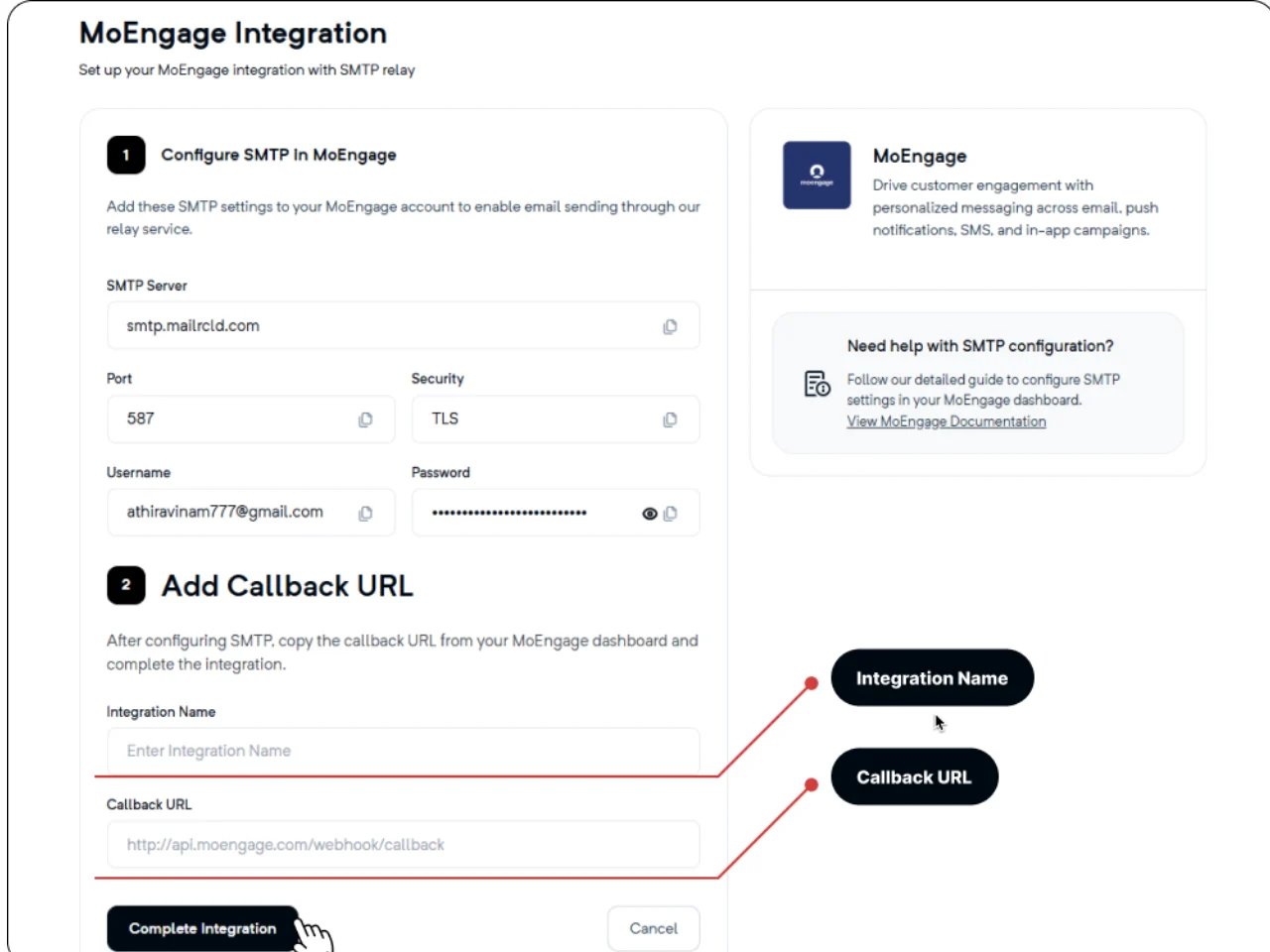 Ensure that the callback URL is copied completely, without extra spaces, to guarantee that analyzing data syncs correctly between the platform.
After the setup is complete, your MoEngage email campaigns will automatically route through Mailercloud. You can monitor the performance of these emails within the MoEngage analytics dashboard.
If you encounter issues during setup, verify your SMTP credentials in Mailercloud or contact our support team for assistance.
Ensure that the callback URL is copied completely, without extra spaces, to guarantee that analyzing data syncs correctly between the platform.
After the setup is complete, your MoEngage email campaigns will automatically route through Mailercloud. You can monitor the performance of these emails within the MoEngage analytics dashboard.
If you encounter issues during setup, verify your SMTP credentials in Mailercloud or contact our support team for assistance.