> ## Documentation Index
> Fetch the complete documentation index at: https://moengage.com/docs/llms.txt
> Use this file to discover all available pages before exploring further.
# D7Messaging
# Introduction
D7Messaging is a mobile engagement and communications provider enabling enterprises to intelligently personalize their two-way marketing and customer care interactions across multiple channels. This article provides guidance on configuring the D7Messaging connector on the MoEngage dashboard.
**Prerequisites**
Ensure you have access to your [D7Messaging](https://app.d7networks.com/api-tokens) dashboard and have the [API key](https://app.d7networks.com/api-tokens) for your D7Messaging account.
# Configure D7Messaging as a Custom SMS Connector (Service Provider)
This article describes the steps to configure D7Messaging as a Custom Connector (Service Provider) on the MoEngage dashboard.
1. Navigate to **Settings** > **Channel** > **SMS** > **Sender configuration**.
2. Click **+ Add Sender** at the upper right corner. In the Add Sender screen, you can\
add a new custom service provider or a sender to a configured service provider.
3. Click **+ Add custom service provider**.
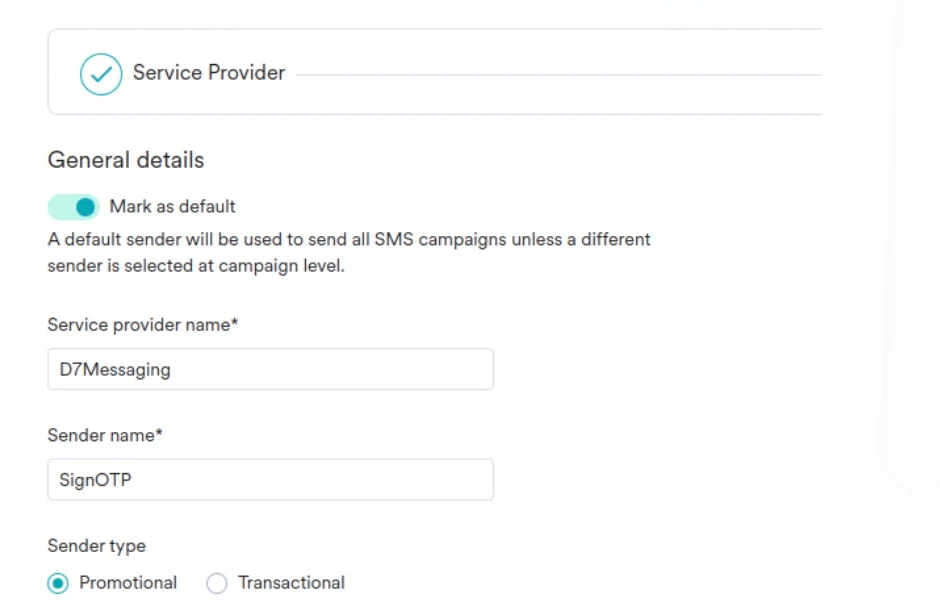
4. Add details and settings to the Sender Details screen.
| Field | Description |
| ------------------------- | ------------------------------------------------------------------------------------------------------------------------------------------------------------------------------------------------------------------------------------------------------------------------------------------------------------------------------------------------------------------------------------------------------------ |
| **Mark as default** | Turn this toggle on to mark the sender as the default sender for D7Messaging. If marked as default, this sender would be used to send all SMS campaigns from MoEngage unless you select a different sender while creating the campaign. This is not required. |
| **Service provider name** | This field identifies the service provider you are configuring on the MoEngage dashboard and must be unique. Type the service provider's name here. Enter D7Messaging. |
| **Sender name** | This field identifies the readable sender name that can be used while creating a campaign or alert. |
| **Sender type** | The sender type can either be **Promotional** or **Transactional**. - Select Promotional when you plan to use the sender to send information about your brand, promote deals, or engage with users.
- Select the sender type as Transactional for sending alerts about transactions, OTPs, security information, or any information that can be classified as transactional in nature.
|
 5. Configure the webhook by adding the following details.
| Field | Description |
| ----------- | --------------------------------------------------------------------------------------------------------------------------------------------------------------------------------------------------------------------------------------------------------------------------------------------------------------------------------------------------------------------------------------------------------------------------------------------------------------------------------------------------------------------------------------------------------------------------------------------------------------------------------------------------------------------------------------------------------------------------------------------------------------------------------------------------------------------------------------------------------------------------------------------------------------------------------------------------------------------------------------------------------------------------------------------------------------------------------------------------------------------------------------------------------------------------------------------------------------------------------------------------------------------------------------------------------------------------------------------------------------------------------------------------------------------------------------------------------------------------------------------------------------------------------------------------------------------------------------------------------------------------------------------------------------------------------------------------------------------------------- |
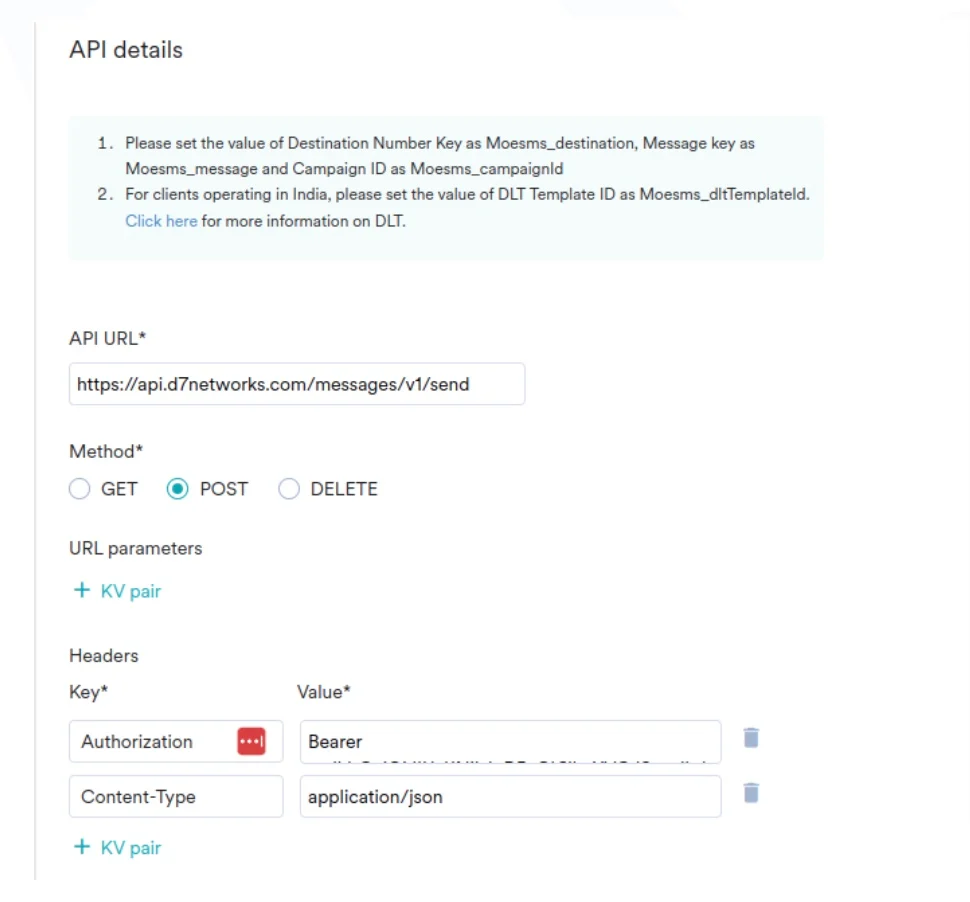
| **API URL** | This field contains information about the URL that should be used to send an API request to the sender. You can get this information from the sender's API documentation. Type the sender's API endpoint here. The API URL for D7Messaging is:
5. Configure the webhook by adding the following details.
| Field | Description |
| ----------- | --------------------------------------------------------------------------------------------------------------------------------------------------------------------------------------------------------------------------------------------------------------------------------------------------------------------------------------------------------------------------------------------------------------------------------------------------------------------------------------------------------------------------------------------------------------------------------------------------------------------------------------------------------------------------------------------------------------------------------------------------------------------------------------------------------------------------------------------------------------------------------------------------------------------------------------------------------------------------------------------------------------------------------------------------------------------------------------------------------------------------------------------------------------------------------------------------------------------------------------------------------------------------------------------------------------------------------------------------------------------------------------------------------------------------------------------------------------------------------------------------------------------------------------------------------------------------------------------------------------------------------------------------------------------------------------------------------------------------------- |
| **API URL** | This field contains information about the URL that should be used to send an API request to the sender. You can get this information from the sender's API documentation. Type the sender's API endpoint here. The API URL for D7Messaging is:
[https://api.d7networks.com/messages/v1/send](https://api.d7networks.com/messages/v1/send) |
| **Method** | Select **POST** as the HTTP method. |
| **Headers** | Add the Request Headers to be passed to the API as Key-Value pairs using this option. - Authorization: Bearer the\_token\_from: [https://app.d7networks.com/api-tokens](https://app.d7networks.com/api-tokens)
- **Content-Type**: application/JSON
|
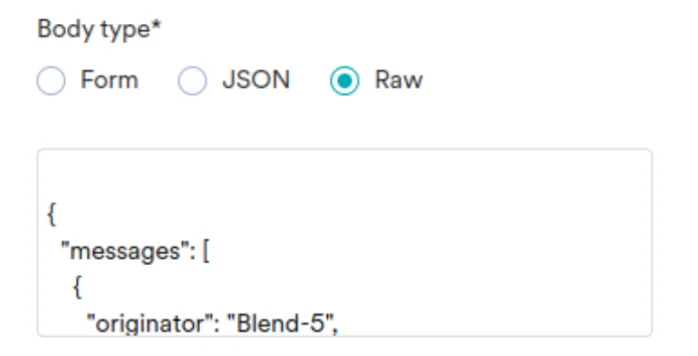
6. Under **Body Type**, select **Raw** and add the following details:
```json theme={null}
{
"messages": [
{
"originator": "SignOTP",
"recipients": ["Moesms_destination"],
"content": "Moesms_message",
"client_ref": "MoEngage"
}
]
}
```
 7. Click **Send test SMS** to verify your configuration. The Send Test SMS dialog box is displayed.
1. Under Mobile Number, enter a mobile number.
2. In the Message box, enter a message.
3. Click **Send** to test the configuration.
4. Click **OK** to close the dialog box.
5. Click **Save** to save the sender configuration.
## Delivery Tracking
You can configure delivery tracking after creating the sender in the MoEngage Dashboard.
1. Open the D7Messaging you configured and go to step 3, "Delivery tracking (optional)."
2. Copy the Delivery Tracking URL.
7. Click **Send test SMS** to verify your configuration. The Send Test SMS dialog box is displayed.
1. Under Mobile Number, enter a mobile number.
2. In the Message box, enter a message.
3. Click **Send** to test the configuration.
4. Click **OK** to close the dialog box.
5. Click **Save** to save the sender configuration.
## Delivery Tracking
You can configure delivery tracking after creating the sender in the MoEngage Dashboard.
1. Open the D7Messaging you configured and go to step 3, "Delivery tracking (optional)."
2. Copy the Delivery Tracking URL.  In the **Delivery tracking URL** field, enter the following URL:\
\[[https://api-0X.moengage.com/sms/dlr/custom/2759791019\\\](](https://api-0X.moengage.com/sms/dlr/custom/2759791019]\()[https://api-0X.moengage.com/sms/dlr/custom/2759791019](https://api-0X.moengage.com/sms/dlr/custom/2759791019\)) \
where X is the number of the data center (DC).
* You can configure this on the D7 User Dashboard as a Report URL or add it in the message body by clicking Previous and updating it.
* The final message raw body will look like the following:
```json JSON wrap theme={null}
{
"messages": [
{
"originator": "SignOTP",
"recipients": ["Moesms_destination"],
"content": "Moesms_message",
"report_url": "https://api-01.moengage.com/sms/dlr/custom/2759791019", "client_ref": "MoEngage"
}
]
}
```
* After the URL is added, under **Map attributes of the delivery response** , you must map attributes to receive the delivery report. For more information, refer to [Delivery Tracking for Custom Connectors](/user-guide/campaigns-and-channels/sms-mms-and-rcs/sms/getting-started-with-sms/configure-custom-connector-for-sms).
* Select **Map fields from the delivery response** or **Map fields manually**. If you select the latter, configure the following values:
* **Attribute storing unique ID of the sent response** : Enter the *request\_id*.
* **Attribute storing Unique delivery ID field of delivery response** : Enter the *request\_id*.
* **Attribute storing delivery status** : Enter the *status*.
* **Success values for delivery status** : Enter *delivered*.
* **Attribute storing failure reason** : Enter the *status*.
3. Check the parameters on the Delivery Tracking URL and click **Save**.
# Next Steps
* Create an SMS campaign using the [Getting Started for creating SMS campaign](/user-guide/campaigns-and-channels/sms-mms-and-rcs/sms/create-an-sms-campaign).
* Set the [Frequency Capping for SMS](/user-guide/settings/channels/delivery-controls/frequency-capping).
* Set the [Current Service Provider](/user-guide/campaigns-and-channels/sms-mms-and-rcs/sms/getting-started-with-sms/configure-an-sms-sender).
* [Read more about campaign analytics.](/user-guide/campaigns-and-channels/connectors/analyze/connector-campaign-analytics)
In the **Delivery tracking URL** field, enter the following URL:\
\[[https://api-0X.moengage.com/sms/dlr/custom/2759791019\\\](](https://api-0X.moengage.com/sms/dlr/custom/2759791019]\()[https://api-0X.moengage.com/sms/dlr/custom/2759791019](https://api-0X.moengage.com/sms/dlr/custom/2759791019\)) \
where X is the number of the data center (DC).
* You can configure this on the D7 User Dashboard as a Report URL or add it in the message body by clicking Previous and updating it.
* The final message raw body will look like the following:
```json JSON wrap theme={null}
{
"messages": [
{
"originator": "SignOTP",
"recipients": ["Moesms_destination"],
"content": "Moesms_message",
"report_url": "https://api-01.moengage.com/sms/dlr/custom/2759791019", "client_ref": "MoEngage"
}
]
}
```
* After the URL is added, under **Map attributes of the delivery response** , you must map attributes to receive the delivery report. For more information, refer to [Delivery Tracking for Custom Connectors](/user-guide/campaigns-and-channels/sms-mms-and-rcs/sms/getting-started-with-sms/configure-custom-connector-for-sms).
* Select **Map fields from the delivery response** or **Map fields manually**. If you select the latter, configure the following values:
* **Attribute storing unique ID of the sent response** : Enter the *request\_id*.
* **Attribute storing Unique delivery ID field of delivery response** : Enter the *request\_id*.
* **Attribute storing delivery status** : Enter the *status*.
* **Success values for delivery status** : Enter *delivered*.
* **Attribute storing failure reason** : Enter the *status*.
3. Check the parameters on the Delivery Tracking URL and click **Save**.
# Next Steps
* Create an SMS campaign using the [Getting Started for creating SMS campaign](/user-guide/campaigns-and-channels/sms-mms-and-rcs/sms/create-an-sms-campaign).
* Set the [Frequency Capping for SMS](/user-guide/settings/channels/delivery-controls/frequency-capping).
* Set the [Current Service Provider](/user-guide/campaigns-and-channels/sms-mms-and-rcs/sms/getting-started-with-sms/configure-an-sms-sender).
* [Read more about campaign analytics.](/user-guide/campaigns-and-channels/connectors/analyze/connector-campaign-analytics)