> ## Documentation Index
> Fetch the complete documentation index at: https://moengage.com/docs/llms.txt
> Use this file to discover all available pages before exploring further.
# End User Messaging (Pinpoint)
End User Messaging (Pinpoint) is a service offered by Amazon Web Services (AWS) that allows businesses to send targeted and personalized text messages to their customers.
# Configure as SMS connector (Service Provider)
Below is a step-by-step explanation for setting up End User Messaging (Pinpoint) as your desired SMS provider on MoEngage.
Log in to the MoEngage Dashboard and follow these steps:
1. Navigate to **Settings** > **Channel** > **SMS** > **Sender configuration**.
2. Click **+Add Sender** at the top right corner.
3. Select **End User Messaging (Pinpoint)** in the **Add Sender** screen.
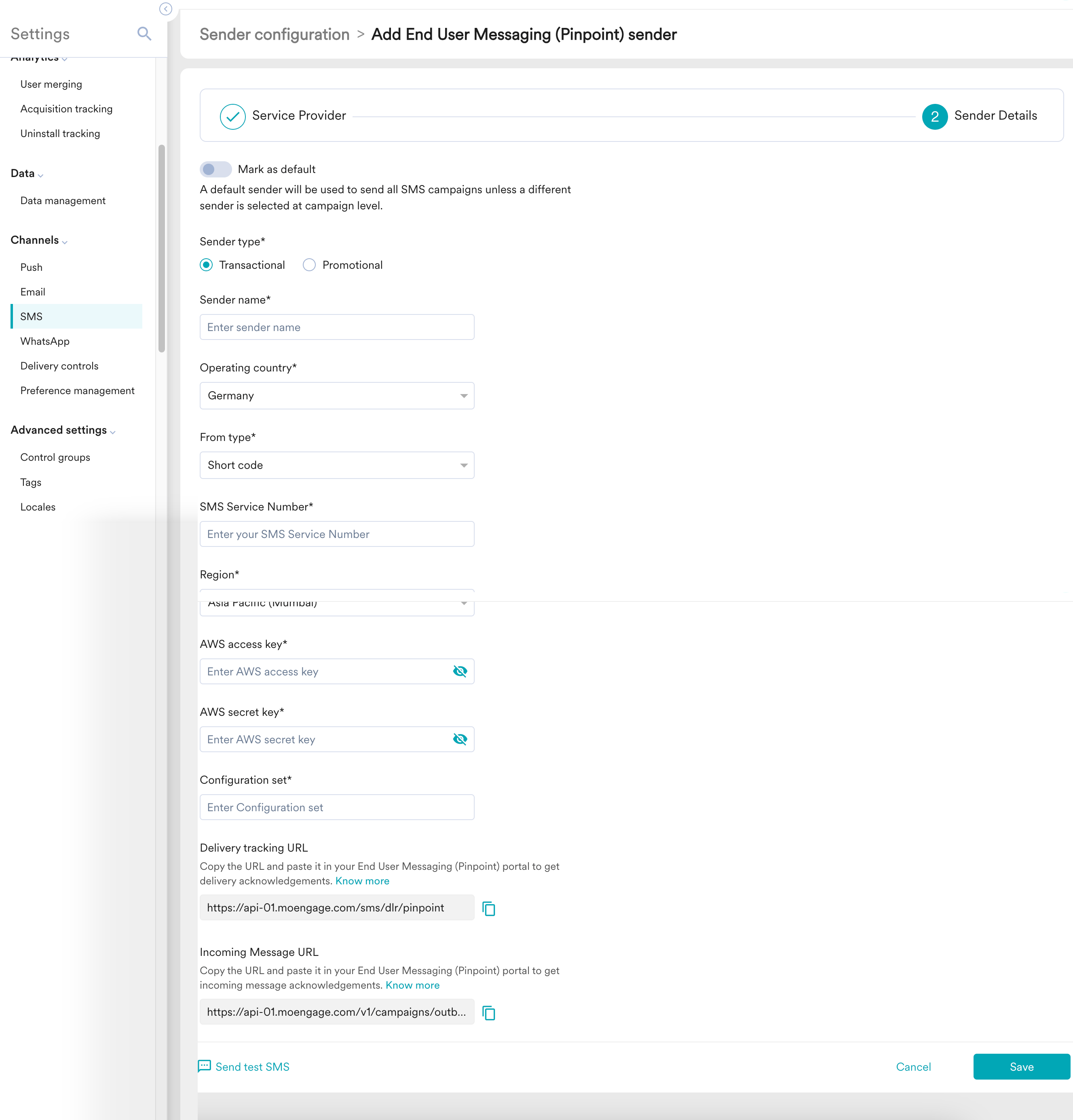
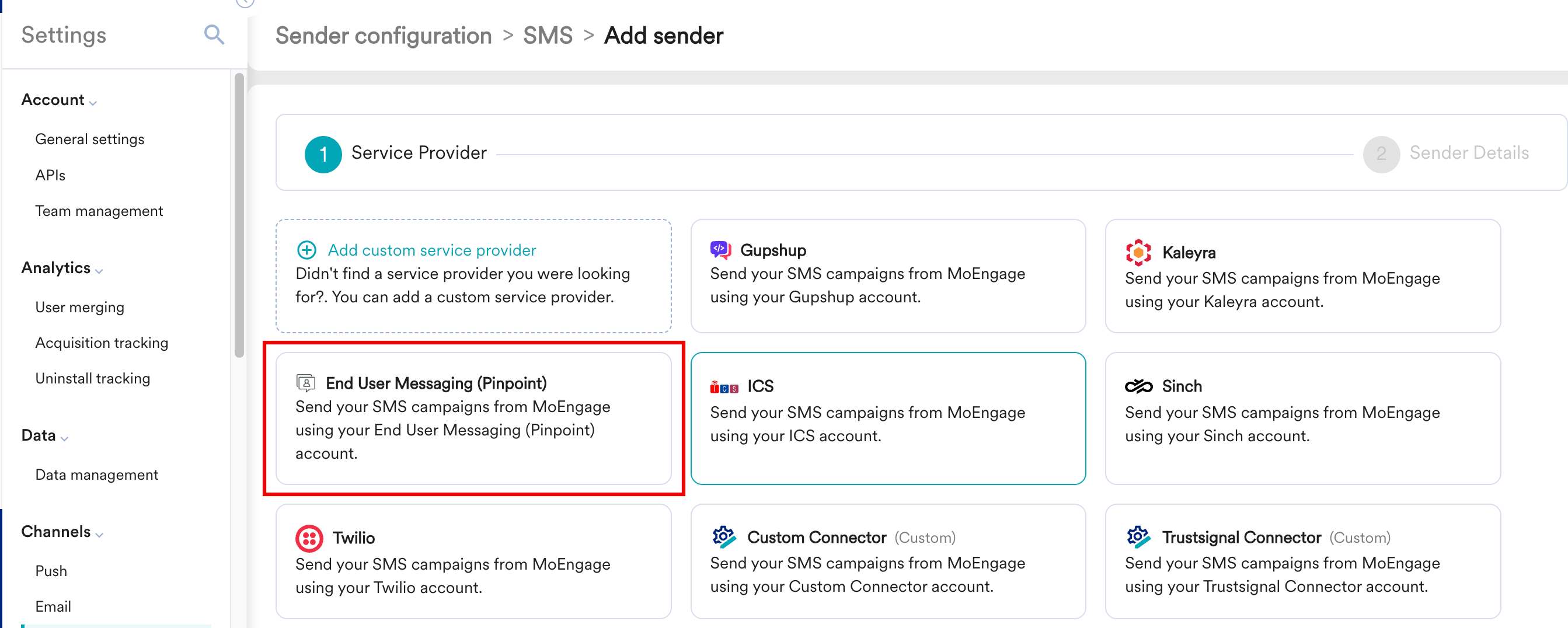 4. Add the following details in the **Sender Details** screen.
 | Field | Description |
| ------------------------- | --------------------------------------------------------------------------------------------------------------------------------------------------------------------------------------------------------------------------------------------------------------------------------------------------------------------------------------------------------------------------------------------------------------------------------------------------------------------------------------------- |
| **Mark as default** | This toggle will be disabled during sender creation. The first sender to be created in your MoEngage account will be marked as the default sender for your SMS campaigns. You can change the default sender by following the steps mentioned in [Marking a sender as default](/docs/user-guide/campaigns-and-channels/sms-mms-and-rcs/sms/getting-started-with-sms/configure-an-sms-sender). |
| **Sender type** | The Sender type can either be **Transactional** or **Promotional**.
| Field | Description |
| ------------------------- | --------------------------------------------------------------------------------------------------------------------------------------------------------------------------------------------------------------------------------------------------------------------------------------------------------------------------------------------------------------------------------------------------------------------------------------------------------------------------------------------- |
| **Mark as default** | This toggle will be disabled during sender creation. The first sender to be created in your MoEngage account will be marked as the default sender for your SMS campaigns. You can change the default sender by following the steps mentioned in [Marking a sender as default](/docs/user-guide/campaigns-and-channels/sms-mms-and-rcs/sms/getting-started-with-sms/configure-an-sms-sender). |
| **Sender type** | The Sender type can either be **Transactional** or **Promotional**. - Choose the **Sender type** as **Transactional** when you would be using the sender for sending alerts about transactions, OTPs, security information, or any information that can be classified as transactional in nature.
- Choose the **Sender type** as **Promotional** when you would be using the sender for sending information about your brand, promoting deals, or engaging with users.
|
| **Sender name** | This field identifies the readable sender name that can be used while creating a campaign or alert. |
| **Operating country** | This field identifies which country you intend to send the message to. |
| **From type** | This field identifies the type of the number from which SMS will be sent to your end users. From type can be **Short code** , **Long code** , **Sender ID**. |
| **SMS Service Number** | This is the sender ID from which SMS will be sent to your end users. For example, HDBCBK is used by HDFC bank to send messages to the end customers. |
| **Region** | Select the region where your AWS account is configured. For example, if your AWS account is hosted in Mumbai, Asia Pacific (Mumbai) needs to be selected. |
| **AWS access key** | This is the access key used to access your AWS End User Messaging account. Make sure this key has access only to AWS End User Messaging account. |
| **AWS secret key** | This is the secret key used to access your AWS End User Messaging account. Make sure this key has access only to AWS End User Messaging account. |
| **Configuration set** | This is the Configuration set name created in your AWS End User Messaging while configuring the SMS sender details. |
| **Delivery tracking URL** | To get delivery acknowledgments, copy the Delivery tracking URL and paste it onto your AWS End User Messaging portal. |
| **Incoming Message URL** | To get incoming acknowledgments, copy the Incoming Message URL and paste it onto your AWS End User Messaging portal. |
5. **Send a test SMS** to verify your configuration.
6. Click **Save** to save the Sender Configuration.
# Configure Delivery Tracking
Configuring delivery tracking allows you to monitor whether messages have been delivered to end users.
## Changes in the AWS Console
For any configured sender, perform the following steps to configure delivery tracking in the AWS console:
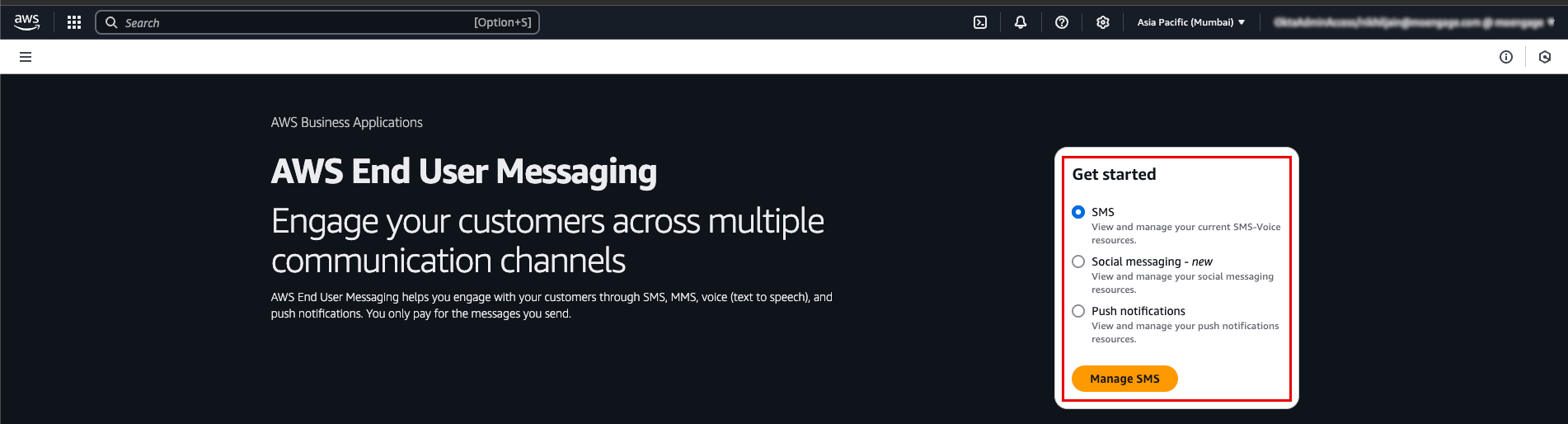
1. Log in to the AWS Console and select **AWS End User Messaging**.
2. On the following page, in the **Get started** section, select **SMS** > **Manage SMS**.
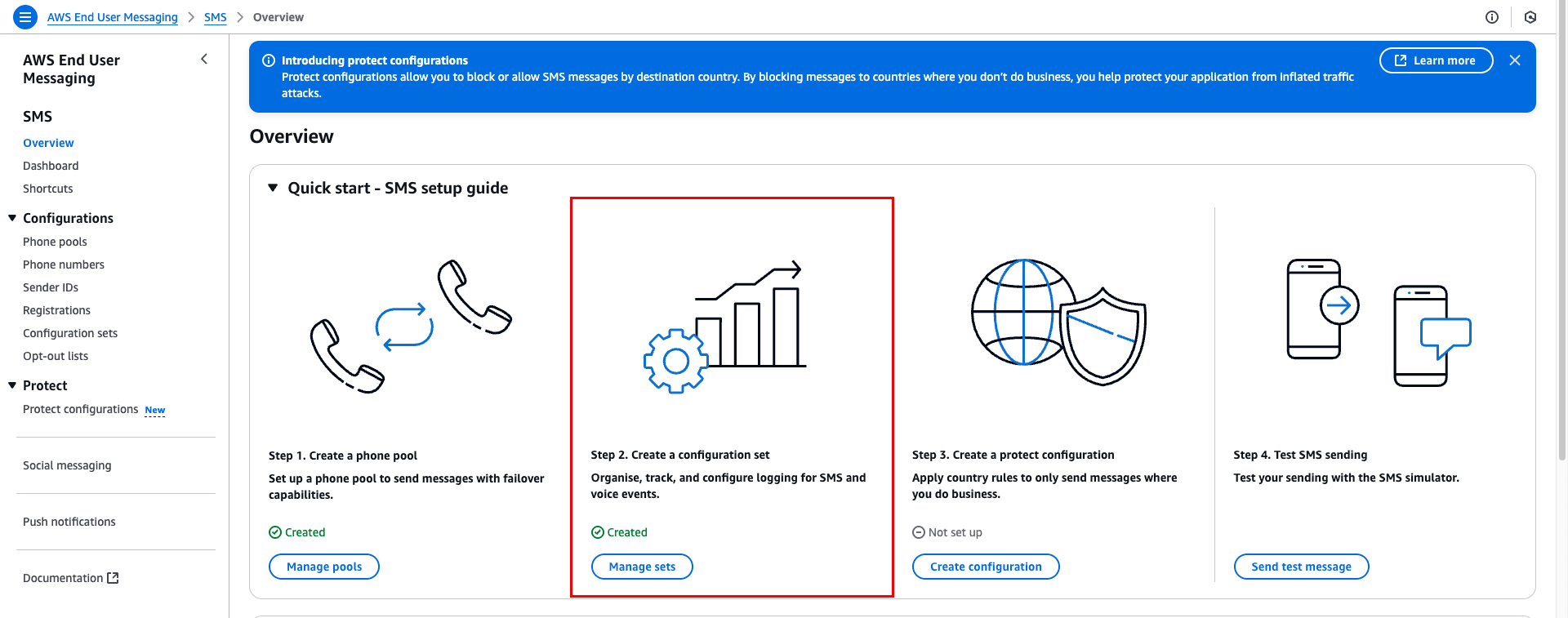
 3. On the **Overview** page, click **Manage sets** in **Step 2. Create a configuration set**.
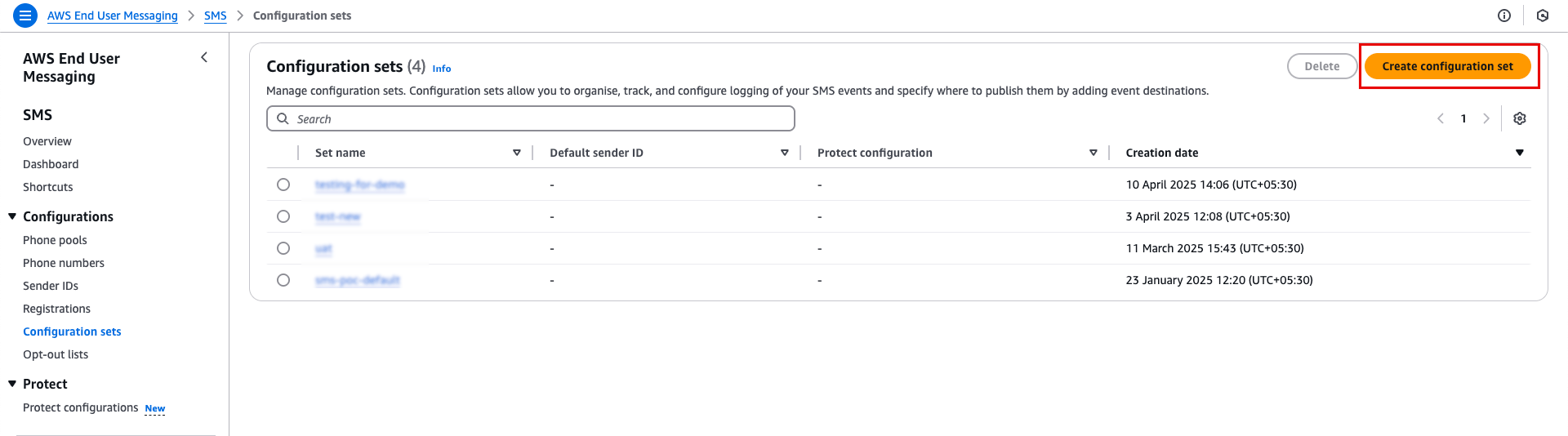
 4. On the following **Configuration sets** page, click **Create configuration set**.
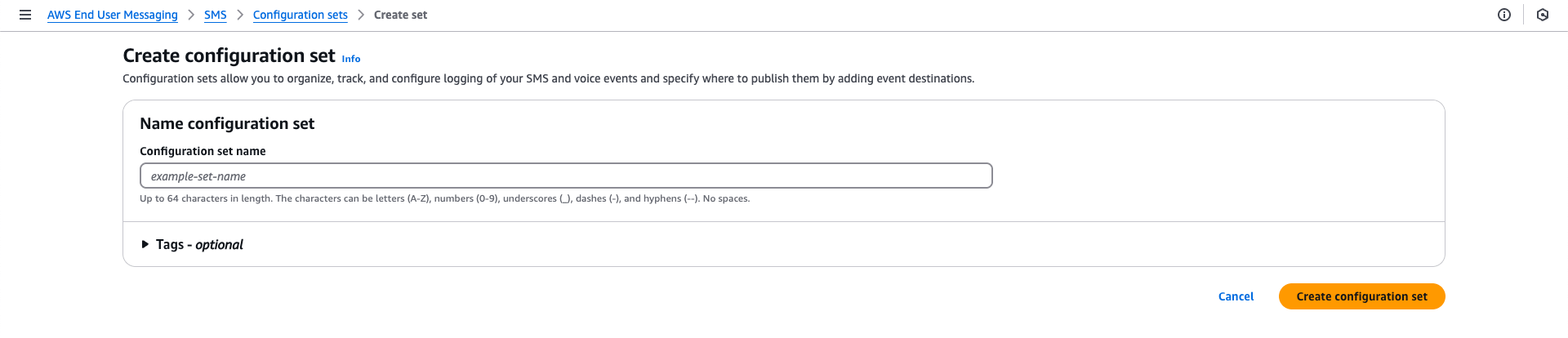
 5. On the **Create set** page, in the **Configuration set name** box, provide a name for the configuration set and click the **Create configuration set** button. Copy the name you provided here and paste it into the **Configuration set** box while setting up **Sender details** in the MoEngage dashboard.
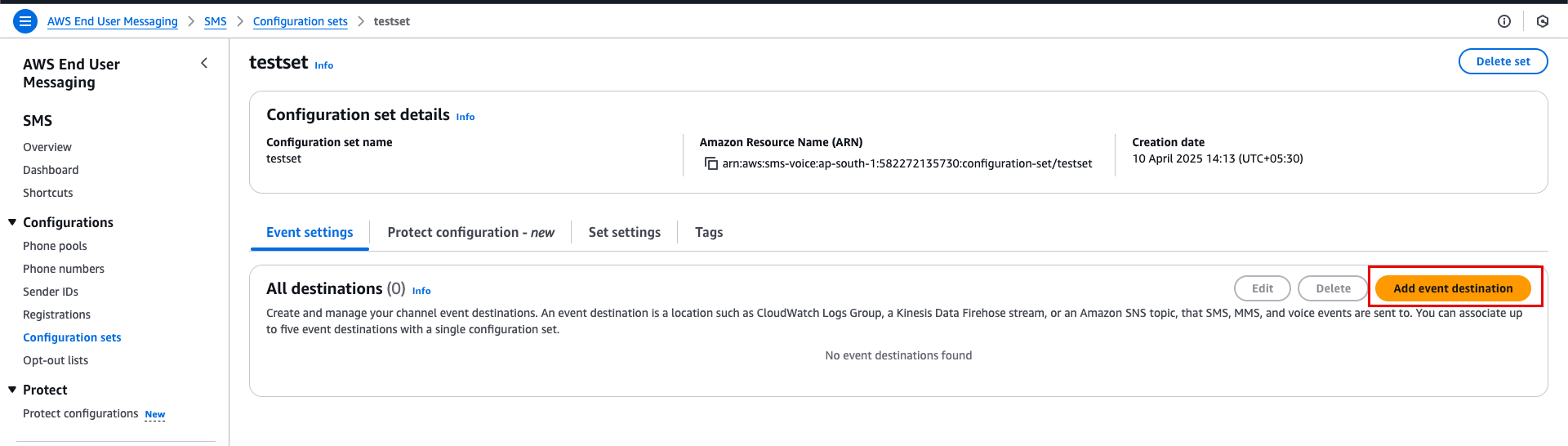
 6. On the following page, navigate to**Event settings** tab and click**Add event destination**.
 7. In the **Add event destination** page, in the **Event Details** section, provide the following details:
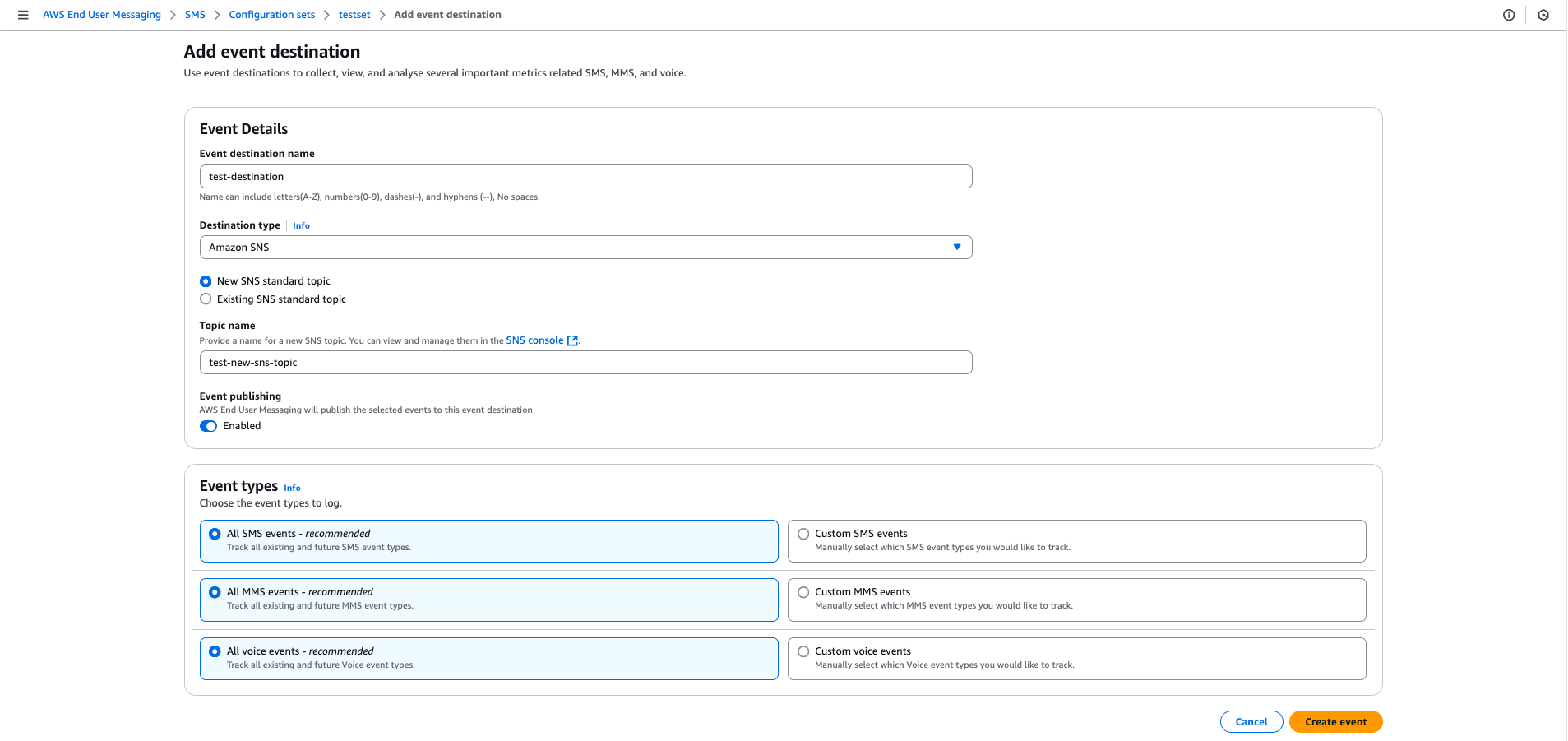 1. Provide a name for the event destination in the **Event destination name** box.
2. Select the **Destination typ** e as **Amazon SNS**.
3. Select the**New SNS standard topic** option.
4. Provide a name for the new SNS topic in the **Topic name** box. For example, *test-new-topic*.
5. Turn on the **Enabled** toggle under **Event publishing**.
8. In the **Event types** section, select the following:
1. **All SMS events**
2. **All MMS events**
3. **All voice events**
9. Click **Create event**. After creating, whenever the vendor sends a callback to AWS, AWS forwards the callback to the created event destination. Within the event destination, there are sets of SMS topics, and AWS adds all the callback requests to the SMS topic.
10. To push all the delivery feedback from SMS topic to MoEngage, you need navigate to **Amazon SNS**.
1. Provide a name for the event destination in the **Event destination name** box.
2. Select the **Destination typ** e as **Amazon SNS**.
3. Select the**New SNS standard topic** option.
4. Provide a name for the new SNS topic in the **Topic name** box. For example, *test-new-topic*.
5. Turn on the **Enabled** toggle under **Event publishing**.
8. In the **Event types** section, select the following:
1. **All SMS events**
2. **All MMS events**
3. **All voice events**
9. Click **Create event**. After creating, whenever the vendor sends a callback to AWS, AWS forwards the callback to the created event destination. Within the event destination, there are sets of SMS topics, and AWS adds all the callback requests to the SMS topic.
10. To push all the delivery feedback from SMS topic to MoEngage, you need navigate to **Amazon SNS**.
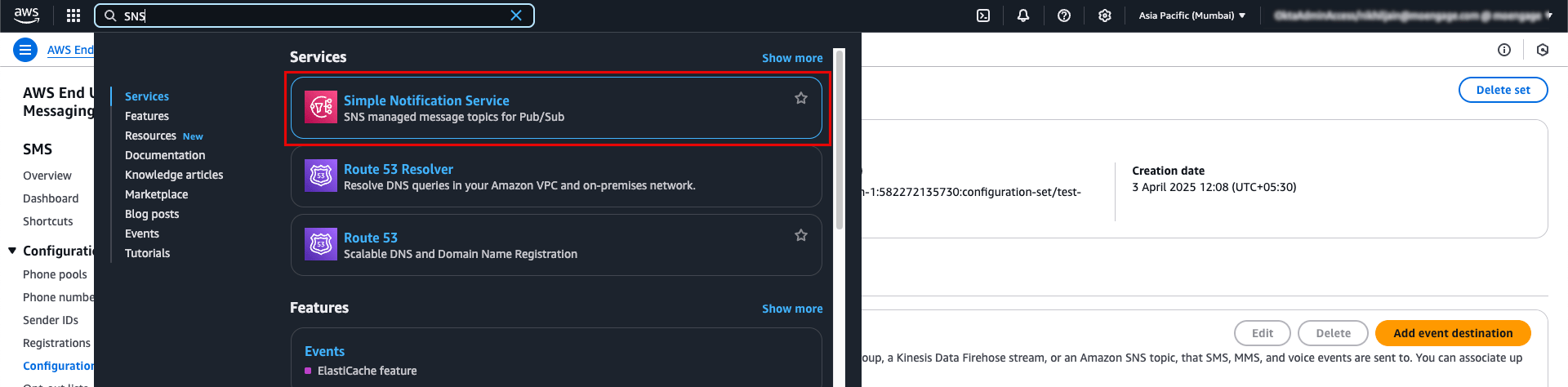 11. On the Amazon SNS page, click **Topics** and search for the SNS topic you created in the above steps. As per the example, the topic name here is *test-new-topic*.
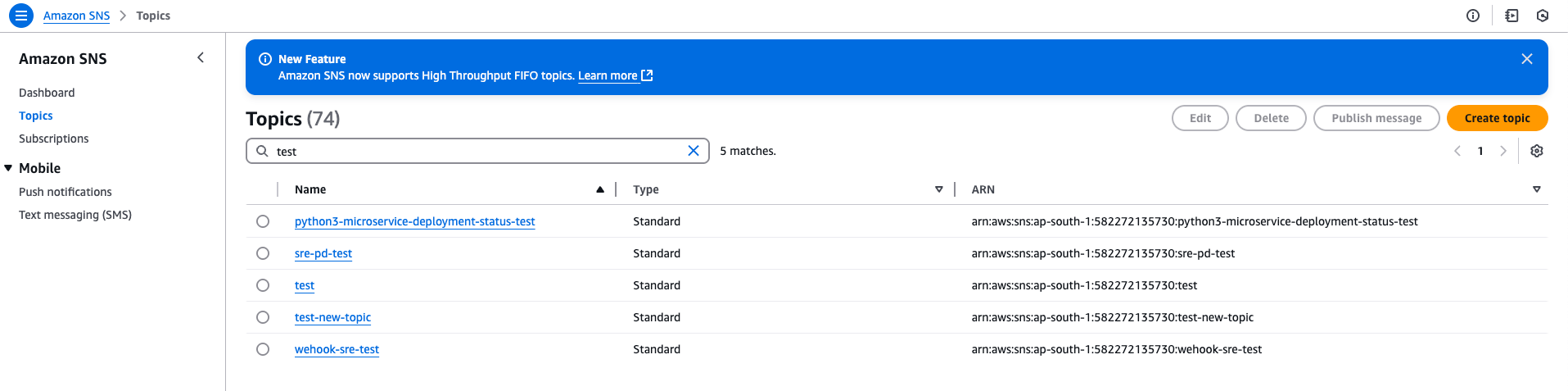 12. Click the topic name, on the following page navigate to **Subscriptions** > **Create new subscription**. Subscription can notify whenever a message is pushed to the SNS topic.
 13. On the **Create subscription** page, add the following details:
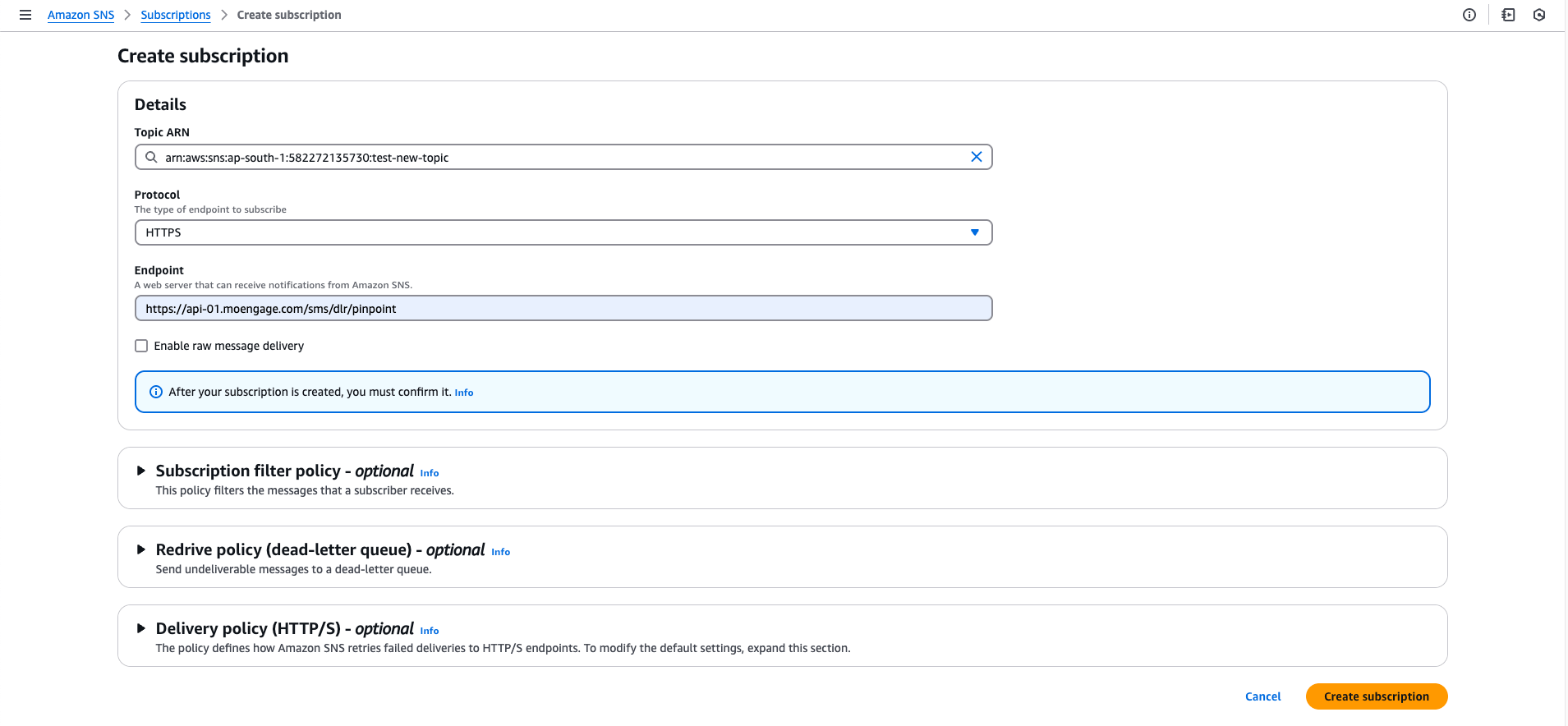 1. The **Topic ARN** is auto-populated.
2. Select the **Protocol** as **HTTPS**.
3. In the **Endpoint** box, paste the **Delivery tracking URL** you copied from the MoEngage dashboard.
4. Make sure **not** to enable the **Raw message delivery** check box.
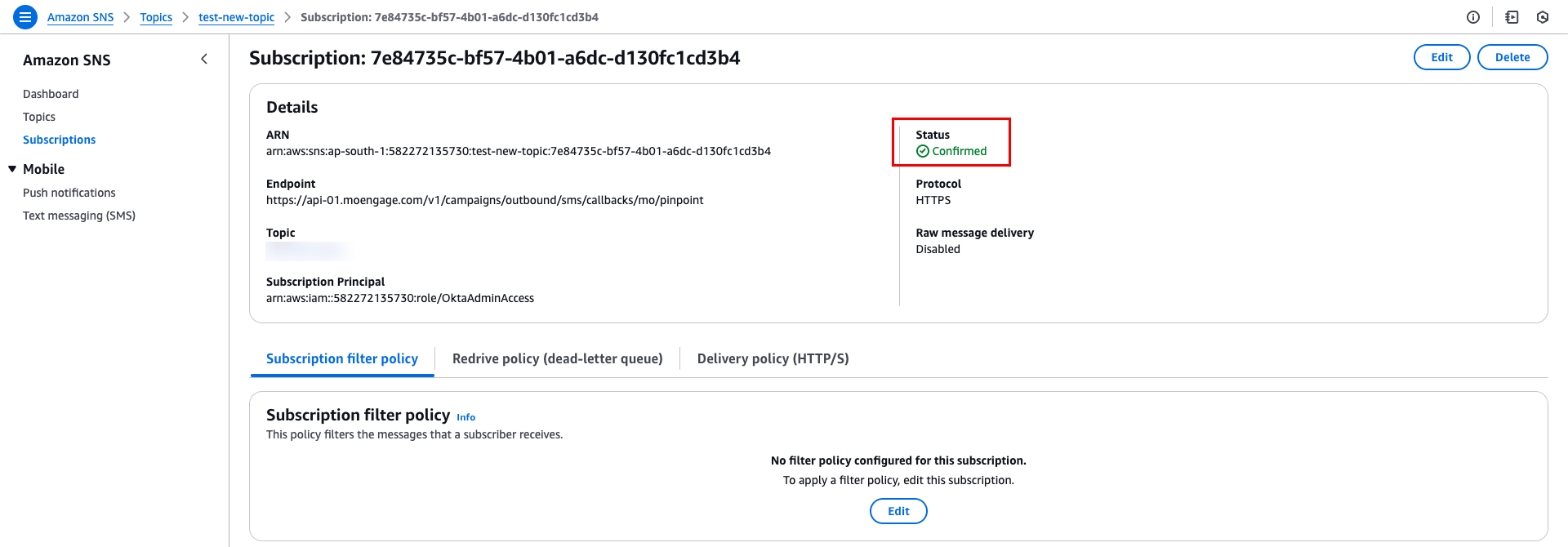
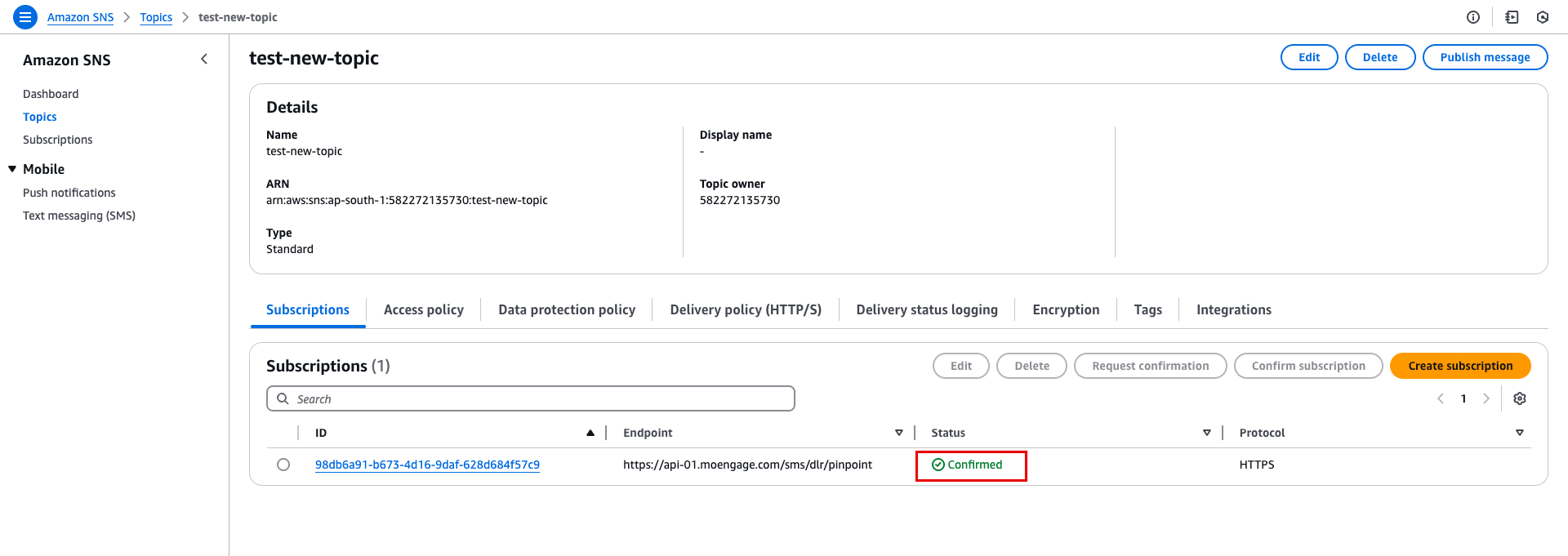
5. Click **Create Subscription**. To ensure proper working, before start sending any message make sure the subscription **Status** is **Confirmed**.
1. The **Topic ARN** is auto-populated.
2. Select the **Protocol** as **HTTPS**.
3. In the **Endpoint** box, paste the **Delivery tracking URL** you copied from the MoEngage dashboard.
4. Make sure **not** to enable the **Raw message delivery** check box.
5. Click **Create Subscription**. To ensure proper working, before start sending any message make sure the subscription **Status** is **Confirmed**.
 # Configure Incoming Message URL
Configuring incoming message URLs allows you to track the responses on messages so that you can act on them accordingly.
## Changes in the AWS Console
For any configured sender, perform the following steps to configure incoming message URL in the AWS console:
1. Log in to the AWS Console and select **AWS End User Messaging**.
2. On the following page, in the **Get started** section, select **SMS** > **Manage SMS**.
3. Click **Configurations** on the left side panel and select **Phone numbers**.
# Configure Incoming Message URL
Configuring incoming message URLs allows you to track the responses on messages so that you can act on them accordingly.
## Changes in the AWS Console
For any configured sender, perform the following steps to configure incoming message URL in the AWS console:
1. Log in to the AWS Console and select **AWS End User Messaging**.
2. On the following page, in the **Get started** section, select **SMS** > **Manage SMS**.
3. Click **Configurations** on the left side panel and select **Phone numbers**.
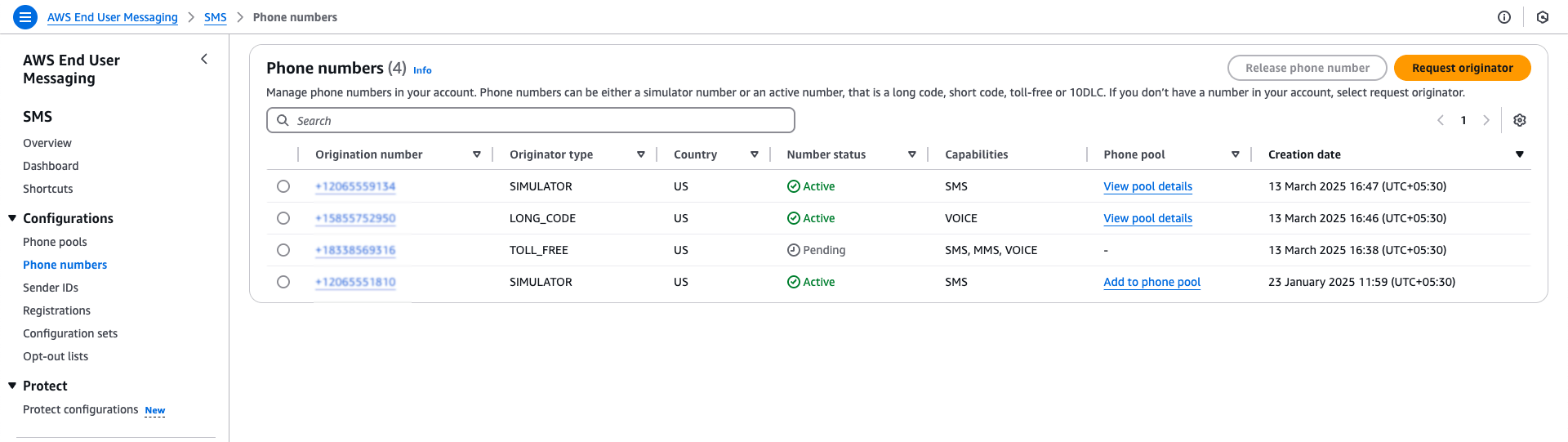 4. On the **Phone numbers** page, select the phone number for which you want to configure incoming messages.
5. On the following page, navigate to **Two-way SMS** > **Edit settings**.
4. On the **Phone numbers** page, select the phone number for which you want to configure incoming messages.
5. On the following page, navigate to **Two-way SMS** > **Edit settings**.
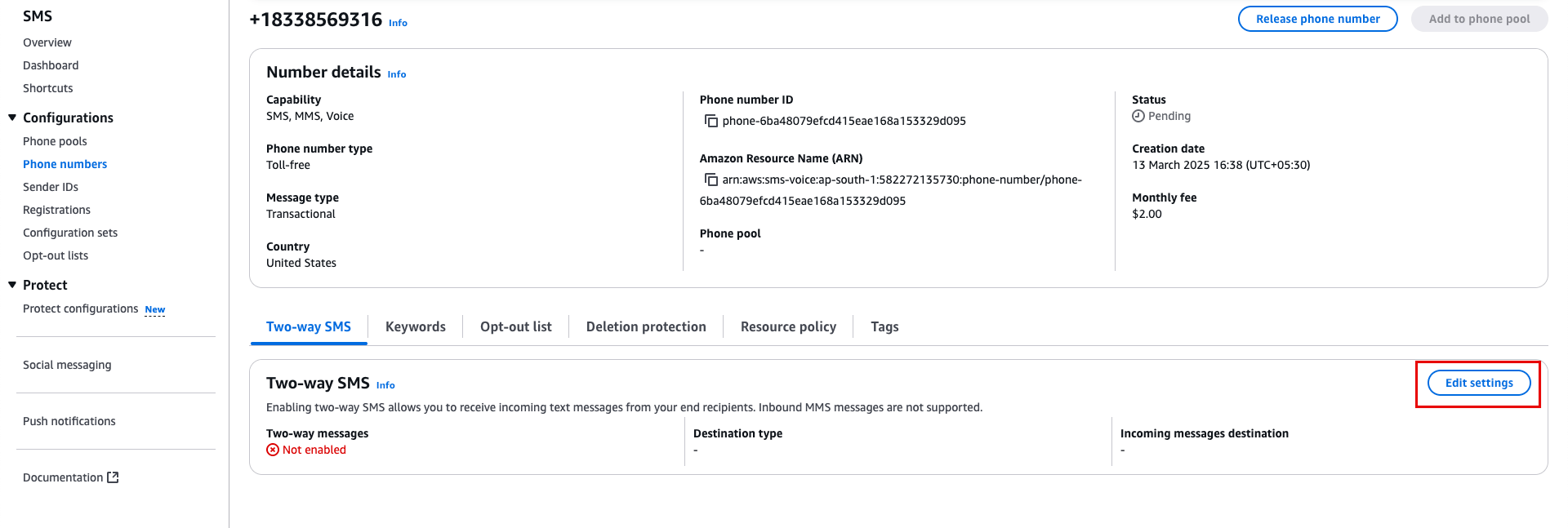 6. On the **Edit settings** page, enter the following details:
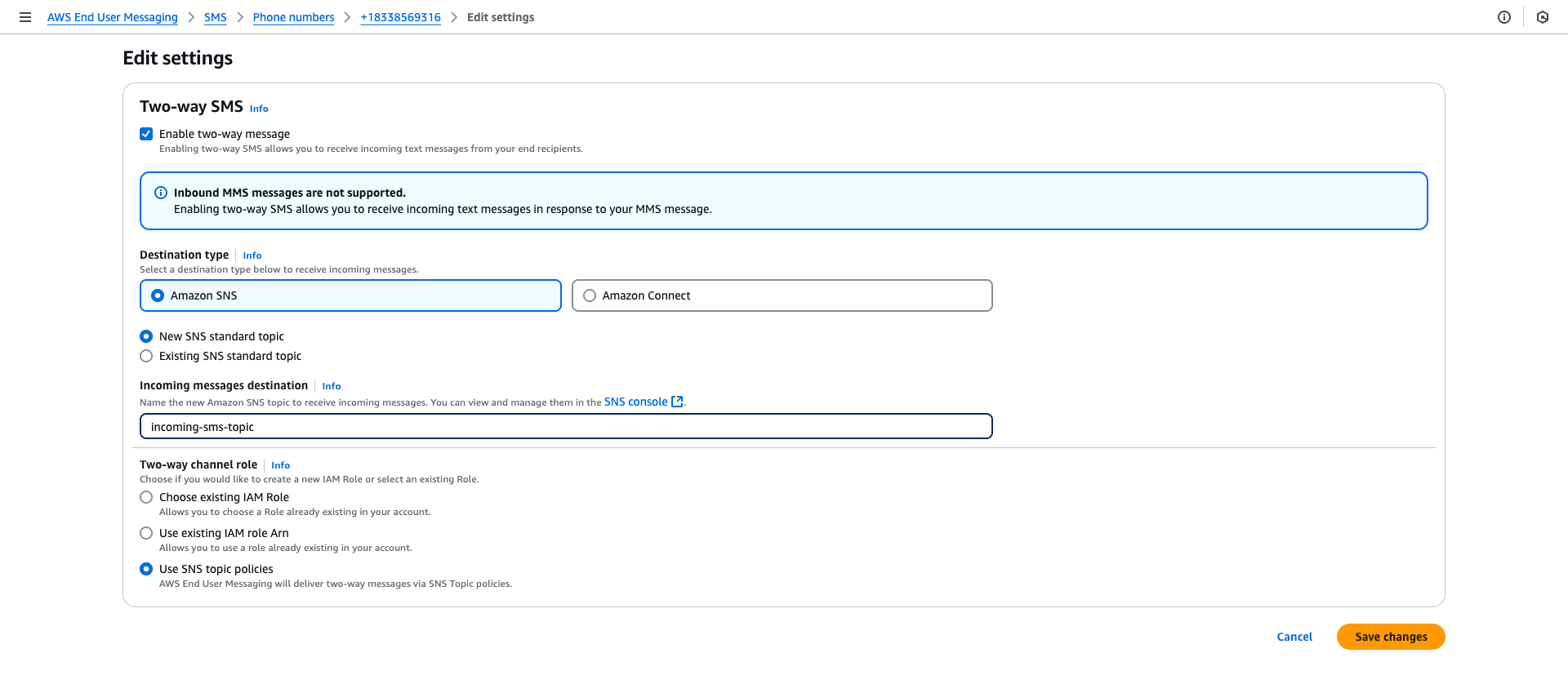 1. **Enable two-way message** checkbox.
2. Select the **Destination type** as **Amazon SNS**.
3. Select the**New SNS standard topic** option.
4. Provide a name for the Amazon SNS topic to receive incoming messages in the **Incoming messages destination** box. For example, *incoming-sms-topic.*
5. In **Two-way channel role** , select **Use SNS topic policies**.
7. Click **Save changes**.
8. Navigate to **Amazon SNS**.
9. On the Amazon SNS page, click **Topics** and search for the SNS topic you created in the above steps. Note that the topic created for configuring delivery callback and incoming message must be different. As per the example, the topic name here is *incoming-sms-topic*.
10. Click the topic name, on the following page navigate to **Subscriptions** > **Create new subscription**. Subscription can notify whenever a message is pushed to the SNS topic.
1. **Enable two-way message** checkbox.
2. Select the **Destination type** as **Amazon SNS**.
3. Select the**New SNS standard topic** option.
4. Provide a name for the Amazon SNS topic to receive incoming messages in the **Incoming messages destination** box. For example, *incoming-sms-topic.*
5. In **Two-way channel role** , select **Use SNS topic policies**.
7. Click **Save changes**.
8. Navigate to **Amazon SNS**.
9. On the Amazon SNS page, click **Topics** and search for the SNS topic you created in the above steps. Note that the topic created for configuring delivery callback and incoming message must be different. As per the example, the topic name here is *incoming-sms-topic*.
10. Click the topic name, on the following page navigate to **Subscriptions** > **Create new subscription**. Subscription can notify whenever a message is pushed to the SNS topic.
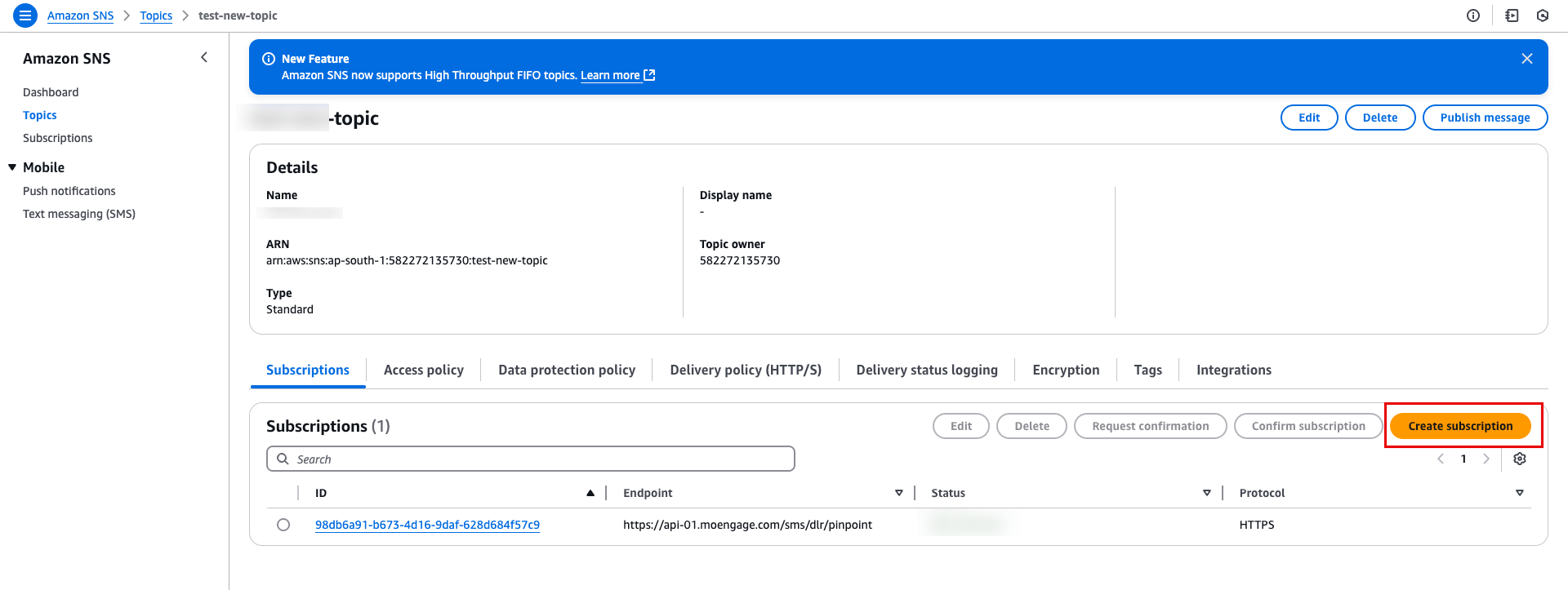 11. On the **Create subscription** page, add the following details:
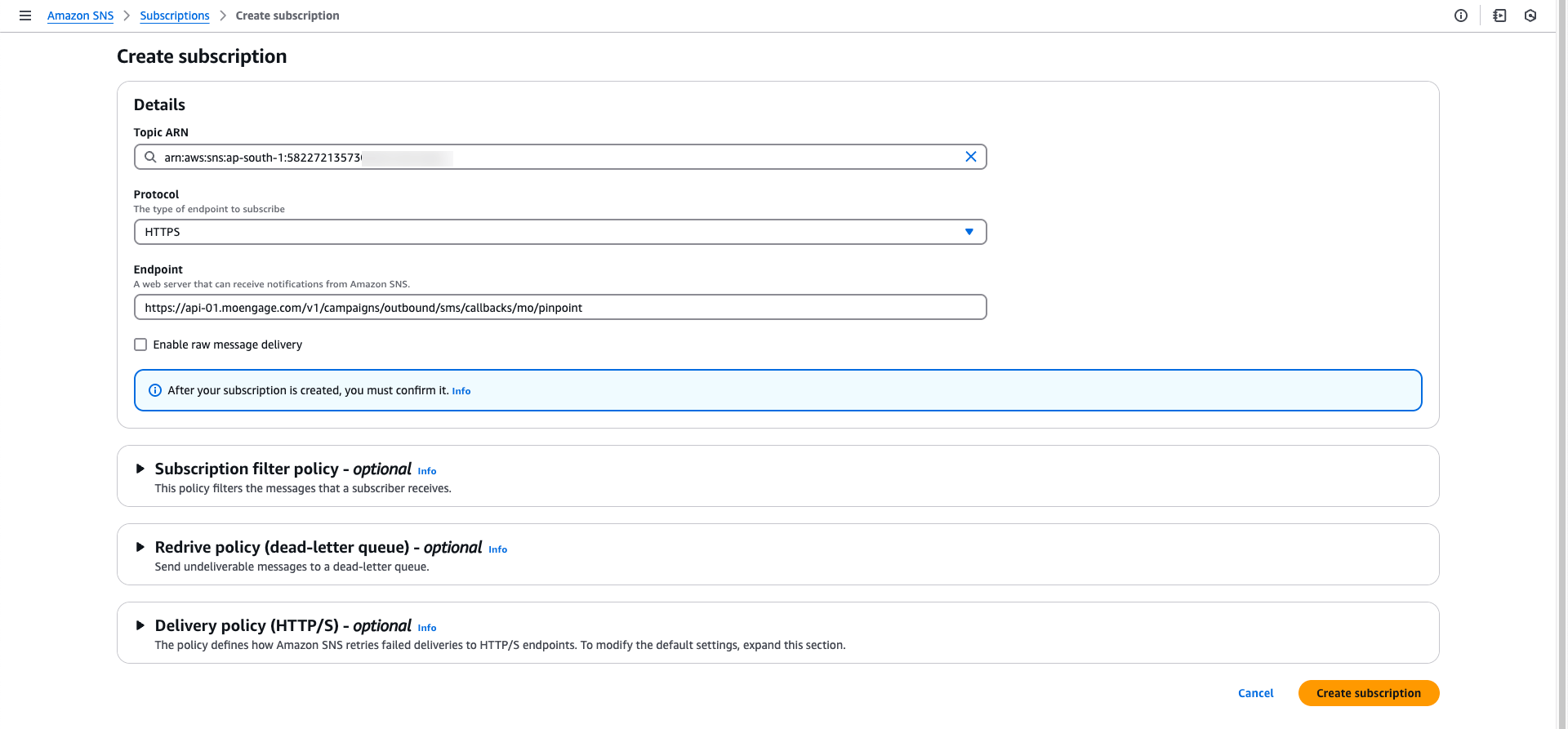 1. The **Topic ARN** is auto-populated.
2. Select the **Protocol** as **HTTPS**.
3. In the **Endpoint** box, paste the **Incoming messages URL** you copied from the MoEngage dashboard.
4. Make sure **not** to enable the **Raw message delivery** check box.
5. Click **Create Subscription**. To ensure proper working, before start sending any message make sure the subscription **Status** is **Confirmed**.
1. The **Topic ARN** is auto-populated.
2. Select the **Protocol** as **HTTPS**.
3. In the **Endpoint** box, paste the **Incoming messages URL** you copied from the MoEngage dashboard.
4. Make sure **not** to enable the **Raw message delivery** check box.
5. Click **Create Subscription**. To ensure proper working, before start sending any message make sure the subscription **Status** is **Confirmed**.