> ## Documentation Index
> Fetch the complete documentation index at: https://moengage.com/docs/llms.txt
> Use this file to discover all available pages before exploring further.
# Gupshup
# Introduction
Gupshup is the leading conversational messaging platform, powering over 6 billion monthly messages. Across verticals, thousands of large and small businesses in emerging markets use Gupshup to build conversational experiences across marketing, sales, and support.
**Prerequisites** Ensure that you have the login credentials such as ***UserId*** and ***Password*** for the SMS Gupshup Account. If you have any issues with the credentials or if you do not have the credentials, contact Gupshup support.
## Configure SMS Connector (Service Provider)
Log in to the MoEngage Dashboard and follow these steps:
1. Navigate to **Settings** -> **Channels** -> **SMS** -> **Sender configuration**.
2. Click **Gupshup.**
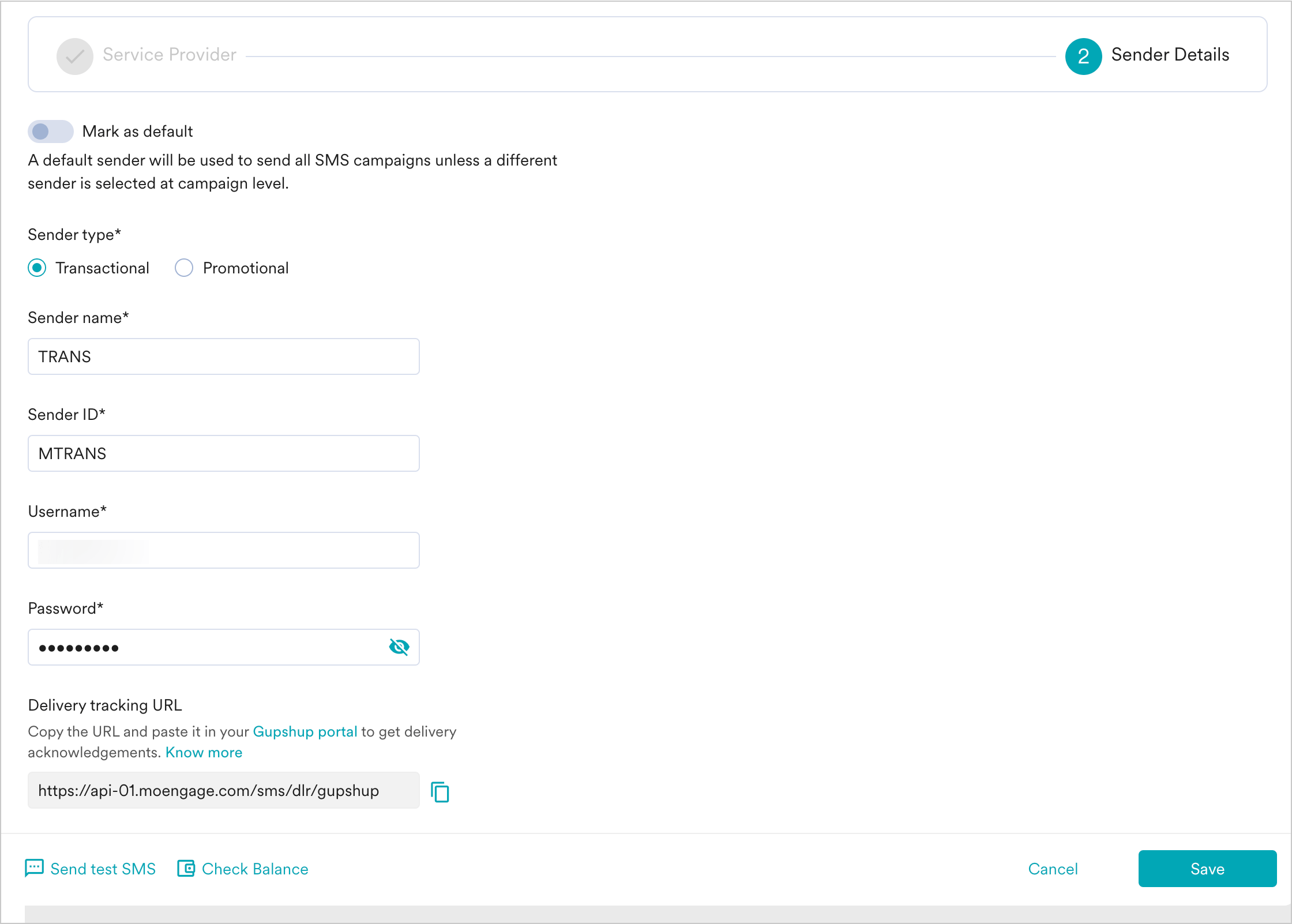
3. Add the following details in the **Sender Details** screen.
| Field | Description |
| ------------------- | --------------------------------------------------------------------------------------------------------------------------------------------------------------------------------------------------------------------------------------------------------------------------------------------------------------------------------------------------------------------------------------------------------------------------------------------------- |
| **Mark as default** | Turn on this toggle to mark the sender as the default sender for the service provider being configured. If marked as default, this sender would be used for sending all SMS campaigns from MoEngage unless you select a different sender while creating the campaign. |
| **Sender type** | The Sender type can either be **Promotional** or **Transactional**. Choose the Sender type as Promotional when you would be using the Sender for sending information about your brand, promoting deals, or engaging with users. Choose the Sender type as Transactional when you would be using the Sender for sending alerts about transactions, OTPs, security information, or any information that can be classified as transactional in nature. |
| **Sender ID** | This is the number from which SMS will be sent to your users. |
| **Username** | This is the username of your Gupshup account. |
| **Password** | This is the password of your Gupshup account. |
4. **Send a test SMS** to verify your configuration.
5. Click **Save** to save the Sender Configuration.
6. To enable delivery tracking, copy the Delivery tracking URL and paste it on to your Gupshup portal. For more information, refer to Enabling Delivery Tracking in Gupshup.
 ## Delivery Tracking
To enable SMS delivery tracking,
1. [Login to the Gupshup Portal](https://enterprise.smsgupshup.com/)
2. Navigate to [Settings -> SMS Settings](http://enterprise.smsgupshup.com/settings).
3. Use the MoEngage Delivery Tracking URL [https://api-01.moengage.com/sms/dlr/gupshup](https://api-01.moengage.com/sms/dlr/gupshup) and paste it under the Real-Time Delivery URL in the Gupshup portal for the Transactional SMS Account. k
## Delivery Tracking
To enable SMS delivery tracking,
1. [Login to the Gupshup Portal](https://enterprise.smsgupshup.com/)
2. Navigate to [Settings -> SMS Settings](http://enterprise.smsgupshup.com/settings).
3. Use the MoEngage Delivery Tracking URL [https://api-01.moengage.com/sms/dlr/gupshup](https://api-01.moengage.com/sms/dlr/gupshup) and paste it under the Real-Time Delivery URL in the Gupshup portal for the Transactional SMS Account. k
 The delivery tracking URL should be set as a GET request on Gupshup; contact your Gupshup account manager to set it as a GET request.
# Next Steps
* Create an SMS campaign using the [Getting Started for creating SMS campaign](/docs/user-guide/campaigns-and-channels/sms-mms-and-rcs/sms/create-an-sms-campaign).
* Set the [Frequency Capping for SMS](/docs/user-guide/settings/channels/delivery-controls/frequency-capping).
* Set the [Current Service Provider](/docs/user-guide/campaigns-and-channels/sms-mms-and-rcs/sms/getting-started-with-sms/configure-an-sms-sender).
The delivery tracking URL should be set as a GET request on Gupshup; contact your Gupshup account manager to set it as a GET request.
# Next Steps
* Create an SMS campaign using the [Getting Started for creating SMS campaign](/docs/user-guide/campaigns-and-channels/sms-mms-and-rcs/sms/create-an-sms-campaign).
* Set the [Frequency Capping for SMS](/docs/user-guide/settings/channels/delivery-controls/frequency-capping).
* Set the [Current Service Provider](/docs/user-guide/campaigns-and-channels/sms-mms-and-rcs/sms/getting-started-with-sms/configure-an-sms-sender).