> ## Documentation Index
> Fetch the complete documentation index at: https://moengage.com/docs/llms.txt
> Use this file to discover all available pages before exploring further.
# Infobip
# Introduction
Infobip is an omnichannel engagement platform that helps brands create meaningful relationships with their customers at scale and offers a broad range of solutions, messaging channels, and tools for advanced customer engagement, authentication, security, support, and retention.
**Prerequisites**
Ensure you have access to your Infobip Dashboard and have the API key for your Infobip account.
# Configure Infobip as a Custom SMS Connector (Service Provider)
This article will help you set Infobip as a Custom Connector on the MoEngage dashboard.
Log in to the MoEngage Dashboard and follow these steps:
1. Navigate to **Settings** -> **Channel** -> **SMS** -> **Sender Configuration**.
2. Click **+Add custom service provider** at the top right corner.
3. Add the following details in the **Sender Details** screen.
| Field | Description |
| ------------------------- | --------------------------------------------------------------------------------------------------------------------------------------------------------------------------------------------------------------------------------------------------------------------------------------------------------------------------------------------------------------------------------------------------------------------------------------------------- |
| **Mark as default** | Turn on this toggle to mark the sender as the default sender for the service provider being configured. If marked as default, this sender would be used for sending all SMS campaigns from MoEngage unless you select a different sender while creating the campaign. |
| **Service provider name** | This field identifies the service provider you are configuring on the MoEngage Dashboard and has to be unique. Type the name of the service provider here. |
| **Sender name** | This field identifies the readable sender name that can be used while creating a campaign or alert. |
| **Sender type** | The Sender type can either be **Promotional** or **Transactional**. Choose the Sender type as Promotional when you would be using the Sender for sending information about your brand, promoting deals, or engaging with users. Choose the Sender type as Transactional when you would be using the Sender for sending alerts about transactions, OTPs, security information, or any information that can be classified as transactional in nature. |
4. Configure the Webhook by adding the following details:
| Field | Description |
| ------------------ | --------------------------------------------------------------------------------------------------------------------------------------------------------------------------------------------------------------------------------------------------------------------------------------------------------------------------------------------------------------- |
| **API URL** | This field contains information about the URL that should be used to send an API request to the Sender. You can get this information from the API Documentation of the Sender. Type the API Endpoint of the sender here. The API URL for Infobip is: *[https://yr8qyp.api.infobip.com/sms/2/text/advanced](https://yr8qyp.api.infobip.com/sms/2/text/advanced)* |
| **Method** | Select **POST** as the HTTP method. |
| **URL Parameters** | Add the URL Parameters to be passed to the API as Key-Value pairs using this option. You can get this information from the API Documentation of the Sender. For example, if the API URL call uses the GET method, all the parameters, such as API Key, Authorization, and so on, are passed as URL Parameters. |
| **Headers** | Add the Request Headers to be passed to the API as Key-Value pairs using this option. You can get this information from the API Documentation of the Sender. Add the Authorization Header. |
**Body Type** Choose the Body Type as **JSON** and add the following details:
```json theme={null}
{
"messages": [
{
"destinations": [
{
"to": "Moesms_destination"
}
],
"from": "SENDER ID",
"text": "Moesms_message",
"intermediateReport": "True",
"regional": {
"indiaDlt": {
"principalEntityId": "XXXXXXXXXX",
"contentTemplateId": "Moesms_dltTemplateId"
}
},
"notifyContentType": "application/json",
"notifyUrl": "YourMoEngageAccountURL"
}
]
}
```
Change the values of Sender\_ID and YourMoEngageAccountURL based on your Infobip and MoEngage accounts.
5. **Send a test SMS** to verify your configuration.
6. Click **Save** to save the Sender Configuration.
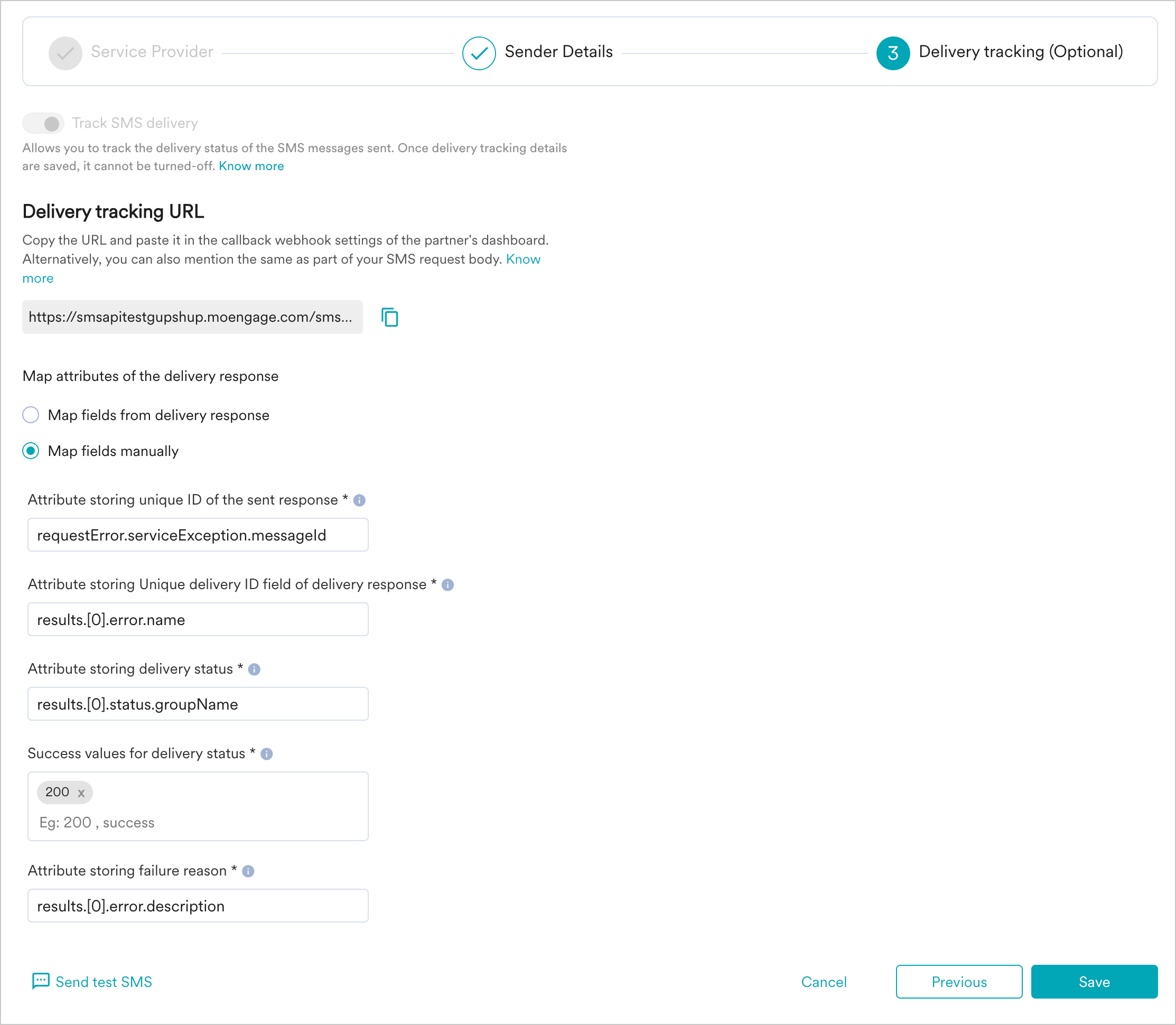
7. You can configure delivery tracking after creating the sender in the MoEngage Dashboard. For information about Delivery Tracking, refer to [Delivery Tracking for Custom Connectors](/user-guide/campaigns-and-channels/sms-mms-and-rcs/sms/getting-started-with-sms/configure-custom-connector-for-sms).
8. You can map the attributes of the delivery tracking response manually or automatically.
 # Next Steps
* Create an SMS campaign using the [Getting Started for creating SMS campaign](/user-guide/campaigns-and-channels/sms-mms-and-rcs/sms/create-an-sms-campaign).
* Set the [Frequency Capping for SMS](/user-guide/settings/channels/delivery-controls/frequency-capping).
* Set the [Current Service Provider](/user-guide/campaigns-and-channels/sms-mms-and-rcs/sms/getting-started-with-sms/configure-an-sms-sender).
* [Read more about campaign analytics.](/user-guide/campaigns-and-channels/connectors/analyze/connector-campaign-analytics)
# Next Steps
* Create an SMS campaign using the [Getting Started for creating SMS campaign](/user-guide/campaigns-and-channels/sms-mms-and-rcs/sms/create-an-sms-campaign).
* Set the [Frequency Capping for SMS](/user-guide/settings/channels/delivery-controls/frequency-capping).
* Set the [Current Service Provider](/user-guide/campaigns-and-channels/sms-mms-and-rcs/sms/getting-started-with-sms/configure-an-sms-sender).
* [Read more about campaign analytics.](/user-guide/campaigns-and-channels/connectors/analyze/connector-campaign-analytics)