> ## Documentation Index
> Fetch the complete documentation index at: https://moengage.com/docs/llms.txt
> Use this file to discover all available pages before exploring further.
# Mtalkz
# Introduction
[Mtalkz](https://mtalkz.com/) Is A Platform Based, Digital Engagement And Communication Service Company That Provides High Volume Messaging Services Along With Marketing Automation, Workflow Automation And Predictive Insights Using AI/ML.
# Integration
**Prerequisites**
Ensure you have access to your Mtalkz Dashboard and have the API key for your account.
## Configure Mtalkz as a Custom SMS Connector
Log in to the MoEngage dashboard:
1. Click the *SMS Connector Config tab*.
2. Under *Custom Connecters* , click *+CREATE.*  3. Add the following details:
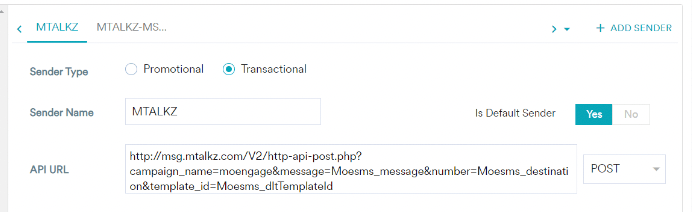
* **Sender Type-** Select Transactional or Promotional as per your requirements:
* Promotional: Choose the Sender Type as Promotional when you would be using the Sender for sending information about your brand, promoting deals, or engaging with users.
* Transactional: Choose the Sender Type as Transactional when you would be using the Sender for sending alerts about transactions, OTPs, security information, or any information that can be classified as transactional in nature.
* **Connector Name -** This field identifies the Custom Connector you are configuring on the MoEngage Dashboard and has to be unique. Type the name of the connector here - MTALKZ
* **Sender Name -** This field identifies the readable sender name that can be used while creating a campaign or alert.
* **Is Default Sender -** User Choice(Select yes or No)
* **API URL -** This is the base URL of the SMS service provider, along with all the query parameters that can be used to call API to send SMS:
```text wrap theme={null}
[http://msg.mtalkz.com/V2/http-api-post.php?campaign_name=moengage&message=Moesms_message&number=Moesms_destination&template_id=Moesms_dltTemplateId](http://msg.mtalkz.com/V2/http-api-post.php?campaign_name=moengage&message=Moesms_message&number=Moesms_destination&template_id=Moesms_dltTemplateId)
```
3. Add the following details:
* **Sender Type-** Select Transactional or Promotional as per your requirements:
* Promotional: Choose the Sender Type as Promotional when you would be using the Sender for sending information about your brand, promoting deals, or engaging with users.
* Transactional: Choose the Sender Type as Transactional when you would be using the Sender for sending alerts about transactions, OTPs, security information, or any information that can be classified as transactional in nature.
* **Connector Name -** This field identifies the Custom Connector you are configuring on the MoEngage Dashboard and has to be unique. Type the name of the connector here - MTALKZ
* **Sender Name -** This field identifies the readable sender name that can be used while creating a campaign or alert.
* **Is Default Sender -** User Choice(Select yes or No)
* **API URL -** This is the base URL of the SMS service provider, along with all the query parameters that can be used to call API to send SMS:
```text wrap theme={null}
[http://msg.mtalkz.com/V2/http-api-post.php?campaign_name=moengage&message=Moesms_message&number=Moesms_destination&template_id=Moesms_dltTemplateId](http://msg.mtalkz.com/V2/http-api-post.php?campaign_name=moengage&message=Moesms_message&number=Moesms_destination&template_id=Moesms_dltTemplateId)
```
 \
Dropdown Button: Select *GET*
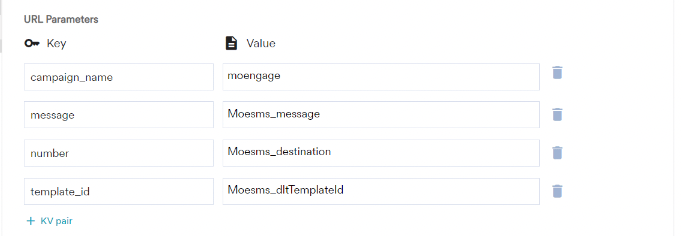
* **URL Parameters:** Campaign\_name - moengage\
Message - Moesms\_message\
Number - Moesms\_destination\
Template\_id -Moesms\_dltTemplateId\\
\
Dropdown Button: Select *GET*
* **URL Parameters:** Campaign\_name - moengage\
Message - Moesms\_message\
Number - Moesms\_destination\
Template\_id -Moesms\_dltTemplateId\\
 * **Headers:** Content-Type - application/json
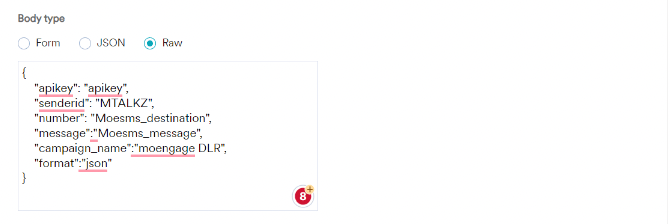
* **Body:** Select *RAW* and enter the following payload:
```json theme={null}
{
"apikey": "apikey",
"senderid": "MTALKZ",
"number": "Moesms_destination",
"message":"Moesms_message",
"campaign_name":"moengage DLR",
"format":"json"
}
```
* **Headers:** Content-Type - application/json
* **Body:** Select *RAW* and enter the following payload:
```json theme={null}
{
"apikey": "apikey",
"senderid": "MTALKZ",
"number": "Moesms_destination",
"message":"Moesms_message",
"campaign_name":"moengage DLR",
"format":"json"
}
```
 4. Click Save. Settings have been configured.