> ## Documentation Index
> Fetch the complete documentation index at: https://moengage.com/docs/llms.txt
> Use this file to discover all available pages before exploring further.
# Knowlarity
# Introduction
[Knowlarity](https://www.knowlarity.com/) offers cost-efficient, tailor-made, and reliable cloud communication services suitable for every business need and size.
# MoEngage × Knowlarity
Use MoEngage Connector Campaigns to send out timely Voice Campaigns to your users.
# Integration
* Ensure you have access to your Knowlarity account.
* Ensure you have access to Knowlarity APIs.
# Integration
Use the MoEngage Connector Campaign to trigger Knowlarity APIs. Below is a tutorial on how to call the Call Campaign API on Knowlarity:
## Step 1: Get API Endpoints and specifications
Read the [Knowlarity documentation](https://developer.knowlarity.com/api-reference) to understand the endpoints for your use case.
## Step 2: Setup Connector Campaign on MoEngage
To create a connector campaign on MoEngage,
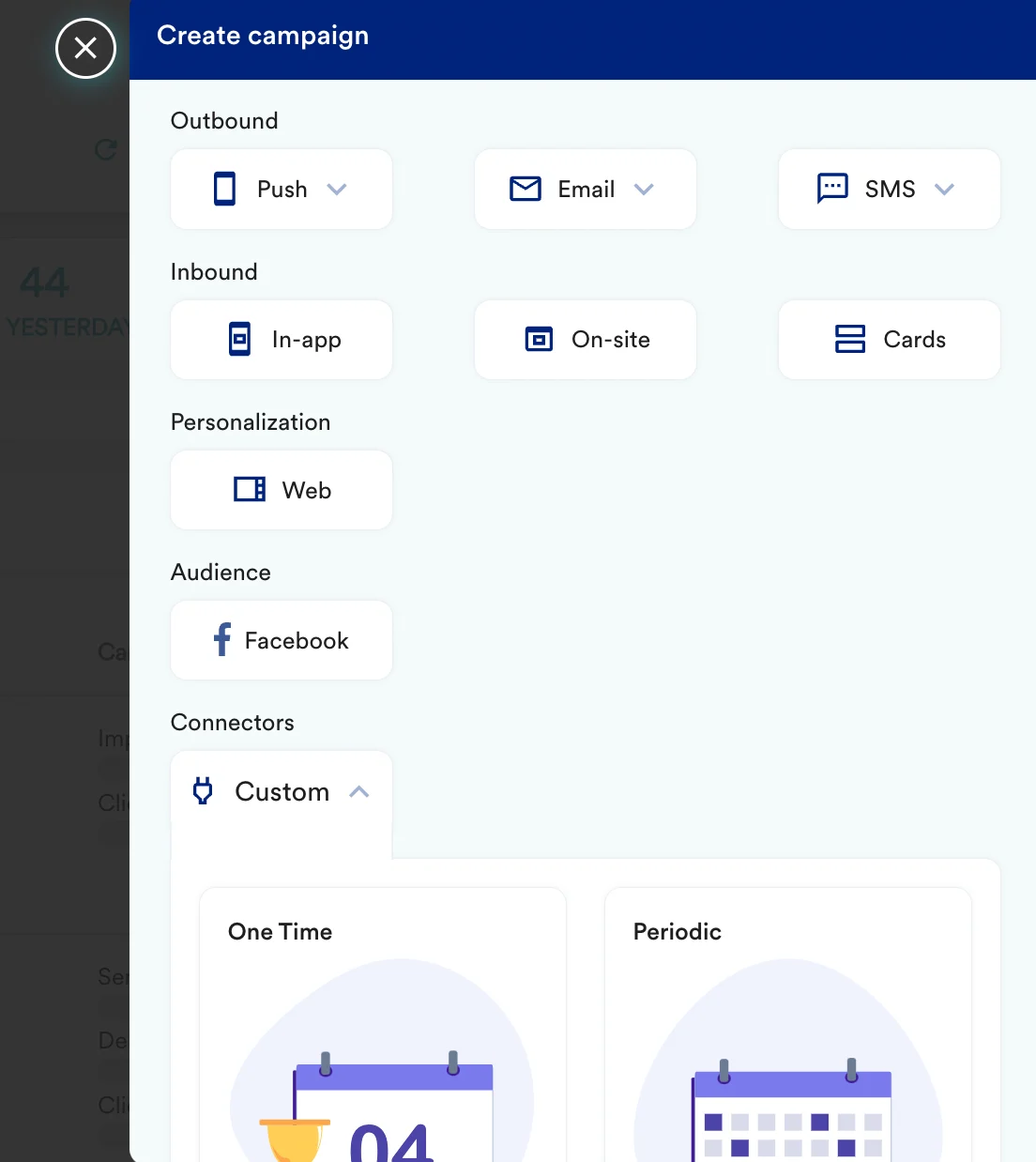
1. Navigate to Create Campaign >> Connectors >> Custom and choose the delivery type most suitable to your needs
 2. On step 2 of the campaign
### Call the Knowlarity API
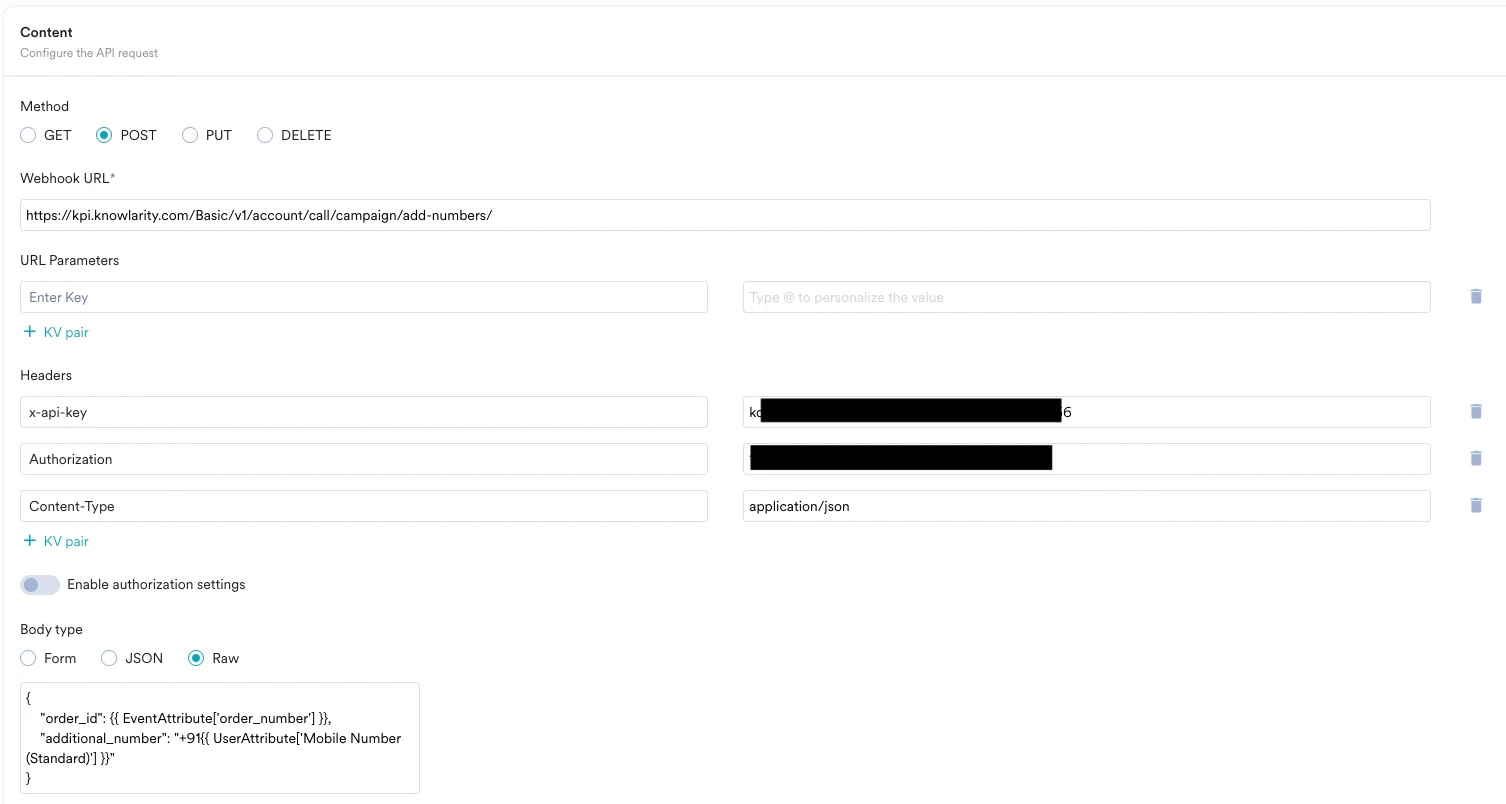
To create a new Call Campaign on Knowlarity, use the `POST` method and configure the payload.
* Select the method as POST
* Headers:
* `x-api-key`: Your Application Access Key
* `Authorization`: `Your SR_API_KEY`
* `Content-Type`: `application/json`
* Add the endpoint as Webhook URL: `https://kpi.knowlarity.com/Basic/v1/account/call/campaign/add-numbers/`
* Body:
```json JSON wrap theme={null}
{
"order_id": {{ EventAttribute['order_number'] }},
"additional_number": "+91{{ UserAttribute['Mobile Number (Standard)'] }}"
}
```
2. On step 2 of the campaign
### Call the Knowlarity API
To create a new Call Campaign on Knowlarity, use the `POST` method and configure the payload.
* Select the method as POST
* Headers:
* `x-api-key`: Your Application Access Key
* `Authorization`: `Your SR_API_KEY`
* `Content-Type`: `application/json`
* Add the endpoint as Webhook URL: `https://kpi.knowlarity.com/Basic/v1/account/call/campaign/add-numbers/`
* Body:
```json JSON wrap theme={null}
{
"order_id": {{ EventAttribute['order_number'] }},
"additional_number": "+91{{ UserAttribute['Mobile Number (Standard)'] }}"
}
```
 * Refer to the [Knowlarity documentation](https://developer.knowlarity.com/api-reference#api_ref_link81) for more information.
## Preview your request
At this point, your campaign should be ready to test and send. You can also test your connector configuration using the Test functionality available in Step 2 of Create Connector Campaign.
* Refer to the [Knowlarity documentation](https://developer.knowlarity.com/api-reference#api_ref_link81) for more information.
## Preview your request
At this point, your campaign should be ready to test and send. You can also test your connector configuration using the Test functionality available in Step 2 of Create Connector Campaign. You can go ahead and Publish the campaign.