> ## Documentation Index
> Fetch the complete documentation index at: https://moengage.com/docs/llms.txt
> Use this file to discover all available pages before exploring further.
# Configure Airtel IQ
MoEngage has native integration for WhatsApp with Airtel IQ. This integration allows businesses to send templated WhatsApp messages using Senders powered by Airtel IQ. MoEngage can send messages and show Delivery and Read Analytics.
## Sender Configuration
To configure a Sender from Airtel IQ on the MoEngage Dashboard, do the following:
1. Go to Settings->WhatsApp->Sender Configuration.
2. Choose Airtel IQ from the left menu and click on + Sender.
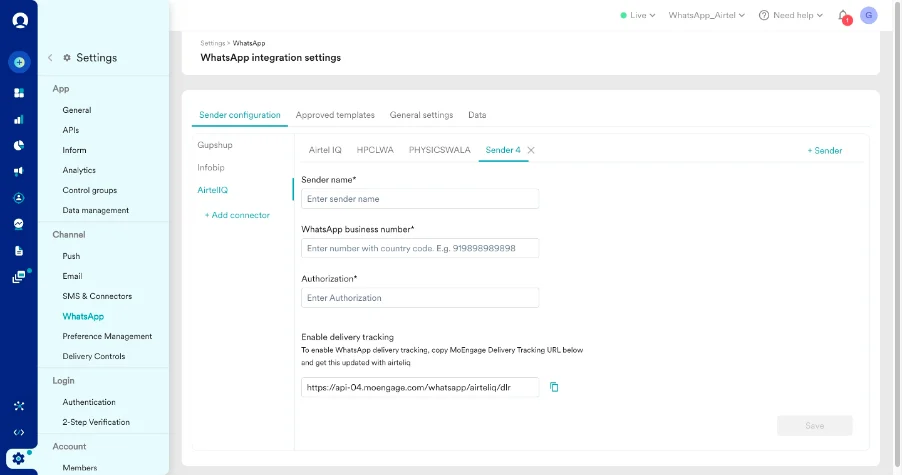 3. Add the following details:
| Field Name | Description |
| ------------------------ | ------------------------------------------------------------------------------------------------------------------------------------------------------------------------------------------------------------------------------------------------------------------------------------------------------------------------------ |
| Sender name | This field denotes the name you want to provide to the Sender profile. This would be available in the Sender so that you can recognize this easily while using it to create a campaign inside MoEngage. The *Sender Name* should be between 5-50 characters. This is a mandatory field. |
| WhatsApp business number | This field denotes the phone number registered with WhatsApp (directly or via Airtel IQ) using which you want to send out WhatsApp Messages to your users. On Airtel IQ, you can find Sender Details on *Channels & Numbers -\_\_> WhatsApp -> Senders*. This is a mandatory field and is also referred to as the WABA number. |
| Authorization\* | Reach Out to Airtel IQ Delivery Team [iqservicesupport@airtel.com](mailto:iqservicesupport@airtel.com) For WhatsApp Authorization: User Name & Password. |
## Delivery Tracking
To track the delivery of your WhatsApp Messages inside MoEngage, you would need to copy the MoEngage Delivery Tracking URL, share it with Airtel IQ, and get it updated on their side. You should be able to see the URL as shown below:
3. Add the following details:
| Field Name | Description |
| ------------------------ | ------------------------------------------------------------------------------------------------------------------------------------------------------------------------------------------------------------------------------------------------------------------------------------------------------------------------------ |
| Sender name | This field denotes the name you want to provide to the Sender profile. This would be available in the Sender so that you can recognize this easily while using it to create a campaign inside MoEngage. The *Sender Name* should be between 5-50 characters. This is a mandatory field. |
| WhatsApp business number | This field denotes the phone number registered with WhatsApp (directly or via Airtel IQ) using which you want to send out WhatsApp Messages to your users. On Airtel IQ, you can find Sender Details on *Channels & Numbers -\_\_> WhatsApp -> Senders*. This is a mandatory field and is also referred to as the WABA number. |
| Authorization\* | Reach Out to Airtel IQ Delivery Team [iqservicesupport@airtel.com](mailto:iqservicesupport@airtel.com) For WhatsApp Authorization: User Name & Password. |
## Delivery Tracking
To track the delivery of your WhatsApp Messages inside MoEngage, you would need to copy the MoEngage Delivery Tracking URL, share it with Airtel IQ, and get it updated on their side. You should be able to see the URL as shown below:
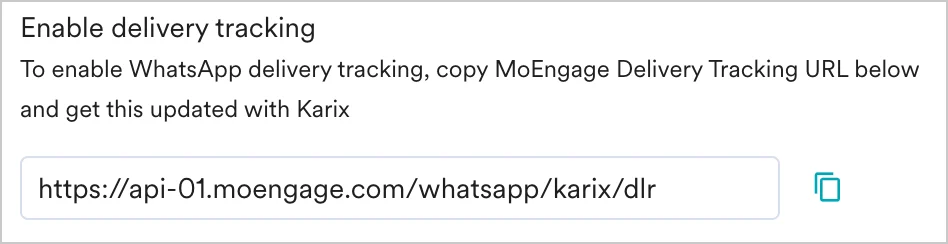 The URL is a sample URL. Copy the exact URL from your MoEngage Dashboard before you share it with the Airtel IQ team.
## **Steps to add Delivery Tracking URL**
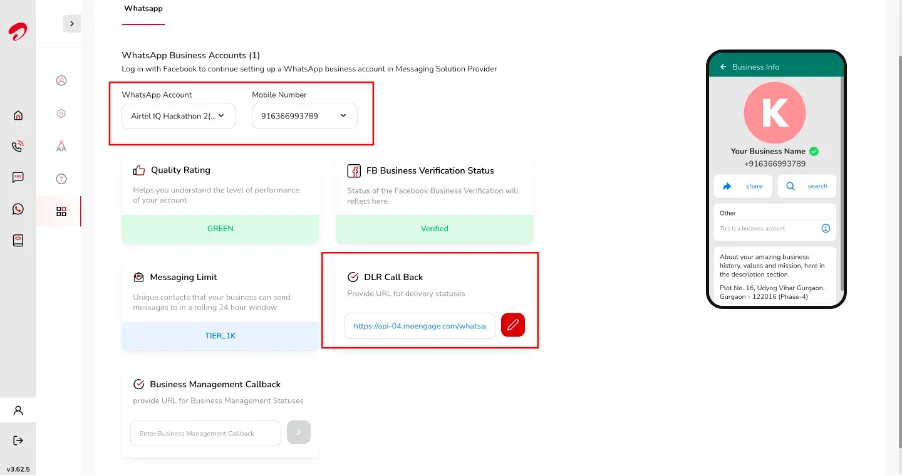
1. [Login to your Airtel IQ account](https://www.airtel.in/business/b2b/airtel-iq/dashboard/#/) and go to My Account -> Channel Setting
2. Select the WABA Account.
3. Select the Mobile Number for which DLR Call Back needs to be updated.
4. Update the Moengage Webhook in the DLR Call Back and save.
The URL is a sample URL. Copy the exact URL from your MoEngage Dashboard before you share it with the Airtel IQ team.
## **Steps to add Delivery Tracking URL**
1. [Login to your Airtel IQ account](https://www.airtel.in/business/b2b/airtel-iq/dashboard/#/) and go to My Account -> Channel Setting
2. Select the WABA Account.
3. Select the Mobile Number for which DLR Call Back needs to be updated.
4. Update the Moengage Webhook in the DLR Call Back and save.
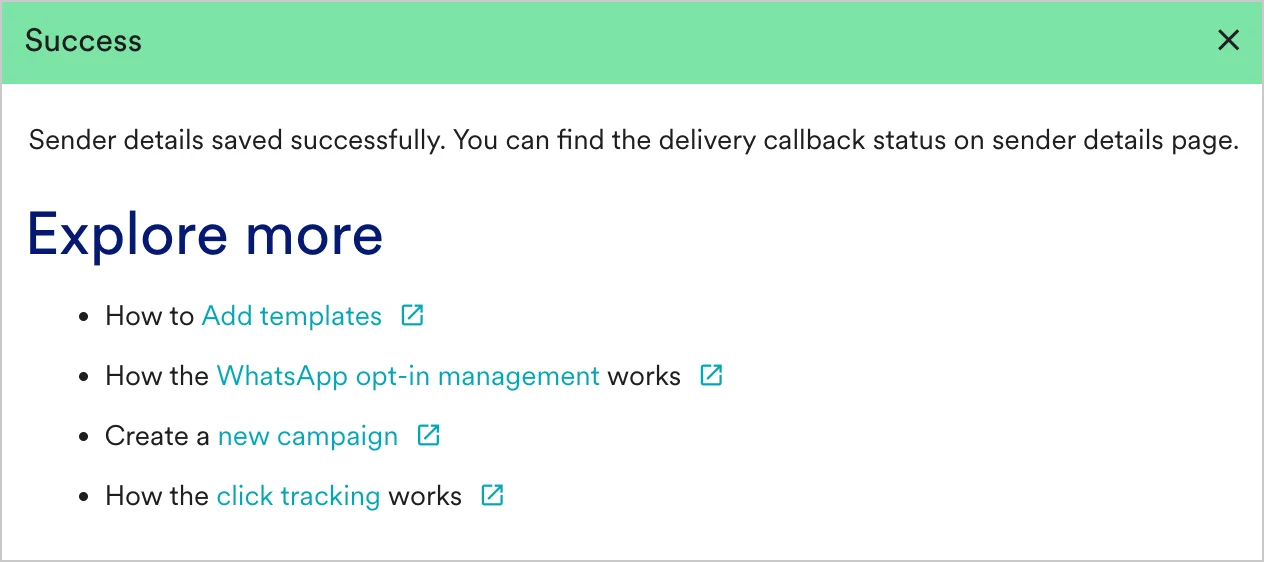
 Upon successful integration, you will get the following message.
 * You should have pre-approved templates with Airtel IQ to create a WhatsApp campaign for a Airtel IQ Sender in MoEngage. You can create templates in Airtel IQ by selecting the Template Management option in the left menu in [Airtel IQ Template Management](https://www.airtel.in/business/b2b/airtel-iq/dashboard/#/whatsapp/template-manager/builder).
* You can create the same template verbatim in MoEngage. For more information, refer to [Add Templates](/user-guide/campaigns-and-channels/whatsapp/getting-started-with-whatsapp/whatsapp-templates).
## Next Steps
1. [Create a WhatsApp Campaign](/user-guide/campaigns-and-channels/whatsapp/create/create-a-whatsapp-campaign)
2. [ WhatsApp Campaign Analytics](/user-guide/campaigns-and-channels/whatsapp/analyze/analyze-whatsapp-campaign)
3. [Create a report of the campaign's delivery stats and conversion goals](/user-guide/campaigns-and-channels/campaign-management-and-reports/create-ad-hoc-campaign-reports)
* You should have pre-approved templates with Airtel IQ to create a WhatsApp campaign for a Airtel IQ Sender in MoEngage. You can create templates in Airtel IQ by selecting the Template Management option in the left menu in [Airtel IQ Template Management](https://www.airtel.in/business/b2b/airtel-iq/dashboard/#/whatsapp/template-manager/builder).
* You can create the same template verbatim in MoEngage. For more information, refer to [Add Templates](/user-guide/campaigns-and-channels/whatsapp/getting-started-with-whatsapp/whatsapp-templates).
## Next Steps
1. [Create a WhatsApp Campaign](/user-guide/campaigns-and-channels/whatsapp/create/create-a-whatsapp-campaign)
2. [ WhatsApp Campaign Analytics](/user-guide/campaigns-and-channels/whatsapp/analyze/analyze-whatsapp-campaign)
3. [Create a report of the campaign's delivery stats and conversion goals](/user-guide/campaigns-and-channels/campaign-management-and-reports/create-ad-hoc-campaign-reports)