> ## Documentation Index
> Fetch the complete documentation index at: https://moengage.com/docs/llms.txt
> Use this file to discover all available pages before exploring further.
# Configure ICS
MoEngage integrates with ICS for WhatsApp to send messages and show delivery analytics. This integration allows businesses to send templated WhatsApp messages with one or more senders powered by ICS.
**Prerequisites**
* You must have a WhatsApp Business API account live on ICS to use this integration.
* You must have a MoEngage account to connect with ICS WhatsApp.
## Sender Configuration
To configure a sender from ICS on the MoEngage dashboard, perform the following steps:
1. Go to **Settings** > **WhatsApp** > **Sender Configuration**.
2. Choose **ICS** from the list of WhatsApp providers available in the left menu, then click **+ Sender**.
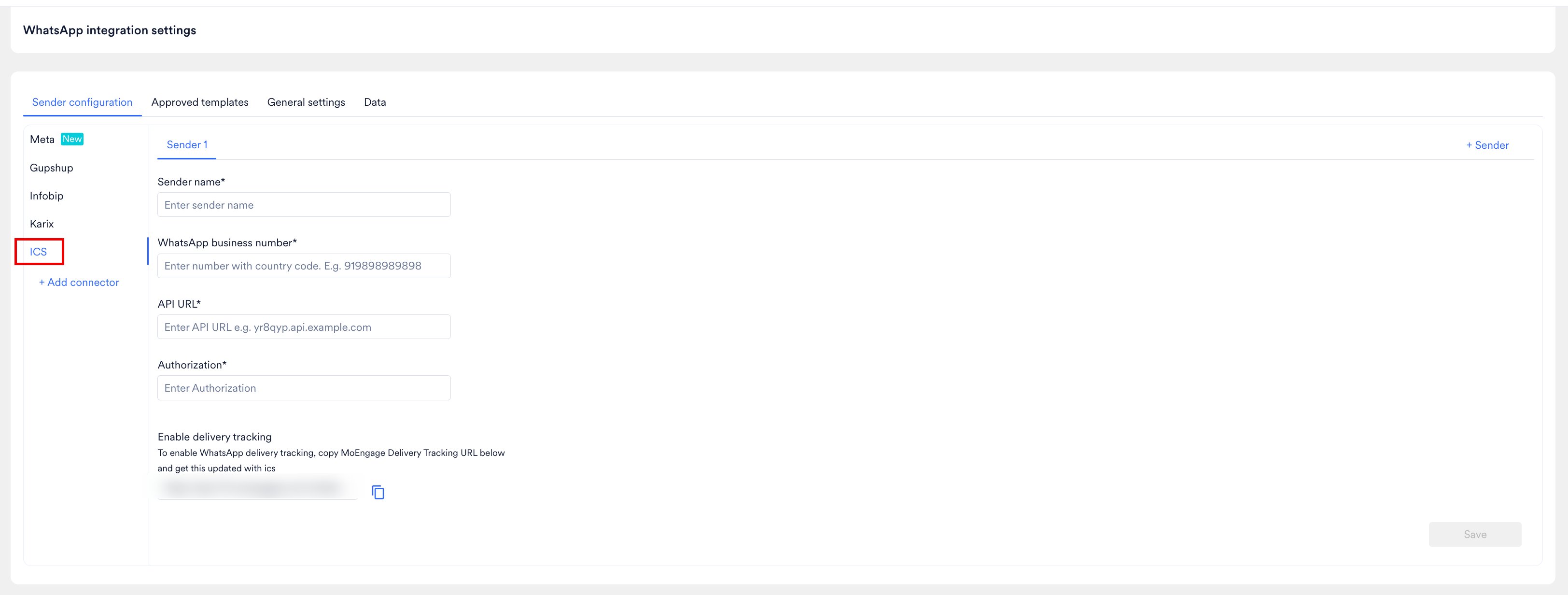 3. Add the following details:
| Field Name | Description |
| ---------------------------- | ----------------------------------------------------------------------------------------------------------------------------------------------------------------------------------------------------------------------------- |
| **Sender name** | Enter a name to identify this sender in MoEngage. This name is used to recognize the sender while creating a campaign inside MoEngage. This is a mandatory field. |
| **WhatsApp business number** | Enter the phone number registered with WhatsApp (through ICS) that you want to use to send WhatsApp messages, including the country code (e.g. 919898989898). This is a mandatory field, also referred to as the WABA number. |
| **API URL** | Enter the API URL for sending requests. You can get this API URL from the ICS team. This is a mandatory field. |
| **Authorization** | Enter the Bearer token used for authentication. You can get this token from the ICS team. This is a mandatory field. |
4. To enable WhatsApp delivery tracking, copy the MoEngage **Delivery Tracking URL** shown under **Enable delivery tracking** on the Sender Configuration screen, and share it with the ICS team so they can configure it on their end.
5. Click **Save**. Upon successful integration, you will get a success message.
* You should have pre-approved templates with ICS to create a WhatsApp campaign for an ICS Sender in MoEngage.
* You can create the same template verbatim in MoEngage. For more information, refer to [Add Templates](/docs/user-guide/campaigns-and-channels/whatsapp/getting-started-with-whatsapp/whatsapp-templates).
3. Add the following details:
| Field Name | Description |
| ---------------------------- | ----------------------------------------------------------------------------------------------------------------------------------------------------------------------------------------------------------------------------- |
| **Sender name** | Enter a name to identify this sender in MoEngage. This name is used to recognize the sender while creating a campaign inside MoEngage. This is a mandatory field. |
| **WhatsApp business number** | Enter the phone number registered with WhatsApp (through ICS) that you want to use to send WhatsApp messages, including the country code (e.g. 919898989898). This is a mandatory field, also referred to as the WABA number. |
| **API URL** | Enter the API URL for sending requests. You can get this API URL from the ICS team. This is a mandatory field. |
| **Authorization** | Enter the Bearer token used for authentication. You can get this token from the ICS team. This is a mandatory field. |
4. To enable WhatsApp delivery tracking, copy the MoEngage **Delivery Tracking URL** shown under **Enable delivery tracking** on the Sender Configuration screen, and share it with the ICS team so they can configure it on their end.
5. Click **Save**. Upon successful integration, you will get a success message.
* You should have pre-approved templates with ICS to create a WhatsApp campaign for an ICS Sender in MoEngage.
* You can create the same template verbatim in MoEngage. For more information, refer to [Add Templates](/docs/user-guide/campaigns-and-channels/whatsapp/getting-started-with-whatsapp/whatsapp-templates).