> ## Documentation Index
> Fetch the complete documentation index at: https://moengage.com/docs/llms.txt
> Use this file to discover all available pages before exploring further.
# Configure Meta Templates
> Create, configure, and submit WhatsApp templates to Meta.
Create and manage WhatsApp templates directly from MoEngage without switching to your Meta partner's portal. Once your Meta account is configured, you can create templates, submit them to Meta for approval, and track their approval status all from a single interface.
For information about adding your already approved/whitelisted WhatsApp templates in MoEngage, refer to [Configure Meta](/docs/partner-guide/messaging-channels/whatsapp-providers/meta/configure-meta-sender).
## Create a Meta Template
1. Navigate to **Settings** **> Channels >** **WhatsApp**.
2. Select the **Approved templates** tab and click on the **+ Template** button.
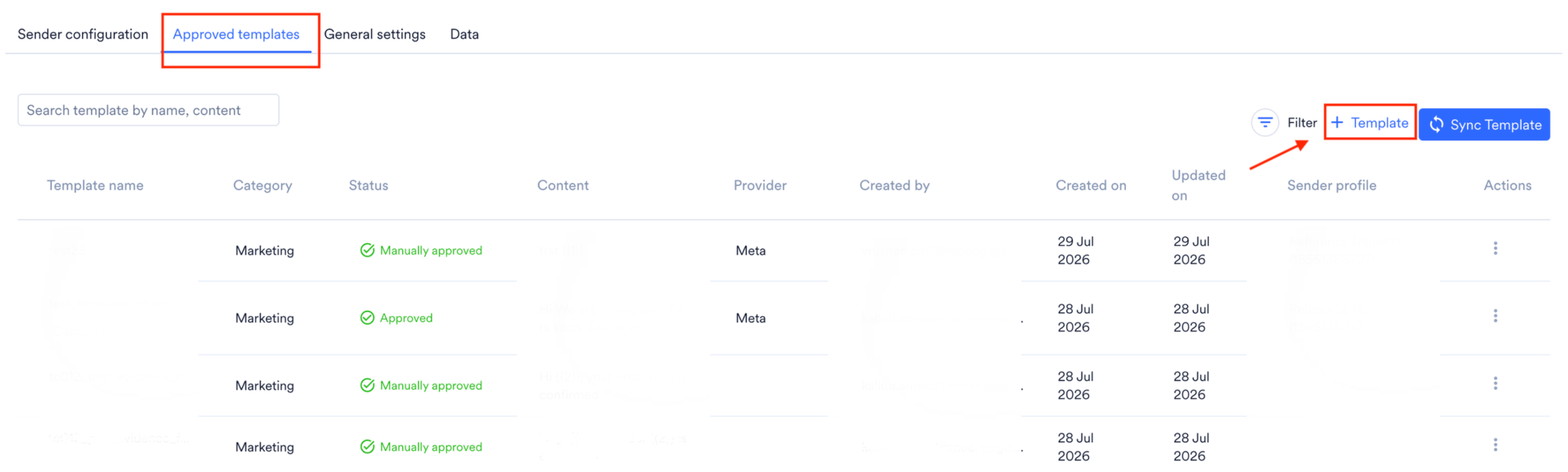 3. Configure the template by adding the required components.
| Field | Description |
| - | - |
| **Name** | Enter the template name exactly as it appears on the BSP side. The name can have up to 100 characters. |
| **Service Provider** | Choose Meta from the dropdown (or your BSP) with which you want to send this templated message. Note that WhatsApp templates are approved at the WhatsApp Business Account (WABA) level, which can belong to only one BSP. Select the BSP that is compatible with your template. |
| **Sender Profile** | Choose the Meta profile with which this template is approved. You can select multiple Meta profiles if they are from the same BSP and are under the same WABA. |
| **Language** | Select the language for the template content. This value determines the language of your template and should match the language specified on the BSP/WSP side. |
| **Category** | Select the category type from the dropdown. WhatsApp allows sending messages that belong to one of the following categories:
3. Configure the template by adding the required components.
| Field | Description |
| - | - |
| **Name** | Enter the template name exactly as it appears on the BSP side. The name can have up to 100 characters. |
| **Service Provider** | Choose Meta from the dropdown (or your BSP) with which you want to send this templated message. Note that WhatsApp templates are approved at the WhatsApp Business Account (WABA) level, which can belong to only one BSP. Select the BSP that is compatible with your template. |
| **Sender Profile** | Choose the Meta profile with which this template is approved. You can select multiple Meta profiles if they are from the same BSP and are under the same WABA. |
| **Language** | Select the language for the template content. This value determines the language of your template and should match the language specified on the BSP/WSP side. |
| **Category** | Select the category type from the dropdown. WhatsApp allows sending messages that belong to one of the following categories:
• Marketing
• Utility |
| **Template Type** | This field is visible only if you have selected the Category field as Marketing. Select the template type from the dropdown menu. |
4. Click the **Save** or **Submit for approval** button.
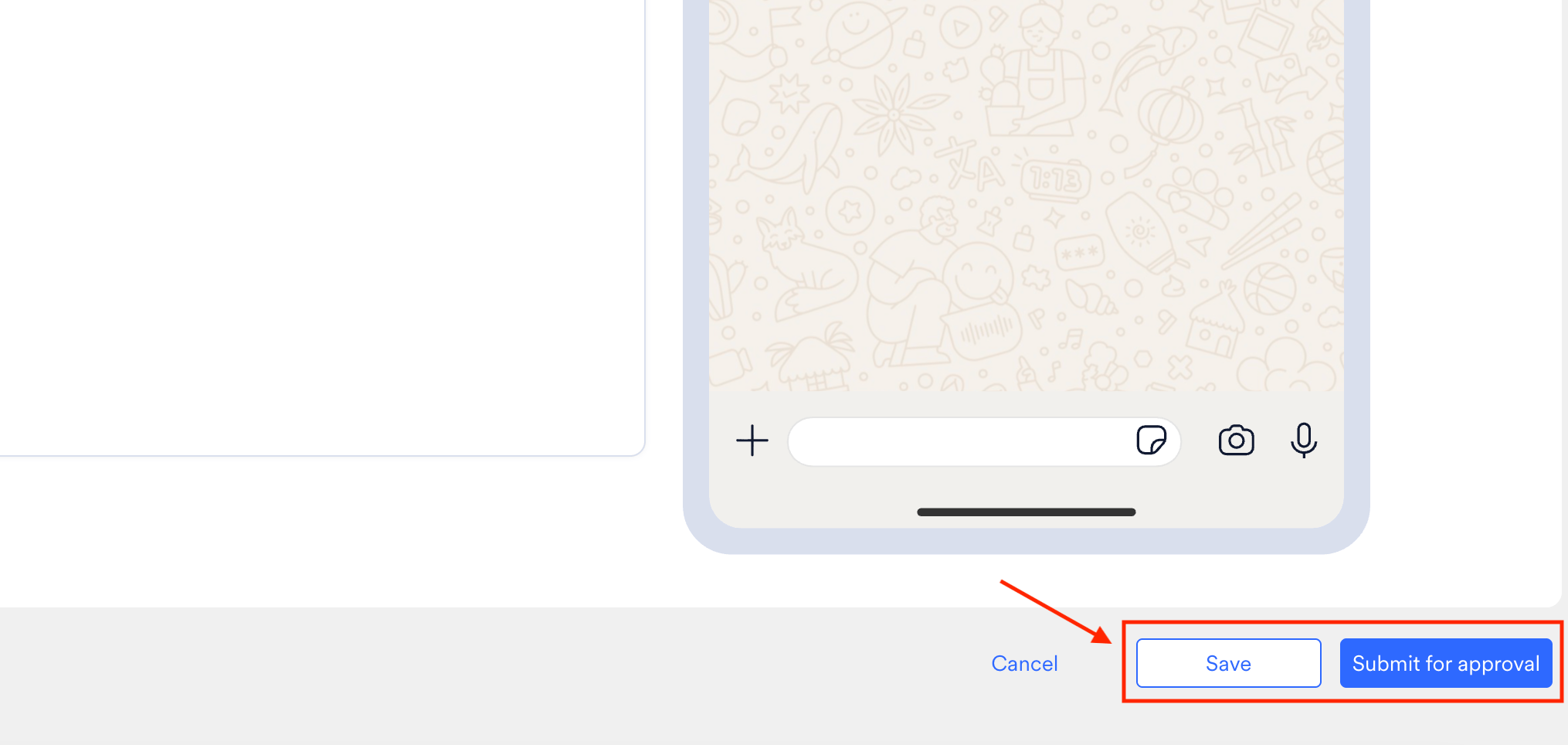 When you select **Submit for approval**, MoEngage submits the template to Meta for approval. When you select **Save**, MoEngage saves the template only. Templates saved this way must be manually created and submitted to Meta for approval.
The following sections are available while configuring a template:
| Field | Description |
| - | - |
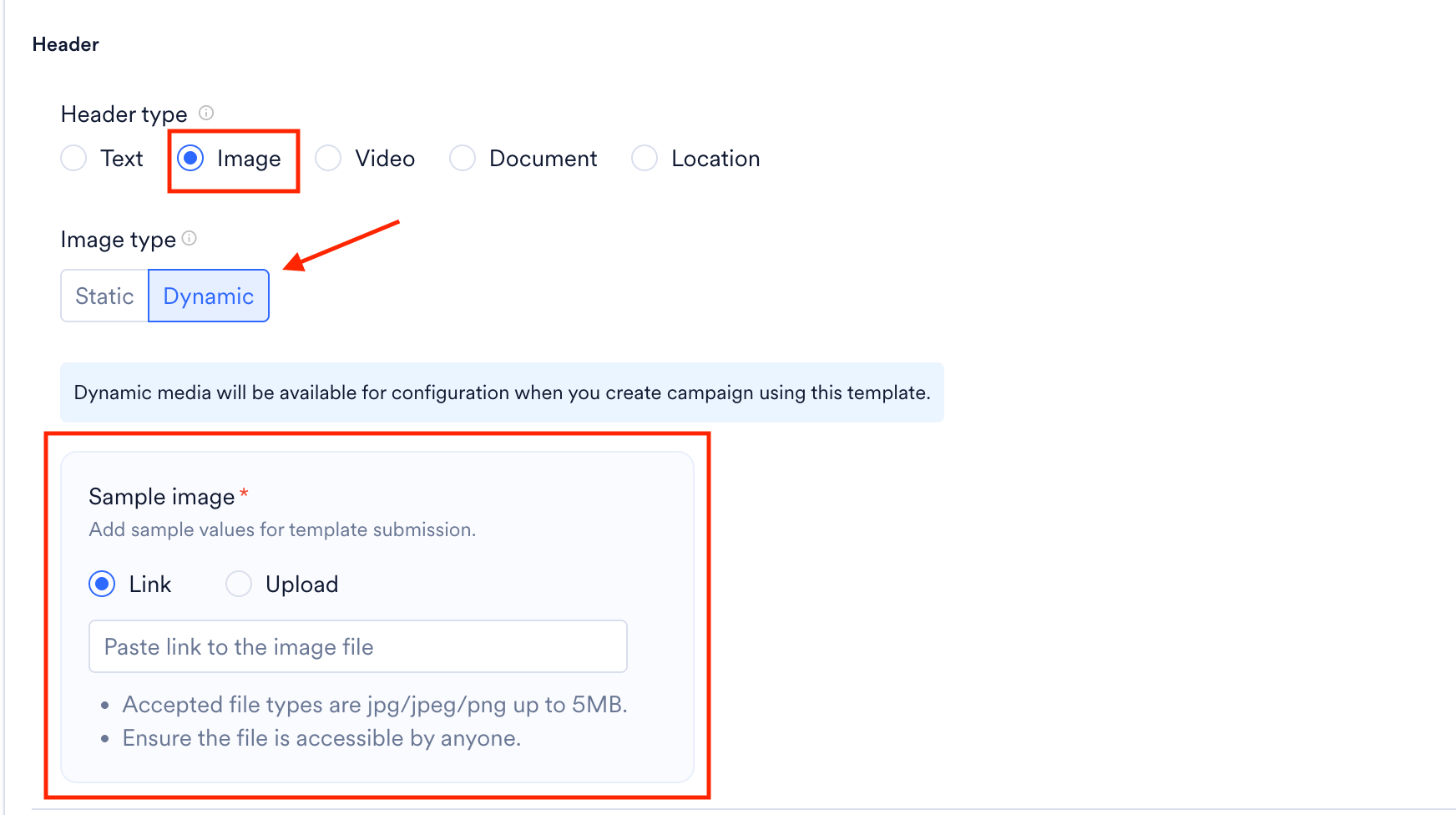
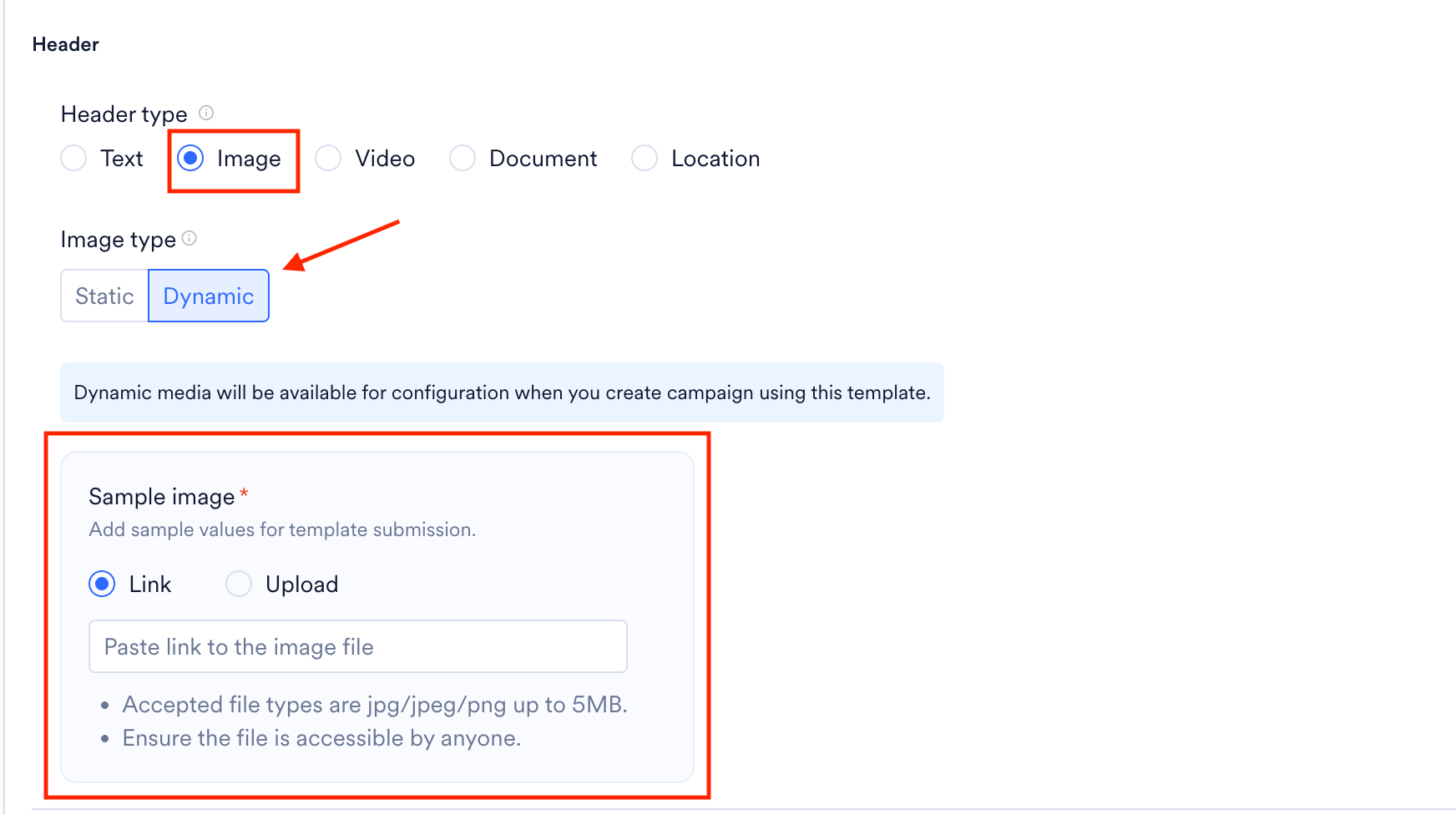
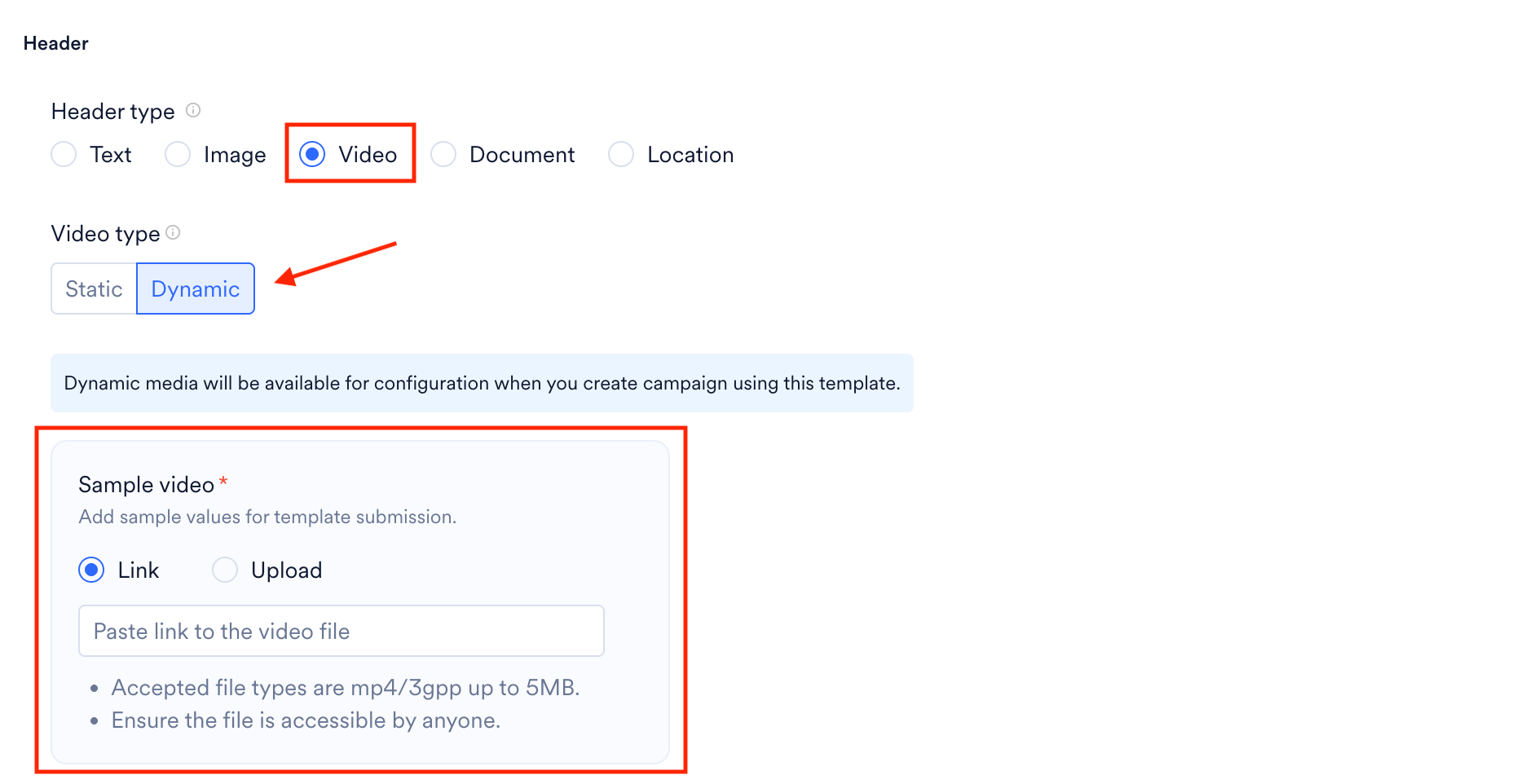
| **Header** | The header appears at the top of your WhatsApp message and can contain text or supported media. This field is optional. If you select a dynamic media header (such as an image), provide a sample image during template creation. |
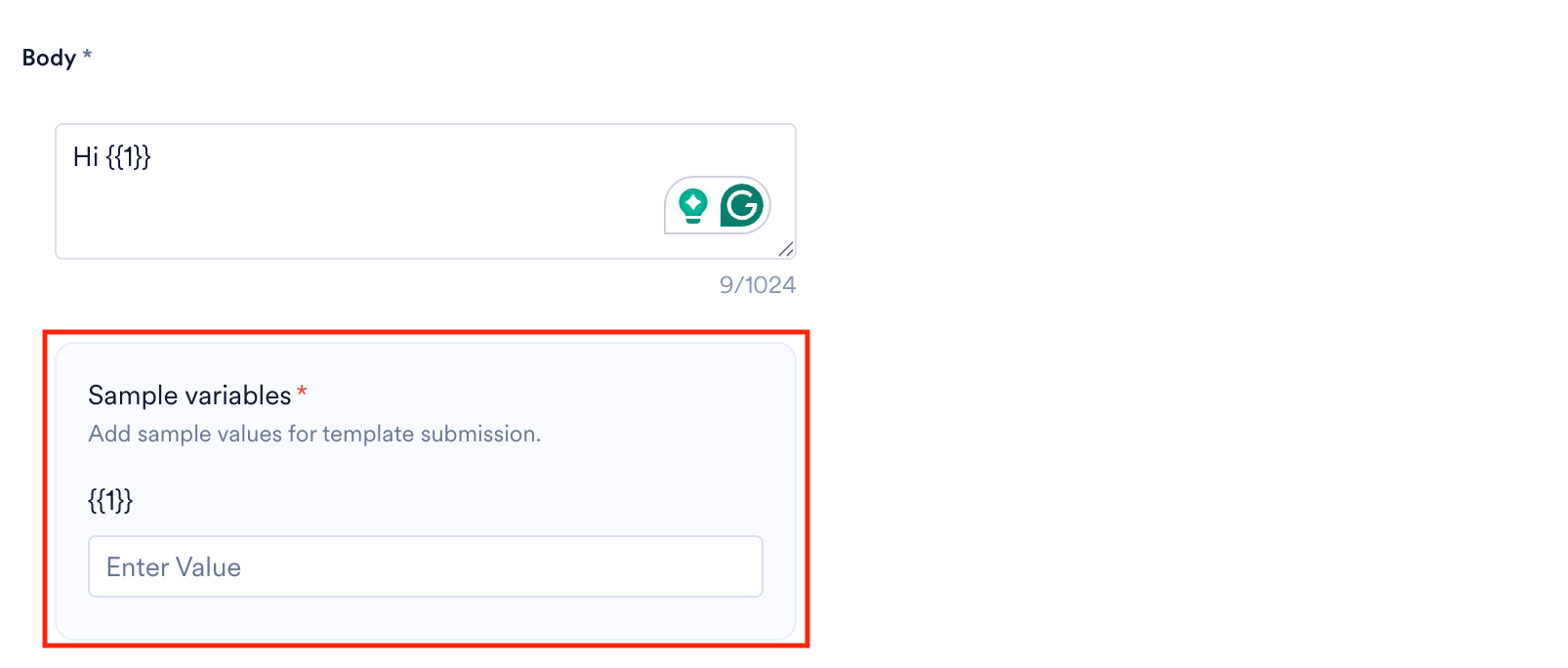
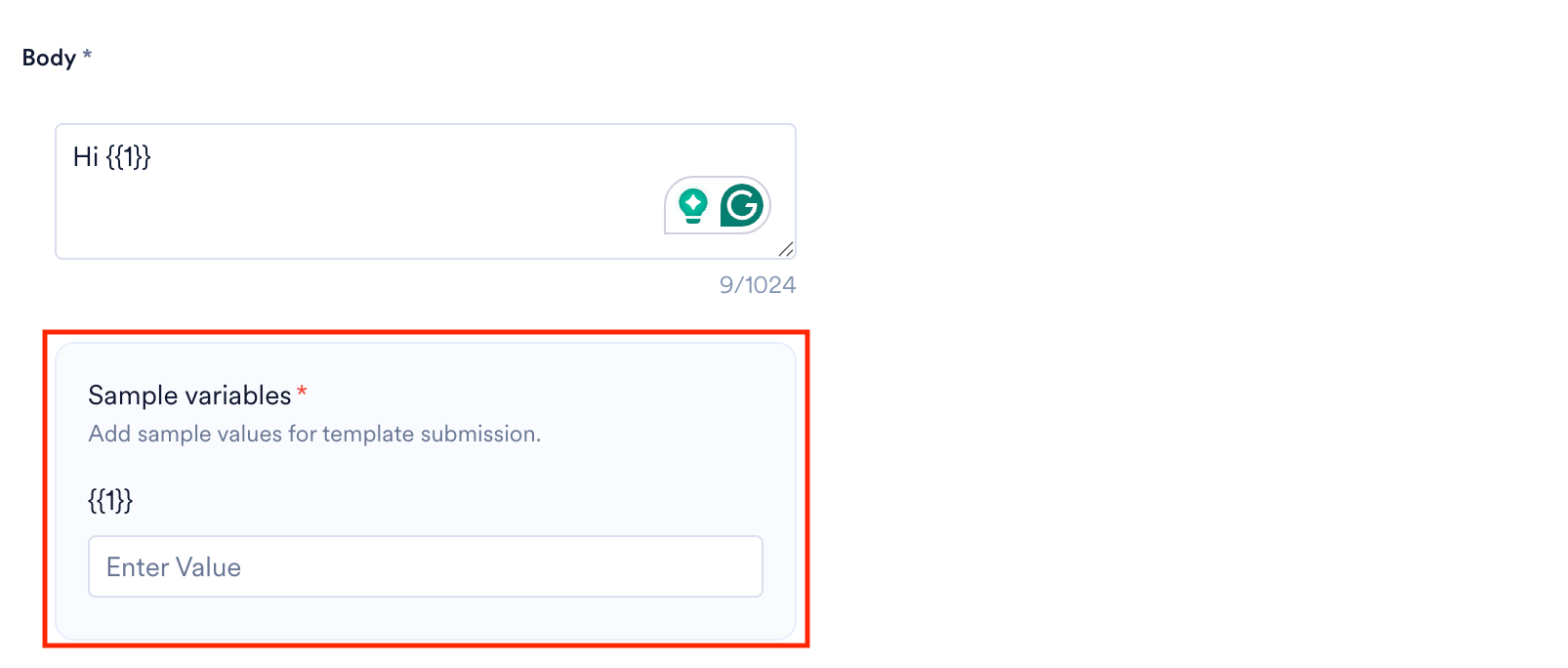
| **Body** | Configure the body of the template. You can enter up to 1024 characters. Ensure that the body of the template clearly communicates the objective to your audience. If the body contains dynamic variables, provide a sample value for each variable during template creation.
When you select **Submit for approval**, MoEngage submits the template to Meta for approval. When you select **Save**, MoEngage saves the template only. Templates saved this way must be manually created and submitted to Meta for approval.
The following sections are available while configuring a template:
| Field | Description |
| - | - |
| **Header** | The header appears at the top of your WhatsApp message and can contain text or supported media. This field is optional. If you select a dynamic media header (such as an image), provide a sample image during template creation. |
| **Body** | Configure the body of the template. You can enter up to 1024 characters. Ensure that the body of the template clearly communicates the objective to your audience. If the body contains dynamic variables, provide a sample value for each variable during template creation.
 |
| **Carousel Content** | You can view this section when the Template Type field is set as the Carousel template. |
| **Media Type** | Select the type of media you want to display on the carousel card. You can select either an Image or a Video. You can view this section when the Template Type field is set as the Carousel template. |
| **Image Type** | Upon selecting the media type as image, you can further select the image type as static or dynamic. You can view this section when the Template Type field is set as the Carousel template. |
| **Image Source** | Specify the image source by either uploading the image directly from your device or linking to an external image source. You can view this section when the Template Type field is set as the Carousel template. If the image source is dynamic, provide a sample image during template creation.
|
| **Carousel Content** | You can view this section when the Template Type field is set as the Carousel template. |
| **Media Type** | Select the type of media you want to display on the carousel card. You can select either an Image or a Video. You can view this section when the Template Type field is set as the Carousel template. |
| **Image Type** | Upon selecting the media type as image, you can further select the image type as static or dynamic. You can view this section when the Template Type field is set as the Carousel template. |
| **Image Source** | Specify the image source by either uploading the image directly from your device or linking to an external image source. You can view this section when the Template Type field is set as the Carousel template. If the image source is dynamic, provide a sample image during template creation.
 |
| **Link to image** | You can view this field if the Image Source field is set as a Link. You can specify the URL where the image is hosted. |
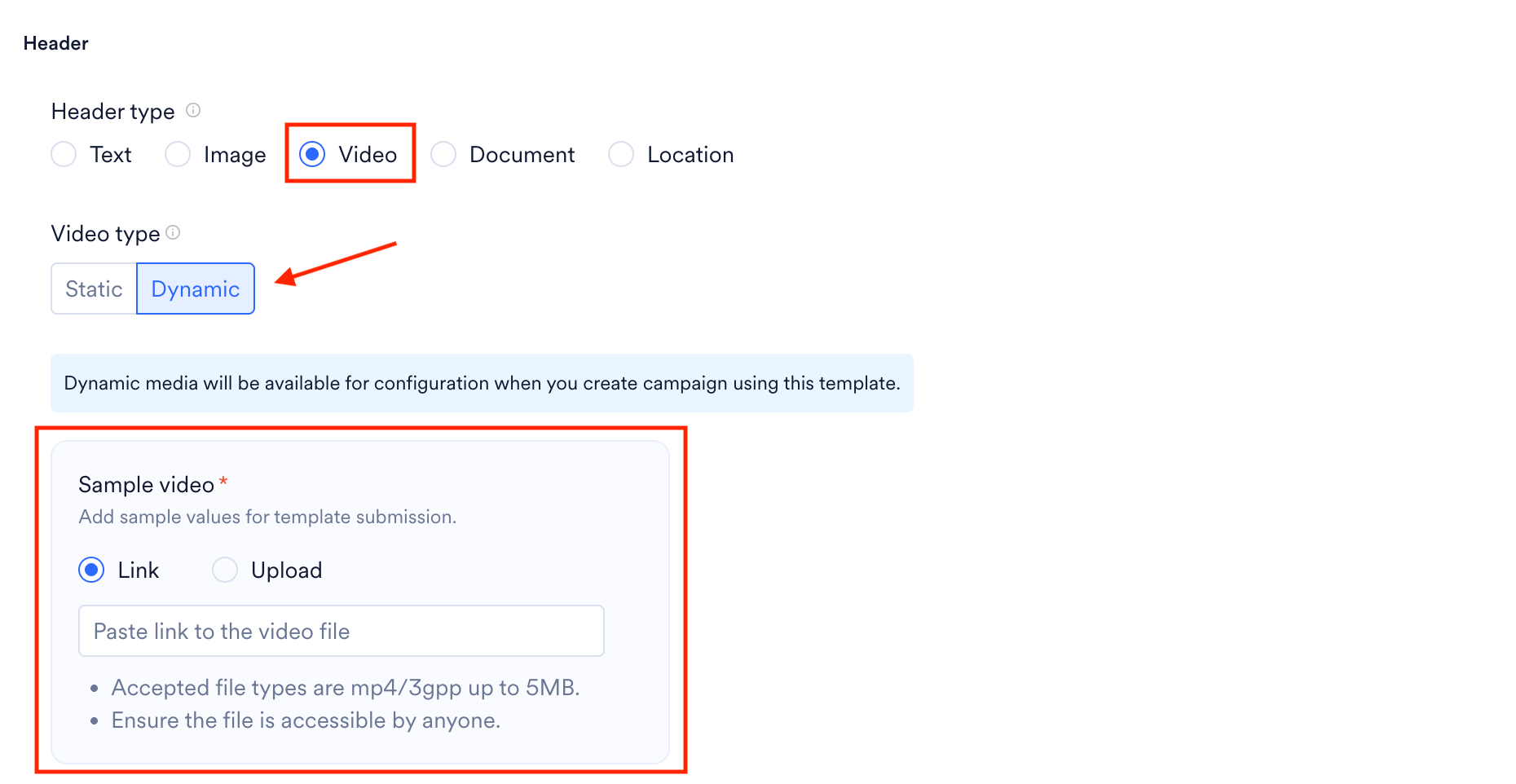
| **Video Type** | Upon selecting the media type as video, you can further select the video type as static or dynamic. You can view this section when the Template Type field is set as the Carousel template. |
| **Video Source** | Specify the video source by either uploading the video directly from your device or linking to an external video source. You can view this section when the Template Type field is set as the Carousel template. |
| **Link to video** | You can view this field if the Video Source field is set as a Link. You can specify the URL where the video is hosted. |
| **Card Body** | You can add up to 10 cards showcasing the content within each card, such as text or media. If you have multiple cards, you can navigate among the cards by using the forward and backward navigation buttons. You can view this section when the Template Type field is set as the Carousel template. |
| **Footer** | Configure the footer for your WhatsApp template. This field is optional. You can view it when the Template Type field is set as Carousel Template. |
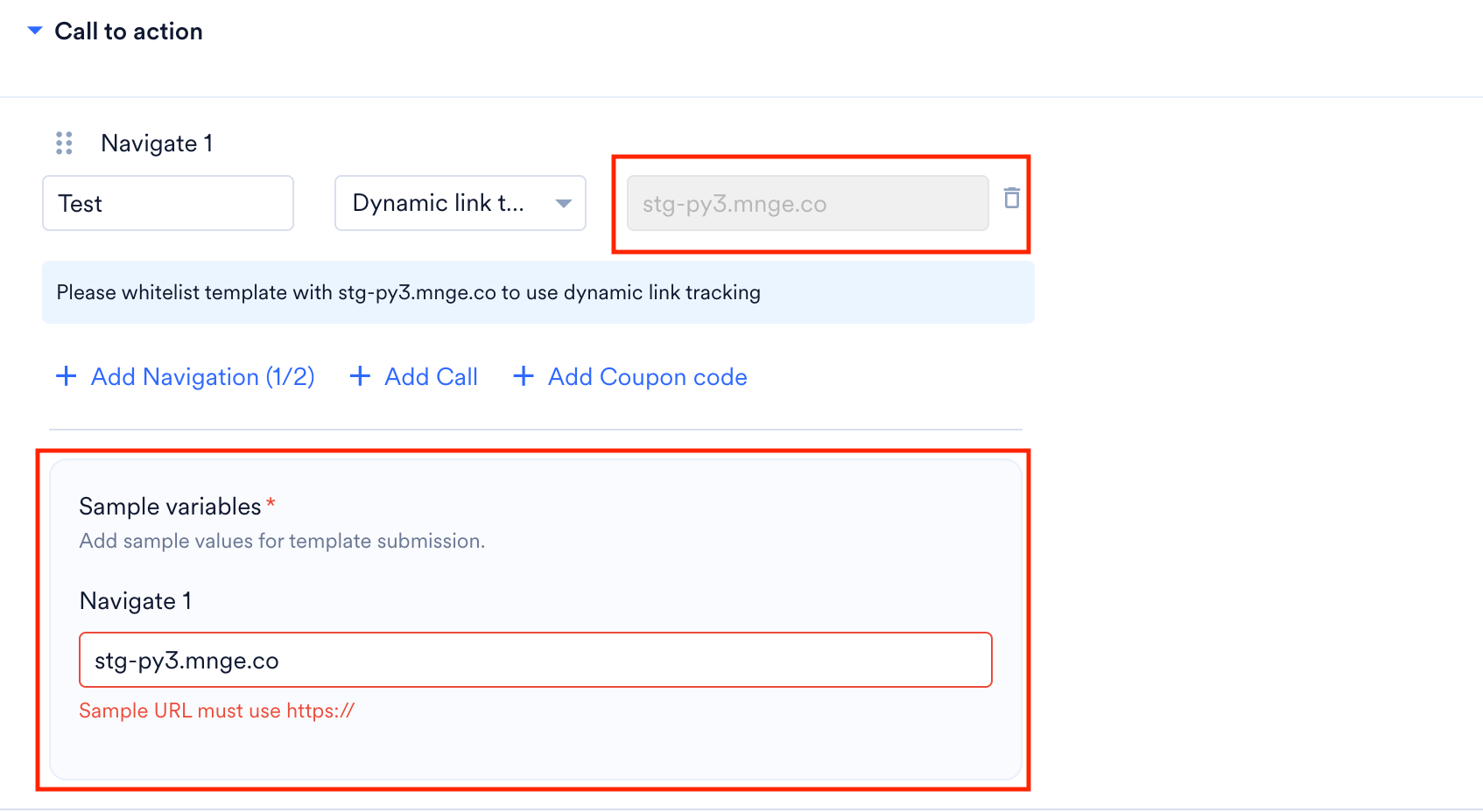
| **Button(s)** | You can add CTA buttons in this section. When the Template Type field is set as Carousel Template, you can add 2 buttons overall. If your CTA button contains dynamic values (for example, a dynamic URL), provide a sample value for each dynamic variable, and ensure the domains match.
|
| **Link to image** | You can view this field if the Image Source field is set as a Link. You can specify the URL where the image is hosted. |
| **Video Type** | Upon selecting the media type as video, you can further select the video type as static or dynamic. You can view this section when the Template Type field is set as the Carousel template. |
| **Video Source** | Specify the video source by either uploading the video directly from your device or linking to an external video source. You can view this section when the Template Type field is set as the Carousel template. |
| **Link to video** | You can view this field if the Video Source field is set as a Link. You can specify the URL where the video is hosted. |
| **Card Body** | You can add up to 10 cards showcasing the content within each card, such as text or media. If you have multiple cards, you can navigate among the cards by using the forward and backward navigation buttons. You can view this section when the Template Type field is set as the Carousel template. |
| **Footer** | Configure the footer for your WhatsApp template. This field is optional. You can view it when the Template Type field is set as Carousel Template. |
| **Button(s)** | You can add CTA buttons in this section. When the Template Type field is set as Carousel Template, you can add 2 buttons overall. If your CTA button contains dynamic values (for example, a dynamic URL), provide a sample value for each dynamic variable, and ensure the domains match.
 |
| Field | Description |
| - | - |
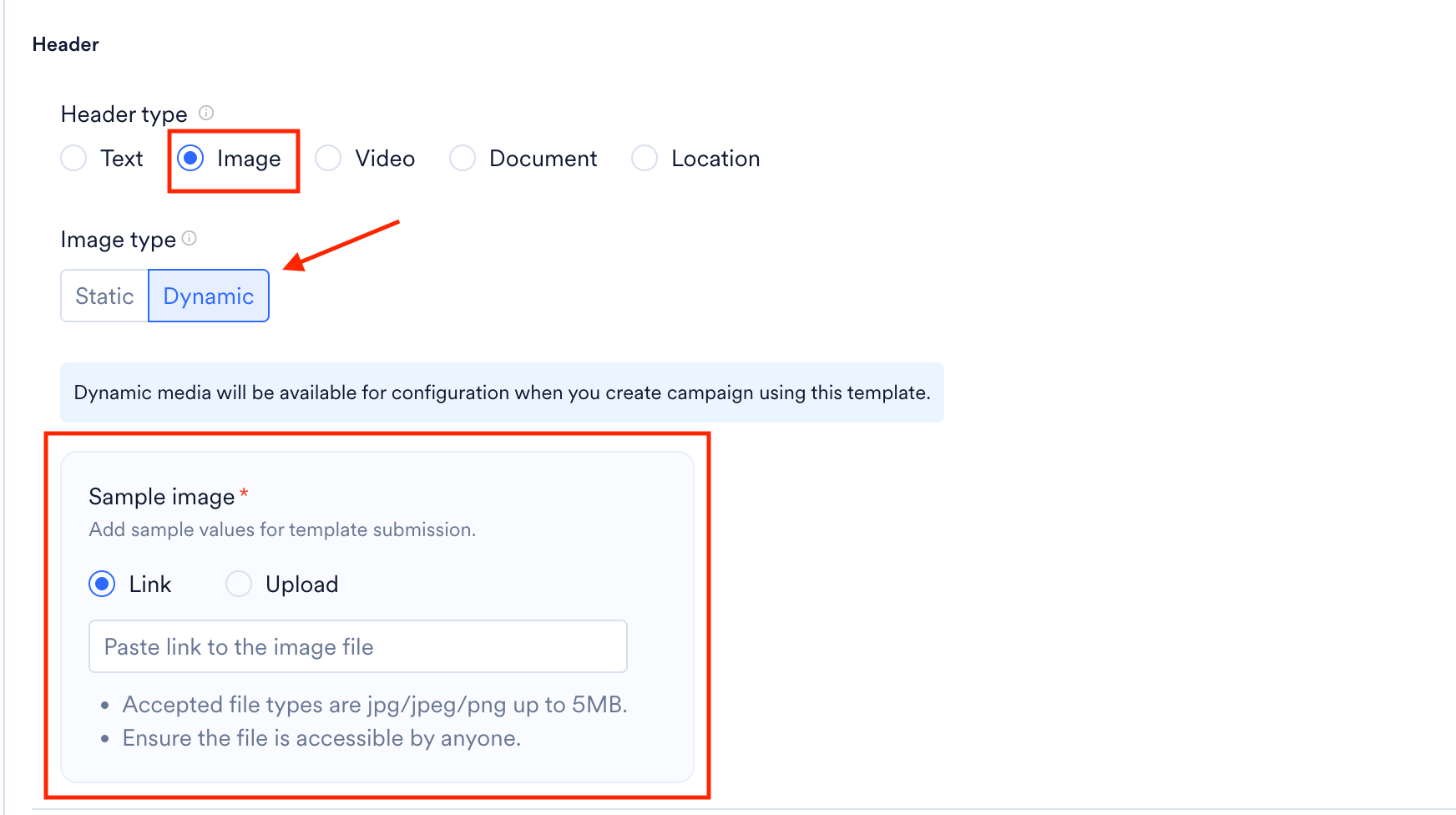
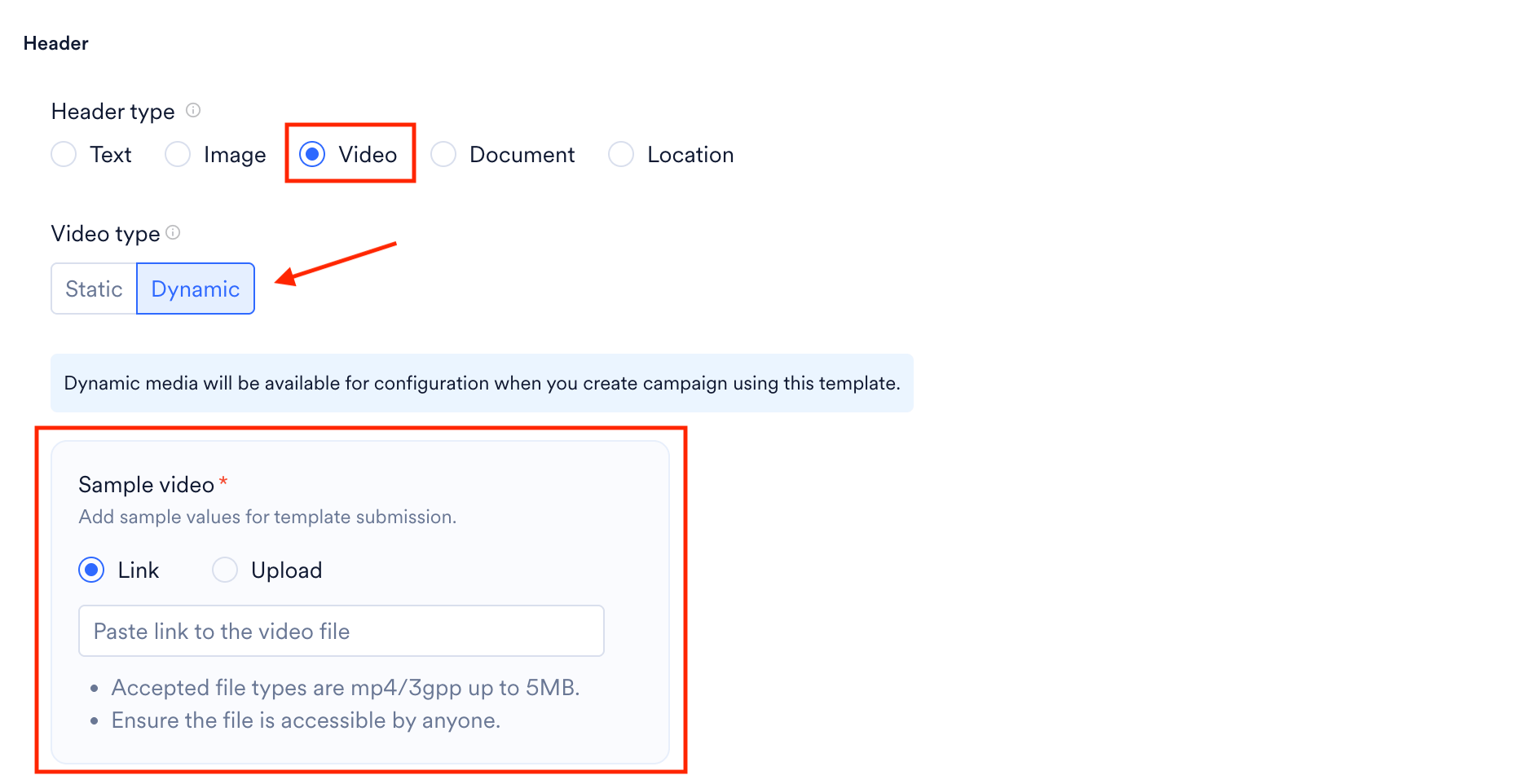
| **Header** | The header appears at the top of your WhatsApp message and can contain text or supported media. This field is optional. If you select a dynamic media header (such as an image), provide a sample image during template creation.
|
| Field | Description |
| - | - |
| **Header** | The header appears at the top of your WhatsApp message and can contain text or supported media. This field is optional. If you select a dynamic media header (such as an image), provide a sample image during template creation.
 |
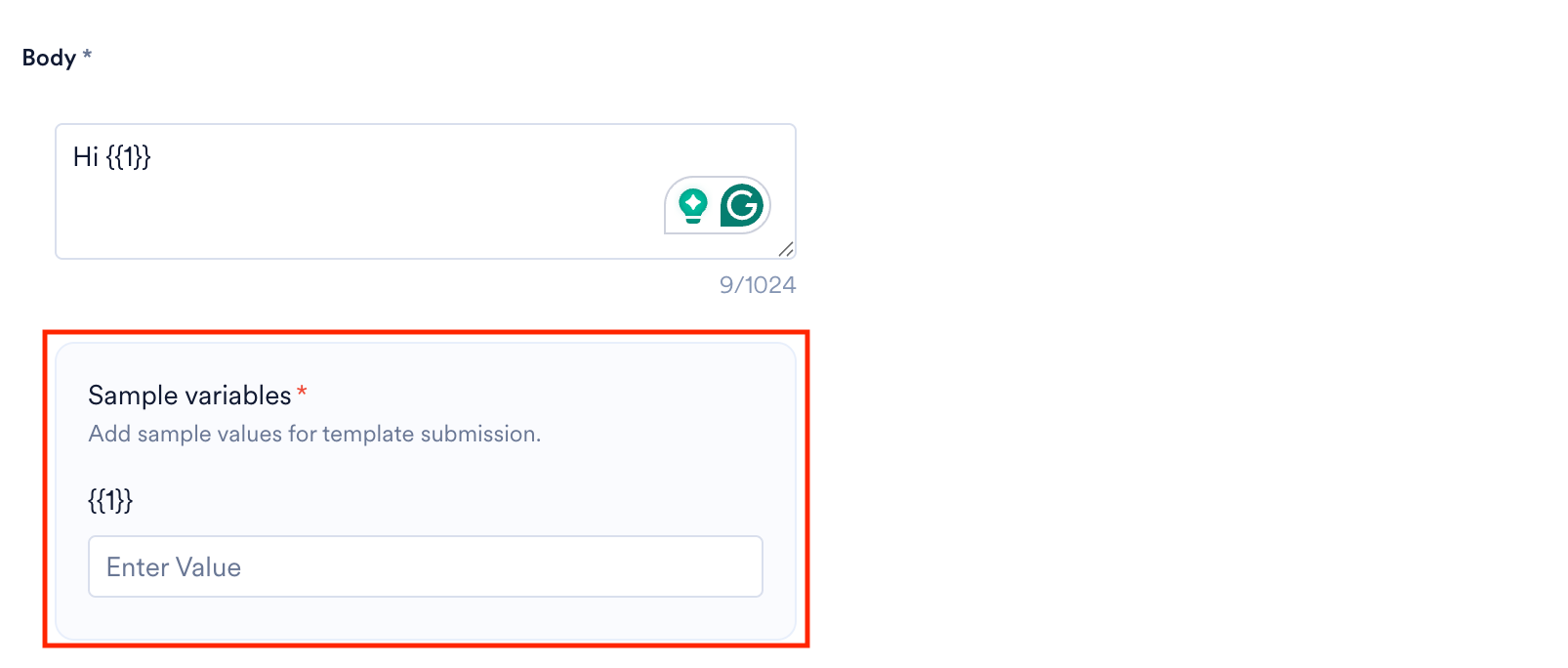
| **Body** | Configure the body of the template. You can enter up to 1024 characters. Ensure that the body of the template clearly communicates the objective to your audience. If the body contains dynamic variables, provide a sample value for each variable during template creation.
|
| **Body** | Configure the body of the template. You can enter up to 1024 characters. Ensure that the body of the template clearly communicates the objective to your audience. If the body contains dynamic variables, provide a sample value for each variable during template creation.
 |
| **Footer** | Configure the footer for your WhatsApp template. This field is optional. |
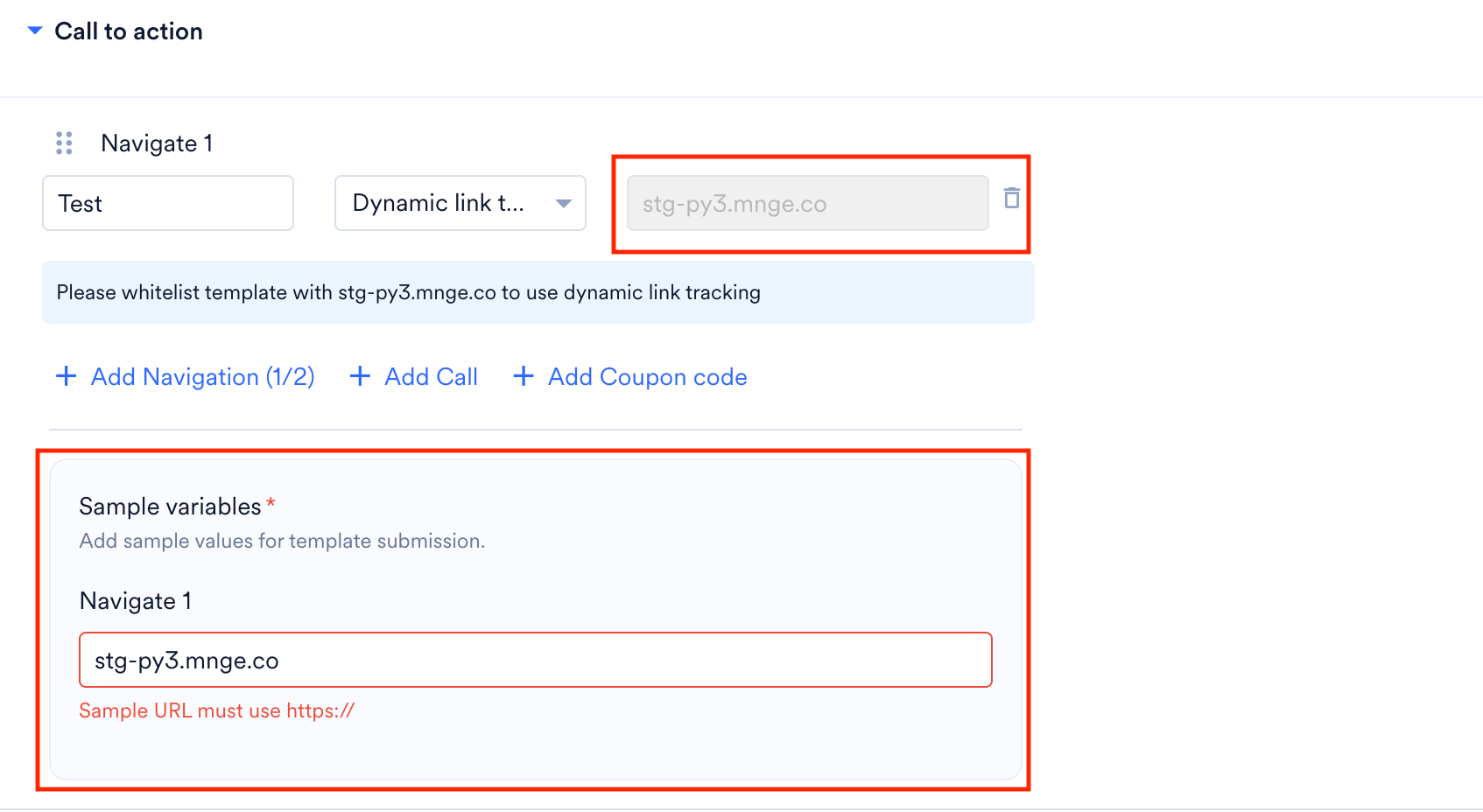
| **Button(s)** | You can add CTA buttons in this section. If the Template Type field is set as Simple Default Template, you can add 10 buttons overall. You can either add 2 Navigation CTA, 1 Add a call CTA, and 1 Coupon Code CTA with 6 quick reply buttons or up to 10 quick reply buttons. You can click See More Options to see all the buttons where more than 3 buttons are added. If your CTA button contains dynamic values (for example, a dynamic URL), provide a sample value for each dynamic variable, and ensure the domains match.
|
| **Footer** | Configure the footer for your WhatsApp template. This field is optional. |
| **Button(s)** | You can add CTA buttons in this section. If the Template Type field is set as Simple Default Template, you can add 10 buttons overall. You can either add 2 Navigation CTA, 1 Add a call CTA, and 1 Coupon Code CTA with 6 quick reply buttons or up to 10 quick reply buttons. You can click See More Options to see all the buttons where more than 3 buttons are added. If your CTA button contains dynamic values (for example, a dynamic URL), provide a sample value for each dynamic variable, and ensure the domains match.
 |
| Field | Description |
| - | - |
| **Header** | The header appears at the top of your WhatsApp message and can contain text or supported media. This field is optional. If you select a dynamic media header (such as an image), provide a sample image during template creation.
|
| Field | Description |
| - | - |
| **Header** | The header appears at the top of your WhatsApp message and can contain text or supported media. This field is optional. If you select a dynamic media header (such as an image), provide a sample image during template creation.
 |
| **Offer Details** | Specify a brief and precise description of the offer you are promoting. |
| **Offer Valid for Limited Time** | Select this checkbox if the offer is available for a limited period. When selected, the system prompts you to set the expiration date while creating a campaign. If not selected, the offer will not have any time restriction. |
| **Body** | Configure the body of the template. You can enter up to 1024 characters. Ensure that the body of the template clearly communicates the objective to your audience. If the body contains dynamic variables, provide a sample value for each variable during template creation.
|
| **Offer Details** | Specify a brief and precise description of the offer you are promoting. |
| **Offer Valid for Limited Time** | Select this checkbox if the offer is available for a limited period. When selected, the system prompts you to set the expiration date while creating a campaign. If not selected, the offer will not have any time restriction. |
| **Body** | Configure the body of the template. You can enter up to 1024 characters. Ensure that the body of the template clearly communicates the objective to your audience. If the body contains dynamic variables, provide a sample value for each variable during template creation.
 |
| **Footer** | Configure the footer for your WhatsApp template. This field is optional. |
| **Button(s)** | You can add CTA buttons in this section. If the Offer Valid for Limited Time checkbox is selected, adding a Coupon Code CTA becomes mandatory, and this button will be displayed as the first action in the template. If your CTA button contains dynamic values (for example, a dynamic URL), provide a sample value for each dynamic variable, and ensure the domains match.
|
| **Footer** | Configure the footer for your WhatsApp template. This field is optional. |
| **Button(s)** | You can add CTA buttons in this section. If the Offer Valid for Limited Time checkbox is selected, adding a Coupon Code CTA becomes mandatory, and this button will be displayed as the first action in the template. If your CTA button contains dynamic values (for example, a dynamic URL), provide a sample value for each dynamic variable, and ensure the domains match.
 |
As supported by WhatsApp, you can configure selective fields as:
* **Static**: Static fields are fixed on the Template level. For example, static images can be used to send the same image in all messages to target users across all campaigns where this template is used.
* **Dynamic**: Dynamic fields are flexible and can be configured during campaign creation. A dynamic image can be used to personalize for each campaign or each user in that campaign.
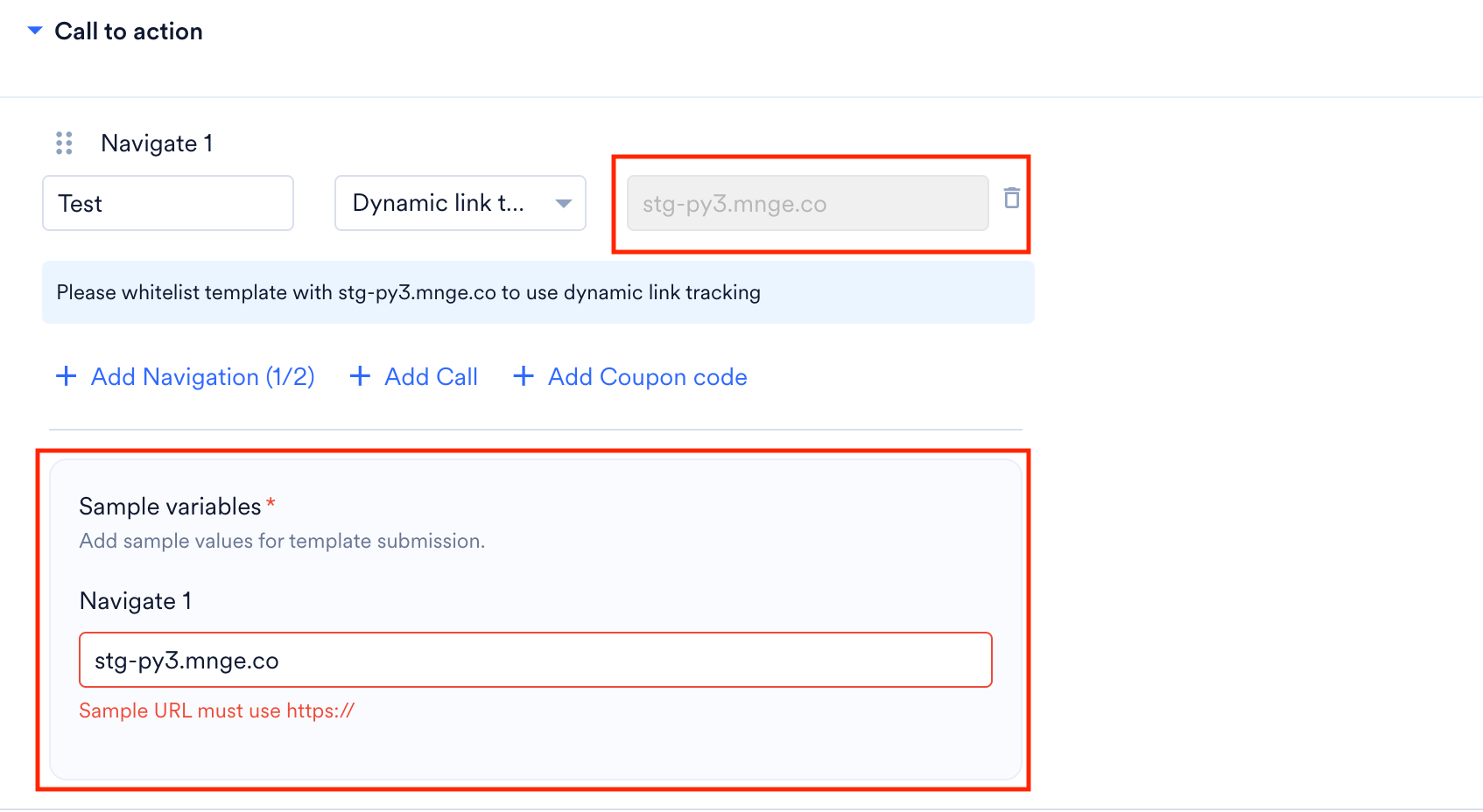
* **Dynamic Link Tracking**: Dynamic link tracking allows you to track clicks on buttons with Navigation as an action. This is available only for Navigation buttons and for Gupshup as a provider.
## Headers
Headers are optional and can be of the following types:
* Text (up to 60 characters, can include 1 placeholder)
* Image
* Video
* Document
* Location
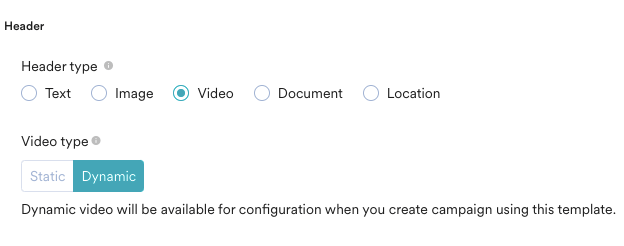
The non-text header can be static or dynamic. They can use a fixed image or document link or a personalized image/document for every user. Dynamic fields will be available for configuration at the time of campaign creation. For more information, refer to [Image Personalization](/docs/user-guide/campaigns-and-channels/getting-started/message-personalization/overview#image-personalization).
|
As supported by WhatsApp, you can configure selective fields as:
* **Static**: Static fields are fixed on the Template level. For example, static images can be used to send the same image in all messages to target users across all campaigns where this template is used.
* **Dynamic**: Dynamic fields are flexible and can be configured during campaign creation. A dynamic image can be used to personalize for each campaign or each user in that campaign.
* **Dynamic Link Tracking**: Dynamic link tracking allows you to track clicks on buttons with Navigation as an action. This is available only for Navigation buttons and for Gupshup as a provider.
## Headers
Headers are optional and can be of the following types:
* Text (up to 60 characters, can include 1 placeholder)
* Image
* Video
* Document
* Location
The non-text header can be static or dynamic. They can use a fixed image or document link or a personalized image/document for every user. Dynamic fields will be available for configuration at the time of campaign creation. For more information, refer to [Image Personalization](/docs/user-guide/campaigns-and-channels/getting-started/message-personalization/overview#image-personalization).
 Here are the supported media types, media formats, and file sizes that MoEngage supports:
| Content-Type | Supported Format and file size |
| - | - |
| **Image** | The supported image types are JPG, JPEG, and PNG. The maximum file size is 5MB. The sample file follows the same file type and size requirements listed. |
| **Document** | The supported document type is PDF. The maximum document size is 5MB. The sample file follows the same file type and size requirements listed. |
| **Video** | The supported file types are MP4 and 3GPP. The maximum file size is 15MB. The sample file supports the same file types listed, but the maximum sample file size is 5MB. |
## Template Status
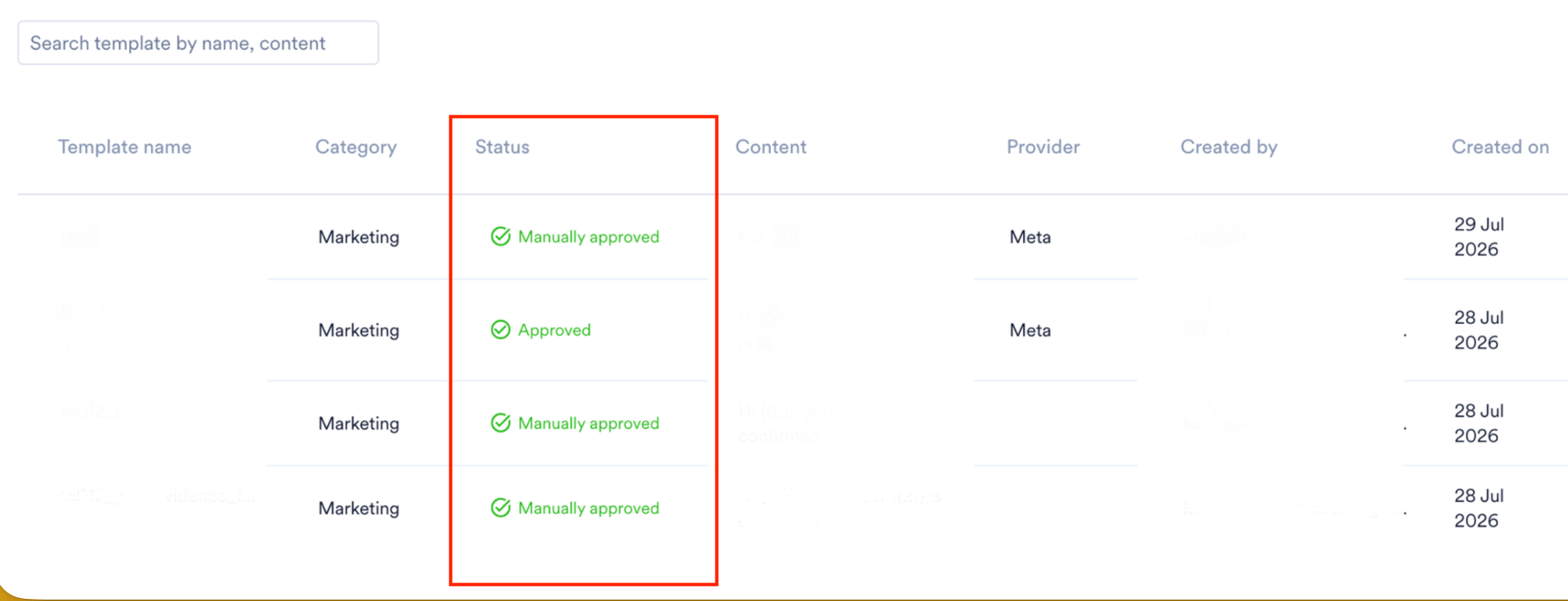
Once you submit a template for approval, it progresses through the following statuses:
| Status | Description |
| - | - |
| **Under Review** | The template has been submitted and is currently being reviewed by Meta. |
| **Approved** | The template has been approved by Meta and is ready to use in your WhatsApp campaigns. |
| **Rejected** | Meta rejected the template. Review the rejection reason, update the template if required, and submit it again. |
Here are the supported media types, media formats, and file sizes that MoEngage supports:
| Content-Type | Supported Format and file size |
| - | - |
| **Image** | The supported image types are JPG, JPEG, and PNG. The maximum file size is 5MB. The sample file follows the same file type and size requirements listed. |
| **Document** | The supported document type is PDF. The maximum document size is 5MB. The sample file follows the same file type and size requirements listed. |
| **Video** | The supported file types are MP4 and 3GPP. The maximum file size is 15MB. The sample file supports the same file types listed, but the maximum sample file size is 5MB. |
## Template Status
Once you submit a template for approval, it progresses through the following statuses:
| Status | Description |
| - | - |
| **Under Review** | The template has been submitted and is currently being reviewed by Meta. |
| **Approved** | The template has been approved by Meta and is ready to use in your WhatsApp campaigns. |
| **Rejected** | Meta rejected the template. Review the rejection reason, update the template if required, and submit it again. |
 For information on other template statuses, refer to [Sync Templates from Vendors to MoEngage](/docs/user-guide/campaigns-and-channels/whatsapp/getting-started-with-whatsapp/whatsapp-templates#sync-templates-from-vendors-to-moengage).
Meta also supports template sync. If you have already created templates in Meta, use **Sync Template** to import all available templates into MoEngage. You can also use this feature to fetch newly created templates and update existing ones.
For information on other template statuses, refer to [Sync Templates from Vendors to MoEngage](/docs/user-guide/campaigns-and-channels/whatsapp/getting-started-with-whatsapp/whatsapp-templates#sync-templates-from-vendors-to-moengage).
Meta also supports template sync. If you have already created templates in Meta, use **Sync Template** to import all available templates into MoEngage. You can also use this feature to fetch newly created templates and update existing ones.
 This documentation is built and hosted on [Mintlify](https://mintlify.com), a developer documentation platform.