> ## Documentation Index
> Fetch the complete documentation index at: https://moengage.com/docs/llms.txt
> Use this file to discover all available pages before exploring further.
# NexG Platforms
# Introduction
MoEngage provides a native integration with NexG Platforms for WhatsApp. This integration allows you to send templated WhatsApp messages and view comprehensive delivery and read analytics within the MoEngage UI.
Before you begin the configuration, ensure that you have the following:
* Access to your NexG Platforms dashboard.
* The API key associated with your NexG Platforms account.
* A phone number registered and verified with WhatsApp for Business (WABA).
# Configure NexG Platforms as a WhatsApp Connector
This section describes how to set up NexG Platforms as a service provider on the MoEngage UI.
## Step 1: Access Sender Configuration
To access the sender configuration, perform the following steps:
1. Sign in to the MoEngage UI.
2. Navigate to **Settings** > **Channels** > **WhatsApp** > **Sender configuration**.
3. Click **+ Add connector**. The WhatsApp connector dialog box appears.
4. In the **Choose a connector** list, select **NexG** , and then click **Done**. 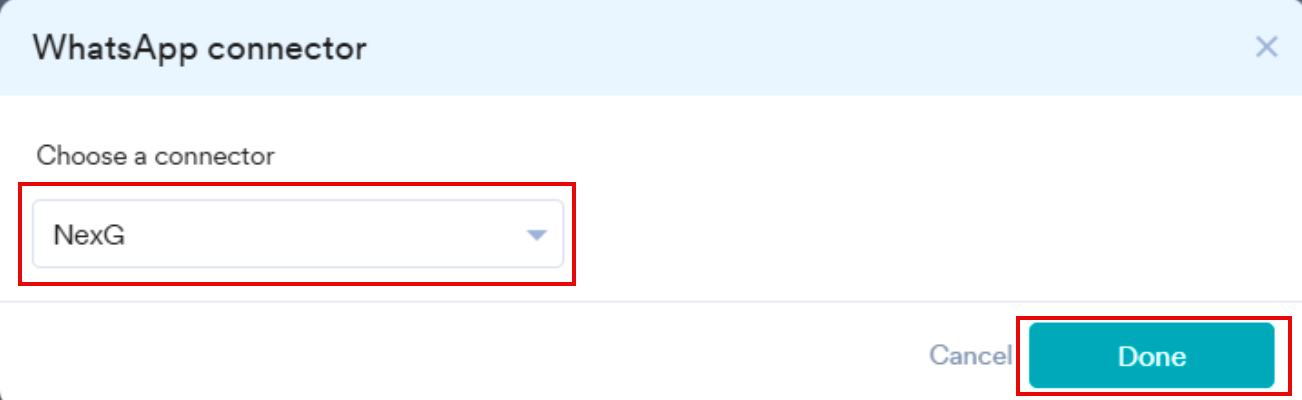 ## Step 2: Configure Sender Details
To configure the sender details, perform the following steps:
1. On the **Sender configuration** page, click **+ Sender** in the upper-right corner.
2. On the **Sender Details** page, enter the following information:
| Field | Description |
| ---------------------------- | --------------------------------------------------------------------------------------------------------------------------------------------------------------------------------------------------------------------------------------------------------------------------------------------------------------------------------------------------------------------------------------- |
| **Sender name** | Enter a unique, recognizable name for this sender profile. This name is used to identify the sender when you create a campaign in MoEngage. Use between 5 and 50 characters. |
| **WhatsApp business number** | Enter the phone number registered with WhatsApp (WABA number) that you will use to send messages. |
| **API URL** | This field contains information about the URL that should be used to send an API request to the sender. You can get this information from the sender's API documentation.
## Step 2: Configure Sender Details
To configure the sender details, perform the following steps:
1. On the **Sender configuration** page, click **+ Sender** in the upper-right corner.
2. On the **Sender Details** page, enter the following information:
| Field | Description |
| ---------------------------- | --------------------------------------------------------------------------------------------------------------------------------------------------------------------------------------------------------------------------------------------------------------------------------------------------------------------------------------------------------------------------------------- |
| **Sender name** | Enter a unique, recognizable name for this sender profile. This name is used to identify the sender when you create a campaign in MoEngage. Use between 5 and 50 characters. |
| **WhatsApp business number** | Enter the phone number registered with WhatsApp (WABA number) that you will use to send messages. |
| **API URL** | This field contains information about the URL that should be used to send an API request to the sender. You can get this information from the sender's API documentation.
Enter the API endpoint provided by your vendor. The API URL for NexG Platforms is:
[https://automate.nexgplatforms.com/api/v1/wa/moengage](https://automate.nexgplatforms.com/api/v1/wa/moengage) |
| **authorization** | Enter the API key obtained from your vendor. |
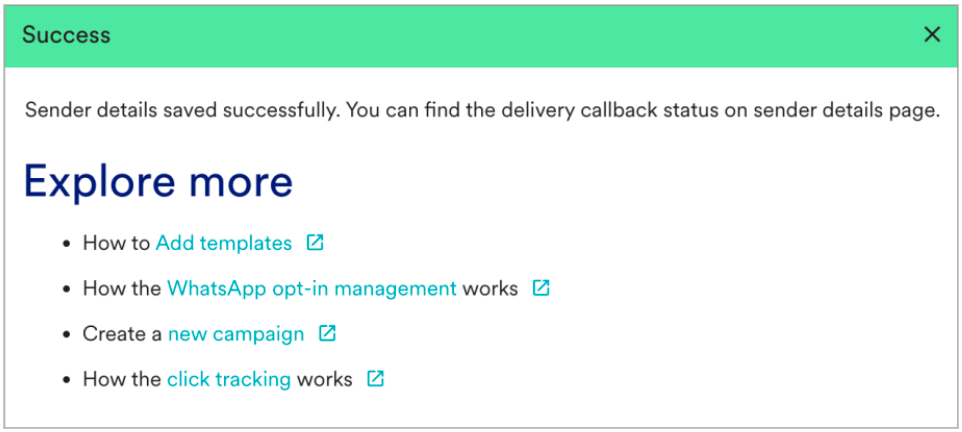
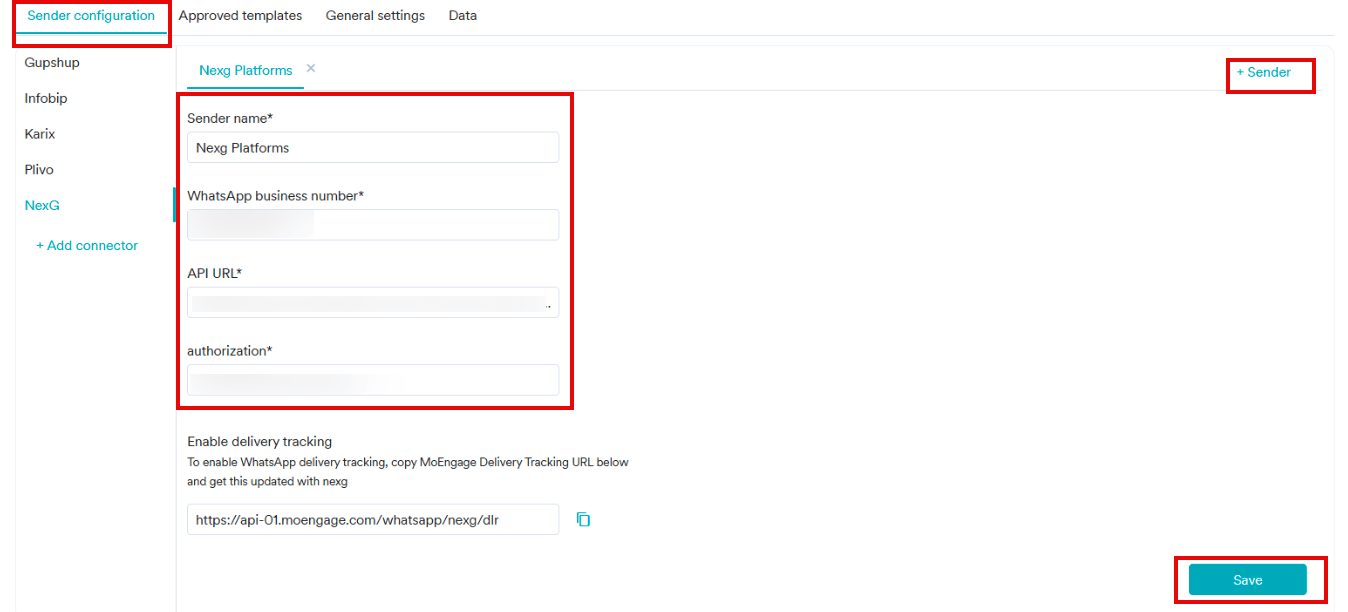 3. Click **Save**. Upon successful integration, a success message appears confirming that the sender's details are saved.
  # Delivery Tracking
To track the delivery status of your WhatsApp messages within MoEngage, you must provide MoEngage's Delivery Tracking URL to NexG Platforms and perform the following steps:
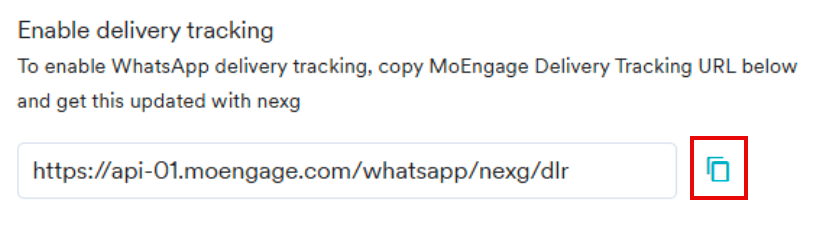
1. On the **Sender Details** page, locate **Enable delivery tracking**.
2. Click the copy icon
# Delivery Tracking
To track the delivery status of your WhatsApp messages within MoEngage, you must provide MoEngage's Delivery Tracking URL to NexG Platforms and perform the following steps:
1. On the **Sender Details** page, locate **Enable delivery tracking**.
2. Click the copy icon  next to the delivery tracking URL.
  3. Provide this URL to your NexG Platforms representative or update it in your NexG Platforms account settings to enable delivery callbacks:
* You must have pre-approved templates within NexG Platforms to create a WhatsApp campaign for a NexG Platforms sender in MoEngage.
* Ensure that the template content created in MoEngage matches your approved NexG Platforms templates verbatim. For more information, see [Add Templates](/docs/user-guide/content/template/templates).
3. Provide this URL to your NexG Platforms representative or update it in your NexG Platforms account settings to enable delivery callbacks:
* You must have pre-approved templates within NexG Platforms to create a WhatsApp campaign for a NexG Platforms sender in MoEngage.
* Ensure that the template content created in MoEngage matches your approved NexG Platforms templates verbatim. For more information, see [Add Templates](/docs/user-guide/content/template/templates).