> ## Documentation Index
> Fetch the complete documentation index at: https://moengage.com/docs/llms.txt
> Use this file to discover all available pages before exploring further.
# Open Weather
## Introduction
[Open Weather](https://openweathermap.org/) is a team of IT experts and data scientists practicing deep weather data science. For every point on the globe, OpenWeather provides historical, current, and forecasted weather data via fast APIs.
## MoEngage and Open Weather
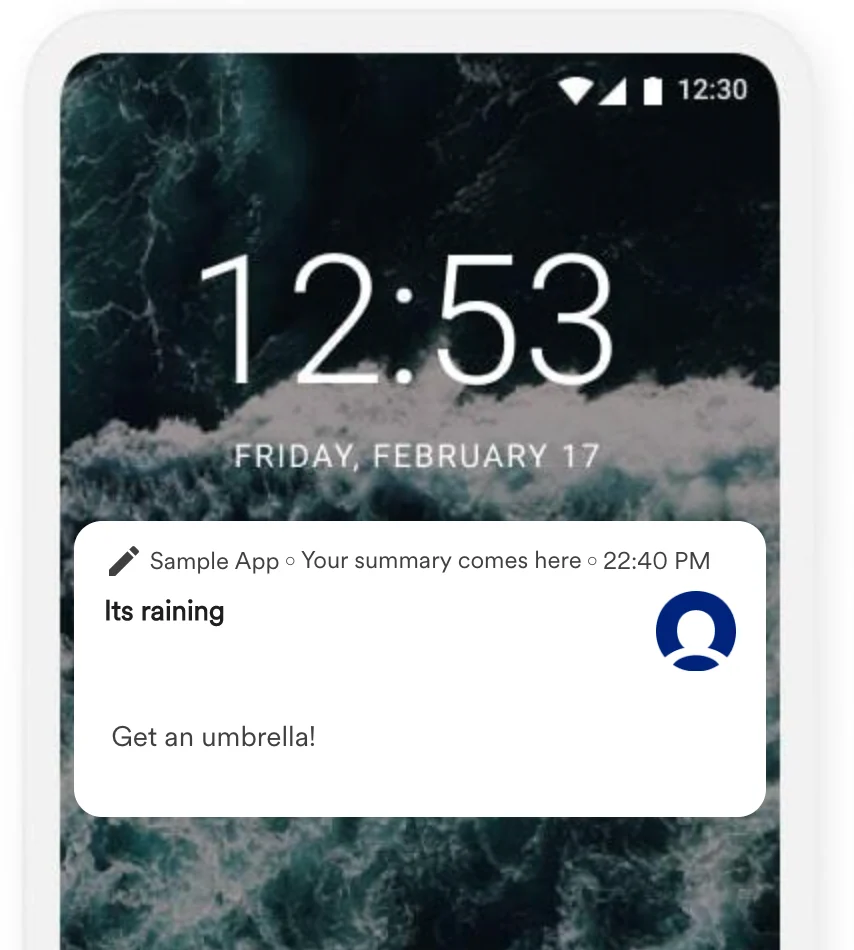
The MoEngage and Open Weather integration lets you enrich and personalize your marketing campaigns. You can fetch the user's location and weather data on the fly and send personalized campaigns in real time.
For example, an ecommerce brand can nudge users to buy:
* Sunglasses, when the weather at the user's location is sunny.
* An umbrella, when there is a high likelihood of rain.
 ## Integration
**Prerequisites**
* An Open Weather account.
* Access to your Open Weather API key. Contact your Open Weather account manager for a compatible API key. For more information, see [Open Weather API](https://openweathermap.org/api/one-call-3).
* You are tracking each user's coordinates (latitude and longitude) as user attributes in MoEngage.
### Available APIs
You can use the following Open Weather APIs within your MoEngage campaigns:
1. [Current weather data](https://openweathermap.org/current)
2. [Hourly forecast — 4 days](https://openweathermap.org/api/hourly-forecast)
3. [One Call API](https://openweathermap.org/api/one-call-api)
4. [Daily forecast — 16 days](https://openweathermap.org/forecast16)
5. [Climate forecast — 30 days](https://openweathermap.org/api/forecast30)
6. [5-day weather forecast](https://openweathermap.org/forecast5)
7. [Road risk API](https://openweathermap.org/api/road-risk)
### Steps
The example below shows three message variants based on the current weather conditions at the user's coordinates. We use the Current Weather API through MoEngage Content APIs to fetch the weather details.
#### Step 1: Add a Content API on MoEngage
1. Navigate to **Settings** > **Advanced settings** > **Content API**. Click **+ Add content API** in the upper-right corner of the Content API screen.
## Integration
**Prerequisites**
* An Open Weather account.
* Access to your Open Weather API key. Contact your Open Weather account manager for a compatible API key. For more information, see [Open Weather API](https://openweathermap.org/api/one-call-3).
* You are tracking each user's coordinates (latitude and longitude) as user attributes in MoEngage.
### Available APIs
You can use the following Open Weather APIs within your MoEngage campaigns:
1. [Current weather data](https://openweathermap.org/current)
2. [Hourly forecast — 4 days](https://openweathermap.org/api/hourly-forecast)
3. [One Call API](https://openweathermap.org/api/one-call-api)
4. [Daily forecast — 16 days](https://openweathermap.org/forecast16)
5. [Climate forecast — 30 days](https://openweathermap.org/api/forecast30)
6. [5-day weather forecast](https://openweathermap.org/forecast5)
7. [Road risk API](https://openweathermap.org/api/road-risk)
### Steps
The example below shows three message variants based on the current weather conditions at the user's coordinates. We use the Current Weather API through MoEngage Content APIs to fetch the weather details.
#### Step 1: Add a Content API on MoEngage
1. Navigate to **Settings** > **Advanced settings** > **Content API**. Click **+ Add content API** in the upper-right corner of the Content API screen. 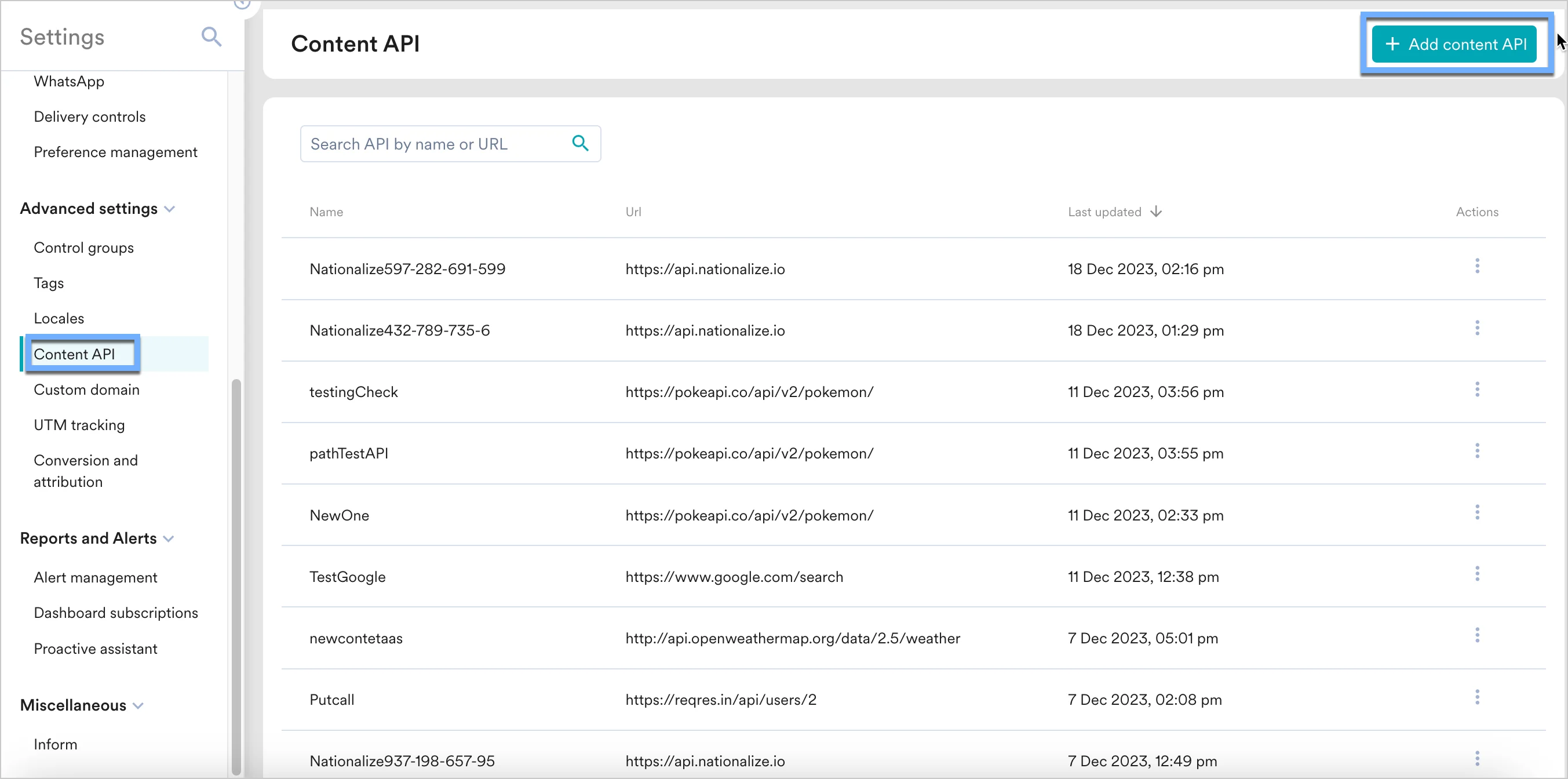 2. Add the Current Weather API details. **API URL**
```text wrap theme={null}
https://api.openweathermap.org/data/2.5/weather?lat={{UserAttribute['latitude']}}&lon={{UserAttribute['longitude']}}&appid=
```
**Parameters** Your parameters auto-populate. Update the values with personalized variables — type `@` and select the variable.
2. Add the Current Weather API details. **API URL**
```text wrap theme={null}
https://api.openweathermap.org/data/2.5/weather?lat={{UserAttribute['latitude']}}&lon={{UserAttribute['longitude']}}&appid=
```
**Parameters** Your parameters auto-populate. Update the values with personalized variables — type `@` and select the variable. 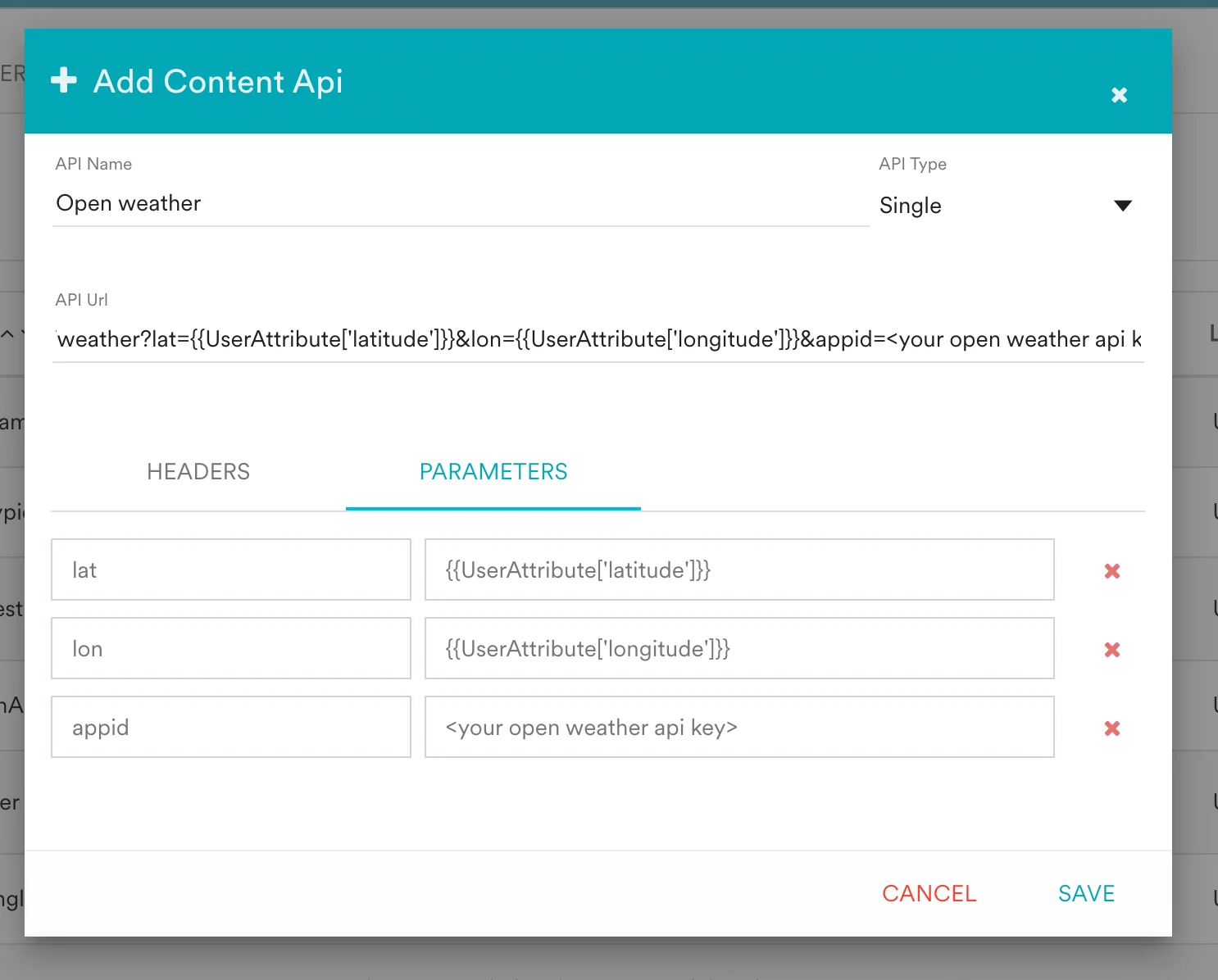 3. Click **Save**.
4. The Open Weather API now appears in your Content APIs list.
3. Click **Save**.
4. The Open Weather API now appears in your Content APIs list.  Click **Test** on the Content API to validate the response before using it in a campaign.
#### Step 2: Use the Content API in MoEngage campaigns
You can now use this Content API in your campaigns. For more information, see [Content APIs](https://www.moengage.com/docs/user-guide/campaigns-and-channels/getting-started/campaign-content/content-apis).
1. On step 2 of campaign creation, type `@`.
2. In the personalization pop-up, select the Open Weather Content API you configured in Step 1.
Click **Test** on the Content API to validate the response before using it in a campaign.
#### Step 2: Use the Content API in MoEngage campaigns
You can now use this Content API in your campaigns. For more information, see [Content APIs](https://www.moengage.com/docs/user-guide/campaigns-and-channels/getting-started/campaign-content/content-apis).
1. On step 2 of campaign creation, type `@`.
2. In the personalization pop-up, select the Open Weather Content API you configured in Step 1. 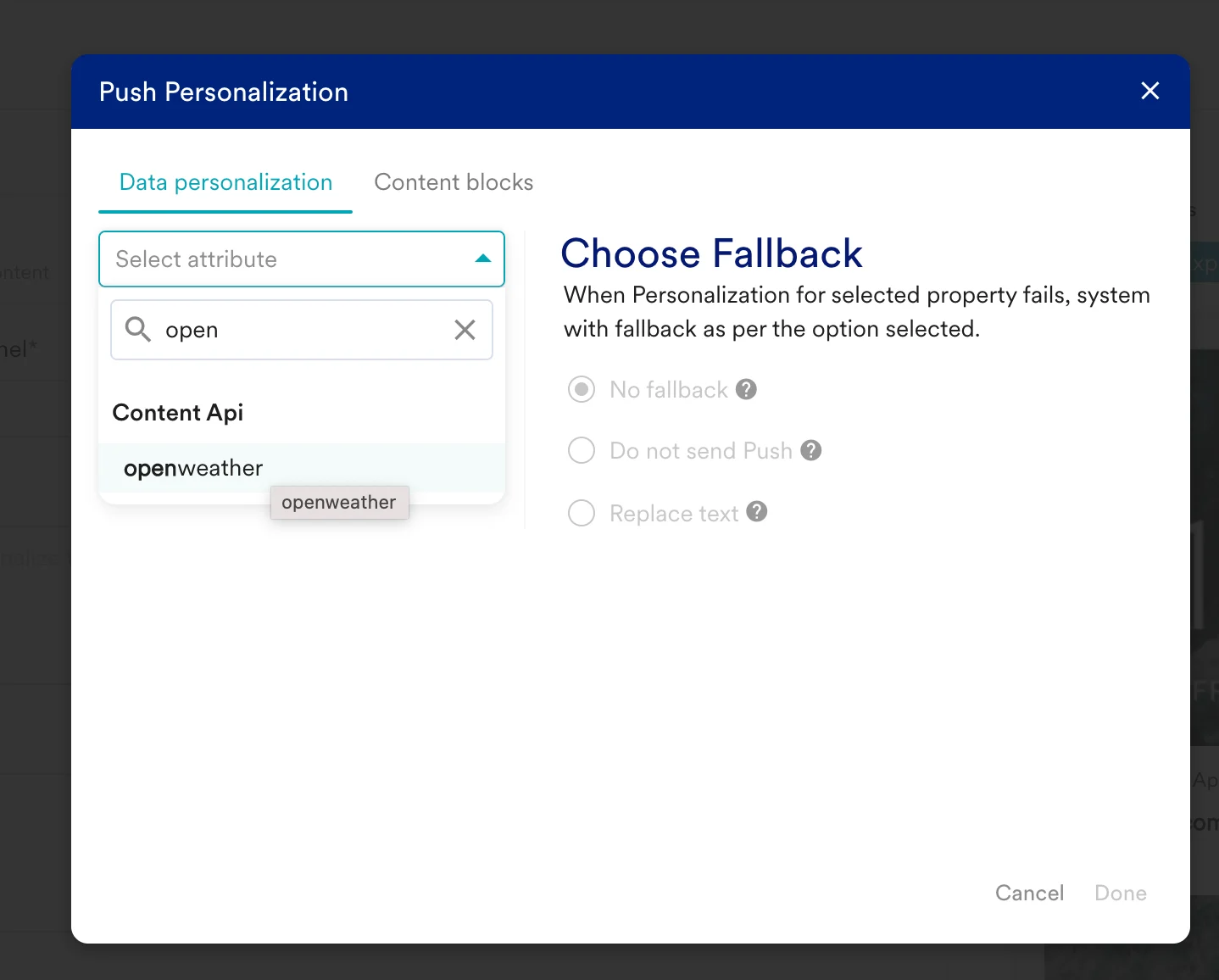 3. Use the [MoEngage Templating Language](https://www.moengage.com/docs/user-guide/campaigns-and-channels/getting-started/message-personalization/jinja-templating-language) to parse the API response and define your campaign content based on local weather. For example:
* If local weather is *Sunny* → "Get a sunscreen".
* If local weather is *Rain* → "Get an umbrella".
Sample API response:
```json JSON theme={null}
{
"coord": {
"lon": -122.08,
"lat": 37.39
},
"weather": [
{
"id": 800,
"main": "Clear",
"description": "clear sky",
"icon": "01d"
}
],
"base": "stations",
"main": {
"temp": 282.55,
"feels_like": 281.86,
"temp_min": 280.37,
"temp_max": 284.26,
"pressure": 1023,
"humidity": 100
},
"visibility": 10000,
"wind": {
"speed": 1.5,
"deg": 350
},
"clouds": {
"all": 1
},
"dt": 1560350645,
"sys": {
"type": 1,
"id": 5122,
"message": 0.0139,
"country": "US",
"sunrise": 1560343627,
"sunset": 1560396563
},
"timezone": -25200,
"id": 420006353,
"name": "Mountain View",
"cod": 200
}
```
Print the output in the template, or use [Personalized Previews](https://www.moengage.com/docs/user-guide/campaigns-and-channels/getting-started/message-personalization/personalized-preview) to preview. If the API response returns `Rain` as the weather description, the user receives the push message "It's raining. Get an umbrella".
3. Use the [MoEngage Templating Language](https://www.moengage.com/docs/user-guide/campaigns-and-channels/getting-started/message-personalization/jinja-templating-language) to parse the API response and define your campaign content based on local weather. For example:
* If local weather is *Sunny* → "Get a sunscreen".
* If local weather is *Rain* → "Get an umbrella".
Sample API response:
```json JSON theme={null}
{
"coord": {
"lon": -122.08,
"lat": 37.39
},
"weather": [
{
"id": 800,
"main": "Clear",
"description": "clear sky",
"icon": "01d"
}
],
"base": "stations",
"main": {
"temp": 282.55,
"feels_like": 281.86,
"temp_min": 280.37,
"temp_max": 284.26,
"pressure": 1023,
"humidity": 100
},
"visibility": 10000,
"wind": {
"speed": 1.5,
"deg": 350
},
"clouds": {
"all": 1
},
"dt": 1560350645,
"sys": {
"type": 1,
"id": 5122,
"message": 0.0139,
"country": "US",
"sunrise": 1560343627,
"sunset": 1560396563
},
"timezone": -25200,
"id": 420006353,
"name": "Mountain View",
"cod": 200
}
```
Print the output in the template, or use [Personalized Previews](https://www.moengage.com/docs/user-guide/campaigns-and-channels/getting-started/message-personalization/personalized-preview) to preview. If the API response returns `Rain` as the weather description, the user receives the push message "It's raining. Get an umbrella".