> ## Documentation Index
> Fetch the complete documentation index at: https://moengage.com/docs/llms.txt
> Use this file to discover all available pages before exploring further.
# Livingdocs
## Introduction
[Livingdocs](https://livingdocs.io/) is a modern digital content creation and publishing system used by a wide variety of media companies.
## MoEngage and Livingdocs
The MoEngage and Livingdocs integration lets you edit and manage all your templates inside Livingdocs and pull them dynamically into MoEngage campaigns to send up-to-date articles to your customers.
## Integration
**Prerequisites**
* Your Livingdocs [access tokens](https://docs.livingdocs.io/reference/public-api/get-started/#authorization).
### Embed Livingdocs templates inside MoEngage campaigns
Using MoEngage's Content APIs, you can dynamically pull the latest copy of your templates from Livingdocs and send them to your customers.
#### Step 1: Set up a MoEngage Content API
1. Navigate to **Settings** > **Advanced settings** > **Content API**. Click **+ Add content API** in the upper-right corner of the Content API screen. 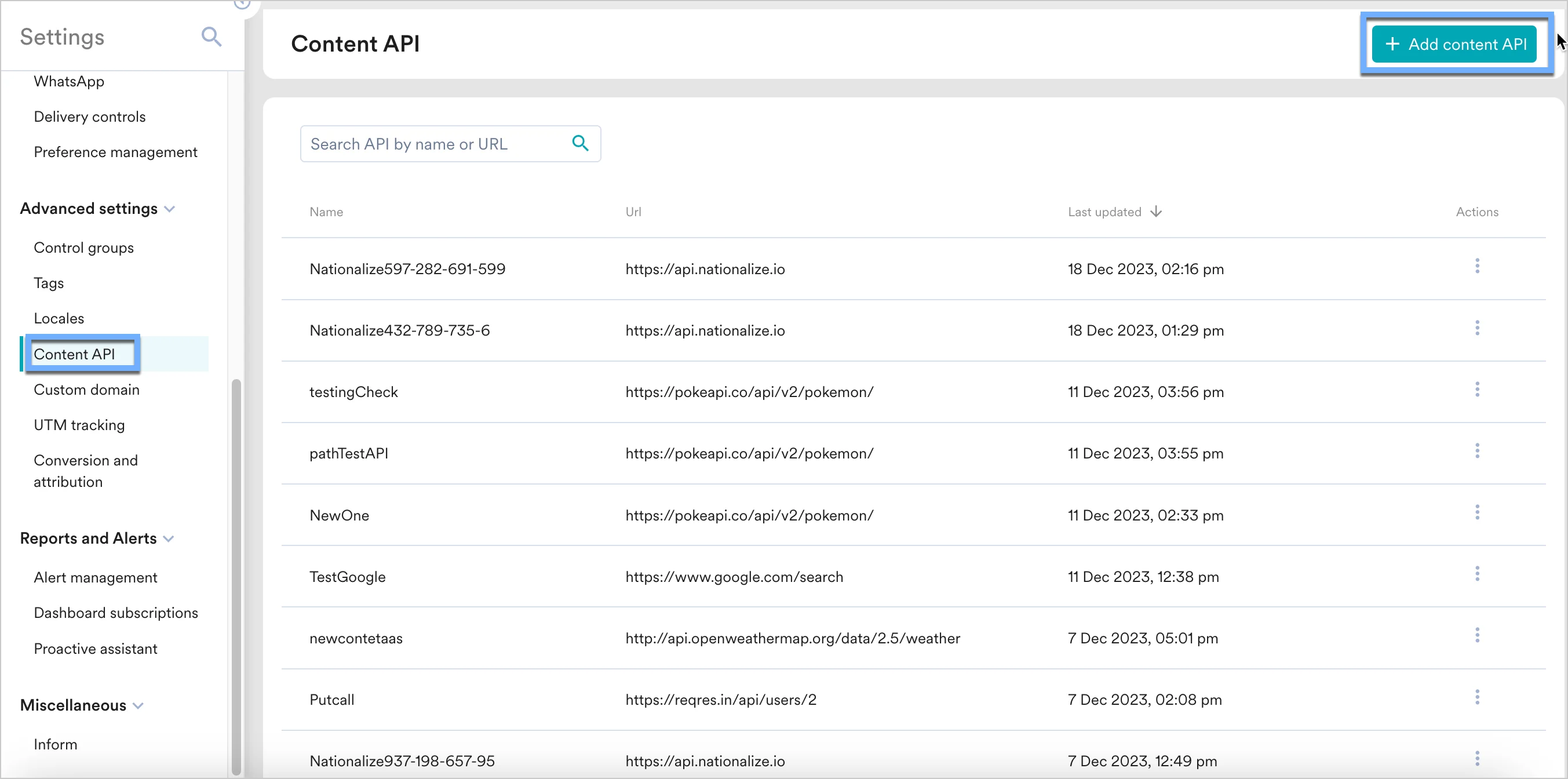 2. Add your Livingdocs API to the endpoint URL. The endpoint changes depending on your use case.
  We use the Livingdocs [Composition API](https://docs.livingdocs.io/reference/public-api/composition-api/) to fetch the HTML content of your templates.
3. Insert the following URL:
```text theme={null}
https://server.livingdocs.io/api/beta/composition/
```
4. To find your document ID, open your document inside Livingdocs and look at the URL.
We use the Livingdocs [Composition API](https://docs.livingdocs.io/reference/public-api/composition-api/) to fetch the HTML content of your templates.
3. Insert the following URL:
```text theme={null}
https://server.livingdocs.io/api/beta/composition/
```
4. To find your document ID, open your document inside Livingdocs and look at the URL.  Under **Headers**, add the following:
* `Authorization`: `Bearer `
* `Content-Type`: `application/json; charset=utf-8`
* `Accept`: `application/json`
5. Set **Method** to `POST`.
6. Under **Body**, enter the following:
```json JSON theme={null}
{
"fields": [
"systemdata",
"content",
"metadata",
"includes",
"html"
],
"resolveIncludes": true
}
```
7. Click **Save**, then click **Done** once you see a successful response.
Click **Test** on the Content API to validate the response before using it in a campaign.
#### Step 2: Display your template inside MoEngage campaigns
To use this Content API in your MoEngage campaigns:
1. On step 2 of campaign creation, type `@`.
2. In the personalization pop-up, select the Livingdocs Content API you configured in Step 1.
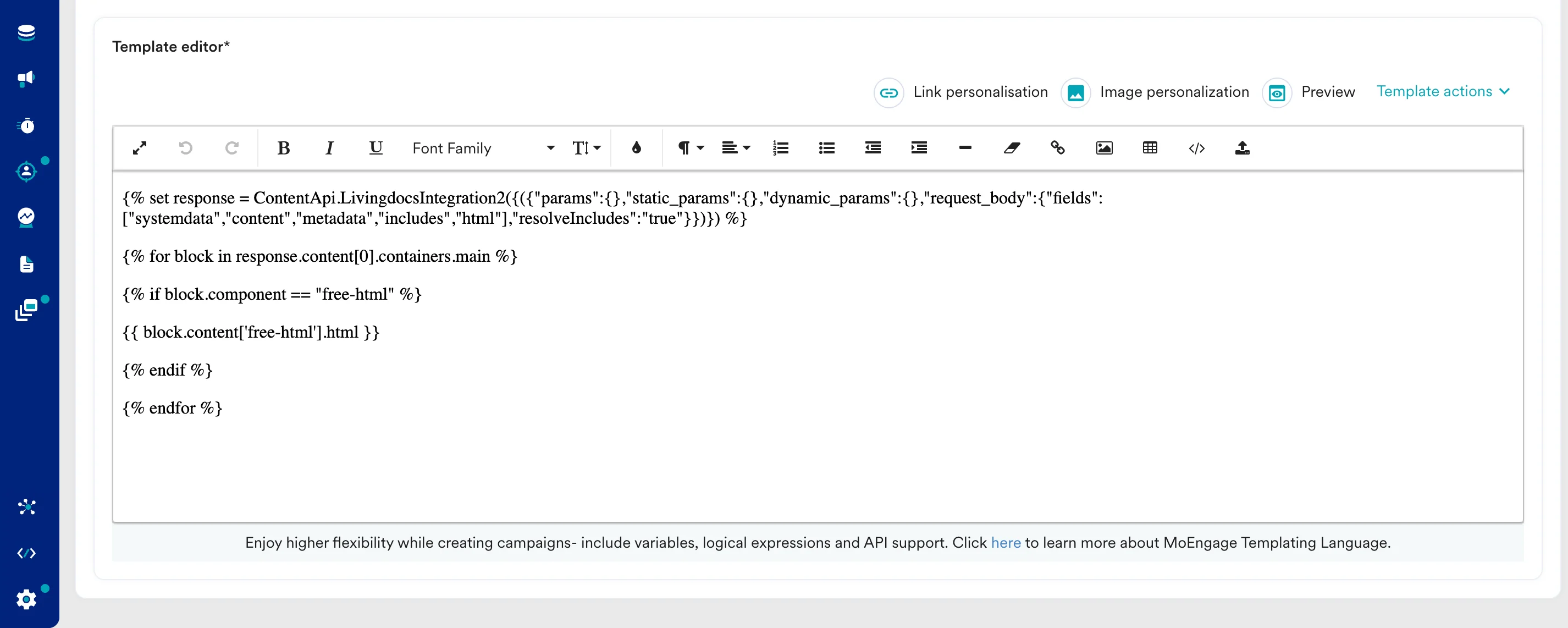
3. Use the [MoEngage Templating Language](https://www.moengage.com/docs/user-guide/campaigns-and-channels/getting-started/message-personalization/jinja-templating-language) to parse the API response and use the content in your campaign:
```jinja JINJA wrap theme={null}
{% set response = ContentApi.LivingdocsIntegration2({("params":{},"static_params":{},"dynamic_params":{},"request_body":{"fields":["systemdata","content","metadata","includes","html"],"resolveIncludes":"true"}})}) %}
{% for block in response.content[0].containers.main %}
{% if block.component == "free-html" %}
{{ block.content['free-html'].html }}
{% endif %}
{% endfor %}
```
Under **Headers**, add the following:
* `Authorization`: `Bearer `
* `Content-Type`: `application/json; charset=utf-8`
* `Accept`: `application/json`
5. Set **Method** to `POST`.
6. Under **Body**, enter the following:
```json JSON theme={null}
{
"fields": [
"systemdata",
"content",
"metadata",
"includes",
"html"
],
"resolveIncludes": true
}
```
7. Click **Save**, then click **Done** once you see a successful response.
Click **Test** on the Content API to validate the response before using it in a campaign.
#### Step 2: Display your template inside MoEngage campaigns
To use this Content API in your MoEngage campaigns:
1. On step 2 of campaign creation, type `@`.
2. In the personalization pop-up, select the Livingdocs Content API you configured in Step 1.
3. Use the [MoEngage Templating Language](https://www.moengage.com/docs/user-guide/campaigns-and-channels/getting-started/message-personalization/jinja-templating-language) to parse the API response and use the content in your campaign:
```jinja JINJA wrap theme={null}
{% set response = ContentApi.LivingdocsIntegration2({("params":{},"static_params":{},"dynamic_params":{},"request_body":{"fields":["systemdata","content","metadata","includes","html"],"resolveIncludes":"true"}})}) %}
{% for block in response.content[0].containers.main %}
{% if block.component == "free-html" %}
{{ block.content['free-html'].html }}
{% endif %}
{% endfor %}
```
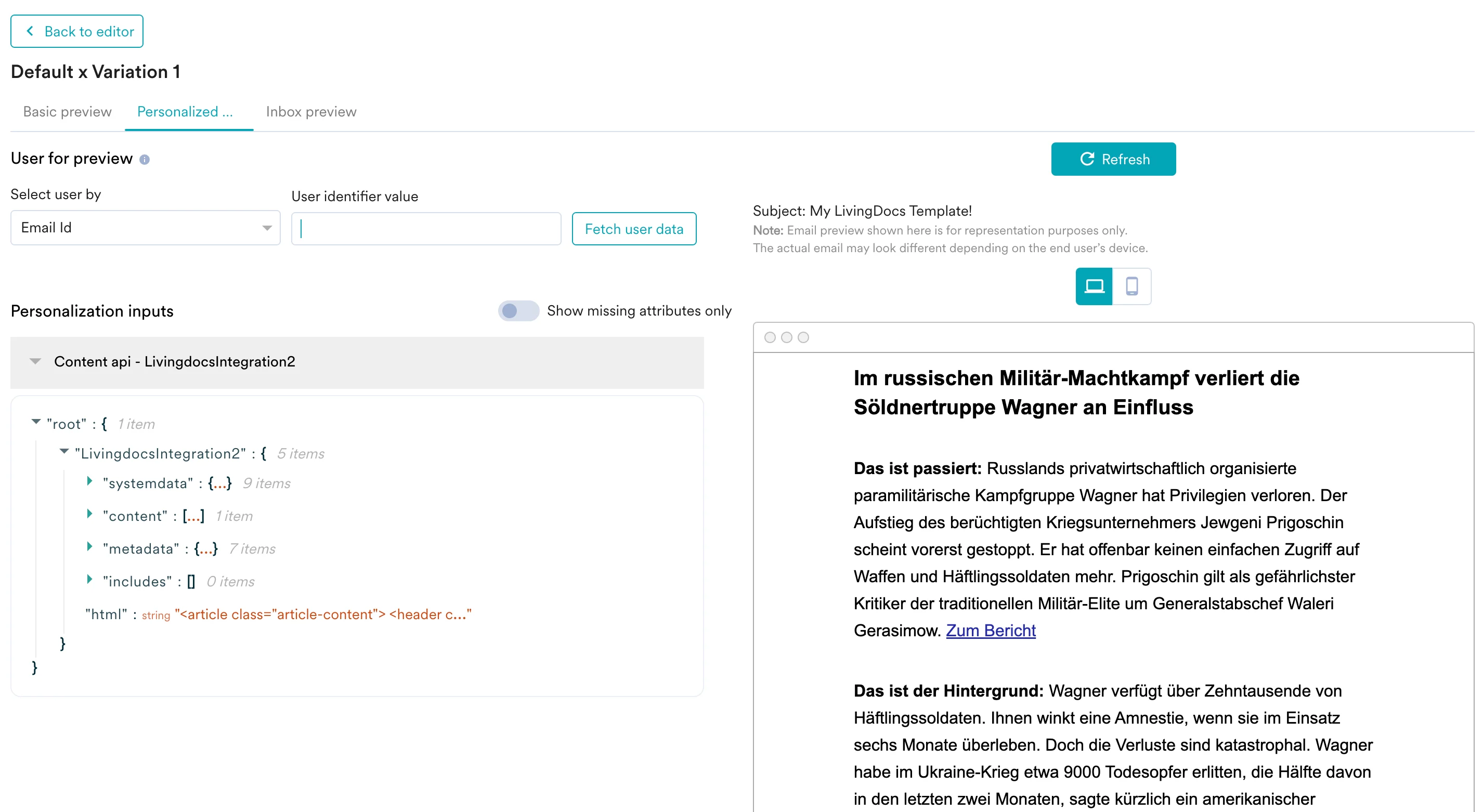
 4. Click the **Preview** tab to view your campaign with real-time personalization.
  ### Use dynamic blocks inside MoEngage campaigns
Sometimes you want to reuse a piece of dynamic code across multiple MoEngage campaigns and templates. Achieve this with MoEngage content blocks:
1. On the MoEngage dashboard side navigation, go to **Content** > **Content Blocks**.
2. Click **Create content block**.
3. Create your content block. It can be either Plain text or HTML.
### Use dynamic blocks inside MoEngage campaigns
Sometimes you want to reuse a piece of dynamic code across multiple MoEngage campaigns and templates. Achieve this with MoEngage content blocks:
1. On the MoEngage dashboard side navigation, go to **Content** > **Content Blocks**.
2. Click **Create content block**.
3. Create your content block. It can be either Plain text or HTML. 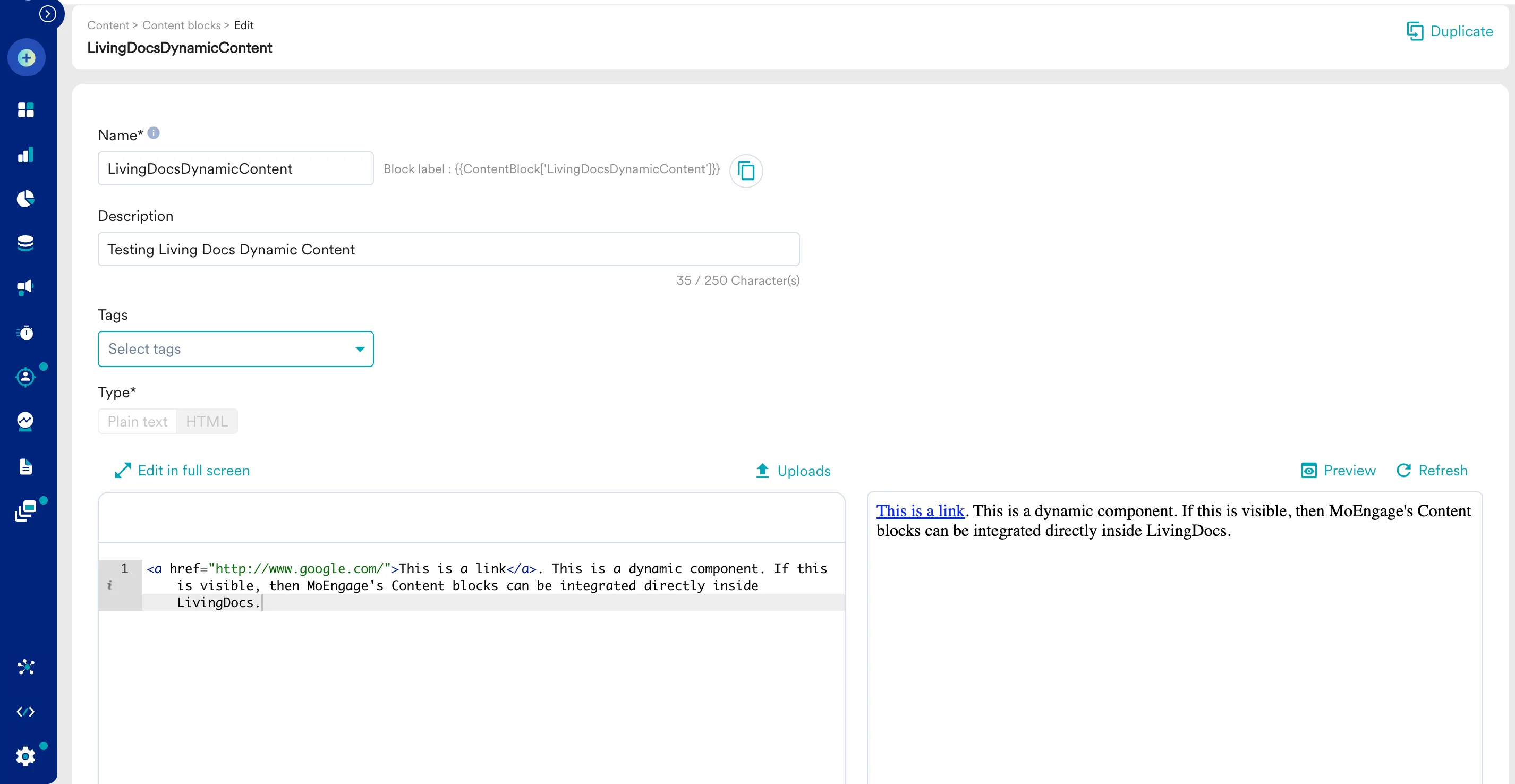 4. Once ready, copy the block label. You will paste this inside the Livingdocs template editor.
Next, go to the Livingdocs template editor and paste the block code:
4. Once ready, copy the block label. You will paste this inside the Livingdocs template editor.
Next, go to the Livingdocs template editor and paste the block code:
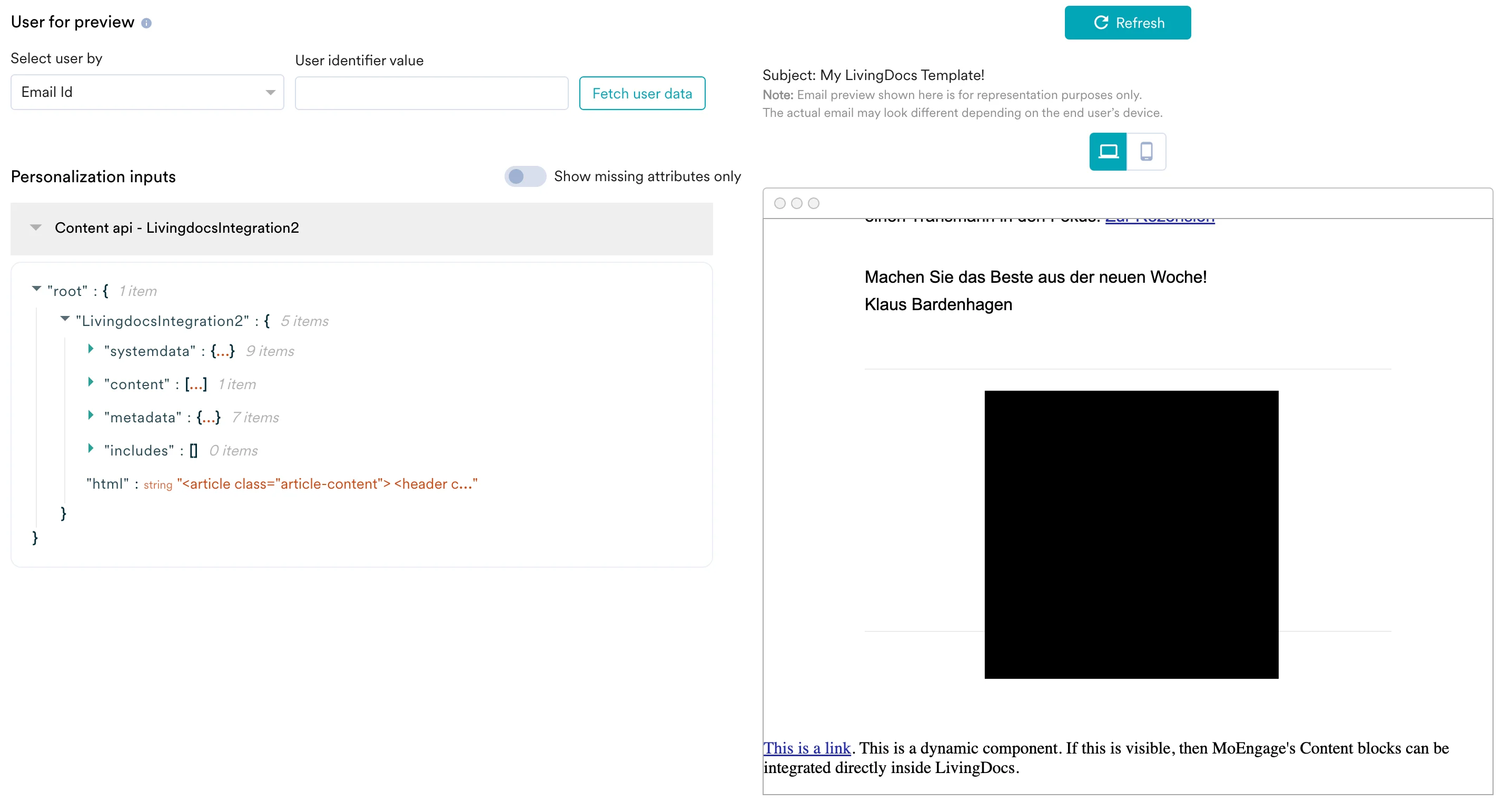
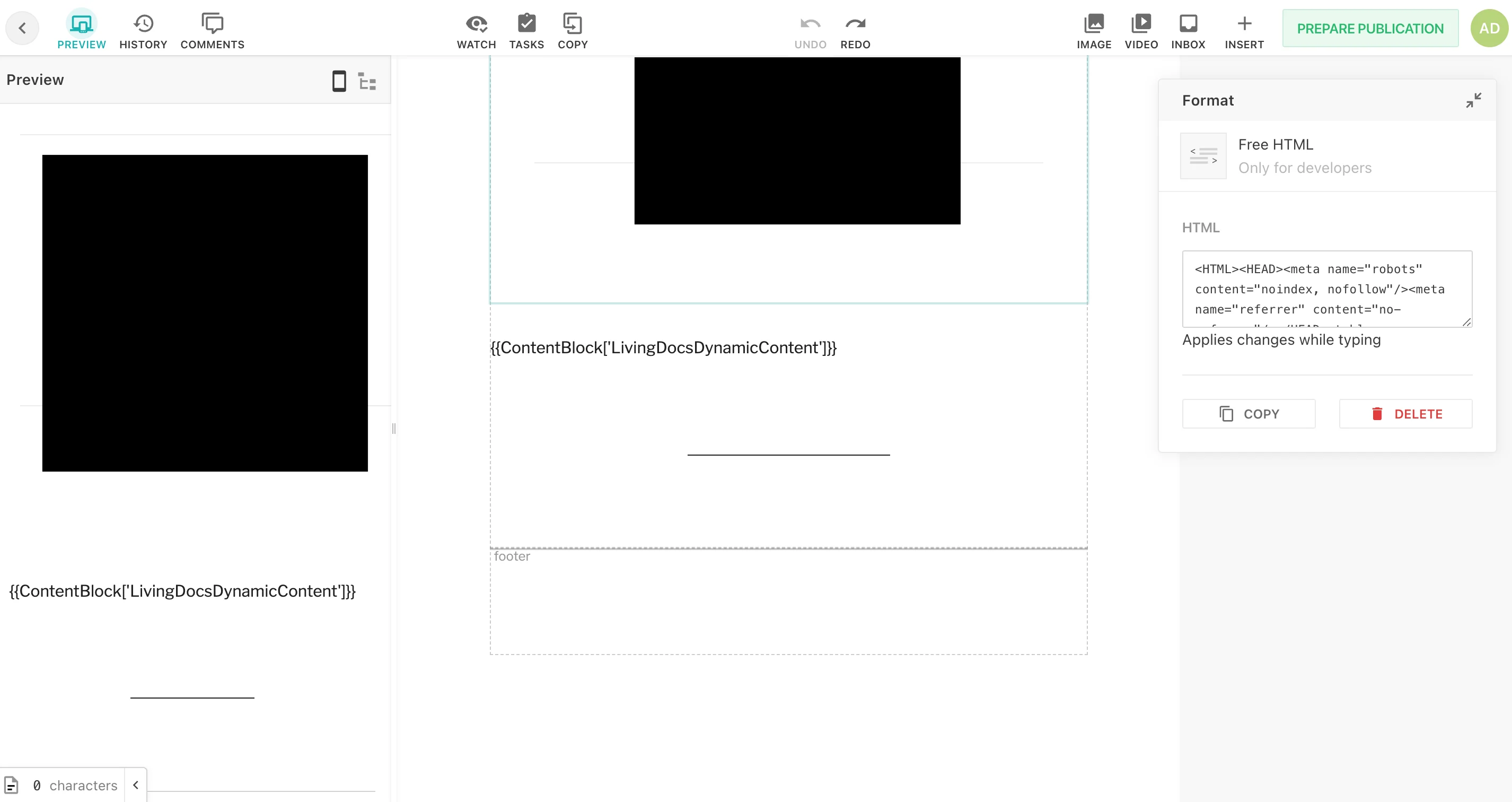 That's it — your content block is automatically inserted into the template at the location of the code: