Storyly
Storyly is the user engagement platform to embed Stories. Storyly empowers the marketing strategies of mobile brands by enabling them to engage with their audience beyond the limits of the mobile screen and create engaging experiences without any development efforts after integration.MoEngage × Storyly
MoEngage × Storyly integration allows you to:- Send Storyly audiences to MoEngage using Storyly’s Create Audiences
- Send MoEngage segments to Storyly using MoEngage’s Custom destinations
Integration
Prerequisites
- Ensure you have a Storyly account.
- You have to have your custom parameter setup between Storyly SDK & your app. Learn more.
- Ensure that Custom destinations is enabled for your MoEngage account.
Sync Storyly’s audiences to MoEngage
Step 1: Setup MoEngage on Storyly
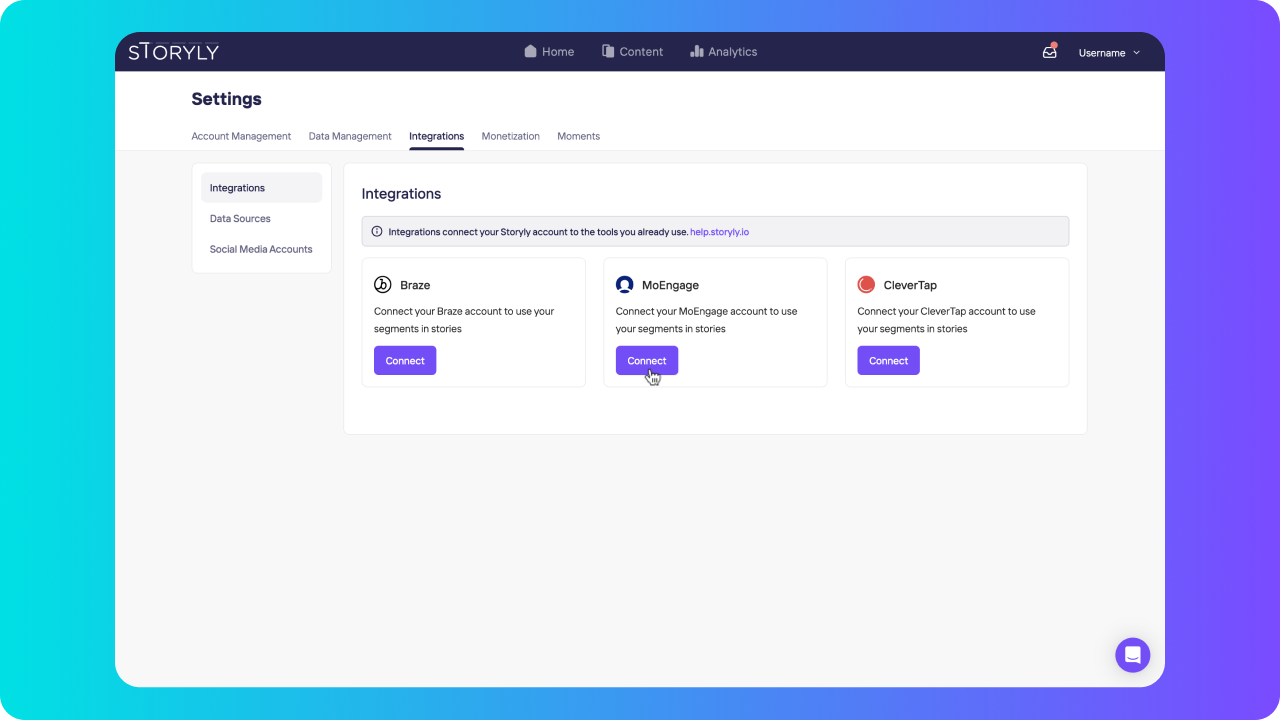
Let’s start with connecting MoEngage account on Storyly Dashboard.- On your Storyly Dashboard, go to Settings and find Integrations tab.
- Under Integrations, you’ll see MoEngage. Please click on Connect.
| Field Name | Description |
|---|---|
| Integration Name | You may have more than 1 integration, that’s why you can give any name to Integration as you want, to differentiate one from another. |
| Workspace ID | API ID is the Workspace ID. The Workspace ID of your MoEngage account is available at Settings -> Account -> APIs -> Workspace ID. The Data API ID and the Workspace ID of your MoEngage account are the same. |
| API Key | The Data API key of your MoEngage account is available at Settings -> Account -> APIs -> API keys -> Data API settings. |
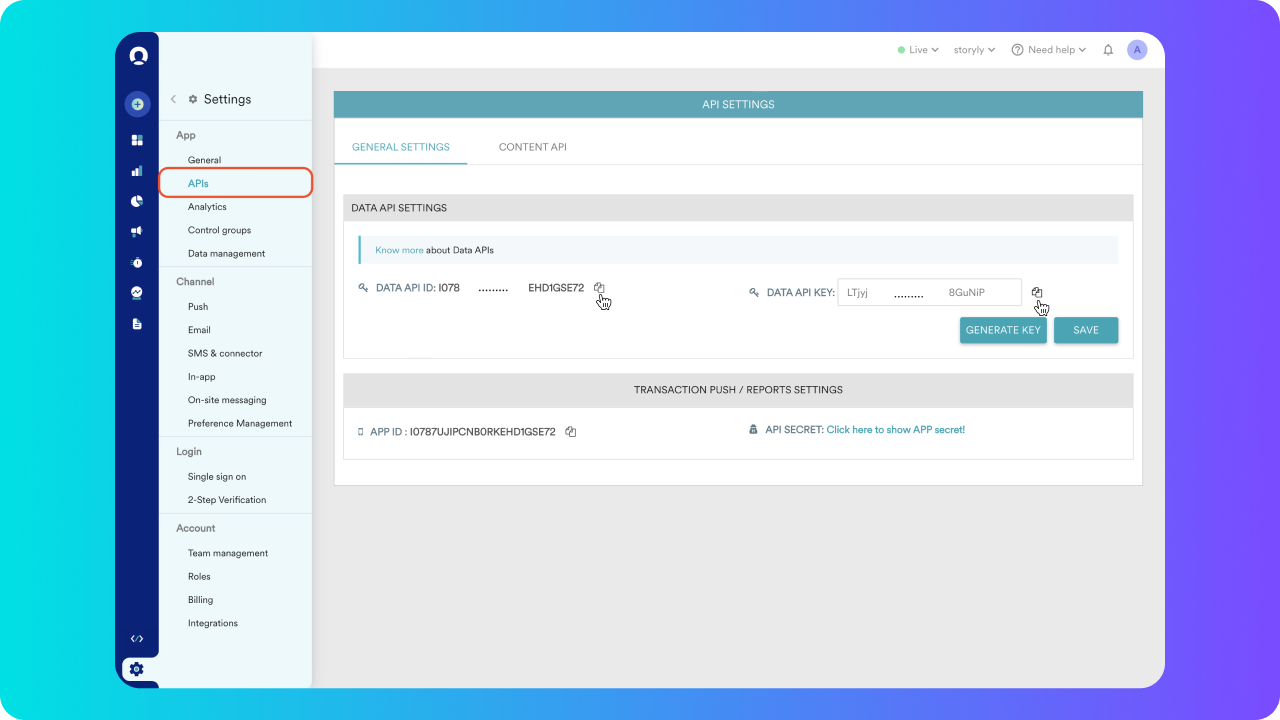
- Copy DATA API ID and DATA API Key, then paste them in the corresponding fields on the Storyly Dashboard.
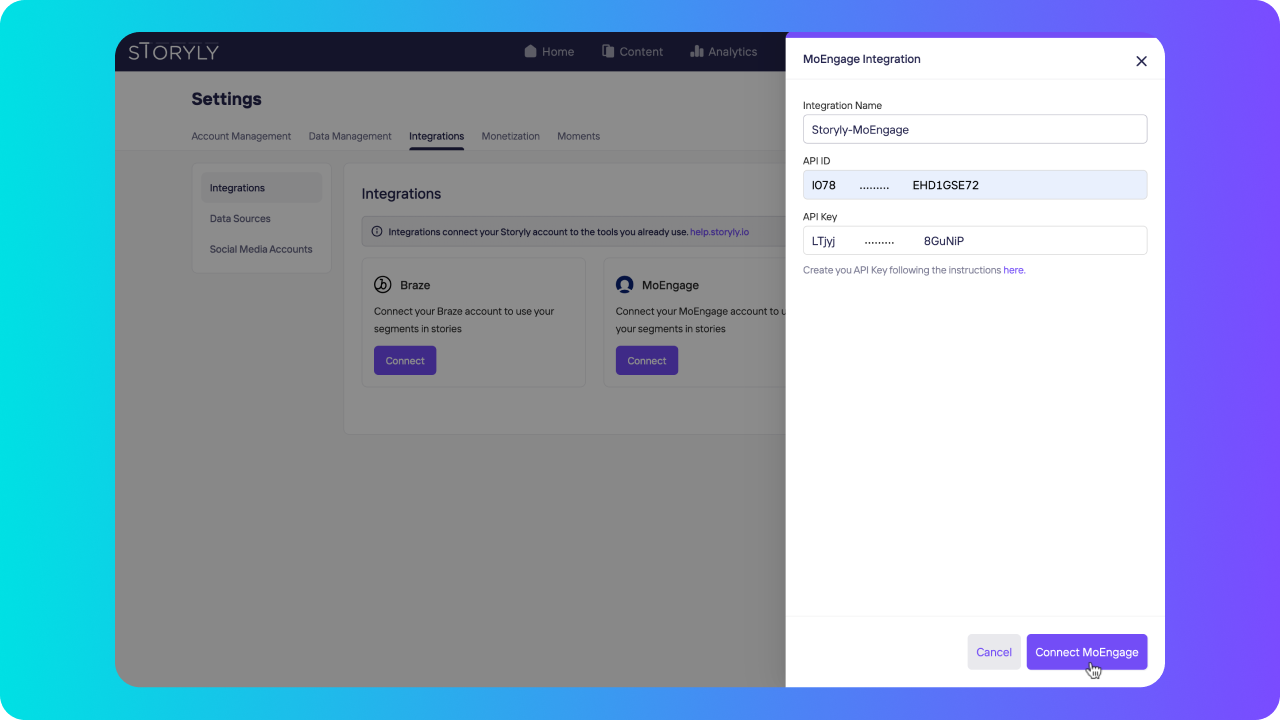
- Once you click on Connect MoEngage, integration is completed!
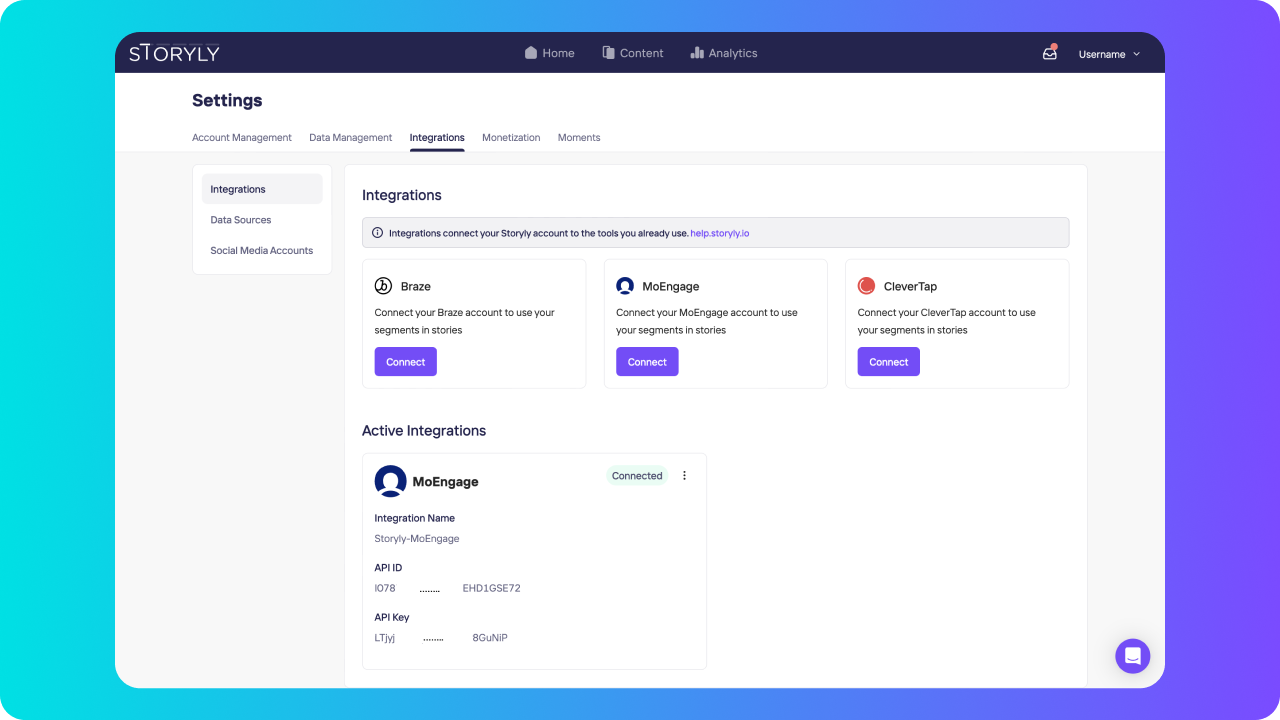
Step 2: Send audiences to MoEngage
- Under Settings > Data Management > Audiences, you can see audiences that you’ve created. If you click on Export button, you’ll see Send to MoEngage option.
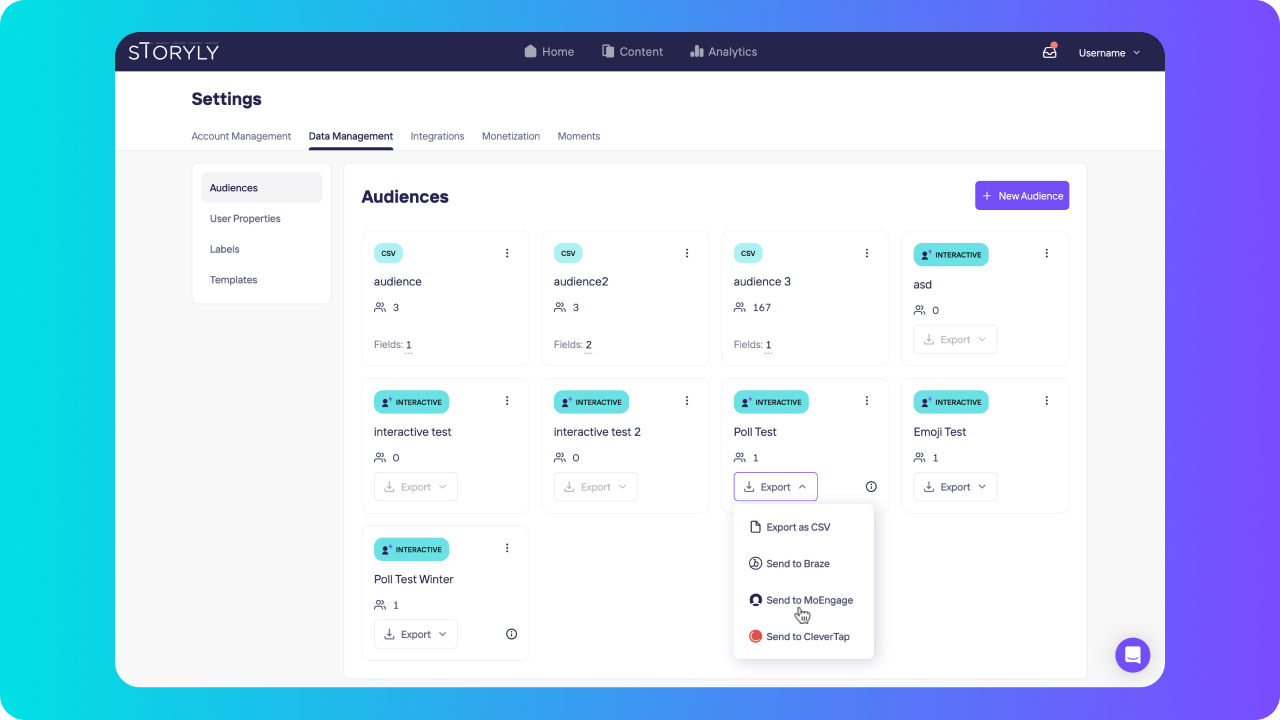
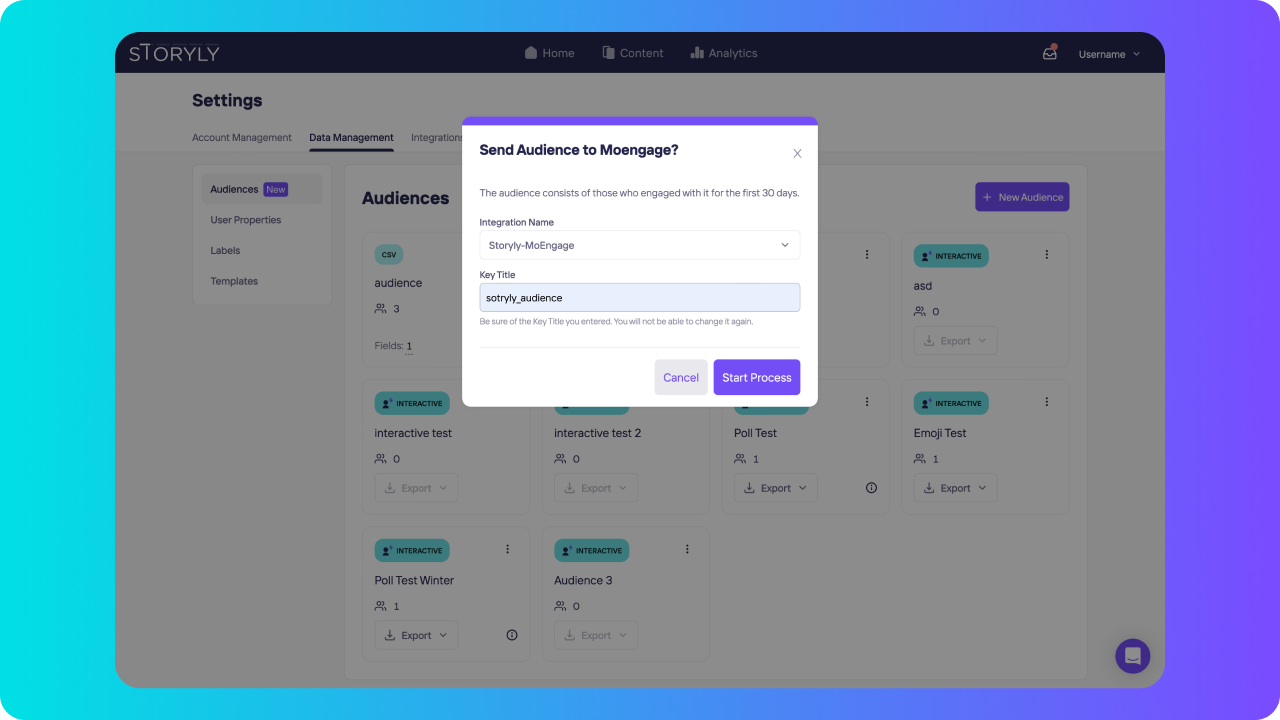
- When you click on Send to MoEngage, you’ll be asked to choose which integration that you’d like to use and to give a Key Title for the Custom Attribute that you’ll see on MoEngage.
- After you click on Start Process, depending on the audience’s size, it’ll take couple of minutes for process to be completed.
Step 3: Create custom segments from Storyly Audiences
- Once the process is completed, you can go to MoEngage Dashboard, navigate to Segments from the left pane and click on Create Segment option.
- In that screen, please click on User Property and scroll down to find the custom attribute that you’ve exported from Storyly under Tracked Custom Attribute section.
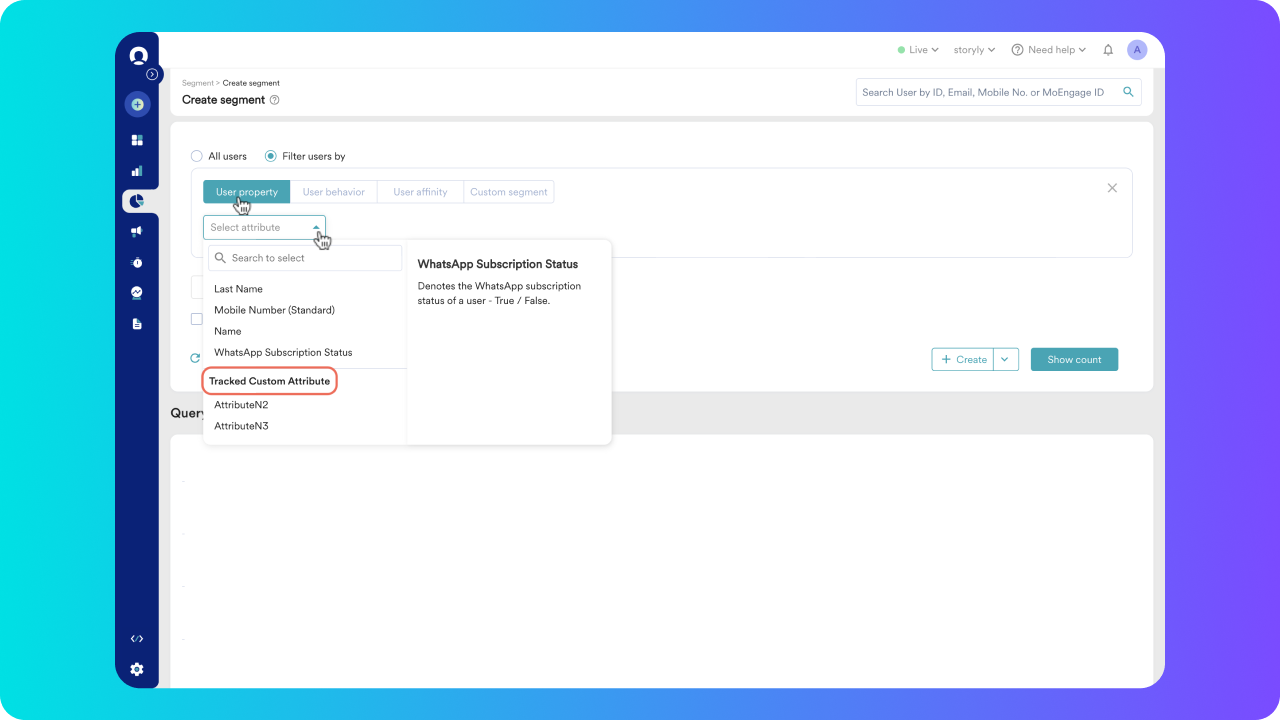
- After selecting the custom attribute, if you go with the “is” and type in the name of your Audience on Storyly Dashboard, you’ll be able to create a segment that includes all of the users in that Audience.
Sync MoEngage segments to Storyly
Step 1: Create new audience for MoEngage
- Go to Audiences tab on Storyly Dashboard and click on + New Audience at the top right. Select the Create Audience for MoEngage option. You can give a name to your Audience and click on Continue.
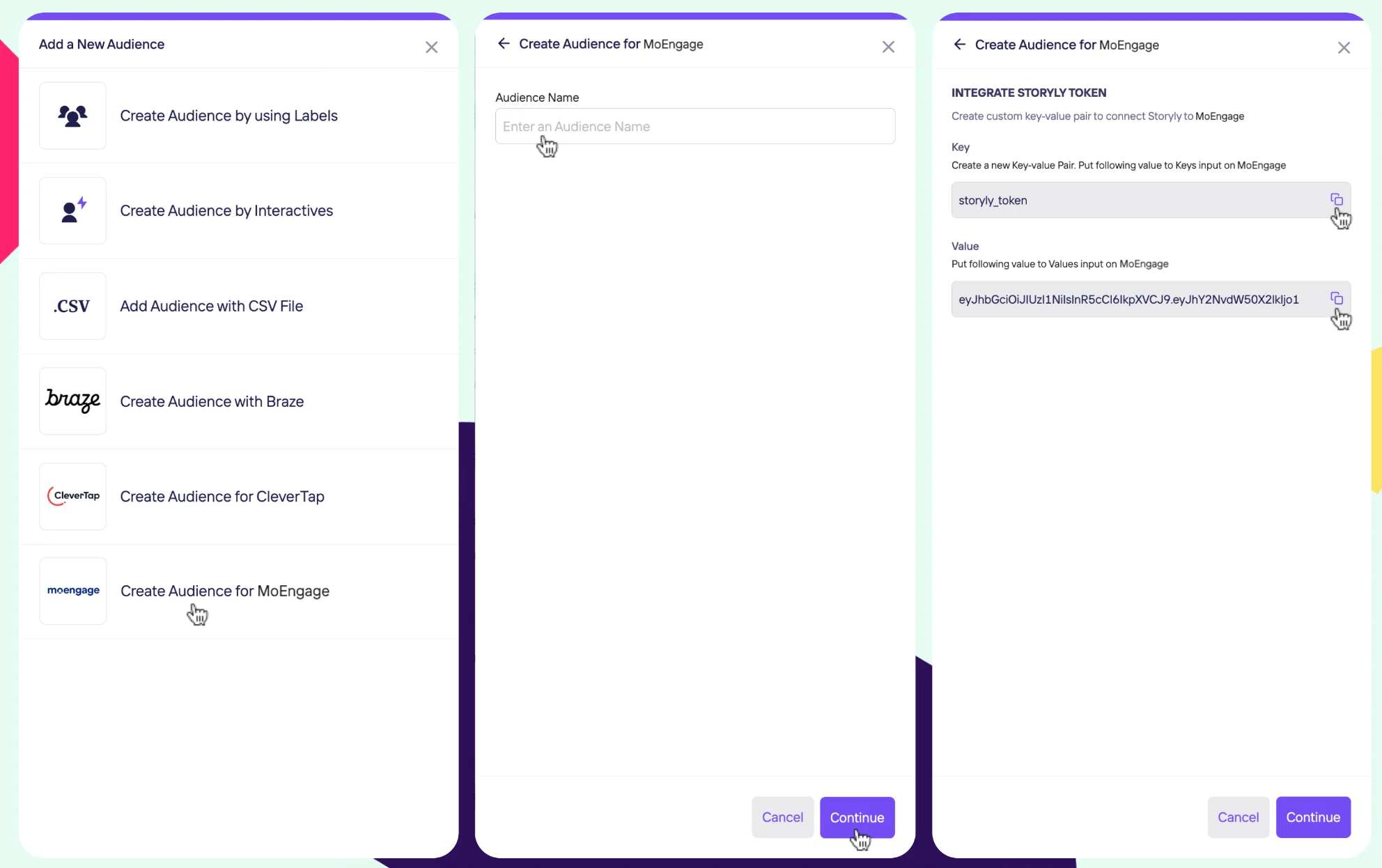
- Storyly will generate a Key and unique Token as Value for your Audience. Please copy these values, and you’ll paste them on the MoEngage Dashboard while configuring the integration.
Step 2: Setup custom destination on MoEngage
- Navigate to App Marketplace >> Custom Destinations
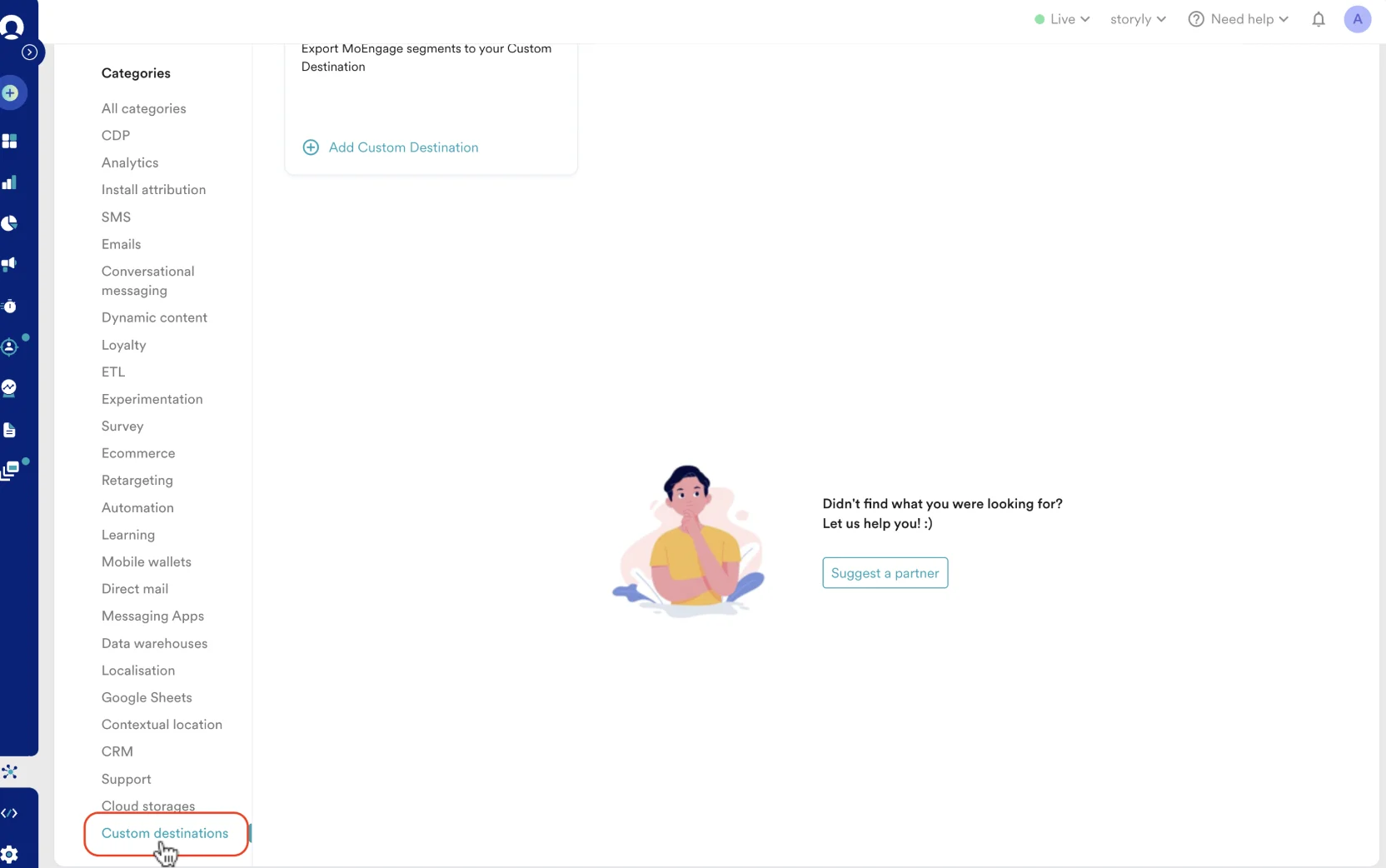
- Click Add Custom Destination.
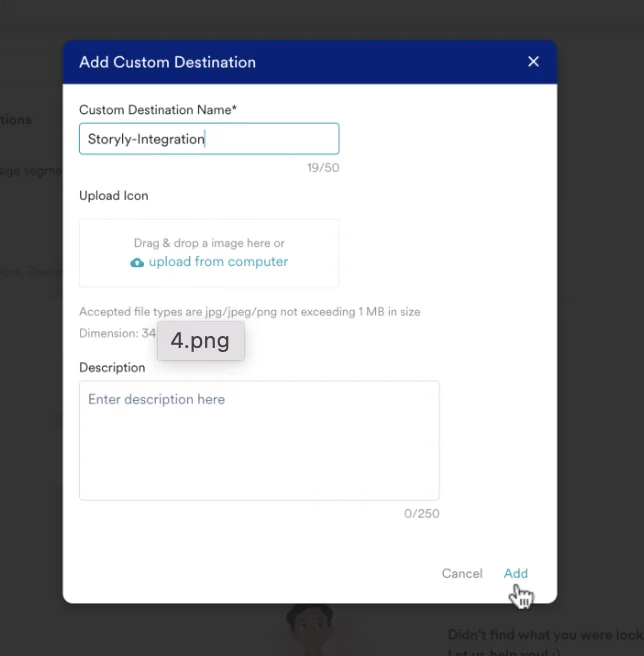
- Add Destination name as Storyly and description (optional).
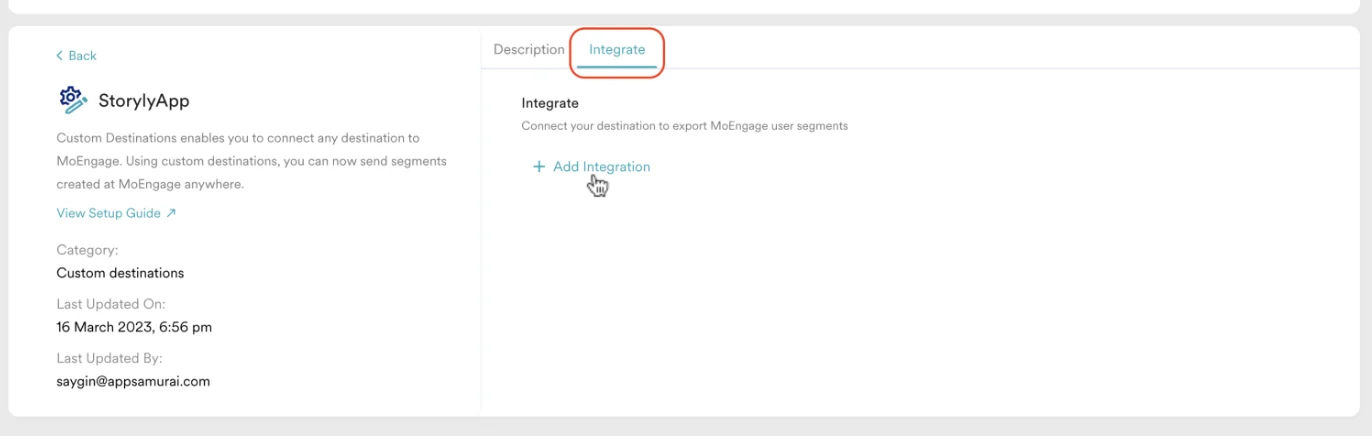
- Navigate to Integrate tab and click Add Integration
- Now go back to the MoEngage Dashboard, and fill in the following details:
- Integration name: you can give any name you’d like.
- Method: Choose POST option.
- URL endpoint: Enter the endpoint:
https://core.storyly.io/audience/moengage/export-callback - Parameters: Click on +KV pair and paste the Key & Value that you’ve copied from the Storyly Dashboard in the previous step.
- User identifier: Choose the identifier that you already pass to Storyly via Custom Parameter, which can be ID, e-mail, etc. Then enter identity in the Destination identifier field.
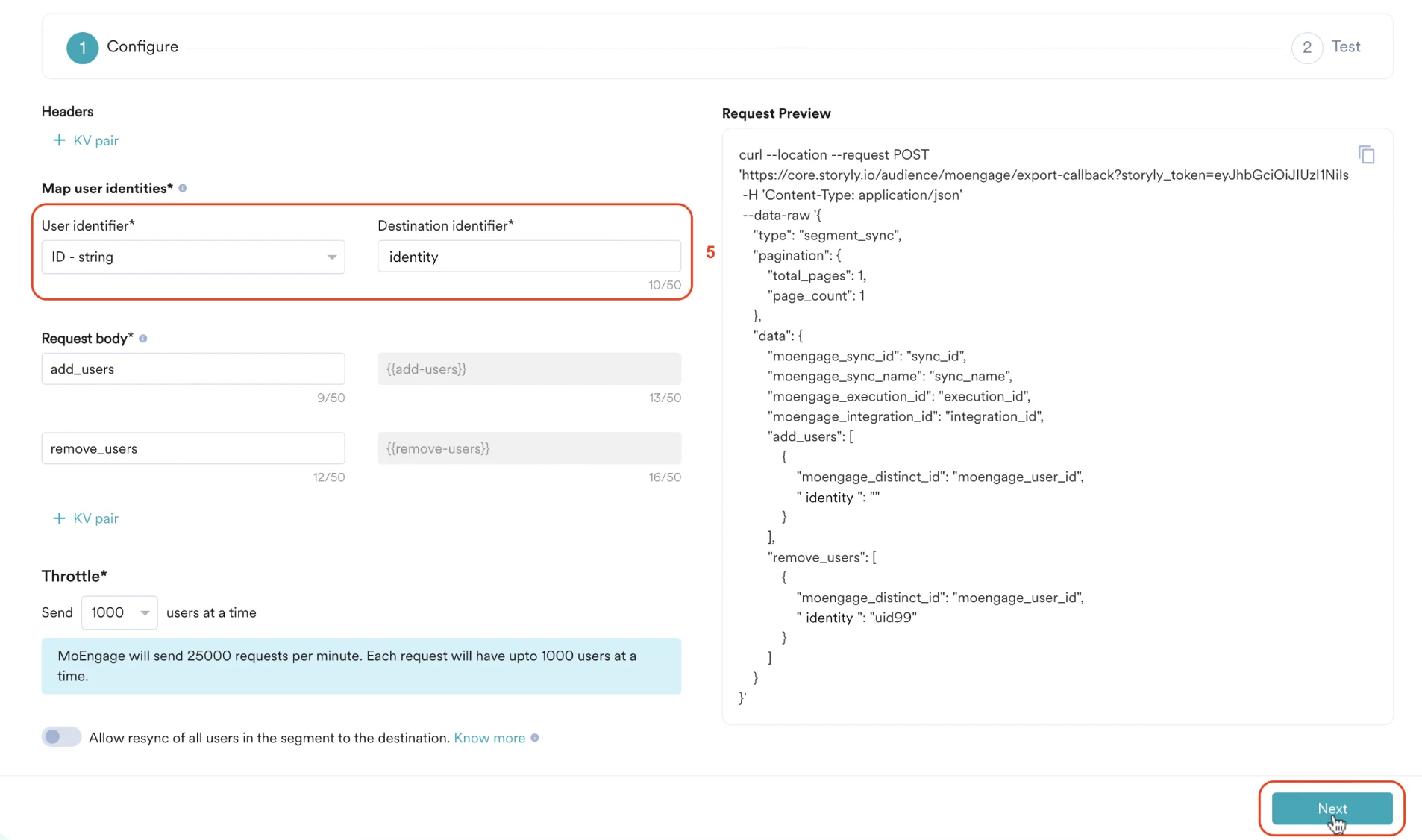
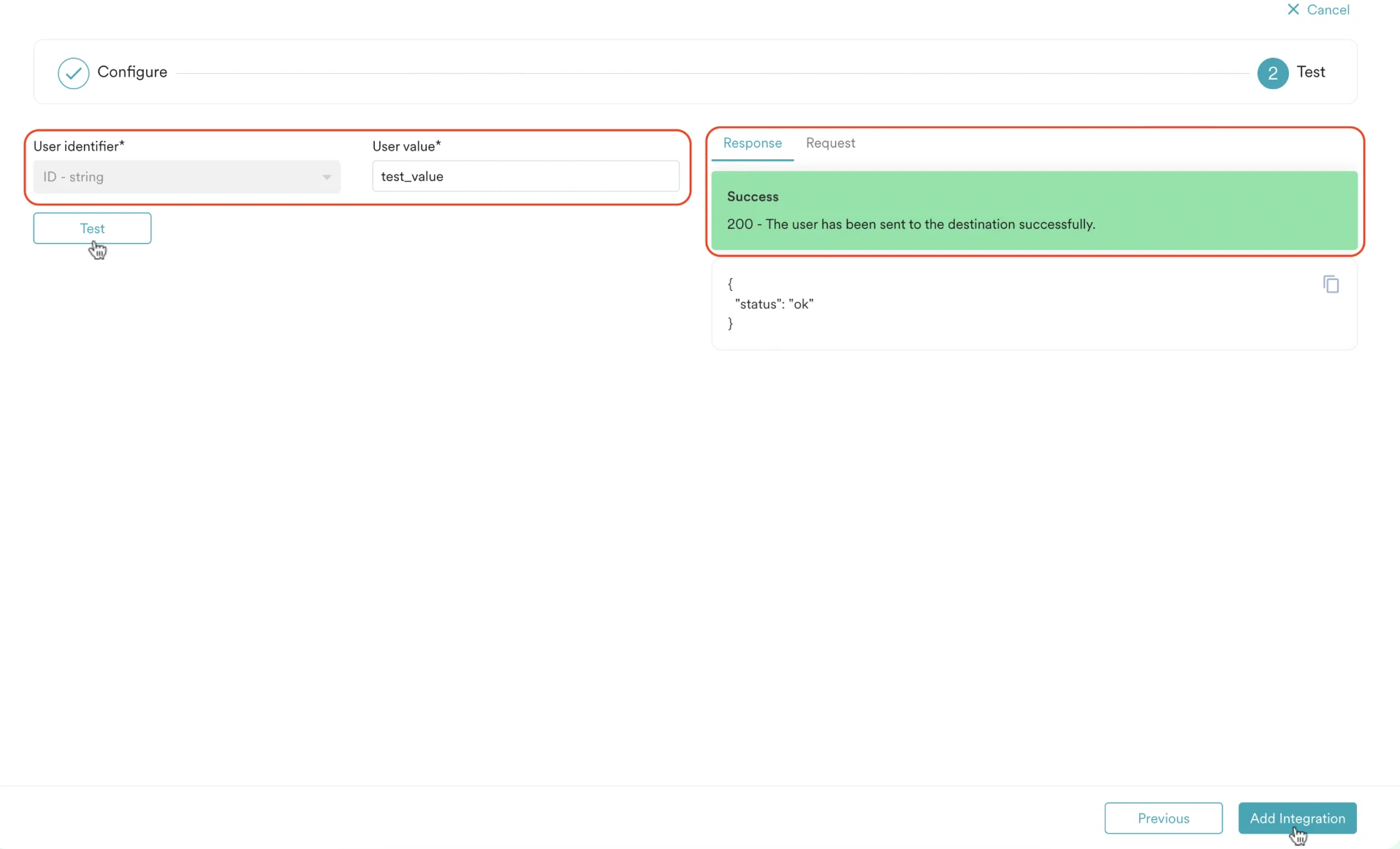
- Click Next. You will now get an option to test the integration. You can enter a User value and click Test button. If the test is successful, you’ll see the success message.
- You can also choose to skip the test by directly clicking Add Integration.
Step 3: Send segment to Storyly
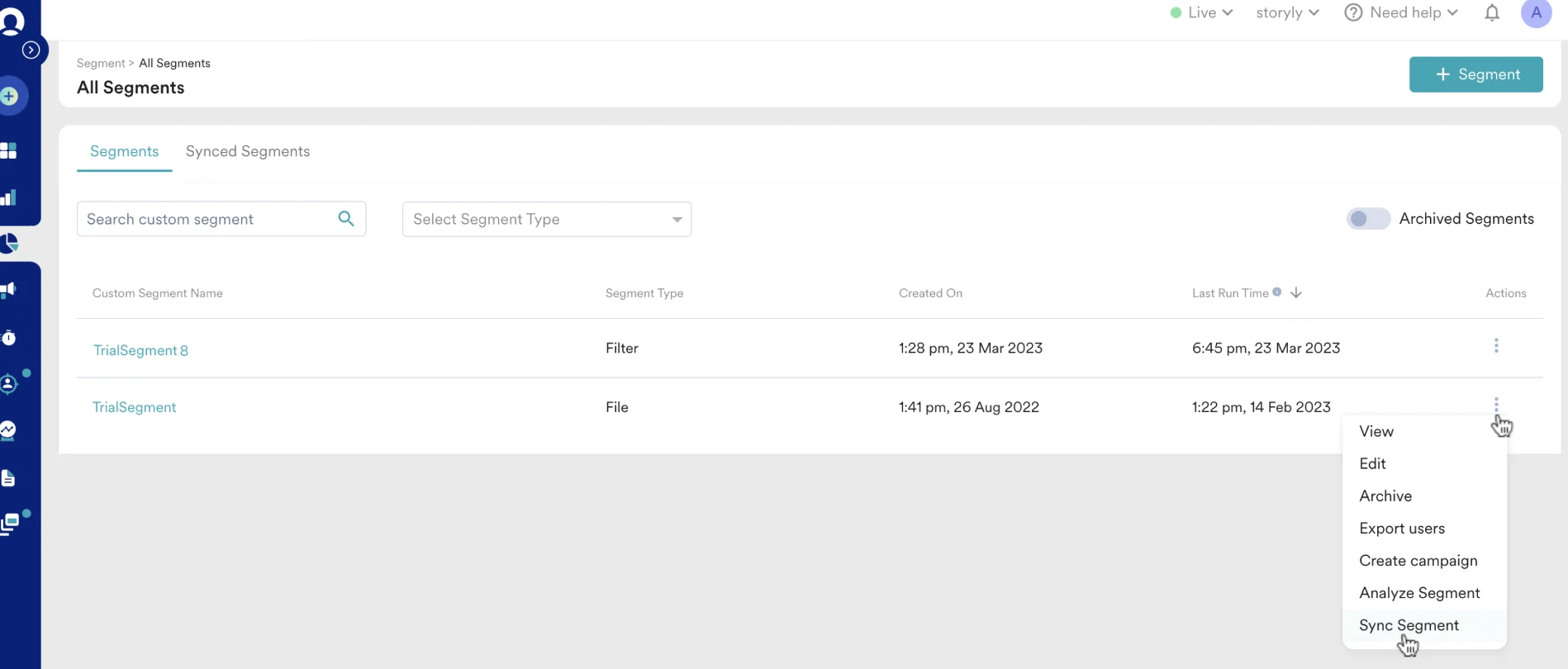
- Navigate to the Segment, click on three dots right next to the segment that you’d like to Import, and select the Sync Segment option.
- Select the Destination as the Custom Destination that you’ve set up.
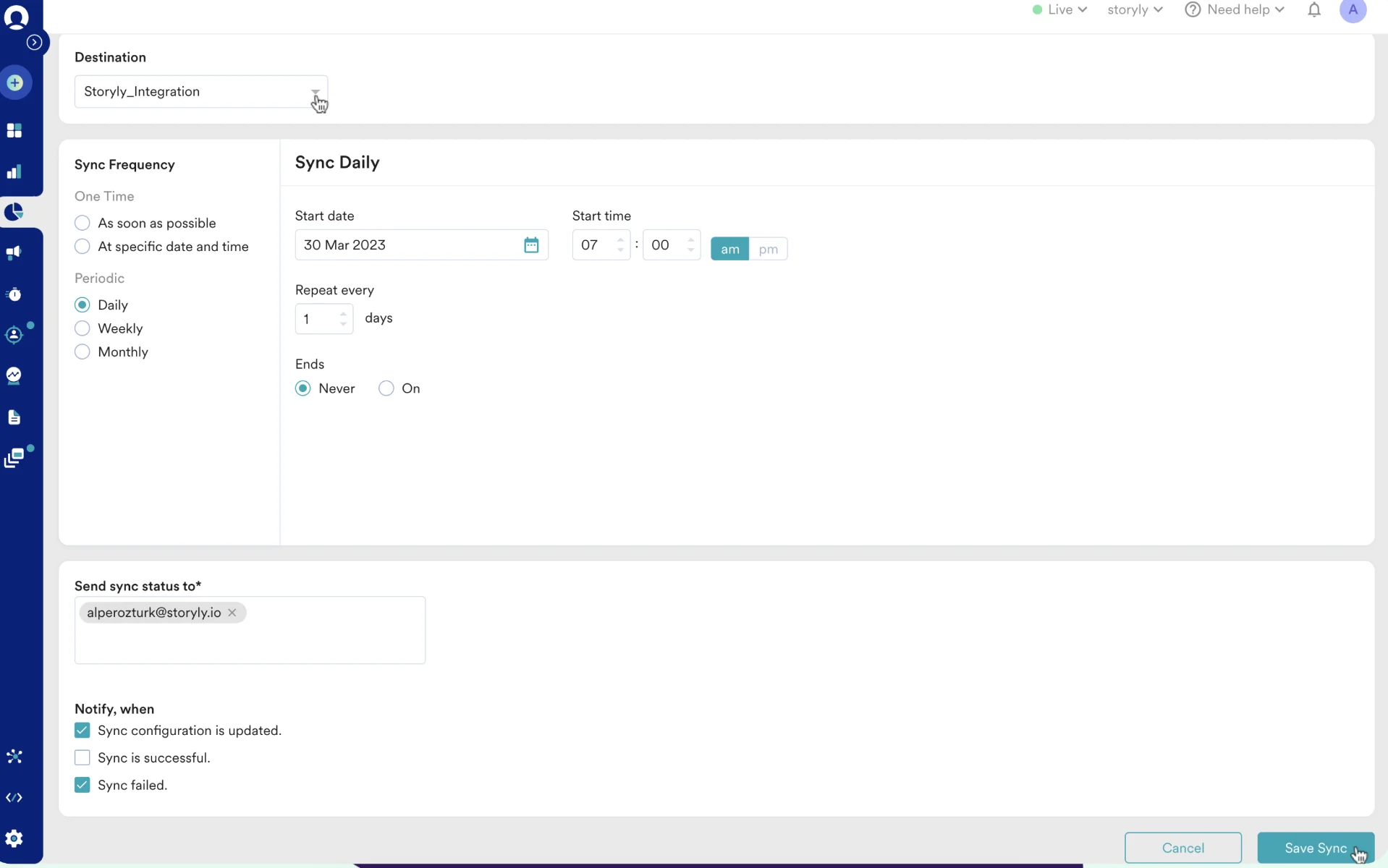
- Select your Sync Frequency and other related details.
- Click on Save Sync.