> ## Documentation Index
> Fetch the complete documentation index at: https://moengage.com/docs/llms.txt
> Use this file to discover all available pages before exploring further.
# Jasper.ai
# Introduction
[Jasper.ai](https://www.jasper.ai/) is an AI writing tool designed to generate marketing copy, such as blog posts, product descriptions, company bios, ad copy, and social media captions.
# MoEngage × Jasper.ai
With the MoEngage and Jasper.ai integration, you can use Jasper.ai's Generative AI to send out hyper-personalized and effective campaigns across channels on MoEngage.
# Integration
**Prerequisites**
You would need your Jasper.ai API token to use their APIs.
## Display dynamic content in MoEngage Campaigns
Using MoEngage's Content APIs, you can dynamically add content created by Jasper.ai inside MoEngage campaigns for a more personalized experience. Below is an example of generating a personalized subject line by using Gen AI, for an email campaign:
### Step 1: Set up a MoEngage Content API
1. Navigate to **Settings** > **Advanced settings** > **Content API**. Click **+ Add content API** at the top right corner of the Content API screen.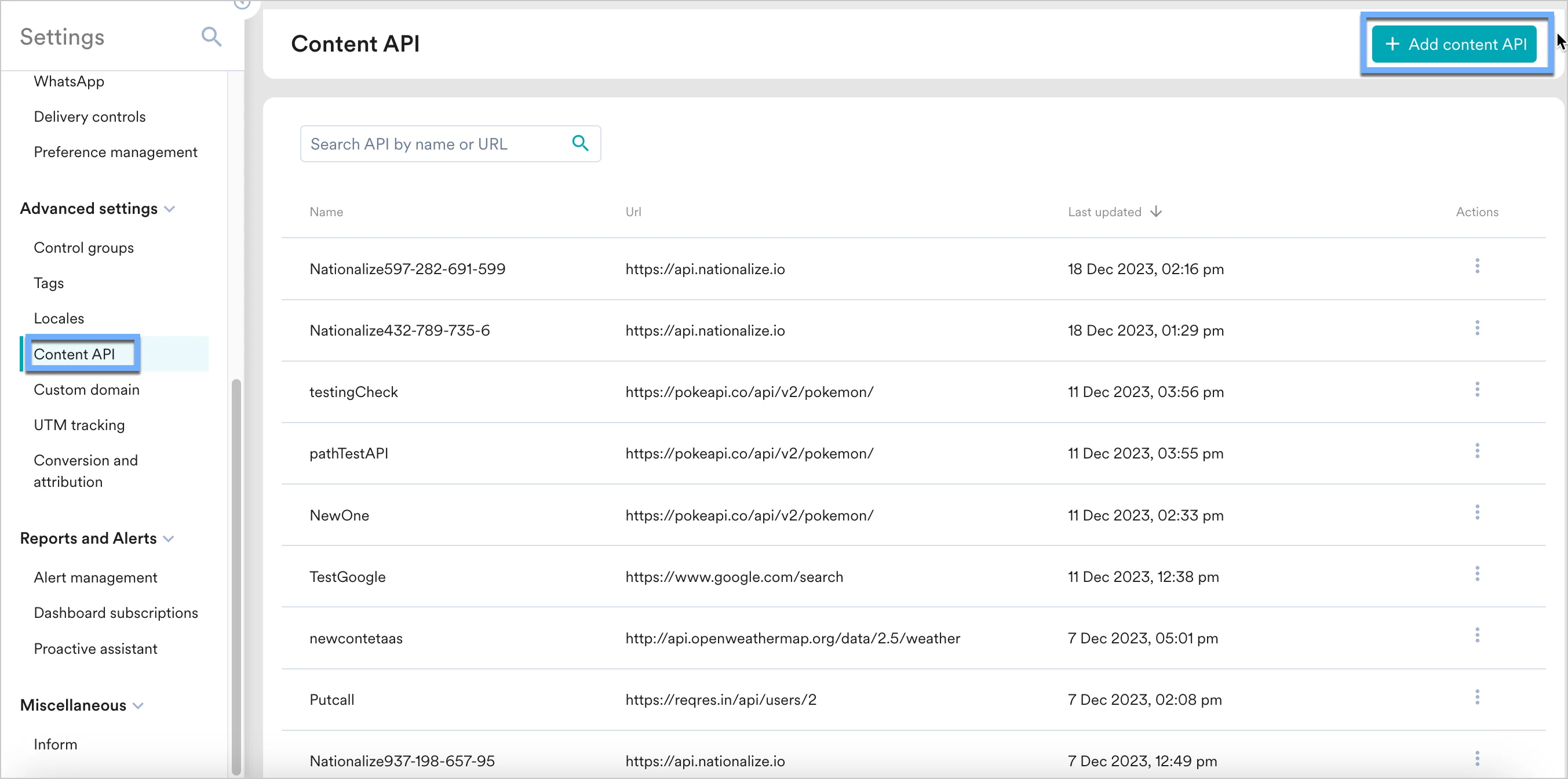 2. Add your Jasper.ai API to the endpoint URL. Depending on your use case, the endpoint will change.
 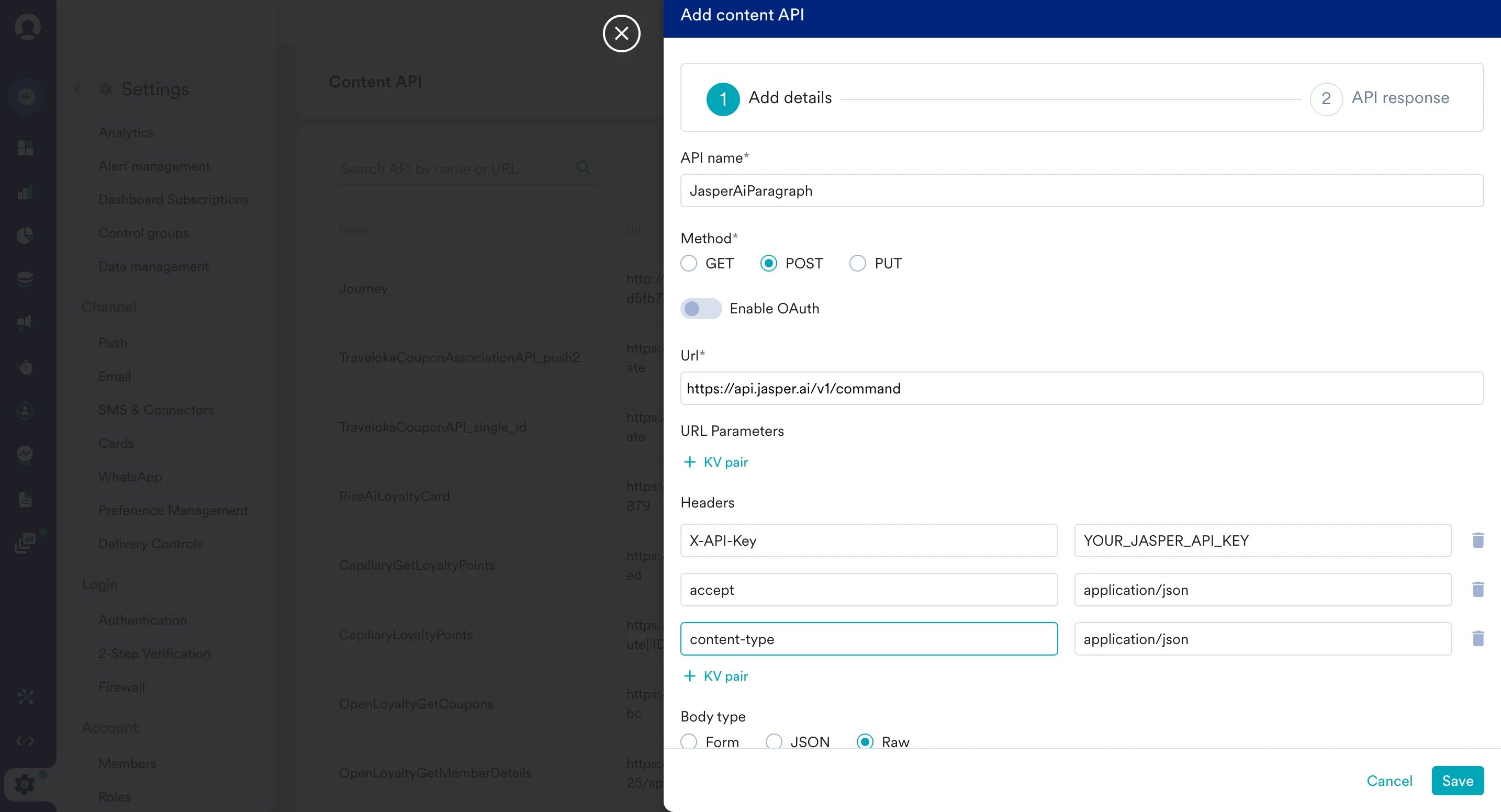 To display a personalized AI-generated subject line, use Jasper.ai's [Run Command API](https://developers.jasper.ai/docs/getting-started-1).
While setting up your content API, select and method as POST and insert the following URL:
```text theme={null}
[https://api.jasper.ai/v1/command](https://api.jasper.ai/v1/command)
```
Leave the URL Parameters as blank.
Under Headers, add the following:
1. `X-API-Key`: For this, you need to [generate a new Access Token](https://developers.jasper.ai/docs/authentication) from Jasper.ai's dashboard.
2. `content-type`: `application/json`
3. `accept`: `application/json`
Under *Body Type* , select *Raw* , add the following:
```json JSON wrap theme={null}
{
"inputs": {
"command": "Write a personalized email subject line for a campaign about Christmas holidays",
"context": "Email is being sent to {{UserAttribute['First Name']}} {{UserAttribute['Last Name']}}",
"toneId": ""
},
"options": {
"outputCount": 1,
"outputLanguage": "English",
"inputLanguage": "English",
"languageFormality": "default",
"completionType": "performance"
}
}
```
1. Click on "Save" and then "Done" once you see a successful response.
2. Note - You can also test your APIs. To test your APIs, from the Content API's action menu, click on "Test". You can your API response and validate it.
### Step 2: Display your content inside MoEngage campaigns
To use this API in your MoEngage campaigns:
1. On step 2 on your campaign creation, enter `@`.
2. In the pop up, you can select Jasper.ai Content API configured in Step 1.
3. You can use [MoEngage Templating Language](https://www.moengage.com/docs/user-guide/campaigns-and-channels/getting-started/message-personalization/jinja-templating-language)to parse through the API response and use the content in your campaigns.
To display a personalized AI-generated subject line, use Jasper.ai's [Run Command API](https://developers.jasper.ai/docs/getting-started-1).
While setting up your content API, select and method as POST and insert the following URL:
```text theme={null}
[https://api.jasper.ai/v1/command](https://api.jasper.ai/v1/command)
```
Leave the URL Parameters as blank.
Under Headers, add the following:
1. `X-API-Key`: For this, you need to [generate a new Access Token](https://developers.jasper.ai/docs/authentication) from Jasper.ai's dashboard.
2. `content-type`: `application/json`
3. `accept`: `application/json`
Under *Body Type* , select *Raw* , add the following:
```json JSON wrap theme={null}
{
"inputs": {
"command": "Write a personalized email subject line for a campaign about Christmas holidays",
"context": "Email is being sent to {{UserAttribute['First Name']}} {{UserAttribute['Last Name']}}",
"toneId": ""
},
"options": {
"outputCount": 1,
"outputLanguage": "English",
"inputLanguage": "English",
"languageFormality": "default",
"completionType": "performance"
}
}
```
1. Click on "Save" and then "Done" once you see a successful response.
2. Note - You can also test your APIs. To test your APIs, from the Content API's action menu, click on "Test". You can your API response and validate it.
### Step 2: Display your content inside MoEngage campaigns
To use this API in your MoEngage campaigns:
1. On step 2 on your campaign creation, enter `@`.
2. In the pop up, you can select Jasper.ai Content API configured in Step 1.
3. You can use [MoEngage Templating Language](https://www.moengage.com/docs/user-guide/campaigns-and-channels/getting-started/message-personalization/jinja-templating-language)to parse through the API response and use the content in your campaigns.
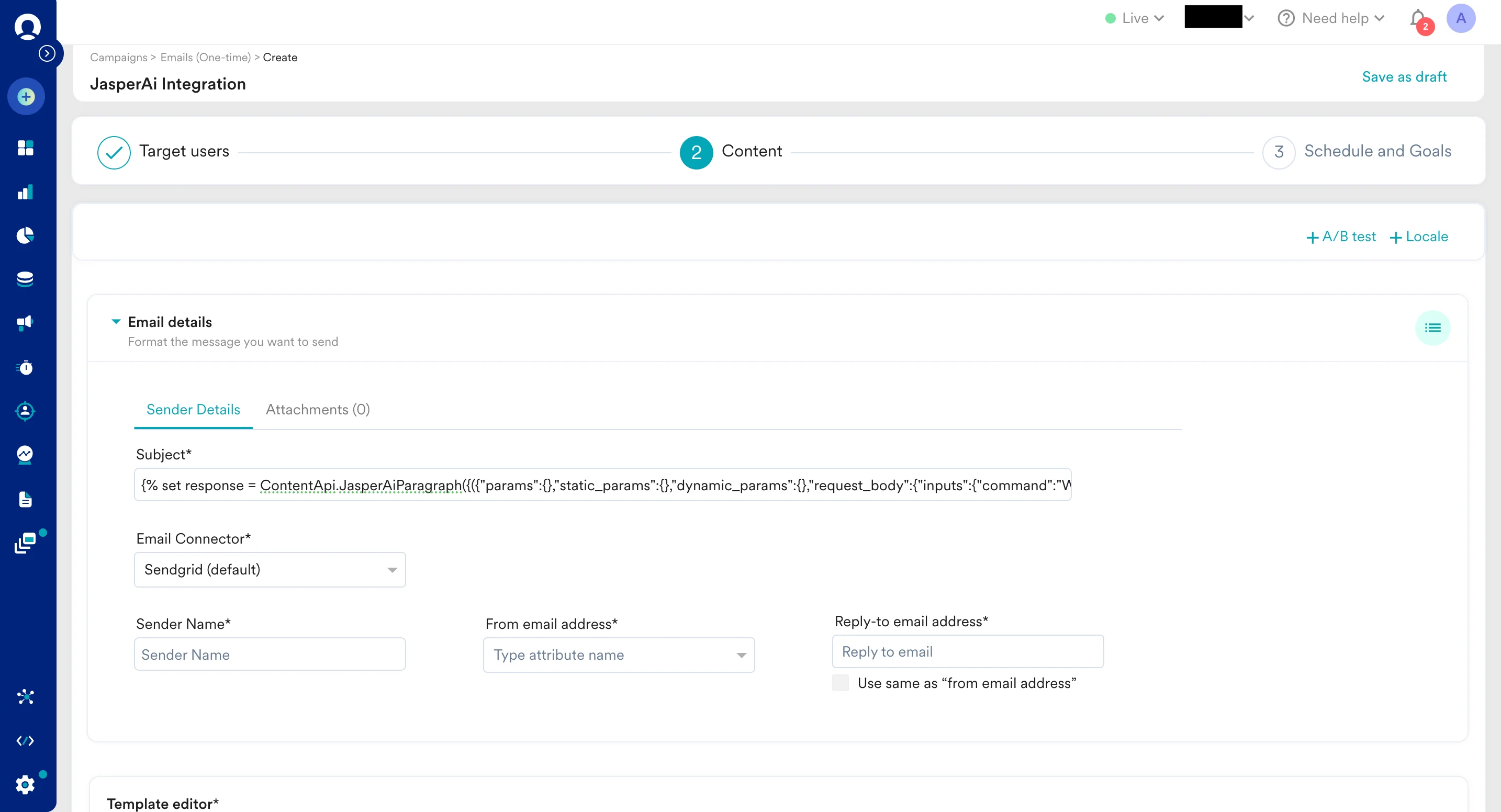 To display the subject line generated by Jasper, you can use the following code:
```json JINJA wrap theme={null}
{% set response = ContentApi.JasperAiParagraph({({"params":{},"static_params":{},"dynamic_params":{},"request_body":{"inputs":{"command":"Write a personalized email subject line for a campaign about Christmas holidays","context":"Email is being sent to {{UserAttribute['First Name']}} {{UserAttribute['Last Name']}}","toneId":"ton_2ee766eaa4ef48e59da1d9602bfecf2d"},"options":{"outputCount":1,"outputLanguage":"English","inputLanguage":"English","languageFormality":"default","completionType":"performance"}}})}) %}{{ response.data[0].text }}
```
4. You can click on the Preview tab to view your campaign in real-time personalization:\
To display the subject line generated by Jasper, you can use the following code:
```json JINJA wrap theme={null}
{% set response = ContentApi.JasperAiParagraph({({"params":{},"static_params":{},"dynamic_params":{},"request_body":{"inputs":{"command":"Write a personalized email subject line for a campaign about Christmas holidays","context":"Email is being sent to {{UserAttribute['First Name']}} {{UserAttribute['Last Name']}}","toneId":"ton_2ee766eaa4ef48e59da1d9602bfecf2d"},"options":{"outputCount":1,"outputLanguage":"English","inputLanguage":"English","languageFormality":"default","completionType":"performance"}}})}) %}{{ response.data[0].text }}
```
4. You can click on the Preview tab to view your campaign in real-time personalization:\ 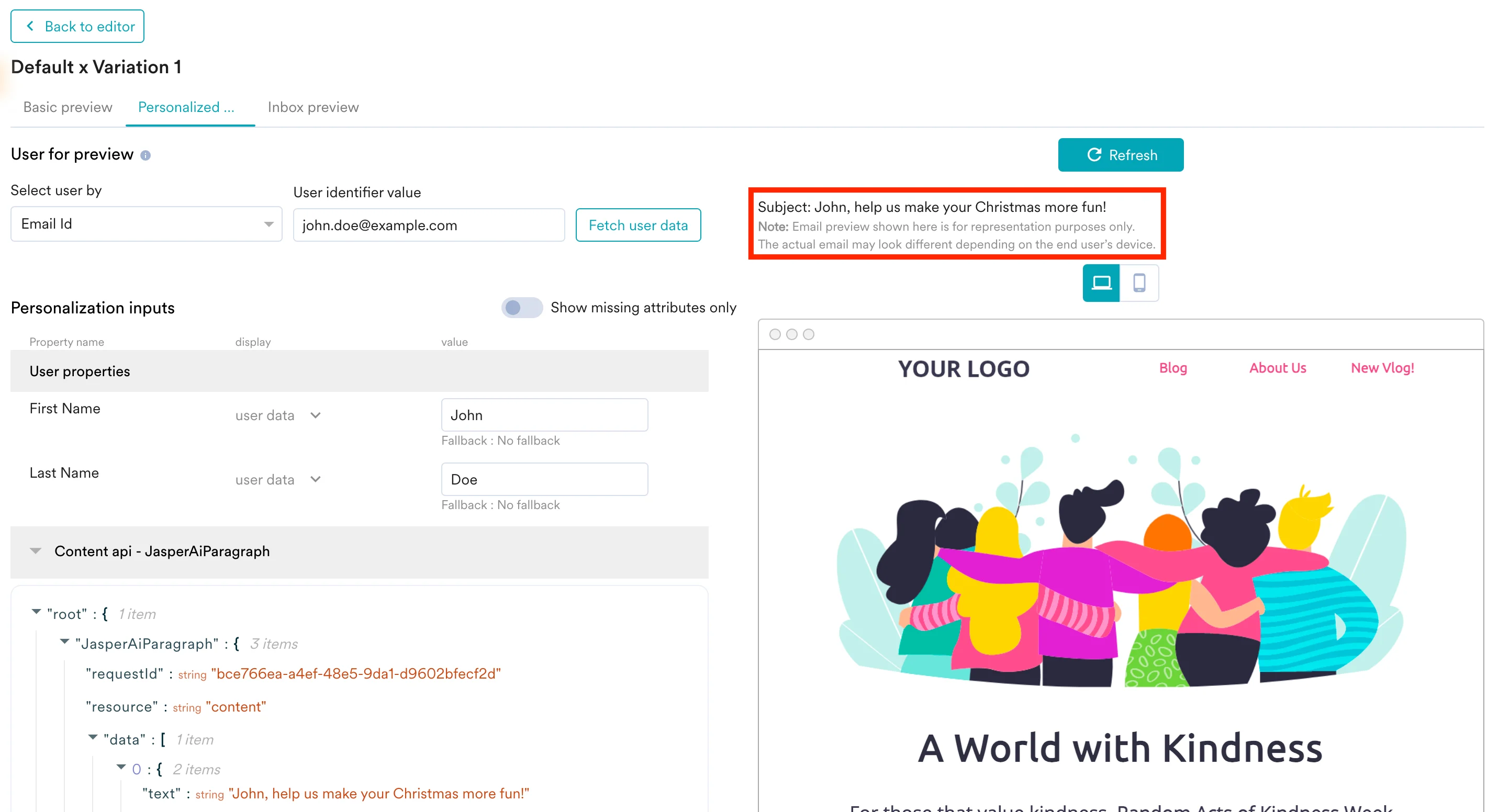 5. You can go ahead and Publish the campaign.