> ## Documentation Index
> Fetch the complete documentation index at: https://moengage.com/docs/llms.txt
> Use this file to discover all available pages before exploring further.
# Qualtrics
# Introduction
[Qualtrics](https://www.qualtrics.com/) is a CXM platform that focuses on collecting, organizing, and understanding important data relative to customers.
# MoEngage × Qualtrics
The Qualtrics survey tool makes it easy to get answers to your most important marketing, branding, customer, and product questions, with easy-to-use tools that can handle everything from simple customer feedback questionnaires to detailed research projects. With the MoEngage and Qualtrics Integration, you can:
* Distribute your Qualtrics surveys to your users when MoEngage captures an event.
# Integration
**Prerequisites**
* You would need to know your [Qualtrics API token](https://www.qualtrics.com/support/integrations/api-integration/overview/).
## Create Qualtrics distributions via MoEngage
With MoEngage's Connector Campaigns, you can create a distribution of your Qualtrics survey and send it to your users when they perform any action on your app or website.
To create a connector campaign on MoEngage:
1. Navigate to Create Campaign >> Connectors >> Custom and choose the delivery type most suitable to your needs. For this example, we will select "Event Triggered" and select the event as "Purchased". 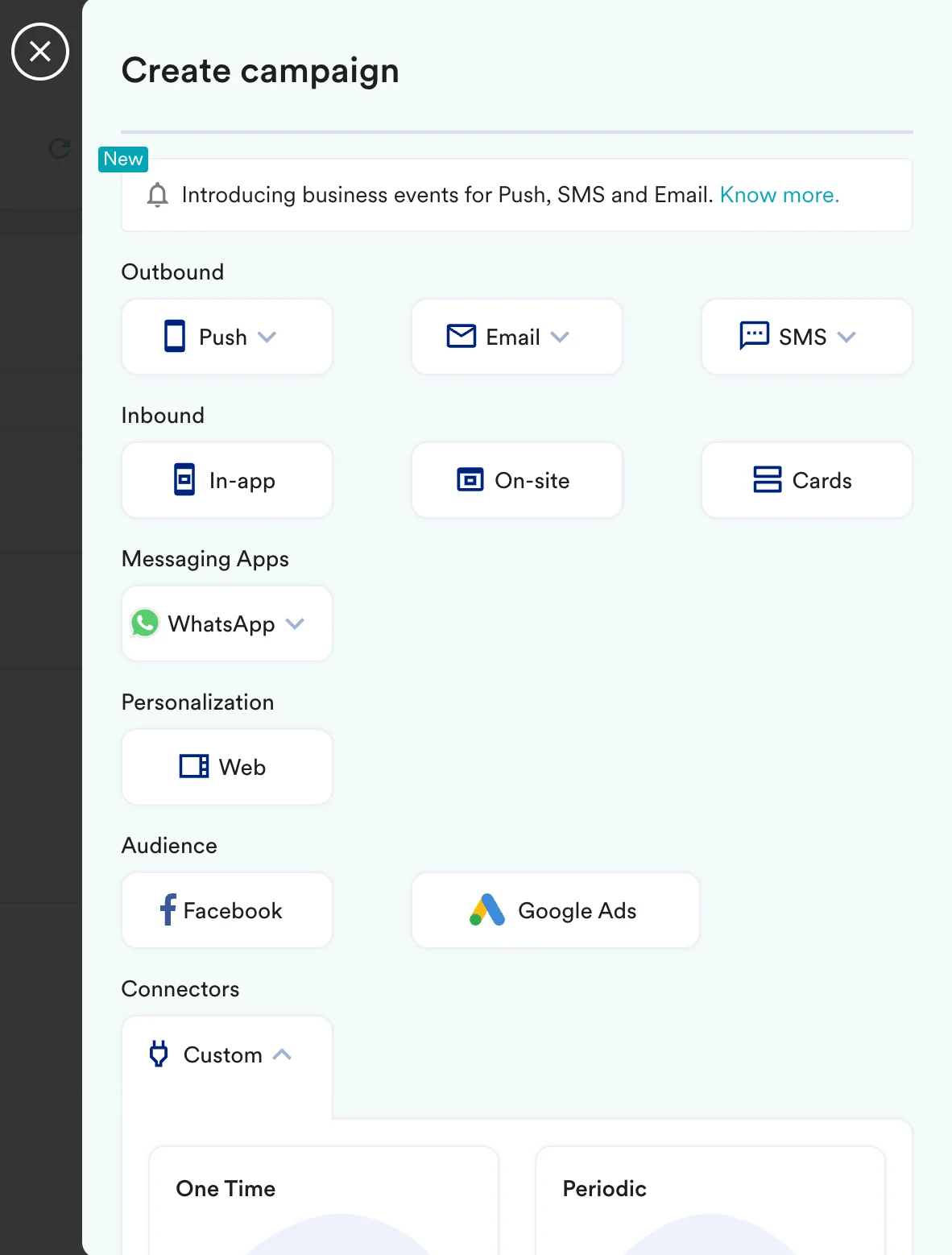 2. On step 2 of the campaign:
### Call the Qualtrics API
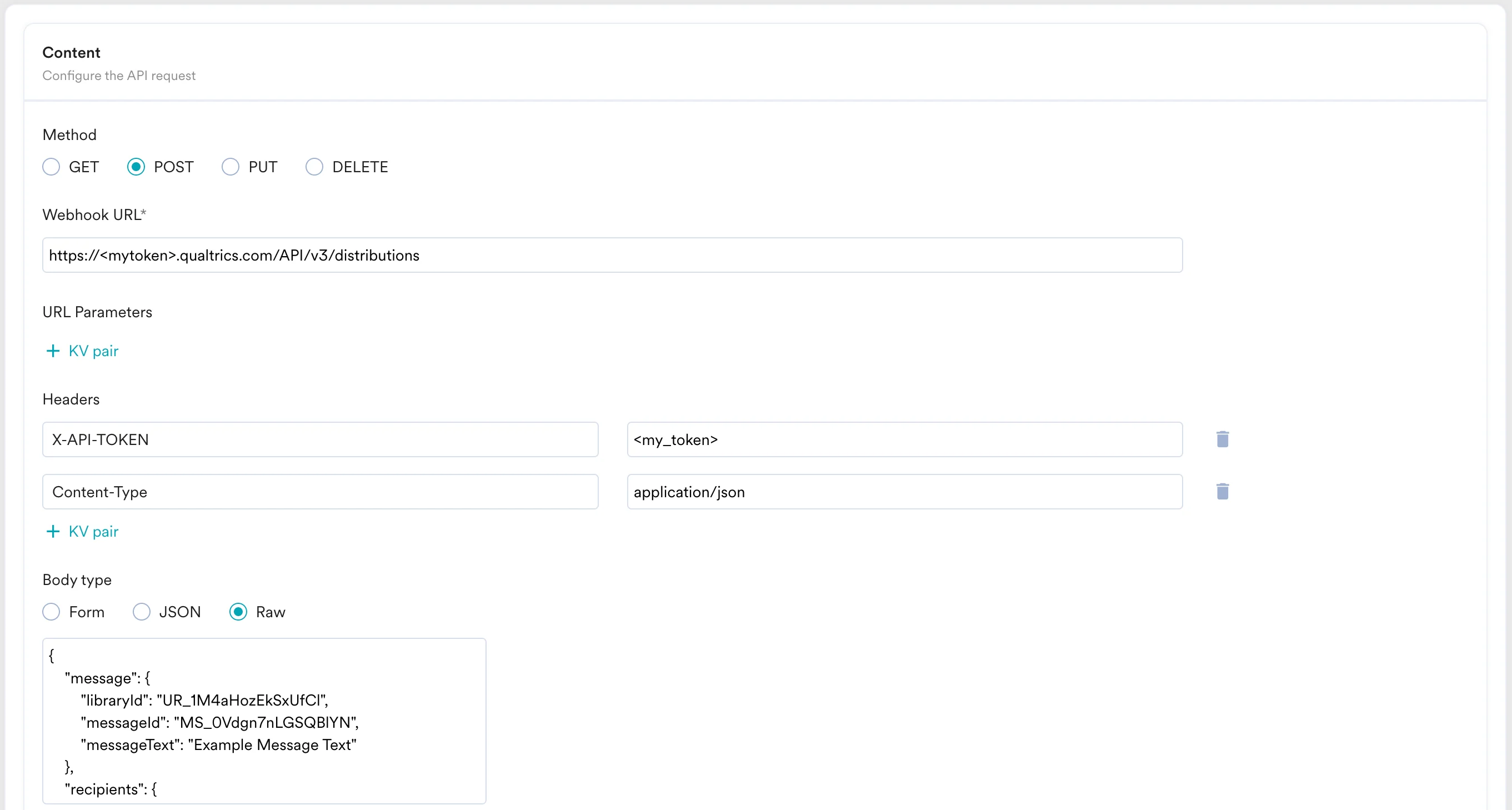
To send your survey, use the `POST` method and configure the payload.
* Select the method as POST
* Headers
* `X-API-TOKEN`: Insert your Qualtrics API Token.
* `Content-Type`: `application/json`
* Add the endpoint as Webhook URL: `https://.qualtrics.com/API/v3/distributions` - Your data center ID can be found out from [here](https://www.qualtrics.com/support/integrations/api-integration/finding-qualtrics-ids/).
* Body: Type @ to personalize your payload. Below is an example:
```json JSON theme={null}
{
"message": {
"libraryId": "UR_1M4aHozEkSxUfCl",
"messageId": "MS_0Vdgn7nLGSQBlYN",
"messageText": "Example Message Text"
},
"recipients": {
"contactId": "{{UserAttribute['Qualtrics_ID']}}"
},
"header": {
"fromEmail": "apiexample@qualtrics.com",
"replyToEmail": "apiexample@qualtrics.com",
"fromName": "Test Name",
"subject": "Example Subject"
},
"surveyLink": {
"surveyId": "SV_cHbKMOdeT8NetF3",
"expirationDate": "2019-08-24T14:15:22Z",
"type": "Individual"
},
"embeddedData": {
"property1": "string",
"property2": "string"
},
"sendDate": "2019-08-24T14:15:22Z"
}
```
2. On step 2 of the campaign:
### Call the Qualtrics API
To send your survey, use the `POST` method and configure the payload.
* Select the method as POST
* Headers
* `X-API-TOKEN`: Insert your Qualtrics API Token.
* `Content-Type`: `application/json`
* Add the endpoint as Webhook URL: `https://.qualtrics.com/API/v3/distributions` - Your data center ID can be found out from [here](https://www.qualtrics.com/support/integrations/api-integration/finding-qualtrics-ids/).
* Body: Type @ to personalize your payload. Below is an example:
```json JSON theme={null}
{
"message": {
"libraryId": "UR_1M4aHozEkSxUfCl",
"messageId": "MS_0Vdgn7nLGSQBlYN",
"messageText": "Example Message Text"
},
"recipients": {
"contactId": "{{UserAttribute['Qualtrics_ID']}}"
},
"header": {
"fromEmail": "apiexample@qualtrics.com",
"replyToEmail": "apiexample@qualtrics.com",
"fromName": "Test Name",
"subject": "Example Subject"
},
"surveyLink": {
"surveyId": "SV_cHbKMOdeT8NetF3",
"expirationDate": "2019-08-24T14:15:22Z",
"type": "Individual"
},
"embeddedData": {
"property1": "string",
"property2": "string"
},
"sendDate": "2019-08-24T14:15:22Z"
}
```
 * Refer to the [Qualtrics API documentation](https://api.qualtrics.com/) for more information.
* You can test your campaign on this step.
* Once ready, you can go ahead and publish this campaign.
* Refer to the [Qualtrics API documentation](https://api.qualtrics.com/) for more information.
* You can test your campaign on this step.
* Once ready, you can go ahead and publish this campaign.